User Manual
Doc-To-Help
Standard Manual
by Robelle Solutions Technology Inc.

Program
and manual copyright © 1977-2005 Robelle Solutions Technology Inc.
Permission
is granted to reprint this document (but not for profit), provided that
copyright notice is given.
Updated
Friday, August 08, 2008
Qedit
and Suprtool are trademarks of Robelle Solutions Technology Inc. Windows is a
trademark of Microsoft Corporation. Other product and company names mentioned
herein may be the trademarks of their respective owners.

Robelle Solutions Technology Inc.
7360 – 137 Street, Suite
372
Surrey, B.C. Canada
V3W 1A3
Phone: 604.501.2001
Fax: 604.501.2003
E-mail: sales@robelle.com
E-mail: support@robelle.com
Web: www.robelle.com
Contents
Welcome to Qedit 1
Introduction. 1
Documentation. 2
Change
Notice. 2
Printed
Documentation. 2
Documentation
Download. 2
Other Documentation. 2
Printdoc Program.. 2
Other Manuals of Interest 2
Customer Support 3
Robelle Newsletter 3
QLIB and Bonus Contributed Software. 3
Notation. 4
New to Qedit 5.8. 5
Installing Qedit 7
General Installation Notes. 7
Who Should Use These Instructions?. 7
Summary of Installation Steps. 7
Qedit Compiler Interfaces. 7
Important Note About Passwords. 8
STREAMX Users. 8
Step 1: Install Qedit 8
Step 2: Install QLIB and Bonus Programs. 9
Building the Spell Dictionary. 10
Step 3: Install NM Compiler Interface. 10
Installing the Interface. 10
Compiling Instructions. 11
Step 4: Install CM Compiler Interface. 11
Choosing a CM Installation Method. 11
Integrating CM Compiler Changes. 11
Isolating CM Compiler Changes. 12
Step 5: Saving Disc Space. 12
Purging Obsolete Files. 12
Minimal Set of Files. 12
Moving Qedit to Another Account 13
Moving All the Files. 13
Redirecting the File Names. 14
Moving a "Hooked" Qedit 14
Running the MPEXHOOKed Qedit 14
Removing the Compiler Interface. 15
Removing the NM Interface. 15
Removing the Integral CM Interface. 15
Removing the Isolated CM Interface. 16
Getting a Quick Start with HP Full-Screen Editing 17
Introduction. 17
Starting Visual Mode. 18
Screen Layout 19
Home Line. 19
Status Line. 19
Text Lines. 19
Template Line. 19
Special Indicator Columns. 20
Using Your Keyboard. 20
Moving the Cursor 20
Editing the Text Lines. 20
Control Functions. 21
Reflection for DOS Keyboards. 21
Other PC Keyboards. 22
Function Keys. 22
Browsing Through Your File. 23
Cut-and-Paste. 24
Cutting Operations. 24
Pasting Operations. 25
Resetting Cut-and-Paste. 25
Copying a Block of Text 25
Cut-and-Paste Between Files. 26
Dividing and Gluing Operations. 26
Dividing Lines in Visual Mode. 26
Gluing Lines in Visual Mode. 27
Excluding Lines From Visual Mode Display. 27
Justifying Lines in Visual Mode. 28
Renumbering Lines. 28
Inserting Blank Lines. 28
Hold Files. 28
Marking Changes Without Using Line Numbers. 28
Paste from a Non-Qedit File. 29
Home Line Commands. 29
Finding Strings. 29
Changing Strings. 30
Help on Visual Mode. 30
Compile, Link, and Run. 30
Formatting Paragraphs. 31
Undoing Changes in Visual Mode. 31
Refreshing the Screen. 31
Other Line Mode Commands. 31
Truncated Home Line. 32
Exit from Visual 32
Getting a Quick Start with Line Mode Editing 33
Introduction. 33
Adding Lines to a File. 33
Looking at the File. 34
Browsing the File. 35
Searching the File. 35
Editing Lines. 36
Global Changes. 37
Copying Lines. 38
Moving Lines. 38
Deleting Lines. 39
Help Command. 39
Saving the File. 40
Open and Shut for Instant Access. 40
Running Qedit under MPE 41
Introduction. 41
Edit in Line Mode or in Full-Screen Mode. 41
Edit Several Files at Once. 42
Qeditmgr Configuration Files. 42
Limiting Compile Priority. 43
Default Set Commands. 43
Using Qedit in Batch. 43
Summary of Parm= Values. 44
From the Posix Shell 44
Exit and Entry Options. 44
Exit with Verify. 45
Info= First File to Edit 45
Random Name for Primary Scratch File. 45
"Discard Changes?" on Exit 45
Info= "-p 99" Specifies Parm Value. 45
Info= "-c cmdstring". 46
Parm 512 to Edit a Single File. 46
Info= An Empty File to Fill 47
Info= Temporary File. 47
Info= Can Create New Files. 47
Parm Values to Suspend or Not 47
Info= Commands Only. 48
Basicentry Option. 48
JCWs That Drive Qedit 49
RCRTMODEL JCW... 49
RPCVERSION JCW... 50
RCRTWIDTH JCW... 51
RCRTSTRAPSGH for Handshaking. 51
RLABELDEFAULT JCW... 53
QEDITMGRTRACE JCW... 53
QEDPARMBITS JCW... 53
QEDCURWFILE Variable. 54
QEDSTOREDPWD and QEDPROMPTEDPWD Variables. 54
Qedit for Microsoft Windows 55
Introduction. 55
Server Process. 55
Logon Sequence. 55
QEDSERVMODE JCW... 56
Log Files. 56
Qedit Issues and Solutions 59
Running Qedit with Reflection. 59
RPCVERSION JCW... 59
Using a Command File to Start Up. 59
Alt-Y vs. :Reflect 60
Qedit and Reflection File Transfers. 60
Form Feed Causing Return/Line Feed. 61
Typeahead and Visual Mode. 61
Completion Codes. 61
Controlling the PC.. 62
Accidental Exit from Reflection. 62
Changing the Exit Keystroke. 62
Running Qedit in MPE/iX.. 63
Unresolved Externals on MPE/iX 4.0. 63
Compiling on MPE/iX.. 63
XDB: the Symbolic Debugger 63
Command Files and Variables. 64
Visual Mode. 64
EOF vs. LIMIT.. 64
Disc Space for Files and Xltrim.. 64
Extents. 64
Qedit as the HPDesk Editor 65
Configuring HPDesk. 65
Configuring Qedit in HPDesk. 65
DeskQed. 65
Getting Programs to Read Qedit Files. 66
Qinput 67
Qcompxl 67
Qeditaccess Subroutine. 67
Qedify. 67
Qedify and $Include. 68
Editing Wide Files. 69
Using the New Command. 69
Using the Text Command. 69
Lines, Strings and Ranges. 70
Using Qedit with MPE Programming Languages 73
Introduction. 73
Editerr: Trapping Compiler Errors. 73
Limitations and Restrictions. 74
Linking PowerHouse with Qedit 75
Invoking PowerHouse from Qedit 75
Configuring Qedit as Your Editor 76
Editing PowerHouse Subfiles. 77
COBOL. 77
Selecting a Compiler 77
Sequence Numbers and Comments. 77
Tagging Source Changes. 78
Copylib Members. 78
Trapping Syntax Errors. 78
FORTRAN.. 78
Pascal 79
C Language. 79
SPL. 80
TRANSACT.. 80
RPG.. 80
BASIC.. 81
Segmenter 81
Common Uses of Qedit 83
Introduction. 83
Qedit as Word Processor 83
QNote UDC for Occasional Memos. 83
Justify Capability. 83
Check Spelling. 84
Prose: A Text Processor 85
Using TDP from within Qedit 86
Qedit as a File Utility. 86
Sorting a Range of Lines. 86
Searching Groups of Files for Strings. 86
Editing Data Files. 87
Editing Program Files. 89
Qedit as an Operations Tool 89
Editing Stream Files. 89
Native-Mode Output Spool Files. 90
Editing Bells, Tabs and Escapes. 90
Aborting All Users to Back Up. 90
Qedit Commands 93
Introduction. 93
General Notes. 93
Abbreviations. 93
Uppercase or Lowercase. 93
Multiple Commands per Line. 94
Comments on Command Lines. 94
STREAMX Warning. 94
Stopping Commands with Control-Y.. 95
Implicit Commands. 95
Function Keys. 95
Command Files and UDCs. 96
MPE Commands. 96
Differences from MPE. 96
Calculator Commands. 97
QEDITCOUNT JCW... 97
QEDCURWFILE Variable. 97
External Program Commands. 97
:Activate Command [AC/:A] 98
Add Command [A] 99
Add (Adding New Lines) 99
Add (Adding a String as a Line) 101
Add (Copying Lines within a File) 101
Add (Moving Lines within a File) 102
Add (Copying Lines Between Files) 103
Append Command [AP] 105
Backward Command [BA/F5] 106
Before Command [B] 107
:Beginfile and :Endfile Commands. 109
Change Command [C] 110
Change (Changing Strings) 110
Change (Changing Columns) 113
Close Command [CL] 114
Colcopy Command
[COL] 115
Colmove Command
[COLM] 118
:Compile Command [CO/:C] 121
Delete Command [D] 124
Destroy Command [DES/:D] 126
:Display Command [DISPLAY] 127
Divide Command [DI] 128
:Do Command [DO] 129
:Editerror Command [EDITERROR] 130
:Escape Command [ESCAPE] 132
Exit Command [E/F8] 133
Find Command [F/F4] 134
Findup Command [FINDU/F3] 136
Form Command [FORM] 137
Forward Command [FO/F6] 138
Garbage Command [GAR] 139
Glue Command [G] 140
Help Command [H/?] 141
Hold Command [HO] 142
:If, :Endif, :Else, :Elseif Commands. 143
Justify Command [J] 144
Keep Command [K] 150
:Kill Command [KI/:K] 154
List Command [L] 155
:Listredo Command [LISTREDO/F7] 167
:Listundo Command [LISTU] 168
Lsort Command [LS] 169
Merge Command [ME] 170
Modify Command [M] 172
New Command [N] 181
Open Command [O] 182
:Pause Command [PAUSE] 186
:Prep Command [PREP/:P] 187
Proc Command [P] 189
Q Command [Q] 191
/Qedit Command. 192
:Qhelp Command [QHELP] 193
:Redo Command [REDO] 194
:Reflect Command [REFLECT] 196
Renumber Command [REN] 198
Replace Command [R] 199
:Return Command [RETURN] 201
:Run Command [RU/:R] 202
Run, Implied. 205
:Segmenter Command [SEG/:S] 206
Set Command [S] 207
Account 209
Alias. 209
Autocont 211
Check. 211
Decimal 212
DL size. 212
Editinput 212
Expandtabs. 213
Extentsize. 213
Extprog. 214
Filename. 214
FORTRAN.. 215
HFS. 215
Halfbright 216
Hints. 216
Hppath. 216
Increment 216
Interactive. 217
Justify. 217
Keep. 217
Language. 222
Left 224
Length. 224
Lib. 224
Limits. 224
List 225
Maxdata. 225
Modify. 226
Open. 227
Pattern. 228
Priority. 228
Prompt 229
Redo. 229
Right 230
RL file name. 230
Shift 231
Spell 231
Statistics. 232
Stringdelimiters. 232
Suspend. 233
Tabs. 233
Term.. 234
Text 235
Totals. 236
UDC.. 236
Undo. 237
Varsub. 237
Visual 238
Warnings. 248
Whichcomp. 248
Window.. 249
Work. 250
Wraparound. 251
X.. 252
YNone. 255
Zip. 255
Shut Command [SH] 257
Spell Command [SP] 258
:Stream Command [STREAM] 260
:Tdpfinal and :Tdpdraft Commands. 261
Text Command [T] 262
Undo Command [UN] 269
Up Command [UP/F2] 271
Use Command [U] 272
Verify Command [V] 273
Visual Command [VI/F1] 274
:While and :Endwhile Commands. 275
Words Command [W] 276
:Xltrim Command [XLTRIM] 277
Zave Command [Z] 278
ZZ Command. 279
User Defined Commands. 280
Command Files. 285
Calculator Command [=] 288
POSIX Commands [!] 291
Troubleshooting and Error Messages 293
Introduction. 293
Messages. 293
System Errors. 295
Quit Errors. 295
Errors in Visual 296
Using Visual with X.25. 296
Using Visual on MPE/iX.. 296
Accidental Invocation of MPE/iX CI 296
Using Visual on HP-UX.. 297
Terminals Supported by Visual 297
Problems with 700/9x Terminals. 297
Visual Error Messages. 297
Analyzing Compiler Problems. 299
QCOMPXLTRACE JCW... 299
Control-Y and NM Compiles. 300
How to Bypass Qcompxl 300
Problems with HP's C Compiler 300
Unresolved External Reference. 300
Illegal Characters. 300
Pascal/V Compiler Stack Overflow.. 300
File Formats 303
Introduction. 303
Qedit Workfiles. 303
Original Format Workfiles. 303
Jumbo Workfiles. 304
External Files. 305
Error Files for Editerror 307
Prefix Characters & Data. 307
User Routines 309
Introduction. 309
Wide Lines and User Procedures. 309
"Init" Interface Procedure. 310
"Com" Interface Procedure. 311
"Add" Interface Procedure. 312
"Exit" Interface Procedure. 312
Installing Your Interface Procedures. 313
Alternate Activation. 313
The Modify User Hook. 314
Writing a User Procedure. 314
DL Space. 315
Passing Procspace Values. 315
Communication Flags for User Code. 315
Qcopy 317
Introduction. 317
Accessing Qcopy. 317
Qcopy Documentation. 317
Qedit-Compatible Software Tools 319
Introduction. 319
Compare/iX.. 319
OMNIDEX.. 319
Adager 320
CCS - Corporate Computer Systems. 320
Reflection. 320
ROBOT.. 320
PowerHouse. 320
Splash for Native-Mode SPL. 321
Prose Text Formatter 321
Spell: Spelling Checker 321
Qhelp Help System.. 321
TRANSACT.. 321
MPEX and STREAMX.. 321
SCOMPARE and ANALYZER.. 322
Xpedit Full-Screen Editor 322
Nuggets. 322
Fantasia. 323
TDP. 323
Network Engine. 323
Regular Expressions 325
Introduction. 325
Metacharacters. 325
Character Class. 327
Escape Character 329
Escaped Sequences in Regular Expressions. 329
Backreferences in Regular Expressions. 330
Escaped Characters in Replacement String. 331
Qedit Glossary 333
Introduction. 333
Terms. 333
Abbreviating. 333
Batch. 333
Calculator 334
Column. 334
Command. 334
Control Character 335
Copylib Members. 335
CRT.. 336
Current Line. 336
Defaults. 336
External File. 336
File Names. 337
Full-Screen Editing. 337
Hold File. 338
J Option. 338
Jumbo Files. 338
Keep File. 338
Language. 338
Left 339
Length. 339
Line. 339
Linenum.. 339
Looping. 340
Margins. 340
Member 340
Memory Lock. 341
MPE Command. 341
Patterns. 341
Procedure. 342
Qeditscr 342
Quiet-Q Option. 342
Range. 343
Rangelist 343
Relative Line Numbers. 344
Right 345
Shifting. 345
Size. 345
Spool Files. 345
$Stdin / $Stdinx. 346
$Stdlist 346
String. 346
Tab. 346
Template-T Option. 347
UDC.. 347
Visual Editing. 347
Window.. 347
Workfile. 348
Special Characters. 348
? Means Help, Nonprinting Characters,
Alphanumeric (in Patterns) or Optional (in Regexp) 349
$ Means Hex, Standard File, Memory Lock, List
Option, Previous File or End-Of-Line (in Regexp) 349
^ Means Findup, Control-Char, Start-of-line (in
Regexp) or Negate (in Regexp) 350
. Means Nonprinting, Reset, Decimal Point or Any
Character (in Regexp) 350
! Means Posix Command or Too Long. 350
% Means Octal or String. 351
* Means Current, Refresh, Multiply or Quantifier
(in Regexp) 351
\ Means Previous, String, Literal Match (in
Regexp) or Special Characters (in Regexp) 352
/ Means Prompt, Range Delimiter, Stop, Exit, or
Divide. 352
[ Means FIRST, [default] or Start Class (in
Regexp) 353
] Means LAST or End Class (in Regexp) 353
{ } Are for Comments or Indentation. 353
@ Means ALL. 353
& Means Literal Match or Continue MPE Command. 354
: Means MPE or String. 354
; Means Multiple Commands. 354
, Means a List 355
= Means Copy or Calculate. 355
< Means Move, I/O Redirection or Backward Page. 355
> Means Forward Page, I/O Redirection, Modify
or Qhelp. 355
" Means String. 356
( Means Start Parameter, Member, Command or
Subpattern (in Regexp) 356
) Means End Parameter, Member, Command or
Subpattern (in Regexp) 356
+ Means Ahead Some Lines, Add or Quantifier (in
Regexp) 356
- Means Back Some Lines, Minus or Range (in
Regexp) 357
# Means Numeric Pattern, Spool File or Previous
Result 357
~ Means Spaces (Pattern), Recent Page or Field. 357
Welcome to Qedit, the fast, full-screen text editor for
MPE and HP-UX. To get into Qedit, enter this MPE command:
Qedit version 5.8 has screen-editing,
function keys and commands:
Commands:
|
Add
|
FINDUp
|
Open
|
ZZ
|
|
Add(=copy)
|
FORM
|
Proc
|
%ext
|
|
Add(<move)
|
FORward
|
Q
|
shell
|
|
Add(=file)
|
GARbage
|
REDO
|
|
|
Append
|
Glue
|
RENum
|
|
|
BAckward
|
Help
|
Replace
|
|
|
Before
|
HOld
|
Set
|
|
|
Change
|
Justify
|
SHut
|
|
|
COLcopy
|
Keep
|
SPell
|
|
|
COLMove
|
List
|
Text
|
|
|
Delete
|
LISTREDO
|
UNDo
|
COmp
|
|
DEStroy
|
LISTUndo
|
Use
|
RUN
|
|
Divide
|
LSort
|
Verify
|
Mpe
|
|
DO
|
MErge
|
VIsual
|
Udc
|
|
Exit
|
Modify
|
Words
|
Cmdfile
|
|
Find
|
New
|
Zave
|
=calc
|
Function Keys:
|
F1 Upd
Next/Visual
|
F2 Roll Up
|
F3 Findup
|
F4 Find
|
|
F5 Backward
|
F6 Forward
|
F7 Do ===>
/LISTREDO
|
F8 Exit
|
Qedit
comes with a User Manual and a Change Notice. You may have received printed
copies of these. If you wish to have printed copies, you can order them by
filling out the form on our web site.
For a complete description of the latest changes made to
Qedit, the installation instructions, and any compatibility issues, see the
change notice that was included with the release.
The
latest user manual and change notice are available in Adobe PDF format. If you
do not already have the Adobe Acrobat reader, you can get a copy from http://www.adobe.com/prodindex/acrobat/readstep.html.
If you wish to have printed copies, you can order them by filling out the form
on our web site.
You can
download the files from the Robelle web site at http://www.robelle.com/library/manuals/.
In addition to the Qedit User Manual and Qedit Change
notice, there are other manuals that
come with Qedit. Manuals for bonus programs and the contributed library are
available in Robelle's Prose format, not in PDF format. They are found in the Robelle account on the HP e3000, and
are printed using the Printdoc program.
Printdoc prints the manual on your printer, whether LaserJet or line printer.
To print them on your printer, whether LaserJet or line
printer, run the Printdoc program.
:run printdoc.pub.robelle
Printdoc is menu-driven, and very easy to use. Printdoc
asks you for information, and if you are not sure of your answer, you can ask
for help by typing a question mark (?) and pressing the Return key. There are
two steps for printing a manual: first, choose one of the manuals on the menu;
second, select a printer. Printdoc supports most types of LaserJet printers and
regular line printers.
You may want to print at least one copy of these manuals:
prose.qlibdoc.robelle {text formatter}
spell.doc.robelle {Bonus spelling checker}
contents.qlibdoc.robelle {contributed library}
howmessy.doc.robelle {Bonus database analyzer}
You can print any Robelle document if you know the file
name. If you wish, you can include the file name in the :Run command. For
example, to print the Spell User Manual, type
:run
printdoc.pub.robelle;info="spell.doc.robelle"
When you purchase Qedit, customer support is included for
the first year. After the first year, there is a yearly Maintenance fee. If you
are a Right-to-Copy user at a branch of a larger company, you have two options.
If you pay only the one-time Extra CPU surcharge, then you must obtain your
support from your own corporate resources. If you wish to have support at your
own location, you may obtain this by also paying the regular Maintenance fee.
With this yearly support for Qedit, you are entitled to call with questions.
Service also supplies you with a yearly update to Qedit.
Do you receive a copy of What's Up, DOCumentation?, our regular news memo about Robelle,
MPE, and HP-UX? We distribute our news memos only to sites with current
service. Your copy may be going to your corporate headquarters.
The lastest newsletter is also available from our Web site
at www.robelle.com/newsletter/.
Qedit comes with an array of
contributed software in the QLIB library (in the QLIB groups of the Robelle
account). The tools in QLIB, such as Prose to print manuals, can be extremely
handy. As well, your Robelle license may entitle you to receive our Bonus
programs: Compare/iX, a file comparison tool, HowMessy, an analyzer for
database efficiency, Select, a menu processor, Spell, an English spelling
checker, and Xpedit, a VPLUS text editor.
If you have the Bonus programs, you may only use them on
appropriately licensed CPUs; you may not give a Bonus program away. However,
QLIB programs may be used on any CPU and given away freely.
To browse through the Robelle
account, including QLIB, use our Select "menu" program. Select allows
you to run programs, get help, and print manuals, all without knowing any MPE
commands.
:run select.pub.robelle,qlib
Compare/iX compares two text files (Keep or Qedit format) and
prints out the differences. The basic comparison unit is a line. Compare/iX
identifies three types of differences: lines that are in the first file but not
in the second; lines that are in the second file but not in the first; and
lines that are in both files, but don't match. There is no Classic version of
Compare/iX for MPE V.
HowMessy analyzes a database and prints a report on its internal
efficiency, 10 to 20 times faster than similar programs. To access HowMessy,
log on as the database creator in the same group as the database and enter:
:file loadrept;dev=lp;cctl
:run howmessy.pub.robelle
Enter database:CUSTMR
Spell is a spelling checker that reads a file and produces a list
of misspelled words. Spell comes with an 80,000 word English dictionary, and
you can add your own words into global or local auxiliary dictionaries. Spell
reads Qedit files, and has an option to generate an error file that is
compatible with the :Editerror command.
This manual uses a standard
notation to describe commands. Here is a sample definition:
VERIFY [ @ | ALL ]
[ keyword ...]
1.
UPPERCASE - If the commands and keywords are shown in
uppercase characters in a syntax statement, they must be entered in the order shown (example: ALL). However,
you can enter the characters in either uppercase or lowercase.
2.
Lowercase,
highlighted - These are "variables" to be filled in by the user
(example: keyword). The variables may
be highlighted by underlining or italics. Each such "variable" is
defined elsewhere (see the "Qedit
Glossary" on page 341 when you have trouble). In the Help
command, highlighting is not available, so these variables appear simply in
lowercase.
3.
Brackets - enclose optional fields (example: [ALL]).
4.
Braces - enclose comments which are not part of the
command. However, braces and comments are accepted in actual Qedit commands.
/listq filename {Q means without line numbers}
5.
Up lines - separate alternatives from which you select
(example: SET CHECK [ON|OFF]). The choices are sometimes listed on several
lines without "up lines".
6.
Dot-dot-dot (...) - indicates that the variable may be
repeated many times in the command.
7.
Other special characters - literal symbols that must
appear in the command as they appear in the manual (for example, "="
in Add linenum = rangelist).
In examples, there is an implied Return key at the end of
each line.
Control characters, generated
by holding down Control while striking another key, are either spelled out
(e.g., Control-H) or abbreviated with a circumflex prefix (e.g., ^H).
When Qedit asks you a
question, the default answer is shown in [brackets]. The default is the answer
that Qedit will assume if you press only the Return key.
Here are a few highlights of
the new features in Qedit. For a complete list of changes, plus details on how
to take advantage of all the new features, see the change notice that
accompanied your tape. See the "Documentation" section on page 2 for
instructions on how to print the change notice. All changes discussed in the
change notice have been incorporated into the user manual and help file, but
the change notice gives you everything new in one convenient document.
This section describes the latest enhancements to
host-based Qedit and the server portion of Qedit for Windows. For information
about enhancements to the client portion of Qedit for Windows, see the Qedit for Windows User Manual.
·
Text command. The text command would fail with
Integer Divide by Zero error when texting in some variable length or bytestream
files.
·
Regular Expressions. Qedit would improperly
report the error "String longer than maximum allowed" if the
expression specified is longer than the window of the rangelist.
Here we describe how to
install and configure Qedit, and how to integrate it with your compiler tools.
The following are general notes about installing Qedit.
Use the following installation instructions if you have just purchased
Qedit and are installing it for the first time. If you already have Qedit on
your system, and are installing an update or pre-release of Qedit, you will
find specific installation instructions in the change notice included with your
tape.
TRIAL USERS: Refer
to the Robelle Trial Handbook that accompanied your trial tape.
To install Qedit, follow these steps:
1.
Install Qedit
2.
Install the QLIB and/or Bonus programs
3.
Fix the NM compilers (XL only)
4.
Fix the MPE V compilers (both systems)
5.
Save disc space (optional)
Qedit edits compact files of a special format called workfiles. In order to be able to
compile these files without doing a Keep command, you must "fix" the
MPE compilers. This applies to the Classic 3000 compilers (CM), which might
exist on either an MPE V or MPE/iX system, and the NM compilers on MPE/iX only.
The methods and installation steps are quite different between the CM and NM
Qedit compiler interfaces.
Many third-party tools either read Qedit files already
(e.g., PowerHouse, MPEX) or can be altered to read Qedit files (techniques for
doing this are discussed here).
None of the jobs that we supply have passwords in them.
Before streaming a job, you may have to add your system's passwords to the
first line. Users of MPE XL version 3.0 and higher do not have to do this
because the operating system prompts for missing passwords. The same is true
for some MPE V users who have security software that inserts passwords. Most
MPE V users have to edit the jobs. For example, if the system manager logon
password is Qwerty, you would do the following:
:editor
HP32201A.07.22 EDIT/3000
/text robelle.job.robelle
FILE UNNUMBERED
/modify 1
MODIFY 1
!job robelle,manager.sys,pub;hipri
i/qwerty
!job
robelle,manager.sys/qwerty,pub;hipri
/keep robtemp
/exit
END OF SUBSYSTEM
:stream robtemp
:purge robtemp
Users of STREAMX, a part of SECURITY/3000 from VESOFT
Inc., must set a Job Control Word before streaming jobs. This step prevents
STREAMX from generating an error if the Robelle account does not yet exist. For
example,
:setjcw streamxtempnonest 1
:stream robelle.job.robelle
This step requires three separate procedures: restoring
all Robelle files from tape to disc, building (or upgrading) the Robelle
account using the job stream that we provide, and streaming the installation
job stream. All these procedures can easily be accomplished if you log on as
Manager.Sys.
Restore Files
First, you have to restore all
the Robelle files from tape.
:hello manager.sys {log on as system manager}
:file rtape;dev=tape {mount
Robelle tape}
:restore *rtape; @.@.@; create {=reply on the console}
Check the :Restore listing for
files that could not be restored because they were busy for any of the
following reasons: someone was using them, they are held as suspended son
processes (menu system), they are allocated, or someone was backing them up!
Chase away any users and deallocate any busy programs. Then try the :Restore
again.
Create/Update
Robelle Account
You must build (or upgrade)
the Robelle account with the job stream we provide. Stream the job that builds
and updates the Robelle account.
:stream robelle.job.robelle
If the Robelle account already exists on your system, the
installation job preserves the current passwords.
If the account does not exist, it is created with the
password XXXX. The Mgr.Robelle user does not have a password. You should change
the passwords to something that will be hard for outsiders to guess.
:altacct robelle;pass={robelle account password}
:altuser mgr.robelle;pass={mgr.robelle user password}
Please note that during installation, we add OP capability
to the Robelle account. When the Qedit installation is complete, you can, if
you wish, remove the OP capability.
File Names
The Qedit program files are located in the Pub group of
the Robelle account. These are the names of the various files:
|
Qeditnm
|
|
NM Qedit program
|
|
Qeditcm
|
Qeditpm
|
CM Qedit programs
|
|
Qcompxl
|
|
NM compiler interface
|
|
Qedify
|
Qcompusl
|
CM compiler interface
|
|
Qloadxl
|
|
NM Qedit options
|
|
Ederrnm
|
Ederrcm
|
:Editerror support
|
|
Qmap
|
|
reformat MPE V PMAP
|
Install Program
Files
Our installation job installs Qedit. No one can be using
these programs when you do the installation. Warn people not to use Qedit for a
while, and then stream our installation job:
:hello mgr.robelle
:warn @;please exit from Qedit NOW!
:stream install.qeditjob {supply passwords}
Check the installation job $stdlist. If anyone was using
Qedit or attempting to back it up, the job will fail. Chase away any users,
ensure that backup is not in progress, then stream the installation job again.
The installation job renames your current versions of
Qedit to the PubOld group of the Robelle account. If you need to move these
versions back into production, use the Previous.QeditJob job stream.
You can now access Qedit by entering
If you wish to print manuals, move Qedit to another
account, read on in this chapter for instructions.
Qedit comes with an array of contributed software in the
QLIB library (in the QLIB groups of the Robelle account). QLIB programs may be
used on any CPUs and given away freely. Your Robelle license may also entitle
you to receive our Bonus programs: Compare/iX, HowMessy, Select, Spell, and
Xpedit. These programs reside in the Pub group of the Robelle account. Bonus
programs can only be used on authorized machines, and you may not distribute
them to your friends.
If you received Bonus programs
with this version of Qedit, use the job stream called Bonus.Job.Robelle to
install both the QLIB and Bonus programs. If you did not receive Bonus
programs, use the job stream Qlib.Job.Robelle to install the QLIB programs. If
you skip this step, you may end up running old versions of these programs.
:hello mgr.robelle
:stream bonus.job.robelle {or Qlib.Job.Robelle}
The Spell Bonus program
requires an additional install job to build its main dictionary. This job is
required if you want to use Spell, and the Spell and Words commands in Qedit.
By default, the American spellings are used. To use British spellings, modify
the line that sets the SpellAmerican JCW so that the JCW is set to False. This
job stream could take 30 to 60 minutes to complete; there is no reason to wait
for it to finish before going on to the next step.
:run qedit.pub.robelle {or use :Editor}
/text dictmain.spjob
/modify "setjcw
SpellAmerican" {for British
spelling, }
/keep robtemp { change True to False}
/exit
:stream robtemp
:purge robtemp
See the Spell user manual for more information on using
Spell.
On MPE/iX, if you use any NM
compilers, you will want to install the new NM compiler interface. If you still
use the CM compilers as well, you will want to install that compiler interface
too, as described under step 4.
Assuming
that you have Restored the Robelle files onto your system and that you have not
done this step before, stream Savecmdf.Qeditjob to make backup copies of the
existing HP command files in the Stdcmd.Sys group. You need to know the
Manager.Sys password:
:stream savecmdf.qeditjob.robelle
{wait for it to finish}
:listf @.stdcmd.sys
Then stream Qcompxl.Qeditjob
to make changes to the Pub.Sys compiler command files.
:stream qcompxl.qeditjob.robelle
This stream makes the following changes to the files:
1.
Change the run of the compiler program to
;xl ="qcompxl.pubnew.robelle,
qcompxl.pub.robelle",
2.
Add ";shr" to the File commands for the text
and master files.
At any point, either within
Qedit or at the MPE/iX prompt, you now should be able to compile a Qedit file
or a Keep file, just by invoking the normal command file:
:pasxl source {from MPE}
:run qedit.pub.robelle
/pasxl source {from Qedit}
Within Qedit, you can specify "*" for the
current workfile:
:run qedit.pub.robelle
/text source
/pasxl *
/exit
:pasxl qeditscr
When installing Qedit on
MPE/iX, you may have to install the NM compiler interface (described earlier)
and the CM compiler interface (described here). MPE V, on the other hand, has
only the original "CM" compilers to worry about. After Restoring the
files from tape, you have to choose an installation method: integral or
isolated.
There
are two methods of fixing the compilers on your system: integral into Pub.Sys
or isolated in the Robelle account. The isolated method is best for new or
trial-period users, because it is faster to install and easier to remove later.
You can start with the isolated method and convert easily to the integral
method later.
Integral
Method. The compilers in Pub.Sys are "fixed" directly and a
segment is added to the System SL. The standard :Cobol and :Pascal commands of
MPE will then compile Qedit workfiles. :Sysdump is used to make a new cold load
tape for the next time you must boot the system.
Isolated Method. The MPE compilers are copied into the Q.Robelle
group and the original compilers are left in the Pub.Sys group. No code is
added to the System SL. Because the "Qedit" compilers are not in
Pub.Sys, you cannot compile Qedit workfiles except from within Qedit.
The
job stream Qeditj1.Qeditjob.Robelle makes integral compiler fixes. Use it
either to update the fixes to a new version or to re-install the fixes after a
MPE update from HP. Because this job modifies the compiler program files in
Pub.Sys, you should :Store @.Pub.Sys before starting and save the tape. You
need another small tape for a new cold load tape.
Ensure that no one compiles until the installation is
complete. Stop all jobs and send an operator warning. Log on as Manager.Sys,
modify the first line of the Qeditj1 job to include the passwords, then :Stream
the job.
:stream qeditj1.qeditjob.robelle
The job runs
Qedify.Pub.Robelle to update the compilers in Pub.Sys and install nonprivileged
hooks into them, so that they can access Qedit workfiles. The job adds a code
segment from Qcompusl.Pub.Robelle into Sl.Pub.Sys and then requests a tape
mount for a new cold load tape.
Mount a tape with a write ring and :Reply. Save this tape
and use it for any future cold loads. The CM compiler interface is now
installed. Compiles done inside or outside Qedit work on either Qedit workfiles
or on regular Keep files.
The job stream
Qeditj1a.Qeditjob.Robelle fixes the compilers, but isolates the changes in the
Q.Robelle group. Ensure that no one compiles until the installation is
complete. Stop all jobs and send an operator warning. Modify the first line of
Qeditj1a to include the Robelle password, then stream the job:
:stream qeditj1a.qeditjob.robelle
The job uses Qedify.Pub.Robelle
to copy the compilers from Pub.Sys to the Q.Robelle group, then "fix"
them to read Qedit files. The original compilers in the Pub.Sys group are not
modified. Once this step is completed you can use the CM compilers on Qedit
files from within Qedit, but not at the MPE prompt.
There may be obsolete or
unnecessary files in the Robelle account that you can remove to save disc
space.
If you have been a Qedit user for several years, you may
have obsolete files in the Robelle account. For example, the file
Qapply.Doc.Robelle is an older version of part of the Qedit User Manual. It
should be purged.
To remove all obsolete files that were part of the Qedit
product, stream the job Obsolete.Qeditjob.Robelle.
If you are extremely short of
disc space, you can purge many files in the Robelle account after you complete
all installation steps. The only files you must have to run Qedit are those
listed below. Of course, if you have other Robelle products such as Suprtool,
you do not want to purge the files needed for them, which are listed in their
User Manuals.
|
Filename
|
Purpose
|
|
qedit.pub.robelle
|
|
|
qloadxl.pub.robelle
|
optional NM run-time
|
|
qeditpm.pub.robelle
|
allows BS priority
|
|
qcompxl.pub.robelle
|
MPE/iX only
|
|
qedify.pub.robelle
|
CM compiler interface
|
|
qcompusl.pub.robelle
|
CM compiler routines
|
|
@.q.robelle
|
copies of CM compilers
|
|
qedit.help.robelle
|
|
|
qedhint.help.robelle
|
|
|
qzmodhlp.help.robelle
|
|
|
qmap.pub.robelle
|
for QMAP in :Prep command
|
|
prose.qlib.robelle
|
to print manuals, you need this
|
|
f92286f.qlibdata.robelle
|
and at least one font files
|
There are a number of jobs in the Purgejob.Robelle group
which can help clean up the Robelle account of unwanted files. One in
particular that you may want to use is Cleanup.Purgejob.Robelle. After you have
completed the Qedit installation, Cleanup gets rid of all the pre-installation
files.
:stream cleanup.purgejob.robelle
Although the Qedit program
file is normally installed on the system Qedit.Pub.Robelle, you can move the
program to any account and group that has PH and DS capability. There are some
file names that are built into Qedit:
|
Filename
|
Purpose
|
|
qedit.help.robelle
|
the Qedit help text
|
|
qedhint.help.robelle
|
the hint-of-the-day file
|
|
qzmodhlp.help.robelle
|
help text for Qzmodify
|
|
qmap.pub.robelle
|
for QMAP option of :Prep
|
|
cobol.q.robelle
|
etc., the CM compilers
|
|
qeditmgr.pub.robelle
|
a configuration file
|
|
qloadxl.pub.robelle
|
NM run-time routines
|
Qedit follows the location of
the program file in deciding what file names to open. If you move the Qedit
program to the PUB group of the UTIL account, Qedit looks for the files listed
above in that account rather than Robelle. If Qedit resides in a group named
Pubnew (or Pubxxx), the three "help" files will be searched for in
HELPNEW (or HELPxxx). The Qeditmgr file is always assumed to be in the same
group as the Qedit program, while Qmap must be in the Pub group and the CM
compilers in the Q group.
:hello mgr.util,pub
:fcopy
from=qedit.pub.robelle;to=qedit.pub.util;new
:fcopy
from=qloadxl.pub.robelle;to=qloadxl.pub.util;new
:fcopy from=qedit.help.robelle;to=qedit.help.util;new
:fcopy from=qedhint.help.robelle; &
to=qedhint.help.util;new
:fcopy from=qzmodhlp.help.robelle;
&
to=qzmodhlp.help.util;new
:fcopy from=qmap.pub.robelle; &
to=qmap.pub.util;new
The Verify Account command
shows what account Qedit searches for the Qeditmgr file, Qmap.Pub, and the CM
compilers. Use Set Account to override the default. The Verify Filename command
shows the names assumed for the "help" files and Set Filename allows
you to override them.
Suppose you run Qedit in the Util account, but you don't
want to move the rest of the files to that account. You would use Set Account
Robelle and Set Filename commands to force Qedit to look back into Robelle for
the files instead of in Util.
When you install MPEX and the
Vesoft account, they make a copy of Qedit in Pub.Vesoft and "hook" it
for closer cooperation with MPEX.
:run qedit.pub.vesoft;lib=p
Since Qedit looks for compilers, help files, and other
supporting files in the same account where the program resides, the hooked
Qedit looks for those files in the Vesoft account. If you are on MPE/iX and you
want I/O redirection of command files, copy the file Qloadxl from Robelle to
Vesoft. Put the following Set commands in a configuration file named
Qeditmgr.Pub.Vesoft:
/set account robelle {e.g., Cobol.Q.Robelle}
/set filename help qedit.help.robelle
/set filename hint qedhint.help.robelle
/set filename qzmodhlp
qzmodhlp.help.robelle
/set extprog mpex.pub.vesoft com on
The Set Extprog command assumes that you want Qedit to
explicitly pass % commands to MPEX, rather than have the "hook"
intercept all % lines at every prompt in Qedit. It is desirable to handle %
commands within Qedit this way, rather than through the hook, because it
ensures that your current workfile is properly posted to the disc and it allows
you to Add % commands into a file as data without executing them. To achieve
this result, you must rehook Qedit with the Nopercent option:
:run mpex.pub.vesoft
%hook qedit.pub.robelle;nopercent {SM or Vesoft logon}
You may not find that you need a hooked Qedit, now that
Qedit has a :Listredo stack and accepts the VESOFT-style shorthand
("," for Redo). Some remaining benefits of hooking Qedit are that the
System Manager can Keep across account boundaries (but watch out for Creator
name), and ACD information is retained from Text to Keep.
The MPEXHOOK procedure, which
intercepts file system calls made by Qedit, is activated differently based on
whether the program to be executed is a native-mode or a compatibility-mode
program. On Classic systems, or on Spectrum systems running compatibility-mode
or OCT-mode Qedit, you run the hooked program with lib=p.
:run qedit.pub.vesoft;lib=p
Lib=P works equally well with the native mode version of
Qedit. However, with Qedit/iX, you can specify an XL file instead of the Lib
parameter:
:run qedit.pub.vesoft;xl="mpexhknl.pub.vesoft"
The hooked version will work version either way. The Lib
parameter is there for MPE compatibility reasons (Classic vs PA-RISC). The XL
file parameter is the "correct" way of doing it on MPE/iX.
The following sample User Command, which can be used to
run the hooked version of Qedit, determines if Qedit is native-mode or
compatibility- mode, and invokes it accordingly.
parm runparm=0
if
finfo("qedit.pub.vesoft",9)="NMPRG" then
run qedit.pub.vesoft;xl="mpexhknl.pub.vesoft";parm=!runparm
else
run qedit.pub.vesoft;lib=p;parm=!runparm
endif
VESOFT advises that you be running MPEX version 23.11115
or later, so that the Keep-across-accounts feature will work properly with
Qedit/iX.
If Qedit/iX aborts with quit parm -50 or -1041, this
indicates that the MPEXHOOK support routines are not correctly installed on
your system. You will have to stream the VESOFT-supplied job Veproc.Job.Vesoft.
If the hooked Qedit/iX still aborts after running this job, you will need to
contact VESOFT for a software update.
If you remove Qedit from your system, you will want to
revert to the original MPE compilers. Once you remove the compiler interface
you can no longer compile Qedit workfiles. you may either Keep them with Qedit,
or use the contributed program Qcopy.Qlib.Robelle to convert them to Keep
files.
If you did an integral installation of the CM compiler
interface, you now do an integral removal. If you did an isolated installation,
you now do an isolated removal.
Reverting to the original NM compilers is a simple matter
of going back to the original command files. You should have saved those in
@.Stdcmd.Sys. Purge the command files in Pub.Sys, such as Pasxl, and Rename or
Copy the originals from Stdcmd.Sys.
Qeditj3.Qeditjob.Robelle removes the Qedit CM compiler
interface that had been integrated into MPE. The original compilers are
Restored and the CM Interface is removed from the system SL. If you are on MPE
V, a new cold load tape is created.
Ensure that no one compiles for the next half hour. Stop
all jobs and send an operator warning. Log on as Manager.Sys, modify the first
line of the Qeditj3 job to include the passwords, then :Stream the job.
Qeditj3 first attempts to :Restore the original compilers
from a backup tape (you can use the last Hewlett-Packard update tape). Mount
the tape and :Reply on the console. It then removes the Qedit interface segment
from Sl.Pub.Sys and requests a tape to make a new cold load tape. Please mount
a blank tape with a write ring and :Reply. Save this tape and use it on your
next cold load.
Qeditj3a.Qeditjob.Robelle removes the isolated CM compiler
interface from the Robelle account, leaving you only the original ones in
Pub.Sys. Ensure that no one compiles or uses Qedit until this job finishes.
Stop all jobs and send a warning to all users. Modify the first line of
Qeditj3a to include the Robelle account password and stream the job.
Qeditj3a purges fixed compilers from the Robelle account,
removing the interface.
Qedit aims to provide
everything an MPE or HP-UX programmer could need to write COBOL, PowerHouse, or
other programs, and to prepare documentation. Therefore, Qedit has Line mode
for batch editing and full-screen mode for interactive editing. On HP
terminals, Qedit's full-screen mode is called Visual mode.
Qedit's Visual mode is a powerful but friendly full-screen
editor designed specifically for programmers. It gives you full access to the
editing capabilities of your terminal in block-mode, with low system overhead.
You can move, copy, mark and delete blocks of text with Visual's cut-and-paste
functions, and page backward and forward through your file with function keys.
To use Visual mode, you must have an HP terminal or an HP terminal emulator
(e.g., Reflection from WRQ).
NOTE: As of HP-UX 11.0, HP has
dropped support for block-mode terminals. For this reason, full-screen editing
is only available in Screen mode on HP-UX 11.0 and later.
In Visual mode, you have access to all Line mode commands
(including UDCs, command files, compiling, linking and running programs, shell
scripts, and string searching and changing). Qedit's search and replace
functions aim to be simple, fast and powerful (e.g., ignore embedded words,
etc.). The Undo command allows you to cancel any previous edits to your file,
working back to the state at which you started. Using the optional Open and
Shut feature, you can switch between files instantly. With the Justify command,
the Prose text formatter and the Spell checker, you can format documents such
as memos and manuals.
Visual mode is a good introduction to the HP operating
systems for users who don't work on HP computers all day. Those who may
particularly benefit are novice users, or users who run Qedit only to update a
report skeleton once a week. These occasional users no longer have to memorize
editing commands. Visual mode provides a familiar environment where novices can
make changes to the entire screen, just as they do on PC editors. You can even
configure some electronic mail packages (HPDesk, elm), to put your users
directly into Visual mode when they edit a message.
After you have invoked Qedit,
and Texted or Opened a file, you switch from Line mode to Visual mode by typing
VI or pressing F1. If you don't have a file open, Qedit opens a scratch file
and, if empty, fills it with a screenful of blank lines.
VI [ linenum | "string" ] or press F1
(Default: linenum =
*)
Whereas in Line mode you type
in command and text lines ending each with a Return, in Visual you edit a full
screen of text in block-mode using the terminal keyboard. Since your terminal
is off-line from the computer, you can use its cursor and editing keys. You
edit by moving the cursor around the screen, inserting and deleting lines and
characters. Press Enter to save your changes. To move through the file, you
have the convenience of eight function keys, such as F6 Forward One Page.
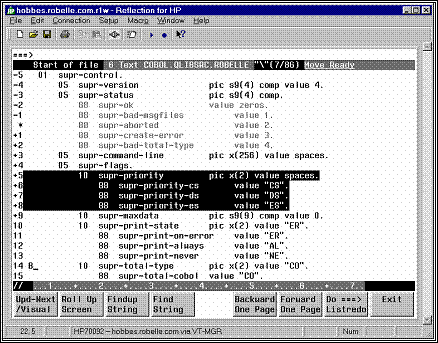
Visual mode in Reflection for Windows, showing
cut-and-paste indicators
You copy, move, hold, and delete blocks of text easily by
placing "cut-and-paste" indicators at the start of the line. You may
type Line mode commands at the home line ===> and execute them via the
Enter or the F7 key. Combining the cut-and-paste functions with the Open and
Shut commands, you can also copy and move text quickly between different Qedit
files. Use the ZZ cut-and-paste indicator with any command to mark text easily.
The Set Visual command controls how Visual mode operates
and allows great latitude in configuring Visual to your own liking. For
example, you can choose to have automatic update; decide where the current line
or cursor appears; and select how many lines will carry over when you page up
or down.
When you are done, exit Visual mode using F8, then Keep or
Shut your file. Press F8 again to leave Qedit.
===>
Okay
1691.75 WFILE.DOC.TACCT "verify"(u) Move Ready
*
procedure abc;
+1
begin
+2
integer def;
//
....+....10...+....20...+...
The screen starts with the home Line, followed by the status Line, several text Lines, and ends with the template Line. Columns 3 and 4 of text
lines sometimes contain special characters and are called the indicator columns.
You type commands, search for strings and for
line numbers after the ===> on the home line.
These are executed when the F7 or Enter key is pressed.
The home line is also used by Qedit to print error
messages. You must clear the error message by pressing the F7 or Enter key
before you can type another command in the home line.
The second line shows the
status, the current line number (i.e., that of the * line), the name of the
file you are editing, the current string with its window, and any pending
cut-and-paste task.
Okay
1691.75 WFILE.DOC.TACCT "verify"(u) Move Ready
If you have Texted a file into Qeditscr, the status line
shows the name of the Text file, which is also your default Keep file.
By default you see the *
(current) line and 19 lines after it. Each line is prefixed by the relative
line number, and two columns for special indicators.
*
procedure abc;
+1
begin
+2
integer def;
Use Set Vis Above and Set Vis Below to adjust the number
of lines shown above and below the current line.
The last line has // and a
column template. The // signals end-of-screen to Qedit and must not be erased.
//
....+....10...+....20...+...
Visual uses more than 76
columns for text on Reflection, Qcterm, a 2393/97, 2626, or 700/9x terminals.
Qedit leaves columns 3 and 4 of the text lines for you to
enter cut-and-paste operators (i.e., MM, CC, HH, etc.). Also, Qedit may print
one of two special indicators in these columns:
|
!
|
line extends beyond the visible right margin
|
|
?
|
line contains control characters, shown as dots
|
An ! means the line extends
beyond the right terminal margin. To shift the screen image left, type Set Left
55 at the Visual home line and press F7.
A ? means the line contains
nonprinting characters such as Nulls, Escapes, Bells, Tabs or possibly Roman-8
extended characters. Qedit replaces these characters with dots (.) in Visual
mode, and does not allow you to make changes. These ? lines are not updated
when you press Enter.
To edit Bells, Escape
sequences, Tabs, ShiftOuts and ShiftIns in Visual, use Set Vis Bell, Set Vis
Esc, Set Vis Tab, Set Vis SO and Set Vis SI. All these specify substitute
characters to be shown instead of dots. To edit other control codes, use Modify
or Change from the ===> line. If you turn Set Editinput Extend Off, Qedit
regards Roman-8 characters as nonprinting noise and show them as dots.
In Visual mode, the keyboard
gives you the power to move around the screen, edit text, and control the flow
of Qedit.
You move around the screen
using the cursor keys and others:
|
Cursor Left
|
Move one space to left
|
|
Backspace
|
Move one space to left
|
|
Cursor Right
|
Move one space to right
|
|
Cursor Up
|
Move one space up
|
|
Cursor Down
|
Move one space down
|
|
Return
|
Down to next line, back to column 5
|
|
Home Up
|
Move to ===> line
|
|
Shift-Home
|
Move to bottom of screen
|
|
Tab
|
Move to next right Set TAB column
|
|
Shift-Tab
|
Move to next left Set TAB column
|
|
Prev Page
|
Only moves around terminal memory
|
|
Next Page
|
Only moves around terminal memory
|
You revise the screen image
using these keys:
|
Space bar
|
Move cursor right and erase character
|
|
any char
|
Overwrite cursor and move it right
|
|
Del Char
|
Remove character at current cursor
|
|
Ins Char
|
Enable "insert"; use again to disable
|
|
Ins Line
|
Insert blank line above current line
|
|
Del Line
|
Delete line at current cursor
|
|
Clear Line
|
Erase to the end of the line
|
|
Clear Display
|
Avoid! Recovery:
Home Up,*,F7
|
To save the changes you have made on the screen,
|
Enter
|
Send screen image to Qedit, update file
|
To return from Visual mode to Line mode:
Some other keys:
|
Select
|
Useless in Qedit
|
|
Stop
|
Do not use in Visual
|
|
Break
|
Disabled in Visual
|
|
Reset
|
Use if screen locks up, press Enter
|
|
Esc
|
First key of Escape sequences
|
|
Del
|
Does not delete anything!
|
If you are using a PC with
Reflection for DOS, you need to map the PC keys into the HP keys.
Note that the PC keyboard has two keys labeled Enter,
which are used differently in Qedit. The Enter key above the Right Shift key is
called the Return key in this manual, and is used to execute commands in Line
mode. In Visual mode, this key moves the cursor down by one line. The other
Enter key (on the numeric keypad) is called the Enter key, and is used to
update the screen in Visual mode.
Here are the default Reflection keystrokes for common
functions:
|
Terminal Keyboard
|
Reflection Key Sequence
|
|
Enter
|
Enter on the numeric keypad. If that doesn't work, try the
"+" on the numeric keypad, or try Shift-F10
|
|
Home Up
|
Control-Home
|
|
Shift-Home
|
Control-End
|
|
Ins Line
|
Alt-I
|
|
Del Line
|
Alt-D
|
|
Clear Line
|
Alt-K
|
|
Clear Display
|
Alt-J (avoid in Visual!)
|
|
User keys
|
F9
|
|
System keys
|
F10 (then F7 for help)
|
|
Additional Functions
|
Reflection Key Sequence
|
|
Begin Line (Column 1)
|
Home
|
|
End Line
|
End
|
|
Help about Reflection
|
Alt-H
|
|
Exit
|
Alt-X
|
AdvanceLink is similar (Alt-H
is help, Alt-I is Insert Line, Alt-D is Delete Line), but Clear Line is Alt-L,
and Enter is Alt-F3. Other terminal emulators have their own keystrokes for
common functions. See your emulator's manual for details.
Much of the convenience of Visual mode is due to the power
built into the eight user function keys: F1 through F8.
|
F1
|
Update and go to next page
|
|
F2
|
Roll Up Screen n lines,
as per Set Vis Roll
|
|
F3
|
Findup (search back for current string)
|
|
F4
|
Find (search ahead for current string)
|
|
F5
|
Backward One Page
|
|
F6
|
Forward One Page
|
|
F7
|
Execute command typed in ===> line
|
|
F8
|
Exit from Visual back to Line mode
|
F1: Update and Go to Next Page
Qedit reads the current page
and updates the file, then displays the next page. The F1 key combines the Enter key and F6 (Forward) in a single key.
However, F1 does not execute any command typed in the home line as the Enter
key would.
F2: Roll Up Screen
Qedit clears the screen and
displays a new one that is rolled up n lines
(default: 6), where n is controlled
by Set Vis Roll.
F3: Findup - Previous String
Qedit searches backward in the
file, starting from the * line, until it finds a line that contains the current
string. Qedit clears the screen and displays a new page, with * positioned at
the line that contains the found string. Visual also displays the target string
on the Status line.
Before you can use F3, you must establish the string for
which to search. Type the string in quotes prefixed by a circumflex (^"string")
at the ===>
on the home line and press F7, to do the first Findup.
F4: Find - Next String
Qedit searches forward in the
file, starting from the * line, until it finds a line that contains the current
string. Qedit clears the screen and displays a new page, with * positioned at
the line that contains the found string. Visual also shows the target string on
the Status line.
Before you can use F4, you must enter the target string.
Type the string in quotes ("string") at the ===> on the
home line and press F7, to do the first Find.
F5: Backward One Page
Qedit clears the screen and
displays the previous page. By default, the top line of the original screen
becomes the bottom line of the new screen. Use Set Vis Carry to change the
number of lines carried over to the new screen.
F6: Forward One Page
Qedit clears the screen and
displays the next page. By default, the bottom line of the original screen
becomes the top line of the new screen. Use Set Vis Carry to change the number
of lines carried over to the new screen.
F7: Execute a Command
Use the F7 key to execute
commands. The current screen is not updated, unless you have Set Vis Update On.
Type whatever command you want to execute after the ===>. This
includes "strings" to find, Qedit Line mode commands such as Open or
Justify, MPE commands, calculator commands (=5/6), and special Visual commands
(e.g., * for Refresh, ? for Help). Then press F7. Qedit reads only the home
line and executes the function. To first save your screen changes and then
execute, use Enter instead of F7.
See the section "Home Line Commands" for
complete details.
F8: Exit from Visual
To return from Visual mode to
Line mode, use the F8 key. Press F8 again once you are in Line mode to exit
Qedit and return to MPE (: prompt). If for some reason F8 fails to exit from
Visual, type / at the ===> and
press F7 or the Enter key. This should get you back to Line mode.
Line Number. Move to a specific line (e.g., to line 45).
===>45 F7
> and <.
Move ahead or back a page. Use with a number to move several pages (e.g., ahead
3 pages).
===>>3 F7
+ and -. Move
forward or backward any number of lines (e.g., back 200 lines). If you do not
specify a number, the default is the number of lines configured by Set Vis
Roll.
===>-200 F7
~ The Tilde Key.
Return to the "most recent" screen. If you jump from line 1500 to
line 451, ~ sends you back to 1500. This is handy if you jump briefly to
another part of your file to check something then want to get back to your
original location.
The tilde is also available from line-mode but it has to
be enabled by removing it from the list of string delimiters. In order to do
this, you could do the following:
/V stringd
Set STRINGDelimiters
"|\~{}[]_@?!#>%&:'"
/S stringd
"|\{}[]_@?!#>%&:'"
Notice that tilde has been removed from the delimiter list
entered on the Set command.
===>~ F7
FIRST and LAST.
Move to start or end of file.
===>first F7
Scrollup Character.
This character can be entered in the cut-and-paste columns to scroll up in the
file. A single character scrolls the number of lines defined by Set Visual
Roll. If the character is entered more than once, Qedit scrolls up that many
times the number of Roll lines. For example, enter 4 minus signs anywhere to scroll
4 X Roll lines. The default scrollup character is a minus sign. It can be
changed to something else with Set Visual Scrollup.
It
is never necessary to remember line numbers in full-screen mode. Visual allows
you to mark, hold, move, copy, replicate, or delete a block of text, all
visually. This is called "cut-and-paste" and is done by putting
special indicators in the two blank columns at the left of each text line
before you press the Enter key. For example, DD indicates a block of text to be
deleted.
Order Is Not
Important (But One at a Time). You can enter the indicators in any order
and on different screens, but 10,000 is the maximum number of lines you can
cut. When you have defined a complete cut-and-paste task, Qedit completes the
task and removes the indicators. You can only perform one cut-and-paste task at
a time.
|
Single Line
|
Block of Text
|
Function
|
|
M
|
MM
|
Move line or block of text
|
|
C
|
CC
|
Copy line or block of text
|
|
D
|
DD
|
Delete line or block of text
|
|
H
|
HH
|
Hold a line or block of text
|
|
|
HJ
|
Append block of text to Hold file
|
|
|
JJ
|
Justify a block of text
|
|
Z
|
ZZ
|
Mark a line or block of text
|
|
|
XX
|
Exclude a block of text from the
display
|
|
A
|
Insert text "after" this line (or use F for
"following")
|
|
B
|
Insert text "before" this line (or P for
"preceding")
|
|
AH
|
Insert Hold file after this line (or use FH)
|
|
BH
|
Insert Hold file before this line (or use PH)
|
|
A0
|
Insert Hold0 file after this line (or F0)
|
|
B0
|
Insert Hold0 file before this line (or P0)
|
|
R
|
A line to be replicated after itself
|
|
Rn
|
A line or block to be replicated n times (max. 9). (See "Copying a Block of Text"
below.)
|
Display Enhanced. When the cut-and-paste task is partly defined,
Qedit highlights the indicated lines and adds a warning to the status line.
You can cancel a pending
cut-and-paste task (if you have not pressed the final Enter) by entering a
period (.) in the ===> line and
pressing F7.
===>. F7
Paste One Copy at a Time. Suppose you want to copy a section of
text from one place in your file to another. Here is one way to do it. First,
locate the screen containing the start of the block that you want to copy,
using a string search via the home line. Move the cursor down to the first line
you want to copy, then press Cursor Left twice and type "CC" in the
blank columns provided. Press Enter and you should see that line highlighted in
inverse video.
Second, find the end of the text section and mark the last
line with another "CC". After you press Enter, you should see the
entire block highlighted.
Third, go to the screen where you want to insert a copy of
the text. Move the cursor down to the line before
the desired insertion point, Cursor Left once and type "A" (for
after). Press Enter and the block should appear.
Paste Multiple
Copies at Once.
When working with a block of
text, you can use the same cut-and-paste codes to mark the beginning and the
end of the block (i.e., HH on the first line of the block and HH again on the
last line). The only exception to this is the block replication code.
In this case, you would use RR to mark the beginning of
the block and Rn to mark the end of
the block, where n represents the number
of times you want that block replicated. For example, to have the same block
replicated five times, you would enter R5. The new blocks are inserted
immediately after the last line of the copied block.
The original lines marked for replication are written to
the Hold0 file.
Using Visual mode's
cut-and-paste functions, you can copy and move blocks of text between files.
You can only edit one file at a time in Qedit, but you can
switch quickly between different Qedit files by Opening and Shutting them.
/o file1
Open file1 List * = 20
/o file2 {implicitly shuts file1}
Shut file1
Open file2 List * = 48
/o * {open the last file that was
shut}
Shut file2
Open file1 List * = 20
/o * {open the second file again}
Shut file1
Open file2 List * = 48
Note: The * shortcut refers to the last Qedit file that
was shut.
Now, to copy a block of text from file1 to file2, use HH
twice (just as you would use CC) to hold the block in file1. Then, open file2,
and use AH or BH to paste in the text from the Hold file. To move a block from file1 to file2, use the DD function to delete the block of text from the
first file. The deleted block is stored in a temporary Hold file called Hold0
(Hold-zero). Now immediately open file2 and
use A0 or B0 to paste in the text from Hold0.
Single line
|
V
|
a single line to be diVided
|
|
G
|
a single line to be glued
|
|
GJ
|
a single line to be glued with a space inserted
|
Block of text
|
VV
|
begin or end of the block to be diVided
|
|
GG
|
begin or end of the block to be glued
|
To divide a line, use the V
(diVide) cut-and-paste function in column 3 or 4, then insert the special field
separator ("~") at each division point in the line. The default field
separator is tilde ("~" ), but you can override this with Set Vis
Field. If no "~" is found in the line, a blank line is added after
the line.
What about dividing all the lines in a range? Use VV to
mark the start and the end of the line range, then place the field separators
in the first line of the range. Every line of the range is divided at the
specified field columns. If no "~" is found, a blank line is added
after each line.
When marking several division points, insert them into the
first line of the block from right to
left. As you insert them, they shift the following text to the right one
space each. Otherwise, if you insert them from left to right, it is difficult
to select the proper division point for subsequent fields.
To Glue the next line to the
current line, use a G in column 3 or 4. To Glue two lines with a space inserted
at the joint, use GJ in columns 3 and 4.
To glue "pairs" of lines within a block, use GG
to mark the start and end of the block.
By default, G and GG append text after the last
nonblank character in a line, but it is also possible to glue text to specific
columnar fields. You do this by inserting a field separator at the start of
each field (mark the first line only). The default field separator is the tilde
("~"), but you may override this with Set Vis Field. If you specify
three fields, G glues the next three lines to the first line. GG glues the next
three lines to the first line, and then go on to the next group of four lines.
If the precise column number where each field starts is important to you,
insert the field separators from right to left, since each one that is inserted
shifts the column numbers that follow off by one more.
The XX indicators are used to mark lines that you do not
want displayed in full-screen mode. Once marked, the block of text is replaced
with a single line.
---
Excluded Area --- 10/34.5
This line shows the line numbers
which are currently excluded. An excluded area setting is saved in the workfile
so it's preserved across Open/Shut commands. To reset the excluded area and see the original
lines again, type .xx on the
Homeline and press Enter or F7.
The excluded area can also be
defined using Set
Visual XX. The current excluded area is
displayed on the Verify
Visual output.
Restrictions
The Excluded Area line must not be
removed, altered or used in any way. This also means that you can not enter any
indicators in the cut-and-paste area. If you wish to paste lines before or
after the excluded area, you should use the appropriate cut-and-paste
indicators on the line that immediate precedes or follows the Excluded Area line.
An excluded area can not be
included in any other block operation such as ZZ, CC, MM or other XX.
If any of these rules are
broken, Qedit displays an appropriate error message.
Justification in text
alignment is available in full-screen mode. To justify a block of text, simply
mark the first and last lines in the block with the JJ indicator. If Qedit uses
any justify default settings, they are defined by the Set Justify command. If
there are no default settings, Qedit assumes the text should be justified
within the current display width.
The justified lines are written to the Hold0 file. A
single J indicator is not valid.
When the insertion point is on the current screen, Qedit
renumbers the screen if needed (and if Set Vis Renum is ON).
When entering a lot of new text, it is tiresome to keep
pressing Ins Line for each new line. To insert a block of 10 blank lines
quickly, press Ins Line to create one blank line, Cursor Left twice, type R9,
and press Enter. This reproduces nine copies of the blank line immediately
after it (as well as updating the paragraph you just finished typing). Repeat
as needed.
Visual has both an implicit and an explicit Hold file.
The Implicit Hold0 File. Any block processed by the CC, MM, JJ, RR,
or DD indicators is also written to a disc file called Hold0 (Hold-zero). This
allows you to copy the lines back into your workfile using A0 or B0 (add from
Hold0, After or Before the line on which you place the indicator).
The
Explicit Hold File. The HH indicator writes a block to the Hold file without
moving or modifying it. Use H for a single line. To copy the line(s) back into
your workfile, use AH or BH. You may need a Hold file when creating a file that
you want to compile, or when using the Use command. You must use HH (instead of
CC) for copying text from one file to another.
When HH is used to mark the
beginning and end of a block, it copies the block of text to the explicit Hold
file. With the HH indicator, the current contents of the Hold file are erased
and replaced with the marked lines.
If you want to append a block of text to the Hold file,
you can use the HJ indicator. HH or HJ can be used to mark the first line.
However, HJ must be used to mark the last line. You cannot hold-append a single
line of text, which means you can append only two or more lines. With the HJ
indicator, the current contents of the Hold file are preserved and the block of
text is appended to it.
The ZZ indicators mark a group
of lines that you want Qedit to remember. Use Z to mark a single line. Note:
"Z" for a single line is valid only in Visual mode; in Line mode, use
"ZZ" to mark a single line. See the ZZ command in the "Qedit
Commands" chapter for further information. Once marked, the lines are
displayed at half-bright intensity and you can refer to them in any home line
command by using ZZ where the line numbers are expected. This is especially
useful when listing lines to the printer, changing or appending strings, and
formatting text:
===> list $lp zz F7
===> change
"bob"Robert" zz F7
===> verify zz F7 {check current ZZ range}
===> zz off F7 {cancel ZZ range}
If you want to copy text into
your current workfile from another file that is not a Qedit file, you cannot
use the methods described above. You cannot Open the second file if it is not
in Qedit format. Instead, use the List command to find the portion of text that
you want to add from it (without Shutting the first file). Then, use the Add
command to paste in the text.
===>list xxx
===>add * = xxx 10.7/22.9
All Qedit commands are
supported in Visual mode. To do a command, such as Listf or ls, press the Home
Up key to reach the home line, then type your command after the ===> and
press F7 or Enter. To execute a command, such as Change, on a subset of the
file, first use the ZZ cut-and-paste indicators to mark the subset and then use
ZZ in the command. After most ===> commands, Qedit prompts
you for more commands ("Next command [Visual]"). Type in more
commands, or return to your Visual screen above, by pressing the Enter or
Return key.
Qedit accepts each command, executes it and goes back to
the "Next command" prompt. There are a few exceptions to this
process. By default, when you enter an Open command, Qedit assumes you want to
edit the file immediately and switches into full-screen mode automatically. If
you wish to disable this feature, enter Set Visual Editonopen Off.
If the tilde has been removed from the list of string
delimiters (see Set
Stringdelimiters)
and you enter a tilde "~" at the "Next command" prompt,
Qedit uses the current line number associated with the tilde, makes it the
current line and goes back into Visual immediately.
To search for a string, simply
type it in quotes at the ===> line
and press F7 or Enter.
===>"string" F7
Qedit will find the next
line containing that string, display the page around it, and show the
target string in the Status line. To find the next occurrence of the same
string, press F4.
To find the previous
occurrence of a string, prefix the string with a circumflex.
===>^"string" F7
To find the next previous occurrence, press F3.
You may delimit strings with
any of the following characters:
|
~
|
Tilde
|
|
!
|
Exclamation mark
|
|
#
|
Number sign
|
|
&
|
Ampersand
|
|
_
|
Underscore
|
|
|
|
Vertical line, Up-line
|
|
"
|
Quotation mark
|
|
'
|
Apostrophe, Single quote
|
|
\
|
Reverse slant, Backslash
|
You may use single quotes (')
if you do not have Set Decimal On. Note that, with this syntax, Qedit permits a
few less characters in Visual mode than it does in Line mode because Visual
mode uses these characters for other purposes. For example, the question mark
is used to get quick help about Visual mode, instead of as a string delimiter.
If you insist on using other delimiters, you should use the Find command on the
===>
line.
===>F :string:
F7
You can change strings on the screen by entering a Change
command on the ===> line.
===>c "niether"neither" */*+19 F7
To get help, press Home Up, type ? and press F7 or Enter.
===>? F7
The ? command gives a one-screen summary of Visual mode.
For complete on-line help on Qedit, including Visual, type HELP in the ===>
line and press F7 or Enter.
===>help F7
For help on a specific command, type HELP [command name]. See the Help command in
the "Qedit Commands" chapter. To get out of help, press F8.
You compile your file using the home line. Just type the
proper compile command in the ===> line and press F7 or
Enter. For example, to compile a current COBOL file:
===>cob85xl * F7
In fact, you can execute any MPE or shell command in the ===>
line. You can :Link and :Run, :Listf, :Showjob, ls, and even execute UDC
commands or shell scripts, just as you do Qedit commands.
To format a screen paragraph, mark the paragraph with ZZ
cut-and-paste indicators, then use a Justify command that includes a ZZ. For
example:
===>justify both margin 68 zz F7
If every paragraph ends with a blank line, you can Justify
a paragraph by using the relative line number on the screen. Justify will start
at that point and continue until it finds a blank line:
===>justify both margin 68 *+2 F7
For more information on Justify, see the Justify command
in the "Qedit Commands" chapter.
After you have made some
changes to your screen in Visual mode and updated the file by pressing Enter,
you may decide you don't want those changes after all. You can use the Undo
command to cancel these changes.
All of the changes you make on the screen before pressing
Enter, are treated by Qedit as one "undo-able" command, except for
cut-and-paste operations. Qedit always executes a cut-and-paste last after
updating the file with any other changes, no matter what order the changes were
made in. This means that you can choose to undo just the cut-and-paste
operation, or undo it and all of the other changes. You can continue undoing
your previous changes until the file is back to its original state.
If you make changes to the
screen, then decide not to keep them before
you press Enter to update your screen, how do you get your original text
back? You refresh the screen by
typing a * on the home line, then pressing F7, F1 or Enter (or any function key
with Set Vis Update On). Use the Undo command if you press Enter and then
decide that you don't want to keep your changes.
If you insert so many new lines that you push the column
template line right off the bottom of your screen, don't worry -- it's not
really gone. Qedit won't update your screen without the template line, however.
Press Next Page (Pg Dn) to pull up the next screen of display memory. You have
a problem only if you inserted so many lines that you pushed the template line
right out of display memory, and even then you can still recover your changes.
See the Errors in Visual section of
Appendix E, regarding qscreen.
Screen Refresh is particularly useful if you've pressed
Clear Display by accident.
===>* F7
When using Set Vis Update On to automatically update the
screen, use *> F7 or *< F7 to move ahead or back one page, without
updating the current page.
You may enter any Line mode Qedit command in the ===>
line, including Opening another file, MPE % commands for an external
program such as MPEX, and calculator commands (=). The ZZ cut-and-paste
indicator can be used to mark a group of lines for use in any Qedit Line mode
command.
===>list $lp $include zz F7
When editing a file with short
records (e.g., Set Lang Text, Set Len 20), the right margin of terminal display
memory is set to match the record length. This means that when typing home line
commands you wrap the status line at the same width as the records (very
inconvenient if the record length is 3 bytes!). You can, however, cursor past
the right margin to type a longer command. Therefore, Qedit expands the right
margin when you use F7 to execute the home line command, making it possible to
execute a long command even when the data length is short. Qedit cannot expand
the right margin if you press Enter (and may cut short your command).
If your function keys do not work for some reason, you may
not be able to use F8 to exit from Visual. Instead, press Home Up, type / and
press Enter. This updates your current screen and returns you to Line mode.
===>/ F7
You don't have to learn every command in order to use
Qedit. With just a few of the basic functions, you can take care of editing job
streams, programs, memos, or big text files. First, find out how to run Qedit
on your system. Your system manager may have set up an easy way to access Qedit
(try typing qedit).
Look for a slash prompt (/ on MPE or qux/ on HP-UX), which tells you Qedit is
ready to go.
This introduction will make the following activities
familiar to you: adding lines to a file, looking at the contents of files,
searching files for specific characters, changing one line or many lines,
deleting, moving, and copying lines, and saving files. In the examples to
follow, watch for comments on the right-hand side, enclosed in curly braces.
Whatever you see in { } is an explanation, not part of the command, although
Qedit will accept it. Press Return after each command line. When you finish
your session, getting back out of Qedit is easy. Type Exit, and press the
Return key:
/exit
You add text with the Add
command. Qedit numbers each line you add. Pressing Return at any spot in the
line moves you to a new line. This means that you can put a blank line into
your text if you press Return twice in a row. Qedit continues to add your lines
of text until you type // (two slashes) at the beginning of a new line and
press Return. Try typing Add right now, and Qedit moves the cursor and prints
some identifying information:
/add {remember to press
Return}
QEDITSCR {Qedit displays this
line}
Temporary File List * = 1 {and this line too}
1 _ {go on, Qedit is
waiting for you}
Continue to "add" by typing in this example:
1 MEMO TO: Drama Staff, News
Simulation Dept.
2
3 FROM: Marie Reimer, Publicity Dept.
4
5 Please check your in-baskets
daily and
6 respond to your fan mail
within a week.
7 // {stop adding for now}
/ {Qedit is waiting
again}
You can add lines anywhere in
the file by typing Add followed by the line number where you want to start your
insertion. For example, if you decide to date this memo, type at the slash
prompt:
/add 2
2.1 DATE: November
18, 2000
2.2
2.3 //
/
You have added line 2.1 for the date, and line 2.2, which
is blank. Line 2.3 is not put into your file, since typing the double slash
stopped the adding. Notice that Qedit used line numbers that would fit between
line 2 and line 3. Now, if you want to see what the whole thing looks like,
type List ALL at the slash prompt.
/list all
1 MEMO TO: Drama Staff, News
Simulation Dept.
2
2.1 DATE: November
18, 2000
2.2
3 FROM: Marie Reimer, Publicity Dept.
4
5 Please check your in-baskets
daily and
6 respond to your fan mail
within a week.
/
The command for looking at the
file is List. But you can do much more than List ALL. For example, you can list
a file you're not even working on. Our sample memo is a temporary file, in your
group, named Qeditscr, but you could look at a file in another group now
without harming the memo by typing, for example:
/list qedhint.help.robelle
The file qedhint.help
may be scrolling by on your screen, but don't panic. If you change your
mind about looking at it, you can stop the listing by holding down the Control
key and pressing "Y".
You may choose to look at just a small part of the file.
To prove that the memo, although temporarily gone from your screen, is not lost
forever, look at two lines of it:
/list 3/4
3 FROM: Marie Reimer, Publicity Dept.
4
Instead of listing all, you limited the range of
lines to be listed. A range of lines, called a rangelist, can have specific line numbers (such as 3 in the above
example), words like "first" and "last", relative line
numbers such as -3 (means the third line back) or +10 (tenth line ahead), or a
combination.
/list first/2,+1,last-2
1 MEMO TO: Drama Staff, News
Simulation Dept.
2
2.2
4
The slash / separating the numbers (or words) symbolizes
the word "to". Rangelists can also contain strings. See the section
on strings (called Searching the File),
or the "Glossary"
for definitions of rangelist and string.
If you want to browse through
the file, the command you need is LJ.
LJ stands for List-Jump. Qedit shows you a screen of text, prints
More?[yes]
at the bottom of the screen, and waits for you. If you press
Return, Qedit displays the next screen. You can stop browsing by pressing
Control-Y, typing NO or just N, or by typing //. Also, you can type any
command, and Qedit stops browsing to execute it. To request a List-Jump:
/lj 6 {begin browsing at line 6}
/lj qedhint.help.robelle {browse entire hints file}
So far, you typed line numbers
to specify which lines you wanted to see. There is another way to list lines,
and that is to specify an identifying string.
Put anything in quotes and it's a string. Qedit lists all the lines that
contain that exact same "anything".
/list "your"
5 Please check your in-baskets
daily and
6 respond to your fan mail
within a week.
2
lines found
There are two occurrences of "your" in the file,
one on line 5 and one on line 6.
Strings can help you find a particular place in the file
quickly.
With the commands Find and
Findup, you can go to the next consecutive location of a string. Find searches
the file from your current location to the end. Findup searches backwards from
where you are to the beginning. So in order to search a file for a date
scattered throughout it, type:
/find "January 18" {search forward from current line}
Or, search back
through the file with
Qedit displays the next line containing "January
18". To search again for the same string, just type Find (or Findup). You
can abbreviate "Find" to "F" and "Findup" to
"^".
To search for a different string, just type F "new string".
Suppose you want to change the
date of your memo. You could do it the slow way, first deleting the line, then
adding a replacement line with the new date. But instead of all that retyping,
try the Modify command. Modify has a lot of power. Here's how to use it:
1.
Type M and
the line number.
2.
Qedit displays the line, and you move along on the line
below it by pressing the space bar.
3.
Stop at the point where you want to make your
correction.
4.
Type in the change to be inserted and press Return.
5.
Qedit displays the entire corrected line for your
approval. Make another correction if you want, and when satisfied, press Return
again to accept the corrected line and get back to the slash prompt.
An example:
/m2.1
2.1 DATE: November
18, 2000
9 {move with the space bar}
{press Return}
2.1 DATE: November
19, 2000 {press Return
again}
Here is a partial list of special things you can do with
Modify:
|
^B
|
insert text Before this column
|
|
^D
|
DELETE text from this column onward
|
|
^L
|
add text after the LAST column in the line
|
|
^O
|
OVERWRITE (or replace) columns
|
|
^T
|
TRAVEL over the line without changing it
|
|
^G
|
GOOFED. Put the line back the way it was, please
|
Note: The little symbol ^ is a shorthand way of saying that you
hold down the Control key (on some keyboards abbreviated Ctrl) while at the
same time pressing the letter. For example, ^B (or Control-B): keep the Control
key down with one finger while with another, type a B. These symbols won't show
up on your screen.
This command is easy to use but awkward to describe;
you'll understand how to use it much faster if you give it a try. Let's take a
typical example, and modify line 5 of our memo. Begin by typing "m5"
and, of course, pressing Return. Then, to replace "daily" with
"every day", our first step is to delete the word. Use the space bar
to move to the column under the "d" in "daily". Press ^D
(you won't see anything, remember), then space across all the columns you want
to delete. Don't press Return yet.
The second step is to insert the two new words. Press ^B
and type "every day". Now press Return to see the line with the
revisions.
Qedit lets you see your revisions and continue modifying
with as many different changes as you can fit into one pass, before you press
Return. In order to make changes at different locations in a line, press ^T to
space over the intervening characters without disturbing them. If you goofed,
press ^G instead: you'll get your original line back.
The final step is to accept the revisions by pressing
Return one last time.
If your fingers are so trained to MPE's style of Modify
(e.g., D for delete) that you cannot remember to use the Control key, do not
despair. As with most things in Qedit, there is a configuration option to solve
this problem. The command Set Mod HP instructs Qedit to accept HP-style
modifies (i.e., MPE modifies such as D and I), instead of Qedit-style. See the Modify section of the Set command.
There is another way to modify
lines in your workfile. The Change command allows you to make changes
throughout the entire file, without the bother of working on each line one by
one. For example, with one Change command to your memo, you can replace all the
colons with dashes.
/change ":"-" all
1 MEMO TO- Drama Staff, News
Simulation Dept.
2.1 DATE- November 19, 2000
3 FROM- Marie Reimer, Publicity Dept.
3
lines changed
Using the Change All command is a one-way street. If we
now decide we don't like the dashes and want to get the colons back, observe
what happens to Line 5.
/change"-":" all
1 MEMO TO: Drama Staff, News
Simulation Dept.
2.1 DATE: November
19, 2000
3 FROM: Marie Reimer, Publicity Dept.
5 Please check your in:baskets
daily and
4
lines changed
This second Change command has gotten us into hot water.
Luckily, Qedit has an Undo command that takes your file step-by-step backwards
to put it back to the way it was. See the Undo command in the "Qedit
Commands" chapter.
CJ Command
If you're not sure what the consequences of a global
change will be, use the CJ command. CJ stands for Change-Jump. Qedit shows you
each line it means to change, and waits for you to approve, to change your
mind, or to modify that line. Then Qedit jumps to the next occurrence of your
string, and repeats its question until you have dealt with all occurrences of
the string in the file. To accept the default answer of NO (i.e., don't replace the string), shown in
square brackets, just press Return.
/cj":"-" all
1 MEMO TO: Drama Staff, News
Simulation Dept.
Change okay (Y,N or Modify) [No]: {press Return}
2.1 DATE: November
19, 2000
Change okay (Y,N or Modify) [No]: {press Return}
3 FROM: Marie Reimer, Publicity Dept.
Change okay (Y,N or Modify) [No]: {press Return}
5 Please check your in:baskets
daily and
Change okay (Y,N or Modify) [No]:Yes
1
line changed
You can use the handy ^Y to stop in the midst of
change-jumping just as you used it to stop listing.
Rangelist
You can also specify individual lines or a rangelist to
Change. For example,
/change
"Dept."Department" 1/3
1 MEMO TO: Drama Staff, News
Simulation Department
3 FROM: Marie Reimer, Publicity Department
2
lines changed
/change "Drama Staff, ""
1 {changes string to nothing}
{i.e., deletes it}
1 MEMO TO: News Simulation
Department
1
line changed
Copying lines is a variation of the Add command. One
reason we might want to copy lines is to make a general-purpose form out of our
memo. We can keep a sample memo form at the beginning of the file, then copy it
to the end of the file and fill it in whenever we need to communicate. This is
how to do it:
/add last = first/4
7 MEMO TO: News Simulation
Department
8
9 DATE: November
18, 2000
10
11
FROM: Marie Reimer, Publicity
Department
12
6
lines COPIED
Qedit copies the rangelist
(first/4 = first line to line 4) after the indicated line (here, last line in file). To accomplish our
goal of placing the sample memo template at the beginning of the file, we'll have to move the first six lines so
they follow our new sample. Before we try moving
lines, a last tip on copying: you can copy lines from an external file by
including the file name in the command, placed after the equals sign and right
before the rangelist.
Moving is very similar to copying; it's another form of
the Add command. But, instead of using the equals
sign, use the less-than sign. You
can specify:
/add 12 < 1/6
13
MEMO TO: News Simulation Department
14
15
DATE: November 18, 2000
16
17
FROM: Marie Reimer, Publicity
Department
18
19
Please check your in-baskets daily and
20
respond to your fan mail within a week.
8
lines MOVED
Qedit moves the rangelist
(in this case, lines 1 to 6) after the
indicated line (in this case, 12). In case you were wondering, we could have
used "last" instead of the number "12". You can add, move,
or copy lines to any spot. In fact, we could have copied the first six lines to
the beginning of the file in the first place, but then we wouldn't have had
this fascinating "move" example. The result of this particular move
is
/list all
7 MEMO TO: News Simulation
Department
8
9 DATE: November
18, 2000
10
11
FROM: Marie Reimer, Publicity
Department
12
13
MEMO TO: News Simulation Department
14
15
DATE: November 18, 2000
16
17
FROM: Marie Reimer, Publicity
Department
18
19
Please check your in-baskets daily and
20
respond to your fan mail within a week.
To demonstrate the Delete
command, we'll get rid of our memo template. On some systems, Qedit asks for
confirmation before deleting a large number of lines. If so, you can cancel the
deletion just by pressing Return; to confirm the deletion, type "yes"
and press Return. The abbreviation for Delete is simply D :
/d first/12
7 _MEMO TO: News Simulation
Department
8 _
9 _DATE: November
18, 2000
10 _
11
_FROM: Marie Reimer, Publicity
Department
12 _
DELETE 6 lines [no]? yes
If you typed "yes"
without due consideration, you now have a chance to take it back. Press
Control-Y, and Qedit saves your bacon with the message "Undeleted!"
But you must press Control-Y immediately: if you do anything else between the
deletion and the rescue, Qedit will commit to the deletion. However, in this
situation the Undo command can bring your lines back, even if you have made
more changes. You must undo each change to the file in reverse order. See the
"Qedit Commands" chapter of the manual for details.
On-line help is available on
every topic in Qedit. After you've become an expert with the commands
introduced here, you can use Help to teach yourself all sorts of amazing new
commands. To get Help, type a question mark or the word HELP.
/help
or
/?
Qedit responds with a list of its commands, and at the
bottom of the screen, a list of keywords. Type the keyword of the topic in
which you're interested. For example, one of the keywords is
"Full-Screen". Get an introduction to full-screen mode by typing:
>full-screen
Did you notice that the Help prompt is different from
Qedit's regular prompt?
When you asked for Help, Qedit filled your screen with
lists. To learn about some of the commands in the list, (e.g., the Add
command), type the keyword:
>commands
and Qedit gives you some general information on the topic
of commands. At the bottom of the screen is a list of keywords. Type the one in
which you're interested:
>add
Qedit responds with further information. You can backtrack
your route and look at all the other possibilities too. Pressing Return takes
you back one step at a time.
To exit from Help, press the Return key until you see the
regular Qedit slash prompt again.
There are two commands that
preserve your work: Keep and Shut. First, invent a name for your file.
Naturally, two files cannot have the same name. The name must be a valid MPE
file name. We've been working on a temporary file. To save it, name it:
When you want to work on Myfile1 again, type:
and Qedit will copy Myfile1 for you to use. If you make
changes to the file, remember to Keep it again before you leave Qedit to make
the changes a permanent part of the file.
Only Qedit files can be opened
and shut. It is much faster to use the Open command than it is to use the Text
command, because you make changes directly to the Open file. With a Text file,
you must wait for Qedit to make a copy to which you make your changes.
Using the Shut command converts your file to a Qedit
workfile. You can Shut a new file, or a file that you made a copy of (with the
Text command). Name the file as described above.
/text myfile1
QEDITSCR {copy of Myfile1}
16 lines in file
/shut myfile1
MYFILE1,OLD Qedit File, # of lines=16
Purge existing file [no]? Yes
File renamed from QEDITSCR to MYFILE1
To run Qedit on MPE, type this
command:
:run qedit.pub.robelle
Qedit. Copyright Robelle Solutions
Technology Inc. 1977-2001.
(Version 5.0) Type ? for help.
Today's Hint. For full-screen edit, use Visual.
/
Qedit prints its version number and the hint of the day
and prompts with "/". You type commands, ending each with Return. For
example, to edit a file enter a Text command:
To save your edits, use the Keep command.
Initially you are in Line mode (you type command and text
lines, ending each with Return). You can backspace over errors with Control-H
(holding down Control while you press "H"), or use the Backspace key.
Control-X cancels a line. The function keys give you eight quick functions: F1
= Visual, F2 = Roll up, F3 = Findup, F4 = Find, F5 = Browse backward one page,
F6 = Browse forward, F7 = Listredo, and F8 = Exit.
Use the /VIsual command or the F1 key to switch to
full-screen mode, where you edit a full screen of text using the terminal keys.
The Enter key passes the revised screen back to Qedit, and the F7 key executes
any Line command that you type on the home line.
To return from full-screen mode to Line mode, press the F8
key. To save changes to your Text file, use the Keep command. To get out of
Qedit, type Exit or press F8 again.
/keep
/exit
End of program
If you forget to Keep your changes, Qedit warns that your
changes weren't saved, you can rerun Qedit, reopen the temporary workfile (Open
with no parameters), and save your changes.
The temporary file called
"Qeditscr" is Qedit's primary scratch file. Whenever you use the
default options for Opening or Texting a file, your work will be in the
Qeditscr scratch file.
How to Edit Several
Files?
What if you want to edit two or more files, and copy lines
between them? You could Text the first file, Hold the selected lines, Keep your
changes, then Text the second file and insert the lines. However, if you are
doing a large number of edits, the constant Text and Keep operations are
inconvenient.
A faster method is to Text each file into an extra scratch file of its own. Then use
the "Open ?" or the "Open *-n"
command to switch quickly between them. By default, Text always copies the file
into the Qeditscr scratch file. However, Qedit can supply up to eight extra
scratch files. To Text a file called abcd into an extra scratch file, type:
When you Exit, Qedit checks whether you have any unsaved
edits in any of your extra scratch files. If there are some unsaved edits,
Qedit prompts you to "Discard?" them or to stay in Qedit to save them
with the Keep command.
Starting a New
Scratch File
Sometimes you start editing a
new document and have nothing to Text to create the extra scratch file. In this
case, use the New command without
parameters.
A new extra scratch file is created and assigned a
sequential number (1,2,3...). If you use the Open ? command, you would see
"Extra Scratch file #2" in the list of files. If you do a Keep or Set
Keep Name, you would then see the Keep file as the Text name in Open ?.
When you run Qedit, it
automatically "uses" two configuration files if they exist:
Qeditmgr.Pub.Sys and Qeditmgr in the same group and account as the program file
(usually Pub.Robelle). The system manager creates either or both of these files
and puts Qedit commands in them to set Qedit options, print messages, and
execute standard :File commands. To check the options for your site, List these
files.
If you want a Qeditmgr file for your logon account or your
logon group, run Qedit with Parm=1 or Parm=2. Parm=1 executes Qeditmgr.Pub.logon, while Parm=2 executes Qeditmgr.logon.logon. To execute both, run with Parm=3 (3 is 2 plus 1; you can
combine PARM options). These files are in addition to the global Qeditmgr
files, which are always executed first.
:run qedit.pub.robelle;parm=1 {uses Qeditmgr.Pub}
When you run Qedit, it attempts to execute commands in
global configuration files: Qeditmgr.Pub.Sys and/or Qeditmgr.Pub.Robelle. The
Qeditmgr file, which can be a Qedit workfile or a Keep file, may limit Qedit
users or do default Set commands. If you move Qedit out of the Robelle account,
Qedit looks for the Qeditmgr file in its new location.
If you want to restrict
compiles to the DS or ES subqueue, put a COMPPRI command in your Qeditmgr file.
The syntax is a little nonstandard, in that it acts like a Set command, but
does not use the word Set.
COMPPRI=DS
{or COMPPRI=ES}
COMPPRI specifies the highest
priority at which you can Compile within Qedit. Any Qedit compile commands
automatically "create" the compiler in the lower priority. Qedit
itself, and the user, remain in the original higher priority. In no case will
the compile occur at a higher priority than that of Qedit. COMPPRI may only be
executed via Qeditmgr; it cannot be entered from the keyboard.
Qedit treats the Qeditmgr file
exactly like a usefile, so Qeditmgr can include any Qedit commands. The Set
commands let you configure Qedit so it has the ideal defaults for your shop
(e.g., Set Lang Cobol ...). Here is a typical Qeditmgr file:
{These are default qedit values for
all users:}
comppri=ds {force compiles into ds}
set lang cobolx all on
set whichcomp cobol 85 {CM compiles}
set whichcomp fortran 77 {CM compiles}
set x date list off {mark changed lines with date}
set check on {verify delete/format of >5
lines}
set list page on {LP listings interpret $page}
set udc udc.catalog.robelle
z=list */last {define Z command}
For details on Set commands, refer to the "Qedit
Commands" chapter.
If one set of defaults is not appropriate for everyone on
your system, it is possible to set up account and/or group Qeditmgr files. See
the chapter "Running MPE under Qedit" for details. For security
reasons, users cannot override the global Qeditmgr files with :File commands.
This prevents them from getting around the limits imposed by the system
manager.
Qedit in batch is almost identical to Qedit in a
session, except for answering questions. When Qedit asks a question in batch,
no one is there to answer it. Therefore, Qedit does not expect an answer from
$stdinx. Qedit assumes that you want your batch task to complete, so it always
selects the option that will complete the command successfully. This is
normally a "YES" answer, as in "yes, clear the file" or
"yes, upshift the line". Qedit prints the question on $stdlist, and
the answer that it has selected for you.
If you run Qedit from a batch job, but redirect $stdinx
and $stdlist to the same terminal, Qedit acts as if it were in Session.
If you run Qedit in a REMOTE
SESSION that was created from a batch job on the other machine, Qedit is unable
to detect that it is really controlled by a job. So, Qedit operates in Session
mode and waits for answers to all questions. You can use Set Interactive Off as
your first command to override this.
When Qedit encounters an error
in batch, it has no one there to correct it. Therefore, Qedit normally aborts.
However, you can use Set Autocont On to override this abort, instructing Qedit
to keep processing after errors in batch (i.e., automatically insert a
:Continue before each command).
|
1
|
Execute QEDITMGR.PUB.logon
|
|
2
|
Execute QEDITMGR.logongroup.logonacct
|
|
4
|
Execute INFO string once
|
|
8
|
Execute INFO string on each reactivation
|
|
16
|
Unused
|
|
32
|
Don't suspend on exit, terminate
|
|
64
|
Check with user before Exiting
|
|
128
|
Execute Info= string only
|
|
256
|
Suspend on info=file name and single file edit
|
|
512
|
Single file edit only (info= contains name)
|
Values may be combined by
adding them together. For example, Parm=67 means "execute Qeditmgr files
in the Pub group of my logon account and in my logon group (in addition to to
the global qeditmgr files) and don't let me Exit without first
double-checking".
If you run Qedit from within
another tool that does not support Parm= on the :Run command, you can either
use Info="-p n" or put the
Parm value into the QEDPARMBITS JCW:
:run qedit.pub.robelle;info="-p
64"
:setjcw qedparmbits=64
:run qedit.pub.robelle
The Posix shell does not have
the concept of a Parm value. Previous versions of Qedit still try to retrieve
the value and are ending up with unpredictable values causing unpredictable
behavior. To get around this problem, Qedit tries to determine where it is
running from. If it is run from the standard Posix shell, sh.hpbin.sys,
Qedit assumes the parm value is entered via the -P argument. For example, to
run Qedit with a value of 67 from the Posix shell prompt, one would enter:
All arguments are retrieved as if they had been entered in
the MPE Info= string. So, any feature supported by the Info= mechanism also
works from the Posix shell.
Following are explanations and examples of running Qedit
with the different parameter and Info strings.
Some users find that they Exit
from Qedit inadvertently by pressing F8 too many times. This can be irritating
if you have many suspended son processes, which are lost on Exit. To require user
approval on Exit, run Qedit with Parm=64.
:run qedit.pub.robelle;parm=64
/e
Okay to exit [no]:
/
Info= can be used to pass
Qedit the name of the first file to edit, unless you use Parm 4, 8 or 128 to
define Info= as a command string.
:run
qedit.pub.robelle;info="myfile"
/visual
If the file named is an existing file, Qedit either Texts
a copy of it, or Opens it if the file code is 111. If the file does not exist,
Qedit configures the Set Keep Name to create that file when you do a default
Keep command (e.g., K with no parameters). To create a new Qedit workfile, use
a :File command with Code=111:
:file newwork;code=111
:run
qedit.pub.robelle;info="newwork"
Even though you passed in the first file name to Qedit,
you can edit other files too.
If
you use the Info= file name option or Set Work Random On, Qedit generates a
random name for the Qedit scratch file, instead of using Qeditscr. This allows
you to have multiple copies of Qedit in the same session without worrying about
conflicts over use of Qeditscr. The scratch file is permanent and the name is
QEDnnnnn in your current logon group. Even though random scratch files are
created in MPE's permanent domain, they are temporary in the sense that Qedit
purges them when you exit. For this reason, you must have Set Work Temp ON to
be able to use random scratch files.
When you are using random,
permanent scratch files, Qedit needs to purge them when it terminates. But you
may not have saved your editing work yet. In that case, Qedit asks you
"Discard changes?" and will not Exit/Purge unless you answer Yes:
:qedit.pub.robelle myfile
/visual
/exit
Discard your changes [no]:
/
Qedit can supply Extra Scratch Files as well as the
Primary Scratch file. These too are checked on Exit to see if you left any
edits unsaved.
The Info value can specify the
Parm bits as well as the first file name. You precede the file name by -p and a
numeric value (e.g., -p 64 or -p %100 or -p $40). For example, to edit
"myfile" and confirm "Ok to exit" on the Exit command, you
could do the following:
:run qedit.pub.robelle;info="-p
64 myfile"
/visual
/exit
Okay to exit [no]:
In addition to passing the
Parm value and the edit file name, Info can specify commands to be executed,
with the -c option. The -c is followed by the commands to be executed. If those
commands contain a space, they must be enclosed in one of the Qedit quote
characters; otherwise, the quotes are optional. Note that the -c must be
lowercase, as in UNIX.
The Parm value, if any, is specified before the -c option,
and the file name to edit, if specified, must be placed after the -c option.
When both -c and a file name occur, the -c commands are executed after the file
is accessed for editing. Here are some examples:
qedit "-c visual
myfile"
qedit "-c :visual:
myfile"
qedit '-c "set vis ab
3 bel 12;visual" myfile'
qedit "-c 'text
abc;use fixit;k,y;e'"
qedit "-p 64 -c
visual myfile"
The underscore character can be used as a string delimiter
and as as valid character in a Posix filename. If you enter a filename
containing an underscore in the INFO= string parameter, Qedit interprets the
underscore as a string delimiter. This is a known problem and we are working on
a permanent fix for it. For example, if you enter:
run qedit.pub.robelle;info='-c
"t my_history;vi"'
This command should start up Qedit, have it open the Posix
file called my_history
and go into full-screen mode automatically. However, since the underscore is
seen as a string delimiter, whatever follows is basically ignored during
command processing. Thus, the file is opened but Qedit stays at the line-mode
prompt.
We hope to have a permanent fix in a future release. In
the meantime, the workaround is to explicitly identify the underscore as being
part of the filename. You can do this in different ways. Here are two examples.
run qedit.pub.robelle;info='-c t
$file \my_history\;vi"'
The $file keyword and the backslash characters are used to
clearly identify the filename. The other approach is remove the underscore from
the list of valid delimiters using the Set StringDelimiters
command.
run qedit.pub.robelle;info='set
stringd posix;-c "t my_history;vi"'
The $file approach is simpler as it only affects that
particular command. The Set StringDelimiters approach should be used with
caution as it might affect other commands during the edit session.
Sometimes
you want to invoke Qedit for a specific purpose, such as to edit order notes in
a purchase order system. You are using Qedit as a dedicated tool for a specific
purpose. In these cases, specify Parm 512 and pass in the file name through
Info=. You are able to edit only that file, and it will be saved on exit. You
will not be allowed to edit any other file.
:run qedit.pub.robelle;info="-p
512 -c visual myfile"
/exit
Save your changes (yes/no)?
Parm 512 is the same as the
Basicentry entry point, except that the file name is specified through Info=
rather than through :File Edttext. The functioning is the same, but the primary
scratch file will be random instead of Qeditscr. Many tools do not allow you to
specify an entry point when running a program, so Parm 512 gives you an
alternative.
You can easily start with an
empty file, add text to it, and Keep it on Exit. Create the file before
entering Qedit and use the single file Parm value:
:build abc.source;rec=-76,10,f,ascii
:run qedit.pub.robelle;info="-p
512 abc.source"
You can edit an existing
Temporary file, whether empty or not, and Keep it back into the same file name
on Exit. Warning: Never use the ;Temp option on :File commands, only on the :Build
command. And don't use ,Oldtemp either. Oldtemp has no effect on the creation
of files. Using ;Temp on the :File command overrides the Close disposition of
the file and causes Qedit to create unwanted, empty temporary files.
:build message;rec=-80,16,f,ascii;temp
:run
qedit.pub.robelle;info="message"
Info=
file creates a new Keep file on Exit if one did not exist. To create a new
Qedit workfile, use a :File command with Code=111. For example, these commands
work whether newfile exists yet or
not:
:run
qedit.pub.robelle;info="newfile"
/add last=template
/visual
/exit
:file newfile;code=111
:run
qedit.pub.robelle;info="newfile"
/add last=template
/visual
/exit
This method cannot be used to create a new temporary file.
Build the temporary file before invoking Qedit instead.
When you exit Qedit, it either
terminates or suspends, depending upon how you invoked it and what Parm values
you specified.
What are the pluses and
minuses of suspending? Unfortunately, many tools allow you to run Qedit, but do
not notice if Qedit suspends when done rather than terminating. HPDesk has this
problem, as well as any program that calls the Hpcicommand intrinsic to execute
Run commands (e.g., native-mode PowerHouse). The next time you run Qedit from
within the tool, you get a new copy of Qedit. Eventually you will have many
suspended copies of Qedit, all consuming system resources. However, if you have
a tool, such as Select or MPEX, that can reactivate suspended processes,
activating an existing process is much more efficient on MPE than creating a
new one.
If you run Qedit without any special options, it suspends
on Exit by default; you can suppress this with Parm 32. You can also suppress
suspend with Set Suspend Off. If you specified an Info= string (or use the
Basicentry entry point), Qedit does not suspend on Exit; it terminates. To
force Qedit to suspend, use Parm 256. When Qedit is reactivated, it repeats the
steps that it does upon initial entry, except for execution of the
configuration files.
:run qedit;info="-p 256
myfile" {suspend}
:run qedit;parm=32 {do not suspend}
If you :Run Qedit with Parm 4,
the entire Info= parameter is treated as a string of Qedit commands to be
executed (up to 256 characters).
:run qedit.pub.robelle;parm=4;info="use
jobfile;exit"
If you use Parm 4 and Info= when you run Qedit from a menu
program, Qedit executes the Info= commands only once. If you want Qedit to
re-execute those commands every time it
is activated, use Parm 8.
If you want Qedit to execute only the Info= commands and not to
prompt the user for input, use Parm 128. This is handy when you want to invoke
Qedit to perform a specific task without user intervention:
:run qedit.pub.robelle;parm=128;info="reflect
dir"
Also, if you want Qedit to suspend and repeat the Info=
string (only) each time you activate it, combine Parm 8 and Parm 128 (makes
Parm 136).
Remember, if you
don't specify Parm 4, 8 or 128, Info= will be interpreted as a file to edit
unless you precede the commands with the -c option.
Basicentry is on older option
that provides the same capabilities as Info=file name. When you run Qedit with
the Basicentry entry point, Qedit edits the file "Edttext" that you
have defined via a :File command. Basicentry can be combined with Parm 4 and
Info="command". For example,
:file edttext=abc.source
:run qedit.pub.robelle,basicentry;
&
parm=4;info="visual;exit"
If you are using Qedit from within another program, it is
more efficient to have Qedit suspend on Exit so that you don't have to create a
new process for each editing task. You can do this by combining Basicentry with
Parm 256, which means suspend on Exit, or Basicentry and Parm 8, which means
repeat the Info= string each time Qedit is activated.
Basicentry uses the same logic as Info=file name,
vis-a-vis empty files, new files, Opening workfiles, temporary files, etc.
Remember, never use ;TEMP or =OLDTEMP on you :File commands. You can use
Basicentry to create a new temporary file:
:file edttext=message
:run
qedit.pub.robelle,basicentry;parm=4; &
info="set keep name *edttext,temp"
Qedit has a number of JCWs
(Job Control Words, a feature of MPE) that allow you to configure and direct
the execution of Qedit. Most of these have to do with the type of terminal you
are using, but QEDITMGRTRACE allows you to see your configuration commands and
QEDPARMBITS allows you to specify the Parm= values without a Parm= option on
the Run command.
When you run Qedit, it must identify the type of terminal
that you are using and determine what function-key labels to display. Qedit
does status requests to detect the model number and the current width of
display memory. This information is used to enhance the functioning of
Qzmodify, Visual, Help and List. Qedit locks the keyboard during terminal
identification and discards any user input that manages to get through.
However, if you have Reflection typeahead enabled, this is not possible; be
careful not to type during terminal identification in this case.
Qedit sets three JCWs to
remember your terminal state: RCRTMODEL, RPCVERSION and RCRTWIDTH. If you run
Qedit and these JCWs are already set, Qedit does not need to do the status
requests of your terminal. To reset these JCWs and force Qedit to re-identify
the terminal, use the Set Visual Stop command. You can set a fourth JCW,
RCRTSTRAPSGH, to request nondefault handshaking in Line mode. The fifth JCW,
RLABELDEFAULT, is described under "Function Key Labels".
This JCW can have any of these
values:
|
0
|
Don't know terminal model yet, will check it
|
|
1
|
This is not an HP terminal, won't bother checking it
|
|
1234
|
This terminal or emulator is not fully-compatible with an
HP terminal
|
|
2645
|
This is an old HP terminal without function key labels
|
|
2392,etc.
|
This is a newer HP terminal with labels
|
|
2393/2397
|
This terminal can have up to 160 columns of display
|
|
7009
|
A 700/9x terminal with 132-column ability
|
If you are using a 2645, you can save one status-request
timeout by doing setjcw rcrtmodel = 2645 before you :Run Qedit. If you
are not using an HP-compatible terminal, you can avoid all timeouts by doing setjcw
rcrtmodel = 1 before entering Qedit.
Type 1234 Terminal or Emulator
Set the RCRTMODEL to 1234 if the terminal or emulator you
are using does not support all the standard HP terminal features. For example,
you should use this setting with hpterm. hpterm is a UNIX terminal
emulator running under the X window system. It's a basic 2392 emulator. hpterm
can not identify itself to Qedit, nor let Qedit change the display width by escape
sequence (although you can configure the display width manually).
When RCRTMODEL is set to 1234 before you run Qedit, Qedit
functions in the following manner:
1.
It accepts the terminal as a terminal that is capable
of more than 80 columns of display memory and of doing full-screen mode.
2.
If you set RCRTWIDTH
to some value between 81 and 256, Qedit accepts it as the manually set display
width.
3.
If you do not set RCRTWIDTH, Qedit attempts to sense
the current display width and sets the jcw accordingly. The maximum width is
256 columns. Qedit can support up to 999 columns but, in these instances, the
width has to be entered using the RCRTWIDTH variable or the Set Term
Columns
command.
4.
Qedit sets the option that eliminates changes to
display width: Set MarginFixed On.
This option also ensures that the
right margin is always set at the right edge of the display width. Normally the
right margin is set at the last valid column of the file, which might be less
than the display width. You can use this option with other emulators if you
wish to stop Qedit from changing the display width.
Please read the section on Set Visual
Marginfixed
to learn about its advantages and disadvantages.
5.
If you use the Set Term
Columns command to specify a new width, Qedit does not attempt to
change the terminal with an escape sequence. Instead, it displays the following
message and waits for you to change the width manually:
Please change display width and press
Enter:
Qedit does not verify that you have
done this correctly, so if you make a mistake, do another Set Term Columns
command to fix the width.
6.
Set Visual
Stop
normally resets all the jcws to their default state, forcing Qedit to
re-identify the terminal. However, for hpterm, the RCRTMODEL and RCRTWIDTH jcws
are not reset, since the terminal cannot
be identified automatically. If you wish to stop using 1234 mode, you must reset RCRTMODEL to 0
manually.
7.
Set Visual
Widen
should normally be set to 76 or 80 (default) with hpterm. Otherwise you will
not be able to use the extra columns beyond 80.
RPCVERSION can have any of
these values:
|
0
|
|
don't know if this is Reflection, will check it
|
|
1
|
|
this is not Reflection, or it is too old
|
|
wXyyy, where
|
|
|
|
|
w=0
|
for display width can be expanded
|
|
|
1
|
for display width cannot be expanded
|
|
|
2
|
for 132-column VGA in Reflection
|
|
|
X=0
|
for DOS Reflection
|
|
|
1
|
for Macintosh Reflection
|
|
|
2
|
for Windows Reflection
|
|
|
5
|
for Qcterm emulator
|
|
|
yyy=version number
|
(420 = 4.20)
|
You cannot do the :Reflect command if Xyyy equals 150 or
200. This same value is shown in Verify Visual as {Reflect=420}; if it says
"Col=80 max", this PC
emulator was unable to make display memory wider.
This JCW is usually 80 for 80
columns of display memory. But if your terminal or PC is configured with more
than 80 columns, Qedit sets this JCW to that width. Qedit must determine the
width of display memory in order to properly fold listings of lines that will
overflow that width.
To change your Line mode display width while in Qedit, use
Set Term
Columns.
The G and H straps of the HP
terminal control datacomm handshaking. If you pull up your Terminal Config
screen, it should look something like this:
InhHndShk(G) NO
Inh DC2(H) NO
Since these are "inhibit" straps, NO actually
means "yes, do the handshake". G and H control whether the terminal
waits for a DC1 and/or DC2 prompt character from the computer before sending
input, such as on terminal status requests or upon pressing Enter in
block-mode. If the straps are configured incorrectly, the symptom is a hung
terminal (i.e., the terminal is waiting for a prompt character that is never
going to come, or the terminal has sent the data before the computer was ready
because it didn't wait for the prompt).
By default, Qedit sets these straps the way it appears
will work best, based on your CPU and Term Type. The settings differ between
Line mode and Visual mode.
Line Mode. Qedit
starts execution in Line mode and immediately attempts a status check of your
terminal. With a DTC or ATP, this usually requires a handshake, so Qedit should
set G and H to NO. If you are using an X.25 network or a LAN, the network
provides buffering of data sent by the terminal, so Qedit usually inhibits
handshaking. These Line mode rules apply to both MPE V and MPE/iX.
|
Line Mode:
|
Serial
|
X.25/LAN
|
|
|
G=NO, H=NO
|
G=YES, H=YES
|
Block-Mode. The
situation in Visual mode is more complicated. You are in block-mode and when
you press Enter, your terminal wants to send a screen of memory. To summarize
the recommended G and H values:
|
Block-Mode:
|
Serial
|
X.25/LAN
|
|
MPE V
|
G=YES, H=NO
|
G=YES, H=YES
|
|
MPE/iX
|
G=YES, H=YES
|
G=YES, H=YES
|
MPE V has a complex system to stop your terminal from
sending the data until the ATP is ready and there are enough memory buffers
available in the CPU. The terminal sends a DC2 when you press Enter and MPE
replies with an Escape code to Home Up and a DC1 to trigger the transfer. This
arrangement only works if G=YES and H=NO.
MPE/iX improves the speed of block transfers by
eliminating the Home Up and the DC1 trigger. Instead of sending a Home Up
Escape code, MPE/iX enables a terminal option to do an automatic Home Up when
you press Enter. That is why block-mode does not work on some older terminals.
Instead of the DC1, the DTC provides a typeahead buffer for the entire screen
contents when you press Enter in block-mode. Qedit sets G=YES, H=YES to inhibit
handshaking on a DTC while in block-mode. However, the DTC does not have
unlimited buffer space, so it uses XON/XOFF pacing to control the flow from the
terminal. You must enable your
terminal's XON/XOFF Transmit Pacing, which is not enabled by default.
Using block-mode over an X.25 network or LAN can be
tricky. Theoretically, the network provides full buffering and no handshaking
is needed, so set G=YES and H=YES on both MPE V and MPE/iX. However, the buffers
may not be large enough for the transfer that Qedit makes in Visual. MPE/iX
must work with the network to ensure that the terminal is configured to do an
automatic Home Up on Enter, otherwise the terminal starts transferring from the
position of the cursor at the time you press Enter.
Overriding Qedit. If you are using an unusual X.25 network to
connect your terminal to the HP e3000, you may find that Qedit sets G and H
incorrectly. Perhaps the network simulates a direct connection so well that
Qedit cannot figure out that you are using X.25.
For these situations, Qedit has a JCW that allows you to
specify exactly how you want G and H set in Line mode.
:setjcw rcrtstrapsgh = n
|
n
|
G
|
H
|
|
|
0
|
no
|
no
|
(handshaking active)
|
|
1
|
no
|
yes
|
|
|
2
|
yes
|
no
|
|
|
3
|
yes
|
yes
|
(no handshaking, X.25)
|
Qedit only reads and never changes the value in this JCW.
To override the setting of G and H in Visual mode, use the
Set Vis DTC option, setting it ON or OFF. You may have to experiment to find
the right setting.
G & H Summary. In
block-mode, Qedit decides how to set G and H. You can override that decision by
doing Set Vis Classic On or Set Vis DTC On. When Qedit returns to Line mode, it
needs to reset the G and H straps to some value. Again, Qedit makes a choice of
its own, but it may not work on all networks. Therefore, the JCW allows you to
override the reset values for G and H when exiting from full-screen mode to
Line mode.
Trivia. These
settings are called "straps" because in the earliest HP terminals,
configuration settings were enabled or disabled by inserting a short piece of
wire (no bigger than a staple) between two holes in the circuit board.
Configuring by way of these short metal "straps" became known as
"strapping your terminal". Today, of course, all configuration is
done in terminal software by way of on-screen menus.
If you set the RLABELDEFAULT
JCW before starting Qedit, you can specify what function-key labels appear upon
entry into Qedit.
:setjcw rlabeldefault=0 {don't care}
:setjcw rlabeldefault=1 {terminal lacks labels}
:setjcw rlabeldefault=2 {show user keys}
:setjcw rlabeldefault=3 {show modes keys}
:setjcw rlabeldefault=4 {no keys -- blank}
:setjcw rlabeldefault=5 {F1 to F8 labels}
:setjcw rlabeldefault=6 {Qedit's labels}
If you wish to use Qedit's function keys in Line mode, set
the RLABELDEFAULT JCW to 6 before running Qedit. To change the function key
defaults while in Qedit, set the JCW and then use Set Vis Stop to force Qedit
to re-initialize.
The memory lock function is
useful because it keeps certain lines on the screen while scrolling the text.
This function is controlled by the F6 key on the modes keys. When you start
Qedit with something other than modes keys, switching between enabling and
disabling memory lock can be annoying. Qedit provides a command to easily
toggle memory lock.
If you want to enable memory lock, move the cursor to the
last line you want to freeze and enter a dollar sign ($). When you are done,
enter a dollar sign and a hyphen ($-) to disable memory lock.
If
the QEDITMGRTRACE JCW is set to a nonzero value, Qedit prints tracing messages
for the Qeditmgr configuration files.
The trace includes the name of each Qeditmgr file that
Qedit attempts to open, the :File command that redefined the file (if used),
and each command executed from the file.
Qedit has options which are
specified via the Parm= value of the MPE :Run command, such as Parm=64 to ask
permission on Exit. If you don't have access to the Parm= option, you can put
those values into the QEDPARMBITS JCW instead:
:setjcw qedparmbits=64
:run qedit.pub.robelle
The QEDPARMBITS JCW is only effective if the Parm= value
received by Qedit is 0 (i.e., no Parm= option on :Run or Create).
Qedit updates a variable,
QEDCURWFILE, with the name of your current or last workfile. This gives you the
ability to reference the current workfile easily from within a command file
without having to pass it in as a parameter.
When the Qedit for Windows
client establishes a new connection, it transmits information about the passwords
included in the request. Qedit updates two variables with the information: QEDSTOREDPWD
and QEDPROMPTEDPWD.
The first variable indicates which passwords are stored with the connection.
The second variable indicates which passwords are prompted for.
Values for these variables can have up to 4 characters.
Each character represents a password supported by MPE. The user password is
identified by the letter U, the account password by the letter A
and the group password by a G. If you're using VESOFT's Security/3000 and enabled
session passwords, the variables might also contain the letter S.
Both variables are always created. If a variable does not
have any of the passwords, it's value is set to asterisk *.
For example, if the session and user passwords are stored with a connection,
the variables will have the following values:
QEDSTOREPWD = SU
QEDPROMPTEDPWD = *
This gives you the ability to reference these variables
from within a command file, a Use file or a Qeditmgr file.
Since these variables are accessible from the Qeditmgr
files, they can be used to validate proper security procedures and settings.
Combined with the Exit command, they can be used to
implement tighter system access control. For example, a qeditmgr file might
contain the following statements:
/if pos('S', qedstoredpwd) = 0
/
exit Session passwords must be prompted for. Contact system admin.
/endif
Here we describe Qedit for Windows. Qedit for Windows
client lets you edit local MPE/iX and HP-UX files from a single MS Windows
program. It consists of a Windows editing client and an MPE/iX or HP-UX editing
server that work together to edit your host files for you. To take advantage of
Qedit for Windows, you need both the Qedit client and the Qedit server.
Qedit for Windows uses the popular TCP/IP protocol for
communicating between the client and the server (this is the same protocol that
you use to access the Web). Configuring the Qedit server software requires
creating the correct TCP/IP environment for Qedit for Windows.
By default, the Qedit server
uses the MPE/iX Remote Process Management (RPM) service to start each server
session. With RPM, the client sends a program name and an Info= string along
with logon information to the RPM listening process. The RPM listening process
then validates the user logon and starts the specified program with the Info=
string. The server process is seen as an MPE/iX session, but the process is not
included in your user limit. The Qedit server software is not available for MPE
V.
When
you use an MPE/iX connection to open a file in Qedit for Windows, this is what
happens:
1.
A new host session is started, and the user name and
passwords are validated (this includes additional logon processing by products
such as SECURITY/3000).
2.
The Qedit client asks for the program Ci.Pub.Sys to be
run with an Info string. For example,
qedit.pub.robelle
"-d<ip-address>"
The "<ip-address>" is the IP address of the Qedit
client.
3.
The Qedit process starts, and it verifies that you are
authorized to use Qedit in server mode.
4.
Any system-wide Qeditmgr files are always processed.
Processing account and group Qeditmgr files is optional and must be enabled in
the client.
5.
The requested file is opened.
6.
A response is sent to the client.
It is important to note that logon UDCs are not executed
as part of this process. Any environment variables or file equations that are
set up as part of a logon UDC will not be in effect for the Qedit server
process.
The default protocol is
usually sufficient at most sites. However, some customers use firewall devices
that further restrict access to their HP e3000, in which case the default
protocol might not work.
For this reason, the server offers the Firewall protocol.
Because the Firewall protocol needs to have a Qedit listener running at all
times, you should add it to your system startup procedure. If the job is not
running, all new connection requests are rejected.
:stream qserver.qeditjob.robelle
Currently, the only way to stop the job is to abort it.
With this setup, the server is run as a listener similar
to a UNIX daemon. It waits for incoming connection requests on a specific port
number. Like the HP-UX server, the default port number is 7395. If you want to
use a different port, you have to modify the Qserver job stream. Upon receiving
a request, the listener passes the information down to RPM, which then takes
over.
The Qedit server process
always executes the commands in the system-wide Qeditmgr files (e.g.,
Qeditmgr.Pub.Sys). Processing of the account and group Qeditmgr files can be
enabled in the client. To indicate that you are using the Qedit server in
either the server or the non-server mode, which are not exactly the same, we
provide a JCW called QEDSERVMODE. QEDSERVMODE is set to zero (0) if you are in
non-server mode, and non-zero if you are in server mode. If you are using the
Qedit server, you should modify your Qeditmgr file so that few, if any,
commands are executed in server mode. For example,
if Qedservmode = 0 then
set extprog mpex.pub.vesoft
endif
The Qedit server can only communicate with Qedit clients. To help system managers see
what is happening with the Qedit process, Qedit for Windows writes to three log
files: the access log, the error log, and the trace log.
Console Messages
If Qedit cannot access any of
its log files, it writes the log message to the system console. You can also
enable console logging with the Debug command in the Option menu of the Qedit
client. If someone is having trouble establishing a Qedit for Windows
connection and the Qedit log files on the host do not include a message for
this connection, check the system console. If Qedit was unable to open the log
files, it probably reported the message on the system console.
Access Log
Every time a Qedit client
makes a connection to the server process, an entry is written to the access log
file in which the IP address of the client is logged. The numeric for the IP
address is logged, along with the port number used to communicate with the
client.
Error Log
Any error conditions encountered by the Qedit
server process are written to the error log file. If you suspect a problem
between the client and the server, start your diagnosis by looking at the end
of this log file.
Trace Log
By default, Qedit does not log messages to the
trace log file. However, you can enable trace file logging by using the Debug
command in the Option menu of the Qedit client. The trace log file can grow to
become very large because Qedit messages are constantly being added to it.
These messages assist in understanding the communication between the Qedit
server process and the Qedit client. In many cases, their detailed information
is the only way to diagnose a problem.
Log File Names
If you run Qedit as
Qedit.Pub.Robelle, the three log files are located in the Qlog group of the
Robelle account. If you renamed Qedit or run it from a different group or
account, the group and account names for these log files will automatically be
adjusted. See the chapter "Installing Qedit" for more details.
Walker
Richer & Quinn produces Reflection, the well-known terminal emulator for
IBM PCs, which can be combined with Qedit in a number of useful ways.
When you run Qedit, it
attempts to detect what type and version of Reflection you are using. The
RPCVERSION JCW will be to one of these values:
|
0
|
don't know if this is Reflection
|
|
1
|
this is not Reflection
|
|
xxxx
|
type and version of Reflection installed
|
For more details on RPCVERSION, see JCWs under the main
ACCESS help keyword.
At startup, Qedit usually
attempts to identify the terminal model number. This involves some invisible
interaction with the terminal (status requests, etc.). Suppose you have a
Reflection command file that runs Qedit and then executes a Qedit command:
transmit "run
qedit.pub.robelle^M"
wait 0:1:0 for "^Q"
transmit ":mail^M"
This sequence of commands now fails, because the :mail command
is transmitted as the terminal status response. To fix this command file, wait
for the Qedit prompt ("/") and then a DC1 (Control-Q):
transmit "run
qedit.pub.robelle^M"
wait 0:1:0 for "/^Q"
transmit ":mail^M"
Q: Why do some Reflection
command files work fine when I execute them from the Alt-Y command line, but go
screwy when I execute them using Qedit's :Reflect command?
A: Qedit's :Reflect command sends an escape code to
Reflection to invoke the command, then Qedit waits for Reflection to send back
a status code to indicate when the command is finished. While Qedit is waiting
for the result code from Reflection, it isn't capable of executing other Qedit
commands - it's already executing a Qedit command! The only thing that Qedit is
capable of doing while it's waiting is to execute any MPE commands that
Reflection might send to the HP e3000. The reason why MPE commands must be
accepted is that Reflection sends a :Run command for PCLINK whenever a file
transfer is requested.
As long as the command or command file doesn't attempt to transmit any data to the HP e3000,
:Reflect will probably work the same way as Alt-Y.
For example, here is a Reflection command file that works
from Alt-Y, but not from :Reflect.
; BYE
; This command file gets me out of
Qedit, logs me off
; the HP e3000 and exits from
Reflection.
;
transmit "exit^M"
wait 0:01:00
for "^Q"
transmit "yes^M"
wait 0:01:00
for "^Q"
transmit "bye^M"
wait 0:01:00
for "CONNECT"
wait 0:00:05
hardexit
Reflection file transfers work
at the MPE level or within Qedit, without any change to Reflection's Host
Startup Sequence. Reflection, versions 2.2 and later, has the ability to read
Qedit's special files and download them to your PC as ordinary flat files. You
don't need to do a Keep before a file transfer.
If you transfer a PC file to your 3000 and try to Open it in
Qedit, you get an error message.
Error: you can only Open Qedit
workfiles (code=111)
Open is Qedit's command for getting into a file
quickly. You can only Open files that are in Qedit format. To edit any other
file type, you must Text it instead (Text is slower then Open). Qedit users are
accustomed to instant access to the files they need. Reflection 2.2 and later
can upload to Qedit files as well as download them. You simply append
";Q" to the host file name on the file-transfer screen or in your
Send command line. Reflection does the rest.
When you work in Qedit, you are working on files that have
a language (Set Lang FORTRAN, Pascal, COBOL, SPL, Job, or Text) and a record
length (Set Length). If you copy a Qedit file to your PC and then back again to
the HP e3000, Reflection 2.2 returns a file with the same Qedit attributes by
writing a label to the PC file that describes the Qedit file:
When Reflection transfers a file to the HP e3000 with the
;Q option, it uses the label in the PC file to create a proper Qedit file.
Thus, you can send a COBOL file from Qedit to your PC and return it to Qedit
later and still have it recognized as COBOL. Here is the complete list of
Language codes for Qedit files:
|
1
|
SPL (72-byte records)
|
|
2
|
FORTRAN (72-byte records)
|
|
3
|
COBOL without comments (66-byte records)
|
|
4
|
RPG (80-byte records)
|
|
5
|
Job (80-byte records, Keep UNN)
|
|
6
|
Text (Set Length sets record size up to 256 bytes)
|
|
7
|
Pascal (72-byte records)
|
|
8
|
COBOLX with comments (74-byte records)
|
|
9
|
Data (Set Length sets record size up to 8,172 bytes)
|
Qedit files are downloaded without sequence numbers, since
PC tools seldom use sequence numbers. When a PC file is uploaded into Qedit,
new sequence numbers are assigned to the lines. If you download a Qedit file
containing PC data, such as a Reflection command file or an Assembler program,
you don't want a label at the start. Use Set Lang JOB for such files, since a
JOB file has 80-byte records without sequence numbers. When you download a Qedit
"job" file, Reflection does NOT add a label to it, since
"job" is the default format when uploading to Qedit format.
In Modify, the Lengthen
control code (Control-L) means edit the end of the current line. However, in
recent versions of Reflection, ^L is executed by the PC as you type it and
causes a Return/line feed. If this is happening to you, you can change the
default in Reflection. Press Alt-Y for the Reflection command line, type Set
Do-Form-Feeds No, press Return, then type Save and press Return again to save
the new default to your current configuration file.
On MPE/iX, Reflection's
typeahead must usually be disabled while in Visual mode, since MPE/iX no longer
sends the DC1 trigger needed to make typeahead work. Qedit takes care of
disabling and re-enabling typeahead for you, except for recent versions of
Reflection, where typeahead has been rewritten to work even on MPE/iX.
Please Note. The Reflection typeahead has nothing to do
with the MPE/iX typeahead feature. When you use the MPE/iX typeahead feature,
Visual mode disables it and re-enables it when you go back to Line mode.
If you are using version 2.00
or later, Qedit automatically enables completion codes on Reflection commands.
If these have been disabled with Set Disable-Comp-Codes YES, you will find that
your terminal hangs when Qedit attempts to execute a Reflection command; just
press Return to get out of this situation. To avoid this situation, you press
Alt-Y, type Set Disable-Comp-Codes NO, press Return, then type Save and press
Return again to save the new default to your configuration file.
The
Reflect command allows you to execute any Reflection PC command from within a
Qedit usefile, UDC, or command file. This allows you to do things like
automatically download and upload files and run programs.
The Reflect command can also be used in batch jobs to
control PCs that are directly connected to the system, even back them up. For
more details, see the :Reflect command.
If you use Reflection for DOS,
and you press Alt-X while in Visual mode, some versions of Reflection allow you
to recover.
Get back into Reflection. Your usual method is okay,
unless you use a command file that performs other deeds, such as logging you
on. A command file would send the logon commands to a puzzled Qedit session, so
use "r1" at the DOS prompt instead. Back in Reflection again, press
Alt-M for the Modes function keys. Ensure that none of the labels on the
display show an asterisk (i.e., are activated) except for the Remote Mode key.
Press Return or Enter -- Qedit accepts either one. If
you're back in your Visual mode session, Qedit prints the status line with an
error. It might be No // at the end, so
no UPDATE (see qscreen) or maybe Read
error on CRT. Try again or reduce speed. Type an asterisk after the home
line arrow (===>),
and press F7. If the function keys are properly defined for Qedit, your file
appears. Any changes you made to the screen between your last update and the
time you pressed Alt-X are lost. The qscreen file is of no use in this case.
Sometimes Qedit is slow to display the status line and error message. If you
see some flashing on the screen that hints at activity, be patient. But if
nothing happens when you press F7, or if random characters appear right after
the asterisk, it probably means that F7 is not defined properly. But we can fix
that.
Display the menu to define the function keys by pressing
Ctrl-F9. To set these back to the default values, press F3. The labels become
F1, F2, F3... Press F9 to activate the changes and go back to your regular
screen. Pressing F7 should now work; then press Return. Qedit may display an
error message, such as "UNKNOWN COMMAND NAME", but you will still get
your file back. Again, changes to the screen after the last update will have
vanished.
In the worst case, you will not be able to recover. Log on
from scratch. When you open your file, Qedit will display the message: Warning: Recovery. Your file will be
current up to your last update.
The Alt-X keystroke for
exiting from Reflection back to DOS is too close to the Alt-D (delete line) and
Ctrl-X ("re-think") keys. Accidentally pressing Alt-X and shutting
down Reflection in the middle of a Visual screen is pretty disastrous. WRQ has
added a "remappable keyboard" in Reflection that allows the user to
specify which keys perform what functions. The exit-to-dos function can be
activated by a different, harder-to-type key sequence.
To remap your keyboard in Reflection for DOS, first create
a DOS file called REMAP.KBM with the following lines:
KEYBOARD-ID = ENHANCED
TERM = HP
alt x = null
alt ctrl x = exit-to-dos
Then activate the changes by typing C:> KEYMAP
REMAP.KBM R1.CFG at the DOS prompt. See your Reflection user manual for full
details. Reflection for Windows also has a remappable keyboard, but uses a
different method of configuring it. See your Reflection for Windows on-line
help or user manual for details.
Running Qedit on MPE/iX is the
same as running it on MPE V, with a few minor differences. We have made a
number of changes to Qedit (regarding EOF and disc space) due to differences
between the MPE V file system and the new MPE/iX file system.
If you try to run Qedit on MPE/iX
4.0, you might get the following errors:
UNRESOLVED EXTERNALS:
_thd_errno (LDRERR 512)
UNRESOLVED EXTERNALS:
_thread_set_error (LDRERR 512)
UNRESOLVED EXTERNALS:
thd_lock_lang_mutex (LDRERR 512)
UNRESOLVED EXTERNALS:
thd_unlock_lang_mutex (LDRERR 512)
These messages indicate some missing routines from the C
library. If you are not planning to upgrade to a more recent version of MPE/iX,
you should contact Robelle technical support. We can provide you with an
additional file that will fix these problems. Someone on our technical support
team will be happy to ship this file to you and instruct you in its
installation.
MPE/iX comes with both CM
compilers from MPE V and NM compilers. The CM compilers work the same way that
they did with MPE V. With Qedit, we provide an XL library that allows the NM
compilers to read Qedit files as if they were standard files (the file name is
Qcompxl.Pub.Robelle). You only need to change the compiler command files in
Pub.Sys so that they have an "XL=" clause on the :Run command. We
provide a job stream to make the needed changes to the command files for you;
see the "Installing Qedit" chapter. Once the changes are made, the NM
compilers can read both Qedit files and Keep files, whether activated within
Qedit or at the MPE/iX prompt.
:pasxl source
:run qedit.pub.robelle
/text source
/pasxl *
If you :Run Xdb.Pub.Sys with
XL= "qcompxl.pub.robelle", XDB can display source files that are in
Qedit format. For COBOL/iX, the debugger uses the compiler listing instead of
the source file, so an interface isn't necessary (the compiler, not XDB, reads
the Qedit file).
MPE/iX has command files,
variables and the :While command. All of these work in Qedit as well, including
Hppath when looking for command and program files. Qedit supports command
files, :While commands and Hppath on MPE V (using Set Hppath), but doesn't
provide variables (although you can insert JCW values into both command files
and UDCs by using the !cierror notation).
On
MPE/iX, it is very important that you configure your terminal with XON/XOFF
Pacing (both Receive and Transmit). If you have Transmit Pacing set to None,
Visual may fail with "Insufficient System Resources". If you use
Qedit Visual on the console, you should configure the terminal for ENQ-ACK
protocol as well (prior to MPE XL 2.0).
If you have problems with DC1 hangs, first ensure that you
are logged on as TERM=10 (or another Term Type that prompts for input with a
DC1); you can determine this by enabling Display Functions, then press Return
and see if the computer prints a DC1 Control Character after the regular prompt
character). Second, check that you have enabled XON/XOFF Pacing on your
terminal. Third, see if your modems are configured to pass XON/XOFF through.
Fourth, try disabling typeahead.
Under MPE/iX it is very common
to have a LIMIT of 4 million and an EOF of 400. This is because the large LIMIT
does not impose a large extent size on the MPE/iX file, due to the unlimited
number of extents. When Qedit Texts a file, it remembers the number of records
beyond the EOF and adds that count to the size of the file on a later Keep.
Qedit now restricts that extension beyond the EOF to 100,000 records.
MPE/iX cannot operate on a
file unless it has about 256 sectors of disc space allocated to it. As a
result, Qedit files which used to occupy 30 sectors often occupy 256 sectors or
more. In effect, the minimum extent size increases dramatically. MPE/iX has
enhanced the FCLOSE intrinsic to deal with this problem. If you specify bit 11
of the close options parameter, MPE/iX releases the disc space beyond the EOF while
the file is not in use. Qedit uses this option, which is operational in version
1.1 of MPE XL.
See also the Xltrim command,
which allows you to trim back unneeded disc space for a group of files in a
single command.
Qedit still creates files on
MPE/iX with the number of extents (1-32) that would be desired on MPE V. The
reason is that this information, while ignored by MPE/iX in allocating disc
space, is remembered with the file, and is used if the file is transported to
MPE V via STORE/RESTORE.
HPDesk users can configure an
external editor. However, HPDesk allows only one option for this editor: it
must be invoked by passing the file name to edit via the Info= string.
To change the default editor in HPDesk, you need
to modify your individual Profile. To do this, enter HPDesk as you usually
would. From the main menu (choice 0), select option 10 (Admin.). From the administration
menu, select F2 (Profile). From the profile menu, select F2 again (Next
Options). You should see a screen similar to:
Edit and Create Options
Entry method for creating
messages/comments ... [ ]
Entry method for creating text items
... [ ]
Editor for editing text items [ ]
Values can be:
1. Line by line text entry
2. Screen text entry
3. Slate editor
4. HPWORD or screen for non-HP terminals
5. External editor
You must make two sets of changes to this menu. First,
enter "Qedit.Pub.Robelle" as the external editor (value 5). Second,
change each of the three editor options to 5, then press Enter. After your
changes, the screen should look like the following:
Edit and Create Options
Entry method for creating
messages/comments ... [5]
Entry method for creating text items
... [5]
Editor for editing text items [5]
Values can be:
1. Line by line text entry
2. Screen text entry
3. Slate editor
4. HPWORD or screen for non-HP terminals
5. External editor Qedit.Pub.Robelle
Because HPDesk does not
provide any Parm= options, you can pass in a Parm value by placing it in the
QEDPARMBITS JCW. Configuration commands can be placed in Qeditmgr files.
Older versions of Qedit did not support passing in the
file name via Info=. Instead, a program called DeskQed acted as an interface
between HPDesk and Qedit. You no longer need to use DeskQed, but we document
DeskQed here as a reference for those who are still using it.
Because old version of HPDesk does not provide any Parm=
or Info= options, the DeskQed interface uses two JCWs, DESKQEDPARM JCW and
DESKQEDVISUAL JCW, and a default command file, to configure Qedit for editing
from HPDesk.
DESKQEDPARM JCW
When Qedit starts up, it
always executes configuration commands in Qeditmgr.Pub.Sys. Optionally, you can
get Qedit to execute commands in Qeditmgr.Pub.logonaccount and/or Qeditmgr.logongroup.
In the HPDesk/DeskQed environment you use these optional Qeditmgr files by
setting a JCW before executing HPDesk.
:setjcw
deskqedparm=1 {use Qeditmgr.Pub.logonaccount}
:setjcw
deskqedparm=1 {use Qeditmgr.logongroup}
:setjcw deskqedparm=3 {use both of the
above}
DESKQEDVISUAL JCW
DeskQed assumes that you do
not have an HP terminal and that you would like to edit messages in Line mode.
Setting the DESKQEDVISUAL JCW to any nonzero value places Qedit directly into
Visual mode when editing an HPDesk message:
Default Usefile
When DeskQed creates Qedit, it
executes an optional usefile called DeskQed.Qlibdata.Robelle. You can add
default configuration values to this file (e.g., Set Limits Sys Off); you
should only use Set commands in DeskQed.Qlibdata.Robelle.
Version Entry Point
DeskQed does not print any banner or version number when
it is run. To find the DeskQed version number and the status of the two
configuration JCWs, use the version entry point:
:run deskqed.qlib.robelle,version
DESKQED/QLIB/Copyright Robelle
Solutions Technology Inc. 1988
(Version 0.4)
DESKQEDPARM = 0
DESKQEDVISUAL = 1
Notes on DeskQed
DeskQed requires the temporary file DeskQscr. If you open
this file in Qedit, invoke HPDesk, and then try to edit a message, DeskQed
fails. A special message is printed in this case, warning you to return to
Qedit and close DeskQscr before invoking HPDesk. Your original message remains
unchanged in HPDesk.
DeskQed always runs the program file Qedit.Pub.Robelle.
There is no way to change this.
When you install Qedit, we provide interfaces to most of
the MPE compilers, but you may want some other programs to be able to read
Qedit files. Some programs, such as PowerHouse and Splash, already read Qedit
files. For a list of such tools, type help tools.
There are four ways to get a program to understand Qedit
workfiles: Qinput, Qcompxl, Qeditaccess, and Qedify.
If you don't have the source
code, your can try running the program inside Qedit with the Qinput option. See
the :Run command for details. This option will pass a Qedit workfile into a program
through a message file.
An NM program that reads a
source file may be able to read Qedit files if you run it with
XL="Qcompxl.Pub.Robelle". This is the same interface we use for the
NM compilers from HP. It simulates most of the file system intrinsics and makes
Qedit workfiles look like ordinary disc files.
Qcompxl cannot be combined into a single XL file along
with other XL files, not even other Robelle XL files. In particular, do not put
Qcompxl into the System XL: you may get a system abort.
If you have the source code,
insert calls to the Qeditaccess routine and recompile. Qeditaccess is a part of
the Qlib Contributed Library and is described in Qcopy.Qlibdoc.Robelle. It can
read either Qedit files or regular Keep files and has been easily merged into
many software tools.
Software vendors and Qedit users are authorized (even
encouraged) to include Qeditaccess in programs they distribute. A native-mode
version is available as well.
Some CM programs can be
converted to read Qedit workfiles by running them through the same Qedify
program used to make the MPE compilers smarter. This does not work for all
programs; they must be sequential processors and must only call the intrinsics
that the Qedit Interface Library "traps" (i.e., no calls to Freaddir
on Qedit files and no calls to the Pascal run-time library). A number of
programs have been successfully "qedified": DBSCHEMA, Basic
Interpreter, RJE, and MRJE (be certain to disable Control-Y), and Fastran.
The first step is to build a new group in your account
called Q. To convert a program, copy the program file into the Pub group of
your account, then
run qedify.pub.robelle,q;parm=1.
You are prompted for the file
name, an option that determines how to interpret Qedit files, whether to
process $include, whether to disable the Control-Y "Abort" message,
and whether to always run the program in DS priority. Then Qedify modifies the
program file to contain calls to the CM compiler interface.
Here is an example of Qedify:
run qedify.pub.robelle,q;parm=1 {,Q
and Parm=1}
What is the name of the program file?
DBSCHEMA
You have five options for how to
interpret Qedit files
for your program. Remember that there are many types
of Qedit files
(COB,COBX,SPL,FTN,RPG,JOB,TEXT,PASC)
Which input-format option do you
select?
1.
Like COBOL, sequence numbers in columns 1 through 6.
2.
Pascal-Fortran source, numbers in columns 73-80.
3.
RPG, no sequence numbers, $control in column 6.
4.
No sequence numbers at all, 80 data columns.
5.
Take format from type of input file (max 80).
Input-format option =
4
The Qedit library can look for and
process $include and
$qdebug commands. By default, it leaves this to your
program.
Enable $include processing? [no]:
N
Would you like to disable the Control-Y
abort
question of the Qedit interface? [no]:
Y
Always run this program in DS priority?
[no]:
N
DBSCHEMA
CONVERTED FROM PUB TO Q
The improved program file now resides in the Q group of
your account, and has the same file name as the Pub file. To run the converted
program, you must link it to the Qedit interface routines. For example:
:segmenter
-sl sl.q,400,2
-buildusl tempusl,400,4
-auxusl qcompusl.pub.robelle
-copy segment,qeditlib
-addsl qeditlib
-exit
:run yourprog.q;lib=g
The CM compiler interface
normally leaves Include commands to the user program, since the CM Interface
allows up to 17 concurrent Qedit file opens, which should accommodate any
reasonable level of nesting for Include files. If your CM program does not
provide an Include facility, you can have the Qedit interface provide that facility
for you.
If you answer Yes to Qedify's Include question, Qedify
asks you two more questions about processing Include files:
Would you like $included lines to
show their sequence
numbers (the default is to show spaces
instead)? [no]:
There is an option to turn $INCLUDE
lines into comments.
What kind of comments do you want?
(0=none,1=SPL,2=Pascal,3=COBOL,4=Fortran?)
[none]:
When you use Qeditj1 or Qeditj1a to convert your CM MPE
compilers, FORTRAN, COBOLI and RPG are converted with $include processing enabled.
All other compilers, including Trancomp, Ftn (77), COBOL, COBOLII and Pascal
let the compiler process Include files. You could re-Qedify a particular
compiler by hand if you wished to override these choices.
Versions Qedit 4.7 and later support files with lines up
to 8,172 characters. If you are trying to edit a file wider than that, Qedit
truncates the lines to the maximum. To support these wide files, a new workfile
format has been created and is generally referred to as Wide-Jumbo.
You can create a new, empty Wide-Jumbo workfile by using
the New command or an option on the Text command.
When creating a new file, you can force it to have a
Wide-Jumbo format by setting the Language to Data and the Length to a value
larger than 1,000 before issuing the New command.
/Set Language Data
/Set Length 2500
/New newwork
These commands create a new permanent workfile called
Newwork. If you want to create a scratch file with these attributes, enter the
New command by itself.
If you use the Text command on a file with lines wider
than 1,000 characters, Qedit automatically builds a Wide-Jumbo scratch file
with the appropriate characteristics.
If you use the Text command on a file with lines less than
1,000 bytes, you can override the Qedit workfile format by appending a workfile
format keyword to the workfile name:
Text workfile,WIDE {forces Wide-Jumbo
workfile}
The keyword may
be shortened to any leading substring, but the comma is required.
You can use the Wide keyword to override Qedit's decision
and force it to use the wider format.
Let's assume that we have a file called Funny with
80-character lines. To read this file into a Wide-Jumbo workfile, you would
enter:
/text wrkwide,WIDE=funny {this creates a Wide-Jumbo workfile}
Language is now JOB
678 lines in file
/v open
Open: WRKWIDE.SRC.DEVACCT JOB W-jumbo
Length:80 Margins:1/80
The syntax requires that you name the workfile and make it
permanent. Notice that Qedit still assigns a Language based on the original
file characteristics. If you want to go beyond 1,000 characters, you have to
change the Language and Length settings after using the Text command on the
file.
If you want a scratch file that is a Wide-Jumbo workfile,
you should use
/Set Lang Data
/Set Length 2500
/AQ 1=funny
Character strings can be used
of line numbers to qualify lines on most commands. In its simplest form, a
command can have a single string using all the search window defaults.
The search string can be further qualified using temporary
window settings as in:
/List "enhancement"
(Upshift 20/50)
This example searches for the word enhancement
regardless of the case used in columns 20 to 50.
Qedit allows up to 10 search strings on a single command.
Individual strings are separated from each other with the OR
keyword. Each string can have its own temporary window.
/List "enhancement" (U
20/50) or "bug" or "customer" (1/30)
The search range can be different depending on the command
it is used on. For example, a List
command searches all the lines in the file by default
while a Find command starts from the current line. The search range
can be specified on individual commands using a rangelist.
A rangelist is often specified using line numbers (absolute or relative), special keywords
(First, Last,
All) or characters (@, *, [, ]).
To define a block of lines, the user can enter 2 line numbers separated a slash
"/" e.g. 1/6.
It is also possible to define a block of lines using a
string range. This syntax allows the use of strings to define the start and end
of the range. A string range can also be combined with a numeric line range to
further define the block. Here are some examples:
/List "start-proc" /
"end-proc"
/Change "a" "b"
"start-proc" / "end-proc"
/Delete "start-proc" /
"end-proc" 20/100
The List
command above finds the first occurrence of start-proc in the file and uses
it as the range start location. It then finds the first occurrence of end-proc
starting from the start location. It uses that line as the range end location.
Finally, it lists all the lines between the 2 locations. By default, List starts at the beginning of the file.
The Change
command above replaces all occurrences of the letter a
with a b
in the lines between (and including) start-proc and end-proc.
By default, Change starts at the
current line.
The Delete
command above removes all the lines between (and
including) start-proc
and end-proc
found in lines 20 to 100. By default, Delete
starts at the beginning of the file.
A string range does not behave like a rangelist e.g. 1/20
in all cases. For example, the first statement is not a valid construct with
the second statement is.
/Delete "bug"
"start-proc"/"end-proc"
Error: Linenum
/Delete "bug" 10/30
You can use the Find
command and the ZZ
marker to work around the problem. If you enter a
simple strings on a Find
command, Qedit stops at the first string occurrence and sets the current line.
You can then perform any operation on
that line or use it as a starting point. If you specify a line range, the Find command sets the ZZ
marker to the block of lines. You then use the ZZ
marker on subsequent commands.
/F "start-proc" first
5 Start-Procedure.
(1)^
/F
"start-proc"/"end-proc" first
Lines 5/11 saved in ZZ
/Delete "bug" zz
8 _bug-display-section.
1 line Deleted!
Here we describe how to combine Qedit with popular MPE
programming tools.
When you install Qedit, we "fix" the MPE
compilers to read Qedit workfiles so that you won't need to Keep before
compiling. Many of the most popular third-party tools, such as PowerHouse and
MPEX, already read Qedit workfiles. We also provide Editerr, a method for
trapping and fixing compile errors with COBOL, Pascal, SPL, and C/iX.
/set lang cobol {what type of source file is this?}
/compile * {compile current file and language}
/prep {prep $oldpass into $newpass}
/list "cust"(smart) {Smart means ignore "cust-rec"}
/set udc udc.catalog.robelle {:COBERR and :EDERR}
/coberr cob74xl,* {compile and display each error}
/ederr pascal,* {same for Pascal}
Qedit's :Editerror command
traps compiler syntax errors and pulls up the offending lines of source code
for you to correct. Of course, you need a custom link to each compiler for this
to work (:Editerror links are included in the SPLash! compiler from Software
Research Northwest). We provide a utility, Editerr, which formats compiler
errors for HP's COBOLII (ANSI 74 and 85), SPL, Pascal and C/iX compilers.
Editerr is invoked through User Commands in
UDC.Catalog.Robelle. There are two commands: Coberr, which traps compiler
errors in COBOL source, and :Ederr, which traps compiler errors in SPL, Pascal
and C/iX source. The User Command compiles the source file (you specify which
compiler to be used). If there are any errors, the Editerr utility generates a
list of errors for the :Editerror command. The User Command then puts you into
Visual mode on the line in the source file where the first syntax error was
found, and shows the first line of the compiler error message at the top of
your screen. To see the next error you press F4. To see the previous error you
press F3. Qedit takes care of Opening and Shutting your source files, or
Texting and Keeping them if they are not Qedit files.
Editerr can be configured to ignore compiler warning
messages, as well as nonstandard COBOL statement warnings. This is done by
setting JCWs before running the Editerr program:
:setjcw EditerrIgnoreWarn = 1
:setjcw EditerrIgnoreNonStd = 1 {COBOL
only}
The Editerr utility identifies errors in COBOL Copylib
members and Include files, and allow you to correct them, as long as you have
Write access to the copylib file. For SPL, Pascal, and C/iX, Editerr attempts
to identify errors in Include files and allow you to correct them.
/set udc udc.catalog.robelle
/open srcfile {or Text it}
/visual {make changes, then
try one}
{of the
following commands}
/coberr ,* {default is COBOL 85/iX}
/coberr cob74xl custrept.source
{compile/fix}
/coberr co * uslfile {use MPE V compiler}
/ederr pasxl * {Pascal/iX}
/ederr ccxl *,objfile {C/iX}
/ederr spl * {SPL}
/shut {or Keep}
HINT: In general, you use the same syntax as you are
accustomed to using for compiling, but you insert the word Coberr or Ederr in
front of the command. For example, instead of typing /cob85xl *, you
type /coberr
cob85xl *.
For MPE/iX systems, a native-mode version of the Editerr
program is provided which works with both the compatibility-mode and
native-mode compilers. The Qedit installation job, Install.Qeditjob.Robelle,
renames the appropriate version of Editerr into production, depending on
whether your machine has MPE/iX or MPE V.
1.
Editerr attempts to identify syntax errors in Include
files for COBOL, SPL, Pascal and C/iX. For COBOL, SPL and Pascal you must
compile your source with $control List, and include a comment at the end of
each Include file in the form
! end $include
{SPL}
<< END $INCLUDE >>
{uppercase or lowercase}
{ end $include }
{Pascal}
(* END $INCLUDE *)
* END $INCLUDE {COBOL}
These comments are required for Editerr to determine where
each Include file starts and ends in the compiler listing. For C/iX, no special
options or comments are required.
2.
In order to correctly identify syntax errors in COBOL
copylib members, Editerr must determine where each copylib member starts and
ends in the source listing. This requires that the source file be compiled with
$control List.
COBOL allows copylib members to in turn copy other copylib members. This is
referred to as "nesting" copy statements. If you want Editerr to
recognize nested copy statements, do not use the NOLIST option of the COPY
statement.
3.
C/iX and Pascal source lines are restricted to 80
characters.
4.
The Editerr utility only processes compiler listings
that have 132-byte records, with or without CCTL. We recommend that you use the
COBERR and EDERR UDCs, which build the compiler listing file with the right
characteristics.
Keep in mind that the compiler sometimes trips over its
own feet: the line number indicated by the compiler may not be the actual line
in error. For example, forgetting to terminate a statement with a period will
flag a succeeding statement in COBOL.
PowerHouse 4GL, by Cognos
Incorporated, is comprised of several development tools: QUIZ, QUICK, QDESIGN,
QTP, QDD and PDL. Qedit/MPE works well with PowerHouse for several reasons:
1.
PowerHouse can read Qedit files. This means that you
can Open and Shut files, and can compile without having to first Keep.
PowerHouse can read source files up to 256 characters wide, and thus supports
all of Qedit's language settings except Data.
2.
QUIZ, QDESIGN, QTP, QDD and PDL can be suspended, to
make subsequent invocations faster, and less demanding of system resources.
3.
Qedit can be configured as the default PowerHouse
editor, and can thus be invoked from within the PowerHouse tools.
4.
Qedit can edit PowerHouse subfiles.
Qedit takes advantage of these features to give you an
integrated development environment for PowerHouse, where you can switch
instantly between editing source files in Qedit, and compiling and testing in
PowerHouse.
Qedit has always been an
excellent workbench for PowerHouse programmers. The PowerHouse components read
original-format Qedit files directly, and all of them (except for QUICK) can be
suspended from Qedit for faster invocation. It is also possible to use Qedit
"shorthand" when invoking PowerHouse from within Qedit ("*"
for current file, "$" for previous), provided the PowerHouse UDCs
have been slightly modified.
In the past we supplied modified UDCs for the various
PowerHouse versions, but as the UDCs were large, very complex, and changed
frequently, supporting every new version became a problem for us. We therefore
developed a set of command files to call the UDCs that Cognos supplies with
your PowerHouse updates. They allow Qedit shorthand and suspend the PowerHouse
tools on exit:
parm auto=$null
anyparm otherparms=ZZZ
file qsource=!auto
if "!otherparms" =
"ZZZ" then
quiz "auto=qsource suspend"
else
quiz "auto=qsource suspend" !otherparms
endif
file qsource = $null
Note that we have added one parameter to your invocation
of the UDCs. This parameter, the file name to execute, must be passed before
the other run parameters. You must first set the Cognos UDCs, as they're
invoked from within the command files. Note also that UDCs have precedence over
command files, so the command files must have different names. We supply the
following three command files:
|
QZ.QEDCMD.ROBELLE
|
{for calling QUIZ}
|
|
QD.QEDCMD.ROBELLE
|
{for calling QDESIGN}
|
|
QP.QEDCMD.ROBELLE
|
{for calling QTP}
|
QUICK doesn't allow suspension on exit, so we haven't
supplied a command file for it. You may wish to duplicate the above for QUICK
(removing the "suspend" parameter), to allow easy execution of
specified compiled QUICK files:
Using these command files, "qz *" will
run QUIZ, and execute your current file. On completion, Qedit will ask you
whether it should keep QUIZ suspended:
Quiz is still alive. Okay to HOLD onto it [no]?
Replying "yes" means that subsequent calls to
QUIZ will be much faster. Of course, suspending QUIZ keeps the dictionary open
(one of the reasons why it is faster), so you cannot change your current
dictionary without first killing the suspended process:
/kill quiz {kill only QUIZ}
/kill {kill all child processes}
Similarly, you would need to kill and rerun QUIZ to change
any other run parameters, such as CC= for conditional compile flags.
Later versions of PowerHouse have a Revise command. This
command invokes your configured editor, tells it which file to edit, and optionally,
tells PowerHouse how to process that file upon return.
By default, PowerHouse invokes the Editor.Pub.Sys. file.
Setting the :File equation
:file cogeditr=qedit.pub.robelle
configures Qedit to be your PowerHouse editor. We
recommend that you add this :File equation to your system UDCs. PowerHouse
invokes Qedit with a ,Basicentry entry point, and pass a file to be edited via
a :File equation for Edttext.
In QUIZ,
invokes Qedit with the Quizsave file texted. Quizsave
contains all the QUIZ statements you have entered since the last Cancel Clear,
Save Clear, or Set Save Clear. After making your revisions, you will be asked
whether you wish to save your changes when you exit Qedit. Quizsave will then
be re-executed by QUIZ. Use the command
to edit a specific filename.
On return to QUIZ, that file will be executed. To suppress execution of the
edited file on return to QUIZ, use the NOUSE option:
See the PowerHouse manuals for a full description of the
options available.
There may be occasions when
you wish to use Qedit's powerful capability to edit data stored in a PowerHouse
subfile. A subfile has file labels containing a PowerHouse "mini-dictionary"
of the file's record structure. It is important that your file editor preserve
these labels, if you will subsequently use PowerHouse to read the file: Set
Work Label On will ensure that Qedit retains the file labels.
As a COBOL user of Qedit,
there are a number of topics you should be familiar with.
There are five possible COBOL compilers you could wish to
use: COBOL 68, 74 or 85 for MPE V (CM), or COBOL 74 or 85 for MPE/iX (NM). Use
the Set Whichcomp command to select your CM compiler (the one invoked by the
:Cobol and :Compile commands).
/set whichcomp cobol 85 | 74 |
68 {Select CM compiler}
/cobol * {uses compiler program named COBOL}
/cobolII * {Compiles using the COBOLII compiler}
/cobolI * {uses CobolI compiler, COBOL 68}
The Qcompxl.Pub.Robelle file contains the XL library,
routines that intercept calls to the MPE/iX file system. Use the COB74XL or
COB85XL command files once they have been modified to reference this XL.
The following rules apply to
standard COBOL source files. They do not apply to COBFREE files, which are
free-format files that do not have line numbers. COBOL statements can start in
any column and go beyond column 72. They cannot have comments (tags).
In COBOL source files,the first six columns are reserved
for the sequence number. This means that the first column of your text area is
actually column 7. When a Qedit file has Set Lang Cobol, the first six columns
are not displayed. Instead the sequence number is displayed, in the form 105.1.
To check what columns some text is in, use the LT command (list template). You
must remember the column numbers when using the Change command to insert or delete
columns. For example, you might want to shift the first column three spaces to
the right by inserting blanks.
/change 1 " "
{wrong!}
Error: Target
/change 7 " "
{right}
COBOL statements occupy columns 7 through 72 of each line.
Columns 73 through 80 are reserved for comments. If you extend a COBOL
statement into this area by accident, you get a compiler error. To keep this
from happening, Qedit has two Set Lang values for COBOL. Set Lang Cobol limits
your line length to column 72, while Set Lang Cobolx allows you to use the
comment area. In normal practice you would do initial development with Set Lang
Cobol, then switch to Set Lang Cobolx during maintenance.
/set lang cobolx
/c 73/80 "BobGreen"
When you have a file Set to
Lang Cobolx, you can have Qedit automatically tag source changes with a comment
in columns 73 through 80. You might choose to tag the changes with the date of
the changes and perhaps the initials of the changer:
/set lang cobolx {lines contain 80 columns}
/set x "rmg" {tag changes with a string
(COBOLX)}
/set x date {tag changes with the date
(COBOLX)}
/set x yymmdd "bg" {see Set X for more options}
/set x list off {suppress listing of the tags}
/set lang cobolx all on {force all COBOL to COBOLX}
These configuring options can be made the default by
putting them in one of your Qeditmgr configuration files. Other options that
are useful with COBOL:
/set window(7/72) {change without shifting comments}
/set wrap on {wrap overflow lines to column
12}
/list "cust-rec" (smart) {look for "symbols" only}
/set maxdata 31000 {default Maxdata= for PREP}
To edit Copylib members in
Qedit, put the member name in parentheses and do a :File command for
"copylib".
/file copylib=copylib.pub.develop
/text (custrec) {looks in "copylib"}
/keep {saves changes}
/keep (custrec2) {new member name}
/keep (custrec) copylib2 {different Copylib}
Notice that we can refer to
other Copylib files by putting the file name after the member name, rather than
having to change our :File command. To create a new Copylib file, use HP's
Cobedit program.
To list the member names in a Copylib file, specify a
pattern instead of an actual member name.
/list (b@) {names starting with b}
/list (@) {all names}
The :Editerror command allows
Qedit to pull up a compiler syntax error and the offending line of source code
and present them to you for correction. Of course, you need a custom link to
each compiler for this to work. The COBERR UDC is an error processor for HP's
COBOL 74 and 85 that uses the Editerr program to find and fix syntax errors.
See above for a complete description.
There are several FORTRAN
compilers available to you.
/fortran
* {compile CM FORTRAN 66}
/ftn * {compile CM FORTRAN 77}
/ftn 350/700 {compile a line range!}
/set whichcomp ftn 77 {make 77 the default}
/ftnxl * {native-mode FORTRAN compiler}
If you always compile through Qedit, you can use $include
commands to centralize the definitions of COMMON blocks in separate source
files. If most of your work is with FORTRAN, you should configure Qedit with
FORTRAN as the default language for new files. You do this by putting the Set
Lang Fortran command in a file named Qeditmgr.Pub.Robelle. Other options that
are useful with FORTRAN:
/set rl graphrl.lib.dev {default RL=
on PREP}
/set fortran on {default for external files}
/set tabs hp on 7 17 27 {customize tab
stops}
/set wrap on {generate continuation lines}
/list "custbase"(smart)
{ignores embedded spaces!}
To tell Qedit that you are
working on a Pascal program do Set Lang Pascal. If Pascal is your primary
language, putting this Set option in Qeditmgr. Pub.Robelle (your Qedit
configuration file) makes Pascal the default choice. You compile your Qedit workfile
directly with either a Classic compiler or a native-mode compiler. For NM
compilers, you must first stream Qcompxl.Qeditjob to adjust the command files
(see Step 5 in the installation chapter). For CM compilers, you must first
stream Qeditj1 or Qeditj1a to adjust the compiler program files (see Step 6 in
the installation chapter).
/text pas.source
/set lang pascal
/pascal * {standard MPE compiler}
/pasxl * {native-mode compiler}
The :EDERR UDC compiles your Pascal source file, finds the
errors, and displays the source and error messages on the screen for
correction. See Editerr above for details:
/ederr pasxl,*
/ederr pascal,src
Other Qedit options of interest:
/list "cust"(smart) {ignore "cust_rec"}
/text file,pascal {make external file pascal}
/aj 55 {justified = indented}
The MPE V HP Pascal compiler
can abort with a stack overflow when compiling large programs. To avoid this
abort, insert the $bigcompile$ option at the start of your Pascal source file.
C is a standardized programming language that is
available on MPE V and MPE/iX. If you are using Jumbo or Wide-Jumbo files, you
can use Set Lang CC or Set Lang CPP. If you are not using Jumbo or Wide-Jumbo
files, we suggest Set Lang Job for C files in Qedit because Job files are kept
without line numbers.
For C/iX, the :EDERR UDC can compile your program, find
the errors and display each on the screen with the cursor on the offending
line, ready for correction. See Editerr above.
For MPE V, there is one compiler available: CCS C. The CCS
compiler can be converted to read Qedit files; see the chapter on installation
at the end of this manual.
SPL is the Systems Programming Language for the
Classic 3000. SPL is Qedit's default language, so you don't need a
configuration command in Qeditmgr to set it.
/spl
* {compile SPL workfile}
/set lang spl {identify code as SPL}
/list "cust"(smart) {ignore cust'rec}
/aj 55 {justified = indented}
There is also a native-mode
SPL compiler for MPE/iX, Splash from Allegro. The Splash compiler reads Qedit
workfiles without a Keep and can generate an "error file" that is
compatible with the :Editerror command. You can edit a Splash program within
Qedit, use the Splash UDC to compile it, and automatically have Qedit position
you to the proper spots in each source file where you have compile errors.
The UDC file is named Splashu.Pub.Splash and contains two
UDCs of interest, :SPLASH, and :SPLLK. In each of them, you will want to add a
:File equation such as FILE SPLERRS = SPLERRS to generate the error file. This
causes the Splash compiler to emit a permanent disc file named SPLERRS.
Then add the following command after the :Run of the
compiler:
This command will find the first error, if any, and print
the error message and the line. If you then return to Visual, Qedit will be at
the proper spot, with the compiler error message at the top of the screen. You
use the F4 key to find the next error, F3 to go back to the previous error, or
F8 when you are done fixing errors.
If you have many programmers that use the same logon
group, you will be stepping on each other's Splerrs files. Modify the :File
equation and the :Editerror command to specify a unique file name for each
programmer. This is not difficult on MPE/iX. For example, use HP variables that
store the User Name or the Session Name as part of the unique file name.
TRANSACT is a 4GL from Hewlett-Packard that runs
on MPE V and MPE/iX. When you install Qedit, the CM Trancomp program is
converted to read Qedit files. You will find it either as Trancomp.Q.Robelle,
where it should be Run with Lib=G, or as Trancomp.Pub.Sys. The TRANSACT/iX
Compiler reads a Qedit file as the main source file, but should be run with
XL="qcompxl.pub.robelle" for Include files.
RPG files are like JOB files, in that they have
80-byte records and are "kept" unnumbered. If you create an RPG
program in a JOB file by mistake, you can convert the file to RPG with Set Lang
RPG. Because RPG is column-oriented, SMART string matching is ignored. The RPG
compilers print the RPG source listing with sequence numbers (1, 2, 3...);
therefore, if you do a Renumber before a compile, you can edit directly from
the compiler listing. Full-screen editing in Visual mode is especially handy
for the columnar format of RPG code.
Users of RPG/iX can use the
Qcompxl.Qeditjob job stream to convert command files for RPG. This should allow
you to compile a Qedit or Keep file at any point, either within Qedit or at the
MPE/iX prompt, just by invoking the normal command file, rpgxllk
or rpgxlgo.
Even though the Basic
Interpreter has an "editor" built into it, we regularly get requests
for the ability to edit Basic programs in Qedit. You can do such editing and
XEQ the Qedit file within the Basic Interpreter, but your system manager must
change the Basic interpreter for this to work. See the sections on installing
the compiler interface in the chapter on installation for details.
A side benefit of changing the Basic interpreter to read
Qedit files is that Xeq files can then have $include statements in them,
allowing you to define subroutines and common blocks in separate X-5 files.
However, you must remember that the Qedit line numbers are not the statement
numbers of the Basic program. Each Basic statement in your Qedit file must
still have a valid sequence number at the start of it.
You can invoke the Segmenter from within Qedit using the
:Segmenter command, but then you must type your segmenter commands directly and
wait for them to complete. You can :Stream a job that invokes the Segmenter,
but that does not execute on your terminal where you can see it. Or, you can
Run Segdvr.Pub.Sys with a Stdin file that contains your Segmenter commands.
/list segprg23
1 usl $oldpass
2 auxusl splusl.source
3 copy segment,qhelp
3 copy segment,dateformat
4 exit
/:run segdvr.pub.sys;stdin=segprg23
You can use Prep and you can specify default values for RL
and Maxdata (Set RL and Set Maxdata) or use QMAP to make the PMAP readable.
Qedit is much more than just a programmer's editor. For
your day-to-day tasks, you can use Qedit as a word processor, a file utility,
and an operations tool.
There are several ways to use
Qedit for word processing.
Some users would like to use
Qedit's full-screen editing to write an occasional memo, but feel intimidated
by the range of features and options in Qedit. You can make Qedit more
accessible by providing a special UDC and usefile. You can use our QNote UDC
(from the file UDC.Catalog.Robelle).
:QNOTE [filename]
To invoke Qedit to create a new memo, use :QNOTE without
any parameters. Qedit puts the user straight into Visual mode, with
configuration options suitable for processing a memo. For example, the option
Set Vis Update is ON, meaning that pressing any function key updates the
screen. The user is not faced with an "Okay to clear?" message,
because Qedit purges any existing Qeditscr file. When the user presses F8 to exit Visual, Qedit updates the
screen, Keep the new document as the file Memo
in the logon group, and ask the user to verify Exit. You should teach users
the MPE :RENAME command so that they can rename the file Memo, if they want.
To invoke Qedit to modify an existing memo, use :QNOTE filename (where filename is a Keep file or Qedit file). When the user presses F8, Qedit asks permission to Keep the
file back into filename. The users
should answer Yes to save their work or No to discard it.
Suppose you want to write a letter to your mother. You
know how to build a new file for it, or open an old one. You can create the
rough letter using Visual or Add, Modify, and Delete. But what if you want the
letter to be extremely tidy? Mothers like that sort of thing. Qedit has
commands to help you produce a neat and tidy letter or memo:
/justify both 5 {even margins for paragraph}
/justify center 10 {center line 10}
/set just margin 65 {right margin at column 65}
/justify right 200 {right-justify line 200}
/set wrap on {wraparound for long lines in Add}
/change 1/3 "" {shift left 3 columns}
/change 1 " "
{shift right 3 columns}
/set mod qzmod {visual line edit; try Control-Q}
/visual * {full-screen edit}
/l $lp all {list on file LP, with line
numbers}
/lq $lp all {LP listing without line numbers}
/set list page on {LP lists have page heads}
/add 50.1
50.1 $page {causes page eject in LP list}
50.2 //
/add .1 {replace default date/time}
0.1 $title "Letter to Mom"
0.2 //
/set list name off {remove file name from LP list}
/list $double $lp @ {double space LP list}
By combining these commands in various ways and using
$page commands in your text to define page breaks and running titles, you can
produce a very nice LP listing.
Qedit has built-in commands to
use Spell's dictionaries to perform integrated spell-checking. The Spell
command spell-checks a line range, while the Words command spell-checks or
searches for words.
/spell {check current line}
/spell @ {check current file}
/spell 10/20 {check lines 10 through 20}
/spell "xyz" {check lines containing
"xyz"}
/spellj 10/20 {check lines 10 through 20 and}
{modify lines with
misspellings}
/words "rigth" {check the word "rigth"}
not found : rigth
/words "quicks@" {find words prefixed with
"quicks"}
word : quicks
prefix : quicksand
: quicksands
: quicksilver
: quickstep
4 matches
/words "vegetable!" {find sound-alikes for
"vegetable"}
word : vegetable
soundex : vegetable
: vestibule
: visitable
3 matches
If your UDC or command file for running the spell
checker program is also called "Spell", you must change its name. You
must use :Spell to access the UDC.
/:spell
file {we suggest
"spellf" instead}
When you license Qedit we give
you a text formatter named Prose. Prose is in our Qlib; it works well for user
manuals and program documentation.
We use Prose for everything and find it flexible and
reliable. It reads a Qedit or Editor file of text and commands, and produces a
final document on a screen, line printer, LaserJet, or a disc file.
Prose can justify, underline, hyphenate, number pages and
paragraphs, format the page the way you want, produce an index, and produce a
table of contents. If you have a LaserJet, you can use the font cartridges and
proportional spacing, as well as draw boxes and lines. Prose can not do
footnotes, or generate two-column output.
Prose User Manual
To print the Prose
User Manual, using Prose, enter these commands:
/set udc udc.catalog.robelle
/file print;dev=lp,,copies
/prose prose.qlibdoc.robelle,*print
The UDC file contains two User Defined Commands for Prose.
:PROSE formats a specified "input" document to a specified
"output" file (usually a printer, but defaults to $stdlist), while
:PDISC takes only an input file and formats it into a temporary disc file named
PLIST.
You can also use the Printdoc program to print the Prose
user manual or any other Robelle user manual. Run Printdoc.Pub.Robelle, and
Printdoc displays a menu of user manuals for you to choose from. You then
answer a few questions about your printer.
Templates for Prose
There are two template files, MANUALS and LETTERS, in the
Qlibdata.Robelle group. These files are designed to get you past the hurdle of
deciding what Prose options to use; they decide for you! Both template files
are explained in the Prose User Manual.
Fixing Hyphenation
Errors
When you finish a Prose
document, you usually need to make a couple of formatting passes over it to
resolve hyphenation problems. Use the :PDISC UDC to writes all errors
(including hyphenation errors) into a separate file named PERRFILE. Then use
Qedit to find and fix words that need hyphens:
/set udc udc.catalog.robelle
/open howmessy.doc
/:pdisc * {format HowMessy Manual into PLIST}
Justify Command and
Prose Documents
While editing Prose files, you
will want to use the Justify Format command to make the raw text more tidy and
easy to read. This command adjusts text so that the words fill the margins as
much as possible, adjusting lines that are too short or too long. You can
configure Justify with Set Justify to start and stop justification when it
encounters certain characters in column one. This avoids having your format
commands and text all run into one long paragraph.
/set justify stop ".+"
start "` "
Many users have TDP/3000 and
Qedit, because TDP is one of the few programs on the HP e3000 to use the full
capabilities of the 2680 Laser printers. Using the :Tdpdraft and :Tdpfinal
commands that are built into Qedit, you can use Qedit for complete editing of
your document, then print it via TDP.
Qedit has numerous applications
in handling of ASCII data, not just straight text.
Qedit has a command, Lsort,
for sorting a range of lines.
/lsort all
/lsort 1/10
/lsortq 1/10
/lsort all key 1 10 desc
/lsort 40/last key 1 10 20 5
By default, the command uses the entire line as the sort
key, sorts in ascending order, and prints the sorted lines. Use the KEY option
to specify up to four explicit sort keys, use the DESC keyword to sort in
descending order, and use LsortQ to sort without printing.
You
can use Qedit to search a group of files for a string; we show two very
different methods below. Note that either method can be replaced by a single
MPEX command, %QEDIT @,List "string".
FINDIT Job
The first technique is to do a :Listf into a disc file and
then have Qedit convert that disc file into a usefile of commands to be finally
executed by Qedit. There are three lines to be modified in this job. On each of
these lines the key fields have been underlined and a comment has been placed
in curly braces.
!job FINDIT,username.account,group
{Insert USERID}
!comment
*************************************************
!comment * *
!comment * FINDIT will produce a list
of occurrences of *
!comment * a given string in a given
set of files in a *
!comment * single file group (logon
group). *
!comment * *
!comment
*************************************************
!comment
!comment To use FINDIT, follow these
instructions:
!comment 1.
Text a copy of this sample (/Text FINDIT).
!comment 2.
Change the JOB command to log on to the
!comment group that you wish to search.
!comment 3.
Change the fileset in the LISTF command if
!comment you don't want to search the entire
group.
!comment 4.
Enter the string to search for between the
!comment quote characters in the first Change
command.
!comment Change these quotes to colons if your
string
!comment contains any quotes.
!comment 5.
Stream your workfile (:Stream *).
!comment
!file
f=findit;temp;rec=-12,170,f,ascii;nocctl
!listf @;*f {Insert FILESET}
!run qedit.pub.robelle
set autocont on
text findit
set length 80
dq " " (1/8)
dq "FILENAME" (1/8)
cq 10 #"_______"# all {Insert SEARCH STRING}
cq 1 "L " all
shut
use *
exit
!eoj
FINDIT Command File
The second technique is not so different from the first. A
:Listf command is used to generate the list of files, but instead of being a
job stream, it is a command file which can be executed from your terminal. It
takes two parameters: the fileset to be be searched, and the string for which
to look. This command file uses MPE/iX syntax, the listf mode (6), and uses I/O
Redirection (> ftemp).
parm fileset=@
anyparm string
purge ftemp,temp
listf !fileset,6 > ftemp
/set autocont on
/text ftemp
/set length 80
/changeq 1 "$include " all
/list $include "!string"
Any external file that Qedit
cannot classify as a programming language such as COBOL is tagged either as a
JOB file (80-byte records, unnumbered), or a Text file (any record up to 8,172
bytes, numbered or not, ASCII or Binary, CCTL or not, etc.). See the Set Keep
and Set Length commands. When working with record lengths of greater than 80
columns, you may find it easier if you set margins with Set Left and Set Right.
Warning: If you Text and Keep a file with a record length greater
than 8,172 bytes, Qedit truncates the file to 8,172 bytes per record.
Copying and Shifting Columns
To copy columns of data, use Hold plus Set Left and Set
Right to save the column in the Hold file. Then change the margins and use
Replace $hold to copy the lines from the Hold file into another column. See the
Replace command for an example.
To shift columns right, use Change col " " to
insert spaces in front of a column. To shift columns left, use Change col/col
"" to remove columns. To erase a column, use Set Left x, Set Right y,
and Change x/y "".
Weird Line Numbers
or Losing Eight Characters
Sometimes you try to List or
Text a data file, and Qedit appears to lose the last eight characters of your
record, or show you line numbers that seem crazy. The reason may be that the
data file contains digits in the last eight columns of the record, so Qedit
assumes that these digits are the record line numbers. The solution is to
remember to List or Text these files using the UNN option. For example, the
file is a list of the following ten-digit part numbers:
0004001007
0004001010
0004002059
/list thefile
4001.007 00
{The file is interpreted as a}
4001.01
00 {two-character file with}
4002.059 00
{eight-digit line numbers.}
/list thefile,unn
1 0004001007
2 0004001010
3 0004002059
CCTL Files
When you are working with CCTL
disc files, remember that List prints the first column, the one with the
carriage control, as data, while ListQ sends it to MPE to control spacing of
the listing.
If you change your terminal width and want that new width
to be used in the List command (especially LISTQ of CCTL files), you must do a
Set Vis Stop command to force Qedit to re-query the terminal for its width.
When you do a List-Quiet of a CCTL file, the goal of Qedit
is to reproduce as closely as possible the result of originally directing the
output to a printer instead of a disk file. The first character in each line
directs whether that line is single-space printed, overprinted, or page-ejected.
The listing is written to a file, either QEDLIST or LP
($LP). The record width of that file is very important. For LP, the record
width comes from the device specification of a :FILE command with a REC=
parameter.
QEDLIST is a file that is opened in Qedit for the $STDLIST
device. The default record width is 80 characters. However, if you are logged
on interactively, Qedit knows that your "CRT" or Reflection may have
more than 80 columns of display. Therefore, it checks your terminal at startup
and uses the CRT width at that time as the record size for QEDLIST.
When you List a file with lines longer than the QEDLIST
record size, Qedit normally folds those lines for you. However, on a ListQ of a
CCTL file, Qedit does not do any folding. It leaves the treatment of the lines
completely to the MPE file system. MPE itself breaks up the lines in its own
way if necessary, which seldom looks the way you want for CCTL files.
Therefore, if you have widened the CRT width, you must let Qedit know about
that change. You can do this with Set Vis Stop, which forces Qedit to
re-iniitalize all knowledge of the CRT on the next command. This also closes
and re-opens a new QEDLIST file with the new terminal width.
You can confirm the current CRT width by doing Verify Visual
- if the CRT is open, it will appear in a comment like this:
Or you can do a SHOWJCW RCRTWIDTH. Set Vis Stop will reset
both values to 0 or null.
If you do List-Template, then you obviously do not want an
exact reproduction of the original report, since it did not have a template.
Therefore, Template disables the special Quiet treatment of CCTL files.
Similarly, a non-quiet list also cannot look like the original report, so the
special processing is not done in that case either.
File Size
When you Text a data file into
a Qedit workfile, Qedit remembers whether the original file had space available
beyond the end-of-file. If it did, when you Keep the data file again, Qedit
adjusts the limit of the new file to ensure that the same free space still
exists.
Texting a File with
User Labels
When you edit a file with user labels (e.g., a PowerHouse
subfile), use Text file,Labels to retain the contents of those labels in the
workfile. When you do a Keep, Qedit writes the labels to the new file. There is
no way to edit the labels, but you can remove them by doing Keep file,Nolabels.
To retain the user labels by default, use Set Work Labels On. Many PowerHouse
sites put this command in their Qeditmgr file, since they edit PowerHouse
subfiles in Qedit.
For years people have been
editing binary program files with Qedit, but we have never said whether this
should work. Now Qedit recognizes that you are editing a program file. The Text
command prints a warning that you should only use the Change, List, and Keep
commands on program files. Change does not let you replace a string with one of
a different length, as this would invalidate the program file. Keep forces the
new program file to have exactly one extent.
Qedit is handy for managing
:Stream files and spool files and coping with operational problems in general.
For example, you can leave Qedit running on the console with SPOOK and Suprtool
as "suspended" son processes for dealing with spool files and data
files. While editing and launching job streams, the operator can use List filename to examine other files and dump
them to the printer.
The Qeditscr file is just what
you need for editing and launching batch jobs. You Text a copy of the template
stream into Qeditscr, fix it, then :Stream it - all within Qedit.
/text compjob.streams
QEDITSCR
33 lines in file
/modify "XXXX" {modify parameter lines}
/stream * {stream modified job}
When creating job streams, use
Set Lang JOB and consider saving job streams as Keep files. Qedit files can
only be streamed from within Qedit, or by STREAMX from VESOFT.
Since native-mode output spool
files are ordinary files, they can be Listed, Texted, and Destroyed with Qedit.
To make this easier, Qedit recognizes the format #O1234 and #1234 as spool
files and translates them into the proper MPE/iX file name. You cannot Keep as
a spool file, but you can do List LP to create a new spool file.
/showout sp;ready
/list #o12
/text #321
/destroy #O5678
When using Visual mode to edit
files containing Bell, Tab, Esc, many lines are shown with a ?. This indicates
that the line contains unprintable characters and cannot be edited in Visual.
Lines containing ShiftOut and Shiftin characters might be modified because of
the interaction with the terminal or terminal emulator. However, you may
specify substitute characters for use in Visual. The trick is to choose a
character that is not used for anything else (say ¤, which is typed as
Extend-char-G, or Alt-Z G using Reflection for DOS).
/set vis bell "ß" {Alt-Z S in Reflection}
/set decimal on; set vis bell '222 {for
Qeditmgr file}
/set vis tab "¤" {Alt-Z G in Reflection}
/set vis esc "¥" {Alt-Z H in Reflection}
/set vis so "é"
/set vis si "ç"
/set decimal on; set vis esc '186 {for Qeditmgr file}
One of the features of MPE is the ability to do
automatic backups to a DAT tape in the middle of the night without an operator.
For this to work, you need to configure your tape drive for "automatic
reply", insert a tape before you leave, and :Stream backup; AT=23:00 (i.e., 11 p.m.). This works fine, unless someone
forgets to log off. The files they have open will not be on the backup tape.
Qedit can abort these users when it is time for backup, by doing a :Showjob
into a disc file and reformatting it into a list of :Abortjob commands.
!file
abort,new;dev=disc;rec=-80,16,f,ascii;nocctl;temp
!setjcw cierror := 0
!continue
!showjob job=@s;*abort
!if cierror=0 then
!
file abort,oldtemp
!
run qedit.pub.robelle
text abort
dq "#S" (1/2 nomatch)
:comment To allow Operator.Sys to
remain logged on:
dq "OPERATOR.SYS"
cq 9/80 "" all
cq 1 ":abortjob " all
shut
use Qeditscr
exit
!endif
!purge abort,temp
!reset abort
For this job to work, the job stream must be
"allowed" to do :Abortjob. You can either ALLOW the command to
everyone (@.@), or use VESOFT's GOD program to ALLOW this job the :Abortjob
command.
Qedit operates in Line mode or Visual mode,
depending upon the type of terminal. The same commands are used in both modes.
In Line mode, you do everything with commands. In Visual mode, you do most
editing with built-in functions of your terminal, but use commands for some
things. Line mode commands work in Visual mode, and Visual mode function keys
work in Line mode.
Here we describe the Qedit commands in alphabetic order.
For each command, we show both the longest and the shortest name that Qedit can
recognize, as in Add [A]. Highlighted terms (e.g., linenum) and jargon words (e.g., "workfile") are defined
in the "Glossary".
The Visual
command
is described only briefly in this section: see the chapter "Getting A
Quick Start with Full-Screen Editing" for full details.
Here are general guidelines that apply to using the Qedit
commands.
Each Qedit command has a name
such as List that you can abbreviate to any leading subset. Thus, L means List.
Some commands require more than one letter: GARbage, DEStroy, RENumber, SHut,
VIsual. You may append option letters to the command: Q, T, or J. Q means
"quiet", T means "template", and J means various things,
depending on the command.
list all {fully spelled out}
l @ {maximal abbreviation}
lq {list quietly}
listqt {list quietly, with template}
lqjt {list quiet, jumping, with template}
list $ {most recent external file name}
s dec on {Set Decimal command}
sh
{Shut command}
You can enter the commands in
uppercase or lowercase. These commands are identical:
LIST ALL {uppercase}
list all {lowercase}
You can enter several commands
on a single line, if you separate them with semicolons. The maximum command
line is 256 characters, and & is not supported for continuation. If you
want to have an MPE command or a calculator command in the stack, you should
enclose it in parentheses. This prevents Qedit from passing the rest of the
line as parameters. For example,
List 5;Listspf o
;seleq=[owner=mgr.acct];List 4
{fails}
List 5;(Listspf o ;seleq=[owner=mgr.acct]);List
4 {works}
If the syntax requires semicolons and parentheses, you
have to put the problematic command in a command file, a UDC, or set it in a
MPE variable and use it in the command list instead.
Any error causes Qedit to flush the remaining commands in
the line.
list 505;add *-1 {list line 505; add just before it}
shut;stream job23
When combining Qedit commands, be certain to use the same
quote character in all the commands.
Wrong:
/c7/7"DISPLAY";c\.\\
Right:
/c7/7"DISPLAY";c".""
You may annotate Qedit
commands by putting comment text in curly braces at the end of the line:
keep sample,yes {update disc file}
Such comments are recognized at the "/" prompt,
in usefiles, command files, and UDCs (of course, MPE won't like them!), as well
as Visual's home line and Next? prompt and List's More? prompt. In command
files and UDCs the {comment} may appear on continuation lines, before or after
the "&".
STREAMX is a product from
VESOFT that permits you to build flexible job streams. STREAMX contains a
complete programming language with loops, prompts, and parameter substitution.
A problem arises when trying to enter comments into a Qedit batch job that will
be submitted with STREAMX. Qedit uses the {...} pair to delimit comments.
STREAMX uses these same characters for expressions.
You cannot change Qedit's comment character, but you can
change the {...} characters in STREAMX. The following example changes the
STREAMX expression characters from {...} to ~...~:
!job helpfile,user.acct
::setbraces ~~
!comment Purpose: This job stream uses the QLIB tools
!comment Prose and Qhelp to create
!comment a helpfile from a user manual.
!comment
!purge ~product~.help.acct
!setjcw outhelpcomp=1
!run helpcomp.qlib.robelle;parm=3
~product~.doc.acct
yes
~product~.help.acct
!release ~product~.help.acct
!run qedit.pub.robelle
open ~product~.help.acct
list .beginkey (U) {optimizing pointers for speed}
exit
!tell
~hpjobname~,~hpuser~.~hpaccount~;Help created!
!set stdlist=delete
!eoj
You can stop most Line mode
functions by pressing the Control-Y key. For example, to stop an inadvertent
List ALL, use Control-Y. To stop the Add, Modify, or Replace commands, use
either Control-Y or two slashes (//).
Some commands have no
alphabetic name. In Line mode, pressing only Return means display the next line
and a backslash (\) means display the previous line, $ means enable Memory Lock
and $- means disable Memory Lock. In either mode, ? means Help, any line number
means go to that line, a string means display the next line with that string,
and "^" means search backwards for a string:
|
55
|
find and display line 55 or higher
|
|
FIRST
|
find and display first line
|
|
;;;;
|
display the next 5 lines
|
|
\
|
display the previous line
|
|
-5
|
move current line back 5 lines
|
|
"string"
|
display next line with string
|
|
^"string"
|
display previous line with string
|
|
$
|
turn on memory lock at this line
|
|
$-
|
turn off memory lock
|
Qedit accepts the eight user
function keys of HP terminals as one-keystroke abbreviations for useful
functions:
|
F1
|
Go into Visual; Update/Getnext if in Visual
|
|
F2
|
Roll the screen up 6 lines; browse
|
|
F3
|
Findup (find previous line with current string)
|
|
F4
|
Find (find next line with current string)
|
|
F5
|
Browse Backward One Page
|
|
F6
|
Browse Forward One Page
|
|
F7
|
Listredo (line) or execute ===> line (Visual)
|
|
F8
|
Exit from Qedit or Exit from Visual to Line mode
|
^1 through ^8 are another way of invoking the user function
keys in Line mode.
Qedit executes MPE commands,
UDCs (see Set UDC), and command files, whether they start with a colon
(":") or not. Your UDCs must first be activated in Qedit using the
Set UDC command.
Qedit accepts most MPE
commands, including Run commands, User Defined Commands, command files, and
Implied Runs, with or without the colon. You only need the ":" if the
MPE command is also a valid Qedit command (e.g., :help requests MPE help). Beware
of some unobvious Qedit commands composed of abbreviations and options. For
example, PRT is interpreted as a Qedit command (Proc with the template option)
so you must put a colon in front of it to have Qedit execute it as a User
Command. Any MPE command causes Qedit to post to the disc all changes to your
current workfile.
Examples
/listf abc.source,2
/list abc.source 5/10;listf
abc.source,1
/fcopy from=abc.source;to=
/:showtime
/showjob
/file bobtape;dev=tape
/stream abc12.compile {stream Qedit files, *}
/showcatalog {see Set UDC command}
/:help listf {colon is recommended}
/:help udcname {see set
UDC}
/compile * {Set Lang decides compiler}
/cobol abc.source,,lp
/prep $oldpass,abc12.prog;pmap
/run abc12.prog;lib=g
/dbutil {implied Run dbutil.pub.sys}
/segmenter
/display Print this message on the
screen.
/pause Press Return when ready to
continue:
/tdpdraft * {invoke Scribe on Qedit file}
/reflect dir {Reflection PC command}
/qhelp qlib.help.robelle {get Robelle
Help}
The Break key will not stop Qedit in the middle
of a long :Listf or other command. You may want to use :Break and :Resume to do
a long :Listf. Control-Y sometimes stops a :Listf on certain versions of
MPE/iX, but generally Control-Y doesn't stop most commands. Control-Y does stop
a compile if the compiler has been "fixed" to use our interface
routines to read Qedit source files. The Qedit syntax for Prep and Run is more
forgiving than in MPE; you can abbreviate the keywords, leave out the commas,
and use default parameter values. Qedit adds a number of new commands that MPE
forgot -- Reflect, Display, Pause, Activate, Kill.
Unlike Qedit commands, MPE commands cannot normally be
shortened, and only one may be entered per command line. You will find MPE
commands handy to check files (listf), to check users (showjob),
to redirect files (file lp = $stdlist), to compile without leaving
Qedit, to :Prep (or :Link on MPE/iX), and to :Run programs:
/listf
/file lp;dev=serialp
/cobol *,,lp
/prep {$oldpass to $newpass by
default}
/run {defaults to $oldpass}
Any command that begins with
an equal sign (=) is treated as a calculator expression. This feature can be
used to compute temporary values and do conversions from one number base to
another.
Qedit has a JCW (like a
variable) that keeps track of how many lines were processed by the last
command: QEDITCOUNT. This JCW is updated after those commands that can print a
total: List, Delete, Add-file, Add-move, Add-copy, Append, Change, Divide,
Glue, Justify, Keep, Merge, Proc, and Text. The line count is truncated at
32,000.
/deleteq "$page"
29 lines DELETED!
/showjcw qeditcount
QEDITCOUNT = 29
Qedit updates a variable,
QEDCURWFILE, with the name of your current or last workfile. The name in this
variable is the same as the name substituted when you use "*" as a
parameter in a User Command. This gives you the ability to reference the
current workfile easily from within a User Command without having to pass it in
as a parameter.
If you define an external
program such as MPEX with the Set Extprog command, you can then send it
commands by prefixing them with a percent sign (%). When the external command
completes, you return to Qedit.
/set extprog main.pub.vesoft
/%!altfile @.@;squeeze;extents=1
Awakens one of the programs
that you have held in Qedit. See also Kill.
:ACTIVATE [ progname [,entrypoint] ]
(Defaults: most recently used)
The progname must
be the name of a program file that you ran within Qedit, that suspended on
exit, and that you held. The default is the program most-recently used. You
need not spell out the entire program file; you may shorten the name to any
substring. Use Verify Run to see what programs are ready to be activated.
Examples
/run suprtool.pub.robelle
>base xx;get yy;list;xeq {do Suprtool task}
>exit {return to Qedit}
End Run
SUPRTOOL is still alive. Okay to HOLD onto it [no]?yes
/list all... {continue editing}
/ac supr {activate Suprtool}
SUPRTOOL.PUB.ROBELLE
>get zz;list;xeq
>exit
Program Held. Use :Activate/:Run to rerun.
Adds lines into the workfile.
There are five varieties of Add that cover all the ways you can add lines into
a Qedit workfile:
|
NEW
|
Add new lines to your workfile from Stdin.
|
|
STRING
|
Add a new line from the command prompt.
|
|
COPY
|
Copy lines from one place to another.
|
|
MOVE
|
Move lines from one place to another.
|
|
FILE
|
Bring lines in from an external file.
|
Add some new lines from the
terminal keyboard. Insert them at a given line number or after it.
ADD [ linenum ]
(Q=no linenums,
J=justified, T=template)
(Default: linenum = *)
The linenum parameter
specifies where to add new lines and also determines the increment between new
lines. If linenum is 9.1, lines will
be incremented by 0.1; if 9.01, then 0.01. If linenum already exists, Qedit increments it and begins adding after
the existing line. If linenum is 0,
Qedit adds new lines before the first existing line in the file. If you don't
say which linenum, Add inserts the
lines after the current position (*). (See Miscellaneous Points below.)
Examples
/add 5 {add new lines after line 5}
5.1 line a {Qedit prompts with line number}
5.2 line b {you enter line of text and Return}
5.3 // {you enter // or Control-Y to stop}
/aq {add after * line; no prompt}
This is new text
// {end the Add command}
Temporary Workfile:
Qeditscr
If you do not have a named
workfile Open when you Add, Qedit automatically builds a temporary workfile for
you. This file is named Qeditscr (or Qednnnnn
if you have Set Work Random On), and it is job temporary, meaning it goes
away when you log off the computer. Therefore, you should convert it into a
permanent Qedit workfile by doing Shut filename
or into a permanent Editor-style file by doing Keep filename.
Making Qeditscr
Permanent
Do you access Qedit over a telephone line? Have you ever
been disconnected by noise on the line? If so, you probably know that Qeditscr
is a job temporary file. When your session is lost, so is your editing work. Of
course, if you were editing a named Qedit file that you Opened, you would not
lose anything.
Qeditscr can easily be converted into a permanent file so
that it will not be lost on :BYE. However, if two people share the same logon
group, the Qeditscr file cannot be permanent for both of them! Here are the
commands to create a permanent scratch file for yourself:
/:purge qeditscr,temp {purge existing file}
/set work size 3200 {ensure file is big enough}
/open {creates new Qeditscr}
/shut
/:save qeditscr {make permanent}
Another way of using permanent scratch files is to pass a
file name for Qedit to edit, or to use Set Work Random On. See the
"Running Qedit Under MPE" chapter for more information.
Using the Tab Key
By default, Qedit defines tabs every 10 columns
across the line (every 8 for Qedit/UX). You can override these default tab
stops using Set Tabs Stop n (every 2
to 15 characters) or Set Tabs 5 10 22 28 ... for completely custom tab stops.
When you press the tab key as you Add lines, Qedit correctly inserts spaces in
your lines and skip to the correct column on your screen (assuming you are
using an HP terminal).
Overflowing Lines
or Line Numbers
The Add command continues
prompting until you press Control-Y, or you type "//" at the end of a
line, or you run out of line numbers. When you exhaust the line numbers
possible between two lines, Qedit prints "Error: Already". You can
continue by doing a range Renumber on the area where you wish to add more
lines. Thus, if your last line added was 4.999, use Renum 4/5 to spread out the
lines between 4 and 5.
You can configure Qedit to
automatically renumber part of the file so that you do not have to renumber it
manually. See the Set Visual Renum option.
Line Wraparound
If you enter a line that is
too long, Qedit divides it into several lines. Set Wraparound ON divides lines
on "word" boundaries only. Any words that will not fit on the current
line are moved to the next line. If only a small number of words are moved to
the next line, Qedit prompts you to complete the line. To end the Add when this
happens, press Return before typing "//". If you are editing FORTRAN
source code, Qedit generates a valid continuation line for you.
Automatically
Indenting Lines
AJ for justified is a special option to indent
new lines. The linenum you specify
must be an existing line. You enter new lines beneath it. Qedit will then
indent the new lines by exactly the same number of spaces as the existing line.
You can shift the indentation left by typing {'s at the start of a line, or
shift it right with }'s. To redefine the { and } characters, use Set Zip.
Modifying a Line
During Add
When you know you made a typo,
and prefer to fix it now instead of going on, the auto-modify character will
help you. Enter the command Set Zip []@{}#, or better yet, put it in your
Qeditmgr configuration file. The # character (or other special character of
your choice) is called the auto-modify character. It allows you to modify the
line you are currently entering. Type "#" at the end of the line, and
Qedit redisplays the line for you to modify. When you are done with the Modify,
you press Return to continue adding new lines.
Miscellaneous
Points to Note
If you have Set Left/Right
margins, the new lines added will have spaces to the left and right of the
margins. That is, the line you enter will be left-justified within the current
margins of the workfile.
The maximum default increment
between new lines is 1.0 (or 0.1 for standard COBOL files). You can change this
default with Set Increment.
You can ask Qedit to remove
nonprinting characters from your input lines using Set Editinput Data ON. If
you do not wish to allow the extended Roman-8 characters, use Set Editinput
Data ON Extend OFF.
Add one new line, with the
text coming from a string in the command itself. This is handy when you need
some literal text within a User Command or Use file, but don't want to create a
temporary file to hold it.
ADD linenum string
(Q=no linenums,
J=justified, T=template)
(Default: linenum = *)
The linenum parameter
specifies where to insert the new line containing the string.
Examples
/add 5 "new line"
5.1 new line
/add 10.01 "change datasetdata
setall"
10.01 change datasetdata setall
Add lines by copying
duplicates of existing lines.
ADD linenum = rangelist
(Q=no display)
(Defaults: none)
The linenum parameter
tells Qedit where to insert the copied lines. The number of decimal places in linenum tells Qedit how finely to number
the new lines:
/add 50 = 1/9 {new lines will be 50.1, 50.2,
50.3...}
/add 50.10=1/9 {new lines will be 50.10, 50.11,
50.12...}
The rangelist parameter
tells Qedit which lines to copy:
/add 50.1 = 1/9 10/15 {'1/9 10/15'
is the rangelist}
Examples
/list 4/8 {how lines look before the copy
command}
4 aaaaaaaa
5 bbbbbbbb
6 cccccccc
7 dddddddd
8 eeeeeeee
/add 5 = 7/8 {copy lines 7 and 8 after line 5}
5.1 dddddddd
5.2 eeeeeeee
2 lines COPIED
/list 4/8 {how lines look after the copy
command}
4 aaaaaaaa
5 bbbbbbbb
5.1 dddddddd
5.2 eeeeeeee
6 cccccccc
7 dddddddd
8 eeeeeeee
/aq 5 = 5 {duplicate line 5 after itself}
Notes
Add prints each new line, unless you use AQ. When you copy
lines, the rangelist must not include
the linenum (e.g., /Add 5 = 4/6 is
rejected because it would be an infinite loop). Qedit prints "Error:
Already". The lines copied are not deleted from the original location. You
now have two copies of the lines (and a copy in the Hold0 file, see Add-Move).
Add-Copy is like the Copy command of EDIT/3000.
If you have Set Left/Right
margins, Qedit prints only the portion of each line within the margins.
However, it will actually copy the entire line, including the portion outside
of the current margins.
Move some lines from one place
in the file to another, deleting them from the original position.
ADD linenum < rangelist
(Q=no display)
(Defaults: none)
The linenum tells
Qedit where to move the lines. The number of decimal places in linenum determines the line number
increment. For example, "/add 5.10<100/200" creates lines 5.10,
5.11, 5.12, etc.
The rangelist tells
Qedit which lines to move. Add deletes the original lines after moving them. You
still only have one copy of each line.
Examples
/list 4/7 {how lines look before the move}
4 aaaaaaaa
5 bbbbbbbb
6 dddddddd
7 cccccccc
/add 5 < 7 {move line 7 after line 5}
5.1 cccccccc
1 line MOVED
/list 4/7 {how lines look after the move}
4 aaaaaaaa
5 bbbbbbbb
5.1 cccccccc
6 dddddddd
Notes
Control-Y during a move stops the move, but it also
changes the move into a copy. The lines being moved in the current range are
not deleted.
Add-Move ignores Set
LEFT/RIGHT margins; it moves entire lines. However, it only prints the portion
of the line within the current margins.
Add-Move is like the Gather command in EDIT/3000.
When you copy or move lines
using Add= or Add<, Qedit first puts the lines into a "Hold" file
called Hold0. It then counts the lines. If you do not have sufficient line
numbers to insert the new lines, Qedit stops and prints "Error:
Already". Use Renum to renumber the range of line numbers and then copy
the lines from the Hold0 file. See also the Hold command.
/list hold0
/add 55=hold0 {add from Hold file}
Add lines to the workfile from
an external file.
ADD linenum = filename [,UNN]
[ rangelist ]
(Q=no display)
(Default: entire
file)
The linenum tells
Qedit where to begin adding the lines from the external file.
The filename tells
Qedit which file to copy from. It can be any type of disc file. If any of the
lines are too long, they will be truncated with a warning. Use filename,UNN when you are adding from a
data file with numeric characters in the last eight columns which are not
really sequence numbers.
The rangelist tells
Qedit how much of the file to copy. The default is to copy the entire file. If
the external file does not have sequence numbers, Qedit assumes that the file
is numbered from 1 by the current Set Increment. When you specify a rangelist,
Add leaves a copy of the lines from the external file in the Hold0 file, as
well as in your workfile.
Examples
/add 500.01 = abc {copy in the file ABC after 500.01}
500.001 abc line-1 {prints each
line copied from file}
500.002 abc line-2 {prints new
line numbers too}
/aq 5 = xyz 5/10 {copy in lines 5/10 of the file XYZ}
/l template "$page"(up) {list
page breaks in a file}
1 $PAGE "xx" {select the template you want}
24 $PAGE "yy"
37 $PAGE "zz"
/add 5=template 24/36 {copy the lines between $pages}
/shut longname.to.type {establishing "previous" file}
/new cust {open another file}
/a 1 = $ 50/60 {$ stands for longname.to.type}
Notes
Add prints each line as it copies it, unless you use AQ.
If Qedit finds invalid sequence numbers in a file, it begins assigning
"logical" sequence numbers using the last valid sequence number and
the current Set Increment.
If you have Set Left/Right
margins, Qedit inserts blanks before the left margin in each line. That is, the
lines from the external file are left-justified within the current margins of
the workfile.
Add from a file is like the Join command in EDIT/3000.
Appends a string to the end of
each line in the rangelist.
APPEND "string" [ rangelist ]
(Q=no display)
(Default: rangelist = *)
Append allows you to add a semi-colon (or any other string
of characters) to the end of a line (/AP ";" 5/10). Append prints
each line that it changes. If the resulting line would be too long, Append goes
into Modify on that line.
Examples
/list 25
25 to the end of the line
/append "!"
25 to the end of the line!
/ap ")" 1/4
1 (redo function)
2 (modify function)
3 (append function)
4 (list function)
Starts "browsing"
the current file by displaying one page "backward". You stay in
"browse" mode until you enter any command (see List, jumping option).
BACKWARD
(F5 key does the
same)
In Line mode, Backward and Forward (or F5/F6) throw you
into List-Jumping's browse-mode. Qedit displays a screen of text, where the
screen size is either 23 lines or what you specify with Set List LJ, then waits
for you by asking "More?". Press Return to see the next screen.
Typing a line number moves you to the screen starting at that line, pressing
F2-F6 does the appropriate action, and F8 or "//" or Control-Y or
typing any command gets you out of browse-mode. At the "More" prompt,
the * "current" line is the last line displayed.
Repeat any combination of the
previous 1,000 command lines, with or without editing.
BEFORE [ start [ / stop ] ]
[
string ]
[ ALL | @ ]
(Default: redo
previous line)
(BQ=redo without
change)
(BJ=listredo)
The Before command allows you to modify the commands
before it executes them. If you don't need to change them, use BQ or :Do.
Commands are numbered sequentially, starting with 1 for the first command
entered and, by default, the last 1,000 commands are accessible. This numbering
sequence applies only to the temporary redo stack, because this stack is
discarded when you exit Qedit. The numbering sequence in a persistent redo
stack, which is accessible across Qedit invocations, continues between
invocations. Use the :Listredo or BJ command to display the previous commands.
You can redo a single command, a range of commands, or the most recent command
whose name matches a string.
The Before command uses Qedit-style Control characters for
modifying the commands. The default mode is to replace characters. To delete
use Control-D, and to insert use Control-B. If you prefer HP-style modify (D,
R, I, and U), use the :Redo command instead of Before, or do Set Modify HP.
Examples
/listf @.soruce {"source" is not
spelled right}
NON-EXISTENT GROUP. (CIERR 908)
/Before {redo most recent command}
listf @.soruce {last command is printed}
our {you enter
changes to it}
listf @.source {the edited command is shown}
you press Return}
/listredo -10/ {show last 10 commands}
/before 5 {redo 5th command in
stack}
/bef 8/10 {redo 8th through 10th}
/b listf {redo last Listf command}
/b listftemp {redo "listftemp"
command}
/b @temp {redo last containing
"temp"}
/before –2 {redo command before
previous}
/before -5/-2 {redo by relative lines}
Notes
If you wish to change any characters within the line, the
modify operators are the regular Control Codes used in Qedit:
Any printing characters replace the ones above.
Control-D plus spaces deletes columns above.
Control-B puts you into "insert before" mode.
Control-A starts appending characters at the end of line.
Control-A, Control-D, plus spaces, deletes from the end.
Control-T ends Insert Mode, allowing movement to a new
column.
Control-G recovers the original line.
Control-O specifies "overwrite" mode (needed for
spaces).
To save more commands, use a :File command on the file
Qedredo before running Qedit:
:file qedredo;disc=5000
:run qedit.pub.robelle
Qedit allows you to build and
fill MPE files in UDCs and usefiles:
:BEGINFILE filename
: data records
:ENDFILE
The :Beginfile command opens a new temporary file with
256-byte records. :File equations are allowed to override the format of the
file. Qedit writes all of the data
records between the :Beginfile and the :Endfile into this new file. Each data record must have a colon at the
start, but the colon is not written to the temporary file. Also note that Qedit
removes all leading spaces between the colon and the first character on the
line. The :Endfile command closes the file as a temporary file. If the session
already has a file with the same name, Endfile asks the user if he wishes to
purge the existing file or rename the new one. If you don't want the end-user
to go through this dialogue, you should :Purge the existing file before the :Beginfile.
Examples
You can use this file as input to programs, using a :File
command and/or the Stdin parameter of Run:
:purge basename,temp
:beginfile basename
:menu
:endfile
:file inname=basename,oldtemp
:run
dbutil.pub.sys,create;stdin=*inname
:reset inname
:purge basename,temp
Notes
A useful application of :Beginfile is to create command
files in job streams. However, when creating a file with :Beginfile in a job
stream, be certain that each data line starts
with a colon (:). Otherwise, Qedit thinks that those are Qedit commands and
it attempts to execute them.
Changes one string or column
range to another string in some or all of your lines. There are two basic
varieties of Change:
|
STRINGS
|
replace one string with another
|
|
COLUMNS
|
replace a column range with a string
|
Replaces one string of
characters by another string, the two strings being separated by a single quote
character.
CHANGE "string1"string2" [ rangelist ]
(Q=no display,
J=verify, T=CobX Tag)
(Default: rangelist = *)
The string1 tells
Change what string of characters to find. The default for string1 is the last string used, and you specify this default via
the null string (e.g., change ""xxx"). The null string
recalls the last string and the window used with it. If the target string1 occurs more than once in a line,
Qedit changes every occurrence.
The string2 tells
Change what characters to substitute. In this format of the Change command,
only three quote characters are used to define the two strings, not four as you
would normally expect. Another oddity is that string2 does not become the current string. This is so that you can
do another Change or Find command using "" as the target (i.e., the
last string), finding and fixing multiple occurrences of the same string (e.g.,
find
"nad"; CH ""and"; F; CH ""and"; ...).
The third difference of string2 is
that a null string for this parameter actually means "null". change
"very"" 100 means remove "very" from line 100.
The rangelist tells
Change what lines to search for string1.
The default rangelist is the current
line only.
If string2 is
shorter than string1 (e.g., change
"Robert"Bob"), Qedit shortens the line by shifting the
rest of the line left. If string2 is
longer (e.g., change
"Bob"Robert"), Qedit lengthens the line by shifting
characters right. If string2 is so
much longer that the line would be too long, Qedit sends you into the Modify
command to fix the line by hand.
Change prints each line that it updates, unless you use
CQ.
Examples
/list 55 {display line with mistake}
55 select lines contaning both
of two
/change "contan"contain"
{change string in current line}
55 select lines containing
both of two
/change "sub"subindex"
all {make a global change}
10 subindex = subindex + 1
11 table(subindex) = 0
213 if subindexway = 0 {oops-bad change!}
/cj "cust"Customer"
200/300 {change with user approval}
225 Display Customer {shown for approval}
Change okay (Y,N,or Modify) [No]: yes
/list 9 {display line to review}
9 The test results were very
exciting.
/c "very"" {remove word, change to null string}
9 The test results were
exciting.
/find "wiith" {search forward for line with error}
99 the string is combined wiith
the second string
/c ""with" {change "wiith" to
"with"}
99 the string is combined with
the second string
Using Alternates to
Quote
You may select your own quote
character if you find " too much work because it is a shifted key. Among
the alternatives are \ : and ' (apostrophe). See the "Glossary"
for more on strings and other alternates to quotes.
/c :wiith:with:
/c \wiith\with\
Approving Each
Changed Line
Use CJ to give yourself
approval over each change before it is updated. With CJ, Qedit displays the
line as it would be and asks you for a Yes, No, or Modify answer. Use CJ when
you have trouble working out the precise strings to change.
Searching for Two
Strings at Once
Because the rangelist can contain a search string,
you can actually select lines containing both of two strings:
/c "xxx"filename"
all {"xxx" becomes
"filename" in ALL}
/c "xxx"filename"
"rename" {line must contain
"rename" too}
Including a Window
The form of Change command
just described requires only three quotes per command, but does not allow all
options. You cannot specify a special window
- you will always use the default Set Window value. To do a Change with a
special window, you must specify four quote characters, two for each string:
CHANGE "string1" (window) "string2"
[ rangelist ]
Each string is delimited by two quote characters and the
two strings must be separated by a space or a comma. Between the two strings
you may insert a window such as
(SMART) or (20/30) or (UPSHIFT).
Changing Within a Column Range
If you insert a column window, Qedit changes only
the columns within the window.
Columns outside the window are
untouched:
/change "CUSTREC" (10/39)
"CUSTOMER-RECORD"
In this example, "CUSTREC" is expanded to
"CUSTOMER-RECORD", but the data at column 40 and beyond is not moved.
In addition, the Change must not cause the rest of the window to overflow.
Changing Uppercase
and Lowercase
If
you specify an upshift window, Qedit ignores the case of letters when matching
the target string. It will match words that are spelled with caps or without:
/change "JONES" (upshift)
"Fitz-Jones" all
In this example, Change selects lines containing
"JONES", "Jones", or even "joneS".
Avoiding Changes to
Embedded Words
If you specify a Smart window,
Qedit rejects those matches in which the target string is actually in the
middle of another word:
/change "FRANK" (smart)
"Frank" all
This example selects "FRANK", but reject
"FRANKLYN." You can combine Smart and Upshift.
Patterns and
Windows
In other commands the window can specify a pattern to match. In the Change command
patterns are not allowed, because Change cannot perform pattern changes.
However, a string specified in the rangelist portion of the Change command may
be a pattern. For example:
/change "CUSTREC"
"CUST-REC" "@01@PIC@" (pattern)
{change custrec to cust-rec in
all lines that}
{ also contain "01" and
"PIC" in that order}
CobX Tags
Cobol tags are short strings
stored in columns 73 to 80 of CobX source files. The Cobol tag value is defined
using the Set X command. Once enabled, updated lines and added lines are
automatically updated with the tag. They can also be modified manually with
custom tag values.
In its regular form, the Change command affects only the
text area in columns 7 to 72. If you wish to make changes to Cobol tags, use
the T
suffix. You can think of it as the Tag option. This option operates
only on the tag area itself, columns 73 to 80.
/change "CUST"
"SUPP" all
{change cust to supp in all
lines. }
{ cust must be between columns
7 and 72. }
/changeT "CUST"
"SUPP" all
{change cust to supp in all
lines. }
{ cust must be between columns
73 and 80. }
To to this, the Tag option temporarily changes
the margins to (73/80). Qedit displays a warning every time this
option is used. Because the margin values have changed, explicit column range
in a Window can only be between 73 and 80.
/changeT "CUST" (50/60)
"SUPP" all
Warning: ChangeT: editing the Cobol tag area only
(73-80).
Error: Window
/changeT "CUST" (73/80)
"SUPP" all
Warning: ChangeT: editing the Cobol tag area only
(73-80).
10 SUPP0102
1
line changed
Because the margins have been changed, Qedit displays text
in the tag area only except when the Justify option is used. In this case,
Qedit prompts for confirmation before making the change. It would be hard to
determine if a line needs to be changed based only on the tag value. So, when
the Justify option is used, Qedit displays the complete line. The user has the
option to accept the changes, reject the changes or manually modify the line.
If the user chooses to modify the line, only the tag is displayed.
Replace some columns in some
lines with a new string of characters. Use Change to insert columns, shift text
left, or shift text right.
CHANGE column [/column] [(window)] "string" [rangelist]
(Q=no display,
J=verify)
(Default: rangelist = *)
Change replaces the target column range with the string in
the lines of the rangelist. You can use
this to insert a string at a specified column. You can also use it to replace,
expand, or contract specified columns.
If you specify a single column instead of a range, Qedit inserts the string before that column and shifts the rest of the line to the right.
You can create new columns by inserting blanks in front of a position (e.g., change
5 " ").
If you specify a range of
columns, Qedit replaces that column range with the string. The string may be
the same length as the column range, longer, or shorter. If the string is
shorter than the column range deleted, the rest of the line shifts left. If
longer, the rest of the line shifts right. You can remove columns entirely by
changing them to a null string (e.g., change 5/7 "").
Examples
/change 5"|"all {draw vertical line of "|"s in
file}
/cq 1/2 "" 10/15 {shift lines 10/15 left 2 spaces}
/cq 1 " " 10/15 {shift lines 10/15 right 3 spaces}
/cq 1(1/8)" " all {shift columns 1/8 right 1 space}
{don't change text beyond
column 8}
/change 12/12 :: {delete column 12 in the current line}
Notes
See the discussion of windows
under "Changing Strings". Those notes also apply to column
changes.
The first column number is usually 1,except for standard
COBOL source files, where it is 7 (seven). The last column number depends on
the current values for Set Language, Set Length, and Set Right. See the COBOL
section in the chapter "Using Qedit with MPE Programming Tools."
Change prints each line modified, unless you use CQ. CJ
asks you to verify each change.
Shut the current work file and
remove it from the recently accessed file list.
CLose
(Default: none)
The Shut command is the normal way to close a workfile.
When you Shut a file (or Open another one), Qedit remembers the name of the
current workfile in a list of recently accessed files. This allows you to
reopen the file using open ?. However, the list is of limited size. If you
are not coming back to edit the current file again, use the Close command
instead of Shut. This keeps other file names from falling off the bottom of the
list.
Examples
/open abc
/open def
/close {close "def" and forget it}
/open * {current file is now "abc"}
Copies one or more columns to a different location on the
same line.
COLCOPY
source [ /source2 ] destination1 [
/destination2 ] [ rangelist ]
(Q=no display, J=verify, T=CobX Tag)
(Default: rangelist = *)
Colcopy copies text in columns
specified by source1 and source2 to the destination columns
specified by destination1 and destination2 in the lines of rangelist. Even though Colcopy can
modify multiple lines using a rangelist,
it really operates on one line at a time. You can not copy columns from one
line to another.
Source and destination columns
always represent the original location. All changes are based on that
assumption.
If source1 only is specified, Qedit copies just that column (length of
1). If destination1 only is
specified, the source columns are inserted at that location. If you wish to
replace a single column, enter a destination range where destination1 and Destination2
are the same e.g. Colcopy 1 10/10.
/list 1
1 abcdefghijklmnopqrstuvwxyz
/colcopy 1 10 { insert column 1 at column 10 }
1 abcdefghiajklmnopqrstuvwxyz
1 line changed
/colcopy 1/5 10 { insert columns 1/5 at column 10 }
1 abcdefghiabcdejklmnopqrstuvwxyz
1 line changed
If destination1 and destination2
are specified, text in these columns is replaced by the source text. If the
source text is narrower or wider, the line is shortened or expanded as needed.
/colcopy 1 10/15 { copy column 1 to columns 10/15 }
1 abcdefghiapqrstuvwxyz
1 line changed
/colcopy 1/5 10/11 { copy columns 1/5 to 10/11. Line expands. }
1
abcdefghiabcdelmnopqrstuvwxyz
1 line changed
/colcopy 1/5 10/20 { copy columns 1/5 to 10/20. Line shortens.
}
1 abcdefghiabcdeuvwxyz
1 line changed
Trailing Spaces
Trailing
spaces on the line are not significant. This means that a line can expand until
a non-space character reaches the
current right margin (Set Right).
However, trailing spaces from the source text are significant and are copied in the operation. If the line can not be expanded further,
Qedit displays a warning message and allows the user to modify it.
/list 2
2 abcd efghiabcdeuvwxyz
/colcopy 1/8 20 { insert columns 1/8 at 20 }
1 abcd efghiabcdeabcd uvwxyz
1 line changed
/Set right 30
/colcopy 1/5 30 { insert columns 1/5 at 30 }
Warning: Source columns could not be
inserted. Please modify. (Warning 2)
1 abcd efghiabcdeabcd uvwxyz
1 line modified
Overlapping Columns
When
source and destination columns do not overlap, the results are straightforward.
If source and destination columns overlap partially or completely, the results
might not be as expected. Keep in mind that:
·
source and destination columns are always based
on the original line
·
the destination columns are removed
·
the source columns are put in their place
Approving Each Changed Line
Use COLJ to give yourself approval over each change before
it is updated. With COLJ, Qedit displays
the line as it would be and asks you for a Yes, No, or Modify answer.
CobX Tags
Cobol tags are short strings stored in columns 73 to 80 of
CobX source files. The Cobol tag value is defined using the Set X command. Once enabled, updated lines and added lines are
automatically updated with the tag. They can also be modified manually with
custom tag values.
In its regular form, the Colcopy
command affects only the text area in columns 7 to 72. If you wish to make
changes to Cobol tags, use the T suffix. You can think of it as the Tag option. This option operates
only on the tag area itself, columns 73 to 80.
/ColT
73/74 79/80 all { copies content of
columns 73 and 74 }
{ into columns
79/80 }
/ColT 73/74
75 all { inserts content of
columns 73 and 74 }
{ in column 75. Columns
76-80 are shifted. }
To to this, the Tag option temporarily changes
the margins to (73/80). Qedit
displays a warning every time this option is used. Because the margin values
have changed, explicit column range in the source and destination columns can
only be between 73 and 80.
/ColT
23/24 79/80 all
Warning: ColcopyT: editing the Cobol tag area only
(73-80).
Error: The Sourcestart column (23) is not between 73
and 80
/ColT 73/74
79/80 10
Warning: ColcopyT: editing the Cobol tag area only
(73-80).
10
ME0307ME
1 line changed
Because the margins have been
changed, Qedit displays text in the tag area only except when the Justify
option is used. In this case, Qedit prompts for confirmation before making the
change. It would be hard to determine if a line needs to be changed based only
on the tag value. So, when the Justify option is used, Qedit displays the
complete line. The user has the option to accept the changes, reject the
changes or manually modify the line. If the user chooses to modify the line,
only the tag is displayed.
Moves one or more columns to a different location on the
same line.
COLMOVE
source [ /source2 ] destination1 [
/destination2 ] [ rangelist ]
(Q=no display, J=verify, T=CobX Tag)
(Default: rangelist = *)
Colmove moves text in columns
specified by source1 and source2 to the destination columns
specified by destination1 and destination2 in the lines of rangelist. The source columns are
removed from their original location.
Even though Colmove can modify multiple lines using a rangelist, it really operates on one
line at a time.
You can not move columns from
one line to another. Source and destination columns always represent the
original location. All changes are based on that assumption.
If source1 only is specified, Qedit moves just that column (length of
1). If destination1 only is
specified, the source columns are inserted at that location. If you wish to replace a single column, enter
a destination range where destination1 and
Destination2 are the same e.g. Colcopy 1 10/10. A move means the
original columns are removed and the line is shifted left. Then the source text
is inserted at the destination.
/list 1
1 abcdefghijklmnopqrstuvwxyz
/colmove 1 10 { move column 1 to column 10 }
1 bcdefghiajklmnopqrstuvwxyz
1 line changed
/colmove 1/5 10 { move columns 1/5 to column 10 }
1 fghiabcdejklmnopqrstuvwxyz
1 line changed
If destination1 and destination2
are specified, text in these columns is replaced by the source text. If the
source text is narrower or wider, the line is shortened or expanded as needed.
/colmove 1 10/15 { move column 1 to columns 10/15 }
1 bcdefghiapqrstuvwxyz
1 line changed
/colmove 1/5 10/11 { move columns 1/5 to 10/11 }
1 fghiabcdelmnopqrstuvwxyz
1 line changed
/colmove 1/5 10/20 { move columns 1/5 to 10/20 }
1 fghiabcdeuvwxyz
1 line changed
Trailing Spaces
Trailing spaces on the line are not significant. This means
that a line can expand until a non-space character reaches the current right margin (Set
Right). However, trailing spaces from the source text are
significant and are moved in the operation.
/list 2
2 abcd efghiabcdeuvwxyz
/colmove 1/8 20 { move columns 1/8 to 20 }
1 efghiabcdeabcd uvwxyz
1 line changed
Overlapping Columns
When source and destination columns do not overlap, the
results are straightforward. If source and destination columns overlap
partially or completely, the results might not be as expected. Keep in mind
that:
·
source and destination columns are always based
on the original line
·
the source columns are removed
·
the destination columns are removed
·
the source columns are put in their place
Here is an example:
/list 1
1 abcdefghijklmnopqrstuvwxyz
/colm 6/20 15
1 abcdefghijklmnopqrstuvwxyz
1 line changed
Apparently, nothing has changed
but, in fact, something did happen to the line. Qedit removed the source
columns "fghijklmnopqrst" and tried to insert the original text where
column 15 used to be. Column 15 was part of the area that has been removed so
Qedit inserts the text where it should have been i.e. between "e" and
"u". So, it's putting the original text back where it was.
Moving Passed the Right Margin
Destination columns can exceed the current right margin. In
this case, Qedit assumes the columns should be moved to the end of the line.
Effectively, the source columns are inserted in the rightmost columns of the
line. The destination columns do not have to be a precise value. They just need
to be larger than the current right margin. If the right margin is currently
set at 80, the following commands yield the same results.
/v right
Set Right 50
/lt2
....+....10...+....20...+....30...+....40...+....5
2 abcdefghijklmnopqrstuvwxyz
/colm 1/5 51
2 fghijklmnopqrstuvwxyz abcde
1 line changed
/colm 1/5 88/90
2 fghijklmnopqrstuvwxyz abcde
1 line changed
Approving Each Changed Line
Use COLMJ to give yourself approval over each change before
it is updated. With COLMJ, Qedit
displays the line as it would be and asks you for a Yes, No, or Modify answer.
CobX Tags
Cobol tags are short strings stored in columns 73 to 80 of
CobX source files. The Cobol tag value is defined using the Set X command. Once enabled, updated lines and added lines are
automatically updated with the tag. They can also be modified manually with
custom tag values.
In its regular form, the Colmove
command affects only the text area in columns 7 to 72.If you wish to make
changes to Cobol tags, use the T suffix. You can think of it as the Tag option. This option operates
only on the tag area itself, columns 73 to 80.
/ColmT
73/74 79/80 all { copies content of
columns 73 and 74 }
{ into columns
79/80 }
/ColmT 73/74
75 all { inserts content of columns 73
and 74 }
{ in column 75. Columns
76-80 are shifted. }
To to this, the Tag option temporarily changes
the margins to (73/80). Qedit
displays a warning every time this option is used. Because the margin values
have changed, explicit column range in the source and destination columns can
only be between 73 and 80.
/ColmoveT
23/24 79/80 all
Warning: ColcopyT: editing the Cobol tag area only
(73-80).
Error: The Sourcestart column (23) is not between 73
and 80
/ColmoveT
73/74 79/80 10
Warning: ColcopyT: editing the Cobol tag area only
(73-80).
10
ME0307ME
1 line changed
Because the margins have been
changed, Qedit displays text in the tag area only except when the Justify
option is used. In this case, Qedit prompts for confirmation before making the
change. It would be hard to determine if a line needs to be changed based only
on the tag value. So, when the Justify option is used, Qedit displays the
complete line. The user has the option to accept the changes, reject the
changes or manually modify the line. If the user chooses to modify the line,
only the tag is displayed.
Qedit supports many commands
for compiling using MPE V or CM compilers: three for COBOL, two for FORTRAN,
SPL, Pascal, and RPG. To select a default CM COBOL compiler, use Set Whichcomp.
Qedit provides a generic :Compile command that uses Set Language to determine
which compiler to use. Once you have compiled a program, you can also :Prep and
:Run it from within Qedit.
The generic :Compile command
does not currently apply to NM compilers. Instead, use the regular command
files in Pub.Sys, which we adjust to use our special Qcompxl routines (e.g.,
COB85XL).
Commands for MPE V
and CM Compiles
COMPILE
files [ ;INFO [=] "string"
]
CO
files
COBOL files {see Set Whichcomp}
COBOLI
files
COBOLII
files
SPL files
RPG files
FORTRAN files {see Set Whichcomp}
FTN files {FORTRAN 77}
Pascal files
The files Parameters
All of the compile commands use the same file parameters:
:COMPILE text, usl, list, master, new
The text file is the file that contains the source code. It may be a
Keep file or a Qedit workfile (if the compilers have been properly
"fixed"). Compiler fixing is part of the standard Qedit install jobs.
But, the "copylib" file for COBOL cannot be a Qedit file; it should
be KSAM. If the text file is
"*", the currently open workfile is compiled. If none is open, the
one just closed is compiled.
The usl file is
the file where the compiler deposits the machine code that it generates. This
file must be "prepped" into a program file before you can actually
:Run. The usl file defaults to
$newpass (or $oldpass). You can specify a USL file created via the Segmenter
(-buildusl) or by a previous compile (e.g., :save $oldpass after compile).
The list file is
where the compiler sends its listing. The default is to print on $stdlist
(i.e., your screen). If the list file
is "LP", it always refers to Dev=LP. To direct the listing to a
device name other than "LP", use a regular File command:
/file sp;dev=serialp
/cobol x,,*sp {compile file x, list to device Serialp}
The master file
is a master source file that is merged with the text file by line number at compile time. This parameter is not
supported for FORTRAN 77, Pascal, or C.
The new file is
an optional output disc file that can be created by merging the master file and the text file.
Examples
/cobol abc.source,,lp {output goes to dev=lp}
/open def.source {open another source file}
/co * {Lang of file selects
compiler}
/shut {close current workfile}
/spl * {compile errors to terminal}
/open * {resume editing}
Compiling a Range
You can specify a line range instead of a filename if you like:
This option works only with the current workfile, accepts
only explicit line numbers (e.g., 1.0, not FIRST), and allows only a single
range (e.g., not 5/10,20/30).
Set Whichcomp
Command
Qedit has the :COBOLII command
to run the COBOLII program and :COBOLI to run the COBOLI program. To use
COBOL-85, you need to use Set Whichcomp.
/set
whichcomp cobol 85 {run
COBOLII,COBOLIIX}
/set whichcomp cobol 74 {run COBOLII for :COBOL}
/set whichcomp cobol 68 {run COBOLI for :COBOL}
Qedit has the :FORTRAN command to compile FORTRAN 66 and
:FTN to compile FORTRAN 77. Use Set Whichcomp to make FORTRAN 77 the default
for :Compile:
/set whichcomp fortran 77
Interrupting with
Control-Y
You can use Control-Y during a
long compile to interrupt the compiler. It should print the question
"Terminate program [no]?". Answer "YES" to abort the
compile, or answer "NO" to continue compiling.
Compile Priority
Normally, the compiler is run
in the same priority subqueue as Qedit, but the System Manager can specify a
maximum subqueue for compiles that is lower than the programmer's logon
priority. In these cases, the compiler is run in the lower subqueue (see the
installation chapter). The System Manager can also specify that no on-line
compiles at all are to be done in Qedit.
Include Files
The Qedit compiler interface
interprets $include commands within Qedit workfiles at compile time. This is
the syntax:
$INCLUDE filename
or !INCLUDE (filename)
The HP Pascal syntax for $include is okay: $include 'filename' $. For Transact systems, use
!Include with the filename in
parentheses. For C, use #Include <file>.
The Include statement must start at the beginning of the line.
When the Include command is encountered during the
compile, the Include file is opened, and the lines are returned to the compiler
with their actual sequence numbers. If the file cannot be opened, Qedit returns
the include line to the compiler for interpretation. If the file can be opened,
the include line is returned as a comment. Include is recognized only in Qedit
workfiles, not in Keep files. However, "included" files themselves
can be either Qedit files or Keep files. Nesting of includes is supported to
ten levels deep.
Note that the SPL compiler interprets lines that start
with an exclamation mark as a comment, even !include. The Qedit compiler
interface treats this as a valid !include statement, not a comment. To prevent
this, use the SPL << >> comment syntax instead.
Compiling to a Disc
File
If you direct your compiler error listing to a disc file,
you can use Qedit to examine the errors and fix them.
First, add a line to the beginning of your workfile
specifying "$control nolist", which means "list only lines with
errors":
/add 1.1
1.10 $control nolist
1.11 //
Later, when you want a full listing, change this line to
"$control
list", or "$control source" for COBOL.
Build a disc file, compile the listing into it, and
display it:
/:build
list;rec=-132,64,f,ascii;disc=4000,32
/:spl *,,list {compiler listing goes to List}
/lq list {displays compiler listing on your
terminal}
On subsequent compiles, you can use the same file and the
compiler should erase the previous contents. With this technique, you can do
your compile in a job stream and continue editing another file while you are
waiting. When the stream job finishes, you can check the results from within
Qedit, even if you are remotely located from the batch line printer. Using
:Tell, you could have the Job send a message to your Session when it completes.
Trapping Compiler
Syntax Errors
Qedit can trap compiler syntax errors and show you each
line in your source code for you to correct. See the chapter "Using Qedit
with MPE Programming Tools" for full details.
Deletes lines from the
workfile.
DELETE
[ rangelist ]
(Q=no display,
J=verify)
(Default: rangelist = *)
Delete prints each line in rangelist, with an underline character after the line number, as it
deletes them, unless you use DQ.
Notes
If you do Delete All, you must
answer "Y" to a verifying question before the lines will be deleted.
This also applies if you Set Check Delete is ON and you delete more than 5
lines.
If you delete the wrong lines, you can cancel the
Delete by striking Control-Y. However, you must use Control-Y before you press
Return on the next command line. Qedit responds by printing
"Undeleted" or "Canceled". Once you have typed in the next
command line and press Return, your chance to recover using Control-Y is gone
and the previous Delete command is final. You can still undo the deletion using
Undo.
Delete All resets the Set Keep Name (default for Keep command) so that a later Keep command
will not wipe out the wrong file by mistake.
Confirm Each Deletion
Use DJ to give yourself
approval over each delete before it is carried out. With DJ, Qedit displays the line (even if the
Quiet option is used) and asks you for a Yes, No, or Stop answer.
Answer No or Return to keep the line.
Answer Yes to delete the current line. Unlike the basic
Delete operation where lines are removed with the next command, lines confirmed
in DJ are deleted immediately. They can be recovered with an Undo command.
Answer Stop if you wish to stop the delete process. When you
use Stop, lines that have been deleted are not recovered automatically. Use
Undo to recover them.
Examples
/delete 5/6 {remove lines 5 and 6 from file}
5 _this is line 5
6 _and this is line 6!
/dq 2 10/49 {delete lines 2 and 10/49}
/delete "."(1/1) {delete lines with "." in
column 1}
{Implied rangelist is
ALL}
/del "."(1/1 nomatch) {delete
lines without "."}
/d "~"(pattern) {delete all blank lines}
/dj 3/66
3 this is line 3
Delete
it (Y,N or Stop) [No]:
4 this is line 4
Delete
it (Y,N or Stop) [No]:Y
5 this is line 5
Delete
it (Y,N or Stop) [No]:n
6 this is line 6
Delete it (Y,N or Stop) [No]:S
1 line Deleted!
Purges the current workfile, a
named MPE file, a Copylib member, or a spool file, after first verifying with
the user.
DESTROY [ filename ]
(Default: current
workfile)
The filename parameter
can be the name of any file that you have write access to, "$" to
refer to the "last" file name mentioned in another command, or
"*" to refer to either the current workfile or, if none is currently
open, the one just Shut. To purge a Copylib member, put the name in parentheses
and do a :File command for "copylib". To purge a native-mode spool
file, just refer to the number preceded by a #.
Examples
/destroy crept23.dead
CREPT23.DEAD.GREEN,OLD Qedit File, # of
lines=162
Purge file [no]? Oui {that's French for Yes}
/open ctemp
/des *
CTEMP.BOB.GREEN,OLD Qedit file, # of
lines=15
Purge file [no]? {Return key means "no"}
File NOT purged
/list datapg2 {check contents of file}
/destroy $ {...then purge it}
/destroy #o1234 {purge an NM spool file}
/file copylib=copylib.pub.develop
/destroy (custrec)
Notes
The MPE :Purge command also purges files, but it does not
ask for your approval first. If you abbreviate the Purge command (as in PU),
you are sent to the Destroy command instead.
If you are purging an opened file that is
"clean" (that is, a file that has not been changed since the last
save), Qedit does not ask for approval before purging the file.
Prints a message on the
terminal - handy for instructions in UDCs. The message is not in quotes and is separated from the command name by
a single space. See also Pause.
:DISPLAY [ message ]
(Defaults: blank
line)
Examples
/display To get out of Suprtool,
type Exit
/display
/run suprtool.pub.robelle
Divides a line into two or
more lines at specified columns. Divide can turn a field-oriented record into a
series of lines with one field per line. It can also append a blank line after
every line in a file. See also VV in Visual. For the opposite of Divide, see
the Glue command.
DIVIDE [ ( columnlist ) ] [ rangelist ]
(Default: columnlist = ], rangelist = *)
The columnlist parameter
is one or more valid column numbers in ascending order such as (10 20 30), or
it may be a (]) for "after end-of-line" (i.e., append a blank line).
All characters from the specified column to end-of-line are moved to a new line
after the original line.
The rangelist parameter
specifies one or more lines in the file. Each line is split into two or more
lines according to the column parameter. The default rangelist is the current line.
The default columnlist
is "]", except when the Divide command has no parameters or only
a "string" rangelist. Then
the current line is split at the "current column". When Divide has no
parameters, the current column is "]". Following a successful string
match, the current column is the first column of the string position in the
line(s).
Examples
/find "abc";divide {move "abc..." to a new line}
/list *+2;divide {move ahead 2 lines, add a blank line}
/divide (20) all {split every line at column 20}
/divide (20 40) @ {split every line at columns 20 and 40}
/divide (10 20 30) {split current line at 3 places}
/divide (]) */*+10 {add blank line after lines */*+10}
/divide (20)"Qedit" {split all "Qedit" lines at
column 20}
/divide "Qedit" {split all "Qedit" lines at
"Qedit"}
/divide (])"Qedit" {add blank line to all "Qedit"
lines}
Notes
After a Divide command, the current line is the last line
divided. To not print the lines, use DivideQ.
Divide works within the current Left and Right margins.
That is, characters to the right or left of the current margins are not moved.
When working with COBOLX files, the Divide command does
not consider the tag (columns 73 to 80) as part of the data. This means that
the current tag data is not moved to the new split line. It also means that you
cannot divide a line passed column 73.
The QEDITCOUNT JCW is updated with the number of lines
divided, rather than the number of lines resulting.
The :Do command repeats
(without changes) any of the previous 1,000 commands.
DO [ start
[ / stop ] ]
[
string ]
[
ALL | @ ]
(Default: repeat the
previous command)
Commands are numbered sequentially from 1 as entered and
the last 1,000 of them are retained. Use the :Listredo command to display the
previous commands. You can repeat a single command (do 5), a range of
commands (do
5/10) or the most recent command whose name matches a string (do
list). If you want to modify the commands before executing them, use
:Redo or Before.
Examples
/listredo {or /bj or ,, }
/do {do previous command again}
/do 39 {do command line 39 again}
/do 5/8 {do command lines 5 to 8 again}
/do list {do most recent List command}
/do show {do last starting with
"show"}
/do showjob job {do last "showjob job" command}
/do @job {do last containing "job"}
/do -2 {do command before previous}
/do -7/-5 {do by relative line number}
/do 5/ {do command lines 5 to
"last"}
Notes
The :Do command can be abbreviated to ",." as in
MPEX, but you cannot use ";" to combine commands on the same line. To
stop a :Do All, use Control-Y.
Pulls up "errors" in
source files for the user to correct. :Editerror depends upon a special error-file that is usually generated by
the program that detects the errors. See Appendix B for the file format. Some
compilers, such as SRN's SPLash! compiler, can generate Qedit error-files. For
COBOL, SPL, Pascal, and HP C, Qedit converts compile errors into :Editerror
format using the Editerr utility program.
:EDITERROR error-file
[VISUAL | NEXT | PREV]
(Default: Line mode)
There are two basic types of :Editerror command: the first
command after a compile, and a subsequent command.
/:editerror error-file [VISUAL] {first command}
/:editerror error-file NEXT
{subsequent}
Finding the First
Error
The first command after a
compile would not specify NEXT or PREV and would find the first error in the
error-file. Qedit prints the error message, then Opens or Texts the source file
containing the error, and positions itself to the line with the error. If the
current open file is a Qedit workfile, :Editerror does an automatic Shut
command on it. If the current open file is Qeditscr and you did a previous Text
and made some changes, :Editerror does an automatic Keep command on it (you
will see the question "Purge existing file?"). :Editerror can handle
Copylib members if the member name is enclosed in parentheses and followed by
the name of the Copylib file (without a space).
If you specify VISUAL on the first command, Qedit assumes
that you wish to correct the errors in Visual mode. Qedit does not throw you
into Visual mode, but if you enter (or re-enter) Visual at this point, Qedit
will display the error message at the top of the screen where the error
occurred. If you do not specify Visual, Qedit assumes that you want to correct
the errors in Line mode. Normally, the first command would be included in the
UDC that does your compile.
Subsequent Errors
Subsequent commands retrieve the "next" (or
"previous") error in the same error-file.
If you used the Visual option on your first command, Qedit
allows you to use the F4 and F3 keys in Visual to find the Next or Previous
error. Visual mode does the necessary :Editerror commands for you
automatically.
If you do any string searches in fixing your errors, you
will lose the ability to use F4 and F3 for Next and Previous Error. This often
happens when you must search backward in your file for the definition of a data
item. If the current string value does not equal "$error", the F4 and
F3 keys do not pull up the next and previous errors to be fixed. You can now
reactivate error-fixing by searching for "$error" explicitly.
You do not need to go through all the errors before
recompiling. If you go past the last error to be fixed, Qedit prints a warning
that says so. The same occurs if you try to go backwards beyond the first error
to be fixed. Qedit does not turn off error-fixing just because you reach the
end -- you can still go back to the previous error by pressing F3.
Resetting
:Editerror Mode
Once you do the :Editerror command you are in a special
mode where the F4 and F3 keys pull up errors. This mode stays enabled until one
of the following resets it:
·
another :Editerror operation
·
:Editerror without any parameters
·
any explicit Text, Open, Keep, Shut or New
command
·
using the F8 key to exit from Visual back to
Line mode
Line Mode Tip
If you use Line mode to correct your errors, you will need
a UDC to retrieve the next and previous error. For example, if the error file
is called cerrors:
nexterror
option nolist
editerror cerrors next
*****
Screen Format
In most programming languages,
it makes more sense to see the lines above the point of error, rather than
after. The error line becomes the current line in :Editerror and the default
Visual display is zero lines above the current line and 19 lines after. You can
of course override this with Set Vis Above and Set Vis Below. If your Above
value is 0, :Editerror changes the screen format so that there are 9 lines
above and 9 fewer lines below (with a minimum of 9). Naturally, :Editerror
saves the original values and resets them when you end error-fixing mode.
UDCs
See the UDCs called COBERR and EDERR in the file
Udc.Catalog.Robelle for examples of how to use the Editerror command
effectively.
The
:Escape command causes control to leave all User Commands (regardless of
nesting levels) and return to the Qedit prompt. The :Escape command is valid
only in User Commands (UDCs and command files). It returns an error if executed
from the Qedit prompt or in a Use file.
:ESCAPE
(Default: none)
Examples
if cierror = 999 then
escape
endif
See also the
:Return command.
Exit from Qedit and return to
the operating system.
EXIT [string]
The current workfile is closed and Qedit terminates. The
F8 user key is the same as Exit.
To close the current workfile without exiting, use Shut.
Remember: you do not need to Exit in order to do :COBOL, :Prep or :Run, but you
do need to Exit in order to do :BYE.
When you Exit, Qedit checks whether you have any unsaved
edits in any of your Extra scratch files. If so, you are prompted to Discard? them, or stay in Qedit to save
them. If your primary Qeditscr file is temporary and named
"Qeditscr", Qedit warns you that you forgot to save your changes, but
does not purge the file. You can re-enter Qedit, Open it and resume work or
save your edits.
Examples
:hello bob.green {log on to the computer}
:run qedit.pub.robelle
/open qedit.doc {open file to work on}
/modify 2482.5/ {do some editing...}
.
.
.
/:prose * {use a UDC to format a document}
/exit {ready to quit for the day!}
:bye {disconnect from computer}
Notes
To avoid accidental Exit as a result of pressing F8 one
time too many, you can run Qedit with Parm=64. This forces user approval of
Exit.
The only situation where Qedit
does not terminate on an Exit is when you invoke Qedit from another user
program (e.g., from SPOOK, MPEX, or SELECT). In this case, Qedit
"suspends" so that the father process can quickly
"activate" Qedit again. When you reactivate Qedit you can resume
editing with Open *. If the father does not want to hold onto Qedit, he should
get rid of it with the KILL intrinsic. If the father process is like HPDesk and
does not notice that Qedit remains suspended, you should :Run Qedit with
Parm=32 or do Set Suspend Off to force Qedit to terminate on Exit instead of
suspending.
The string parameter is only
allowed when Qedit is running as a server.
The string is a message sent to the Qedit
for Windows
client. The client receives the exit notification, displays the message and
disconnects immediately. If no string is specified, a default message is
displayed.
Finds the next line in the
workfile that contains a string. Use Findup if you want to search for the
previous line. Find always finds a single line that matches a string. Use the
List command if you want to find many lines that match a string.
FIND [string] [linenum]
FIND [string range] [linenum]
(Q=no display)
(Default: string = recent; linenum = *+1)
Find defaults string
to be "same as last string" and linenum to be "starting from the next line". This saves
having to repeatedly type the string and
linenum. Once you have defined your string and starting position, just enter
"F" to find the next line.
Find does not start searching at the beginning of your
file. Find will start searching for the string at the line after the current line, unless you specify a linenum to start the search. If you want
to search from the beginning of your file, use Find string FIRST.
The F4 user key does the same function as Find with no
parameters.
Examples
/find "exit" first {find first line with "exit"}
45 this command will cause an
exit from the
(28)^
/f {find next line with
"exit"}
90 after you exit from a
module, the program
(11)^
/f {continue finding
lines...}
...
/f {...until you reach end of
file}
Warning: No Line {prints error and rewinds}
Error: End of File
/f {next Find wraps around!}
Warning: Rewind to FIRST
45 this command will cause an
exit from the
(28)^
/fq"$page"(1/5);m {find next $page and modify it}
/fq;c""exit" {find next string and change it}
/fq;c""" {find next string and remove it}
/f "start"/"end"
[ {find string range and set ZZ}
Lines 5/11 saved in ZZ
Notes
The Q option lets you find the line without printing it.
Use FQ if you intend to Modify the line after you find it.
Find prints an error when the search reaches the LAST line
without locating the string. Then, if you enter another Find without a line
number, the search starts from the FIRST line in the file, after printing a
warning.
See the /Qedit command for a
command file that uses the Find command and checks the value of CIERROR to see
if the string was found. The Find command only sets the CIERROR JCW when it is
executed from a User Command. It does not set the JCW when executed from $stdin
or from a usefile.
To find/see all occurrences of a string in a file, use the
List command.
When a string range is used and a corresponding block is
found, the start and end line numbers are stored in the ZZ
marker.
Finds the previous line in the
workfile that contains a string. Findup can be shortened to ^. Use Find if you
want to search for the next line.
FINDUP [string] [linenum]
(Q=no display)
(Default: string = recent; linenum = *-1)
Findup defaults string
to be "same as last string" and linenum to be "starting from the previous line". This
saves having to repeatedly type the string
and linenum. Once you have
defined your string and starting
position, all you need to enter is "^" or "FINDU" to find
the next string.
The F3 user key does the same function as Findup without
parameters.
Examples
/findup "exit" last {find last line with "exit"}
90 after you exit from a
module, the program
(11)^
/findup find previous line with
"exit"
45 this command will cause an
exit from the
(28)^
/^ {continue finding lines...}
...
/^ {...until you reach start
of file}
Warning: No Line {prints error and rewinds}
Error: Beginning of File
/findup {next Findup wraps around!}
Warning: Rewind to LAST
90 after you exit from a
module, the program
(11)^
/findupq;mod {find string and modify it}
/findupq;c""exit" {find string and change it}
/findupq;c""" {find string and remove it}
Notes
Refer to the notes under the Find command.
Displays
information about a self-describing file created by programs such as Suprtool. These
programs store information about the record layout such as field names, data
types, length.
FORM
[ $lp | $lpa | $lpb ] [ filename ]
(Default: filename = current Text file)
If filename is omitted and a workfile is currently active, Qedit uses
the name of the Text file (see Verify
Keep). An external filename can be specified.
If the file is not
self-describing, Qedit displays the following message:
Error: File is not self-describing.
Self-describing files on MPE
have a special filecode, SD. The data description information is stored in the file
userlabels. For example, a self-describing file would look like this:
ACCOUNT= GL
GROUP= DATA
FILENAME CODE
------------LOGICAL RECORD-----------
----SPACE----
SIZE TYP
EOF LIMIT R/B SECTORS #X MX
X1DSBEDR SD
302B FA 3500 3500
13 320 1 1
The Form output looks like this:
Self-describing
information for X1DSBEDR.DATA.GL
File: X1DSBEDR.DATA.GL (SD Version B.00.00)
Entry: Offset
CHAR-FIELD X5 1
<<Sort# 1 >>
INT-FIELD I1 6
DBL-FIELD I2 8
PACKED-FIELD P12
12
PACKED*-FIELD P12
18
QUAD-FIELD I4 24
ID-FIELD I1 32
LOGICAL-FIELD K1
34
DBLLOG-FIELD K2
36
ZONED-FIELD Z5
40
Limit: 3500
EOF: 3500 Entry Length: 44 Blocking: 64
LP listing
Overrides default output to
$stdlist. $lp, $lpa and $lpb send output
to a file with the same name as the option.
Starts "browsing"
the current file by displaying the next page "forward". You stay in
"browse" mode until you enter any command (see List, jumping option).
FORWARD
(F6 key does the
same)
In Line mode, Backward and Forward (or F5/F6) throw you
into List-Jumping's Browse mode. Qedit displays a screen of text, where the
screen size is either 23 lines or what you specify with Set List LJ, then waits
for you by asking "More?". Press Return to see the next screen,
typing a line number moves you to the screen starting at that line, pressing
F2-F6 does the appropriate action, and F8 or "//" or Control-Y or
typing any command gets you out of browse mode. At the "More" prompt,
the * "current" line is the last line displayed.
Finds and recovers wasted
space in the current workfile.
GARBAGE
(Q = no summary)
If you keep adding lines to a
workfile and editing them, eventually you will get an "Error: Full"
message in Line mode or "File nearly full!" in Visual mode, and be
unable to add more lines. One method of continuing at this point is to use the
Garbage command.
/garbage
/gar {minimal command name}
Garbage combines partially full blocks to squeeze out free
blocks, but it also searches the workfile for any blocks that have been
"lost" (i.e., are no longer on the "free list" or the
"text list"). Garbage does not release extents, nor does it reduce
the EOF. It does not make your file any smaller, it just allows you to continue
editing by finding usable space within the file.
Garbage prints a summary of how much space it recovered
and how much is available in the file. The summary report can be suppressed
using GarbageQ.
5 blocks squeezed out, 2 found, 55
used,
10 on free list, 9 for expansion.
In this example, Garbage reports that 5 blocks were
retrieved via squeezing, 2 lost blocks were found, 55 blocks are currently used
to hold text, 10 empty blocks are held on a "deleted-block" list (the
free list), and 9 blocks are available if the EOF is expanded toward the LIMIT.
Expanding Your File
If you need still more space,
you should build a bigger file using the Text command. Text creates a workfile
with room to add more lines.
/open crept23
/add
5.11 this is a new line
Error: Full
/shut {close the file that is too small}
/text * {text Crept23 into larger Qeditscr}
/shut * {rename as new Crept23, purge old}
/open * {open new big file and edit...}
/add
5.11 this is a new line
Compressing Your
File
If you want to compress your
file into minimal disc space because you are through editing it, use Garbage to
minimize the number of blocks, then use New to build a new smaller file,
deriving the number of lines from a Verify Open of the old file, and copy the
old file into the new with Text:
/open crept99
/garbage {minimize number of blocks}
/verify open {find out number of lines in file}
/shut saveold {rename file as Saveold}
/new crept99 (2900) {build new, smaller file}
/text saveold {copy old file into new}
Joins a line with one or more
following lines, either concatenated or at specified tab positions. Use Glue to
turn a list of fields into a single record-oriented line. See also GG in Visual
mode. For the opposite of Glue, see the Divide command.
GLUE [ ( columnlist ) ] [ rangelist ]
(Defaults: columnlist = ], rangelist = */*+n)
The columnlist is
a list of ascending column numbers in parentheses such as (10 20 30), or ( ] )
for "after the end-of-line", which is the default.
The rangelist specifies
which lines to combine. The default rangelist
is the current line plus n. When
you specify a range of lines, Glue joins the lines in "pairs".
Examples
/glue {joins *+1 to *}
/gluej {joins *+1 to * with space
between}
/glue;glue {join *+1 and *+2 to *}
/glue (10) all {joins lines in "pairs" at
column 10}
/glue (10 20 30) {joins 4 lines into 1 record}
/glue "string" {glue "string" lines to lines
that follow}
Notes
If there are not enough lines at the end of a rangelist to fill in each column of the
list, Glue does not go beyond the rangelist. If there is not enough room
to move all of the characters into the line, as many characters as will fit are
moved, the following line is not deleted, and Qedit prints an
"overflow" warning.
After a Glue command, the current line is the line last
spliced together. To suppress printing of the spliced lines, use GlueQ.
If you don't specify a list of column fields, Glue removes
leading spaces from the following lines before moving them. To insert a single
space between them, use GlueJ instead. If you do specify columnar fields, Glue
treats spaces as valid data and moves them intact. If you specify more than one
field, some nonblank data may be overwritten if the columns are too close
together or the lines to be glued are too long. You can always use Undo to
cancel a Glue command.
The QEDITCOUNT JCW is updated with the number of lines
resulting, rather than the original number of lines that were affected.
If Left or Right margins have been Set, only the text
within the margins is copied and the following lines are not deleted.
When editing COBOLX files, the tag area (columns 73 to 80)
is not considered part of the data. This means that the tag string on the next
line is not moved to the new line. It also means you cannot glue to columns
passed 73.
Gives instructions on the use
of Qedit. Everything in the Qedit User
Manual is also in the Help command. "?" means the same as Help.
HELP [ command
[ ,keyword ] ]
[
TERMS [ ,word] ]
[
INTRO ]
[
NEWS ]
(Default: browse
through the entire help file)
(Q = Quick Reference
Guide "Quick Help")
The parameters have the following meaning:
command explains command;
lists subsidiary keywords to select.
command,keyword finds keyword under command.
command,@ prints everything about the command.
TERMS [,word] explains word (see
"Glossary").
INTRO explains how to apply
Qedit to typical problems.
NEWS shows any new features in
Qedit.
Examples
/h text {explain the Text command and show
sub-keywords}
/h text,@ {tell all about Text. Comma is required}
If Help cannot find your specified topic in the Qedit help
file, it prints a warning and search the system help file. To get system help
directly, put a colon in front of Help (i.e., /:help).
Quick Help - HQ
HQ looks for entries under the
keyword Quick in the helpfile. Quick contains the text from the Qedit Quick Reference Guide, offering the
experienced user a review of command syntax.
/hq visual {full-screen options}
/hq shortcuts {quick list of shortcuts}
Notes
The help file must be on the system for the Help command
to work. If the file is missing, Qedit still works fine, but you cannot get any
on-line help. The default file name is Qedit.Help.Robelle, but if you move
Qedit to another account you should move the help file to that account as well.
Within the Help command, use "+" to see what levels exist "beneath"
you and "?" for "help on Help". The help file is organized
into levels: to go back to the previous level, press Return instead of entering
a keyword. Press F8 to exit the QHELP subsystem completely and return to Qedit.
Use the Prev Page (or Page Up) key on your terminal to review help already
printed.
Lets you explicitly write
lines to the Hold file.
HOLD [ filename ] [ rangelist ]
(Default: hold
current line)
(Q=hold without
display)
(J=append, without
erasing)
You can refer to the current contents of the Hold
file by the actual file name, "hold", in any of the commands that
access external files (Add-File, List, Use).
Examples
/hold
50/60 {erase Hold, hold lines}
/holdj 100/198 {append more lines to Hold}
/ho "direct" {hold lines with string}
/open abc.src
/add 33=hold {adds held lines to abc.src}
/holdq qedhint.help.robelle
/list hold
Implicit Hold
When using the Add command to move or copy lines within a
file, Qedit overwrites a file named Hold0 with a copy of the lines. It counts
the lines and tries to select a line number increment that will accommodate the
number of lines being added to your workfile. So, if the command fails or if
you wish to copy the same lines again, you can refer to the Hold0 file. Adding
from an external file also holds the lines if you specify a rangelist for the
file, and if the file is not the Hold file itself.
/add 55=hold0
/list hold0 {the Hold file is temporary}
Notes
You can save the current Hold file using the MPE Save
command:
/save hold
/rename hold,newname
On MPE/iX, the Hold files are
created with variable-length records and a limit of 250,000 lines. On MPE V,
the Hold files are created with variable-length records and space for 3
megabytes of data.
Every time you use
"hold" or "hold0" by themselves as a file name in any
command, Qedit replaces the word with the fully-qualified file name of the appropriate
Hold file.
translates to
/Add 1=hold.mygroup.myacct
In command files, UDCs,
usefiles, and even from the /-prompt, use If, Endif, Else and Elseif commands
to create conditional logic. See also the While command, the /Qedit command and
the INSIDEQEDIT JCW.
:IF expression [THEN]
:ELSEIF expression [THEN]
:ELSE
:ENDIF
Examples
Here is a sample command file to show a specific session
or all sessions on the system. The parameter is the session number, which the
If tests for zero default value in deciding whether to show one or all
sessions:
PARM sessnum=0
setjcw jsnum=!sessnum
if jsnum=0 then
showjob job=@s
else
showjob #s!sessnum
endif
To invoke this command, put it in a file named
"SS", then type the file name, optionally followed by a session
number:
Although :If commands may be nested up to 30 levels deep,
:Elseif provides an alternative, effectively giving you a "case"
command. Any number of Elseifs may follow an If, but only one Else may follow
an If or Elseif. The "Then" keyword is optional in Elseif, and in If
as well.
With Justify, you can do text
formatting: center lines, right-justify lines, left-justify lines, and fill
text into margins.
JUSTIFY [option] [keyword ...] [rangelist]
(Q=no display)
(Default option: Null or Set Justify)
When the Justify command is processing the range of lines
you specified, if you decide not to continue, press Control-Y to stop the
formatting.
Options Specify
Which Function
|
Justify Right
|
right-justify each line
|
|
Justify Center
|
center each line
|
|
Justify Centre
|
Canadian spelling!
|
|
Justify Left
|
remove leading spaces
|
|
Justify Format
|
fill lines, ragged right margin
|
|
Justify Both
|
fill lines, straight right margin
|
|
Justify Null
|
default - no changes - safety
|
Keyword Parameters
of Justify
|
MARGIN column
|
right edge, relative to left
|
|
TWO [ ON|OFF ]
|
maintain 2 spaces after . ? and !
|
|
INDENT spaces
|
indentation for list of points
|
|
WITHINDENT
|
activate configured indentation
|
|
STOP "chars"
|
break justification when found
|
|
START "chars"
|
start new paragraph
|
You may shorten options and keywords to the leading
letters.
Rangelist Specifies
Which Lines
For the Format and Both
options, the rangelist specifies some
lines to format. Warning: if you type a single line number (e.g., just both 5), Qedit begins formatting lines
from that line number to the end of the paragraph. Qedit sees blank lines as
end-of-paragraph markers, so if you justify format all you end up
with smooth and even chunks of text, set off by blank lines. This is one of the
few places in Qedit where a single line number implies a range of lines.
For the Left, Right and Center options, a single line rangelist means a single line. But, you
can specify a "string" rangelist
to center or justify only lines containing a string. Specifying a
"string" rangelist with the
Format or Both options is equivalent to specifying a single line number i.e.
formatting starts with the line which has the string to the end of the
paragraph.
Verification Before
Formatting
If Set Check Justify is ON,
Justify Format and Both require user verification before formatting more than 5
lines. This should eliminate inadvertent formatting of entire source programs!
You can also use the Undo command to undo the effects of
the Justify command.
Left and Right
Edges for Justify
Justify works within borders
called the left and right edge. The left edge is usually column 1, or column
seven 7 in standard COBOL. The right edge is usually the highest column number
allowed in the file (e.g., 80 for JOB files). However, if you use Set Left and
Set Right to create margins for your file, Justify operates within those
limits. Set Left will be the left edge and Set Right will be the right edge.
You can also use the Margin keyword to establish the right edge for Justify,
but remember that this edge is relative to any Set Left value.
Examples
/justify center 5/6 {center lines 5 through 6}
/j right 5/6 {right-justify lines 5 through 6}
/j left 5/6 {left-justify lines 5 through 6}
/j format 5/50 {format lines 5/50 into margins}
/j f 5/6 {splice lines 5 and 6 into one
line}
/j both 5 {format a paragraph, even right edge,}
{ from line 5 to the next blank line}
Right Justifying
Lines
Justify Right shifts each line
of rangelist to the right until the
last nonblank character is at the right edge. For example:
/justify right margin 50 rangelist
Input lines:
Robelle Solutions Technology Inc.
Tools for HP3000
Output lines:
Robelle Solutions Technology
Inc.
Tools for
HP3000
Centering Lines
Justify Center adjusts each rangelist line so that it is centered
between the left edge and the right edge. For example:
/justify center margin 50 rangelist
Input lines:
Robelle Solutions Technology Inc.
Tools for HP3000
Output lines:
Robelle Solutions Technology
Inc.
Tools for HP3000
Left Justifying
Lines
Justify Left removes leading
spaces from each rangelist line,
until the left-most nonblank character is at the left edge. This will left-justify
the lines. Use for this option to recover from an inadvertent Center or Right
option. For example:
Input lines:
Robelle Solutions Technology
Inc.
Tools for HP3000
Output lines:
Robelle Solutions Technology Inc.
Tools for HP3000
Filling Words into
Tidy Paragraphs
Justify Format adjusts the
processed lines so that the words fill the space between the left edge and the
right edge, but allows the right edge to be ragged:
/justify format margin 50 rangelist
Input lines:
The Format keyword performs a
function which is equivalent to
Format mode in TDP/3000. Uneven lines
are converted into lines of about
the same length.
Output lines:
The Format keyword performs a
function which is
equivalent to Format mode in
TDP/3000. Uneven
lines are converted into lines of about
the same
length.
Making Both Edges
Even
Justify Both is similar to
Justify Format, except that both the left and right edges of the text are even.
This is accomplished by inserting blanks between words. For example:
/justify both margin 50 rangelist
Input lines:
The Both keyword performs a
function which is equivalent to
Format;Just ON in TDP/3000. Uneven lines
are converted into lines of
exactly the same length.
Output lines:
The Both keyword performs
a function which
is
equivalent to Format;Just ON in TDP/3000. Uneven
lines are converted into lines of
exactly the same
length.
Null Option
Justify Null is included as an option to serve as a
default. If Both were the default option, most of your file would be quickly
formatted if you accidentally typed "J 5" instead of "LJ
5".
Configuring the Justify
Command
The five options (Right,
Center, Left, Format, and Both) and the four keywords (Margin, Two, Indent, and
Withindent), configure the Justify command. The hierarchy of configuration
values is as follows:
Startup default
(the "default default")
overridden by
SET Justify (the
configured default)
overridden by
Keywords in Justify
command
You set your own defaults for
the Justify option and keyword values using Set Justify. Once
you find the setting you like, you may want to put them in your Qeditmgr
configuration file so you won't have to do the Set Justify command every time
you run Qedit. For example:
/set justify null margin 50 two on
causes
/justify both 5
to be interpreted as
/justify both margin 50 two on 5
but you can override your own defaults, as in
/justify both margin 60 10/20
which merges with your Set Justify values to produce
/justify both margin 60 two on 10/20
Configuring the
Right Edge
The Margin keyword specifies
the right-most column for processed lines. This column is needed for the Right,
Center, Format and Both options. The value you specify is relative to any Set
Left margin that is effective at the time of the Justify command.
Determining the
Left Edge
For the Both and Format
options, the left margin is determined by looking at the first and second lines
of each "paragraph". If the first and second line are indented, the
entire paragraph will be indented. Of course, this indentation is relative to
any Set Left.
/justify both margin 50 linenum
Input lines:
The Both keyword performs a
function which is equivalent to
Format;Just ON in TDP/3000. Uneven lines
are converted into lines of
exactly the same length.
Output lines:
The Both keyword performs a function which is
equivalent to Format;Just ON
in TDP/3000.
Uneven lines are
converted into lines of
exactly the same length.
Two Spaces at End
of Sentence
Normally,
when Qedit adjusts text with Format and Both, it inserts one space between each
symbol, regardless of the number of spaces between symbols in the input text.
If the Two keyword is ON, Justify maintains two blanks after the end of a
sentence (i.e., after a . ? or !, or one of those three followed by a quote
mark or a right parenthesis and a space). The default for this keyword is OFF.
Justify does not insert two spaces if the input only
contains one; it merely maintains two spaces if they are there already (this
means you don't have to worry about getting two spaces in a name like Calvin C.
Cook).
/justify format two on margin
70 99.5/
Formatting a List
of Points
The Indent keyword is a special capability for
handling lists of numbered points (1., 2., 3., ...). It assumes that your text
is indented and that the numbers for each point appear to the left of that indentation.
The Indent parameter specifies the number of spaces at the start of each line
that will not contain text to format. Justify leaves anything to the left of
this border "as is". In fact, the existence of text to the left of
the border acts as an "end-of-point" indicator, eliminating the need
for a blank line between points to stop the justification. Indent is relative
to any Set Left.
The end of each point in a list is effectively an end of
paragraph. Here is a sample of what happens when you attempt to format a list
of points without the Indent keyword:
/justify both margin 50 rangelist
Input lines:
1.
Text which occurs in
a list of points should also
be formatted into even lines.
2.
Any text to the left of column 5
causes a
"justification break".
Output lines:
1.
Text which occurs in a list of
points should
also be formatted
into even lines. 2. Any
text to the
left of column
5 causes a
"justification break".
All of the points have been run together into a single
point. You can avoid this result by inserting a blank line at each point, or by
doing Justify on each point individually, or by using the Indent keyword:
/justify both margin 50 indent 4 rangelist
Input lines:
1.
Text which occurs in
a list of points should also
be formatted into even lines.
2.
Any text to the left of column 5
causes a
"justification break".
Output lines:
1.
Text which occurs in a list of
points should
also be formatted into even lines.
2.
Any text to
the left of column 5 causes a
"justification break".
Activating
Indentation
Withindent activates an Indent
value that you have previously configured with Set Justify Indent. Withindent
allows you to settle on a single indentation for all "lists of
points" without having to respecify that value on every Justify command.
You merely specify Withindent when you format a list of points:
/set justify indent 4 {configure potential indentation}
/justify format 5 {this is not a list of points}
/just f with 9
{this is a list of points}
Justification
Breaks and Formatting Commands
Justify
has options to define characters that start and/or stop justification when
found in column one. These options make it much easier to justify text in files
which contain embedded commands and special characters for a format program
(e.g., Prose, TDP, etc.). The specific characters are defined using the Start
and Stop options:
/set justify stop ".+"
start "` "
This command says that any line with "." or
"+" in column one stops text justification and that line is not
changed. Any line with "`" or " " (space) in column one
ends justification of the previous paragraph and signals a new paragraph (i.e.,
that line is formatted as part of the next paragraph).
It's important to note that a "string" rangelist has precedence over Start and
Stop characters. In other words, the latter options are ignored.
Here is an example which justifies some text from a
Robelle document that consists of both text and embedded Prose formatting
directives. Note that lines beginning with "." and "+" are
not altered, and the line beginning with "`" properly appears as a
new paragraph.
/justify start "` " stop
".+" margin 50 format all
Input lines:
.for([ T S:40 // l55 / "-" pn:1 "-" /]
+
[ S T:40 // l55 / "-" pn:1 "-" /])
.par(f` p5 s1 u3).com Define ` as Start of Paragraph
.ent `|1Welcome to Compare|
.beginkey compare
Welcome to version 2.2 of Compare -- a
file comparison program for text files.
`Compare answers the question,
"How different are these two text
files?"
Compare will tell you whether lines
have been added, or whether a block of
lines is now different.
Output lines:
.for([ T S:40 // l55 / "-" pn:1 "-" /]
+
[ S T:40 // l55 / "-" pn:1 "-" /])
.par(f` p5 s1 u3).com Define ` as Start of Paragraph
.ent `|1Welcome to Compare|
.beginkey compare
Welcome to version 2.2 of Compare -- a file
comparison program for text files.
`Compare answers the question,
"How different are
these two text files?" Compare
will tell you
whether lines have been added, or
whether a block
of lines is now different.
Creates a standard disc file
and writes the workfile into it, including any user labels copied by the Text
command. Can also update or create a "member" in a COBOL Copylib.
Keep is the reverse of Text, which copies a standard disc file into a workfile
that you can edit. Use Text when you need to duplicate a file. You should not
need Keep very often - especially if you retain your files in Qedit format. In
that case you would use New or Open to start editing the Qedit workfile, and
Shut to stop editing.
KEEP [filename][,options] [ rangelist
]
(Q=no linenums)
(Defaults: rangelist=ALL, filename=last)
Keep Options
Qedit allows several options on the Keep command. Note
that the comma preceding the option name is mandatory, and that spaces are not
allowed before the comma or the option name.
|
Keep filename,TEMP
|
temporary instead of permanent file
|
|
Keep filename,UNN
|
unnumbered (same as KQ)
|
|
Keep filename,YES
|
go ahead and purge old file
|
|
Keep filename,NO
|
never purge an old file
|
|
Keep filename,XEQ
|
assign xeq access
|
|
Keep filename,NOLABELS
|
discard user labels
|
|
Keep filename,RELEASED
|
:Release security
|
|
Keep filename,IFDIRTY
|
only if changes made
|
Keep creates a new disc file named filename. You can combine several options on the same Keep command.
The default filename is the name and
domain (temporary vs. permanent) of the last Text or full Keep (i.e., it does
not count if you use a rangelist or
have reduced the margins with Set Left or Set Right). If filename already exists, Qedit will ask you to verify that it is
okay to purge it unless you specify the ,YES or ,NO option.
Usually the file will have sequence numbers in each line
(this is called numbered), but you can omit the sequence numbers with KQ, or by
specifying the ,UNN option.
Keep transfers rangelist
lines from the workfile to filename.
The default rangelist is ALL.
Warning: Qedit writes only the data within the current left and right margins,
so reset the margins first if you want the entire line (e.g., Set Left; Set
Right).
To save the current workfile lines as a COBOL Copylib
member, put the member name in parentheses, optionally followed by the file
name (default is "copylib" for which you usually have a :File
command). If the member already exists, you will be asked if you want to purge
the old copy. If the member does not exist, it will be created.
Examples
/text menu.schema {make a copy of existing schema file}
QEDITSCR
/find "FUNCTION-CODE"
14 FUNCTION-CODE, X8;
/change "X8"X10"
14 FUNCTION-CODE, X10;
/keep menu.new {create a new schema file}
... {do some more
changes}
/keep {save again with same name...}
MENU.NEW.DEV,OLD 80B FA # of records =
127
Purge existing file [No]? yes {you must authorize purge!}
/s left 1;s right 50 {define margins as first 50 columns}
/kq nov99.datafile {unnumbered with 50-byte records}
/k notes,UNN,TEMP,YES {unnumbered,
temporary, purge old file}
/keep ,yes {keep to last text, purging old}
/file copylib=copylib.pub.develop
/text (custrec)
/visual
/keep {updates member}
/keep (custrec2) {creates new member}
/keepq (custrec) copylib2.test.develop
Absolute File Name
If you are on a version of
MPE/iX 5.0 which supports the Chdir command and the creation of new files in
the POSIX namespace, you may find yourself doing the following: Text file xxx,
Chdir to another directory to add from some other files, then Keep to update
your original file. Keep defaults to the "absolute" name (e.g.,
xxx.src.util or /user/dev/lib/src/xxx). This means you can change to other
directories after a Text, but still easily Keep the file back under its
original name. In the past, Keep would default to the "relative" name
of the Text file (e.g., xxx), saving the file in your current working
directory.
Keep Only When
Changes Were Made
Keep,Ifdirty only does the
Keep operation if the workfile has been modified since the last Text or Keep.
This can be useful in job streams that do Changes: by not Keeping files where
no string changes occurred, you reduce the number of files that appear on the
partial backup. To see whether your workfile is clean or dirty, do Verify Open.
Resetting File Commands
The Keep command pays
attention to any :File commands that you have active. If you specify a
file-close disposition like Temp or Save, and then try to text and keep the
file with Qedit, the purge of the existing file cannot be carried out and Qedit
will print an error message (Fclose Err: Duplicate). Qedit observes the :File
equation even if you do not specify an asterisk before the file name. To avoid
this confusion, :Reset the :File equation before texting or keeping the file.
/purge sj
/file
sj;rec=-80,16,f,ascii;disc=200;nocctl;save
/showjob *sj
/t sj
Qeditscr
27 lines in file
/k
SJ.JIM.TECHSUP,OLD 80B FA # of
records=27
Purge existing file [no]? y
Existing file apparently purged,
but still cannot save new file.
Fclose Err: Duplicate
SJ.JIM.TECHSUP,NEW 80B FA # of
records=27
DUPLICATE PERMANENT FILE NAME (FSERR 100)
/reset sj
/k
SJ.JIM.TECHSUP,OLD 80B FA # of
records=27
Purge existing file [no]? y
27 lines saved
File Modification
Timestamp
When you use the Text command
on a file, Qedit stores the file's modification timestamp in the workfile. If
you try to Keep the file, Qedit compares the stored timestamp with the file's
current timestamp. If they are different, it means the original file has
changed since you first opened it. Qedit will alert you to the difference by
displaying a message similar to the following:
Warning: Original file has been
modified since the initial
Text or last Keep
The file timestamp can change for a number of reasons.
Here are few examples:
·
Someone else might have been working on that
same file with Qedit and saved their changes before you did.
·
The file could have been restored.
·
Maybe you used the file to test a program which
modified the file in some way.
Because the timestamp message is just a warning, Qedit
continues its processing. It then asks for Keep confirmation. If you answer
"Yes", the file will be purged and you might lose someone else's changes.
Qedit will also store the new modification timestamp.
If you answer "No", you should compare the
contents of the file with your workfile and decide if it is safe to Keep your
changes. This is one way to compare the files:
·
Keep the workfile under a different name
·
Use our Compare bonus program to display the
differences between the original file and the new version you just created
·
Look at the report and separate the lines that
you changed from the ones you did not touch
·
If needed, apply changes to your copy so you are
not missing anything important
By default, timestamp checking on Keep is enabled. If you
want to change this setting, use the Set Keep Checktimestamp command.
If you want to erase the saved timestamp, you can use the
Set Keep Name command.
Notes
You do not need to Keep your Qedit workfile before
compiling. Only use Keep when you need a file as input to software that does
not read Qedit files. For example, you would Keep an IMAGE schema before
compiling it (although you can convert DBSCHEMA to read Qedit files; see the
chapter on installation at the end of this manual).
When you Text a file and Keep it again, Qedit attempts to
duplicate the original file. The form of the Keep file depends upon the current
language and Set options, especially Set Keep and Set Extentsize. To see what
the Keep file will look like, use Verify Keep.
Keep will retain the security
of your existing file (including the :Release state and the ACDs) if you answer
Yes to the "Purge old?" question. ACDs (Access Control Definitions)
are a form of security that allows you to say exactly which users can do what
to a file. Keep does not retain the ACDs on MPE V or when purging a remote
file.
Kills any or all of the
programs that are currently held.
:KILL [ @ | progfile [,entrypoint] ]
(Defaults: most
recently used)
When you save a son process (such as SPOOK) after
returning to Qedit, you can awaken it later. The process, and its resources, will
not be released until you Exit from Qedit, even if you never use it. To
terminate a son process at any time, you can use the :Kill command. You can
either kill all of your sons, one specified by name, or the most-recently used
one (this is the default). See also Run and Activate.
Examples
/COMMENT Assume that suprtool is
already held.
/run suprtool.pub.robelle {activate Suprtool}
Warning: Held program activated!
>get zz;list;xeq
>exit
Program Held. Use :Activate/:Run to rerun.
/kill
Terminate: SUPRTOOL.PUB.ROBELLE
Prints lines of the current
workfile, an external file, a spool file, or a Copylib member, either on your
screen or to a printer file.
LIST [$option...] [ rangelist ]
(Default: rangelist = *)
LIST [$option...] filename[,UNN]
[ rangelist ]
(Default: rangelist = ALL)
(Q=no linenums,
T=template, J=jumping)
If you do not specify a filename, List displays lines of the
current workfile. If you do specify a filename,
List displays lines from that file without Shutting your current workfile. You
can refer to the "previous" file by a shorthand method, a
"$".
If you specify a single line
number as a rangelist and that line does not exist in the current file, Qedit's
action depends on the Set List Nearest setting. If the option is Off, the
default, Qedit displays a No Line warning. If the option is On, Qedit displays
the nearest line. For example, if lines 100 to 120 are missing from a file,
here is what would happen:
/List 100
Warning: No Line
/Set List Nearest On
/List 100
121 This is line #121.
If you are trying to do something similar on an external
file, Qedit does not display anything.
Specify filename,UNN
when listing a data file which has numeric characters in the last 8 column
positions and they are not valid sequence numbers.
When you list lines of your current workfile, Qedit shows
only the columns within the current left and right margins, and the default rangelist is the current line (e.g.,
List = List *). When you List an external filename,
margins are ignored and the default rangelist
is ALL.
Examples
/list 5 {display line 5 only}
/listq 5/ {List-Quiet from 5 to Last}
/list "customer" {all lines containing
"customer"}
/list -5/+5 {display current vicinity}
/l r23gl.src {display entire source file}
/l r23gl.job ]-10/ {print last 11 lines of job file}
/l $ "$page"(1/5) {"$page" in column 1 of previous
file}
/set left 55;set right 132 {set margins in wide file}
/listt all {show template above columns}
/list "bob" (upshift)
{"bob","BOB","Bob",etc.}
/list "@UPD@MAST@" (pat) {strings UPD and MAST both in line}
{pattern matching}
$-Options
You can configure permanent options for the List command
using Set List; you can also select temporary
options within a specific List command. The temporary options are preceded
by a dollar sign.
LIST [ $option ... ] [ filename[,UNN]
] [ rangelist ]
The temporary $-options come after the command name and
before the external filename and rangelist.
Here are the $-options accepted in the List command:
|
[$lp | $lpa | $lpb | $record ]
|
Overrides default output to
$stdlist. $lp, $lpa and $lpb send output to a file with the same name as the
option. $Record sends output to LPCRT=$stdlist via Record mode.
|
|
[$DEVice filename]
|
The $device option sends
output to the specified file name. If the file name is not equated to a
particular device, the output is sent to that file name. If the file name is
redirected with a file equation (file filename;dev=printer),
then the output is sent to that device.
|
|
[$HEX | $OCTAL | $DECIMAL]
|
Numeric dump
|
|
$CHAR
|
Remove garbage; combines
with Hex/Octal/Dec
|
|
$PCL code
|
LaserJet fonts and orientation
|
|
$DUPLEX
|
Double-sided printing on
certain LaserJets
|
|
$EVEN | $ODD
|
Outputs even or odd number
of pages
|
|
[$COLUMNS (range, ...)]
|
Lists only certain columns
The $columns option allows you to list only the contents of certain columns.
You can specify up to four column ranges. The ranges have to be enclosed in
parentheses and can be separated by commas or spaces.
A range must have a start column and, optionally, an end column. If only a
start column is specified, the end column is assumed to be the same. In this
case, Qedit lists only one column. For example
/List
$columns (5) {lists only the contents of column 5}
/List $columns (5/10) {lists the contents of columns 5 to 10}
/List $columns (5 20/30) {lists column 5 and 20 to 30}
Column numbers must be valid for the Language of the file. For most files,
the first column is 1. For COBOL-type files, the first column is 7. Column
numbers must also be within the current left and right margins. The column
numbers do not have to be entered in a particular order. For example, the
column numbers in the first range can be greater than the column numbers in
the second range. The text appears in range order (i.e., range1, range2,
range3 and range4). The same column can be included in multiple column
ranges. The total number of columns listed cannot exceed the absolute line
length maximum (8,172 characters).
Although a template Listing is allowed with $columns, the output might not be
very helpful. For example,
/LT
$column (15/20)
+....2
1 O
2 pp
3 QQQ
4 rrrr
List $include is supported with $columns, but included files are treated as
if they are the same type as the main file. For example, if you include a
COBOL file within a Data file, the COBOL file will start at column one.
You can specify a rangelist (e.g., a search string with $columns). Qedit
first searches for the string, which can appear anywhere on the line, then
applies the $columns specification.
|
|
$DOUBLE
|
Double space the listing (or $DBL)
|
|
$SHIFT
|
Shift the listing four spaces to the right
|
|
[$RIGHTBY spaces]
|
Shift the listing to the
right by the number of spaces
The $rightby option works like the $shift option. It allows you to shift the
printed output to the right. The $shift option shifts the output by four
spaces. The $rightby option allows you to specify the number of spaces by
which the output is shifted. This number can be between 1 and 30.
/List
$shift LP {shifts output by four spaces}
/List $rightby 4 LP {also shifts output by four spaces}
/List $rightby 20 LP {shifts output by 20 spaces}
|
|
$INCLUDE
|
List/search $include files as well
|
|
$USE
|
List/search usefiles as well
|
|
$COPY
|
List/search COBOL Copylib files as well
|
|
$PAGE [ ON|OFF ]
|
Override Set List Page option
|
|
$LINES count
|
Override Set List Lines (per page)
|
|
$PRE | $POST
|
Override pre- or
post-spacing (default)
|
|
$SKIP | $NOSKIP
|
Override skip (default) or
noskip on perf
|
Here is an example that uses three of the $-options:
/list $lpa $double $shift all
This command would list all of
the current file to the LPA with double spacing, and the listing would be
shifted four spaces to the right. The file LPA defaults to Dev=LPA, but you can
use :file lpa;dev=serialp to redirect it.
When listing an external file, the $-options must come
before the file name:
/list $hex $char filename {hex-char dump of file}
Include Files
Normally, Qedit only searches
the current file for a string. If you specify the $include keyword, however,
Qedit will also search the $include files for the string.
/list $include
"global_variable"
The lines that specify Include
files must begin with either "$", "#", "!", or
".". In SPL programs, an exclamation point indicates that the rest of
the line should be treated as a comment. So, if a line starts with an
exclamation point followed by the word Include, Qedit also assumes this to be a
comment and not an actual Include statement.
The $include command must be spelled out in full, and it
can be indented from the prefix character ($, #, etc.). The prefix character
can be in any column as long as it is preceded by spaces only. Even though
Qedit allows prefix indentation, other programs such as compilers might require
prefixes to be in specific columns e.g. column 1.
So, as far as Qedit is concerned, the following examples
are valid Include source lines:
$include 'globals.source'
$include constant.srcinc
$ include headers
#include <strings.h>
#include "parser/bnf.c"
!
include somefile
.include chapter1.book
You cannot combine the $use and $include options.
Usefiles
The $use option is very
similar to the $include option. If you specify the $use keyword, Qedit will
also search any usefiles for a string. Usefiles are commonly used in PowerHouse
source code, Qedit and Suprtool command files, and jobs streams that run Qedit
and Suprtool.
The lines that contain the "use" directive must
have the word "use" as the first word in the line. Leading blanks are
allowed. Everything after the word "use" is assumed to be a file
name.
You cannot combine the $use and $include options.
COBOL Copylib
The $copy option is very
similar to the $include and $use options. This option works with files of
Language COBOL, COBX or COBFREE. It does not have any effect on files with
other languages.
If you specify the $copy keyword, Qedit scans all the
lines in the rangelist for the word Copy anywhere in columns 8 to 72
(columns 1 to 256 for COBFREE files). Qedit assumes the next word on the line
is the member name. It then looks for an In or Of clause. If
there is one, Qedit uses the next word as the library name. If there is no In and
Of
clauses, the library name defaults to Copylib.
Qedit will also search any COBOL Copylib files for a
string.
/list $copy 9/10 {list all Copylib members found}
{in lines 9 through
10}
/list $copy "CUSTREC" {list all lines containing the string}
{also scans Copylib
members}
You cannot combine $copy with $use and $include options.
$Device Option
The new $device option is very
similar to the $lp, $lpa, and $lpb keywords.
The above command opens a file called Printer and sends
the list output to it. To redirect the output from the List command to a printer,
you must specify a file equation to a valid device.
:file printer;dev=laser
/list $device printer
If both the $device and $lp keywords are used, the $device
takes precedence.
Configuring
Printers
By using :File commands in
your Qeditmgr file, you can define LP, LPA and LPB as three different printers
on your system. The default device class is LP, if no file equation is
specified.
:file lp;dev=lp
:file lpa;dev=serialp
:file lpb;dev=33
Merging Options
The $-options in the List command are merged with the Set
List options, except that Set List Record ON applies only to the file LP, not
LPA and LPB. The $-options can be combined wherever they make sense; they can
be used with Jumping, Quiet and Template, and can work on the current workfile
or an external file. $-Options may be shortened (e.g., $h = $hex).
Interrupting a
Listing
Press the Control-S key to
"pause" the listing for review. Then, press Control-Q to resume the
listing. On newer HP terminals, the Stop key pauses a listing until you press
Stop again. To stop the List command, press the Control-Y key.
Listing External Files
With the List command, you can look at any file on a
system to which you have read access security.
Qedit studies the file and determines whether it has
sequence numbers or not. If you ask for a rangelist
of lines, Qedit implicitly numbers a file without numbers. It starts at
line 1.0 and adds the current Set Increment value. If the file has sequence
numbers, Qedit uses them, unless it finds illegal numbers or numbers out of sequence. It then prints the following message:
Error: line
number out of sequence (001200) - renumbering the rest
The string in parentheses is the
incorrect line number. You should make sure it contains numeric digits only and
that it is greater than the number on the previous line. To check this
information, you should text the file using the Unnumbered option.
After reporting the information,
Qedit then assigns new numbers to the lines, starting with the last valid
number and adding the current increment.
Qedit uses this shorthand
character to refer to the most recent external file name: "$". For
example,
/list abc.source
"$page"(1/5)
/list $ 500/600
Because Qedit uses "LP" as a reserved keyword in
this command, you must use a :File command if you want to list an external file
named LP.
/:file xyzzy = lp
/list xyzzy
Listing Temp Files
Normally the List command looks for either a temporary
file or a permanent file with the specified name. To list only a temporary
file, append the Temp keyword to the file name:
You can append more than one keyword to the file name:
Listing Output
Spool Files (NM)
On MPE XL 2.1 and later, spool
files are now regular files that can be listed in Qedit. To make this easier,
Qedit converts the spool file numeric format (i.e., #o1234) into an MPE file
name for you. You can omit the "o" if you like.
/showout
/list #o1234
/lqj #456
Pre- Versus
Post-Spacing and Skip-on-Perf
If you Text a spool file into
Qedit and then reprint it using LQ, you may find that the file has switched
from pre-spacing to post-spacing or from noskip-on-perforation to skip-on-perf.
These are the defaults, and the information to override them is sometimes
hidden in the spool file where Qedit cannot find it. Similar problems may occur
when editing CCTL disc files.
List has the $pre, $post, $skip and $noskip options to
deal with these problems.
/listq $pre $lp all {pre-spacing on LP}
/listq $noskip $rec all {on attached printer}
/listq $pre all {on $stdlist}
A program selects these
printer options by using a carriage control code. The codes can be specified in
two ways: either through the Fwrite intrinsic, or the Fcontrol intrinsic (in
this case they do not show up when Qedit Freads the spool file). Here are the
four CCTL codes:
|
|
Char
|
Dec
|
Octal
|
Hex
|
|
Post-spacing
|
" "
|
64
|
%100
|
$40
|
|
Pre-spacing
|
"A"
|
65
|
%101
|
$41
|
|
Skip-on-perf
|
"B"
|
66
|
%102
|
$42
|
|
Noskip-on-perf
|
"C"
|
67
|
%103
|
$43
|
Listing Copylib
Members
To display a member of your
Copylib file, you just put the member name in parentheses. You don't need to
mention the name of the Copylib itself if you have a :File command for
"copylib". Otherwise just put the file name after the member name.
For example,
/file copylib=copylib.pub.develop
/list (custrec)
/list (custrec) copylib.test.develop
To list the member names in the Copylib, instead of the
members themselves, specify a pattern instead of an actual member name.
/list (b@) {names starting with "b"}
/list (@) {all the names}
Quiet Listing and
CCTL
LQ means list without showing
the line numbers. When you use LQ to list a file that has CCTL (carriage
control), Qedit uses the first column of each line as carriage control. Thus,
Qedit can reproduce application reports which were redirected from LP to Disc
(using :file list = xxx, new; cctl
;dev = disc) with exactly the same spacing and paging that was used originally.
Workfiles may also have CCTL (see Set Keep and Verify Keep).
Template Listing
The LT command prints a column-number template
before the first line of the listing.
/lqt 5
....+....10...+....20...+....30...+....40...+....50..
training of Qedit users is so easy that you will
Remember that the first column number in a standard COBOL
source file is column 7, not column 1. For a COBFREE file, the first column is
1. In addition, if you have done Set Left and Set Right to define margins for
your file, the template starts with the Left margin column and ends with the
Right margin column.
/set left 20;set right 41
/lqt 5
20...+....30...+....40
it users is so easy th
Browsing or
"List-Jumping"
When you add "J" to
"List" it means list-jumping. This lists the lines specified, but
stops every 23 lines (this pause is handy at 19.2K baud). Browse quickly
throughout a file, viewing as much or as little of each section as you like.
The default rangelist for ListJ is
*/Last, and ListJ linenum means start
jumping at linenum. You can go into
Browse mode quickly from Line mode by using the function keys. Press F6 to
start browsing at the current line, press F5 to browse starting back a page,
and press F2 to roll the screen forward a few lines before starting to browse.
At the end of each screen, ListJ prompts you for
"what to do next?" and waits for your reply. If the user presses
Return or F6, or types "yes", Qedit displays the next screen. If the
user presses F8 or Control-Y, or types "no", Qedit stops the listing.
If the user types a line number, a string, or a relative line count (e.g., -50,
+5), or presses F2, F3, F4, or F5, Qedit moves to a new location within the
file. When you enter any command, Qedit stops the listing, returns to Command
mode, and executes the command. When you are on an HP terminal, ListJ enhances
and erases the line with the "what to do next?" prompt.
You can combine ListJ with the $include option to browse
through the specified files as well as their $include files. You can combine
with ListJ with "Q" to display the lines without sequence numbers.
Also, you can combine "ListJ" with "T" to print a column
template at the top of each screen. In fact, you can combine all three options
into "ListJQT" to List-Jump without line numbers, but with a column
template.
The screensize can be changed from 23 lines to another number with Set
List LJ nn (where nn is some number of lines from 5 to
100). If you put the command Set List QJ On in your Qeditmgr file, you can
avoid seeing sequence numbers when you browse.
When List-Jumping reaches the last line of your file, it
prints "End! Are you DONE? [yes]" and waits for your answer.
"Yes" ends the listing, and "No" starts listing again from
the beginning. Set List Endstop On disables this question; List-Jumping just
prints the last line of the file and ends the LJ command.
Controlling Printer
Listings
When you put "$lp"
(or "$lpa" or "$lpb") in a List command, Qedit opens a file
named "LP" (or "LPA" or "LPB") with the device
Class "LP." The lines that would have been printed on the terminal
are written to the printer file instead. At the end of the command, Qedit
closes the file, which releases it for printing.
The default Qedit listing to the printer is a raw dump of
your lines, with or without line numbers. It has no page breaks, no headings,
no title, and no page numbers. However, you can override this default with the
Set List command.
Listing to Attached
Printer
To
list to a printer that is attached to your terminal, use List $record. If you
want all listings to $lp to go to the attached printer, do Set List Record On
and then List $lp. Qedit will use Record mode on your terminal or PC to print
on the attached printer. This option opens a file named LPCRT instead of LP.
If you have a LaserJet
connected to your PC and are using Reflection, you will want to Set Printer-Passthru-Conv
No in Reflection. Otherwise you will find that some characters are printing
oddly, such as the square block printing as a plus-minus sign. If you are using
Reflection for Windows, the above option may be called "Disable Printer
Translation" or "Use Host Character Set." As well, you have to
select "Bypass Windows Printing" and disable "Auto Form
Feed."
You can combine this option
with other listing options such as $PCL or $duplex. You cannot interrupt Record
mode with Control-Y, but you can do a soft Reset. This unlocks the keyboard and
causes the rest of the output to appear on the screen. You can then stop it
with Control-Y.
LP Listings with
Headings
To have Qedit do a page break
every 60 lines and put a heading with a page number on each page, do List $page
On $lp (or $record, $lpa, $lpb). To configure "paging" as the
default, do Set List Page On. Two lines at the top of each page are used as a
heading. The first line contains the page number, the file name (or the last
Text file name in the case of Qeditscr), and the time of the listing, and the
second line is blank.
In this mode, Qedit also looks
for $title, $page, #pragma page, and #pragma title commands in your file and
uses them to create page breaks. The optional string parameter of these
commands replaces the date and time in the page heading (e.g., $page
"Monthly Staff Review"). A $page or $title command without a string
clears the title area of the heading. The only exception to this processing is
an LQ of a CCTL file; in this case, the carriage control in column one of the
file determines the format of the printer listing, and $page commands are
ignored.
To vary the number of lines
per page, do List $lines nn, or use
Set List Lines nn for a permanent
override, where nn is a value between
1 and 256. (Assumes Set List Page On.).
/set list page on lines 59
To print the heading only on the first page, use $lines 0.
This causes continuous printing with no page ejects.
/list $lp $lines 0 all {ignores $page too}
To perform continuous printing
with no automatic page ejects but skip to a new page on $Page directives, use
$lines 999.
/list $lp
$lines 999 all {skips to a new page
on $page only}
To drop the file name from the
page heading, do Set List Name Off. (Assumes Set List Page On.)
/set list page on name off
To
drop the page numbers from each page, do Set List Num Off. (Assumes Set List
Page On.)
/set list page on name off num off
To drop the title from the
heading, do Set List Title Off. (Assumes Set List Page On.)
/set list page on title off
To drop the two-line heading from each page while still
doing page breaks, use Set List to disable the three components of the heading:
/set list page on name off num off
title off
Getting an Even or
Odd Number of Pages
There
are times when the number of printed pages is important. For example, you could
have a printer that is always loaded with pre-printed forms that come in pairs
(e.g., Page 1 of 2 and Page 2 of 2) or the paper is folded in certain ways so
that a report is easier to tear up and insert into a binder. In both examples,
sending a report with an odd number of pages would cause the next output to be
on a wrong page.
To prevent this from happening, you can now use the $even
or $odd options on the List command and ask Qedit to "round up" the
number of pages. The $even option ensures that the output has an even number of
pages. Similarly, the $odd option ensures there is an odd number of pages by
sending an extra page eject sequence before closing the output file.
These even and odd options are mutually exclusive (i.e.,
they cannot be both enabled at the same time). If you try use them both on the
same command, Qedit uses the last one in the sequence. For example, you can
type
/List $even $odd $lpa myfile
Qedit does not see this as an error and uses the $odd
option, ignoring $even.
These options only make sense if you are sending the list
to a printer, either attached or spooled. They have no effect when listing the
file to the screen. For this reason, you have to specify a destination printer
using $lp, $lpa, $lpb, $record or $device.
You can also use one of these options as the default by
using the Set List command. Specifying a $-option on the List command overrides
the Set value. There is currently no way to completely ignore the Set options.
If you want both options to be disabled, you have to issue
/Set List Even Off Odd Off
prior to the List
command.
Double-Spaced
Listings
When listing to LP, you can
force the result to be double spaced with List $double. This feature can be
combined with most of the other features of List, including LT, LQ, and Set
List Page On. To make all printer listings double spaced, do Set List Dbl On.
LQ on a CCTL file disables the Double option because the CCTL codes in the file
control the spacing on the listing.
LaserJet Listings
Qedit has two special options for HP LaserJets:
$duplex and $PCL. Duplex means double-sided printing, and PCL means Printer
Command Language, which is used to select fonts, spacing, and orientation.
$Duplex for Two-Sided Printing. Some LaserJets can print on both
sides of the paper; use List $duplex to enable this option.
PCL = Printer Command Language. All LaserJets have several sizes of
character fonts and can print in either landscape or portrait orientation. To
help you take advantage of these features, Qedit has a number of PCL codes that
can do all the work for you. PCL stands for Printer Command Language, which is
the HP standard for printers. To specify a LaserJet option for a single
listing, use List $PCL; to configure all listings, use Set List PCL. To disable
the special PCL option, use PCL 0. Get a quick on-line listing of the PCL
options with
Changing Fonts and
Orientation
Landscape-Tiny: PCL
1. To list to the LaserJet in the tiny font that prints across the paper
sideways (i.e., 16.67 pitch, landscape), use PCL 1. The number of columns is
automatically increased; you do not need to do any special Rec= on your :File
command.
/:file lp;dev=serialp
/list $lp $pcl 1 all
Landscape-Regular:
PCL 2. To list with the regular Courier font in landscape orientation, use
PCL 2. Again, there is no need to specify Rec=.
The Standard: PCL
3. The normal default for LaserJet output is portrait orientation (across
the narrow side) with the Courier font. However, once you insert a font
cartridge into your LaserJet, it may select one of the cartridge fonts as the
default instead of Courier. PCL 3 allows you to select the standard Courier
font, even if another font cartridge is installed.
Portrait-Tiny: PCL
4. Some LaserJets provide the tiny "Line printer" font in
portrait orientation as well as landscape orientation. PCL 4 selects this
option.
A4 Special: PCL 5. To print 80 columns, instead of 77, across A4
paper using the standard Courier typeface, try PCL 5. This tightens the spacing
between characters.
Legal-Landscape-Tiny:
PCL 6. To print tiny letters in landscape orientation on legal-size paper,
use PCL 6.
You can combine PCL 1, 2, 3, 4, 5, and 6 with Page On and
Off, with Lines 0, with LQ, with $DBL, with $record, and with $duplex.
Two-Column Listings
If your LaserJet supports
"Line printer" font in landscape orientation, you can print listings
across the page with two columns of text side by side.
/list
$lp $pcl 10 all {two-column
listing format}
/lq $rec $pcl 10 1/200
If you have a legal-size paper tray, you can use PCL 11 to
print two wide columns of 110 characters each on a single piece of paper.
A4-Size Paper
Most of the PCL options, with
the exception of PCL 5, were designed and tested with North American
letter-size paper. PCL 5 is especially for A4 paper; it reduces the horizontal
spacing between characters so that 80 columns of Courier output can fit on a
single line. In addition, if you add 2000 to a PCL code, Qedit adjusts the
number of rows and columns for that option to match A4 paper. For example, to
print two-up landscape on A4 paper, use PCL 2010 instead of PCL 10.
In general, selecting A4 paper gives you more space along
the long dimension of the paper and less space along the short dimension. If
you are happy with the way letter-size rows and columns work on A4 paper,
simply do not add 2000 to the PCL code. If for some reason you want more
columns than provided by Qedit (perhaps you are using a PCL-compatible system
printer with wider paper), you can override the size by using a :File command
with the Rec= parameter, as in :file lp;dev=syslp;rec=-220.
Summary of Qedit
PCL Codes
|
PCL
|
L/P
|
Font
|
A4 Rows
|
A4 Columns
|
Letter Rows
|
Letter Columns
|
Notes
|
|
1
|
L
|
lp
|
58
|
188
|
60
|
175
|
|
|
2
|
L
|
courier
|
43
|
110
|
45
|
100
|
|
|
3
|
P
|
courier
|
64
|
77
|
60
|
80
|
"standard"
|
|
4
|
P
|
lp
|
85
|
128
|
80
|
132
|
|
|
5
|
P
|
courier
|
64
|
80
|
60
|
80
|
A4-squeeze
|
|
6
|
L
|
lp
|
60
|
223
|
60
|
223
|
legal-size*
|
|
10
|
L
|
lp
|
58
|
95
|
60
|
87
|
two columns
|
|
11
|
L
|
lp
|
60
|
110
|
60
|
110
|
2-up legal*
|
L/P mean landscape or portrait orientation.
* Note: PCL 6 and 11 were designed to print on North
American legal-size paper and will select that size. However, you can see what
happens with A4 paper by using 2006 and 2011. Some people have found this
useful.
Roman-8 vs. ASCII
The PCL option requests a
Roman-8 character set, but some combination font cartridges only supply the
ASCII character set (half as many characters means twice as many fonts in a
single cartridge). If you ask for landscape Line printer and get landscape
Courier instead, your Line printer font probably has the ASCII character set instead
of the Roman-8 character set. To request an ASCII font, add 1,000 to the PCL
code. For example, if you have a Super Cartridge (55 fonts in one!), use PCL
1001, 1004, 1006, 1010 and 1011. To select both ASCII and A4 paper, add 3000.
Multiple Copies
To
produce multiple copies of a listing to a spooled printer, use a :File command.
For example, use these commands to produce three copies:
/:file lp;dev=lp,,3
/list $lp all
The :File command remains in effect until you enter
another :File command or :Reset LP or :BYE.
Redirecting Output
to Disc
You can also use :File
commands to direct output to a disc file:
/:file lpb = discfile, old; dev =
disc
/:build discfile; rec=-80,16,f,ascii
/list $lpb 100/200
The :Listredo command displays
any of the previous 1,000 commands.
LISTREDO [ start [ / stop ] ] [;ABS]
[;OUT=file]
[
string ] [;REL]
[ ALL | @ ] [;UNN]
(Default: display previous 20
commands)
(BJ, F7 and ,, are
short for Listredo)
Commands are numbered sequentially from 1 as entered and
the last 1,000 are retained. You can display a single command, a range of
commands, all 1,000, or all the commands whose name matches the string. You can
print the commands with ABSolute line numbers (the default), RELative line
numbers (-5/-4), or UNNumbered. You can write the commands to your terminal or
OUT to a temporary file. If you want to redo any of these commands, see :Do,
:Redo, and Before.
Notes
Examples
/listredo 5
/listredo 5/10
/listredo help {print all Help commands}
/bj {historical shorthand!}
/listredo -10 {print last ten commands}
/listredo ALL {print entire redo stack}
/listredo purge {print all Purge commands}
/listredo purge xx {print all "purge xx"
commands}
/listredo @purge {print all with "purge"
anywhere}
/listredo @;rel {print all, relative numbers}
/listredo 1/10;out=*lp {dump commands to printer}
/listredo @;unn;out=save {write
commands to a file}
Notes
The :Listredo command can be abbreviated to ",,"
as in MPEX, or to BJ, or can be invoked by the F7 function key. Using F7 to
invoke Listredo only works in Line mode, not Visual mode. You cannot use
";" to combine commands on the same line.
Displays the complete Undo
change log of commands that modified text, starting with the most recent and
working backward.
LISTUNDO
Listundo shows the complete
Undo change log, including each command, the number of lines updated, deleted,
added, or renumbered by that command, and the text lines. Text for deleted
lines is preceded by an underscore ("_") as in the Delete command,
and the "before" value of lines that were updated has a Greater Than
">".
Commands are printed in reverse order, with the most
recent command first. This is the command that would undone by the next Undo
command. To stop the Listundo report, use Control-Y.
Examples
Sorts a range of lines.
LSORT range [ KEYS keylist ]
LSORT string range [ KEYS keylist ]
(Q=no display)
(Default: by entire
line)
The simplest Lsort command just specifies a range of lines
to be sorted and no other parameters. This means to use the entire line as the
key and sort the lines into ascending order, printing them once sorted.
To stop Lsort from printing the sorted lines, use LsortQ.
Parameters
To sort by some other key fields in the lines (from one to
four are supported) or to sort the lines in Descending Order, you need to
specify the KEYS keylist parameters.
The keylist consists of one to four
keys separated by spaces or commas, with a key consisting of either a column
range or a starting column and length:
column , length [DESC]
column / column [DESC]
Ascending Order is assumed by default, but you may specify
DESC to sort this key in Descending Order.
Examples
/lsort all {sort entire file}
/lsortq all {sort without printing}
/lsort 10/33 {sort some lines only}
/lsort 30/last keys 10,5 {col 10 through 14}
/lsort zz keys 10/20 {col 10 through 20}
/lsort 20/last keys 1,10 20,5,desc {two keys}
Merges an external file into
the current workfile by line number. Use Merge to apply source-code
"changes-files" containing new and revised text, that are distributed
by some application vendors.
MERGE filename [ (rangelist) ]
(Q=no display,
J=Justified)
(Default: rangelist: ALL)
MergeQ suppresses printing of the merged lines.
The optional rangelist
specifies a subset of the external file to merge into the current file.
Examples
/text master.src {start with the master file}
/merge changes {update changed lines, add new}
Notes
To make your own "merge file", create a file
that contains edits to be applied to your current workfile. Mark the lines of
text that will replace existing lines in your workfile, with the corresponding
line numbers. Give new line numbers to any completely new lines of text to be
added to your workfile. To delete lines in your workfile, use the $edit Void
command of the MPE compilers in the merge file. $Edit Void removes the line
number specified in the command and, optionally, lines up to and including a
Void= line number. Warning: the
Void= parameter cannot accept a
decimal point so, for example, you must enter Qedit line 60.1 as 60100. To
delete from line 55 to 60.1, you would use the following:
Justified
The default is to replace existing lines with the
corresponding line from the external file. The Justified option appends the corresponding
line from the external file. Text is appended immediately after the last
non-blank character if Set Work Trailingspaces is disabled. If Trailinspaces is enabled, text is appended
immediately after the last significant trailing space. If the resulting merged
line is too long for the current length, the merged line is truncated. Let's
say the current workfile contains:
and the external file contains:
A MergeJ would result in:
If the maximum length was 5, the
resulting file would be:
/mergej
myfile
1
11111
Warning: Result line will be too long. Truncating merged text.
2
22222
Warning: Result line will be too long. Truncating merged text.
3
33333
Warning: Result line will be too long. Truncating merged text.
3 lines
merged
/l all
1
abc11
2
def22
3
ghj33
Editing characters within
lines using either Control codes (default Set Mod Robelle), D-I-R-U edits (Set
Mod HP), or Control codes with visible feedback (Set Mod Qzmod).
MODIFY rangelist
(Q=no linenum,
T=template)
(Default: rangelist = *)
By default, Modify displays the first line and puts the
cursor under the first column. You enter an "edit-line" to specify a
changes. You use spaces to move the cursor under the word you want to change,
then type new characters to replace those in the columns above. For example:
/modify 5
5 Over 2000 computers use
Suprtool. {prints line}
750 {you edit it}
5 Over 2750 computers use
Suprtool. {prints new line}
<Return>
{end Modify}
Each time you press Return, Modify applies your changes to
the line and prints the new result. This cycle continues until you enter only a
Return (no more edits).
You use nonprinting Control codes for editing, such as
Control-D to delete. For visual feedback, do Set Mod Qzmod, which puts your
cursor right on top of the line and responds to each Control code by revising
the image on the screen (i.e., Control-D actually makes the character disappear
from the screen). If you would prefer to use MPE-style edits (D-I-R-U) instead
of Control Codes, do Set Mod HP to reconfigure Modify.
To force the line number onto a separate line, use Set Mod
Prompt OFF.
Examples
/modify 5/ {modify from line 5 until ^Y or end}
/find "corelate";m {find
spelling error and modify line}
/mod "q_flag" {modify all lines with
"q_flag"}
Getting into Modify
Mode
There are other commands that
invoke Modify mode in Qedit:
·
Change, when a line overflows or you use CJ.
·
Add, when you use the auto modify character from Set Zip.
·
Before, so that you can revise and redo a
previous command.
·
Redo, also enables you to revise and redo a
previous command.
Edit Functions of
Modify
Here are the edit functions of Modify and their Control
codes, which may be changed with the Set Modify command.
|
Function
|
Key
|
Purpose
|
|
Overwrite
|
Control-O
|
Replace characters (default).
|
|
Delete
|
Control-D
|
Delete characters.
|
|
Before
|
Control-B
|
Insert characters before a column.
|
|
Append
|
Control-A
|
Add characters to end of the line.
|
|
Divide
|
Control-V
|
Divide line in two at this column.
|
|
Goof
|
Control-G
|
Restart Modify with original line.
|
|
Terminate
|
Control-T
|
End this edit so you can do another.
|
|
Lengthen
|
Control-L
|
Same as Append (Control-A).
|
|
Insert
|
Control-^
|
Same as Before (Control-B).
|
Advanced
You create Control codes by
holding down the Control key while pressing the other key. Most Control codes
are invisible and do not move the cursor. In the user manual, the symbol (^) as
a prefix stands for the Control key (^-D for Control-D).
Some functions combine two of the Control codes: pressing
^-T then ^-V in the first column of a line splices
two lines together (and deletes the second line if it's emptied). Actions
not restricted to column 1 may be performed at any point on the line.
|
Function
|
Key
|
Col.
|
Purpose
|
|
Splice
|
^T ^V
|
1
|
Fills current line from next line.
|
|
Insert Line
|
^A ^V
|
1
|
Adds a blank line before
current one.
|
|
Insert Line
|
^A ^V
|
|
Adds a blank line after
current line.
|
|
Delete Last
|
^A ^D
|
|
Spaces remove characters at end of line.
|
|
Replace End
|
^A ^O
|
|
Replaces from end of line (overwrites).
|
|
Delete Line
|
^T ^D
|
1
|
Deletes current line.
|
Overwriting
Characters
To overwrite characters in a line, type the new characters
underneath the ones to be replaced. There is no need to type a control
character; "overwrite" is the default edit function. Once you are in
Overwrite mode, you can also use the Space bar to erase the columns that you
move through. If you have not yet typed any characters, the Space bar just
moves your column position to the right one place. You can get into Overwrite
mode at any time while in modify by pressing Control-O. Terminate overwrite
mode and go into space- transparency mode by typing Control-T.
Start Over Editing
a Line
To correct a Modify mistake,
enter the Goof control code (Control-G) and press Return. Qedit restores the
line to its original contents and restarts the Modify cycle. Control-G does not
undo Splits and Splices.
Doing Several Edits
in One Line
You can do more than one edit operation in one edit-line
if each edit is clearly separated from the preceding and following ones. When
the edits are at different ends of the line, you must Terminate the first
function so that you can move the cursor right to the next column. The
Terminate control code (Control-T) provides this capability.
The following illustrates where to place your control
codes (^ stands for the Control key), even though they will not appear on your
screen. The first example capitalizes the "r" in "return",
then replaces "in error" with "by mistake", which requires
inserting the letters "ke." The second example inserts the word
"Goof" and a space at the start of the line, and deletes the last two
words at the end of the sentence, adding a final period.
/m 13
13 a return. If you do this in
error, {displays line}
R by mistake {^codes are: }
<spaces> R<^T, spaces> by
mista<^B>ke<Return>
13 a Return. If you do this by
mistake, {redisplays}
/m+1
14 control code restores the
line for you. {displays line}
Goof
. {^codes are: }
<^B>Goof <^T, spaces> .<^D, Return>
14 Goof control code restores
the line. {redisplays}
Deleting Characters
To delete characters from the
line, starting with the current column position, enter the Delete control code
(Control-D). Then space to the right the number of columns to be deleted. Any
remaining characters in the line are left-shifted to fill in the deleted
columns.
In all cases, the columns deleted are those immediately
above the cursor, regardless of what other functions have been performed
previously on the same line. The Delete function is stopped by the first nonblank
character, either Return, a printing character to switch back into Overwrite
function, or another control code.
Erasing the Line
To erase from the current column to the end of the line,
enter the Delete control code, followed by a Return. If you do this by mistake,
the Goof control code restores the line for you.
Inserting
Characters
To insert characters in the
line before the current column position, enter the Before control code
(Control-B). Then type the characters to be inserted. The existing characters
starting in the insert column are right-shifted to make room for the new
characters.
On the operator's console of certain HP e3000 models,
the Control-B character puts the terminal into
"maintenance" mode. In these cases, use Control-^ instead. If you do
press Control-B on the console accidentally, type "CO" on a Series
800 or 900. On a Micro3000, type "RUN".
Adding Characters
to the End of a Line
To add characters to the end
of the line after the last nonblank character in the line, enter the Append
control code (Control-A). Then type the characters to be added. This function
is independent of the current column position.
Dividing a Line
into Two Lines
The Divide control code
(Control-V) splits the current line into two lines at the current column
position. If a line number is available, Qedit moves all characters from the
current column to the end of the line to a new line that is added after the
current line. The Goof function recalls the original contents of the line, but
does not delete the new line (neither does Control-Y). See also Divide command.
Splicing Two Lines
Together
To splice two lines together,
you must be on the first column of the first line you wish to splice. Type
Control-T, then Control-V, and quick as a wink, all the characters from the
second line are appended to the end of your current one. Qedit moves only as
many characters as will fit. If all the characters are moved, the second line,
now empty, is deleted. See also the Glue command.
Editing Lines with
More Than 80 Columns
To modify long lines (i.e., more than 80 columns), use Set
Left and Set Right to define a slice through the lines.
/set left 55
/mqt * {quiet, with template}
+....60...+....70...+....80...+....90...+....100..+....
ubsequent Sales Follow-up - Completion
Ratio Report
Or use Set Modify Qzmodify, it handles long lines without
the need to set margins.
Qzmodify: WYSIWYG
You may want to try Set Modify
Qzmodify to replace the normal Qedit modify with a "visual" modify
(What You See Is What You Get). Qzmodify uses the same Control codes, plus many
extensions, but Qzmodify does single-character reads. This allows it to respond
immediately and visually to each keystroke, but means that the performance is
unacceptable over NS, packet-switching LANs, and the DTC. Once in Qzmodify,
type Control-Q for a list of commands.
How to Edit in
Qzmodify
In Qzmodify, "what you see is what you get". The
cursor rests on the same line as the text you are editing. If you press any printable
key (ASCII code 32 or greater), that key either replaces the character the
cursor was on, or (if Insert mode is on) inserts the key before that character,
moving the rest of line to the right by one character.
When you initially enter Qzmodify you are in Transparent
mode--here, a blank simply causes the cursor to move one space to the right.
Pressing any other printable character immediately terminates Transparent mode
and puts you in Overwrite mode, so the character replaces the one the cursor is
on. The three basic modes are:
|
Mode
|
To enter
|
To exit
|
|
transparent
|
^T
|
any printable char, ^B, ^O, or ^X
|
|
overwrite
|
^O
|
^T, ^B, or ^X
|
|
insert
|
^B or ^^
|
^T, ^O, or ^X
|
Qzmodify will not allow you to create a line longer than a
maximum specified by the calling program, nor can you accidentally
"lose" characters off the right edge when using Insert mode ...
Qzmodify beeps when you try to do something illegal. To edit Roman-8
characters, use Set Editinput Extend ON.
Editing Commands
Qzmodify has an extensive set
of commands, all of which are invoked via control characters. In this
documentation, the symbol ^ means that the following character is a control
character (e.g., ^G is control-G). Control characters may be entered as lowercase
or uppercase letters (i.e: ^g and ^G are identical).
|
Char Mnemonic
|
Description
|
|
^A append
|
Go to end-of-line. Moves the cursor to just after the last
character on the line. If the line is already at the maximum length, the
cursor is placed at the last character.
|
|
^B before
|
Turn on Insert mode. Turns off Overwrite mode. If you
enter a character while in Insert mode, it will be put Before the character
the cursor is on, and the rest of the line will move one to the right.
|
|
^^ before
|
Control up-arrow...synonym of ^B. Use ^^ instead of ^B if
you are on a system console!
|
|
^C case
|
Change case of current character. If the current character
is a lowercase letter, it will be changed to an uppercase letter and vice
versa.
|
|
^D delete
|
Delete character. Pressing ^D will cause the character
under the cursor to be deleted, and the rest of the line to be moved one
space to the left.
|
|
^L^D delete end
|
If the cursor is just past the last character in the line,
(i.e., you just did a ^L or ^A), then the ^D will delete the last character
of the line.
|
|
^E erase
|
Erase to end of line. This will erase all of the text from
the cursor to the end of the line.
|
|
^F<c> find
|
Find next occurrence of character <c>. The cursor
will be moved to the next occurrence of the character <c> to the right
of the cursor. If <c> is not found, you will hear a beep.
|
|
^F<n><c>
|
Find nth occurrence of <c> where 1<=n<=8.
|
|
^G goof
|
Undo all current modifications. Restores the line of text
to its original form. Note: ^V, ^K, ^T^D, and ^T^V cannot be undone.
|
|
^H backspace
|
Move back one character (nondestructive).
|
|
^I tab
|
Skip ahead to the next tab stop.
|
|
^J justify
|
Deletes blanks from the cursor to the first nonblank (does
not delete that character).
|
|
^K add
|
Requests Qedit to add a line after the current line. The
current line will then be redisplayed for editing and you will get to edit
the new line.
|
|
^L lengthen
|
Go to end-of-line...synonym of ^A. Use ^L instead of ^A if
you are on a Type Ahead Engine (TAE).
|
|
^M return
|
Marks the end of editing a line. Returns the modified line
to Qedit. Note that ^M is the same as Return.
|
|
^O overwrite
|
Initiates Overwrite mode and turns off Insert mode (^B).
In Overwrite mode, if you enter a character, it will replace the one on the
screen.
|
|
^P<#><dir>
|
Moves up or down some number of lines of text. For
example, ^P3- moves back three lines.
|
|
^Q query
|
Displays list of Qzmodify functions.
|
|
^S<c> scan
|
Find previous occurrence of <c>. The cursor will be
moved to the first occurrence of <c> to the left of the current cursor
position. If <c> is not found, you will hear a beep.
|
|
^S<n><c>
|
Find nth occurrence of <c> where 1<=n<=8.
|
|
^T Transparent
|
Terminates Insert mode and Overwrite mode. After ^T, if
you type blanks, the cursor simply moves right one space without affecting
the text. Transparent mode is always turned off automatically whenever a
nonblank printable character is entered, then Overwrite mode is turned on.
|
|
^T^D delete
|
If done at column one, this deletes the entire line.
|
|
^T^V splice
|
If done at column one, this will join the next line to the
end of the current line and display the spliced line for editing. If not a
column one, then is the same as ^V.
|
|
^U jUmpback
|
Move back to the previous tab stop. This is the opposite
to ^I. As an aid to remembering them, ^I is the same as pressing the tab key,
and ^U is just to the left of ^I on the keyboard.
|
|
^V split
|
Split the current line (at the cursor) into two lines and
modify both of them. Note that ^Y restores the text if you decide not to make
the change, but you have to manually remove the second split-off line.
|
|
^X eXamine
|
Examine (redisplay) the current line.
|
|
^Y abort
|
Terminates modify without
changing the current line.
|
|
^W Wordproc
|
Shifts into "word-processor" mode. In
word-processor mode, the next control character is used to select a function.
The functions are:
|
|
^W^C
|
Compress multiple blank spaces to single blank spaces.
|
|
^W^D
|
Delete Word. Deletes from the cursor to the next blank,
and then any following blanks up to (but not including) the next nonblank.
|
|
^W^H
|
Toggles a flag that remembers if you have an HP 110 (or an
HP 2640). The flag is needed because the HP 110 knows only a subset of the
"standard" HP 26xx escape sequences, and some of them incorrectly!
|
|
^W^L
|
Draws a ruled "line"; similar to the ListT
command.
|
|
^W^N
|
Toggles Numbered mode. A line-number prefix will be
displayed in front of a line of text only if both of the following are true:-
line numbers have been requested (either via a Modify command from Qedit or
via ^W^N);- the line number was passed to Qzmodify by Qedit (i.e., you did an
Modify command, not an ModifyQ command)
|
|
^W<c>^D
|
Delete all characters from the cursor up to, but not
including, character <c>. Note: <c> must be a printable ASCII
character (character code > 31). If the cursor is currently on the same
<c>, it is deleted immediately before looking for the first <c>.
If <c> is not found, nothing is deleted.
|
|
^W^P<c>
|
Put the character into the text. This is useful when you
want to put a control character into the text. All nonprintable characters
will be displayed as periods (.), so they will take up one space on the line.
|
|
^W^S^D
|
Downshift all letters from the cursor to end-of-line.
|
|
^W^S^U
|
Upshift all letters from the cursor to end-of-line.
|
|
^W^S^T
|
Reverse the case (e.g., "a" becomes
"A" and "A" becomes "a") of all letters from
the cursor to end-of-line.
|
|
^W^T
|
Toggles the Type Ahead Engine (if you have one) through
three states: disabled, enabled, ignored.
|
|
^W^V
|
Prints the version ID of Qzmodify.
|
|
^W?
|
Display the ASCII character code for the character that
the cursor is on.
|
|
^W$<hh>
|
Replace the character at the current column position with
the ASCII character whose hexadecimal value is <hh>.
|
Symbols Used in
Qzmodify Command List
<c> is any single character. Qzmodify will search
for this character. If <c> is ^W, the search will be for the next word
(words are anything delimited by blanks) instead of for a single character.
<#> is zero or more digits. For example, ^P12+ would
mean move forward 12 lines. ^P3- would move back three lines.
<n> is one of: ^A, ^B, ..., ^H and is interpreted as
the number 1, 2, ..., 8 respectively.
<dir> is a "-" to move "back",
or a "+" to move "forward".
<hh> is any pair of hexadecimal digits.
Note: When modifying a line longer than 79 characters,
some commands (e.g.: ^D, ^B, ^E) will not update any line of the screen display
other than the one you are on. Whenever you want to see an accurate display of
your text line, press ^X to refresh the display. This limitation could be
fixed, but only at the cost of slowing down response time while editing these
longer lines.
Note: You cannot use the special keys on an HP terminal
(e.g.: cursor keys, insert char, delete char, clear) because they are designed
to either send no characters to the computer when they are pressed or two
characters ... and both of these choices cause difficult problems on an HP
e3000 without a Type Ahead Engine. Thus, these keys should not be used. If you
use them by accident, a ^X will refresh the display of the line you are editing.
Qzmodify with a
Type Ahead Engine
The Type Ahead Engine (TAE)
from Telamon can be in one of three states from the Qzmodify viewpoint:
disabled, enabled, or ignored. Each is defined below.
Ignored. Qzmodify
will not do anything to either encourage the use, or discourage the use, of the
TAE. This is usually the initial state (see below).
Enabled. Qzmodify
will place the TAE in single-character mode at entry, and restore it to Line
mode at exit. This means that the HP3000 won't lose typed ahead input anymore,
and that the special keys (e.g., cursor keys) will work nicely.
Disabled. Qzmodify
will disable typeahead (by sending ^A^V to the TAE) at entry, and enable it at
exit. In this mode, the TAE is effectively taken out of the "circuit".
With Qedit, you configure TAE-treatment as part of the Set
Modify Qzmodify command:
Set Mod Qzmodify {ignore the TAE}
Set Mod Qzmod TAEOFF {TAE exists,
disable it}
Set Mod Qzmod TAE {TAE exists, enable it}
When the TAE is present and enabled, you can use these
extra commands:
|
^W^T
|
Toggles the Type Ahead Engine through three states:
disabled, enabled, ignored.
|
|
leftarrow
|
The HP26xx left-arrow key will move the cursor 1 space to
the left.
|
|
rightarrow
|
The HP26xx right-arrow key will move the cursor 1 space to
the right.
|
|
up arrow
|
Move up to the prior line of text, leaving cursor in the
same column. The terminal screen is scrolled DOWN, so the line you were just
editing is moved down 1.
|
|
down arrow
|
Move down to the next line of text, leaving cursor in the
same column. The terminal screen is scrolled UP, so the line you were just
editing is moved up 1.
|
|
delete char
|
Deletes the character under the cursor (like ^D).
|
|
insert char
|
Turns on Insert mode (like ^B).
|
|
insert line
|
Asks Qedit to add a new line after the current line.
|
|
delete line
|
Asks Qedit to delete the current line.
|
|
^leftarrow
|
Moves cursor LEFT to the blank just after the nearest
"word" on the left of the cursor. Valid only if a Type Ahead Engine
is present and enabled. Only available on HP264x terminals.
|
|
^rightarrow
|
Moves cursor RIGHT until it reaches the start of the next
"word" (will not move past current end of text.) Valid only if a
Type Ahead Engine is present and enabled. Only available on HP264x terminals.
|
Hpmodify: No
Control Characters
Set Modify Hpmodify replaces
Qedit's standard Modify in all places with MPE-style editing (D for delete, I
for insert, R for replace, U for undo, > for append, >D for delete at
end, >R for replace at end, and D> for clear). We suggest Hpmodify when
using Qedit over finicky datacomm networks, since it does not require any
Control codes.
Hpmodify Keys -
Reference
|
Directive
|
Effect
|
|
i
|
INSERT. If text follows the i, this text is inserted in
the current line, starting at the position of the i.
|
|
r
|
REPLACE. If text follows the r, this text replaces the
same number of characters in the current line, beginning at the position of
the r.
|
|
d
|
DELETE. Deletes a character from the current line for each
d specified in the edit line. Note that "d d" does not specify a
range as it does in MPE V but simply deletes one character above each d.
Multiple d's may be followed by an Insert or Replace operation.
|
|
d>
|
DELETE. Deletes to the end of the current line from the
position specified by d>. May be followed by an Insert or Replace
operation.
|
|
>
|
APPEND. If text follows the
>, this text is appended to the end of the current line. If a > without
text is positioned beyond the end of the current line, then a simple
replacement is performed instead.
|
|
>d
|
DELETE. Deletes from the end of the current line,
right-to-left. Multiple d's and Insert and Replace strings may be specified
after > .
|
|
>r
|
REPLACE. Replaces characters at the end of the command
line. The last (rightmost) character of the replacement string is at the end
of the line.
|
|
c
|
CHANGE. Changes all
occurrences of one string to another in the current line starting at the c.
The search string and replace string must be properly delimited. A proper
delimiter is a nonalphabetic character (such as ' " or /) The
substitution is specified as cdelim
search-string delim [replace-string
[delim]]. Omitting the replace-string causes occurrences of search-string to be deleted, with no
substitution.
|
|
u
|
UNDO. A single u in column
one cancels the most recent edit of the current line. Using the Undo command
twice in a row cancels all edits for the current line and re-establishes the
original, unedited line. If u is placed anywhere other than column one of the
current line, then a simple replacement is performed. Undo makes sense only
if you have a line on which you have performed some editing that can be
"undone."
|
|
other
|
Simple replacement. Any other character (not i, r, d,
d>, >, >d, >r, c, or u) will be put into the current line at the
position above where it is placed, replacing any existing character. Simple
replacement also occurs for the editing characters i, r, c, or > if they
are not followed by text; or if > appears at or beyond the current end of
line.
|
Hpmodify Examples
|
Edit
|
Action
|
|
u
|
First occurrence undoes the previous edits. The u must be
in column one.
|
|
u
|
Second occurrence undoes all edits on the current line.
The u must be in column one.
|
|
rxyz
|
Replaces the current text with xyz starting at the
position of r.
|
|
xyz
|
Replaces the current text with xyz starting at the
position of x.
|
|
ixyz
|
Inserts xyz into the current line, starting at the
position of the i.
|
|
ddd
|
Deletes three characters, one above each d.
|
|
d xyz
|
Deletes a single character above the d, skips one space,
then replaces the current text with xyz starting at the position of x.
|
|
ddixy
|
Deletes two characters, then inserts xyz in the current line
starting at the position of the i.
|
|
d d
|
Deletes one character above the first d, skips two spaces
and deletes a second character above the second d. It does not delete a range
of characters, making it unlike the MPE V version of Redo.
|
|
d d>xyz
|
Deletes a single character above the first d, skips two
spaces and deletes to the end of the line beginning at the second d, and then
places xyz at the end of line.
|
|
>xyz
|
Appends xyz to the end of the current line.
|
|
>ddxyz
|
Deletes the last two characters from the end of the
current line and then places xyz at the end of the line.
|
|
>rxyz
|
Replaces the last three characters in the current line
with xyz.
|
|
>ixyz
|
Appends xyz to the end of the line. In this case, the i
command is superfluous, because > accomplishes the same result. Using
>xyz would be sufficient.
|
|
c/ab/def
|
Changes all occurrences of ab to def, starting at c.
|
|
c"ab"
|
Deletes all occurrences of "ab" starting at c.
|
|
cxyz
|
Replace the current text with cxyz, starting at c. Because
delimiters have not been specified (as they were in the previous two
examples), this is a simple replacement with the four characters.
|
Creates a new, empty Qedit
workfile and opens it. This can be either an unnamed extra scratch file or a
named workfile. The advantages of a workfile are that you can instantly Open
and Shut it, and that it compresses your data. You can use Text to make a copy
of a Qedit file when you wish to protect the work you have done.
NEW filename [,language [ (size) ]
NEW
(Default: extra
scratch, 3200 lines)
Qedit shuts the current file and builds filename, which it then opens for
editing. If you leave out filename,
Qedit creates a new extra scratch file and assigns it a number (1,2,3..) so
that you can recognize it in Verify Open and Open ?. Up to eight extra scratch
files are allowed (see also the TextJ command). You can convert a scratch file
into a named workfile at any time by Opening it and doing Shut filename. You cannot Exit without
discarding or saving any edits you have done in an extra scratch file.
The language defaults
to the current Set Lang value, but can be overridden. This is useful for
forcing creation of a Jumbo workfile in Qedit/MPE by doing "new
abc,data."
If you want to force creating
a Wide-Jumbo format, you should set the Length to a value larger than 1,000
before issuing the New command.
/Set Length 2500
/New newwork
These commands create a new permanent workfile called
Newwork. If you want to create a new scratch file, enter the New command by
itself.
The optional size
specifies the number of lines you expect to add to the file. The minimum size is 200 lines, the default is 3200
(see Set Work for increasing or decreasing the default size), and the maximum
is either 65,535 or 99,999,999.
Examples
/new {create an extra scratch
file}
/new memos {create an empty file named
Memos}
/set lang job {define file as 80-column
records}
/add
/new forbig,data (100000) {Jumbo workfile}
/new frankie(500) {build Frankie for 500 lines}
/aq 1=johnny {memos was shut automatically}
Building Workfiles
with Text
You can also create new workfiles
while doing a Text command.
/text johnny {copy Johnny file into
Qeditscr}
/shut frankie {save Qeditscr as Frankie
file}
or...
/t frankie=johnny {build Frankie file ...}
{and copy Johnny
into it}
The advantage of this method over New is that Qedit
ensures that the size of the new
workfile is always large enough for the external file, plus room for expansion.
When you create the workfile with New, you may not build it large enough to
hold a file that you Text into it later.
Instantly opens or reopens a
Qedit file for editing or browsing, as opposed to the Text command which
creates a copy of a file for editing.
OPEN filename[,BROWSE|DEFER|NODEFER]
*
*-n
?
(Default: edit
primary scratch file)
Qedit shuts the current workfile and opens filename. The filename must exist (see New and Text) and must be a Qedit workfile
or scratch file. You cannot Open a Keep file - you must first Text it into a
scratch file.
Open filename,Browse opens a workfile for browsing in Qedit. You can use
the List command, including List-Jumping, Hold, Visual mode HH and ZZ, and any
other functions of Qedit which do not
modify the file. Open-Browse protects you from making unplanned changes to
a file.
If you try to Keep the file with its original name i.e.
you enter a Keep without a filename, you will get an error.
/Open workfile,browse
/Verify Keep
Set Keep Name txtfile
/K
File opened with Browse, please specify
a Keep file name
You can still force a Keep by specifying an explicit
filename as in:
/Open workfile,browse
/Keep txtfile
TXTFILE.DATA.ACCT,OLD 80B FA # of
records=16
Purge existing file [no]? y
Open filename,Defer
opens the workfile without write access, but acquires write access later if you
attempt to modify the file. Set Open Defer On makes Defer the default and Open filename,Nodefer overrides that command.
It is important to remember that certain workfile attributes
and settings are normally saved when the file is opened with write access. Some
of these settings are the ZZ marker, the current line marker (*), and a new
default Keep name modified with Set Keep Name. If you open a workfile in Browse
mode, these settings are not updated unless the file is re-opened with write
access.
To reopen the file most recently accessed, do open *;
for the file before that do open *-1, then open *-2, and so. To select from
a list of recently accessed files, do open ?.
Examples
/open mail {want to edit Mail}
/c "stop"start" @
/open * {reopen previous file}
/list all
/open ? {select a recent file}
/visual
/open *-1 {select file before last}
/list "function"
/open *-2 {select file before that}
/hold 400/500
/open {edit scratch file}
Notes
Since you must Open a file before editing, any command
that requires an Open file prompts you for the filename if none is Open.
If you attempt to Open a file which is not a Qedit
workfile, you see a message similar to the following:
/open qpart2
QPART2 Error: you can only Open Qedit
workfiles (code=111)
You need to Text this file, not Open it.
The Open Stack
Qedit maintains an Open-Stack
of the ten most recently Opened files. One of these is always reserved for the
primary scratch file. You can have up to eight extra scratch files (see TextJ
and New), which take priority over named workfiles in the Open-Stack. To reopen
one of these files, do an open ? command. Open ? prints the list and prompts
for a relative file number, starting with zero for the most recent (same as
Open *).
Open *-n allows
you to open one of the recently accessed files directly. Open
*-2 opens the third file in the list, since zero is the first.
When you open any file it moves to the top of the list and
the other files are pushed down one position. The Close command shuts the
current workfile and removes it from the list of recently accessed files. This
is useful to stop desired file names from dropping off the bottom of the list.
If the file is a scratch file, you are prompted to Discard Changes.
Set Open Defer On
If you use Set Open Defer On,
the Open command does not acquire write access to a workfile until you make a
change to it. The workfile is opened with read access by default, unless Qedit
knows you are going to be writing to it (as when Text or Add force an Open). If
you only browse through the file, the Last-Mod date does not change. This
includes full-screen mode viewing. However, if you make any changes to the file
or use Set Left/Right/Length /Lang, Qedit reopens the workfile with write
access.
It is important to remember that certain workfile
attributes and settings are normally saved when the file is opened with write
access. Some of these settings are the ZZ marker, the current line marker (*),
and a new default Keep name modified with Set Keep Name. If you explicitly open
a workfile in Browse mode or use Set Open Defer On, these settings are not
updated permanently unless the file is re-opened with write access.
You can override the current Set Open Defer value by doing
Open filename,Defer or Open filename,Nodefer.
There are a few error conditions that may occur if you attempt
to modify a file because now someone else can edit the file while you have it
open. For example, you cannot obtain write access if someone else already has
write access to the file. In Visual mode, you may see the error "Unable to
reopen file with write access. Concurrent usage/backup?".
If "Error: EXCLUSIVE
VIOLATION: FILE BEING ACCESSED" appears when you try to open a file, it
means that either someone is editing the file or it is being backed up.
If you are working in Visual mode, someone can delete the
lines you want to edit after Qedit has displayed them on your screen. If this
happens, Qedit does not update your screen and displays this error message:
"File has changed since page last displayed. Another user?"
Crash Recovery
Qedit ensures the validity of
workfiles after a system crash or program :Abort. It checks to see whether the
file was properly closed the last time. If the file was in the midst of
Renumber, Qedit completes the renumber. If the file was in the middle of a
Text, Qedit clears the file so you can do the Text over again. In all other
cases, Qedit prints a RECOVERY warning and searches through the file to
eliminate any duplicate lines. After a RECOVERY, examine the area of lines that
you were last editing. A few lines may be missing or out-of-date, but that is
all. If a workfile is ever damaged, use the Serial option of QCOPY to recover
the file.
File Modification
Timestamp
When you use the Text or Keep
commands on a file, Qedit stores the file's modification timestamp in the
workfile. If you Shut the workfile to do something else, the next time you Open
it, Qedit will compare the stored value with the file's current timestamp. If
they are different, it means that the original file has changed either since
you last worked on it or since the last time you saved your changes. Qedit will
alert you to the difference by displaying a message similar to the following:
Warning: Original
file has been modified since the
initial Text or last
Keep !
The file timestamp can change for a number of reasons.
Here are few examples:
·
Someone else might have been working on that
same file with Qedit and saved their changes before you did.
·
The file could have been restored.
·
Maybe you used the file to test a program which
modified the file in some way.
Because the timestamp message is just a warning, Qedit
continues its processing. However, if you want to be sure you are not missing
important data, you should compare the contents of the file with your workfile
and decide if it is safe to continue editing your copy.
This is one way to compare the files:
·
Use Verify Keep and write down the default Keep
name
·
Keep the workfile under a different name
·
Use our Compare bonus program to display the
differences between the original file and the new version you just created
·
Look at the report and separate the lines that
you changed from the ones you did not touch
·
If needed, apply changes to your copy so that
you do not miss anything important
It is important to remember that certain Qedit commands
will shut and open workfiles on your behalf. The timestamp warning might appear
when you do not expect it.
By default, timestamp checking on Open is disabled. If you
want to change this setting, you can use the Set Open Checktimestamp command.
The Pause command has two
uses: to suspend Qedit for a specified number of seconds, or to print a prompt
message on the screen and wait for the user to press Return. If the parameter
is numeric, Pause does a timed wait. If the parameter is not numeric, it is
used as the prompt message and a wait for user Return is done instead. The
Pause command is handy in usefiles to provide time for the user to read the
screen before continuing.
:PAUSE [ seconds | message ]
(Defaults: read
without a prompt)
The message is
not in quotes and is separated from the command name by a single space.
Examples
/pause 5 {wait for 5 seconds}
/display To get out of Suprtool, type
Exit
/pause Press Return when ready to try
Suprtool.
/run suprtool.pub.robelle
Converts the object code in a
USL file into a "program file". USL files are produced by compilers.
Program files are what you execute in the :Run command.
:PREP [ uslfile
] [ ,progfile ] [ ; ]
[
STACK words ]
[
MAXDATA words ]
[
DLSIZE words ]
[
RL rlfile ]
[
CAP caplist ]
[
PMAP ]
[
QMAP ]
[
LP ] {map to printer}
[
PATCH words ]
[
ZERODB ]
[
FPMAP ]
[
NOFPMAP ]
[
YES ]
[
NO ]
[
NOSYM ]
[
CHECKSUM]
(Defaults: uslfile = $oldpass,
progfile = $newpass;
see Set MAXDATA for
default;
see Set RL for rlfile)
The parameters to :Prep are the same as in MPE. Keyword
parameters can, of course, occur in any order. In Qedit, all parameters
including file names are optional. Most of the parameters may be shortened to a
single letter.
|
uslfile
|
USL file produced by the compiler (default = $oldpass).
|
|
progfile
|
PROG file produced by the :Prep (default = $newpass).
|
|
STACK
|
specifies starting dynamic stack (seldom
needed).
|
|
MAXDATA
|
specifies largest stack size
(MPE expands).
|
|
CAP
|
specifies capabilities
(example: CAP IA BA PH MR).
|
|
PMAP
|
causes a procedure map to be
printed.
|
|
QMAP
|
causes the PMAP to be
reorganized into a more readable report; procedures are put into alphabetical
order and a segment-size histogram is added. QMAP;LP directs the QMAP to the
line printer (QMAPLIST). The program Qmap.Pub.Robelle must be on the system.
|
|
LP
|
causes the PMAP or QMAP to appear on the printer.
|
|
PATCH
|
reserves a specified number of words at the end of each
code segment for patches.
|
|
ZERODB
|
sets uninitialized global stack locations to zero.
|
|
FPMAP
|
writes a copy of the PMAP into the program file for
debugging.
|
|
NOFPMAP
|
does not write a copy of the PMAP into the program file
for debugging.
|
|
YES
|
purge any existing program without asking permission.
|
|
NO
|
do not purge any existing program file.
|
|
NOSYM
|
does not write the symbol table into the program file.
|
|
CHECKSUM
|
writes checksum information to the program file.
|
Examples
/open src {open source file}
/modify ... {make some changes}
/cobol * {compile it, with code to $newpass}
/prep {prep $oldpass,$newpass}
/run {run $oldpass and see if it still
works!}
/prep ,pf {prep $oldpass into the file pf}
/prep;c mr lp {prep with cap=mr and send pmap to printer}
Notes
If the program file already exists and it has CODE of
"PROG", Qedit asks whether you want to purge it. If you answer NO,
Qedit cancels the :Prep. After the :Prep, Qedit saves the program file, even if
a nonfatal error occurs.
To send the QMAP to a disc file, use these commands:
/purge discfile
/build discfile;rec=-80,16,f,ascii
/file qmaplist=discfile,old;dev=disc
/prep uslfile,progfile;qmap {do not use LP}
/list discfile
Calls an external subroutine
and passes it lines to examine, update, delete, or split. Qedit has two
built-in routines to downshift and upshift lines, DOWN and UP.
PROC [name] [ S|P|G|PP|PG ]
[ rangelist ]
[ DOWN | UP
]
(Q=reset workspace)
(Defaults: previous
proc)
Except when name is one of the built-in routines
(DOWN, UP), name must be a procedure
in an SL file to be dynamically loaded and then called. If you omit name, PRoc calls the most recent
procedure name (at startup this is
DOWN). The procedure is only actually "loaded" the first time you
mention it. Qedit keeps the procedure loaded as long as it can. Since DOWN and
UP are part of Qedit, they need not be loaded from an SL, nor can they be
unloaded. Use Verify Proc to list the current procedures.
Maximum
Set Limits Proc n determines the maximum number of
procedures which Qedit will keep loaded for you at a time. The default is four.
When you exceed the limit, Qedit unloads the one least-recently used. Normally,
Qedit unloads procedures when needed to make room for new routines that you
have asked to load. However, if you are using an Interface routine also, Qedit
does not unload any of your procedures. That is because Qedit allows you to
combine interface routines and Proc routines in the same routine and install
both with a single Loadproc. The Qedit display will show that the Proc is gone,
and you will no longer be able to call it, but it will not be unloaded. You
will not be able to purge it from the SL unless you Exit from Qedit.
Proc passes each line of the rangelist to the procedure and updates the line upon return. If you
omit rangelist, Proc passes a dummy
line with all blanks and line number of " ? " instead; this allows
you to call procedures without having a workfile Open.
For DOWN and UP, the default rangelist is the current line (*); PQ shifts quietly (i.e., without
printing the lines); and PJ shifts with user verification (i.e., PJ prints each
shifted line and asks you to approve it).
The library search options for the Proc command are as
follows:
|
PROC procname S
|
Sl.Pub.Sys only
|
|
PROC procname P
|
logon Sl.Pub then Sl.Pub.Sys
|
|
PROC procname G
|
logon group, then Sl.Pub, then Sl.Pub.Sys
|
|
PROC procname PP
|
Sl.Pub in Qedit program account
|
|
PROC procname PG
|
SL in Qedit program account and group
|
Built-In PROCs to
Shift Up or Down
The Up and Down Procedures put Roman-8 characters into uppercase
or lowercase if Set Editinput Extend is On. Otherwise, they only operate on A-Z
and a-z.
The first time that you use Down or Up after running
Qedit, they ask you to configure them. There are 4 options: 1 means to shift
every alpha character in the lines, 2 means to skip over characters enclosed in
double quotes ("), 3 means to skip over characters enclosed in single
quotes ('), and 4 means to skip over characters enclosed in either double
quotes or single quotes. If Down (or Up) finds a line with unmatched quotes, it
prints a warning and stops (unless the lines are part of a COBOL program, in
which case unmatched quotes are okay).
/open qedit.doc {open document file}
/list 415.1 {display a line}
415.1 You will need to Purge the
old file.
/proc down 415.1 {try it lowercase}
Set Shift DOWN? 1(@) 2(") 3(') 4(" or ') [0]:2
415.1 you will need to purge the
old file.
/proc up 415.1 {try it uppercase}
Set Shift UP? 1(@) 2(") 3(') 4(" or ') [0]:2
415.1 YOU WILL NEED TO PURGE THE
OLD FILE.
/proc down {lowercase is better}
/proc 410/415 {downshift some more lines}
/pq 420/1002 {many more! quietly}
/pj up 1003 {upshift with approval}
1003
>GET D-LINE (Okay?) yes
If you always configure the shifting routines to the same
option (e.g., skip strings with double quotes), you can use Set Shift to define
the configuration:
User-Written PROCs
Besides the two built-in PROCedures UP and DOWN, you can
invoke any number of user-written PROCedures from SL files (four of these can
be loaded at one time).
The QLIB contributed library
contains two PROCedures: FINDJUNK to remove nonprinting characters from lines,
and NEATER to align COBOL fields to specific columns. The easiest way to use
them is to copy SL.QLIB into your logon account and/or group:
/:run fcopy.pub.sys
>from=sl.qlib.robelle;to=sl;new
>exit
/open memos {open document with junk in it}
/proc findjunk,g,first/10 {cleanup start of current file}
/proc 1/50 {cleanup some more
lines}
/p findjunkq,g,51/last {cleanup the rest quietly}
/:qhelp qlib.help.robelle,contr,findj {check manual}
/open cobsrc {open a cobol source file}
/p neater40,g,12.3/14 {adjust some data division}
/:qhelp qlib.help.robelle,contr,neater
/p findjunk 2.1/2.4 {remove some phone junk too!}
For detailed instructions on coding user procedures,
consult the index.
Prints a message on $stdlist.
Q [ "string" ]
(Default: print a
blank line)
The string of up
to 80 characters is printed on $stdlist.
Use the Q command to print prompts from usefiles. This
works especially well when you use a file quietly.
Q can be used to include comments in batch mode. Use
:COMMENT in usefiles for a nonprinting comment line.
Examples
Below is a usefile for compiling and preparing a large SPL
program. The program reports to the user as it progresses. Because these
commands may take a long time to complete, the last line is a Q command to wake
us up by ringing the Bell.
Q "This usefile compiles/preps
Suprtool."
Q "First we Shut your Open
workfile, if any."
shut
:COMMENT Purge any existing USL
file. Will build new one.
:purge suprtool.usl
:COMMENT Use Segment Stdin= commands to
init new USL file.
:run segdvr.pub.sys;stdin=toolseg.job
:COMMENT Save new USL file.
:save suprtool.usl
:COMMENT Drop security; we need access
from many accounts.
:release suprtool.usl
:COMMENT Compile all source modules
into USL file.
Q "USL file initialized for
Suprtool."
:spl commag1.suprtool,suprtool.usl
:spl commhr1.suprtool,suprtool.usl
:spl commsz1.suprtool,suprtool.usl
:spl main1.suprtool, suprtool.usl
:spl open1.suprtool, suprtool.usl
:spl sort1.suprtool, suprtool.usl
:spl util1.suprtool, suprtool.usl
Q "All Suprtool source modules
compiled."
:COMMENT Nested usefile to do the Prep
command.
use prep.suprtool
:COMMENT Finally, use Q command to ring
Bell on user terminal.
Q "Suprtool :prep is Done!
<Control-G> ..."
When you execute a command
file (or a UDC) from within Qedit, you can also include Qedit commands in the
command file by preceding the Qedit commands with a slash (for example,/find "text").
/command line
(Defaults: none)
Qedit allows you to include
Qedit command lines within UDCs and command files. You can check the result of
the /Qedit command by testing CIERROR:
setjcw CIERROR = 0
continue
/open abc.source
/find "def"
if CIERROR=0 then
/delete *
else
if CIERROR=860 then
display Invalid syntax in Qedit command!
else
if CIERROR=900 then
display End of file - string not found!
else
if CIERROR=907 then
display Non-existent file!
endif
endif
endif
endif
As this example shows, the
/Qedit command returns one of three CIERROR values:
860 = Illegal
Keyword
907 = Non-Existent
File
900 = End Of File
(returned by Find and Findup)
Note that these CIERROR values are only set when the
commands are being executed from a User Command, not from $stdin or a usefile.
INSIDEQEDIT JCW
You can test whether your
command file is being executed by Qedit by having it check the INSIDEQEDIT job
control word, so as to only execute /Qedit commands while inside Qedit.
Invokes the QHELP subsystem on
a specified help file. QHELP is a part of QLIB, the Robelle contributed
library. The helpfile must have been
processed by HELPCOMP.QLIB. The keyword parameters
must be separated by commas, since blanks are allowed in a single keyword.
:QHELP helpfile [,keyword,...]
(Defaults: no keyword = start at top)
Examples
/qhelp qlib.help.robelle
/qhelp suprtool.help.robelle,commands,base
Enables you to modify and
repeat any of the previous 1,000 command lines.
REDO [ start
[ / stop ] ]
[
string ]
[
ALL | @ ]
(Default: redo the
previous command)
The :Redo command allows you to modify the commands before
it executes them. If you don't need to change them, use the :Do command.
Commands are numbered sequentially from 1 as entered and the last 1,000 are
retained. Use the :Listredo command to display the previous commands. You can
redo a single command, a range of commands, or the most recent command whose
name matches a string.
The :Redo command uses MPE-style commands (D, I, R, U and
>) to modify a line. The following are some common commands. A complete list
of commands appears at the end of this section. The default mode is to replace
characters. To delete, type DDDD under the characters to be removed. To insert,
type I under the insertion spot, then the new characters. To undo your changes,
type U. To append to the end of the line, use >xxx. To delete from the end
of the line, use >DD. To replace at the end of the line, use >Rxxx. And
to erase the rest of the line, use D>. See below for a complete list of
edits.
Examples
/listf @.soruce {"source" is not spelled right}
NON-EXISTENT GROUP. (CIERR 908)
/redo {redo most recent command}
listf @.soruce {last command is printed}
our {you enter changes to
it}
listf @.source {edited command is shown}
{you press Return}
/listredo all
/redo 5 {redo 5th command in stack}
/redo {redo previous command}
/redo -2 {redo command before previous}
/redo 8/10 {redo 8th through 10th}
/redo -10/ {redo -10 through last}
/redo purge {redo last Purge command}
/redo purge temp {redo last "purge temp"}
/redo @temp {redo last containing
"temp"}
Notes
The :Redo command can be abbreviated to "," as
in MPEX, but you cannot use ";" to combine commands on the same line.
You can, however, stop a Redo ALL using the Control-Y key. To save more
commands, use a :File command on the file Qedredo before running Qedit:
:file qedredo;disc=5000
:run qedit.pub.robelle
Editing in :Redo
:Redo uses the same edits as the MPE/iX :Redo command,
except that control characters in lines are printed as dots "." so
that you can see them. Use Set Modify Hpmodify to select these MPE-style edits
for all commands. If you prefer the Qedit-style edits, use Set Modify Robelle
to select Qedit editing for all commands, including :Redo. If you prefer
Qzmodify, use Set Modify Qzmodify to select Qzmodify editing for all commands.
Persistent Redo
Redo commands can be saved in a permanent file and can
therefore be used from another session. You can use the Set Redo command to
specify a file name to save your redo commands. Please see the Set Redo command
for details.
Executes
a Reflection command on your PC. Qedit checks whether the command succeeds or
fails. A failure is treated like the failure of an MPE command. :Reflect allows
you to control a PC from within your HP e3000 UDCs or batch job (send and
receive files, backup your PC, execute PC programs, etc.).
:REFLECT reflection command
(Defaults: none)
Examples
/reflect type mreport.crt
/reflect shell lotus
Version of
Reflection
The :Reflect command depends on Reflection's ability to
accept commands using an escape sequence, and to be able to pass back a status
code indicating whether the command succeeded. These features are implemented
in the following versions of Reflection:
·
Reflection 1 for DOS version 1.40 or later
·
Reflection 3/7 for DOS version 1.55 or later
·
All versions of Reflection for Windows
·
All versions of Reflection for Macintosh
Batch PC Control
You can use the :Reflect
command in a batch job, but you must do a :File equation to specify the PC that
you wish to control. The file name is Qedcrt and you must redirect it to a
hard-wired PC port. If you wish to switch to another PC, use Set Vis Stop and
another :File command. Here is an example:
!job pcbackup,user.acct
!file qedcrt;dev=29
!run qedit.pub.robelle
reflect dir
continue
reflect dri {oops}
Your Reflection command failed.
10 = ERROR-CODE from the Reflection PC.
UNKNOWN COMMAND NAME. (CIERR 975)
file backup = backup.wade
continue
reflect backup c:\*.* /S {need Reflection PLUS option}
set vis stop {prepare to access 2nd PC}
file qedcrt;dev=58 {define second PC}
file backup=backup.rockey
continue
reflect backup c:\*.* /S {add /C for full backup}
exit
!eoj
Debugging PC Errors
The examples above show PC functions with and without
error control. If you want the job to continue, even if the :Reflect command
fails, put a :Continue in front of each :Reflect command. The error CIERROR 975
will be returned if the :Reflect command fails for any reason.
Remember, in order to get :Reflect to work in batch:
·
The PC must be turned on.
·
Reflection must be running.
·
The Reflection baud rate must be the same as in
the MPE configuration.
·
The PC must not be logged on to the HP e3000.
·
For the Backup command to work, Reflection must
be a Plus version.
If the :Reflect command fails,
Qedit will display the Reflection error-code. If you have a version of
Reflection that is capable of passing back the error-code, Qedit will also put
the error-code in a JCW named QEDPCERROR. For an explanation of Reflection
error-codes, refer to the Reflection Command Language reference manual.
Using Line Mode
Some Reflection command files
work fine when executed from the Alt-Y command line, but fail (possibly leaving
your terminal in a locked state) when invoked with Qedit's :Reflect command.
The reason is that Qedit's :Reflect command sends an
escape code to Reflection to invoke the command. Then Qedit waits for
Reflection to send back a status code to indicate when the command is finished.
While Qedit is waiting for the result code from Reflection, it isn't capable of
executing other Qedit commands -- it's already executing a Qedit command! The
only thing that Qedit is capable of doing while it's waiting is to execute any
MPE commands that Reflection might send to the HP e3000. The reason MPE
commands must be accepted is that Reflection sends a :Run command for PCLINK
whenever a file transfer is requested.
As long as the command or command file doesn't attempt to transmit any data to the HP e3000,
:Reflect will probably work the same way as Alt-Y.
For example, here is a Reflection command file that works
from Alt-Y, but not from :Reflect.
; BYE
; This command file gets me out of
Qedit, logs me off
; the HP e3000 and exits from
Reflection back to DOS.
;
transmit "exit^M"
wait 0:01:00 for "^Q"
transmit "yes^M"
wait 0:01:00 for "^Q"
transmit "bye^M"
wait 0:01:00 for "CONNECT"
wait 0:00:05
hardexit
Also see the chapter "Qedit Issues and
Solutions" for more information.
Renumbers a range of lines or
the entire workfile.
RENUM [ firstline ] [ maxincr]
[ startline / stopline ] [ maxincr ]
(Default: entire file
from 1.0 by current increment)
If you specify a range of lines (e.g., 101/102), Qedit
spreads out the line numbers in that range to allow as much space as possible
between each line. The numbers of the startline
and stopline are not changed.
If you do not specify a range, Qedit renumbers the entire
file, starting at 1.0 or from the optional startline
value.
If you specify a maxincr
value, Renum will attempt to renumber with that increment. If it must use a
smaller value, it will print a warning. If you do not specify a maxincr value, Renum attempts to use the
current Set Increment value which defaults to 1.0 (except for standard COBOL
which is 0.1).
Examples
/ren {assign new numbers to all lines}
/list 10/11 {show current line numbers}
10 The Renumber command
10.2 has two basic modes:
10.21 1. renumber an entire file
10.211 2. spread out a range of lines
11 to make room for new lines.
/add 10.21 {attempt to add a line}
Out
of line numbers. Suggest Renumber.
/ren 10/11 {spread out line range evenly}
/list 10/11 {check new lines numbers}
10 The Renumber command
10.2 has two basic modes:
10.4 1. renumber an entire file
10.6 2. spread out a range of lines
11 to make room for new lines.
/add 10.4 {now you can add some lines}
10.5 (usually from 1.0 by
1.0).
10.51 //
Notes
If you keep adding new lines
at the same spot in a file, Qedit will assign incremental line numbers such as
3.01, 3.011, but it cannot add a line between 3.011 and 3.012. The smallest
increment between lines is 0.001. When you run out of line numbers, Qedit warns
you. You can Renumber a range of lines or the entire file to get around this
problem.
Replaces lines with new text,
either from Stdinx or from the Hold file.
REPLACE [ $HOLD ] rangelist
(Q=no printing,
T=template, J=justified)
(Default: rangelist = *)
Replace $hold looks for new
lines of text in the Hold file (see the Hold command) and uses each to replace
one of the lines of the rangelist.
Replace without $hold prints each line of rangelist,
then waits for you to type a new line at the keyboard. Pressing Return only erases the line! Replacej indents the new line
the same number of columns as the original line. $Hold can be abbreviated to
$h.
Examples
/rq $hold 50/70 {replace from the Hold file}
/rq $h 50/70 {replace from the Hold file}
/rep 5 {replace line 5 only}
5 LINE 5 {prints existing contents}
5 NEW LINE 5 {prompts you with linenum}
Column Editing with
$Hold
You can use the $hold option
of the Replace command to do extensive column editing:
/lt @
....+....10...+....20...+....30...+....40...
1 *****************
2 * Page One
*
3 *****************
4 *****************
5 * Page Two
*
6 *****************
/holdq 4/6 {hold the second page of text}
/deleteq 4/6 {now delete those lines}
/set left 20 {set your left margin to starting column}
/repq $hold 1/3 {overlay from the Hold
file}
/set left 1 {don't forget to reset left margin}
/lt @
....+....10...+....20...+....30...+....40...
1 ***************** *****************
2 * Page One
* * Page Two
*
3 ***************** *****************
You can copy columns of text from one position in a line
to another by setting margins with the Set Left and Set Right commands, holding
the columns of text that you want to copy, setting new margins, and replacing
the new column range with the text in the Hold file. Here is a command file
that works on MPE V and MPE/iX which does all this for you:
COPYCOL.CMD.SYS
parm fromcol,tocol,length,rangelist
/set right
/set left
setjcw right := !fromcol + !length
setjcw right := right - 1
/set right !right
/set left !fromcol
/holdq !rangelist
setjcw right := !tocol + !length
setjcw right = right - 1
/set left
/set right !right
/set left !tocol
/replaceq $hold !rangelist
/set right
/set left
For example, to copy text from columns 1/5 to column 30 in
all lines, you would enter:
Return
is valid only in a UDC or command file; it exits at once, but returns a
successful status rather than an error. Control returns to whatever invoked the
User Command, which may be Qedit or may be another UDC or command file. Use
:Return within an If or Else clause to get out. It can not be used at the Qedit
prompt or in a Use file.
:RETURN
(Default: none)
Examples
if cierror = 999 then
return
endif
See also the :Escape command.
Executes a program without
leaving Qedit; returns to Qedit when done.
:RUN [ progfile
] [ ,entrypoint ] [ ; ]
[
STACK words ]
[
MAXDATA words ]
[
DLSIZE words ]
[
LIB [G|P|S] ]
[
PARM value ]
[
DEBUG ]
[
LMAP ]
[
[NO] HOLD ] {suspending programs}
[
NOPRIV ]
[
NOCB ]
[
INFO "string" ]
[
STDIN file ]
[
STDLIST file ]
[
PRI CS | DS | ES ]
[
QINPUT filename ]
[
NOSTOP ]
[
XL "filelist" ]
[
UNSAT procname ]
(Defaults: progfile = $oldpass;
see Set Lib for Lib;
Parm value = 0;
Info string = null)
The parameters to :Run are the same as in MPE. The main
difference is that, in Qedit, all of the parameters are optional, the
parameters can be shortened, and commas and semicolons are only needed when
they hold the place of a missing parameter. Here are the :Run parameters:
|
progfile
|
PROG file to "run"; created by :Prep command; if
missing, the default is $oldpass (from last :Prep).
|
|
entrypoint
|
where to start execution in the program.
|
|
STACK
|
reserves a specified amount of dynamic stack from the
start.
|
|
MAXDATA
|
specifies the maximum size the stack can grow to.
|
|
DLSIZE
|
specifies the initial size of DL-DB area of stack.
|
|
LIB
|
specifies which SL files to search (G, P, and/or S). The
default for this parameter is normally S (system), but Set Lib can establish
G or P as the default within Qedit.
|
|
PARM
|
specifies a parameter to pass to the program; the value
must be between -32768 and +32767.
|
|
DEBUG
|
invokes the program in the Debug utility.
|
|
LMAP
|
prints map showing where each external procedure is
"loaded" from; list file name is LOADLIST.
|
|
NOHOLD
|
if the program should try to suspend on exit, kill it
anyway. Useful for test versions of programs. Always creates a new process;
without NOHOLD, :Run will awaken a held son process instead of creating a new
one.
|
|
HOLD
|
if the program should suspend on exit, hold onto it
without asking and kill off the least-recently used Hold process if there are
more than the Set Limit Hold value. If there is already a held program with
the same name, entrypoint, and PARM value, activate it instead of creating a
new process.
|
|
NOPRIV
|
see the MPE manual for this parameter.
|
|
NOCB
|
see the MPE manual for this parameter.
|
|
INFO
|
passes a string to the
program as a parameter; either double quote (") or single quote (') is
allowed as string delimiter, but embedded quotes are not allowed; the Info=
string is upshifted if you use 'string', but not if you use
"string".
|
|
STDIN
|
specifies redirection of
$stdin file.
|
|
STDLIST
|
specifies redirection of $stdlist
file.
|
|
PRI
|
execute the program at the priority specified.
|
|
QINPUT
|
open *filename and pass it to the program, using a message
file for Qedit workfiles.
|
|
NOSTOP
|
continue
editing in Qedit while the new program is running. Will not work if the
program uses Control-Y or does terminal I/O.
|
|
XL
|
list of XL files to search
for MPE/iX programs (in quotes).
|
|
UNSAT
|
procedure name to use for
all unsatisfied external references. Quotes are optional but accepted. Works
only on MPE/iX.
|
Examples
/run {run $oldpass with
defaults}
/ru spook.pub.sys;hold {hold onto spook}
/ru pf m 5000 de {:run pf;maxdata=5000;debug}
Breaking a Program
If a program that you are testing from within Qedit should
go into an infinite loop, you can stop it by striking the "break"
key. MPE responds with a colon prompt (:), unless you have "break"
disabled in your program. The :Abort command kills the program, but it also
stops Qedit, and you must run Qedit again.
Suspending a
Program
If you run a program that "suspends" instead of
terminating, what Qedit does depends upon whether you specified the Hold
keyword or the NOHOLD keyword or neither. With NOHOLD, Qedit kills the program.
With Hold, Qedit saves the program and, if more programs have been saved than
allowed by Set Limit Hold, kills the least-recently used one. If neither Hold
nor NOHOLD was specified, Qedit asks if you would like to Hold the program.
When you next :Run that program, Qedit merely activates the held process. You
must :Run it with the same entrypoint and PARM value to reactivate the program.
If you :Run the program a second time, but specifying NOHOLD, Qedit creates a
second process. It is much faster to activate than to create. Programs run with
Stdin=, Stdlist=, or Qinput= cannot be held.
Programs that suspend on exit include SPOOK, SUPRTOOL, and
EQUATER. (SPOOKsters note: Exit does not release the current spool file; use
Text with no parameter before Exit for that purpose.)
To see what programs you have held, use Verify Run. To
enter one of your held programs, use :Run with the full program name,
entrypoint name, and Parm= value (unless zero). Qedit looks first in the Hold
table before it creates a new copy of the program. If Qedit finds the program
there, it just activates the existing copy, which is faster. Or, :Activate with
a subset of the program name and entrypoint (i.e., :A SU to activate Suprtool.Pub.Robelle).
Any or all of the Hold programs can be killed with the :Kill command.
The Set Check Hold Yes option
configures a default answer to the "Okay to Hold?" question of the
Run command. Possible values are "YES" (always hold), "NO"
(never hold; same as Set Limits Hold 0), and "ASK" (ask users if they
want to hold each process, which is the default).
Feeding Qedit Files
to Programs
Qinput
feeds Qedit workfiles into programs that won't read them (e.g., DBSCHEMA). For
"unnumbered" input lines, use Set Lang Text, JOB or RPG. You must
have a :File equation for the specified filename
(i.e, don't specify the actual file name in the :Run command). Qinput
processes Include files as well, but if it cannot open the file it passes the
Include line to your program for processing (#include <stdio.h> ). :Reset
filename command is done at the end.
See also the Qedify program under Installation.
:file dbstext = xxxx
:file dbslist =$stdlist
:run
dbschema.pub.sys;parm=3;qinput=dbstext
Resetting EOF on
$Stdin
When you have more than one
program running on the same terminal, some unusual problems can occur. One
problem has to do with end-of-file on $stdin and $stdinx. If you are running
SPOOK from inside Qedit (or :Segmenter or any other program that reads from
$stdin) and you try to type an MPE command such as :Listf, the program
terminates with an END OF FILE warning. And, if you try to run the program
again, you get the same warning and nothing will be read from the terminal. To
reset EOF on $stdin, use /:Stream with no parameters. MPE attempts to read a
job stream from the terminal, encounters the EOF, and resets it. You can then
run your program again.
When you enter a command that
Qedit cannot interpret, it checks to see if it might be the name of a program.
First it looks in the logon group for a file whose name matches your command
name. Then it looks in the Pub group of the logon account and finally it looks
in the Pub.Sys group. If it finds a program file that matches, Qedit then runs
that program.
To tell Qedit which groups to
search for program files, set the Hppath variable:
/showvar hppath
HPPATH = !hpgroup,pub,pub.sys
/setvar hppath
"!hpgroup,bin,pub,pub.sys"
/set hppath
"!hpgroup,bin,pub,pub.sys"
{MPE V!}
For example, to run Spook.Pub.Sys, you just enter
This is called an "implied Run." You are allowed
two parameters on an implied Run command:
/progname
["infostring"] [,parmvalue]
or
/progname
[;Info="infostring"] [;Parm=parmvalue]
You can enter the Info and Parm values as either keyworded
parameters or positional parameters. If the first symbol after the program name
is neither Info or Parm, it will be interpreted as the Info string (i.e.,
quotes are not necessary if the Info string is a single symbol). If you need
other parameters, such as Maxdata or Lib, you will have to use the standard
:Run command.
Examples
/magnet "-f@.source
input-buffer -c -l -e"
This looks for a program called Magnet somewhere in the
Hppath and executes it with an Info string.
The above command looks for a program called Pscreen, and
executes it with Parm=3.
Invokes the Classic Segmenter
Subsystem from within Qedit.
:SEGMENTER [ listfile ]
(Default: $stdlist;LP
for printer.)
Examples
/seg {invoke the segmenter; print on $stdlist}
HP32050A.00.00 SEGMENTER/3000 (C) ...
-usl $oldpass
-sl sl.pub
-addsl utilseg
-exit
End Segmenter
/
Changes configuration options
of Qedit.
SET keyword [ value ... ]
You can use Qedit in its default mode, as it comes out of
the box. To get the most out of Qedit, you will eventually want to try some of
the optional features. To see all of the Set options available and their
minimal abbreviations, type Verify All at the prompt.
/set modify hp {select MPE-style modify}
/set visual save on update on
{full-screen options}
Each Set command may specify one keyword from among those listed below.
Length
Zip
Here is a list of the Set keywords:
|
Account
|
Where to find Qedified compilers and help files.
|
|
Alias
|
Redefine Qedit commands or create new commands.
|
|
Autocont
|
Do not abort in batch on errors.
|
|
Check
|
Verify Delete or Justify > 5 lines, hold programs.
|
|
Decimal
|
Apostrophe means Control Character ('7 = Bell).
|
|
DL
|
Reserve memory in DL area for user Procs.
|
|
Editinput
|
Remove line noise; allow Roman-8.
|
|
Expandtabs
|
Expand tab characters into spaces when Texting.
|
|
Extentsize
|
Minimum sectors/extent for Keep and New.
|
|
Extprog
|
Attach an external program such as MPEX to Qedit.
|
|
Filename
|
Override file names on Help, Hint, Qzmodhlp files.
|
|
FORTRAN
|
External files default to FORTRAN, not SPL.
|
|
Hints
|
Disable the "hint of the day".
|
|
Hppath
|
Override default path for cmd/prog files (MPE V).
|
|
Increment
|
Default increment between added lines.
|
|
Interactive
|
Override batch/session mode.
|
|
Justify
|
Margins and options for justifying and centering.
|
|
Keep
|
Format of the next Keep file.
|
|
Language
|
Type of program or text to be kept in this file.
|
|
Left
|
Left margin for edit, list, keep (default=1).
|
|
Length
|
Maximum characters per line for a Lang=Text file.
|
|
Lib
|
Default Lib= for the :Run command.
|
|
Limits
|
Restricting features of Qedit available to user.
|
|
List
|
Format of LP listings; also LJ options.
|
|
MAXDATA
|
Default Maxdata= value for the :Prep command.
|
|
Modify
|
Type of modify (Robelle, HP or Qzmodify).
|
|
Open
|
Default modes for Open Command (Defer, etc.)
|
|
Pattern
|
Switch back to old pattern-matching.
|
|
Priority
|
Switch Qedit execution to a new MPE subqueue.
|
|
Prompt
|
Replace "/" with new prompt string.
|
|
Right
|
Right margin for edit, list, keep, etc.
|
|
RL
|
Default RL= value for the :Prep command.
|
|
Shift
|
Configure how to up- and down-shift.
|
|
Spell
|
Configure how spell checks lines and words.
|
|
Statistics
|
Print CPU and wall time of each command.
|
|
Suspend
|
Whether to suspend on Exit or not.
|
|
Tabs
|
Set "tab" key and columns; set on terminal.
|
|
Term
|
Adjust number of terminal display columns.
|
|
Totals
|
Print number of lines processed by a command.
|
|
UDC
|
Recognize User Defined Commands in Qedit.
|
|
Undo
|
Disable/enable ability to "undo" changes.
|
|
Visual
|
Full-screen options (save fkeys, update, etc.).
|
|
Warnings
|
Print warning messages (or not!).
|
|
Whichcomp
|
Which COBOL compiler, etc.
|
|
Window
|
Rules for string search (columns, upshift, etc.).
|
|
Work
|
Default size/function of workfiles.
|
|
Wraparound
|
Move words to next line when long line Added.
|
|
X
|
Tag changed lines in COBOL file with string.
|
|
Zip
|
Configure auto-modify, first, last, all, etc.
|
To configure Qedit to operate as you like best, put your
favorite Set commands in a file named Qeditmgr, either in Pub.Sys or in the
same group as the Qedit program file (usually Pub.Robelle). If you can't build
files in those groups or you don't think your Set options will appeal to
everyone, create Qeditmgr in your logon group and run Qedit with Parm=2.
A typical configuration file
for a COBOL shop might look like this:
{These are default Qedit values for
all users:}
comppri=ds {force compiles into ds}
set whichcomp cobol 85 {select default
compiler}
set lang cobolx all on {always use 80
columns}
set x date list off {mark changed lines with date}
set check on {verify delete/format of >5
lines}
set list page on {lp listings interpret $page}
set vis save 1 {Visual saves function keys}
set udc on {load UDCs}
z=listj */last {define Z command}
set shift down 3 up 3 {shift everything but strings}
Syntax of Set
Commands
The syntax descriptions that follow list the initial
values. These are also the defaults that are used if you omit values in Set
commands. For example:
Set Foo [ ON|OFF ]
(Default: ON)
(Initially: OFF)
The (imaginary) Foo keyword may be set ON or OFF.
Initially when Qedit starts up it is OFF. Thereafter, if you type Set
Foo without specifying ON or OFF, the default will be as though you had
specified ON.
Error Messages
If you type a Set command that Qedit does not understand,
you usually get an error message telling you specifically what is wrong,
sometimes suggesting valid values. Occasionally you will see the error message
Error: Param.
This is Qedit's catch-all message for when you have typed
something that it doesn't like, and cannot guess what you meant.
Set Account accountname
(Initially: same as
the Qedit program)
By default, Qedit looks in the
same account that its program file lives in for copies of the MPE CM compilers
(in the Q group) and the Qmap.Pub program. If you run a copy of Qedit in the
Vesoft account, Qedit looks for the compilers in the Vesoft account instead (it
also looks for the help files in Vesoft -- see Set Filename).
What to do? You can either copy the files needed into the
same account as the Qedit program file or you can use the Set Account command
to force Qedit to look in a specific account (e.g., Robelle).
/set account robelle
{Cobol.Q.Robelle}
For example, if you are running a hooked version of Qedit
in Pub.Vesoft, you could put this command in the configuration file
Qeditmgr.Pub.Vesoft. See "Running Qedit under MPE" for more details.
Set Alias aliasname To aliasdefinition
Qedit commands have priority
over any external commands, such as UDCs and command files. The fact that Qedit
commands can be abbreviated to a few characters (e.g., C for Change) and
combined with various suffixes (e.g., CQ for Change Quiet) has caused some
problems with seemingly different external commands.
The new Set Alias command now allows you to override
Qedit's command priority. Aliases are always executed first. For example, SPJ
is the abbreviation for Qedit's SpellJ (i.e., call the spell checker in Justify
mode). If you had a command file or UDC called SPJ, you could get it to execute
only by explicitly using the colon prefix (:SPJ).
Using the Alias feature, you can now use
/Set Alias "spj" to
":spj"
From that point on, entering SPJ would always call the
external command.
The alias name and definition must be enclosed in a string
delimiter such as quotes. You must use the same delimiter for both items.
/Set Alias "SPJ" to
":showout" {valid}
/Set Alias \SPJ\ to \:showout\ {valid}
/Set Alias "SPJ" to
\:showout\ {invalid}
/Set Alias \SPJ\ to
":showout" {invalid}
The alias name can have up to 50 characters. It can
contain only alphabetic characters. Although the alias should not contain
numeric digits, special characters or spaces, the Set command does not
currently prevent you from using these characters. If you do use them, the
alias feature will not work properly. If you use an alias name that has already
been defined, the new definition replaces the old one.
The alias definition can contain up to 77 characters and
can include one or more commands. The definition can contain any command that
can normally be entered at the Qedit prompt, including other aliases.
You can use Qedit's command stacking feature to enter a
series of commands and create something that resembles a macro command.
Set Alias "Five" to
"First;F 'string';List */*+5"
The length of all alias names and definitions cannot
exceed 2,500 characters.
Stacked commands are separated by a semicolon (;). If you
use MPE commands, UDCs and command files, you might have to use semicolons to
separate parameters. This will confuse Qedit. There are different ways to work
around this problem.
You can put the command in another UDC or command file
that does not require parameters.
/echo listspf
o@;seleq=[owner=mgr.acct] > mycmd
/Set Alias "SPJ" To
"mycmd"
You can set an MPE variable with the appropriate
information and reference the variable.
/setvar mycmd "listspf
o@;seleq=[owner=mgr.acct]"
/Set Alias "SPJ" To
":/!mycmd"
The last option is to enclose the command and its
parameters in parentheses.
/Set Alias "SPJ" To
"L 1;(listspf o@;seleq=[jobnum=J123]);V"
If the command itself contains parentheses, you will have
to use the variable or command file approach.
Function Key
Set Alias Fkey keynumber To aliasdefinition
You can also assign an alias
definition to a function key. Let's say you want the F1 key to perform a series
of commands, simply enter
/Set Alias Fkey 1 to
"showme"
The function key number can only have a value of 1 through
8. The function key aliases only work in Line mode. In full-screen mode, they
are redefined to the standard Visual meanings.
You can define function keys by specifying the escape sequence
they transmit. For example, the F1 key sends ESC+P. Thus you could use
/Set Decimal On
/Set Alias '27"p" To
"showme" {'27 is the
ASCII code}
Ignorecase
Set Alias Ignorecase [ ON | OFF ]
(Default: On)
(Initially: On)
On MPE, alias names are not
case-sensitive by default (i.e., spj and SPJ are the same). However, you can
enable sensitivity with Set Alias Ignorecase Off, in which case spj is
considered different than SPJ.
Trace
Set Alias Trace [ ON | OFF ]
(Default: On)
(Initially: Off)
If you are nesting aliases and
are experiencing problems, you can enable the alias trace with Set Alias Trace
On. Qedit then displays aliases as it executes them.
Remove
Set Alias aliasname OFF
If you want to remove a single
alias, you can use Set Alias "SPJ" Off.
Reset
Set Alias Reset
If you want to remove all your
current aliases, enter Set Alias Reset.
Set Autocont [ ON | OFF ]
(Default: ON)
(Initially: OFF)
Normally, Qedit aborts in
batch mode if errors occur. Set Autocont ON disables this abort. If the ON|OFF
parameter is omitted, ON is assumed. Turning on this option is the same as inserting
a Continue command in front of every other command. This applies to command
files and UDCs as well, even in session mode (same as Hpautocont in MPE/iX).
Set Check [ [ Delete | Justify ] ON | OFF ] [ Hold Yes | No | Ask ]
(Initially: both OFF,
Hold Ask)
Causes Qedit to ask for
approval before performing certain tasks.
Set Check Hold Yes configures
a default answer to the "Okay to Hold?" question of the Run command.
Possible values are "YES" (always hold), "NO" (never hold;
same as Set Limits Hold 0), and "ASK" (ask users if they want to hold
each process, which is the default).
Set Check Delete On asks approval before deleting more
than 5 lines. Set Check Justify On asks approval before formatting (i.e.,
Justify Format or Both) more than 5 lines. Both options are OFF by default. Set
Check ON turns them both on and Set Check OFF turns them both off. Or you can
adjust them individually.
When Check Delete is ON, you are asked before deleting
more than five lines.
/dq 1/10
Delete 10 lines [no]? yes
Regardless of whether Check is ON or OFF, you can always
undo the effects of a Delete or Justify, using the Undo command.
Set Decimal [ ON | OFF
]
(Default: ON)
(Initially: OFF)
If you need to find
nonprinting characters, you can enable the Decimal option. When this option is
active, character strings in Qedit can refer to characters by giving the ASCII
character code in decimal, preceded by an apostrophe:
/set decimal on {enable entry of control codes}
/list '7 {list all lines with Bell}
/c "~" '27 all {change "~" to Escape}
Set Decimal ON disables use of the apostrophe (') as a
string delimiter, and the use of ' as part of a string in the Change command.
Whenever you use the apostrophe with Set Decimal On, you
have to use a space as a delimiter between the search string and the
replacement string. This means that you cannot use the abbreviated syntax, as
in
Qedit is able to determine that "abc" is the
target string and "def" is the replacement string.
With Set Decimal On, the space between the target string and the replacement
string is mandatory. Also, it is possible to mix ASCII code values and regular
characters. Regular characters must be enclosed in another set of string
delimiters. For example,
/c
'27"&d@" '27"&dJ" all { target=<ESC>&d@, replacement=<ESC>&dJ }
/l
"abc"'13 { target
is abc<CR> }
/l
'9"ColumnData"'9 { target is
<tab>ColumnData<tab> }
Set DL [ size ]
(Default: 132)
(Initially: 132)
Some Proc routines (see Proc
command) have been written to use the area in the data stack between DB-1 and
DB-132. Qedit does not touch this space , except that the Lsort command may
modify DB-%12. If you need more than 132 words, use the Set DL command. The
default size is 132 words, but you
can configure any size between 132
and 10,000. Set DL is rejected if you have UDCs active (see Set UDC). In order
to reserve 600 words in DL-DB, enter this command:
Set Editinput option
value ...
Data ON | OFF
Command ON | OFF
Extend ON | OFF
Asian ON | OFF
(Initially: Data=OFF,
Command=OFF, Extend=ON, Asian ON)
Normally Qedit accepts whatever you type as being valid.
However, if you are connected to the computer via a phone line you will
probably find that strange, nonprinting characters are getting into your files.
These are generated by line noise. You can use Set Editinput Data or Set
Editinput Command to tell Qedit to remove nonprinting characters from your
input. However, nonprinting characters include useful characters such as BELL
and ESC. You can explicitly insert nonprinting characters into your text using
Set Decimal and Change, or using the WP or W$ function of Set Mod Qzmod.
Set Editinput Data ON removes "noise" from text
added to your file in Line mode (it has no effect on Visual mode).
Set Editinput Command ON removes "noise" from
commands.
If you don't want to edit
Roman-8 characters in either Line or Visual mode, use Set Editinput Extend OFF.
This tells Qedit to discard the Roman-8 characters as noise, rather than allow
them through as valid characters. The default setting is ON for the benefit of
European users. When Extend is ON, UPSHIFT string windows will work on Roman-8
characters (e.g., List "ü" (up)).
Asian terminals use a
two-character code for each symbol in the language. When you set Extend ON, you
also set Asian ON by default. This validates all possible character codes from
128 to 255, not just 161 to 254 as used by the Roman-8 character set.
If you want Roman-8 characters, but don't want Qedit
Visual mode to display undefined control codes (such as decimal 130, which
might be included in a file as a printer control), use Set Editinput Asian OFF.
Otherwise, some terminals change the value of the codes, and other terminals
just drop the codes from the file. When you turn Asian OFF, Roman-8 characters
may still be displayed and edited, but control codes from 128 to 160 are
displayed as dots (".") with a question mark to the left of the line,
indicating that they can only be edited in Line mode, not Visual mode.
Set Expandtabs ON | OFF
(Initially: Off)
When Qedit encounters tab
characters in an external file, it can either copy them as is or it can expand
them into the appropriate number of space characters (using the Set Tab Stops
value). The default is to leave them as is, in the file. You can enable the
removal of tab characters by expansion into spaces through use of Set Expandtabs
On. However, there are some applications that use tab characters as field
separators in their data files.
Set Extentsize keepfile [ workfile
]
(Initially: 100, 30
sectors)
Set Extentsize specifies the
size in sectors of disc chunks for files built by Qedit. There are separate
values for Keep files versus Qedit workfiles, since Keep files are normally
static while New files are dynamic. Initially the minimum extent size for Keep
files is 100 sectors and 30 sectors for work files.
For small files, Qedit reduces the number of extents by
increasing the size of each to the specified minimum. This avoids generating
numerous small pieces of space that clutter up the disc and make backup take
longer. If you are very tight on disc space, you may want smaller values for
Extentsize. If you have extra disc space, you should use a larger value such as
300 sectors. The range of values accepted is 5 to 5000 sectors.
Set Extprog [ program [ parm
] [ Com [ ON | OFF ] ] ]
(Default: none)
(Initially: none)
Extends the power of Qedit by
attaching another process to it. The program
specified must be a program file that can be Run with Lib=S (i.e., all
defaults except for parm) and that
will suspend on exit instead of terminating. When you first enter a command
that starts with a percent sign ("%"), Qedit creates the specified
external program as a son process.
Qedit waits until the son process is done. When the son completes, Qedit
prompts you for another command. On subsequent %-lines, Qedit merely
"activates" the son process, which is much faster than creating a new
one -- almost instantaneous.
If you use the Com ON option, Qedit sends the %-line to
the son process via the MAIL intrinsic before activating the son. Qedit removes
the % from the line and fills it out to a length of 256 bytes with blanks.
There is no terminating character.
Do not use Com ON unless the
son process is programmed to pick up the MAIL message. MPEX, for example, will
do so. If the program is either
Main.Pub.Vesoft or Mpex.Pub.Vesoft, Qedit assumes Com ON. If you have a recent
version of MPEX, do Set Ext Main.Pub.Vesoft as this creates one less process.
Qedit always updates the current workfile to the disc, but
does not close it. Since Qedit does not actually go to the work of creating the
son process until you enter the first % command line, you can include Set
Extprog in your Qeditmgr file without incurring any overhead.
/set extprog main.pub.vesoft
Entering Set Extprog without any parameters terminates the
existing child process if one exists.
Set Filename Help | Hint | Qzmod filename
(Initially: in same
account as Qedit)
By default, Qedit looks for
the Help, Hint and Qzmodhlp files in the account where the Qedit program file
resides. The group to search depends on the program's group of residence: for
PUB the group will be HELP; for PUBNEW the group will be HELPNEW, and for
PUBOLD the group will be HELPOLD. You may force Qedit to open specific file
names with the Set Filename command. See also Set Account.
/set filename help qedit.help.util
/set filename hint qedhint.help.util
/set filename qzmodhlp
qzmodhlp.help.util
Set FORTRAN [ ON | OFF ]
(Default: ON)
(Initially: OFF)
When Qedit is TEXTing in a
file, it must decide what language type that file has. If the file is a Qedit
file, there is no problem, because the language type is stored as a field
within the file.
If the file is a Keep file, Qedit examines the record
length, file code, and position of the sequence number field. Unfortunately,
there is no foolproof way to distinguish between SPL, PASCAL and FORTRAN source
files, since all have sequence numbers in columns 73-80. If the current
language is set to FORTRAN, Qedit treats the external file as FORTRAN. If the
current language is not set to FORTRAN (i.e., to JOB, COBOL, SPL, etc.), Qedit
treats the file as an SPL (or Pascal) file. If a file is mistakenly created as
SPL or Pascal, you can change it to FORTRAN with Set Lang FORTRAN. You can also
resolve the ambiguity by specifying the language after the file name when you
Text it (e.g., /text abc,fortran).
If you primarily edit FORTRAN source files, you can avoid
this problem with Set FORTRAN. When this option is set, Qedit will always
resolve decisions on external files in favor of FORTRAN, regardless of the
current language setting. You may then have to convert the occasional file from
FORTRAN to SPL or Pascal.
Set HFS ON | OFF
(Initially: OFF)
For all file operations on
MPE, Qedit assumes the files are in the MPE namespace. This implies certain
things such as file names are always uppercase. If the file you want to work on
is in the POSIX namespace, you have to remember to prefix its name with a dot
(.) or a slash (/). If the file also contains $include statements, the names on
these statements should also have POSIX prefix characters.
If you do not work with many POSIX files, having to
include the prefix is probably not bothersome. However, if you spend most of
your time in the POSIX namespace, entering the prefix may eventually become
annoying. You can enable the Set HFS option and request that all file names be interpreted
as POSIX names. If the name does not already start with a dot, a slash or a
dollar sign ($), Qedit automatically prepends a dot-slash (./). Qedit does not
upshift the file name. This logic also applies to names coded on $include
statements.
If Qedit cannot find a file in the POSIX namespace, it
automatically looks for it in the MPE namespace. In the MPE namespace, Qedit
uses the file name exactly as it was entered, without inserting a prefix.
Basically, it searches the MPE namespace in case the file is there. This adds a
lot of flexibility for people working in both environments.
Set Halfbright ON|OFF
(Initially: ON)
Certain monitors do not support halfbright display
enhancements very well. Some messages and prompts are hardly visible. To
prevent Qedit from using halfbright, enter Set Halfbright Off.
Set Hints ON | OFF
(Initially: ON)
By default, Qedit provides all
users with a "hint of the day" each time they enter Qedit. These
hints introduce people to features of Qedit that they may be missing. You must
have the file Qedhint.Help.Robelle on your system. To disable hints, put Set
Hints OFF in any of your Qedit configuration files (Qeditmgr).
Set Hppath "path list"
(Initially:
"!hpgroup,pub,pub.sys")
Hppath is a feature of MPE/iX
that directs Qedit to look in specific groups for program and command files to
execute. The default Hppath is your logon group (!hpgroup), the Pub group of your
logon account (pub.!hpaccount), and Pub.Sys. On MPE/iX, you would use these two
MPE/iX commands to set and check your Hppath:
:setvar hppath
"!hpgroup,cmd,cmd.util,pub,pub.sys"
:showvar hppath
MPE V does not support the :Setvar and :Showvar commands,
so you would use these two Qedit commands to set and check your Hppath:
/set hppath
"!hpgroup,cmd,bin,cmd.util,pub,pub.sys"
/verify hppath
The Set Hppath command allows reference to the !hpgroup,
!hpaccount and !hphgroup variables within your path string. Set Hppath is only
supported on MPE V.
Set Increment linenum
(Initially: depends)
The default increment between
new lines is 1.000 in SPL, FORTRAN, Pascal, TEXT, RPG, JOB and COBFREE, and
0.100 in standard COBOL. You can override this value with Set Increment. The
linenum is a number between 0.001 and 10,000. This increment is also used as
the default increment in Renumber and in assigning line numbers to external
files that lack them.
Qedit will sometimes pick an increment smaller than your
requested one. For example, if you Set Inc 0.2 and do Add 55.2, Qedit will
increment by 0.1 based on the number of decimal places in 55.2.
Set Interactive [ ON|OFF ]
(Default: no change)
(Initially: depends)
If you run Qedit from a
Session, Set Interactive is ON. If you run Qedit from a batch job or with Stdin
or Stdlist redirected, Set Interactive is OFF. When it is OFF, Qedit will abort
on any error, will assume the default answer to any question, and will
generally act as if there is not an intelligent being typing the commands. When
it is ON, Qedit waits for answers to questions and does not trim trailing
spaces from input lines (allowing you to enter // plus a space as a data line
in the Add command).
However, if you run Qedit on a Remote Session that was
created from a batch job, Set Interactive will be ON even though you are NOT
interactive. If you wish to have proper batch error processing, your first
command after :Run Qedit should be Set Interactive OFF.
Entering Set Interactive with no ON or OFF parameter does
not change the current setting.
Set Justify [ keyword [value] ... ]
(Initially: NULL
function, TWO OFF)
The Set Justify command allows
you to configure Qedit for the type of justify operations that you are going to
use most frequently. These are then the defaults.
For example, the command
/set justify margin 70 two on null
causes
/justify both 5 {J=justify, B=both}
to be interpreted as
/j both margin 70 two on 5
See the Justify command for further details.
Set Keep [ option value ]...
(Default: same as
Text file)
Determines the format of the next Keep file.
Attributes are taken from the previous Text or Keep, or they are based on the
current Set Lang value. Qedit attempts to duplicate the Text file as much as
possible when doing the Keep. Use Verify Keep to display the current Set Keep
values, including the default file name.
The options you
can set for the Keep file are ASCII, CCTL Checktimestamp, Code, Lab, Limit,
Name, Num, Var, Cobfree and Bytestream.
Set Keep ASCII ON | OFF
(Initially: ON)
Files can be either ASCII or
Binary. Qedit takes this value from the file that you Text, but will revert to
ASCII ON for any new workfile. Even though Qedit will create binary files with
Keep, it is not recommended for use in editing binary files. The reason is that
Qedit treats Carriage Return as end-of-line, which may truncate some records.
ASCII files have their records padded with blanks; Binary files are padded with
zeros (nulls).
Set Keep Bytestream ON | OFF
(Initially: OFF)
POSIX introduces a new type of
file called Bytestream. These files do not necessarily have record structures
that are similar to typical files on MPE. Bytestream files come from the UNIX
environment. To application programs, they simply appear as a stream of bytes
(hence the name). To MPE, these are variable-length files in which each record
contains only one byte.
When a Text command is used on an existing bytestream
file, Qedit is able to recognize the file and preserve its attributes on a Keep
command. To create a new bytestream file, you have to use Set Keep Bytestream
On.
Because bytestream is sort of an extension to
variable-length files, these two options are closely linked. If you use Set
Keep Bytestream On, the Variable option is also enabled. If you use Set Keep
Bytestream Off, the Variable option is also disabled. If you use Set Keep
Variable Off, the Bytestream option is also disabled. You can still enable
Variable by itself, without enabling Bytestream.
Set Keep CCTL ON | OFF
(Initially: OFF)
Ordinary ASCII files have the
CCTL value OFF. When CCTL is ON, the first column of each record must contain a
carriage control value. Some of the common values are "1" for new
page, "+" for overprint, and " " for normal single-space.
When Qedit prints a file with CCTL in quiet-mode (i.e., no line numbers and no
template), it interprets the carriage control values.
Set Keep Checktimestamp ON | OFF
(Initially: ON)
Qedit stores the file modification timestamp in
the workfile. It uses the timestamp to determine whether the file has been
modified since either the initial Text command or the last Keep command was
used. By default, timestamp checking on Keep is enabled.
If you want to disable this feature, type
Set Keep Checktimestamp Off
If you wish to see the current
saved timestamp, you have to use Verify Info.
Saved
modification timestamp 2005/10/14 18:29:02
Trailing
spaces in workfile are trimmed
Set Keep Cobfree ON
| OFF
(Initially: OFF)
Qedit uses the file code
(EDTCT or 1052) for an MPE file or the file extension (.cbl, .CBL, .cob or .pco) for a Posix file, to identify COBOL
source files. The .pco is typically used to identify Cobol source files that
needs to be processed by the Oracle pre-compiler.
If Qedit detects this attribute, it assumes the lines have
a specific format. In particular, it looks for the presence (or absence) of
sequence numbers in the first six (6) columns of each line.
If these columns do not contain numeric digits or spaces,
Qedit assumes the file is a free-format source file without a sequence number.
The file is then assigned the COBFREE language.
The Set Keep Cobfree option controls the format of the
file when you Keep it back. If this option is enabled (On), it means you allow
Qedit to save files in the COBFREE format (i.e., without sequence numbers). If
this option is disabled (Off), it means you don't want to create COBFREE files.
When this option is disabled, Qedit converts the file to COBOL, assigns it
sequence numbers and writes them to the saved file. A warning is displayed
before this occurs.
/Keep
Warning: Lines are now numbered.
Language changed from Cobfree to Cobol.
COBFON.COBSRC.APP,OLD EDTCT # of
records=26
Purge existing file [no]?
Set Keep Code nnn
(Initially:
<null>, 0)
Any file can have a special
file code to help identify what kind of data it contains. Qedit workfiles, for
example, always have a Code of 111, while COBOL source files have a Code of
1052 (EDTCT).
You can create files with any code you like using Set Keep
Code and the Keep command. However, the file code cannot be changed if the
Language is COBOL or COBOLX.
Set Keep Label num
(Initially: 0)
This value is set to the
number of user labels attached to the file, when you Text it. Text filename,Labels will copy the user labels into the new file. Keep will
append those labels to the file, unless you do Keep filename,Nolabels. If
you want to change the number of user labels to be created on the new Keep
file, do Set Keep Label n.
Set Keep Limit [ Free | Save
| Percent pp | Plus nn ]
(Initially:
<Default>)
The Set Keep Limit option
allows you to control how the file limit of a Keep file is derived from the
current number of lines in the file or the original Text file.
Once a Set Keep Limit option is selected, it is applied to
all subsequent Text operations, but not to currently open files or existing
workfiles. The options are designed so that you can put them in a Qeditmgr
configuration file and apply them to all Text and Keep operations, even in
Qedit for Windows. However, you can also set the options before each Text and
Keep sequence if you prefer to apply them only to individual files. You simply
need to look at the current setting, change it to the desired value, use the
Text command to access the file and make the changes to the file. Once you are
done, use the Keep command to save the file and return Set Keep Limit to its
original value.
If you enter Set Keep Limit with no parameters, you are
selecting the default operation. This option truncates the Keep file to the
current number of records, except that any expansion space beyond the EOF and
File Limit of the original Text file is carried over to the new Keep file.
However, Qedit does not allow the expansion space (EOF - FLIMIT) to exceed
2,000,000 records.
For example, if you use the Text command to access a file
that currently contains 50 records (EOF) and has room for 100 (Limit), Qedit
preserves the number of available records. If you then delete 10 lines, the new
Keep file would have 40 records (EOF), but would allow up to 90 (Limit).
Because the file is truncated to the current end-of-file, you cannot use a
:File command to override the limit.
On the other hand, if a file contains 10 records (EOF) and
has room for 3,000,000 (Limit), the limit would change to 2,000,010 after a
Keep.
The Set Keep Limit Free option sets the limit to the
current number of lines in the file. If you use the Keep command only on a
subset, the limit is not truncated to the end-of-file. This option allows you
to use a :File command to specify an explicit Limit for the Keep file.
file xyz;disc=10000
/keep xyz
The Set Keep Limit Save option retains the Limit of the
original Text file as the minimum, even if you delete some lines while editing.
If you add lines to the file, the original limit is increased to match the
current number of lines.
The Set Keep Limit Percent option calculates the limit as
a percentage of the current number of lines. The Percent value can range from
100 to 1,000. For example, if Percent is 200 and you have 50 lines in the file,
a file saved by the Keep command will have a Limit of 100 lines.
The Set Keep Limit Plus option sets the Limit of the Keep
file to the current number of lines plus the value specified as a parameter.
The value can range from 1 to 30,000. For example, if the Plus value is 500 and
you have 100 lines in the file, a new Keep file will have a limit of 600 lines.
Set Keep Name [ filename [,Temp] ]
(Initially:
<null>)
The default name for Keep is
the same name as the last Text or full Keep command, if any. A "full"
Keep is one without a limiting range or margins. If the last Text or Keep was a
temporary file, the default will also be temporary. The default is invoked when
you do a Keep without any parameters. You can set the default name with this
command. To force the file to be created as a temporary file, append the Temp
keyword to the file name.
If you do not specify a file name,
the default Keep name is erased as if this was a brand new file. If you erase
the default Keep name or replace it with a new name, the saved modification
timestamp is erased.
Set Keep Num ON | OFF
(Initially: ON)
Keep files may or may not have
sequence numbers. In standard COBOL files, the sequence numbers are in columns
1 through 6. In all other files they are in the last eight columns. When Qedit
copies in an external file it remembers whether that file was numbered or not
(if not, new sequence numbers are assigned to each line in the workfile).
When you set the language to Job or Text, Qedit turns the
Num flag Off. This means that default Keeps of these files will be without
sequence numbers. You can always override the Qedit default by doing an
explicit Set Keep Num prior to the Keep.
Set Keep Var ON | OFF
(Initially: OFF)
MPE files may have
fixed-length records or variable-length ones. Qedit will duplicate whatever the
Text file had, but the default is to create fixed-length records. Files with
variable-length records are handy as job stream files because they allow you to
duplicate terminal input more precisely (e.g., you can have lines with length
of zero, the same as pressing only a Return on the terminal). When Keeping Var
files with line numbers, the 8 digits of the line number will immediately
follow the last character in the line.
/t qnews=news;set keep code 112 var
on; verify keep
Set Keep Ascii ON Cctl OFF COde 112 Num
OFF Var ON NAme NEWS
/keep vnews;:listf @news,2
ACCOUNT= GREEN
GROUP= BOB
FILENAME CODE
-------LOGICAL RECORD------- ----SPACE----
SIZE TYP
EOF LIMIT R/B SECTORS #X MX
NEWS 80B FA
411 411
16 135 2 2
QNEWS
* 111 256W FB
26 642 1
84 2 31
VNEWS 112
1276B VA 411
7 1 40
8 8
Note that while Qedit makes
every attempt to preserve file attributes when you Text and Keep a file, Qedit
is unable to retain the record size of a variable-length file. A Listf before
and after may show a different record size. The data in the file, however, is
the same. Application programs reading the files will read the same data.
/listf myfile@,1
ACCOUNT= GREEN
GROUP= MIKE
FILENAME CODE
------------LOGICAL RECORD-------
SIZE TYP
EOF LIMIT
MYFILE 1276B VA
142 5
/text myfile
/keep myfile2
/listf myfile@,1
ACCOUNT= GREEN
GROUP= MIKE
FILENAME CODE
------------LOGICAL RECORD-------
SIZE TYP
EOF LIMIT
MYFILE 1276B VA
142 5
MYFILE2 1020B
VA 142 6
Notes About Set Keep.
Normally, Keep truncates the Limit of your new file to the EOF, so no disc
space is wasted. However, if you Text a file whose LIMIT is greater than its
EOF, Keep will retain the same difference on the new file. In that case, Keep
"trims" your file of any unused disc space in the last extent (up to
2000 sectors). You can still add to the file, however, since the EOF is still
less than the Limit.
The record size of the Keep file comes from Set Language
(SPL, FORTRAN, and Pascal equal 72 bytes, JOB and RPG equal 80 bytes, COBOL
equals 66 bytes, COBOLX equals 74 bytes. For Text and Data the precise length
is specified with Set Length. For Text the maximum is 256, and for Data it is
8,172. COBFREE file attributes are similar to Text files (i.e., they have the
same maximum length). If Set Left/Right have been done, the record size is
Right-Left+1. If Set Keep Num is ON, Qedit adds 8 bytes to the record size (6
for COBOL).
There are a number of attributes of a file that are not
retained when you do a Text and Keep: message file, circular file, KSAM file,
user labels (unless Set Work Labels On), security, block size (Qedit selects an
appropriate one), number of extents (see Set Extentsize), and logical device.
Set Language lang
(Initially: SPL)
The lang codes accepted by Qedit are:
COBOL, COBOLX
[ALL], SPL, FORTRAN, Pascal, RPG, Job, Text,
Data, CC, CPP, PowerHouse
(PH), COBFREE, Html, XML, Java and QSL (Qedit Scripting Language).
Initially when Qedit starts
the language is assumed to be SPL, but this may be changed when you Text a file
("SPL" stands for Systems Programming Language, which is an obscure
software tool on the original HP e3000 system; files have 80-character records
with columns 73-80 containing a sequence number). You can override this default
this with Set Lang. When you Set Lang, you also reset the Window, the Length,
the Left margin, and the Right margin.
The "language" sets the following file
attributes:
1.
Increment between lines
2.
Number of digits in line number
3.
Placement of line number (left or right)
4.
Maximum data line length
5.
Number of first data column
6.
Name of compiler program file
7.
Delimiters for Set Window (SMART)
8.
Numbered or not for Keeps
The following chart shows the values set for each
language:
|
Lang
|
1
|
2
|
3
|
4
|
5
|
6
|
7
|
8
|
|
COBOL
|
0.100
|
6
|
Left
|
66
|
7
|
COBOL
|
Special, not "-"
|
Yes
|
|
COBOLX
|
0.100
|
6
|
Left
|
74
|
7
|
COBOL
|
Special, not "-"
|
Yes
|
|
SPL
|
1.000
|
8
|
Right
|
72
|
1
|
SPL
|
Special, not "'"
|
Yes
|
|
Fortran
|
1.000
|
8
|
Right
|
72
|
1
|
Fortran
|
Any special
|
Yes
|
|
Pascal
|
1.000
|
8
|
Right
|
72
|
1
|
Pascal
|
Special, not "_"
|
Yes
|
|
RPG
|
1.000
|
8
|
Right
|
80
|
1
|
RPG
|
Ignored
|
No
|
|
Job
|
1.000
|
8
|
Right
|
80
|
1
|
Null
|
Any special
|
No
|
|
Text
|
1.000
|
8
|
Right
|
256
|
1
|
Null
|
Any special
|
No
|
|
Data
|
1.000
|
8
|
Right
|
8,172
|
1
|
Null
|
Any special
|
No
|
|
CC
|
1.000
|
8
|
Right
|
256
|
1
|
Null
|
Special, not "_"
|
No
|
|
CPP
|
1.000
|
8
|
Right
|
256
|
1
|
Null
|
Special, not "_"
|
No
|
|
PH
|
1.000
|
8
|
Right
|
256
|
1
|
Null
|
Special, not "-"
|
No
|
|
COBFREE
|
1.000
|
8
|
Right
|
256
|
1
|
Null
|
Special, not "-"
|
No
|
|
HTML
|
1.000
|
8
|
Right
|
256
|
1
|
Null
|
Special
|
No
|
|
XML
|
1.000
|
8
|
Right
|
256
|
1
|
Null
|
Special
|
No
|
|
Java
|
1.000
|
8
|
Right
|
256
|
1
|
Null
|
Special, not "_"
|
No
|
|
QSL
|
1.000
|
8
|
Right
|
256
|
1
|
Null
|
Special, not "_"
|
No
|
COBOL and COBOLX are
identical, except that COBOLX allows data to extend into columns 73-80, while
COBOL does not. This is a protection against compile errors for those
programmers who do not use columns 73-80 for comments. You can force all COBOL
files to be in COBOLX format by using
This is useful when you are using Set X to tag program
changes with a string or the date. You can change from a non-COBOL to a COBOL
language, if the highest line number in your file is less than or equal to
999.999.
The COBOL and COBOLX languages
follow the COBOL standards very carefully. These standards describe the format
of a statement. Most, if not all, compilers support the standards. Some
compilers, however, allow a source file to be in a different format. Here is a
quick summary of the differences between COBOL, COBOLX and COBFREE:
|
|
COBOL
|
COBOLX
|
COBFREE
|
|
Line numbers
|
columns 1-6
|
columns 1-6
|
none
|
|
Control column
|
column 7
|
column 7
|
column 1
|
|
Statements
|
columns 8-72
|
columns 8-72
|
columns 1-1,000
|
|
Comments
|
none
|
columns 73-80
|
none
|
|
Starting column
|
7
|
7
|
1
|
|
Variable length
|
no
|
no
|
yes
|
|
Record length
|
72
|
80
|
256
|
The Data Language setting
defaults to 256 characters per record, but it can handle up to 8,172 characters
in a Wide-Jumbo workfile. In a workfile of Jumbo format, the limit is actually
1,000. To use Data, your workfile must be in Jumbo or Wide-Jumbo format, which
supports longer lines and more of them (99,999,999 instead of 65,535). If a
non-Jumbo workfile is open, you will have to shut it before you can use Set
Lang Data and create a new workfile. To check whether your open workfile is
Jumbo or not, use Verify Open. If the Language value contains "Jumbo"
or "W-Jumbo," you are using a Jumbo file. If you want to use a Jumbo
file, set the Length to a value less than or equal to 1,000. For a Wide-Jumbo
format, use a length greater than 1,000.
Because RPG is a column-oriented language, SMART searches
on RPG source files are performed in DUMB mode.
In FORTRAN, spaces in the middle of names have no
significance (i.e., CUST BOOK is the same as CUSTBOOK).
If a workfile is empty, you can set the Language to
anything you like.
When you change Language, you change the maximum line
Length. If Length is reduced, as in going from Job to SPL, the lines are not
actually truncated to the shorter Length. They are only permanently truncated
if you modify the lines. Therefore, you can switch back to the previous
Language at once and still recover the full lines. (Note: when you switch from
COBOLX to COBOL, lines with comments are actually stripped of their comments.)
Of course, when you Keep your file, only the data within the new margins are
kept.
Set Left [n]
(Default: first
column)
Set Left specifies a temporary
left margin for your file. Existing data to the left of the margin is not
changed (unless you delete a line). When you copy or move a line with Add, the
entire line is moved. If you add new lines, they will contain spaces to the
left of the margin.
Set Left applies to all Qedit commands, including Visual,
Modify, List, and Keep. Don't forget to reset Set Left when you want to Keep a
file.
Set Left resets the Set Window columns for string
searches. See also Set Right.
Set Length nn
(Initially: from file
TEXTed)
Most files have a fixed record
length determined by the Language setting (e.g., SPL, COBOL, etc.). Workfiles
with Language Text or Data can have their maximum line length set to a custom
value. "Text" defaults to 256, but can be set to any value between 1
and 256 columns. "Data" defaults to 256 as well, but can be set to
lengths of up to 8,172. If you Text in a file with an unusual record size
(i.e., not 72 or 80), Qedit will use Set Lang Text and Set Length to remember
the record size of the external file.
Set Length will reset the Set Left/Right margins and the
Set Window columns for string searches.
When you reduce the Length, you should treat data beyond
the new Length as gone, unless you immediately reset the Length. As soon as you
begin modifying lines, Qedit begins reducing lines to their new maximum length.
If you wish to reduce the line length temporarily, use Set Right.
Set Lib G | P | S
(Initially: S)
When Qedit executes an MPE
:Run command, it uses the current Set Lib value for the Lib= parameter. If most
of your testing is done with a local library (i.e., with Lib=G), Set Lib G will
eliminate the need to specify that option on every :Run. You can always
override the default value on any :Run command (:Run PF; Lib=S).
Set Limits [ option value ] ...
Sys OFF
Run OFF
Colonreq OFF
Hold n
Proc x
(Initially: Sys ON,
Run ON, Colon OFF, Hold 10, Proc 4)
This command allows the system
manager to place restrictions on what commands are available within Qedit. If
Run is OFF, the user cannot use :Run, :Compile, :Segmenter, or any other
command that requires creating a process.
If Sys is Off, in addition to restricting :Run commands as
above, the user cannot execute any system command such as :Showjob, :Purge, or
:Destroy. It also prevents Qedit for Windows users from accessing host
commands. These are one-way options -- once disabled, they cannot be enabled
again by the user.
Qedit normally accepts system
commands with or without a colon prefix. To require a colon for system
commands, use Set Limits Colonreq ON.
Set Limit Hold restricts the number of Hold processes that
a user can have. A process may be held when you :Run it within Qedit and
instead of terminating, the process suspends. Examples of programs that suspend
are MPEX, Spook, Suprtool, and Equater. The Hold limit can be set to any value
between 0 and 10.
Set Limit Proc restricts the number of
"procedures" that a user can have concurrently loaded (see the Proc
command). The Proc limit can be set to any value between 0 and 4.
Set List [ option value ] ...
The Set List command controls the format and
functions of the List command. The valid options are:
|
Page ON | OFF
|
page breaks on List LP
|
|
Lines nn
|
lines per page with PAGE ON
|
|
Name ON | OFF
|
file name on each PAGE
|
|
Num ON | OFF
|
number on each PAGE
|
|
Title ON | OFF
|
title on each PAGE
|
|
Dbl ON | OFF
|
double-spacing of List LP
|
|
PCL nn
|
LaserJet fonts and orientation
|
|
Record ON | OFF
|
use attached printer via Record Mode
|
|
LJ nn
|
lines per screen for List-Jump
|
|
QJ ON | OFF
|
"quiet" for List-Jumping (no seq#)
|
|
Endstop ON | OFF
|
no "End?" question in List-Jumping.
|
|
Even ON | OFF
|
outputs even number of pages
|
|
Odd ON | OFF
|
outputs odd number of pages
|
|
Nearest ON | OFF
|
displays warning or nearest line
|
For more information on Set List options, including
examples, see the List command. For a quick list of the PCL values and their
meanings, see also the Quick-Help: /hq set,list
Set Maxdata nnnn
(Initially: no stack
expansion)
When Qedit :Preps a
compatibility-mode program, it uses the current Set Maxdata value (if any) for
the Maxdata= parameter. Without Maxdata, a program may abort with stack
overflow. Programs need large Maxdata when they do sorts, call V/PLUS, or have
large data divisions in their DYNAMIC subprograms. You can still override the
default value for Maxdata on any :Prep command. Set Maxdata does not apply to
the :Run command.
Set Modify [ option [ value ] ... ]
Qzmodify | HP | Robelle
Prompt ON | OFF
codes
Set Modify controls what style
of line modify is used throughout Qedit. The defaults are Qedit-style (^D for
delete) in Modify and Before, with MPE-style (D for delete) in Redo only. Set
Mod HP forces MPE-style in all places, while Set Mod Robelle selects
Qedit-style and Set Mod Qzmod selects Qzmodify (a "what you see is what
you get" version of the Qedit-style). If you type Set Modify with no
parameters you go back to the defaults.
You also use Set Modify to control placement of the Modify
line number and redefine the Qedit-style control codes.
Prompt Option: Where to Print Line Number. Robelle Modify
normally prints the line number on the same line as the data. This makes lines
look alike in List, Delete, Add, and Modify, and also makes maintaining your
tab stops simpler. On the other hand, placing the line number on a separate
line makes it easier to press Control-X and re-enter edits. Set Mod Prompt OFF
separates line and number ("_" represents the cursor):
/set modify prompt off
/modify 10.2
10.2
Now is the time for all good people
_
/set modify prompt on
/modify 10.2
10.2 Now is the time for all
good people
_
You can also use the Quiet option not to see line numbers
at all.
Replacing Modify with Hpmodify. If you prefer the MPE-style edits
provided in the :Redo command, do Set Modify Hpmodify.
Qedit will accept DDD to delete characters, Ixxx to insert
xxx, Rxxx to replace with xxx, and U to undo. Other edits include > to
append, >D to delete from the end, >Rxxx to replace from the end, and
D> to clear the line. HP-style modify does not support tab stops and always
prints the line number on a separate line from the data. See :Redo command for
a complete list of edits. Hpmodify applies in Modify, Redo, Before and modify
in Change and Add.
Forcing Redo to Use Qedit-Style. If you like the Qedit-style modify
better than HP style and want to use it even in Redo, do Set Modify Robelle.
Replacing Modify
with Qzmodify. To make Qzmodify the style throughout Qedit, use this
command:
SET MODIFY QZMODIFY
[TAE|TAEOFF]
(Default: disable Qzmodify)
The
TAE options apply only if you have a Telamon Type Ahead Engine:
·
TAEOFF means to disable your Type Ahead Engine.
·
TAE means to enable your Type Ahead Engine.
·
The default is to ignore the Type Ahead Engine.
Qzmodify replaces the regular Qedit modify with a routine
that allows "visual" editing on HP terminals. Once you do Set Mod
Qzmod, all modify operations within Qedit will use Qzmodify, including Before,
Redo, modify from within Change, and the Modify command. To disable use of
Qzmodify, enter Set Modify with no parameters.
Qzmodify uses single-character reads, which you may find
are a significant drain on the resources of your HP e3000. Qzmodify will work
over DS lines, but will be very slow. However, avoid Control-Y and Break,
because there are bugs in DS that confuse the state of the terminal. Qzmodify
does Setmsg OFF on your session and Setmsg ON when it is exits; use Set Vis Msg
OFF to leave Setmsg OFF all the time.
For details on the Qzmodify edit codes, either enter
Qzmodify and type Control-Q or see the Modify command.
Changing the Control Characters. You can change the default code
assigned to any function in the Qedit Modify command by using Set Modify:
^Set Modify (B ^x D ^x
T ^x G ^x L ^x O ^x V ^x
A ^x)
The Modify command uses nonprinting control characters for
function codes. These characters have ASCII values between 1 and 31 which are
generated by holding down the CONTROL shift key while striking another key. For
example, the code for Before is Control-B (^B, decimal 2). Because many
terminals use specific control codes for local functions (i.e., Control-B may
clear the screen), Qedit allows you to change the control codes assigned to
Modify functions. However, the control codes for Qzmodify cannot be redefined.
Using Set Modify, any or all of the control function codes
can be changed. The current codes are displayed in the Verify command. Each control-function
change consists of the first letter of the function name, followed by a space,
then the circumflex character and the desired control letter. For example:
This specifies that Control-Z (equal to decimal 26) is the
control key for the TERMINATE function. Certain control codes are not allowed
and will be rejected. Each function must be assigned a unique control character
from among these:
A
B C D
G K L
N O P
R T U
V W Z
\ ] ^ _
You can control the behavior of Qedit when opening
workfiles. With the first option, you can get Qedit to warn you if the workfile
you are working on is not synchronized with the file it is based on. The second
option helps you preserve timestamps on workfiles so that you have a better
idea when the workfile has actually been accessed and modified.
Set Open Checktimestamp ON | OFF
(Initially: OFF)
Qedit stores the file modification timestamp in
the workfile. It uses the timestamp to determine whether the file has been
modified since the initial Text command or since the last time the Keep command
was used.
By default, timestamp checking on the Open command is
disabled. If you want to enable it, type
Set Open Checktimestamp On
Set Open Defer ON|OFF
(Initially: Off)
The Open command is used to
access a Qedit workfile for editing. Normally, the workfile is opened with
write access, which updates the "Last Modified Date" of the file,
even if you don't actually make any changes to it. However, by doing Set Open
Defer On you can instruct Qedit to "defer" the write access until a
modification is attempted. Qedit opens the workfile with Read Access initially,
then reopens it with Write Access later if it is necessary to post a
modification to the file. See the Open command for more details.
It is important to remember that certain workfile
attributes and settings are normally saved when the file is opened with write
access. Some of these settings are the ZZ marker, the current line marker (*),
and the new default Keep name modified with Set Keep Name. If you explicitly
open a workfile in Browse mode or use Set Open Defer On, these settings are not
updated permanently, unless the file is re-opened with write access.
Set Pattern Old | New
(Initially: New)
Qedit uses "@",
"#", "?", and "~" to define a pattern to be
matched. The original pattern-match logic in Qedit did not allow you to look
for a pattern that contained a literal "@". The current pattern-match
logic allows "&" as an "escape" character. This means
that you can look for any reserved pattern-match character by putting & in
front of it. For example,
/list "@LISTF B&@,2@"
(pat)
Note that the "escape" character does not match
the ASCII escape character, whose value is decimal 27 or octal 33. In this case
"escape" means the same as the "transparency" character in
VPLUS/3000 pattern-matching: the next character following the escape is to be
treated as a literal instead of a pattern-match metacharacter.
Two other characters have been reserved for future use: ^
and !.
To reset Qedit to the old pattern-match logic, use Set
Pattern Old (the default is Set Pattern New).
Set Priority CS | DS | ES
(Initially: logon
priority)
Qedit is moved from its
current priority subqueue to the one designated. You may want to lower your
priority to DS when you are about to perform tasks that will take a long time
and/or consume system resources.
If you are running the PM
version of Qedit (Qeditpm.Pub.Robelle) and you are on MPE V and your account
has MAXPRI = BS, you can boost yourself into the BS subqueue. Don't do this if
there are other users on the system! If you do not have MAXPRI = BS on your
user or account, Qedit will abort if you type Set Pri BS.
Set Prompt "string"
(Initially:
"/")
The default prompt string is a
slash "/", but you can change that with Set Prompt.
set prompt "Qedit /"
set prompt "Sys2 /"
You can set your prompt to be the same as some MPE/iX
variable such as your logon group or account, by putting the variable name
inside the quotes. However, de-referencing MPE variables can only be done in a
command file. The solution is to put the Set Prompt command in a command file,
and execute the command file from your Qeditmgr file.
/set prompt "!hpsysname /"
Set Redo [ filename ]
(Default: none)
(Initially: temporary
file)
Commands entered at the Qedit
prompt are saved in something called the redo stack. You can recall commands
from this stack by using other commands such as Before, Do and Redo. By
default, the redo stack is stored in a temporary file and discarded as soon as
you exit Qedit. This does no allow the stack to be preserved across Qedit
invocations.
Set Redo allows you to assign a permanent file as the redo
stack, allowing the stack to be available for future Qedit invocations. To
assign the Myredo file as a persistent redo stack, enter
If the file does not exist, Qedit creates it. Otherwise,
Qedit uses the existing file. All your subsequent commands are written to the
persistent redo stack. The setting is valid for the duration of the Qedit
session. As soon as you exit Qedit, the setting is discarded. Next time you run
Qedit, you will get the temporary stack. If you want to use a persistent stack
every time you run Qedit, you have to insert the Set Redo command in one of the
Qeditmgr files.
If the file name is not qualified, the redo stack is
created in the logon group and account. This may be desirable if you want to
have separate stacks. If you prefer to always use the same persistent stacks,
you should qualify the name.
The Verify command shows which stack is currently in use.
If it shows <temporary>, then Qedit is using the default stack. Anything
else is the name of the file used on the Set Redo command.
Concurrency
When Qedit uses the default, the temporary stack is only
accessible to that particular instance of Qedit. You can run as many Qedit
instances as you need, and each one gets its own redo stack. You will never
have concurrency problems.
If you start using a persistent redo stack, however, you
might start running into concurrency problems. A persistent redo stack can be
used only by one Qedit instance at a time. If you try to use a persistent redo
stack that is already in use, you will get the following message:
/Set Redo Myredo
EXCLUSIVE VIOLATION: FILE BEING
ACCESSED (FSERR 90)
Unable to open file for REDO stack
In this situation, Qedit continues to use the redo stack
active at the time and lets you continue working as normal.
Suprtool, STExport and Suprlink also have the ability to
have permanent redo stacks. It is advisable to have separate redo stacks for
each product, because they will write commands to each other's redo stack if
you supply the same file name.
For example if you use the command
you will have a redo stack called Myredo for your Qedit
commands. If you exit Qedit and run Suprtool and supply the same Set Redo
command, your Suprtool commands will be written to the same file that is used
for your Qedit commands.
By default Qedit builds a permanent redo stack that
contains 1,000 commands. If you require a larger redo stack, you can specify
its size by using a file equation prior to the Set Redo command.
file myredo;disc=10000
set redo myredo
This will only be in effect the first time that the redo
stack is built; subsequent file commands will not affect the size of the redo
file. You can make the file bigger by using tools such as MPEX's %altfile
command, or by building a larger file and copying your current redo stack into
it.
This command is ignored when
Qedit is run in server mode.
Set Right [ n ]
(Default: same as Set
Length)
(Initially: same as
Set Length)
Set Right fixes a right margin
for listing and editing lines in your workfile. Any existing data to the right
of the margin is retained unchanged while you edit to the left of the margin.
Set Right also resets the Set Window columns. See Set Left for setting the
other margin.
Remember, the left and right margins apply to most
commands, including Visual and Keep. To reset the margin to the far right edge,
Set Right with no parameter.
Set RL [ filename ]
(Default: none)
(Initially: none)
Specifies the default RL file
for :Prep commands within Qedit. You can override the default at Prep time
(e.g., :Prep ;RL=RL23). To specify no RL file in a Prep (after doing a Set RL
command), use :Prep ;RL=.
Set Shift [ DOWN n ] [ UP n ]
(Default: none)
(Initially: both 0)
Configures string logic for
the built-in PROCedures, DOWN and UP. Valid values are 0 through 4:
|
0
|
not configured
|
|
1
|
shift every character in the line
|
|
2
|
ignore characters within double quotes
|
|
3
|
ignore characters within single quotes
|
|
4
|
ignore characters within either single or double quotes
|
Set Spell [ option value ]...
(Default:
<null>)
Set Spell determines how words
and lines are spell-checked. The options that you can set are Exclude, Hyphen,
Only, and Stop. For example, we use the following options when we spell-check
the Robelle manuals:
/set spell hyphen "\"
exclude ".+"
Set Spell Exclude "string"
(Default:
<null>)
Set Spell Exclude does not spell-check lines that begin
with any of the characters in the string.
This is the opposite of the Only option. Use the Exclude option to skip lines
in a file that contain commands instead of text. For example, in our Prose text
formatter, command lines begin with a "." and continuation command
lines begin with a "+". They do not need to be spell-checked.
To reset Exclude to <null> (i.e. check all lines),
use
Set Spell Hyphen "char"
(Default:
<null>)
Treats char as a
hyphenation character. By default, all punctuation characters are word
delimiters. The hyphenation character does not delimit words, nor is it part of
a word. For example, if "\" is the hyphenation character, then "hyphen\ation" is treated as the one
word "hyphenation".
To reset the hyphen to <null> (i.e., no hyphenation
character), use
Set Spell Only "string"
(Default:
<null>)
Set Spell Only will only spell-check lines that begin with
any of the characters in the string.
This is the opposite of the Exclude option. Use the Only option to spell-check
specially formatted files that prefix each line with a special character. For
example, if a file prefixes text lines with the letter "T", you can
spell-check only the lines that begin with "T" or "t" with
To reset Only to <null> (i.e., check all lines), use
Set Spell Stop
Immediately releases the
spelling dictionaries. The most common reason for using this option is to have
Spell recognize the changes that you have made to your SPUSER user dictionary.
See the Spell command for more information about the SPUSER user dictionary.
Another reason to use this option is to release the main and auxiliary
dictionaries so that they can be updated.
/words "Robertsmith" {someone's name}
not found : Robertsmith
/open spuser
/add ]
100 Robertsmith
//
/shut
/words "Robertsmith"
not found : Robertsmith
/set spell stop
/words "Robertsmith"
found : Robertsmith
Set Statistics [ ON | OFF ]
(Default: OFF)
(Initially: OFF)
If you turn Set Stat ON, Qedit prints the CPU and wall
time after each command.
Set Stringdelimiters [ POSIX | "DelimiterList"
]
(Initially:
|\~{}[]_@?!#>%:'")
The initial list indicates the
characters that can be used as valid delimiters.
The at sign (@) and square brackets ([, ]) are also
defined as Zip characters. Thus, they cannot be used to delimit a string unless
you also change the Zip characters. The single quote (') is removed from the
list if Set Decimal is enabled (On). Quote characters (") are always valid
delimiters (i.e., they cannot be removed from the list).
From full-screen mode's homeline, a tilde always
represents the most recently accessed line number. If the tilde is removed from
the delimiter list, it also becomes a reference in line-mode to full-screen's
mode most recently accessed line.
The delimiter list itself must be enclosed between a pair
of valid delimiters. The new delimiters must be chosen from the initial list.
If you do not remember what the initial list is, simply enter the Set String
command with a letter or a numeric digit as a list. For example,
/Set String "a"
Error:
Not an acceptable quote char: a
select from |\~{}[]_@?!#>%:'"
You can reduce the list to just a few characters. If you
want to reduce it to just a colon (:) and a number sign (#), enter:
From that point on, only quotes, colons and number signs
can surround a string.
/List "filename"
/Find #procedure#
/Delete :badline:
/Change 1/7 \oldtext\ @ {this is invalid now}
The Posix option allows you to easily bring the delimiter
list down to three characters: quotation marks ("), a backslash (\) and a
colon (:). This option is useful when working with file names that contain a
lot of special characters. It reduces the number of parsing errors.
There is no easy way to bring the defaults back. You have
to enter the Set String command with all the characters in the initial list.
Set Suspend [ ON | OFF ]
(Default: varies)
When you Exit from Qedit, the
process can either terminate ("End of program") or suspend. If it
suspends, you can reactivate it again quickly (more quickly than running a new
copy). However, if the master program does not know how to hold a suspended
process, the inactive Qedit process hangs around until you terminate the master
program. Therefore, Qedit does not suspend when it is run from the Command
Interpreter or the POSIX shell. As well, there are two ways of disabling this
feature: Set Suspend Off or Parm=32.
Set Tabs ^char HP [ ON | OFF ]
(Default: Control-I,
HP ON)
When you enter lines in Add, Modify, or Replace,
Qedit looks for and interprets "tab" keys. Each time Qedit finds a
"tab", it fills the input line with blanks to the next tab position.
The default positions are every ten columns. If there are no more positions,
Qedit terminates the current line and saves the remaining text for the next
line.
Using Set Tabs, you can define the logical "tab"
key to be any nonprinting control code such as BELL (^G, decimal 7) or a
printing character such as tilde (~). Control-I is the default because it is
the character most commonly used as the hardware TAB key on terminals. All HP
terminals generate a Control-I when TAB is pressed.
/set tabs ^i
/set tabs "~"
Set Tabs Hp Off tells Qedit not to set physical tab stops
on your terminal (for example it does not work on 2640 or non-HP terminals).
With Set Tab Hp On (the default), Qedit will update your terminal's tab stops
at once. With Hp On, each time you switch from Add to AQ (or any similar change
that would shift the tabs left or right on the screen), Qedit also resets the
tab stops.
When using the TAB Key, remember that you must not backspace
past the last tab stop. If you do, Qedit will never see the TAB key.
Set Tabs STOP columns | NULL | nn nn nn nn ...
(Default: every 10 columns
NULL means no tabs)
By default, Qedit sets the tab stops every 10
columns (MPE) or 8 columns (HP-UX). You can override this with Set Tabs NULL to
set no tab stops, Set Tabs STOP n (every
2 to 15 columns), or Set Tabs with a custom list of column numbers. The maximum
number of custom tab stops is 32. Remember that the columns of input text are
numbered differently depending on the source language. In SPL, Pascal, FORTRAN,
RPG, Text, Data and Job, the first column is numbered 1; in standard COBOL, it
is 7. You cannot set a tab in the first column.
/set tabs stop 8 {every 8 columns (9 17 25 33 ...)}
/set tabs 5 10 15 {SPL,FORTRAN,RPG,Job,Text,Pas}
/set tabs 12 16 20 {COBOL}
/set tabs null {cancel all tabs}
Set Term Columns [ nnn ]
(Default: 80)
(Initially: 80)
When you run Qedit, it tries
to determine the number of columns in the display width of your terminal. The
default is 80. You can override this value by setting the display width
manually and putting the correct value in the RCRTWIDTH variable.
If the variable is not set, Qedit queries your terminal for the width. If you
change it manually from within Qedit, you can force a re-query by doing Set Visual
Stop.
However, there is an easier way.
On most terminals, Set Term Columns nnn adjusts the display width of your terminal. You must be on an
HP-type terminal whose width can be varied, and the column value nnn can be between 80 and 999. It is
better to use this command to change the number of columns than to do it
manually because the command also adjusts your terminal listing file width, the
RCRTWIDTH variable, and other parameters within Qedit.
Set Term Columns is effective only for Line mode. When you
enter Visual mode, Qedit may adjust your display width to suit the file being
edited and resets the width when you exit completely from Visual mode or Qedit.
If you have set RCRTMODEL
to 1234, Qedit assumes the terminal or emulator has limited capabilities. Qedit
assumes the display width can only be changed manually. So, if Set Term Columns
is used, Qedit displays:
Please change display width and
press Enter:
and waits for confirmation from the user.
When you execute a command via the Home line and find
yourself at the "Next Visual?" prompt, Qedit may not have reset your
display width because you often immediately press Return to go back into Visual
mode. Flipping the width frequently is slow, erases your display memory, and
sometimes causes irritating screen flicker.
Set Text Exclusive [ On | Off
]
(Initial: OFF)
When you text in a file, Qedit creates a workfile and
copies the contents of the original file into it. The original file is then
closed. This means that other users on the system can text in the file and make
changes of their own. This is great for concurrency but not so great for
version control.
The Set Text Exclusive option provides increased control
over files that you are editing. To enable, simply enter:
When this option is enabled, files that you text in are
kept open for read-only access. This means the files are still accessible to
compilers and other programs with non-conflicting access including Qedit with
Set Text Exclusive disabled. In the latter case, a user will be able to text
the file in but will not be able to save changes with a Keep command.
Once Set Text Exclusive is enabled for all users and a
particular file is being worked on, subsequent Text commands immediately fail
with:
Error: EXCLUSIVE VIOLATION: FILE BEING ACCESSED (FSERR 90)
On a system where Qedit is the editor of choice, we
recommend that Set Text Exclusive be inserted in one of the system Qeditmgr files
(qeditmgr.pub.sys or qeditmgr.pub.robelle).
Once a file has been texted in, the user retains control
over it. The file is released when:
·
another file is texted in
·
the workfile is closed explicitly by a Shut
command or implicitly by a New or Open command
·
the workfile is purged e.g. purge *
·
Qedit is terminated
All these operations signal Qedit that the work is done on
this file. When the workfile is shut (explicitly or implicitly), Qedit tries to
clear its contents. If the file is clean i.e. has not been modified, the file
is erased. If the file has been modified, Qedit prompts for a confirmation:
/shut
Reminder: you have not saved the
changes to SHRFILE.\SRC.\DEVACCT
QED73068.SRC.DEVACCT,OLD Qedit File, #
of lines=13
Clear file [no]?
If you answer No, nothing happens. The workfile remains
open, the original file is still in use and a warning is displayed.
File NOT cleared
Files still open. When Text Exclusive
is On, workfile must be cleared to Shut.
If you answer Yes, the workfile is cleared and the
original file is released. This accomplishes three things:
·
releases the file so it can be used by someone
else and does not remain blocked
·
forces the user to stop and decide what should
be done with the changes
·
forces the user to text the file in again to
make sure he has the latest version
Set Totals [ ON | OFF ]
(Default: ON)
(Initially: ON)
Shows the number of lines
changed, deleted, added, texted and moved by each command.
The total line is considered a "warning" or
status-type message. Therefore, Set Warnings Off will disable Set Totals, as
will Option Nowarn in a User Command.
Set UDC [ ON | OFF | filename] [ LOCK ]
(Default: ON)
(Initially: OFF)
ON
| filename. Turning Set Udc to ON
causes Qedit to search the system UDC catalog, Command.Pub.Sys, looking for the
UDC files established with :Setcatalog. Qedit simulates those UDCs, either on
MPE V or MPE/iX, but not every feature is emulated (for example, Hpmsgfence).
Qedit searches the user UDCs first, then the account UDCs and the system UDCs.
In this way, the system UDCs cannot be circumvented.
Set Udc with a filename
causes Qedit to simulate the UDCs in that file, without searching
Command.Pub.Sys (this is faster, and there is no need for a :Setcatalog
command). You can repeat the command to load up to 20 UDC files (either
permanent or temporary). You may need to specify file names explicitly if you
have followed VESOFT's advice regarding access to Command.Pub.Sys.
Set Udc OFF disables all
recognition of UDCs by Qedit. The default is OFF, meaning no simulation of
UDCs. Use Set Udc OFF and :Setcatalog with no parameters to un-catalog a user
UDC file that you are editing. Otherwise you get Duplicate File errors on the
Keep of the revised UDC file.
Lock Option. Once the lock option is entered, no further
Set Udc commands are accepted by Qedit. This allows the system manager to
control UDC processing via a Set Udc command in the Qeditmgr file. Note: For
compatibility reasons, Set Udc Lock implies Set Udc On (i.e., global search).
Set Undo ON | OFF
(Initially: ON in
session, OFF in batch)
"Undo" is the ability to cancel the
effect of previous commands that modified your file. By default, Undo is
enabled for interactive use and disabled in batch use of Qedit.
Set Undo allows you to override that default, or even
disable Undo around some very large editing tasks, to speed it up.
Set Varsub
ON | OFF
(Default: Off)
When this option is enabled, Qedit parses entered commands
looking for variable names. If a variable name is found and currently exists,
its value is substituted before the command is executed. If the variable does
not exist, the variable name is left unchanged.
|
Warning: The trailing comments limitation is an
incompatibility with older versions.
|
Qedit commands are added to the
Redo stack before the substitution occurs i.e. with the variable name. So, if
the variable value changes between the time the command is entered and the
time it is retrieved from the stack, the results may be different. It's also
important to note that commands related to Redo stack operations such as Listredo, Do, Before
can not have trailing comments
enclosed in curly braces anymore. The comments are not removed and likely
cause a syntax error.
|
/listredo { see which commands I have entered so far }
Bad
option, expecting ;UNN ;ABS ;REL or ;OUT
/listredo
1) t testisql
2) l "!myvar"
3) s varsub on
4) l "!myvar"
5) setvar myvar "qed"
6) l "!myvar"
7) LISTREDO { SEE WHICH COMMANDS I HAVE ENTERED SO FAR }
Variable names are identified by
a leading exclamation point "!". For example, !HPACCOUNT is replaced with the
current value of the HPACCOUNT system variable. Since the exclamation point is
a valid Qedit string delimiter (Verify
Stringdelimiter), Set Varsub On
automatically removes it from the string
delimiter list.
If you wish to prevent variable
substitution and have Qedit interpret the exclamation point at face value, put
2 exclamation points as in !!HPACCOUNT.
Notes
The Stream command replaces all
exclamation points found in column 1 of a file with a colon. So, if a variable
name appears at the start of a line, it would not be substituted in the
resulting batch job and would likely cause the job to abort
For example, let's say you have:
!job
testjob,user.acct
!setvar myvar
"showtime"
!run qedit
set varsub on
!myvar
e
!eoj
If you streamed this file, the
batch job would look like this:
:job testjob,user.acct
:setvar myvar
"showtime"
:run qedit
set varsub on
:myvar
e
:eoj
:myvar would
not get subtituted and cause an error. To work around this problem, simply
insert a space in front of the exclamation point on the offending command
inside Qedit.
Set Visual keyword [ value
] ...
(Default: see Visual)
The Set Visual command
controls how Visual mode operates. The following section shows how to change the
number of lines per screen, how to set where the current line will appear, and
other options. New users should use Set Visual Update On. This option does an
automatic screen update whenever you press any function key. This saves your
changes even if you forget to press Enter when changing screens.
Here are the Set Visual options, with the minimal
abbreviations shown in capitals:
|
Above
|
show 0 to 9 lines above * line?
|
|
ATtachmate
|
allow for KEA! emulator to widen
to 500 columns
|
|
BELL
|
define printable substitute for "Bell"
|
|
Below
|
show 0 to 99 lines below * line?
|
|
BUF
|
change size of screen buffer
|
|
Carry
|
carry 0 to 9 lines to next page?
|
|
CLEardisplay
|
clear all of display memory or not?
|
|
Cutcurrent
|
keep cursor near original current line after cut-and-paste
|
|
Editonopen
|
return to full-screen after Open at Next Command prompt
|
|
Esc
|
define printable substitute for "Esc"
|
|
Field
|
redefine the GG/VV field separator (~)
|
|
HALfbright
|
use fewer enhancements in the status line
|
|
Hidetags
|
hide +1,+2 line tags with display enhancement
|
|
Home
|
put cursor on home line or * line?
|
|
HOStprompt
|
re-enable Reflection host prompt
|
|
Ignorelf
|
accept screens without line feeds
|
|
Inschar
|
enable Insert Character on your terminal
|
|
Label
|
load function key labels?
|
|
Marginfixed
|
do not change terminal right margin
|
|
MSG
|
leave Setmsg OFF or mesg n on exit from Visual
|
|
Renum
|
renumber screen if out of line numbers?
|
|
Roll
|
adjust number of lines on UP (F2)
|
|
Save
|
save and restore existing function keys?
|
|
SI
|
define printable substitute for "ShiftIn"
|
|
SO
|
define printable substitute for "ShiftOut"
|
|
Stop
|
reset Visual mode, forces restart.
|
|
TAB
|
define printable substitute for tab characters
|
|
TAE
|
make Qedit work with Telamon Type Ahead Engine
|
|
Update
|
automatically update screen every time?
|
|
Widen
|
whether to go beyond 80-columns of display?
|
|
Wordwrap
|
enable wordwrap in Reflection?
|
Above
Set Visual Above [ n ]
(Default=0)
By default, the * line is the
first text line on the page. Set Vis Above specifies that from 0 to 9 lines are
to be shown above the * line.
ATtachmate
Set
Visual Attachmate OFF | ON
(Default=Off)
When enabled and used in conjunction with the Attachmate's
KEA! Terminal emulator, Qedit is able to work with up to 512 colums.
Bell
Set Visual Bell [ 'nnn | "char" ]
(Default=None)
If you edit text containing
Bell characters, they will appear as dots with a "?" at the left of
the line. Otherwise, they would disappear from your file when you press Enter
because Bells are not saved in display memory. To get around this problem, you
can define another character as a translation for the Bell character. For
example, Set Vis Bell "|" defines "|" to represent Bell.
When Visual needs to print a Bell on the screen, it prints
a "|" instead. When Visual sees any "|" on the screen, it
converts it into a Bell internally. To avoid turning every occurrence of the
"alias" character in your file into a Bell, Visual prints a
"?" for any line with a valid alias already in it and will not let
you update that line in Visual mode (use Modify instead).
Below
Set Visual Below [ nn ]
(Default=19)
By default, Visual shows 19
lines below the * line. Set Vis Below can change this to 0 through 99 lines.
Qedit reads and writes a fixed number of characters per screen (see Set Visual
Buf). If you Set Vis Below to a large number of lines such as 99, Qedit may not
have room in the screen write buffer for all of the lines requested. Qedit
prints an error message, attempts to reduce Set Vis Below to a value that will
work, and returns you to Line mode. You type "vis" to restart Visual
mode.
Buf
Set Visual Buf nnnn
By default, Qedit reads and writes a maximum of 10,000
characters per screen. Set Vis Buf will increase or decrease the size of the
screen buffer. The minimum size is 2,000 characters and the maximum is 30,000.
Increasing the buffer size may increase the load on your network -- watch for
hangs, delays, and write errors. On MPE V the default is 6,000 and the maximum
is 8,000.
Carry
Set Visual Carry [ n ]
(Default=1)
The F5 and F6 keys move the screen display Backward and
Forward one page. In doing this, they carry over one line from the previous
display for context. You can vary the number of lines carried over from 0 to 9
with Set Vis Carry.
Cleardisplay
Set Visual Cleardisplay [ OFF ]
(Default=On)
This option tells Visual mode
not to clear all of display memory before writing the next page of text.
Instead, Visual erases enough lines at the start of display memory to make room
for the Visual screen. This means that a Home Down will still show you what was
last done in Line mode and a Home Up will redisplay the Visual screen. When you
press Enter, only the Visual screen is transferred, up to the // template line.
Do not use this option if you only have a couple
of pages of display memory, or with hpterm on HP-UX workstations (although it
works fine with PC terminal emulators and Qedit/UX).
In Reflection for Windows (versions earlier than 3.70),
changing the display width also clears display memory, beyond the control of
Set Vis Cleardisplay. If you want to retain your display memory, you also need
to use Set Vis Widen Off.
Cutcurrent
Set Visual Cutcurrent [ ON | OFF ]
(Default=On)
This option tells Qedit where
to put the current line marker after a cut-and-paste operation. By default,
Qedit sets the current line at (or near) the first pasted line. If you turn the
option Off with Set Visual Cutcurrent Off, Qedit tries to keep the current line
as close as possible to the current line position before the paste operation.
This option only affects full-screen mode editing.
Editonopen
Set Visual Editonopen [ ON | OFF ]
(Default=On)
While in full-screen mode, you
can enter MPE commands at the home line. Doing so causes Qedit to temporarily
switch to line mode and prompt you for more commands with next
command [visual]. You have to hit return or enter visual
to return to full-screen mode.
There is one exception to this. If you enter an Open
command at the prompt, Qedit automatically switchs back to full-screen mode after
opening the file. This is the default behavior.
If you wish to disable this option, use Set Visual
Editonopen Off. When disabled, an Open command is treated as any other command.
In other words, Qedit continues to prompting for more commands until you explicitly
tell it to go into full-screen mode.
Esc
Set Visual Esc [ 'nnn | "char" ]
(Default=None)
If you edit text containing
Esc characters, most will appear as dots with a "?" at the left of
the line. Otherwise the escape sequence would be executed by your terminal and
be lost. To get around this problem, you can define another character as a
translation for the Esc character. For example, Set Vis Esc "\"
defines "\" as meaning Esc.
When Visual needs to print an Esc on the screen, it prints
a "\" instead. When Visual sees any "\" on the screen, it
converts it into an Esc internally. To avoid every valid occurrence of an alias
character turning into an Esc, Visual mode looks for alias characters that already
occur. Any line with a valid alias in it is printed with a "?" and
Visual will not let you update it (use Modify instead).
Field
Set Visual Field [ 'nnn | "char" ]
(Default=~)
When you divide a line with VV
or glue lines with GG, Qedit looks for a special character in the first line as
the field separator. The field separator is the ~ (tilde) by default, but you
can redefine it to another character with Set Vis Field if you have many
natural occurrences of the tilde in your text. For example, Set Vis Field
"|" redefines the field separator as |.
Halfbright
Set Visual Halfbright [ ON | OFF ]
(Default=Off)
The standard status line uses
display enhancements all across the screen to highlight the status fields. For
a status line with fewer display enhancements, use Set Vis Halfbright On.
Hidetags
Set Visual Hidetags [ ON | OFF ]
(Default=Off)
The Hidetags option replaces
the +1,+2,+3 line tags on your screen with a Security Video enhancement and
some line drawing characters. This makes the Visual screen cleaner and less
confusing. However, the option only works if your terminal supports both
Security Video and line drawing. It works on the 700/92, the 2392, the Cumulus
terminal, and with Reflection 1 for DOS. It fails with hpterm (HP-UX), on some
versions of Reflection for Windows and Macintosh, and all versions of Session.
Home
Set Visual Home [ ON | OFF ]
(Default=On)
After processing the Enter key or a function key, Visual
places the cursor on the ===> line. This makes it convenient to enter a
command. You must then press Return a few times to move the cursor down into
the text. Set Vis Home Off puts the cursor at the first column of the * line
instead. After a Find or Findup, this means the cursor will appear on the first
character of the found string.
Hostprompt
Set Visual Hostprompt [ ON | OFF ]
(Default=Off)
If you use a single copy of
Reflection alternately between HP-UX and MPE, you may run into a problem with
Set Host-Prompt "^Q". The Reflection host prompt must be configured
for Visual mode to work. However, on HP-UX the host prompt must be disabled in
Line mode for Reflection file transfer to work. Therefore, Qedit/UX enables the
host prompt upon entry to Visual and disables it upon Exit. If you then switch
to MPE, Qedit's Visual will fail because the host prompt is disabled.
Set Vis Hostprompt On forces the Reflection host prompt to
^Q in Visual. The default for this option is Off, since the host prompt should
usually be set to ^Q anyway. You should only need this if you switch between
MPE and HP-UX with the same copy of Reflection and use Qedit Visual on both
systems.
Ignorelf
Set Visual Ignorelf [ ON | OFF ]
(Default=Off)
Normally, when Qedit reads the
screen it finds a Return and line feed at the end of each line. Qedit uses this
information to divide the characters of the screen read into lines and then
match them up with the lines in your file. However, some networks strip the
line feed from the lines, sending only the Return. In this case, Qedit will
print an error such as "Missing status line" and the qscreen dump
will indicate that Returns were found without line feeds. It may be easier to
reconfigure Qedit than your network: the Set Vis Ignorelf On option directs
Qedit to accept screens with only a Return at the end of each line and without
the line feed.
Qedit enables the Ignorelf option whenever it is being run
on the Qcterm terminal emulator.
Inschar
Set Visual Inschar [ ON | OFF ]
(Default=Off)
By default, Visual mode
disables Insert Char and you must enable it after each time you press Enter or
a function key. Set Vis Inschar On tells Visual to enable Insert Char each time
it displays the screen.
Label
Set Visual Label [ ON | OFF ]
(Default=On)
When you memorize the eight
function keys, you can speed entry into Visual by disabling the
"labels" on the screen. Use Set Vis Label OFF. This only works with a
2645 terminal, where the labels must actually be painted into the display
memory every time a new page is written.
Marginfixed
Set Visual Marginfixed ON | OFF
(Default=none)
Qedit normally adjusts the
terminal right margin and display width based on the file's record length. This
caused some terminal emulators like hpterm to behave erratically.
When Marginfixed is enabled, Qedit does not change the
terminal settings. It assumes the right margin is the physical display width.
This should work properly as long as the user let's Qedit poll the terminal for
the information. If the user decides to override this function by setting the RCRTWIDTH variable
or change the width with Set Term Columns,
Qedit trusts that the user has set the terminal properly.
Users should be aware of two things when Set Marginfixed
is ON. If a file is narrower than the configured width, nothing prevents the
user from entering text beyond the file's right edge. This extra text will
simply be ignored.
If the file is wider than the configured width, Qedit
tries to display as much text as it thinks it can. This causes the text to
overflow. However, instead of truncating the extra characters, the emulator
writes them out on the last displayable column. For example, if a file has 100
characters but the configured width is 80, the first 79 characters are displayed correctly. Characters 80 through 100
are written to column 80. The net result is characters 80 to 99 are lost and
character 100 ends up in column 80 on the screen.
Msg
Set Visual Msg [ OFF | ON ]
(Default=On)
Visual always disables messages
from other users (using Setmsg OFF on MPE and mesg n on HP-UX). On MPE, this is
why a Showjob will show QUIET. Normally, Visual re-enables messages upon Exit
(using Setmsg ON on MPE and mesg y on HP-UX). If you want messages to be left
disabled at all times, use Set Vis Msg OFF. These same rules apply to Qzmodify.
Renum
Set Visual Renum [ ON | OFF ]
(Default=On)
When you insert lines, Qedit
attempts to assign them new line numbers between the existing lines. Sometimes
this is impossible, as between 500.01 and 500.011. In this case, Qedit will
renumber the lines on your screen to make room for the new lines. Qedit uses
the appropriate Increment value that ensures proper renumbering. The value it
chooses might be different from the current Increment value.
Although this value also affects operation of the Add
command in Line mode, it does not affect the Divide command.
You can disable this option with Set Vis Renum Off.
Roll
Set Visual Roll [ nn ]
(Default=6)
The F2 key means "roll the current screen up" by
6 lines. You can vary the number of "roll" lines from 1 to 20 by
doing Set Vis Roll nn. You can also
do an individual "roll" of any size by pressing Home Up, typing +n or -n and F7.
Save
Set Visual Save [ Fast | ON | OFF | 1 ]
(Default=Off)
Set
Vis Save ON causes Qedit to save your function keys upon entry into Visual and
reset them again on exit. The first execution of this command must occur before
Set UDC, since they both allocate memory space from the same pool. If you only
want to save the keys on the first entry into Visual (and reset them to the
same values on every Exit), use Set Vis Save 1.
The 700/92 terminal and Reflection have the ability to
save and restore the current user function keys within the terminal memory. If
you do Set Vis Save Fast, Visual will take advantage of this feature, which is
much faster and invisible to the user. This feature only works on Reflection if
the Terminal ID is configured to 700/92 and on versions greater than 3.3 (DOS),
3.6 (Macintosh), or 3.7 (Windows). If Qedit decides that you do not have this
feature, it will revert to a regular Set Vis Save On.
Screen
Set Visual Screen [ ON | OFF ]
This option, only available on
HP-UX, controls which full-screen editing interface Qedit will use. When it is
set to Off, Qedit uses Visual mode. When it is set to On, Qedit uses Screen
mode. On HP terminals, Off is the default; on VT terminals, On is the default.
SI
Set Visual SI [ 'nnn | "char" ]
(Default=None)
If you edit text containing
ShiftIn characters, they will not appear on the screen. Even worse, if there is
ShiftIn character but no ShiftOut character preceding it on a line, the ShiftIn
character disappears from your file when you press Enter. This is done "on
your behalf" by the terminal or terminal emulator. To get around these
problems, you can define another character as a translation for the ShiftIn
character. For example, Set Vis SI "|" defines "|" to
represent ShiftIn.
When Visual needs to print a ShiftIn on the screen, it
prints a "|" instead. When Visual sees any "|" on the
screen, it converts it into a ShiftIn internally. To avoid turning every
occurrence of the "alias" character in your file into a Shiftin,
Visual prints a "?" for any line with a valid alias already in it and
will not let you update that line in Visual mode (use Modify instead).
SO
Set Visual SO [ 'nnn | "char" ]
(Default=None)
If you edit text containing
ShiftOut characters, they will not appear on the screen. From the location of
ShiftOut, the display switches to the alternate character set which typically
is the Line Drawing set. When you press Enter, the terminal or terminal
emulator automatically inserts an escape sequence in front of the ShiftOut. The
escape sequence is <esc>)B. To get around this problem, you can define
another character as a translation for the ShiftOut character. For example, Set
Vis SO "|" defines "|" to represent ShiftOut.
When Visual needs to print a ShiftOut on the screen, it
prints a "|" instead. When Visual sees any "|" on the
screen, it converts it into a ShiftOut internally. To avoid turning every
occurrence of the "alias" character in your file into a ShiftOut,
Visual prints a "?" for any line with a valid alias already in it and
will not let you update that line in Visual mode (use Modify instead).
Scrollup
Set
Visual Scrollup 'nnn | "char"
(Default="-")
You can enter a minus sign in one (or both) copy/paste columns in
full-screen mode. A single character scrolls up the number of lines defined in
the |5Set Visual Roll option. Enter 2 minus signs to scroll up twice the number
of lines and so on.
The minus sign is the default
scrollup character. You can change it to another character that you may find
easier to type. It must be a printable character and must not be a valid copy/paste
code. Valid codes are: A B C D F G H J M P R V Z ? !.
Use Set Visual Scrollup "c"
to change the character.
You can enter Set Visual
Scrollup "" to reset it back to the default character.
Stop
Set Visual Stop
The Set Visual Stop command
resets Qedit to an uninitialized state. On your next function, Qedit will
re-identify your terminal and re-check the entire context. Use this when
changing your terminal configuration while inside Qedit.
Tab
Set Visual Tab [ 'nnn | "char" ]
(Default=None)
If you edit text containing
tab characters, most will appear as dots with a "?" at the left of
the line. Otherwise the tab characters would be executed by your terminal and
be lost. To get around this problem, you can define another character as a
translation for the tab character. For example, Set Vis Tab "\"
defines "\" as meaning tab.
When Visual needs to print a tab on the screen, it prints
a "\" instead. When Visual sees any "\" on the screen, it
converts it into a tab internally. To avoid every valid occurrence of an alias
character turning into a tab, Visual mode looks for alias characters that
already occur in the text. Any line with a valid alias in it is printed with a
"?" and Visual will not let you update it (use Modify instead).
TAE
Set Visual TAE [ ON | OFF ]
(Default=OFF)
To make Visual mode work with Telamon's Type Ahead
Engine, use Set Vis Tae On. Qedit sends out a Control-A "A" upon
entry to Visual mode and a Control-A "V" on exit. These special codes
disable and re-enable the TAE. However, Control-A may be a code for your modem
or network and could cause a problem. If you do not have a TAE, the
"V" may appear on your screen upon exit from Visual mode.
Update
Set Visual Update [ ON | OFF ] [ Except 7 ]
(Default=Off)
If you find that you are
losing work by pressing F5 or another function key before you have saved your
screen work with the Enter key, this option is for you. When Set Vis Update is
ON, Qedit does an automatic screen update with every function key. This makes
it almost impossible to lose your changes, but it does slow down Visual mode.
However, you may do *> F7 or *< F7 to move ahead or back one page,
without updating the current page. Note: to refresh the screen, type * in the
home line before pressing any function key or Enter.
If you want to be able to execute a command via F7 without
updating the screen, use Set Vis Update On Except 7.
Widen
Set Visual Widen [ 76 | 80 | OFF ]
(Default=80)
The Widen option controls
whether and when Visual will request and use more than 80 display columns on
your terminal. For example, you can control whether to switch the 700-series
terminal into 132-column mode and widen Reflection's Display Memory. The
default value is Set Vis Widen 80, which causes Visual to go into wider-mode
whenever Length is greater than 80 columns. Therefore, with this value Visual
will switch your 700 series terminal into 132-column mode and expand the width
of Reflection's Display Memory. Set Vis Widen Off restricts Visual mode to at
most 80 columns.
Reflection version 5.x
and later allows you to set the display width to a value between 80 and
512. Qedit can detect this feature and use it whenever possible. Qcterm
emulates a 700/92 terminal but supports up to 200 columns. Full-screen mode
takes advantage of the extended width when appropriate.
If Visual switches into 132-column mode when the Length
value for your file is higher than 80 columns, this means that a Job file with
exactly 80 columns will not go into 132-column mode and you won't be able to
see columns 77 through 80. However, you can reconfigure Visual to switch into
132-column mode when Length is greater than 76 by doing Set Vis Widen 76.
Some new versions of
Reflection will automatically switch into 132-column display when Qedit asks to
widen display memory. To have Qedit follow the Set Vis Widen rules, you must
have Reflection 4.2 for DOS, Reflection 3.6 for the Macintosh, Reflection 4.0
for Windows; add 20,000 to the value in your RPCVERSION JCW. In some versions of
terminal emulators, you have to explicitly tell the software which type of
graphics adaptor you have. You need to refer to your computer manual, or use
the MSD utility program included with newer versions of DOS and Windows. The
RCRTMODEL JCW is also useful for controlling 132-column mode.
Wordwrap
Set Visual Wordwrap [ ON | OFF ]
(Default=Off)
The Set Vis Wordwrap option
enables wordwrap for new lines. This makes Visual mode much better for entering
memos and documentation. If you have Reflection 4.00 for DOS or Reflection 5.0
for Windows, Set Vis Wordwrap allows you to keep typing at the end of your
line. There is no need to press Return. The overflow words will automatically
be moved to the following line. Words will not be split arbitrarily.
The Reflection Wordwrap
feature only works when entering new lines. It does not work with INS CHAR.
Because it does not work in Line mode, Qedit enables and disables it as you
enter and exit Visual. The Reflection configuration setting called
Force-80-Columns must be set to No for Wordwrap to work properly. If you cannot
turn off this setting for compatibility with other software, then try Set
Visual Widen Off in Qedit.
XX
Set Visual XX [ startline [ / endline ] ]
(Default=reset)
Set Visual XX defines the lines that should be excluded
from the full-screen mode display. Excluded lines are replaced by a single
line.
---
Excluded Area --- 10/34.5
This line shows the line numbers
which are currently excluded. If no parameters are specified, the current
excluded area is reset. An excluded area must have a start and an end line. If
only startline is specified, the
excluded area is incomplete. An appropriate message is going to be displayed on
the status line next time the user goes into full-screen mode.
To complete the excluded area,
enter another Set Visual XX command with another line number. This number is
going to be used as the endline. Of
course, you can specify both startline
and endline on a single command.
/Set
Visual XX 5 { Sets the start line.
XX incomplete. }
/Set Visual
XX 10 { Sets the end line.
XX=5/10 }
/Set Visual
XX 5/10 { Sets XX to 5/10 }
Labels in Line Mode
This is not a Set command, but a JCW value.
Normally, Qedit always
displays the modes keys except within Visual mode. You have the option of
displaying the User Keys instead, or removing the labels from the screen. This
is done by setting an MPE JCW before running Qedit:
:setjcw rlabeldefault = 2 {user keys}
Valid values for this JCW are as follows:
0 don't care, Qedit
displays modes
1 terminal has NO
labels (2645)
2 display user keys
3 display modes
keys
4 remove labels
from screen
5 display default
F1-F8 key labels
6 display the Qedit
labels
These values define which key labels will be displayed
when you are in Line mode rather than Screen mode. To change your choice while
within Qedit, set the JCW and then do Set Vis Stop to force Qedit to
re-initialize.
Technical Notes
On MPE, Qedit opens the Visual
terminal file with file name QEDCRT, REC=-6000. Qedit turns echo off (echo is
reset to its previous state on exit), disables the Break key, and disables
messages from other users (:Setmsg OFF on MPE and mesg n on HP-UX). Visual
disables your Type Ahead Engine (if you have one and have not done Set Vis TAE
Off), disables MPE/iX typeahead, and puts your HP terminal into block-mode,
page-mode, but with Format off. Qedit loads the function keys with their
default values, and writes descriptive labels for them.
Set Warnings [ ON | OFF ]
(Default: OFF)
(Initially: ON)
When you put commands in a usefile for an
end-user, it is often irritating to have Qedit print numerous warnings and
status messages (i.e., Shut Qeditscr, * = 55, Warning: Noline, etc.). Set
Warnings OFF will suppress all of those warnings. It also suppresses printing
the line when you enter a line number to move the current position (i.e., /55
sets * to 55, but does not print line 55).
Set Whichcomp keyword value ...
(Initially: COBOL,
FORTRAN 66, Pascal V, IN Robelle)
When you use :Compile to
compile your program, Qedit often has a choice of compatibility mode (CM)
compilers. Set Whichcomp selects which compiler programs to use as the default
for each language, as well as where to look for it. The syntax is as follows:
Set WHichcomp [ options
]
|
Cobol
|
[ 68 | 74 | 85 ]
|
I, II or II,coboliix
|
default is none
|
|
Fortran
|
66 | 77
|
FORTRAN or FTN
|
default is 66
|
|
In
|
Sys | Robelle
|
Pub.Sys or Q.Robelle
|
default is in Robelle
|
|
Pascal
|
V | R
|
Pascal/V or Pascal/Robelle
|
default is Pascal V
|
COBOL. By default, the :COBOL command runs the compiler program
named COBOL. This may reside in Q.Robelle or Pub.Sys (see below). The compiler
named "COBOL" may contain any version of COBOL, but is usually
COBOL-74 on MPE V and native-mode COBOL on MPE/iX. If you want to run some
other program file when you do :Cobol or :Compile, Set Which COBOL will select
either COBOLI (68), COBOLII (74), or COBOLII,COBOLIIX (85). Remember, you can
always use the :COBOLI and :COBOLII commands to invoke those two specific
compiler programs.
FORTRAN. By default, :FORTRAN runs the program named FORTRAN, which
is usually FORTRAN 66. Set Which FORTRAN 77 causes the :FORTRAN command to
invoke the compiler program named FTN instead. If you need access to both
compilers, don't use Set Which, but use :FTN and :FORTRAN instead.
In
Sys|Robelle. By default, Qedit looks in the Q.Robelle group for copies of
the compatibility-mode MPE compilers which have been "qedified" to
read Qedit workfiles. If a compiler is not found there, Qedit switches to
Pub.Sys. You can use Set Which In Sys or Set Which In Robelle to force where
Qedit will look first on the next compile. If it doesn't find the compiler
where you say it is, it will reverse the setting of the Sys/Robelle flag, so
that next time it has a better chance of finding it.
Pascal. By default, the :Pascal command runs the HP Pascal V
compiler. An alternative is Pascal/Robelle (in the Greer account), selected via
Set Which Pascal R.
Set Window ( [ window ] )
(Default: all
columns, exact match)
Set Window establishes the
default window, or conditions, for string searches in all Qedit commands. You
can override the default by specifying an explicit window in any command (e.g.,
list
".BEGINKEY" (1/10 UPS) ). Once a window is set, it remains in
effect until the next Set Window command. See the Change command and the "Glossary"
for further details on window.
The window itself consists of two parts: a range of column numbers to search, and four
independently enabled options that determine how to select a line.
( [ column / column ] [option ...] )
A column is a
number between the Left and Right margins of the file. Qedit searches only the
specified range. An option is one or
more of these:
|
[NO]Match
|
select lines with[out] string
|
|
[NO]Upshift
|
upshift before searching [or not]
|
|
[NO]Smart
|
ensure match is a "symbol" [or not]
|
|
[NO]Pattern
|
string is a pattern to find [or not]
|
|
[NO]Regexp
|
string is a regular expression to find [or not]
|
The default window is all columns, Nosmart, Noupshift,
Match, Nopattern and Noregexp.
A pattern may include at-signs
(@) to match anything, # to match a single numeric character, ? to match a
single alpha-numeric, and tilde (~, wavy line) to match zero or more blanks.
Any other character must be matched exactly. (To match a pattern character
itself, precede it with an ampersand: "& ".) For
example, to look for "QEDIT" followed by "TOOL" in the same
line, use:
/set window (pattern upshift)
/list "@Qedit@Tool@"
Either or both parts of the window can be Set in one command:
/set window (1/10)
/set window (smart upshift)
/set window (1/20 upshift)
/set window (pattern)
To reset the window to
the defaults, enter:
Set Work keyword value ...
(Initially: Block 8,
Temp ON, Labels OFF,
Jumbo ON, Random OFF, Trailingspaces
OFF, Size 3200)
Set Work specifies the default size, attributes
and functions of Qedit workfiles. The syntax of Set Work is as follows:
Set WORK [ options ]
|
Jumbo
|
ON | OFF
|
Control use of Jumbo workfiles
|
default ON
|
|
Random
|
ON | OFF
|
Control use of random scratch file name
|
default OFF
|
|
Block
|
nn
|
Average lines expected to fit per block
|
default is 8, minimum is 2
|
|
Labels
|
ON
|
Force Text to retain user labels
|
default OFF
|
|
Size
|
nn
|
Default size for new workfiles in lines
|
default 3200, min. 200, max. 99,999,999
|
|
Temp
|
ON
|
Create Qeditscr temporary workfile or random scratchfiles
|
default ON
|
|
Trailingspaces
|
ON | OFF
|
Preserves or removes trailing
spaces
|
default OFF
|
Workfile Size. Qedit workfiles have a file code of 111 and their
physical block size is 512 bytes (original format), 1,024 bytes (Jumbo format),
or 8,192 bytes (Wide-Jumbo format). As many lines as possible are compressed
and packed into each block, making it difficult to decide on the exact number
of blocks to allocate for a new Qedit file. The default workfile size is 3,200
lines, assuming that each block can fit 8 lines. You can make the default
workfile size smaller or larger by using Set Work Block nn Size nn. A workfile in
original format cannot contain more than 65,535 lines or 32,767 blocks. A Jumbo
or Wide-Jumbo workfile can hold up to 99,999,999 lines (maximum size is 4 GB).
To make very small default workfiles, use Set Work Block 16 Size 200. To make
the largest possible workfiles, use Set Work Block 2 Size 99999999. In either
case, the Text command will increase the size of a new workfile above the
default if needed to hold the file being copied.
Qeditscr. By default, Qedit creates a temporary workfile called
Qeditscr whenever necessary. You can force Qedit to use only named (by you),
permanent workfiles with Set Work Temp OFF (this might be helpful if you use
unreliable telephone lines).
If you have Set Work Random
ON, Qedit will use a random file name (determined when Qedit first starts up)
in the form QEDnnnnn. This allows you
to have multiple Qedit sessions running at the same time. Even though random
scratch files are created in MPE's permanent domain, they are temporary in the
sense that they are purged upon exit.
You must have Set Work Temp ON in order to use random
scratch files.
User Labels. Set Work Labels ON forces the Text command to retain
user labels unless you do Text filename,Nolabels (the default is to discard the
user labels unless you do Text filename,Labels).
Trailing Spaces. By default, Qedit removes trailing spaces on all lines in a
variable-length file. Set Work Trailingspaces ON requests that Qedit preserves
trailing spaces and make them significant characters. The option also allows
creation of odd-length lines. Once enabled, all workfiles created or opened
from that point will have trailingspaces preserved. To check the current
status, do:
/Verify
Work { Checks global setting }
Set WOrk
Jumbo ON Block 8 Labels OFF Temp ON Size 3200 Random ON
Set WOrk
TRailingspaces ON
/Verify Keep { Checks current workfile }
Set Keep
Ascii OFF Cctl OFF COde 0 Lab 0 Num OFF Var ON Checktimestamp ON
Set Keep
COBfree ON NAme AFILE.GROUP.ACCT
Set Keep LF ON
/Verify Info
Saved
modification timestamp 2003/04/30
13:23:17
Trailing
spaces preserved
The last line shows that
trailing spaces are preserved in this workfile. If the option is disabled, that
line reads Trailing spaces trimmed. Disabling the global setting with Set Work Trailing Off
does not disable the option in the workfile. You have to clear the workfile
after disabling it.
Set Wraparound [ chars | ON | OFF ]
(Default: ON)
(Initially: OFF)
The Wraparound option is
intended to make line-overflow in the Add command more friendly. When it is
enabled and a line-overflow occurs during entry of new lines, Qedit splits the
long line between two "words" and prompts you with the overflow words
on the next line. An appropriate continuation line is generated for FORTRAN and
COBOL source files. There is no wraparound capability in Visual mode, due to
limitations of the HP terminals. The Reflection for DOS terminal emulator,
however, can do wraparound in Visual mode. See Set Visual Wrap for details.
The chars option
allows you to specify the maximum number of characters you will be able to type
before pressing the Return key. You can specify any number of chars between 150 and 5000. When Wraparound
is ON, and no chars parameter is
specified, the default maximum number of characters that you can type before
pressing Return is 256.
When you do an Add command, you can "burst"
enter an entire page without looking at the screen. Do not press Return at the
end of each line -- just keep typing. Qedit will put the words into lines for
you. Press Return once only at the end of each page of text.
At the end of a paragraph (or any other time that you need
to do an "end of line"), type Control-C and start typing the next
line. Do not put a space after the Control-C unless you want the next line
indented. For a blank line, press Control-C twice in succession.
You end the Add command as always by entering
"//". Then you may use Visual or Modify to correct any typing
mistakes you may have made. Qedit will fill the words into lines that are less
than or equal to the current Set Length value. To create lines of a specific
length, use Set Lang Data and Set Length.
Set X keyword value ...
(J=justified)
(Initially: <null>
List ON Tab OFF Local OFF Global OFF)
Set X configures automatic
tagging of source changes in COBOL programs. The syntax of Set X is as follows:
Set X [ options ]
|
["xx"][dateform]["xx"]
|
define the tag content
|
default is a null string
|
|
List ON | OFF
|
control the display of tag columns
|
default ON
|
|
Tab ON | OFF
|
allow manual editing of tag columns
|
default OFF
|
|
Local ON | OFF
|
tag value saved in workfile
|
default OFF
|
|
Global ON | OFF
|
allow use of local tags
|
default OFF
|
|
Null
|
reset global and local tags
|
|
To check on the current tag value and options, use Verify
X.
If you want all COBOL changes to be tagged, all files must
be have Set Lang Cobolx, not Set Lang Cobol. You can enforce this for all users
by putting Set Lang Cobolx All On into your Qeditmgr file.
Tag format. The
Set X command allows several formats for the date tag, plus the ability to
replace, precede or follow the date with a short string. Once you have configured
your "X" tag, Qedit will automatically mark all changed lines in
COBOLX files with that tag in columns 73 to 80.
The dateform parameter
can be any of these options:
|
Keyword
|
Sample
|
|
DATE
|
22 NOV99
|
|
DDMMMYY
|
22 Nov99
|
|
CCYYMMDD
|
19991122
|
|
YYMMDD
|
991122
|
|
MMDDYY
|
112299
|
|
DDMMYY
|
221199
|
DDMMMYY and CCYYMMDD occupy 8 characters, but YYMMDD,
MMDDYY and DDMMYY occupy only 6. Therefore, the last three can be combined with
a string giving your initials, before or after today's date.
/set x "rg" yymmdd {tag is "rg991122" }
Null vs Blanks
Entering Set X without parameters, Set X Null, or Set X
"" effectively turns off the tagging feature. Tags on modified lines
are not changed. Lines without tags do not get one. Lines that already have
tags retain their current values.
This is different from setting the value to blanks, as in
Set X " ". With this setting, tags on modified lines are actually
cleared.
List. The List
option tells whether the comment tag should be shown during normal editing and
listing of lines. The default value is ON, but you can disable listing with S X
List OFF. Even though the comment tag is not listed, it is still part of the
line and is retained when you Text or Keep the file.
When you edit a COBOLX file in
Visual, Qedit sets the right margin in column 72 (instead of column 80). In
this way, you can see the comment field (columns 73 through 80) but it won't
shift left when you delete characters.
Line Overflow
Tagging can be disabled by specifying an empty string.
While disabled, the text and tag areas are treated as one.
As such, edit commands, such as Change, are applied to the complete line.
Also, if a tag is specified and the List option is On, tag
values are treated as part of the text.
If a line has a tag value and an edit operation, such as
Change or Modify, causes the line to expand, Qedit reports an overflow error.
To avoid this, you can Set X to Null, but you would have to remember the
previous setting. A better solution is to turn the List option Off temporarily.
The X value is preserved, but the tag area cannot be edited.
Margins. For
those users who still must enter and edit the tag field manually, Set X Tab On
puts Qedit's Visual right margin at column 80 instead of column 72. This makes
it much easier to edit those columns because you can tab to them.
Local Tag. Users can
define a tag that is specific to the workfile currently opened. The local tag
value is stored in the Qedit control blocks. Thus, the local tag is preserved
when you Shut the workfile. You can also control the tag display for a specific
workfile with the List option.
To enable the local tag option, simply enter
From that point, any changes to the tag are recorded in
the workfile. The statement above sets the local tag to a null value. You can
specify the new value on a similar statement so that it can be used
immediately. Because a local tag is workfile-specific, if you switch to a
different workfile, the local tag option is automatically disabled and Qedit
starts to use the default tag again.
If you want to stop using the local tag, enter Set X Local
Off. This clears the local tag value and Qedit starts using the default tag.
Enabling the local option again does not return the tag to its previous value.
If you are strictly using the Text and Keep commands to
edit your source files, the information is lost as soon as the workfile is
purged or cleared.
Global. By default, users can define their own local COBOL tag. If
this is undesirable, system managers can enforce the use of a single tag for
all COBOL files by using
Once enabled, users are not allowed to use the Local
option of the Set X command. They can still use the Set X command, but only the
global tag value can be changed.
To allow the use of local COBOL tags again, simply enter
The global tag has priority over any local tag. If you are
accessing a workfile with a local tag and you disable the Global option, Qedit
resumes using the saved local tag.
/Set X "localtag" Local On
/Verify X
Set X "localtag" Local On
Default "ME990204" List ON Tab OFF
/Set X Global On
/Verify X
Set X "ME990204" Global On
List ON Tab OFF
/Set X Global Off
/Verify X
Set X "localtag" Local On
Default "ME990204" List ON Tab OFF
When the local option is enabled, the first tag shown on
the Verify output is the local value. It is followed by the words Local On. The
global tag is displayed after the keyword Default.
Null. If you
want to reset all COBOL tags currently in use (global and local), use the Set X
Null command.
Change
Confirmation. The
justified option, "SetJ", displays the current X values including the
active tag, the default tag and the local tag settings. It applies the changed settings entered on the command and,
lastly, it displays the revised settings. When none of the Cobx tags are set,
the output is:
Set X values before this command:
Active tag value=, List ON
Default tag value=, List ON
Local tag value. NONE List
NOT SAVED
Set X values AFTER the command:
Active tag value=, List ON
Default tag value=, List ON
Local tag value. NONE List
NOT SAVED
The first 4 lines show the current settings. The last 4
show the settings after the requested change has been applied. When there is no
tag value, Qedit displays an empty string or the word "NONE". When
the List option displays as "NOT SAVED", it means the Local feature
is enabled but the List setting has not been explicitly set yet.
If the tag values are set, the result strings are
displayed as in:
/set x local off
/set x "GB" yymmdd
/set x local on
/setj x "LC" yymmdd
Set X values before this command:
Active tag value=, List ON
Default tag value=GB011213, List ON
Local tag value. prefix= suffix=
dateform=0 List NOT SAVED
Warning: Local ON: only updates tag for this workfile,
not defaults.
Set X values AFTER the command:
Active tag value=LC011213, List ON
Default tag value=GB011213, List ON
Local tag value. prefix=LC suffix=
dateform=2 List NOT SAVED
In this example, the first Set command turns Local X off.
The second Set command changes the default tag to the prefix "GB"
followed by the current date in year-month-day format. The third Set command
turns Local X back on and, finally, the SetJ command sets the local tag to the
prefix "LC" followed by the date in the same format. Looking at the
SetJ output, there is the then-current default tag, "GB011213", with
List enabled. There was no local tag and List was not set at that point.
The new local tag is applied and produces a warning. After
the change, The active tag is the local one and List is enabled (default
value). The default tag is unchanged. The last line provides details on how the
local tag was constructed. The List option still shows as NOT SAVED because it
has not been changed explicitly after Local X was turned on.
Verify. The Verify command displays
detailed information about the local and default settings.
/verify x
Set X Tab OFF "ME011214" List
ON
/set x local on
/verify x
Set X Tab OFF Local On
"LC011214" List ON Default: "ME011214" List ON
Set YNone [ ON | OFF ]
(Default: ON)
(Initially: OFF )
Whenever Qedit asks for a Yes
or No confirmation, you have to enter at least one letter (Y or N) followed by
a carriage return. If you want Qedit to read just a single character (i.e., no
need for a carriage return), simply enable YNone.
Set Zip characters
(Initially: []@{} )
The Set Zip command changes
the special abbreviation keys provided in Qedit. The Zip list of characters is
positional and without quotes:
|
1st character
|
FIRST
|
[ is the default
|
|
2nd character
|
LAST
|
] is the default
|
|
3rd character
|
ALL
|
@ is the default
|
|
4th character
|
Left
|
{ is the default (see Add)
|
|
5th character
|
Right
|
} is the default (see Add)
|
|
6th character
|
auto-mod
|
OFF by default (inactive)
|
Therefore, the default Zip list is: []@{}. The only way to
reset ZIP to its default value is to re-enter these codes in a Set Zip command.
Auto-Modify in Add. The "auto-modify" character (the 6th
one) is disabled by default. If you do Set Zip []@{}_ to specify "_"
as the "auto-mod" character, whenever you end a command line, or a
new text line in Add, with an underline, Qedit puts you into Modify on that
line.
For example, Set Zip [%:~+? specifies [ for FIRST, % for
LAST, : for ALL, ~ for shift-left, + for shift-right, and ? for auto-modify.
You may specify any special characters you like for these functions, but each
must be unique and must not conflict with the other characters configured in
Qedit (e.g., TAB, $).
Closes the current workfile.
May also rename it.
SHUT [ filename ]
(Default: close with
same name)
With no filename parameter, Qedit merely stops editing the current file.
Although Qedit will close the current workfile for you when you Open another one,
you may sometimes want to Shut explicitly. One thing that Shut does is
guarantee that all of your changes are actually posted to the disc and will not
be lost if the system fails or you disconnect yourself by attempting to make a
phone call on your modem phone. To post your changes to the disc without
closing the workfile, use the :Continue command or any colon-command.
You may want to leave your terminal for lunch, in which
case it is a good idea to Shut your current file. You can always use Open * to
reopen it when you return.
/shut {you may shorten Shut to SH}
/open * {reopen same file later}
If you specify a filename parameter, Qedit renames the
workfile to the new name before closing it. If the workfile is currently a
temporary file, the rename option also saves it as a permanent file. This
command can be very helpful when you want to save the contents of Qeditscr as a
permanent Qedit file.
If the filename already exists, Shut asks if you wish to purge the old
file. If you specify * as filename,
Shut uses the name of the last file Texted. Even though you have renamed
Qeditscr, Qedit will create a new one when it next needs it. You can
automatically purge any existing file by doing Shut filename,YES. Or you can automatically abort the Shut command in
that case by doing Shut filename,No.
To save the current scratch file in the temporary file
domain, add ,TEMP to the filename parameter:
Shut filename,Temp.
Examples
/open crept45.dev {open source file to edit}
/modify 5/ ...
{make some changes...}
/shut {close workfile}
/t quser.doc {make temporary copy of file}
QEDITSCR
... {make changes to a copy of
Quser.doc}
/list lp all {list scratch file to printer}
/shut * {save Qeditscr back as Quser.doc}
QUSER.DOC.ROBELLE,OLD Qedit File, # of
lines=451
Purge existing file [no]? yes
/open crept45.dev {open development version}
/shut crept45.src {move to production group}
/text file1
/shut file1x,temp {save as temporary file}
/text file1
/shut file1y,yes {purge existing file}
Checks the spelling of the
words in the rangelist. This command will only work if you have the dictionary
of the Spell (Bonus) program installed on your system.
SPELL [ rangelist ]
(Default: rangelist = *)
Qedit prints the lines that contain misspellings and
highlights the words that are misspelled. Use Spellj to modify each line that
contains a misspelling, with the style of line modify defined by Set Modify.
Examples
/spell {check current line}
/spell @ {check current file}
/spell 10/20 {check lines 10/20}
/spell "xxx" {check lines with "xxx"}
/spell ".inx"(1/4) {check lines with ".inx"}
{in the first 4 columns}
/spellj 1/10 {check and modify lines 1/10}
User Dictionary
If you have some words that
you frequently use that are not in the main dictionaries, you can put them into
a local user dictionary. You can have up to 2500 words in this dictionary. Just
create a file called SPUSER in your logon group. This file can be a Qedit file
or a Keep file. Add your words, one word per line. The words do not have to be
sorted, although a sorted list may be easier to manage.
Spell reads in the words from
the SPUSER user dictionary the first time you use the Spell command, then no
longer refers to SPUSER. If you then add or delete words from the SPUSER
dictionary, you must tell Spell to re-read the words the next time it
spell-checks a word:
Main and Auxiliary
Dictionaries
The spelling checker's dictionaries must be installed
before this command can work. If you get a message saying "file system
error opening main dictionary" (or aux dictionary), it means that the main
or auxiliary dictionaries have not been installed correctly, or are not
accessible. The two Spell dictionary files are:
|
Main.Spdata.Robelle
|
{must be present}
|
|
Aux.Spdata.Robelle
|
{optional}
|
See the chapter "Installing Qedit" for detailed
instructions about installing the dictionaries.
Notes
See Set Spell for information
on configuring Spell. Use the Words command to check the spelling of a specific
word.
If your UDC or command file for running the spell
checker program is also called "Spell", you have either to change the
name of the UDC, or to use :Spell to access it.
/:spell file {we suggest Spellf instead}
Currently, the spell checker can only verify the first
1,000 characters of a line. It does not break the line on a word boundary. If
character 1,000 is the middle of a word, Spell checks only the first few
characters and likely return a spelling error.
If Spell has to truncate a line, it displays a warning:
/spell
Warning: Only first 1000 of 7993
characters will be
spell-checked.
Streams a Qedit file or Keep
file containing a batch job. :Stream enters a file of MPE commands into the
batch processing queue.
:STREAM [ filename ] [ ,promptchar ]
[ ;AT=time...]
(Defaults: filename = $stdin,
promptchar = !.)
Examples
/stream job23 {job23 is a qedit or keep file}
/l all {check job stream}
1 !job mgr.robelle/password
2 !file infile=qedit.doc
3 !run prose.qlib.robelle
4 !eoj
/stream * {stream the current workfile}
#J123
/stream backup;at=02:00 {backup at 2 in
the morning}
/list comp.streams{check contents of
job stream}
/stream
$ {...then stream it}
:Stream Resets
Dirty Flag
When you text a file, Qedit
copies the contents of the file into a workfile, and marks the workfile as
"clean." Once you make changes to the workfile, it is considered
"dirty." To see if your workfile is clean or dirty, do Verify Open.
The dirty flag is reset to clean if you Keep the file, or
stream the current workfile with stream *. This is so that you
can stream jobs from templates, inserting passwords, etc., without having to
answer YES to clear the workfile on the next Text command. If you don't want
Qedit to reset the dirty flag when streaming the current workfile (so that
Qedit won't let you Text over your workfile or exit without reminding you to
save your changes), you should shut the workfile and then stream it. This is
handy when you want to make changes to a job, test it, and keep the file once
you are satisfied with the changes:
/t fulldump.job
/c "xyz"abc" @ {make some changes to the job}
/sh;stream *
Because a number of our users
have TDP for driving the 2680 printer but desire to do their editing in Qedit,
we allow you to invoke the TDP formatter from within Qedit on either Editor
files or Qedit files:
:TDPDRAFT [FROM filename] [TO filename] [COPIES nn] ...
:TDPFINAL
:TDPDRAFTQ
:TDPFINALQ
(Defaults: current
workfile)
Use Tdpdraft to print a "draft" of your
document. Use Tdpfinal to print a "final" version of your document.
Use the TdpdraftQ or TdpfinalQ options to suppress TDP's final page of
statistics.
The filename may
be * for the current or previous workfile, but \IN is not supported yet for
Qedit workfiles. The default input file is your current workfile, if you do not
specify any parameters to the command. If you include TO, then FROM does not
default to the current workfile. Instead, TDP will prompt you for the input
file. If TDP must prompt you, then the input file you specify cannot be a Qedit
workfile.
Qedit does not know about TDP's configured printers, so
you cannot use ':tdpfinal from * to *quality', for example. Instead,
you must set up a file command to point TDP's formal file designator, which may
be STERM or SLP, to the appropriate device, then do `:tdpfinal from * to
*device'. You must specify a valid TDP output device, not a TDPCONFG
mnemonic name. There is no interface to the TDP spooler.
Example
/file slp;dev=pp
/tdpfinal from * to *hp2680
/reset slp
Copies a file into Qedit,
retaining line numbers, file attributes, and optionally, user labels. Also
works on spool files and Copylib members. Use Text to convert a file into Qedit
format or to make a copy of an existing file. After a Text, the new copy is
"open" and ready to edit or browse.
TEXT filename
[,type] [,clearoption]
filename [,SAVETABS] [,clearoption]
filename [,BROWSE] [,clearoption]
filename [,NEW] [,clearoption]
filename [,SETINCR] [,clearoption]
filename [,LABELS] [,clearoption]
workfile [,workformat] [ (size) ] = filename [,type]
(Q=unnumbered)
(J=extra scr file,
same as ,NEW)
(Defaults: size = 50%
bigger)
If you do not specify a workfile, Qedit checks to see if you have a workfile Open and it is
empty. If it is, Qedit will Text filename
into it. If not, Text uses the primary scratch file named Qeditscr in your
logon group. If you do Text xx,New or TextJ, Qedit creates an extra scratch
file to receive the copied file. You can have up to eight extra scratch files
(as well as the primary scratch file) and switch among them with Open ?.
Use filename,type to
override the attributes that Qedit assigns to your file. Use workfile,workformat to override the
attributes assigned to the workfile. See below for details.
The Text command works on any file that you can read, but
it truncates records longer than 8,172 columns and prints a warning. You can
use Qedit to edit program files.
The Text filename,Browse command copies a file into Qedit, but it won't let
you modify the file. You can use the List command, including List-Jumping,
Hold, Visual mode HH and ZZ, and any other Qedit functions that do not modify the file. There are two
advantages to Browse mode: it protects you from making unplanned changes to a
file, and it does not update the Mod-Date of the file.
An asterisk (*) as filename
means the workfile most recently shut. Text * is useful when you want to
expand a workfile that is full; use Shut * to rename the new workfile to the
old name.
If you do specify a workfile
name, Qedit shuts your current workfile and creates a new workfile to hold a copy of filename.
If you try to Keep the file with its original name i.e.
you enter a Keep without a filename, you will get an error.
/Text txtfile,browse
/K
File opened with Browse, please specify
a Keep file name
You can still force a Keep by specifying an explicit
filename as in:
/Text txtfile,browse
/Keep txtfile
TXTFILE.DATA.ACCT,OLD 80B FA # of
records=16
Purge existing file [no]? y
The size will be
50% larger, unless you specify an explicit size
for the number of lines for the file to hold (from 200 to a maximum of
99,999,999).
Use the clearoption
to explicitly specify what Qedit should do when the modified content of the
workfile is about to be overwritten. Enter Yes to confirm it is OK to clear the
workfile. Enter No to prevent the overwrite. See "Clearing the
Workfile" below.
See Set Work for details on calculating nominal
size versus real size, as well as options that control treatment of user
labels, Qeditscr and non-empty workfiles.
Examples
Copy in a sample job, modify,
and :stream:
/text jobfile {copy Jobfile into Qeditscr}
/mod "XXX" {make changes to template job}
/:stream * {launch job into MPE batch queue}
Make copy of source file, start new version:
/text hwsy.src {copy Hwsy.Src into Qeditscr}
/shut hwsy.bob {save as permanent file}
/open * {open Hwsy.Bob and edit it}
Copy a source file without using a scratch file:
/text audit.bob = audit.source
Use Text and Keep to revise a schema file:
/text schema {copy Schema into Qeditscr}
/mod 5/10 {make some changes}
/keep {update master copy of schema}
SCHEMA.BOB.GREEN,OLD 80B FA # of
records=86
Purge existing file [no]? yes
Text two files and copy lines between them:
/text One {copy One into primary scratch}
/text Two,New {copy Two into extra scratch}
/hold 10/20 {or use HH in Visual mode}
/open * {switch back to file One}
/add 100=hold {or use AH in Visual mode}
/keep {save changes to One}
Text a data file with its user labels:
/text quizsub.data,labels
Expand a Qedit workfile when it is full:
/shut
/text filename
/shut filename
/open *
Absolute File Name
When you Text a file, Qedit
remembers the absolute path name of
the file, not the relative name. This becomes the default for the Keep command.
If you Keep with an explicit name, Qedit remembers the absolute path of that
name. If you do Set Keep Name xxx to override the default Keep name, Qedit
remembers xxx as a relative name,
not as an absolute name. This gives you all the options you need to take
advantage of the POSIX namespace and Change Directory (Chdir) command in MPE/iX
5.0.
Native-Mode Spool
Files
Qedit can Text output spool
files on MPE/iX, but does not Keep them (use List LP instead).
/showout
/text #o1234
/text #9876
COBOL Copylib
Members
To edit a Copylib member with
Qedit, you Text it in like an ordinary file and Keep it with your changes. The
member name goes in parentheses and the name of the Copylib file goes after
that (the file name may be omitted if you have a :File command for
"copylib").
/file copylib=copylib.pub.develop
/text (custrec)
/text (custrec) copylib.test.develop
How to Text Several
Files?
Qedit has a primary scratch file
that is referred to as "Qeditscr". Any time you take the default
options for Opening or Texting a file, your work will be in the Qeditscr
primary scratch file.
What if you want to edit two or more files and copy lines
between them? You could Text the first file, Hold the desired lines, Keep your
changes, then Text the second file and insert the lines. However, if you are
doing a large number of edits, the constant Text and Keep operations are
inconvenient.
A faster method is to Text each file into an extra scratch file of its own. Then use
the Open ? or Open *-n command to
switch quickly among them. By default Text always copies the file into the
primary Qeditscr scratch file. However, Qedit can supply up to eight extra
scratch files. Use the New option (text abcdef,new) or do Text-J (textj
abcdef).
The New command can also create extra scratch files. Warning: If you do New;Text file,New you
will create two Extra Scratch Files, not one.
Saving Your Work
When you Exit, Qedit checks whether you have any unsaved
edits in any of your Extra scratch files. If so, you are prompted to Discard?
them, or stay in Qedit to save them. Qedit also asks you to Discard your
changes if you Close a scratch file, which removes it from the Open-Stack and
purges the file.
Clearing the
Workfile
Sometimes Qedit will ask you
if it is okay to clear the existing contents of the scratch file and sometimes
it won't. If you have not made any changes to the scratch file since you last
did a Text or Keep, or :Stream *, Qedit assumes that you have another copy of
the lines and it is okay to delete the copy in the scratch file.
In batch, the answer to the "Clear?" question
will always be "yes". If you know the answer you want, you can append
it to the file name parameter just as you do in the Keep command:
/text abc,yes
/text def,no
Using Set Keep for
File Attributes
When you Text a file, Qedit remembers as many attributes
of the file as possible. When you later Keep the file, Qedit attempts to
reproduce the original file. The Text command does an implicit Set Keep command
to record what it has discovered about the Text file. You can use Verify Keep
to see whether the Text file had sequence numbers, was permanent or temporary,
etc., and then use Set Keep to override any of those attributes.
Using TextQ for
Numeric Data Files
TextQ means "text
quiet" or "text unnumbered" and is the same as using ,UNN after
the filename. Use TextQ to edit any
data file that may contain numeric digits in the last eight columns. Otherwise,
Qedit may interpret those digits as sequence numbers, if the first five records
of the file contain data that looks like ascending sequence numbers.
Treatment of
Sequence Numbers
Qedit retains whatever sequence numbers it finds in the
external file. If Qedit finds an invalid number, it begins assigning new
numbers starting from the last valid number and adding Increment.
If the file does not have sequence numbers, Qedit assigns
new ones, starting at 1.0 and going up by a calculated increment. The
calculated increment is based on the file's current characteristics such as the
number of records.
This works well in the
majority of cases. However, there are cases where the calculated increment is
not accurate enough or the user wishes to have a specific increment. This can
be done by setting the increment with the Set Increment command. Then, use the
Setincr option on the Text command.
/Text bigfile {Use calculated increment}
/Set Increment .02 {Set the increment value}
/Text bigfile,Setincr {Override the calculated increment}
Files with User
Labels
By default, Text discards the
user labels of the external file. However, if you specify Text file,Labels,
Qedit attempts to copy user labels into your workfile, so that it can write
them out again when you do a Keep. This is handy if you are editing a Cognos
sub-file. If you do Text file2=file1,Labels, Qedit can make room for up to 252
user labels. If you Text into an existing workfile, there may not be enough
room in it for all of the user labels.
To make Text,Labels the default, use Set Work Labels ON.
Files with Header
Records
Text has an option to skip 1 to 9 records before deciding
the "language" of the external file. The format is as follows:
TEXT lines/filename
where lines is the number of lines to skip
over.
This is useful with source
files from external sources, such as IBM machines, that may have control cards
without sequence numbers, followed by a numbered COBOL source program. By
skipping the control cards, Qedit may recognize the file as a COBOL program,
instead of a Job file.
Tab Character
By default, Qedit retains tab
characters in a file when it Texts the file. However, another option is to
expand the tab characters into spaces (to the next tab as established by Set
Tabs Stop). You can expand tabs on a specific file by using the Expandtabs
option on the Text (or List or Add-File) command. To force all file accesses to
expand tabs, do Set Expandtabs On (the default is Off). With Set Expandtabs On,
use the Savetabs option to access a file without expanding tabs into spaces:
/text srcfile,expandtabs
/set expandtabs on
/text dbfile,savetabs {override Set Expandtabs On}
If you are editing files with tab characters, see Set Vis
Tab.
Overriding Qedit's
File Type
Sometimes Qedit will interpret
the format of the external file incorrectly. For example, if you have COBOL
source code from an IBM system, it will probably not have a 1052 file code.
Thus, Qedit will treat it as a JOB file. You can override the file type that
Qedit would assign by appending a file type keyword
to the file name:
|
filename,COBOL
|
|
|
filename,FTN
|
or FORTRAN
|
|
filename,SPL
|
|
|
filename,PASCAL
|
|
|
filename,JOB
|
|
|
filename,RPG
|
|
|
filename,TEXT
|
|
|
filename,COBFREE
|
|
|
filename,DATA
|
forces Jumbo workfile
|
|
filename,UNNUMBERED
|
|
|
filename,HTML
|
|
|
filename,XML
|
|
|
filename,QSL
|
|
|
filename,JAVA
|
|
The keyword may
be shortened to any leading substring, but the comma is required. You cannot use this option to force Qedit to
warp a file into something that it is not. You can only use it to resolve
ambiguities (i.e., between FORTRAN, Pascal, and SPL, which look the same).
/text funny {this should be a COBOL file}
Language is now JOB {but it has a file code of 0}
678 lines in file
/text funny,cobol
Language is now COBX
678 lines in file
Overriding the
Workfile Format
You can override the workfile
format that Qedit would use by appending a workfile format keyword to the workfile name:
workfile,DATA {forces Jumbo workfile}
workfile,WIDE {forces Wide-Jumbo
workfile}
The keyword may
be shortened to any leading substring, but the comma is required. If you don't specify a keyword, Qedit will use the format that is most appropriate for the
file you are texting in. If the lines have 256 characters or less, Qedit
creates a regular workfile. If the lines are between 257 and 1,000 characters,
Qedit creates a Jumbo workfile. If the lines are wider than 1,000 characters,
Qedit creates a Wide-Jumbo workfile.
You can force Qedit to use a wider format by using the
Data or Wide keywords to override Qedit's choice. If you want the Jumbo format,
use the Data option. If you want the Wide-Jumbo format, use the Wide option.
You cannot force Qedit to use a smaller workfile format.
Let's assume that we have a file called Funny, which has
80-character lines.
/text funny {this would create a regular
workfile}
Language is now JOB
678 lines in file
/v open
Open: QED35753.SRC.DEVACCT,Scratch JOB
Length:80 Margins:1/80
/text wrkdata,DATA=funny {this creates a Jumbo workfile}
Language is now JOB
678 lines in file
/v open
Open: WRKDATA.SRC.DEVACCT JOB Jumbo
Length:80 Margins:1/80
/text wrkwide,WIDE=funny {this creates a Wide-Jumbo workfile}
Language is now JOB
678 lines in file
/v open
Open: WRKWIDE.SRC.DEVACCT JOB W-jumbo
Length:80 Margins:1/80
These examples require that you name the workfiles and
make them permanent. If you want to have a scratchfile while making it a Jumbo
workfile, you should
/Set Lang Data
/Set Length 1000
/AQ 1=funny
If you want to make a Wide-Jumbo scratch file, set the
Length to a value larger than 1,000. Note that the Language remains Data.
CCTL Disc Files
When you text in a disc file that was created with the
CCTL attribute, the first column of each line contains a "carriage
control" code. For example, "1" means page eject and
"+" means overprint. There are two codes for single space: "
" (i.e., blank) and binary zero (i.e., the null character). Unfortunately,
binary zero is nonprinting, so when you List a line the rest of the columns are
shifted over one space. Also, if you use Visual to edit such a file, the Binary
Zero in column one is printed as a dot and you cannot edit the line. To avoid
these problems, Qedit replaces the Binary Zero in column one with a Space
character, which means the same thing.
File Modification
Timestamp
When you use the Text command
on a file, Qedit stores the file's modification timestamp in the workfile. You
can display the timestamp by using the Verify command. Qedit uses the stored
timestamp to perform some verification if you try to either Keep the file or
Shut and re-open the workfile.
$File Keyword
File names containing special characters might
cause problems to Qedit. For example,
/Text ./file:name
Error:
Extra or invalid character in Text command
If you run into this problem, you can use the $file
keyword instead. The $file keyword can be used wherever a file name is
expected, such as in Text, Add, List. The syntax is:
$File is a reserved keyword, which is followed by an
optional equal sign and the actual file name enclosed in string delimiters.
Without doing anything to the string, Qedit tries to open the specified file.
The previous example now becomes:
/Text $file="./file:name"
10 lines in file
In this example, the file name is assumed to be in the
POSIX namespace. If you want to access files in the MPE namespace, you now have
to enter the name in uppercase and use the POSIX notation:
Reverses the effect of
the previous command that modified text, after showing you the command and
asking your permission.
UNDO [ ALL | REDO ]
(Default: the last
editing task)
Undo prints the command to be undone and how many lines it
actually updated, added, deleted, and/or renumbered. The commands can only be
undone in reverse order, one at a time, and no commands can be skipped.
Therefore, you don't have to specify which command to Undo; you are always
presented with the next one, then asked if you want to actually undo it.
If you want to see the commands in the Undo Stack, use the
Listundo command.
After an Undo, another Undo will cancel the command that
was one further back. In this way, you can Undo back to the time the file was
first Texted or Opened. If you Undo one step too far, you can cancel your
preceding Undo task using the Undo Redo command. This option is accepted until
there are no more Undo tasks to be cancelled. Once you enter a non-Undo edit
command, you have approved your Undo tasks and they can no longer be cancelled.
Or, you can use Undo All to undo all the updates since the
last Text or Open. If you don't like the results after an Undo All, you can put
the file back in the edited state by doing another Undo (i.e., you can Undo the
Undo All).
Examples
/cq "Bob"Robret"
all {mistake in Change}
23 lines changed
/undo {reverse Change command}
Command to Undo: CQ "Bob"Robret" all
( Update:8 ) {shows actual
update counts}
Undoing Changes in
Visual Mode
You can use the Undo command
to cancel changes in Visual mode as well as in Line mode. All of the changes
you make on the screen before pressing Enter are treated by Qedit as one
"undo-able" command, except for cut-and-paste operations. Qedit
always executes your cut-and-paste operation last after updating the file with
any other changes, no matter what order the changes were made in. This means
that you can choose to undo just the cut-and-paste operation, or undo it and
all of the other changes. You can continue undoing your previous changes from
each Enter, one at a time, until your file is back to its original state.
Notes
An Undo cannot be undone, except by Undo All.
The Undo change log is reset by a Text command (but not a
Keep), by a Delete All, or by making changes to another file. The Undo log is
temporary and is not retained if you exit Qedit or log off the system. You
cannot go back and undo changes that you made to a file after you leave Qedit.
You can Undo any text-altering commands since the last
Text or Open command, except for Delete All. Delete All can be canceled before
the next command line is executed using Control-Y. You can shut and then reopen
a file and undo changes as long as you don't make any changes in any other
files.
In the unlikely event that the undo log file (i.e.,
"undolog") overflows, Qedit will print a warning message and disable
the Undo feature. Undo is disabled in batch by default, and active in session
usage. Using the Set Undo command you may override this default or disable Undo
for a particularly large edit, to save overhead.
/set undo on
/set undo off
Starts "browsing"
the current file by displaying one page, starting about six lines forward. You
stay in "browse" mode until you enter any command (see List, jumping
option).
UP
(F2 key does the
same)
In Line mode, Up (or F2) puts you
into List-Jumping's browse-mode. The starting location is a few lines ahead of
the current position, where the actual number of lines is determined by the Set
Visual Roll amount. Qedit displays a screen of text, where the screen size is
either 23 lines or what you specify with Set List LJ, then waits for you by
asking "More?". Press Return to see the next screen, typing a line
number moves you to the screen starting at that line, pressing F2-F6 does the
appropriate action, and F8 or "//" or Control-Y or typing any command
gets you out of browse-mode. At the "More" prompt, the *
"current" line is the last line displayed.
Executes
part or all of the commands in a file.
USE filename [ rangelist ]
(Q=no display, J=no
open error)
(Default: * means
current or last workfile, range=all)
Qedit opens filename
and reads command lines from it, instead of from Stdin. "*" as
the filename either closes the
current workfile and Uses it, or Uses the workfile most recently closed,
including a scratch file. Execution continues until the last line of the
usefile or until you strike Control-Y.
Qedit prints the commands on Stdlist, unless you do UQ. To
print instructions to the user even when UQ is in effect, put Q commands in
your usefile. :Comment commands will document the usefile; the comment is not
printed with UQ.
Examples
/use fixspell {execute a list of Changes}
ch "reveiw"review"
@ {commands are printed}
ch "corelate"correlate"
@
/use $ 30/ {rangelist, last file}
/use * {* = last Open workfile}
/use fixit 2/5 {do lines 2/5 only}
/use compile "extfile" {do lines with string}
{See the Q command
for a sample usefile that compiles}
Notes
The Use command temporarily redirects Qedit's command
input device, reading commands from a file. The same features and restrictions
apply to the commands in a usefile as would apply to commands typed on the
terminal. For example, a command cannot be continued from one line to the next,
usefiles do not accept parameters, etc. For these types of features, see User
Commands (UDCs and command files).
The usefile can be of any file type allowed in Text or
Add. Although Qedit allows nested usefiles, you cannot have nested loops.
Usefiles support :If and :Else for conditional logic, but not :While. For
looping and parameter power, use command files.
If the usefile does not exist, UJ suppresses the error
message that would be printed, allowing optional Use commands in Qeditmgr
files.
Prints the status of Qedit,
the current workfile, and Set options.
VERIFY [ @ | ALL ]
[ LP ]
[ keyword ...]
(Default: show
nonstandard options)
The default is to show the options which are not in their
default state. Verify All shows every Set option in the exact form that Qedit
accepts (the shortest form is shown in uppercase).
The keywords may
be any Set option, or Alias, Exit, Proc, Prog, Run, String, Lastfile, Visual,
Version, Z for Zave, or ZZ for the marked range.
Examples
/verify {show nondefault values}
/ver open {describe the Open workfile}
/ver visual {Visual mode status and options}
/v @ {print full status on Stdlist}
/verify lp {print full status on LP}
/verify version {Qedit version number}
/verify string {current "string" for F3/F4}
/verify lastfile {previous file for List $}
/v $ {abbreviation for previous file}
/verify prog {Qedit program file, parm=, info=}
/verify run {suspended programs, if any}
/verify proc {active Procedures}
/verify exit {does Qedit suspend on Exit?}
/verify zz {currently marked range}
Switches to full-screen
editing at the current line, at a specified line, or at the next occurrence of
a specified string.
VISUAL [ linenum | "string"
]
(Default: linenum = *)
Qedit allows you to edit text in "full-screen"
mode on most HP terminals that have block-mode, and on PCs equipped with
terminal emulators such as Reflection and AdvanceLink. You use the terminal's
special keys to edit the screen, instead of using Qedit commands. When the
image on the screen suits you, press Enter and Qedit reads the screen and
records the changes in your file. For full details, see the "Getting a
Quick Start with Full-Screen Editing" chapter.
Examples
/visual {start full-screen editing now}
/vis 45 {start full-screen editing at line 45}
/vi "go" {find "go" then change to
full-screen}
Notes
For a help screen that summarizes most of Visual mode,
type a "?" in the top screen line (at the ===>) and press
the F7 key.
If you are a novice, use Set Vis Update ON. Qedit now
automatically reads your updated screen when you browse or use a function key.
Other tips: Do not add more than 60 lines before pressing
Enter. If you have trouble at 9600 baud try turning your terminal down to 2400
baud. Avoid the Clear Display key; if you press it by mistake, type
"*" in the top screen line and press F7 (this will refresh the
screen). To save and restore your function keys, use Set Vis Save ON. To get
out of Visual, use the F8 function key.
Right Margin and
Display Width
Full-screen mode can take
advantage of most features available on the terminal or emulator it's running
on. A couple of these features are the ability to adjust the display width and
the right margin based on the file's record length. Unfortunately, these
features are not implemented equally well on all devices and may cause
undesirable behavior.
For example, the hpterm emulator supports display width
larger than the standard 80 columns. However, Qedit can not change the display
width using the usual escape sequences. Setting the right margin also caused
problems for some users. That's why we introduced the RCRTMODEL 1234.
This tells Qedit that the terminal can be polled to determine the current
display width and has basic block-mode capabilities.
At the same time, we introduced Set Visual Marginfixed.
When RCRTMODEL is set to 1234, Marginfixed is automatically enabled. In this
case, Qedit does not try to change the display width nor does it change the
right margin. It assumes both are set by the user and have the same value. If
needed, a user can manually enable Marginfixed on a terminal or emulator other
than hpterm.
In command files and UDCs, you
may use :While and :Endwhile commands to create program loops. See also the :If
command, the /Qedit command and the INSIDEQEDIT JCW. The :While command can be
nested, just like the :If command, but may not be continued with &. :While
and :Endwhile cannot be used at the /-prompt or in usefiles. When used in a UDC
or a command file, :While and :Endwhile can not be prefixed with a slash
"/".
:WHILE expression DO
:ENDWHILE
Examples
This example lists the line containing a search string,
plus the next the three lines. To try the example, enter the following commands
into Qedit and Keep them as LOOPER.
PARM string
/set window (up)
setjcw cierror = 0
continue
/findq "!string" first
while cierror=0 do
display FOUND "!string":
/list */*+3
display
continue
/findq "!string"
endwhile
You invoke the command file by typing the file name and
the parameter:
/open myfile
/looper alberta
/shut
Do I Really Need to
Use the :While Command?
You may not need to use the :While command. Most Qedit
commands accept a rangelist, which makes it easy to include a search string in
the command itself. For example, to change "oldpass" to
"newpass" in all lines that contain "!job " in the first
five columns, you would
/change
"oldpass"newpass"
"!job " (1/5)
Looks up each word in the
spelling dictionaries. This command will only work if you have the dictionary
of the Spell (Bonus) program installed on your system.
WORDS "string of words"
The Words command can check the spelling of words, or
search the dictionary for similar words. Words in the string must be separated
by blanks.
Check spelling
When Words checks the
spelling, it will tell you whether the words in the string are correctly
spelled (found), incorrectly spelled (not found), or incorrectly cased (wrong
case).
Example
/words "right wroung
david"
found : right
not found : wroung
wrong case: david
Searching for Words
Words can search for similar
words in one of two ways. The first, called prefix search, searches for words
that begin with the same letters as the given word. The second, called soundex
search, searches for words that sound like the given word. To specify a prefix
search, add an at-sign (@) after the search word; to specify a soundex search,
add an exclamation mark (!) after the search word.
Examples
/words "quicks@" {find words prefixed with
"quicks"}
word : quicks
prefix : quicksand
: quicksands
: quicksilver
: quickstep
4 matches
/words "vegetable!" {find
sound-alikes for "vegetable"}
word : vegetable
soundex : vegetable
: vestibule
: visitable
3 matches
Notes
The spelling checker's dictionaries must be installed for
this command to work. See the chapter "Installing Qedit" for
instructions about installing the dictionaries, and the notes under the Spell
command for more information. Use the Spell command to spell-check a range of
lines.
This command allows you to
reduce the disc space allocated to some MPE/iX files, especially Qedit files,
which have space left for expansion (i.e., the ultimate file Limit is greater
than the current End of File). :Xltrim gives back any sectors beyond the EOF,
but leaves the Limit above the EOF for future expansion. :Xltrim does not work
on on MPE V, because MPE V does not have the special Fclose option that is
needed.
:XLTRIM fileset
(Defaults: none)
:Xltrim finds all the files in fileset which have their EOF below their Limit and have unused disc
space beyond their EOF. On current versions of MPE/iX you need Write-Access
security to the file, but on older systems you only need Read Access. :Xltrim
opens each file and then closes it with the bit 11 of the disposition set to 1; this returns any unused disc space beyond the
EOF, but does not reduce the Limit. Therefore, the next time you use the file,
MPE/iX can still expand in size as needed. This command can save thousands of
sectors of disc space. If the EOF equals the Limit, nothing is done to file. If
the Limit is greater than the EOF, there may or may not be unused space to be
recovered by :Xltrim; this depends upon how MPE/iX has allocated disc extents
to the file.
Examples
/xltrim @.source
/xltrim @.@.green
Saves or recalls a string of
Qedit commands.
Z [ = [commands] ]
(Default: if no commands, Z= prompts)
Use Z= to save some Qedit commands for later use. Use ";" to combine multiple Qedit
commands. If Qedit does not find anything after the "=", it reads the
commands from the terminal. Qedit
saves the commands and you can
execute them again at any time by typing Z. There is only one "Z" in
Qedit. When you enter a new Z string, you lose the existing one.
When you type Z with no = sign, Qedit inserts the saved commands in place of Z. The total length
of the Z string plus the remainder of the original line must be 80 characters
or less.
Examples
/z= {redefine value of Z string}
list */last {you enter new line of commands}
/z {use Z to mean "list
*/last"}
/z=l*-5/*+5 {define z as "list vicinity"}
/fq "trish";z {find string
and display around it}
/z=f"`|1@"(p); a*=*;
c"`".ent "
{find string that matches
pattern; copy line}
{change a string in the new line}
Notes
You can display and edit the current Z string only if you
entered the Z string at the same time as the Z= command.
/z=q "hi"
/z
hi
/redo z=
/Z=q "hi"
hello"
/z
Hello
Although the line saved in Z need not be a complete
command, it is recommended that incomplete strings not be put in Z, as they may
be upshifted.
"ListJ *" is a useful command string to save.
Just type Z, and Qedit will start listing from your current position. When you
find what you want, press Control-Y to stop the listing.
Marks a block of lines so you
can refer to them in any command.
ZZ [ line [ / line ] | OFF ]
ZZ [ [ string range ] | OFF ]
(Q=no display)
(Default: * becomes
start or end of block)
ZZ line/line marks
a range of lines, while ZZ line marks
the start or end of a range. ZZ marks one range only, not a rangelist. To mark
a single line, say 5, use zz 5/5.
ZZ OFF cancels the currently marked range,
eliminating the half-bright display enhancement in Visual.
Examples
/zz
5/10
/change "prog"program"
zz
/find "procedure open" (up)
/zz {mark start of block}
/find "@end;~{open}@"
(pattern up)
/zz {mark end of block}
/keep savefile zz {save block in a file}
/verify zz {check current range}
/zz off {cancel current range}
Notes
The marked range is remembered when you Shut and reopen
the file and is adjusted for Renum operations. Use Verify ZZ or List ZZ to
check the currently marked range. ZZ is also valid as a cut-and-paste operator
in Visual mode.
Using a string range on a Find
command automatically updates the ZZ marker. For
example:
/v zz
ZZ OFF
/find "start"/"end"
[
Lines 5/11 saved in ZZ
/v zz
ZZ 5/11
You can execute MPE User
Defined Commands, also known as UDCs, inside Qedit. You must first do a Set Udc
command to tell Qedit which UDCs to recognize. To check on your UDCs, use
Verify Udc, :Setcatalog and :Help udc.
The wider concept, User Commands, includes both UDCs and
command files. Command files are like UDCs, but do not have to be cataloged,
since each file contains a single command whose name is the file name itself.
Many users are switching from UDCs to command files, because the maintenance is
easier.
Qedit accepts UDC commands with or without the leading colon (":"). You must precede a UDC
name with a colon if the name of the UDC is the same as a Qedit command (e.g.,
:R, :L). Beware of some unobvious Qedit commands composed of abbreviations and
options. For example, PRT is interpreted as a Qedit command (Proc with the
template option) so you must put a colon in front of it to have Qedit execute
it as a User Command.
UDCs may contain MPE commands such as Listf, conditional
logic commands such as If-Else-Endif and While-Endwhile, Qedit-simulated MPE
commands such as :Editerror or :Display, other UDCs, command files, calculator
commands (=5*80), external commands (%purge t@), and Qedit commands (precede
them by a slash, as in /list abc). Qedit commands in command files and UDCs
will set the CIERROR JCW so that you can test the result of the command. See the
/Qedit Command for more details.
Sample UDCs
UDCs allow you to abbreviate the MPE commands that you use
frequently and to create complex new commands. We provide a sample UDC file in
the Robelle account that you may find useful:
/set udc udc.catalog.robelle
/:showcatalog
UDC.CATALOG.ROBELLE
PROSE USER
PDISC USER
SEG USER
TIME USER
SPOOK USER
DUP USER
/:help time
USER DEFINED COMMAND:
time
comment show the date and time
showtime
/:time
FRI, OCT 14, 2000, 9:24 PM
/:SPOOK {runs spook on any CM system}
Restriction on
Qedit UDCs
There are three restrictions
on the User Commands that Qedit can handle: no more than 32 parameters or more
than 256 bytes of parameters, no expanded line greater than 279 characters, and
no I/O redirection on MPE V.
Qedit supports If/Else commands and the While-Endwhile
loop of MPE/iX, but the CIERROR JCW is not updated exactly the same as MPE for
all errors.
INSIDEQEDIT JCW
Since UDCs and command files
are not exactly the same when executed inside Qedit, as they are when executed
by MPE, we provide a JCW that tells you where you are. INSIDEQEDIT is set to 0
the first time you run Qedit. You should also set it to 0 in your logon UDC. If
you do a ShowJCW, INSIDEQEDIT will always show a value of 0. When you refer to
INSIDEQEDIT from within Qedit (in an If or While command), Qedit does not look at the real JCW. Instead, it
inserts a constant value of 1. Nor does Qedit set the real JCW to 1; it is
still 0. Thus, you have a JCW that acts differently within Qedit, giving you a
way to find out where you are. Since /Qedit commands can only be executed when
the command file is executed by Qedit, the INSIDEQEDIT JCW gives you a way to
test this.
if insideqedit=1 then
run spook5.pub.sys;hold
else
run spook5.pub.sys
endif
Warning and Error
Messages
You
can control the appearance of warning and error messages via the HPMSGFENCE
variable when executing commands, UDCs and command files by MPE. Qedit has no
way to check the value of this variable when it executes the same commands, thus
HPMSGFENCE has no effect. An equivalent feature has been implemented via a user
variable called ROBMSGFENCE. It uses the same values and meanings as HPMSGFENCE
but applies only to commands executed by Qedit. You can change its value at any
time and the change takes effect immediately.
setvar robmsgfence 1 {suppress warning messages}
setvar robmsgfence 2 {suppress error and warning messages}
setvar robmsgfence 0 {default, displays warning and error
messages}
Here are some examples:
/purge nofile
File "!" not found. No purge done. (CIWARN 383)
/setvar robmsgfence 1 {suppress warnings}
/purge nofile
/build nofile;temporary
Unknown keyword for BUILD command. (CIERR 299)
/setvar robmsgfence 2 {suppress errors and warnings}
/build nofile;temporary
/setvar robmsgfence 0 {display errors and warnings}
/build nofile;temporary
Unknown keyword for BUILD command. (CIERR 299)
/purge nofile
File "!" not found. No purge done. (CIWARN 383)
UDC Security
Some users have altered the security of Command.Pub.Sys to
be (X,L:ANY; R,A,W:CR). If you do this, the Set Udc On command will not be able
to search Command.Pub.Sys. Use Set Udc with file names instead.
UDCs with Parameter
Substitution
Here are two UDCs with parameters, :Compare and :Seg.
/set udc compudc.catalog.robelle
/:help compare
USER DEFINED COMMAND:
COMPARE filea, fileb,
outfile="$STDLIST", info=""
comment
comment
Compare two files using the Compare program.
comment
file filea=!filea
file fileb=!fileb
file outfile=!outfile
run compare.pub.robelle;info="!info"
reset filea
reset fileb
reset outfile
****
You invoke the Compare UDC by entering:
/:compare *,origfile {* means current workfile}
In Qedit, an * as a parameter to a User Command
substitutes the name of your current workfile or the last one you Shut. As
well, $ as a parameter substitutes the name of the last external file name
mentioned (Verify Lastfile).
The Seg UDC gives you the ability to execute a file of
:Segmenter commands without typing them interactively and without streaming a
batch job.
/setcatalog udc.catalog.robelle
/:help seg
USER DEFINED COMMAND:
seg parm1
comment execute segmenter commands from
a file.
run segdvr.pub.sys;stdin=!parm1
*
To invoke Seg, specify the file name that contains
Segmenter commands:
Variables
On MPE/iX, commands in UDCs
and command files may reference variables by preceding them with an exclamation
mark, just as you do for parameters (e.g. display
!hpgroup). Variables are also allowed in MPE commands which you enter
through $stdin or a usefile. On MPE V, Qedit allows you to refer to the value
of a JCW in the same way (e.g., display !cierror).
Current Workfile
(*)
The :Prose command is even more useful than it appears,
due to an extension to the UDC-concept that Qedit provides: * as a parameter is
replaced by the name of the current workfile, or the workfile just closed if
none is Open. Thus, you can easily edit and print a Prose document from within
Qedit:
/open rpt003.doc {open file for changes}
/modify ... {edit the document}
/set udc udc.catalog.robelle
/:prose * {print final-stop with control-y}
{Prose may take a while}
/modify ... {more changes...}
/add .001 {select pages to print}
0.001 .sel (1:4)
0.002 //
/:prose *,*lp {print copy on line printer}
When you specify * as a UDC parameter and the current file
is in your logon group, Qedit passes the unqualified file name as the UDC
parameter instead of the fully qualified file name. This allows you to append
group names to it in the UDC body.
Options for UDCs
Qedit supports the MPE options
for List, Nohelp, and Nobreak, plus:
OPTION NOERROR {suppress all MPE error messages}
OPTION NOWARN {suppress all warning messages}
Option List, Nolist, Recursion and Norecursion can be used
at the beginning of a UDC as well as anywhere in the body of a UDC to enable or
disable the corresponding feature. Other options are recognized only at the
beginning of the UDC.
Option List and Nolist controls the display of individual
commands that make up a UDC. When Option List is encountered, Qedit echoes
every command back to $stdlist as they are executed. Option Nolist suppresses
the display. The option can be enabled and disabled as often as needed.
In addition to User, Account and System UDCs loaded with
Set Udc On, you can add session-level UDCs. These are loaded by the Set Udc filename command and are valid for the
duration of the current Qedit session.
You can have session header and trailer UDCs. Session
header UDCs precede the MPE-equivalent UDCs loaded with Set Udc On. Session
trailer UDCs follow these same UDCs. For example, if you use all UDC levels,
you would have:
1.
Session header
2.
User
3.
Account
4.
System
5.
Session trailer
Even though the first and last levels are designated as
session UDCs, Qedit treats them as separate, unrelated levels.
Set Udc On loads all 3 levels automatically. If you wish
to load files from a single level, you have to use Set Udc filename to load individual files.
When Qedit searches UDCs, it starts from the session
header level and goes down the list. By default, a UDC can only call a UDC that
is defined at a lower level. This is non-recursive execution.
In some instances, it might be desirable or necessary to
call UDC that is higher up in the search order. To achieve this, you can insert
an Option Recursion statement in the calling UDC. From that point, Qedit starts
the search at the top of the current level. For example, if the UDC currently
executing is at the Account level, the search starts with the first account
UDC. If the currently executing UDC is a Session Trailer, the search starts
with the first session trailer UDC.
To disable recursion, insert an Option norecursion
statement at the desired location. Recursion can be disabled or enabled as
often as needed.
Because recursion can cause infinite loops if not used
properly, UDCs can be nested only 30
levels deep or until allocated stack space is used up.
A command file is a file that
contains a set of commands which will be executed when you type the name of the
file (like a DOS batch file). Command files are similar to UDCs except that you
do not need to catalog them. Like UDCs, command files can have parameters.
Qedit accepts command file names with or without the leading colon
(":"). You must precede the command file name with a colon if the
name of the command file is the same as a Qedit command (e.g., :R, :L). Beware
of some unobvious Qedit commands composed of abbreviations and options. For
example, PRT is interpreted as a Qedit command (Proc with the template option.)
If you have a command file call PRT, you must put a colon in front of it to
have Qedit execute it as a User Command.
You can use command files as a
"command language" to write customized functions in Qedit. Command
files may contain MPE commands like :Listf, Qedit commands preceded with a
slash, conditional logic commands such as :If and :Else, :While loops,
Qedit-simulated MPE commands such as :Editerror, other command files, UDCs,
external commands (%purge t@), and calculator commands (=5*80). You can include
Qedit commands in a command file by preceding them with a slash "/".
Qedit commands in command files and UDCs will set the CIERROR JCW so that you
can test the result of the command. See the /Qedit Command section for more
details.
A command file can start with the optional header lines:
PARM, ANYPARM and OPTION. These define the parameters and options of the
command file. The command file terminates at the end of file or the first *
line. If you need to pass an exclamation mark as parameter, use !! (for
example, use !!xx
if you want to pass in the string !xxx).
For example, here is a command file to print the spool
files for a job number:
SSP.BOB.GREEN
parm jobnum="0"
if !jobnum > 0 then
showout job=#j!jobnum
endif
To invoke SSP.Bob.Green within Qedit, you just type
Qedit follows the Hppath
variable in searching for a command file named "ssp". The default is
to look in your logon group, then your Pub group, then Pub.Sys. You can
override the default path by doing :Setvar Hppath on MPE/iX or Set Hppath on
MPE V (simulated).
/:setvar hppath
"!hpgroup,cmd,pub,pub.sys" {MPE/iX}
/set hppath
"!hpgroup,cmd,pub,pub.sys"
{MPE V}
Warning: When
you convert a UDC into a command file, don't forget to replace the UDC name in
the first line by the literal "PARM". If you forget, you can easily
create a recursive loop, since the PARM line is optional in command files. A
command file can invoke itself recursively, but only up to 10 levels deep.
Restriction: Command files must be permanent files on MPE V, but
they can be either temporary or permanent files on MPE/iX.
Variables in
Command Files
On
MPE/iX, commands in command files may refer to variables by preceding them with
an exclam, just as you do for parameters (i.e., display
!hpgroup). On MPE V, Qedit allows you to refer to the value of a JCW in
the same way (i.e., display !cierror).
Here is a command file that updates a record with today's
date in YY/MM/DD format. The date is derived from the pre-defined HP JCWs hpyear, hpmonth, and hpdate:
TODAY.CMD.SYS
/t
file {replace
columns 1/8 with date}
/set
win (1/8)
/c
1/8 "!hpyear/!hpmonth/!hpdate"
/l
"/" (5/5) * {check
for "/" in column 5}
if
qeditcount = 1
/c 4 "0" {insert leading 0 before month}
endif
/l " " (8/8) * {check for " " in column
8}
if qeditcount = 1
/c 7 "0"
{insert leading 0 before day}
endif
/set win ( )
The value of the JCWs hpmonth
and hpdate may be single digits
(for example on January 1, 2000) so we may need to insert leading zeros (99/1/1
becomes 99/01/01). We do this by testing for the existence of a "/"
and a " " in specific columns. If there is a "/" in column
5, we know that the month value is a single digit.
I/O Redirection
On MPE/iX, you can have I/O redirection in
command files. The "<" and ">" characters are used to
specify I/O redirection, so there are some restrictions in using them in a
command file's Qedit commands.
Any occurrence of "<" or ">"
means I/O redirection, unless these characters are part of a string. However,
the string can only be delimited by a single quote (') or a double quote
("). The other string delimiters usually accepted by Qedit do not work.
For example,
works as a Qedit command on-line, but does not work in a
command file, because the "<" and ">" are interpreted
as I/O redirection.
Command Files
Security
Qedit needs only Read or eXecute access to command files.
However, for security reasons you should use only eXecute access. This way, no
one will be able to look at the file contents, nor will they be able to use a
Help command on it.
Users will be able to run only the command file.
QEFILE Variable
When executing a command file
from inside Qedit, Qedit updates the variable QEFILE with the name of the file.
This variable is a substitute for the MPE variable HPFILE, which is used in the
same manner by the Command Interpreter.
You can write your command files using only HPFILE. During
execution, Qedit replaces all occurrences of the word HPFILE wit QEFILE before
executing each command. This way, your command files should execute the same
way whether they run from the CI or from Qedit. You don't have to check the
INSIDEQEDIT JCW.
You have to keep in mind that, if you use Option List or
if there are messages that contain HPFILE, the messages will now show QEFILE.
Warning and Error
Messages
You
can control the appearance of warning and error messages via the HPMSGFENCE variable
when executing commands, UDCs and command files by MPE. Qedit has no way to
check the value of this variable when it executes the same commands, thus
HPMSGFENCE has no effect. An equivalent feature has been implemented via a user
variable called ROBMSGFENCE. It uses the same values and meanings as HPMSGFENCE
but applies only to commands executed by Qedit. You can change its value at any
time and the change takes effect immediately.
setvar robmsgfence 1 {suppress warning messages}
setvar robmsgfence 2 {suppress error and warning messages}
setvar robmsgfence 0 {default, displays warning and error
messages}
Here are some examples:
/purge nofile
File "!" not found. No purge done. (CIWARN 383)
/setvar robmsgfence 1 {suppress warnings}
/purge nofile
/build nofile;temporary
Unknown keyword for BUILD command. (CIERR 299)
/setvar robmsgfence 2 {suppress errors and warnings}
/build nofile;temporary
/setvar robmsgfence 0 {display errors and warnings}
/build nofile;temporary
Unknown keyword for BUILD command. (CIERR 299)
/purge nofile
File "!" not found. No purge done. (CIWARN 383)
The calculator evaluates an
expression and prints the result.
=expression [,O | D | B | H | A | # % $]
Any command that begins with an equal sign (=) is treated
as an expression to be evaluated. An
expression consists of numbers and operators, followed by an optional display
format. The operators can be addition (+), subtraction (-), multiplication (*),
division (/), or exponentiation (**). The value of the expression is printed
immediately on Stdlist.
=20+15 {add two numbers together}
Result=35.0
=20*15 {multiply the same numbers}
Result=300.0
=20-15 {subtraction}
Result=5.0
=20/15 {divide, print precise result}
Result=1.33333333333
=20**15 {20 raised to the 15th power}
Result=.327680000000E+20
Order of Evaluation
Unlike most programming languages, the calculator always
evaluates the calculation from left to right. This is similar to an electronic
calculator, where each keystroke is operated on immediately. You can use
parentheses to force the calculator to evaluate the expression in a different
order.
=14+16+15/3 {compute an average}
Result=15.0
=14+16+(15/3) {add 14, 16, and the result of 15/3}
Result=35.0
=14+((16+15)/3) {divide 16+15 by 3, then add to 14}
Result=24.3333333333
Percentages
A number in the calculator expression may be followed by a percent sign (%). The calculator
assumes that you want to qualify the number as a percentage.
=125*5% {what is 5% of 125}
Result=6.25
=125+125*5% {add 5% of 125 to 125}
Result=12.5
=125+(125*5%) {oops, we needed to change the order}
Result=131.25 {this looks like the answer we wanted}
The last two examples show the importance of the order in
which calculator evaluates the expression. We needed to use parentheses to
force calculator to evaluate our expression
in the correct order.
Display Formats
A calculator expression
may be followed by a comma and a display letter. The default is decimal (#)
and the options are Hex ($ or H), Octal (% or O), Double (D), ASCII (A) and
Binary (B). With these options, the result is treated as a 32-bit integer.
=10,% {standard octal format}
Result=%000012
=-10,% {negative number in octal}
Result=%37777777766
=100,$ {hexadecimal}
Result=$0064
In Double format, calculator prints the double result as
two octal numbers. The first number represents the high-order 16-bits and the
second number represents the low-order 16-bits.
=10,d {treat result as two 16-bit octal
words}
Result=%000000 %000012
=1000000000,d {high-order 16-bits are nonzero}
Result=%035632 %145000
=-10,d {note negative value, 2's
complement}
Result= %177777 %177766
In ASCII format, up to four characters are printed in
hexadecimal, decimal, and ASCII display format.
=$2020,a
Result=$2020: 32,32 :" "
=%20161 %72145,a
Result=$2071: 32,113:"
q" $7465:116,101:"te"
In Binary format, the high-order 16-bits are examined. If
these bits are not zero, they are printed as two groups of eight bits. A one
(1) means that the bit is on and a zero (0) means that the bit is off. The
low-order 16-bits are always printed as two groups of eight bits.
=10,b {high-order 16-bits suppressed}
Result=%(2)00000000 00001010
=-10,b {note negative value, 2's
complement}
Result=%(2)11111111 11111111
%(2)11111111 11110110
=1000000000,b {high-order 16-bits are nonzero}
Result=%(2)00111011 10011010
%(2)11001010 00000000
Input Format
The calculator supports different input formats for
numbers. Octal values are prefixed with a percent sign (%) and hexadecimal
values with a dollar sign ($). Decimal is assumed by default, but decimal
values may be prefixed with # if desired. An ASCII string of up to 4 characters
is entered in quotes. The result of the last calculation is referred to using
#.
=%12 {octal 12 or decimal 10}
Result=10.0
=%12,o {octal input and octal display
format}
Result=%000012
=$10
Result=16.0
=%177766 {octal number that is really
negative}
Result=-10.0
="abcd",h
Result=$61626364
=#,a
Result=$6162: 97,98
:"ab" $6364:
99,100:"cd"
Programmers who make use of
octal dumps are often frustrated when 32-bit integers are printed as two 16-bit
integers. To help with this problem, the calculator will accept two octal
numbers as input and print the result in standard decimal format.
=%35632 %145000 {treat as one 32-bit integer value}
Result=1000000000.0
=%177777 %177766 {negative 32-bit integer value}
Result=-10.0
Calculator Help
The calculator offers a number of options. You can refresh
your memory on the calculator's abilities by entering
=? {? gives help}
{prints a summary of =
functions}
There is an easy way invoke
and execute the Posix shell (SH.HPBIN.SYS). Any command that starts with an
exclamation mark "!" is interpreted as a Posix command. If the
exclamation mark is the only character entered, Qedit starts the Posix shell.
The user has to exit out of the shell to get back in Qedit.
/!
####################################
MPE/iX Shell and Utilities
(A.50.02)
COPYRIGHT (c) Hewlett-Packard Company 1992,
All Rights Reserved.
####################################
/MYACCT/MYGROUP> exit
/
Qedit uses the following command to start the shell:
xeq sh.hpbin.sys info="-L"
If the line contains text after the exclamation mark, Qedit
assumes the text is a Posix command. The text is then passed as is to the Posix
shell for execution. The shell terminates automatically at the end of execution
and returns to Qedit.
/!uname -a
####################################
MPE/iX Shell and Utilities
(A.50.02)
COPYRIGHT (c) Hewlett-Packard Company 1992,
All Rights Reserved.
####################################
MPE/iX CALVIN C.60.00 C.16.01 SERIES 968LX
/
Qedit uses the following command to execute Posix
commands:
xeq sh.hpbin.sys info="-L -c
'uname -a'"
Notice the command text is enclosed in single quotes to
preserve delimiters. If a command already contains quotes and double-quotes,
Qedit automatically doubles them up in the final command. For example,
/!echo "This is 'my' message"
####################################
MPE/iX Shell and Utilities
(A.50.02)
COPYRIGHT (c) Hewlett-Packard Company 1992,
All Rights Reserved.
####################################
This is 'my' message
Internally, Qedit uses the following command:
xeq sh.hpbin.sys info="-L -c
'echo ""This is ''my'' message""'"
The command text must not contain another exclamation
mark. Otherwise, Qedit interprets them as string delimiters and tries to search
for the text in the current workfile.
When Qedit encounters an error
condition, it prints an error message (Error: xxx) or a warning message
(Warning: xxx). For file errors, Qedit prints the intrinsic name (Fopen), the file
system error number (Err. 50, or a message for common errors) and the file
name, if available. An error message will cause the rest of the command line to
be skipped, and, in batch mode, will cause Qedit to terminate with an error
abort. A warning message, on the other hand, does not stop the rest of the
command line from being executed, nor does it cause Qedit to abort in batch
mode.
Most error and warning messages are self-explanatory. The
older, more cryptic ones are explained below.
|
Message
|
Explanation
|
|
Already.
|
The line number that would
next be created already exists in the workfile; duplicate line numbers are
not allowed. This error often stops an Add command.
|
|
Com Name.
|
The first character of a line
or after a semi-colon is not a valid command.
|
|
Create.
|
Unable to create a process
needed to complete a :Compile, :Run, or :Prep command. There may be too many
jobs on the system, or the program may be allocated with a different LIB=
option.
|
|
Empty.
|
The external file you have
referenced does not contain any lines.
|
|
EOF In.
|
Caused by an :EOD or :EOJ
entered in column one of a command or data input line. This error always
terminates Qedit (example: :EOD).
|
|
Equals.
|
Equals sign (=) is missing
from the command (example: Add 5 FILE); most are optional.
|
|
Extra.
|
A command is followed by
extra characters when it should be ended (example: A 500?).
|
|
Fclose.
|
Unable to close a new
workfile or Keep file. Most common reasons are Error 93 (file security), or
Error 100 (already exists).
|
|
Fcontrol.
|
Unable to perform a control
operation (such as logical rewind) on a file.
|
|
Fgetinfo.
|
Unable to get file status.
|
|
Filename.
|
An invalid file name has
been specified (e.g., K 123).
|
|
Fopen.
|
Unable to open a file. Most
common reasons are "no such file" and "bad file name"
(example: L ABC1234567).
|
|
Fread.
|
Unable to read sequentially
from an external file. There is no good reason for this error that we are
aware of.
|
|
Freaddir.
|
Unable to read a block from
a workfile. Almost always indicates a "broken" Qedit workfile.
|
|
Full.
|
The current workfile is
full, and the last line added is lost. Text the workfile into a new, larger
workfile e.g. Text workfile (newsize), or use Garbage to compact the current
workfile. Read the section on Set Work to see some examples that increase the
size of a workfile.
|
|
Fwrite.
|
Unable to write to a file
(example: L LP,ALL; K KFILE).
|
|
Fwritedir.
|
Unable to write a block to
the current workfile. Probably indicates a confused workfile.
|
|
In Use.
|
The external workfile cannot
be accessed, because it is being edited on some other terminal, or someone
aborted Qedit with the file open. You can recover such files by Opening them.
|
|
'Language' is now xxx
|
The current language setting
has been changed by Open, Text or Set Lang. This may also change the INCR,
WINDOW, etc.
|
|
Linenum.
|
The command contains an
invalid line number (example: L 5.9999).
|
|
LP Open.
|
Unable to open a file to the
LP (formal designator is LP; device is LP, unless changed via the :File
command).
|
|
Modify.
|
Illegal control character in
a Modify line; an ASCII character with a value less than 32, that is not in
the Set Modify list of codes.
|
|
No Line.
|
A specific line number is
required, but does not exist (example: AJ 100, when line 100 doesn't exist).
|
|
No Open.
|
A workfile must be Opened
before any editing can be done.
|
|
No Write.
|
The workfile cannot be
Opened with write access. Someone else may be editing the file, or you may
not have proper security access to the file.
|
|
Overflow.
|
A data line has been entered
(Add, Replace) or created (Change, Modify) that is greater than the maximum
length allowed by the current language setting. Or, a file has been Texted
that is too large for the workfile (the Text is rejected; you may have to
adjust Set Work Block to allow for line lengths greater than 60 bytes
average).
|
|
Param.
|
A parameter of the command
is illegal (example: S Work Size ABC)
|
|
Paren.
|
A required left or right
parenthesis is missing (example: Set Window (Up)). Many are optional.
|
|
Priority.
|
You have been dropped into a
lower priority level because of a system limit. Use V to examine the limits
and Set PRI to resume your previous level.
|
|
Proc.
|
Unable to load the procedure
named from the library specified; you may have specified the wrong library,
or spelled the procedure name incorrectly (example: P ROUTINE-1,S,1).
|
|
Range.
|
In a range, the second line
number is less than the first (example: List 4/3).
|
|
Recovery.
|
The file just Opened was not
closed properly the last time it was used; the file is being recovered. See
Open command.
|
|
Size.
|
An illegal size in a new workfile (example: New
ABC(1B3)).
|
|
String.
|
The string is not correctly
formatted; either the ending quote is missing, or the string is too long
(example: C 1,"ABC!,510).
|
|
Target.
|
Format error in the target
area of the Change command (example: C 53,"ABC",1).
|
|
Too High.
|
In Renumber, the starting
line number is too high. Qedit cannot find an increment small enough to
renumber all of the lines in the file. (example: Ren 99999). Choose a lower
starting line number.
|
|
Window.
|
Format error in column
search window (example: Set Window (1020,MART)).
|
For certain errors, Qedit prints a file
"tombstone" to give the reason for the error. The message is
formatted as a large block of information in a box. Although all of the fields
printed can be important, the two most useful things are the FILE NAME (first
line) and the ERROR NUMBER (second from last line). You should determine
whether the file in question is your current workfile, an external file, or a
listfile (LP). The most common ERROR NUMBERS are as follows:
|
0
|
end of file
|
|
46
|
out of disc space
|
|
50
|
no such account
|
|
51
|
no such group
|
|
52
|
no such file
|
|
54
|
invalid file name
|
|
55
|
device not available
|
|
61
|
out of group space
|
|
62
|
out of account space
|
|
63
|
need ND capability
|
|
90/91
|
file in use
|
|
92
|
lockword error
|
|
93
|
security violation
|
|
100
|
duplicate file name
|
After serious file system errors, Qedit will print the
file system error and the following message, and then abort:
Warning: This error can only occur
if 1) :File is used to fool Qedit, 2) hardware has problems, 3) you have
exceeded your group or account disc space limits, or 4) Qedit has a bug. Qedit
will now abort to prevent any damage to your workfile. Before attempting to
recover your file, you should back it up with Fcopy, Suprtool, or :Copy. If
recovery after an Open command is not complete, use Qcopy with the Serial
option on the backup.
There are a number of problems
that you may encounter when using Visual. We have tried to list all of them
here.
When configuring X.25 pads, be
certain to configure large enough buffers. Visual can transfer up to 30,000
bytes in a single read (see Set Visual Buf).
With Term Type 24, Visual enables Auto-Keyboard Lock on
your terminal to lock the keyboard during block-mode transfers. MPE takes care
of this with direct connect. Older terminals lack Auto-Keyboard Lock.
If you use Term Type 10 or a special Term Type created
with the Workstation Configurator, you will need to use Set Vis Packet On to
get the F7 key to work.
On MPE/iX, Visual will enable
Auto-Keyboard Lock on your terminal, as described above for X.25. You must
configure your terminal for Transmit and Receive XON/XOFF Pacing or you risk
file system errors.
Qedit can detect whether your terminal is connected to a
DTC and adjust itself. You can over-ride the DTC-detection with Set Vis DTC ON
(for example, in the case where you NS from a MPE/iX to a MPE V machine and run
Qedit on the MPE V machine)
If you make a typo and
accidentally type CI instead of VI when you want to get into Visual mode, a new
copy of the MPE/iX Command Interpreter (CI) is started inside Qedit, and you
end up at the MPE prompt. This can be very confusing, especially since it looks
as though you just pressed Break. In fact, the "CI" was interpreted
by Qedit as an implied :Run command because there is a program called
CI.Pub.Sys (the MPE/iX Command Interpreter). You should see the following
message:
Warning: Nested MPE XL Cmd Intrptr. :EXIT will get you back
To check whether you are in this second Command
Interpreter, you can SHOWVAR HPCIDEPTH. If you ran Qedit from the MPE prompt,
this value will now be 2.
To get back to Qedit, do not run Qedit again. Instead,
type EXIT or a colon, to get out of the CI and back to Qedit.
Visual mode should work on
HP-UX, providing you have an HP terminal or an HP terminal emulator. You must
configure your terminal for Transmit and Receive XON/XOFF Pacing or you risk
file system errors.
You must also configure the host prompt to be a DC1
(Control-Q). Because there are few block-mode applications for HP-UX, the host
prompt is often configured as null.
Visual will work on most HP
terminals with block-mode, such as the 700/9x, and 2392. It also works on most
emulators of HP terminals, such as Reflection for DOS, Windows, and Macintosh;
AdvanceLink for DOS and Windows; and Session for Windows and Macintosh.
Visual may work over DS, but only one machine away and
only if you define sufficient buffers for your DSLINE.
Visual does not work on the 2640/41/44, 2621, 125, 120,
110, or the 700/4x terminals.
Occasionally a 700/92 or
700/94 terminal will refuse to work properly in Visual mode. Symptoms include
Qedit saying that it is not a supported terminal, or giving the infamous
"No // at end" message, when the "//" is clearly on the
screen. We have found that resetting the terminal to factory default settings
sometimes sets this right again. This is more than a regular soft or hard
reset, more than turning the terminal off and on: it is a special reset,
involving a reboot of the terminal firmware from ROM.
Verify the baud rate at which the terminal is configured,
then log off the host, and power off the 700/9x terminal. Wait a few seconds,
then turn the terminal back on WHILE HOLDING DOWN THE "D" KEY. Keep
the "D" key pressed until you hear a beep. The terminal will show the
message "default configs used". Set the baud rate, and ensure that
the Xmit Pacing and Recv Pacing fields are both set to XON/XOFF. Log on again
and try Qedit Visual mode.
Here are the messages that may
appear if you encounter errors in Visual mode.
Define String: press Home Up, Clear Line, type "string",
press Enter. You cannot use F3 or F4 (Findup, Find) until you have defined
and found the string once. Press Home Up, type "string" (or
^"string" for Findup), then press F7 or Enter.
Parameter missing or illegal in home line. You have typed a command
in the home line that Qedit cannot understand because it is incomplete or typed
incorrectly.
Not enough line numbers to add new lines. If you add too many lines
in one area, Qedit can run out of unique line numbers to assign to new lines.
Check that Set Vis Renum is ON (it is by default). Unfortunately, even this
will sometimes not make room. In this case, Qedit writes your screen image to a
disc file named qscreen (the file is temporary on MPE) and does not update the lines.
A recovery method is to
renumber that part or all of your file and then copy in the lost lines from the
qscreen file. Since qscreen contains a screen image, you will need to remove
certain rows and columns to extract the raw text:
Press F8 to
return to Line mode
/renum all;list *-10/*+10
/list qscreen {now select line range to copy}
/add 100.10=qscreen 5/23 {text lines only}
/change 1/4 "" 100.10/* {remove columns}
No // at the end,
so no UPDATE (see qscreen).
If you press the Clear Display
key and then press Enter, Qedit will read your screen and object to it. Qedit
looks for // in the first two columns of the last screen line -- the one
containing the column template. If Qedit does not find these two slashes, it
concludes that you have done a Clear Display, or deleted the template line, or
typed in so many new lines or characters that Qedit does not have a big enough
buffer to read the entire screen. Qedit then appends your screen image to the
qscreen file and does not attempt to update the lines. If the Clear Display was
legitimate, type // in column 1 after the last line.
Missing or invalid status line, no UPDATE (see qscreen). Under some
circumstances the start of the status line is not transmitted properly to
Qedit, even though the rest of the screen is okay. Therefore, Qedit now looks
for the line number field in the status line, enhanced as Inverse Halfbright.
If that is not found you will get the message "Missing or invalid status
line". Your screen has not been updated, but it has been appended to the
qscreen file. You can do list $char qscreen to see what was actually received
by Qedit or to recover your lines.
Home line (===>) not transmitted, no UPDATE (see qscreen). If
Qedit detects the status line as the first line of your screen, you will get
the error message "Home line (===>) not transmitted". This either
means that you deleted the home line or data was lost at the start of your
transmission or you inserted too many lines with Set Vis Cleardisplay Off. Your
screen has not been updated, but has been appended to the qscreen file. You can
do list
$char qscreen to see what went wrong or to recover the data.
NO UPD: bad format left 4 columns (see qscreen). Qedit uses + and -
indicators in columns 1 and 2 to keep track internally of which line on your
screen has which line number. If you move the lines around (not using
cut-and-paste) so that these indicators are out of sequence, Qedit objects.
Qedit does not update your lines, but it does write them to qscreen. If you move
lines around on the screen, you should erase the +n to -n indicators.
Cannot update. To Exit, press * F7 (refresh), then F8 (exit). Set
Vis Update is ON and you have pressed F8 to exit. However, Qedit is unable to
update the current screen likely due to the bad screen format described above.
To exit, first refresh the screen (* in the ===> line, press F7), then press
F8 again.
Inconsistent or badly formed cut-and-paste task (DD/MM/CC/HH). If
you put both a CC and an MM on the same screen, you will get this error
message. It means that the indicators you have used do not combine in a logical
way. Check the Status line to see what cut-and-paste function is pending. You
may also see this message if you enter an unknown indicator (e.g., NN instead
of MM).
Duplicate cut-and-paste task; press F7 to reset DD/MM/CC/HH. Only
one cut-and-paste function is permitted per update. For example, you cannot
copy a block of lines to the Hold file with HH, and on the same screen use R to
replicate a line.
Cut-and-paste operations are limited to 32000 lines or less. The
maximum number of lines that you can move, copy, hold or delete in a single
task is 32000.
Problem accessing Hold file; unable to cut-and-paste. When you use
HH, HJ, AH, BH, PH, or FH, Qedit must access a temporary file called Hold. When
you use MM, CC, DD, JJ, RR, A0, B0, F0, or P0, Qedit must access a file called
Hold0. This message means that an error has occurred in accessing this file.
Does another process in your session have it open? Or are you out of disc
space?
File full. Part update. Suggest Exit, see qscreen. If you add
enough lines to a workfile, eventually it will fill up! Visual will then be
unable to add in the new lines from your screen. When this happens, Qedit
appends a copy of your screen image to the qscreen file (from this file you can
recover the lines that were not added, if you desire). To expand a workfile
named ABC, do Text ABC and Shut *.
File nearly full! Qedit will warn you when your workfile has only a
block or two left. This is your advance warning that soon you must do a Garbage
collection in your workfile, or expand the workfile.
Read error on CRT. Try again or reduce speed. You will probably
have some problems if you run your terminals at 9600 baud on ADCCs (Series 40,
44, 48, etc.) or you do not configure your system with enough terminal buffers
(Visual screen reads can be up to 30,000 characters).
To turn down your terminal speed, use F8 to get out of
Visual (after updating the screen), then:
/Exit {or F8 again}
END OF PROGRAM
:SPEED 240,240
CHANGE SPEED AND INPUT "MPE":
Overflow of screen
buffer (maximum is 30,000).
Cutting screen in
half.
Consider using Set
Vis Widen Off.
It seems that some LANs cannot
tolerate Qedit's huge 6000 byte transfers. If Qedit/MPE determines that you are
operating over a LAN, and your Visual screen would be more than 3500 bytes, it
issues an error message which includes a hint on how to reduce your screen
size. The size of the write is determined by the left and right margins of your
text, and the number of lines that you want shown on the screen (configured via
Set Visual Above and Below).
Qedit provides interfaces that
allow both the CM and NM compilers to read Qedit files. Since both interfaces
are simulating the file system, problems do occasionally arise.
When you have a problem where
the NM compiler fails with XL= "Qcompxl.Pub.Robelle", but works
without it or when compiling a Keep file, you should report it to Robelle for
correction.
If you Setjcw QCOMPXLTRACE to 1 before compiling, Qcompxl
will print a trace of all file activity, which may assist us in resolving the
problem. It is also helpful if you can send us compiler listings and even the
source code so that we can duplicate the problem on our system.
Normally, Qcompxl (the
interface to NM compilers like Pasxl) enables Control-Y so that you can stop
the compile by depressing Control and the Y key. If the tool that you are using
Qcompxl with has its own Control-Y interrupt, you can tell Qcompxl to leave
Control-Y alone. Before you run with XL="Qcompxl", do this command:
You may find that a tool will
read Qedit files when run with XL = "Qcompxl", but has certain
functions such as file copy where it needs to treat the Qedit file as a regular
binary file. In that case, the tool could be modified to bypass Qcompxl for
certain functions. Set the QCOMPXLBYPASS JCW to 1 before the exception
function, then reset it to 0 after.
If you have trouble compiling
a Qedit file with HP's C compiler, first check that the file is
"unnumbered" (Verify Keep Num Off). Then check that the CCXL command
file has Xl='qcompxl' in it; if not, stream Savecmdf.Qeditjob and
Qcompxl.Qeditjob to update the command file.
As
a final step, you can check the C run-time. The Qcompxl compiler interface
contains a copy of the C run-time library so that it can trap file opens. After
an HP update, it is possible that this run-time library may be incompatible
with your new compiler. To copy the C/iX run-time code from your system XL to
Qcompxl, use the Fixccxl.Qeditjob job stream.
When Qedit is installed, it
changes the CM compilers slightly to redirect file system calls to the Qcompusl
routines instead. If you get an "Unresolved External" error message
when you compile, it means you are running a "Qedit-compiler" without
the Qedit library routines. The most probable cause is that you have just done
an MPE update, which removes the Qedit routines from the System SL. The
solution is to re-install the Qedit compiler fixes.
When you compile a Qedit
workfile and the compiler gives you a hundred "illegal character" or
"invalid symbol" errors, it means you are not using the Qedit
compiler interface. You may have just installed an MPE update and thus have
standard compilers and command files in Pub.Sys again.
If you are using a CM compiler and installed the CM
interface isolated in the Robelle account, you may have tried compiling from
the MPE prompt. Qedit workfiles can only be compiled from within Qedit, not
through the regular :MPE commands.
The compatibility-mode HP
Pascal compiler may stack overflow when compiling large source files, especially
when it has been "Qedified" to read files in Qedit format. This is
because when we "hook" the compiler to read Qedit files, we steal a
couple of hundred words of global storage space from the compiler's stack. We
recommend that you use the $bigcompile$ compiler directive to prevent this stack
overflow problem. For smaller source files, this option will slow down the
compilation speed.
Here we describe the format of
Qedit workfiles, external Keep files, and error-files used by the Editerror
command.
The Qedit workfile provides
both random and sequential access to variable-length lines of text. The file
code is 111, the file is Binary, and the block factor is 1. The workfile is
broken into blocks. Each block contains several Qedit lines (the exact number
depends on the length of the lines). The lines in a block have contiguous line
numbers and are extracted from the block by Qedit.
Block 0 of the workfile has a special format because it
contains the control and indexing information.
The first Qedit line is always in block 1, and the start
of block 1 points to the next sequential block in the file, which need not be
block 2. Each block points to the next, and end-of-file occurs when the forward
pointer is zero.
There are three different formats of Qedit workfiles:
original, Jumbo, and Wide-Jumbo. All formats work in Qedit for MPE and Qedit
for HP-UX, but the default for MPE is the original format while the default for
HP-UX is Wide-Jumbo.
The original Qedit workfiles
have a block size of 512 bytes and can hold up to 65,535 lines with a maximum
length of 256 characters. Added control information is kept in user labels.
Within an original format data block, the structure is as
follows:
Word Within Block Contents Comment
(000) Forward-pointer First word in block
(001) Line-number First word of first line
(002) (cont.)
(003) Data and Indent Descriptor for first line
(004) "AB" Contents of first line
(005) "CD"
(...) (cont.)
(...)
(Data+003)
"YZ" End of first line
(Data+004)
Line-number Start of second
line
(Data+005) (cont.)
(Data+006)
Data and Indent
(Data+007)
"12"
(...)
(...) "89" End of last line
(...) Binary-zero Unused portion of block.
(...) (cont.) Binary-zeros are missing
(255) (cont.) if the block is full.
The following definitions are used above:
Forward-pointer: block number of the next block (16-bit
unsigned).
Line-number: a 32-bit integer containing the line number
in binary (1,000 = 1.0).
Data: the number of words of data in the line (byte).
Indent: number of full words of blanks before the data
(byte).
Qedit Version
Number
Open stores the version number
of the Qedit program file into the workfile that it opens. A 16-bit integer is
stored at word offset 107 of user label 0 ("QEDIT0") or at word
offset 363 of Block 0 for Jumbo files. The format is, for example, 4258 for
version 4.2.58, 4300 for 4.3, and 4301 for 4.3.01.
The Qedit Jumbo workfile is an
extension of the original Qedit workfile. This format allows files to be up to
1,000 characters wide, and up to 99 million lines long. The file code is still
111, the type is still Binary and the block factor is still 1. The blocks are
1024 bytes long instead of 512.
Wide-Jumbo workfiles allow
lines of up to 8,172 characters and limit the number of lines to 99 million.
The blocks are 8,192 bytes long instead of 1,024 for Jumbo workfiles.
As in the old Qedit format, each block in Jumbo or
Wide-Jumbo contains several Qedit lines (the exact number depends on the length
of the lines). The lines in a block have contiguous line numbers and are
extracted from the block by Qedit.
Block 0 of the workfile has a special format because it
contains the language of the file and the number of lines, and provides
indexing. Jumbo workfiles do not have user labels. Information that was in user
labels 0 and 1 is now in Block 0.
The first Qedit line is always in Block 1, and the first
word of Block 1 points to the next sequential block in the file. Each block
points to the next, and end-of-file occurs when the forward pointer is zero.
Within a data block, the structure is as follows:
Word Within Block Contents Comment
(000) Block type First double-word in block
(002) Forward-pointer Second double-word in block
(004) Line-number First word of first line
(005) (cont.)
(006) Data length Descriptor for first line
(007) Indent
(008) "AB" Contents of first line
(009) "CD"
(...) (cont.)
(...)
(Data+004)
"YZ" End of
first line
(Data+005)
Line-number Start of second
line
(Data+006) (cont.)
(Data+007)
Data
(Data+008)
Indent
(Data+009)
"12"
(...)
(...) "89" End of last line
(...) Binary-zero Unused portion of block.
(...) (cont.) Binary-zeros are missing
(511) (cont.) if the block is full.
The following definitions are used above:
Forward-pointer: block number of the next block (32-bit
unsigned).
Line-number: a 32-bit integer containing the line number
in binary (1,000 = 1.0).
Data: the number of words of data in the line (16-bit
word).
Indent: number of full words of blanks before the data
(16-bit word).
As well as its own workfiles, Qedit recognizes
"external" files of other formats (in List file, Add 5=file, Text file, etc.). When Qedit opens an
external file, it determines the language of the source program in that file
according to the following chart. If the file code is 1052, the file is always
recognized as a COBOL-type file. Note that "file code" refers to the
MPE file code. Posix files with a ".cbl," ".cob", ".CBL"
or ".pco" extension are treated as COBOL source files. In this
case, Qedit does not assume there is a sequence number in the first 6 columns;
it checks the first 5 lines of the file. The .pco extension is typically used
to identify Cobol source files that needs to be processed by the Oracle
pre-compiler.
If the lines contain only numeric digits in these columns,
Qedit assumes the file contains sequence numbers and uses them appropriately.
These numbers are written back to the file when a Keep command is executed.
If the lines only contain spaces in these columns, Qedit
assumes the file is unnumbered and automatically assigns numbers during the
Text operation. If some of the lines have a sequence number already, this
number is replaced with Qedit's calculated number. When the file is saved, the
sequence numbers are replaced by spaces.
If the first 6 columns do not contain either numeric
digits or spaces, Qedit assumes the file is free-format and assigns it line
numbers in the same way that numbers are assigned to Text files. The file
format might change on a Keep command, depending on the Set Keep Cobfree
option.
When accessing files in the Posix namespace, Qedit checks
the extension of the file, if any. It then tries to determine the language
based on the extension.The following languages are recognized:
|
Language
|
Extensions
|
|
Cobol
|
CBL, COB
|
|
CC
|
H, C
|
|
CPP
|
CPP
|
|
HTML
|
HTM, HTML, ASP
|
|
JAVA
|
JAVA
|
|
PASCAL
|
P, PAS, PASCAL, MODULE, INCLUDE, FORWARD, EXTERNAL
|
|
QSL
|
QSL
|
|
XML
|
XML
|
Extensions are not case-sensitive i.e. cbl is the same as
CBL.
|
Record Size (bytes)
|
Leading Columns (1-6) Contain
|
Last 8 Columns of First Line
|
Current Language Setting*
|
File Code / Ext.
|
Num / Unn?
|
LANG Used
|
|
74
|
|
|
|
both
|
Unn
|
COBOLX
|
|
66
|
|
|
|
both
|
Unn
|
COBOL
|
|
80
|
6 digits
|
|
|
both
|
Num
|
COBOLX
|
|
80
|
6 digits
|
|
|
not code
|
Unn
|
JOB
|
|
80
|
no digits
|
no digits
|
RPG
|
|
Unn
|
RPG
|
|
80
|
no digits
|
8 digits
|
FORTRAN
|
|
Num
|
FTN
|
|
80
|
no digits
|
8 digits
|
Pascal
|
ext.
|
Num
|
Pascal
|
|
80
|
no digits
|
8 digits
|
not Ftn/Pas
|
|
Num
|
SPL*
|
|
72
|
6 digits
|
|
|
|
Num
|
COBOL
|
|
72
|
no digits
|
|
FORTRAN
|
|
Unn
|
FTN
|
|
72
|
no digits
|
|
Pascal
|
ext.
|
Unn
|
Pascal
|
|
72
|
no digits
|
|
not Ftn/Pas
|
|
Unn
|
SPL*
|
|
80
|
no digits
|
no digits
|
|
|
Unn
|
JOB
|
|
88
|
8 digits
|
|
|
|
Num
|
JOB
|
|
9-264
|
8 digits
|
|
|
|
Num
|
TEXT
|
|
1-256
|
no digits
|
|
|
|
Unn
|
TEXT
|
|
1-256
|
no digits or spaces
|
|
|
both
|
Unn
|
COBFREE
|
|
1-256
|
no digits
|
|
|
|
Unn
|
HTML
|
|
1-256
|
no digits
|
|
|
|
Unn
|
XML
|
|
1-256
|
no digits
|
|
|
|
Unn
|
JAVA
|
|
1-256
|
no digits
|
|
|
|
Unn
|
QSL
|
* see Set FORTRAN
ON.
In this table, the "File code / Ext." column
indicates how Qedit determines which language to use. Code means it uses the file code only. Ext. means it uses the file extension only. Both means it checks the file code and the file extension.
Qedit maps an ASCII external file into one of these file
formats. Qedit checks the last eight columns of each of the first five lines
for an ascending sequence number. If five lines with valid sequence numbers are
found, the file is treated as a Numbered file. Qedit may sometimes mistake a
data file for a source file with sequence numbers. If there is an ambiguity in
identifying the language of an external file, you can direct Qedit to the
proper choice by appending a file type to
the file name in the Text, List, and Add commands. For example, /List
abc,unn;Text def,pascal.
External files with 80-character records and no valid SPL
sequence numbers are treated as RPG files, if the current language setting is
RPG; otherwise, they are treated as JOB files.
Qedit creates workfiles with
two user labels for new control information. The user labels are
self-identifying and have internal version numbers. The first user label contains
status fields (saved on Shut and recalled on Open). This label is identified by
the string "QEDIT0" in the first 6 bytes, followed by a word
containing the binary version number. The second user label is identified as
"QEDIT1" and is reserved for future speed improvements.
If you are creating a new Qedit file by hand and you
forget the user labels, Qedit will still edit your file, but will not save the
context when you shut the file. If you create a new workfile with two user
labels defined but NOT written, Qedit will initialize the user labels the first
time that you Open the files. This is how our QOUT routines work.
User programs can create and
read Qedit workfiles using the Qeditaccess routine in our QLIB.
The :Editerror command in
Qedit uses an error file to Open source files, position the cursor to the line
with the error, and print the error message at the top of the screen. This
useful feature works well with the Splash compiler, since it generates error
files in a format that Qedit expects. For other compilers, you could write an
error processor to generate this file.
When using the :Editerror command, the format of the error file is as follows:
1.
Lines are variable-length or fixed-length.
2.
The file should be ASCII.
3.
Each line has the form: prefix-character
blank data
4.
The format of the data varies depending on the
prefix-character.
|
Prefix
|
Purpose
|
|
#
|
open workfile whose name is left-justified in column 3.
|
|
@
|
syntax error,
location and message, in last file opened:
|
|
>
|
open of $include workfile, with name of new input file
starting in column 3 (or use "#" if you prefer).
|
|
<
|
close of $include file, with name of prior input file
starting in column 3 (or use "#"). The ">" and
"<" instead of "#" do not have any deep meaning: they
only improve readability of the file.
|
@ Syntax Error
Record
The "@" error record must be preceded by a
record that opens the file containing the error. This can be either a
"#", ">", or "<" record.
|
Column
|
Content
|
|
1:
|
@
|
|
2:
|
Blank
|
|
3-10:
|
Sequence number
|
|
11:
|
Blank
|
|
12-end:
|
error message or, optionally,
|
|
12-15:
|
(##) column number of error, 1 = first column
|
|
16:
|
blank
|
|
17-end:
|
error message
|
The sequence number
can be the full 8 digits that would appear in the last 8 columns of the
Keep file (or 6 digits that would appear in the first 6 columns of a COBOL
file). For unnumbered files, the sequence number would appear as either of the
following:
·
1-based record number, up to 5 digits, followed
by "000" (first record is "00001000"), or
·
"R#" followed by 1-based record number
and spaces (first record is "R#1 ").
Here is a sample error
file with two compile errors:
# ERRFILE.BOB.GREEN
# cstdio.pub.tym
# ERRFILE.BOB.GREEN
# INCFILE.BOB.GREEN
@ 00002000 Identifier expected.
# ERRFILE.BOB.GREEN
@ 00012000 Undeclared identifier "k".
Here is another errors file, with column numbers:
# errfile.bob.green
@ 00005000 (11) Identifier
"dddd" not defined.
@ 00009000 (23) Type Incompatibility
for assignment.
@ 00012000 (11) Missing ":"
or undeclared identifier.
@ 00014000 ( 7) Label referenced but
not found: fast
The user can direct Qedit to
call "interface" procedures to customize certain aspects of Qedit.
Interface "hooks" are available for initiation ("Init") and
termination of Qedit ("Exit"); for processing command input
("Com"); for examining new lines ("Add") entered via the
Add command; and for intercepting all Modify operations (see below). You
activate the interface procedures via a special command in the Qeditmgr file:
interface add,com,exit
interfaceg add,com,exit {searches sl.logongroup}
interfacep add,com,exit {searches sl.pub.logon}
Interface
causes the "Init" procedure to be called, and "Add",
"Com" and "Exit" select which interfaces to activate (any
or all). If different options are desired for different users, the Interface
command can also be invoked through a usefile. These procedures are loaded
dynamically from the System SL by default. In order to load from the logon
account SL, use INTERFACEP; and from the logon group SL, use INTERFACEG. There
is another faster way to activate interface procedures, described below under Alternate Activation.
In order to support wider files, we had to
increase the size of numerous internal data structures. Because the CM stack
did not provide enough space for these structures, we were able to make this
feature available only in the NM version.
You can write User Interface procedures to perform additional
processing of either new lines or commands you enter. Typically, these routines
are written in SPL and are compiled in SL files. The new wide-line structures
cannot be passed to CM routines without changing and recompiling them. These
routines would also have to be revised to make sure they can handle the extra
amount of text. That's assuming there was enough stack space left.
For these reasons, we have decided to continue using CM
functions to exchange information with user procedures. In order to do this, we
had to limit the information to 1,000 characters. If you are trying to edit a
file with lines wider than 1,000 bytes, Qedit displays the following warning:
User Procedures can not handle more
than 1000 characters...
Qedit then truncates the line to the first 1,000
characters before it hands it off to the user procedure.
logical procedure qedit'userinit
(string,len,userspace,procspace);
byte array string;
integer len;
array userspace,procspace;
option external;
The "Init" procedure
is called once when the Interface configuration command is processed. The
procedure can return a string of commands to be executed, and activate, deactivate,
or initialize working storage for other interface procedures.
Parameters of
"Init"
STRING is a byte array where the Init procedure can return
the characters of a command line; there may be up to 256 characters. The string
can contain multiple commands, if separated by semicolons. The STRING does not
need to have any special terminating character, but the buffer is actually 257
characters long to allow room for a stop byte if you need it. (Note: this
command line will be passed to the "Com" interface procedure.)
LEN is the number of command
characters in the STRING. This variable must be set to the proper value by the
Init procedure. In no case can it have a value greater than 256; this results
in Qedit abort #112. Upon entry, this parameter has a value of 0 (see
"Exit" interface below). The STRING will always be executed, if the
LEN is greater than zero.
USERSPACE is a 10-word array
that provides "global" storage for interface procedures; it can be
used to pass parameters between the various interface procedures. The 10 words
are initially set to binary zero and can be used for any purpose. EDIT/3000
places file numbers in the first two words of the USERSPACE and Qedit does not;
therefore, it is possible for an interface routine to check whether it has been
called from Qedit or Editor, by checking the first word of USERSPACE for zero
(Qedit) or nonzero (HP Editor).
PROCSPACE is a 28-word array
that is shared with the PROCEDURE command. The first 20 words are reserved for
the user code and are initialized to zero. In Qedit/V only (not Qedit/iX), the
USERSPACE is located directly before the PROCSPACE (i.e., they are contiguous
in memory).
Following the 20 user words,
PROCSPACE contains 8 words that hold context values and flags. The first word
contains the number of words of DL space reserved for the PROCEDURE command
(see Set DL). The second word contains the current language setting (0=SPL,
1=FTN, 2=COBOL, 3=undefined, 4=COBX, 5=JOB, 6=RPG, 7=TEXT, 8=PASC). These two
words must not be modified. The other words are described below under
"Alternate Activation".
Here is a diagram of the USERSPACE and PROCSPACE:
SPL FTN
----------------
-9 | 0 |
1
|
USERSPACE |
-1 | 9 |
10
----------------
0 | |
1
|
PROCSPACE |
|
|
19 | |
20
----------------
20 | DL SIZE
| 21
21 | "Language" | 22
22 | Add plabel
| 23
23 | Com plabel
| 24
24 | Exit label
| 25
25 | Mod plabel
| 26
26 | flags
| 27
27 | split index |
28
----------------
Return value: Return False to stop Qedit from loading the
other procedures called for in the Interface command (alternate activation is
not suppressed, see below). Return True to allow Qedit to load the procedures
listed in the Interface command ("Add", "Com",
"Exit"). If you are using the Alternate Activation method (below),
return False to suppress Qedit's loading the routines again. If Len is returned
with a value greater than 0, the String commands will be executed, regardless
of whether True or False is returned.
logical procedure qedit'usercommand
(string,len,userspace,procspace);
byte array string;
integer len;
array userspace,procspace;
option external;
The USERCOMMAND procedure allows the user to scan
command input lines and change commands within the line. This procedure is
called each time a command input line is read from the terminal, from a
usefile, or from the Init procedure.
Parameters of
"Com"
STRING is a byte array containing up to 256 characters of
a command input line. If the line contains multiple commands, they must be
separated by semicolons. Upshifting has not yet occurred, nor is there a
terminating carriage return. Auto-modify (special character at the end of the
line) and Before have been processed, trailing blanks have been eliminated, the
command line has been echoed, and the line has been saved as the "last
command". MPE commands have not been intercepted yet. They are passed to
the interface. A few special commands from usefiles such as COMPPRI are never
sent to the interface command. The user interface procedure is also allowed to
use two more bytes (i.e., a total of 258) beyond the length of the STRING for
internal purposes, such as inserting a terminating carriage return.
LEN is the number of
characters in STRING. If the user procedure changes the length of the command
line, it must ensure that LEN is updated. In no case can LEN exceed 256
characters (Qedit abort #113).
USERSPACE and PROCSPACE: same as above (Init).
Return value: FALSE rejects the command line; TRUE causes
it to be processed by Qedit.
logical procedure qedit'useradd
(string,len,userspace,procspace);
byte array string;
integer len;
array userspace,procspace;
option external;
This procedure is activated by
the "Add" parameter of the Interface command.
The "Add" procedure allows you to examine (and
modify) each line that the user Adds into the workfile (only basic Add, not
copy, move or join from file).
Parameters of
"Add"
STRING is a byte array containing the characters of a
workfile line entered by the user. Maximum length is determined by the current
language setting (JOB=80, SPL=72, FTN=72, COB=66, COBX=74, RPG=80, PASC=72,
TEXT<=256). Any TABs and shift operations have been performed.
LEN is the number of
characters in the line. If the user procedure adjusts the length of the line,
this variable must also be adjusted. If the user procedure extends the length
beyond the current language limit, Qedit truncates the line. In no case can it
exceed 1,000 characters (Qedit abort #111). The user procedure is allowed to
use two bytes beyond LEN for internal purposes (such as a terminating
character).
USERSPACE and PROCSPACE: same as above (Init).
Return value: FALSE causes the line to be rejected; TRUE
causes it to be Added to the workfile.
logical procedure qedit'userinit
(string,len,userspace,procspace);
byte array string;
integer len;
array workspace,procspace;
option external;
This procedure is activated by
the "Exit" parameter in the Interface command. When Qedit is about to
terminate, it calls the Exit procedure. (Note: Exit is actually the same as the
Init procedure, except that upon entry, LEN equals 4 and STRING contains the
word "Exit".)
Since this is called once upon Exit from Qedit, it can be
used to complete the work of other user procedures.
Parameters of
"Exit"
STRING and LEN are set to "Exit" and 4
respectively; these should not be changed. The current workfile has been
closed, and no further commands can be executed.
USERSPACE and PROCSPACE: same as above (Init).
Return value: ignored.
The interface procedures
should be written in SPL and must be loaded into an SL. For all users to have
access to them, they must be loaded into the System SL (SL.Pub.Sys). If only
the users of one account are to access them, they can be installed in the
account SL (SL.Pub.account). Assuming that the routines are in a source file
called Qhooks.Source.User, and that the segment name assigned to these routines
is QUSER, these are the commands to install or update the routines in the
System SL:
:hello manager.sys
:spl qhooks.source.user
:segmenter
-sl sl
-usl $oldpass
-purgesl segment,quser {only required for update}
-addsl quser
-exit
When the Interface configuration command is read from the
Qeditmgr file, the interface routines are linked to Qedit by calling the
LOADPROC intrinsic.
To allow more flexibility in
the use of interface routines and to reduce the system overhead (three calls to
LOADPROC take a considerable time), Qedit provides an alternate method for
activating interface routines. This method requires only one call to LOADPROC,
and also allows you to disable and enable each interface routine dynamically,
or even switch interface routines.
This alternate method uses
three communication words beyond the end of the PROCSPACE. The 3rd, 4th and 5th
words after the PROCSPACE contain the "plabels" for the Qedit
interface procedures. When the "plabel" word is a binary zero, the
interface routine is disabled. When it is nonzero, the routine is enabled and
the word is used to do a "PCAL 0" to that routine.
The global space for user PROCEDUREs and Interface routines
is laid out as follows (remember, FORTRAN tables start at 1, SPL at 0):
|
SPL references
|
Contains
|
FORTRAN references
|
|
procspace(-10:-1)
|
the Userspace
|
userspace(1) to (10)
|
|
procspace(0) to (19)
|
the Procspace
|
procspace(1) to (20)
|
|
procspace(20)
|
words of DL
|
procspace(21)
|
|
procspace(21)
|
"language"
|
procspace(22)
|
|
procspace(22)
|
plabel of Add
|
procspace(23)
|
|
procspace(23)
|
plabel of Com
|
procspace(24)
|
|
procspace(24)
|
plabel of Exit
|
procspace(25)
|
|
procspace(25)
|
plabel of Mod
|
procspace(26)
|
|
procspace(26)
|
flags
|
procspace(27)
|
|
procspace(27)
|
split index
|
procspace(28)
|
Because the four
"plabel" words are accessible to a user PROCEDURE, as well as to the
Init interface routine, it is possible for one routine to enable all three
interface routines. This is done by including in the source code of the
procedure at least one "dummy" reference to each routine (e.g.,
procspace(23) := @int'command in SPL). This dummy reference forces MPE to load
the procedure at the same time that it loads the first routine.
With this approach, it is possible for the names of the
interface routines to be arbitrary. In fact, you can have several sets of
interface routines and switch them dynamically. Here is an extract from an SPL
procedure to show how to define the interface routine and then link it to
Qedit:
procedure example'command
(string,length,userspace,procspace);
byte array string;
integer length;
array userspace,procspace;
option external;
procspace(23) := @example'command;
Qedit provides a user exit for
the Modify commands. To activate this hook, your interface routine or PROCEDURE
must store the "plabel" of your modify routine in word 25 of the
PROCSPACE (word 26 in FORTRAN). Qedit then sends all Modify operations to this
PROCEDURE, which must be structured exactly like a procedure to be called with
the Proc command. (See Writing a User
Procedure.) To disable the Modify hook, replace the "plabel" word
with a zero.
The Set Modify Qzmodify command of Qedit makes use of this
user exit to replace the standard Qedit modify routine with a
"visual" modify routine.
Procedures to be called by the
Proc command must be written in SPL or FORTRAN and have the following header
structure:
logical procedure name
(linebuffer,
linelength,
linenumber,
procspace);
byte array linebuffer, <<type
char in ftn>>
linenumber;
array procspace;
integer linelength;
option external;
The parameters are defined as follows:
LINEBUFFER: A character array containing the data of a
line, left-justified. If the line is to be modified, the procedure must return
the new line data in this buffer. There is room in LINEBUFFER for an extra stop
character if you need it.
LINELENGTH: An integer simple variable containing the
length of the line in bytes. If the procedure changes the length of the line,
it must update this variable. If the new length is greater than the size
allowed, Qedit truncates the length. If the value returned is less than 0 and
the procedure returns a "true" result, but not 111, Qedit deletes the
line.
LINENUMBER: A byte array containing the line number in 10
ASCII characters, display format. This field must not be changed by the
procedure. If invoked to modify a command line, LINENUMBER is set to
"COMMAND".
PROCSPACE: A global array of
28 words that remains the same between calls to procedures. The first 20 words
of PROCSPACE are reserved for user code and are initialized to binary zero;
they can be reset to zero by using PQ (example: PQ M,S,510). Individual words
in the workspace can be changed with the Proc command itself (see below). For
the meaning of the other 8 words of PROCSPACE and for access to the 10-word
USERSPACE array, see User Interface
Procedures.
The procedure must return a "true" (-1) or
"false" (0) result in its name, since it is a function. If the
procedure returns "false", the Proc command stops, even though the rangelist may not be done, and the line
is not updated. Only the first LINELENGTH bytes of LINEBUFFER are guaranteed to
have meaningful characters in them, although the buffer is actually 257 bytes
long. If the result is 111 (true), Qedit continues processing the rangelist,
but does not update the current line; this can save considerable overhead in
scanning procedures.
See FINDJUNK and NEATER in
Routines.Qlibsrc.Robelle.
Some user procedures have been
written that use the DL-DB area of the editor stack for storage. The
contributed "ALTER" procedure is an example. HP Editor does not use
this area, but Qedit does. To reserve DB-132 to DB-1 for procedures, use Set DL
before any Proc commands.
The terminal user can explicitly set the first 20 words of
PROCSPACE in the Proc command itself. This is done by including a list of
integer word values in parentheses in the Proc command. Values are assigned
consecutively to the workspace, starting with the first word. Individual words
can be left unchanged by including consecutive commas in the parameter list.
For example, to change the first word to octal 23 and the third to -59, enter
this command:
If the procedure name is left out, the parameter list must
occur before the rangelist. For example:
If the procedure uses any of the MPE "trap"
intrinsics (XCONTRAP, XSYSTRAP, etc.), it must reset the original traps before
returning to Qedit.
PROC procedures can also be substituted for the standard
Qedit Modify routine. See User Interface
Procedures.
To load the procedure without
actually calling it, as you might want to do in the Qeditmgr file, use the PJ
command. This also suppresses the error message, if the procedure cannot be
found!
Qedit also provides the user
interface and PROC routines with the the following powerful control
capabilities:
·
Control can pass between PROC routines and user
command interfaces without a user prompt by Qedit.
·
PROC routines can request that Qedit add a new
line after the current line.
·
PROC routines can divide a single line into two
lines.
·
PROC routines can splice two lines into a single
line.
These capabilities are
provided through a "flags" word appended to the PROCSPACE. This word
contains flags for requesting special actions and status replies from Qedit.
The flags word is located at PROCSPACE(26) in SPL (PROCSPACE(27) in FORTRAN).
The bits are defined as:
Bit 15: No-prompt-flag.
Command input must be provided totally by the User Command-interface routine.
"/" is not printed.
Bit 14: Add-line-flag. PROC
requests that Qedit create a new blank line immediately following the current
line. Control returns to the PROC routine after the add, with the original
line.
Bit 13: Add-failed-flag. On the next call to PROC following
an "add-line" request, this bit will be turned on if the add failed
due to insufficient line numbers.
Bit 12: Restart-line-flag. If
you return from a user PROC with this bit set and you return TRUE as the result
and not Control-Y, Qedit resets your data buffer to the original contents of
the line and calls you again.
Split:
If you turn on the add-line-bit and use the "split index" word,
PROCSPACE(27) in SPL or PROCSPACE(28) in FORTRAN, you can emulate the function
of Control-V in Modify. The value of "split index" defaults to -1,
which causes Qedit to create a blank new line (ordinary add-line). Or you can
specify how many bytes of the current buffer to retain for the current line and
how many to transfer to the new line. Split index equal to zero will move all
of the data buffer to the new line and leave the data buffer with length = 0.
Split index greater than zero retains the first "split index" bytes
in the current and moves the remainder to the next line. The current line is
not updated by add-line. Therefore, you can use the restart-bit to recall the
previous contents. After an add-line, the PROC routine is still called with the
current line, then with the new line.
Bit 11: Splice-line bit. PROC
routines may splice the next line to the current line by setting bit 11 to 1,
then returning with a TRUE result and LEN set to the true length of their data
buffer. Qedit performs the splice function AND updates the current line, then
calls the PROC routine for that line again.
Bit 10: Extended-ASCII bit. Qedit turns this bit on when
the user has done Set Editinput Extend ON. This indicates that the user would
like to be able to use the Roman-8 extensions to the ASCII character set (codes
161 through 254).
Qcopy is a contributed program
that reads and writes Qedit files. Qedit files exist in a special compressed
format which can only be read by Qedit or software such as Qcopy that has been
modified to read them. Qcopy is used to convert files to and from Qedit's
special format.
Along with Qcopy we provide a
stand-alone routine named Qeditaccess that provides the actual decoding of
Qedit files. You may merge this routine into your own programs if you wish. The
code is available in both compatibility-mode and native-mode formats.
Qcopy is also used to recover Qedit files that have been
corrupted. While this happens rarely, Qcopy is the only program which can
recover the lines of a Qedit file.
Qcopy is part of the Robelle QLIB, a set of contributed
tools included with Robelle software at no extra charge. You may use Qcopy,
even if you are not licensed to use Qedit.
Run Qcopy using the following command:
Qcopy syntax is similar to the MPE FCOPY utility. You
specify a FROM file and a TO file, and some options.
>from=xyz.src {copy file to itself}
>from=xyz.src;to= {print on $stdlist}
>from=xyz.src;to=abc.doc {copy to an existing file}
>from=xyz.src;to=abc.doc;new {create a new editor file}
>from=xyz.src;to=abc.doc;qedit {make
new qedit file}
>from=@.me;to=@.you {copy a group of files}
You can print the Qcopy User Manual easily using the
Printdoc program; you simply answer questions about which printer you have.
:run
printdoc.pub.robelle;info="qcopy.qlibdoc.robelle"
The MPE software tools listed
here are compatible with Qedit files. These tools either have Qedit
"hooks" built in, or they can be "Qedified" as explained in
the chapter on Installation at the end of this manual. So far, there are no
HP-UX software tools that are compatible with Qedit.
Note re Jumbo
Files: Not all these tools are able to read the files of language Data.
They will probably see them as empty files. Contact us or the vendor for
details.
Compare/iX is a Bonus program
that is provided with Qedit for use only by Robelle customers. This program
compares two text files (Keep or Qedit format) and prints out the differences.
The basic comparison unit is a line. Compare/iX identifies three types of
differences: lines that are in the first file but not in the second; lines that
are in the second file but not in the first; and lines that are in both files,
but don't match. There is no Classic version of Compare/iX for MPE V.
We provide a UDC which makes
it easy to access Compare. The Outfile parameter is optional and defaults to
$stdlist. The Info parameter is also optional, and it defaults to a null
string. To see all the program options, use info="?".
/set udc compudc.catalog.robelle
/Compare myfile, yourfile,,?
/Compare myfile, yourfile
/Compare myfile, yourfile, *lp, L2
/Compare myfile, yourfile,,"L2
J+"
The job stream Bonus.Job.Robelle installs all Robelle
Bonus programs, including Compare/iX. The file Compare.Doc.Robelle is the user
manual, which you can print with our Printdoc program:
:run
printdoc.pub.robelle;info="compare.doc.robelle"
OMNIDEX is a product from Dynamic Information
Systems Corporation that adds keyword and indexed sequential access to IMAGE
and Turbo IMAGE. It has an option to do keyword retrieval on text files,
including Qedit files. You record the names of the files in the OMNIDEX
database and it keeps track of what keywords occur in what files. Given some
keyword criteria, OMNIDEX shows the files that qualify, then gives you the
option of viewing those files. For more information, call D.I.S.C. at (303)
444-4000.
Adager is a database restructuring tool for
TurboImage and TurboImage/iX. Adager will read and write schema files that are
in Qedit format. For more information, call 1-800-LDD-REGO (533-7346).
CCS
has several products for the HP3000 that can be used with Qedit. Their
compatibility-mode C compiler can be Qedified to read Qedit files (see the
instructions in the installation chapter of this manual). Their native-mode
C/iX compiler will read Qedit files if you fix the C command file to reference
Qedit's compiler library "Qcompxl". CCS reports that their newest C
compilers have a -Q option to create an error file that is compatible with
Qedit's :Editerror command. CCS also sells a COBOL symbolic debugger for MPE V
which is compatible with Qedit. For more information, call (908) 946-3800.
Reflection is the most widely
used PC emulator of HP terminals. They have several models for DOS, Windows and
Macintosh. The file transfer function in Reflection can read and write Qedit
files. And, when you download a Qedit file to the PC, Reflection keeps track of
what "language" it is, so that when you upload it later it will still
be, say, a "COBOL" file. For more information, contact Walker Richer
& Quinn at (206) 217-7500, (800) 872-2829.
ROBOT/3000, an automatic documenter package,
supports Qedit files. It will cross-reference elements of your application,
including sets, items, programs, and jobs, that reside in Qedit workfiles
(COBOL, FORTRAN, Pascal, JOB, SPL, etc.). ROBOT has many other functions, such
as auditing which files have been changed and when, and seems to add new ones
regularly (e.g., cross-reference PowerHouse and Rapid modules). For more
information, contact Productive Software Systems Inc., (612) 831-8866 or (800)
726-4099.
PowerHouse is a popular fourth
generation language from Cognos Corporation. PowerHouse has a number of
components, only a few of which are described here: QDD, a data dictionary;
QUICK, an on-line transaction processor; QTP, a batch transaction processor;
and QUIZ, a report writer. They all employ nonprocedural languages that should
speed development and reduce maintenance. All modules of PowerHouse will read
Qedit files (original format) where appropriate, including the native-mode
versions on MPE/iX. For more information in the United
States, call (800) 4-COGNOS; in Canada,
call (613) 738-1440 or (800) 267-2777; and in Europe,
call U.K.
(0344) 486668.
The Splash compiler from
Allegro Consultants is a native-mode compiler for the SPL/3000 language. Not
only does it read Qedit source files, but it will generate an error file that
is compatible with the :Editerror command in Qedit. For information, call (408)
252-2330.
Prose is a text formatter that
is compatible with Qedit. Prose is suitable for many text processing tasks; we
use it for most Robelle documents. For sample documents that contain Prose
"commands", see the file Prose.Qlibdoc.Robelle or HowMessy.Doc.Robelle.
Prose is in the Qlib for use by anyone.
Spell is a spelling checker
that will read a file and produce a list of misspelled words. Spell comes with
an 80,000 word English dictionary, and you can add your own words into global
or local auxiliary dictionaries. Spell will read Qedit files, and it has an
option to generate an error file that is compatible with Qedit's :Editerror
command. Spell is a Bonus program from Robelle included with Qedit for use by
Robelle customers.
Qhelp is Robelle's interactive
Help facility. It works exclusively with Qedit workfiles. To experiment with
Qhelp yourself, do
:run
qhelp.qlib.robelle;info="robelle.help.robelle"
Qhelp is built into most Robelle products and is in the
Qlib for use by anyone.
HP's TRANSACT compiler will accept Qedit files
for the main source file, but not "include" files. The standard Qedit
installation job will "qedify" TRANCOMP. TRANSACT $include files are
processed correctly when TRANCOMP is invoked from within Qedit.
MPEX/3000 allows you to apply
many commands, including Qedit commands, to file sets such as GL@.SOURCE.
MPEX's usefiles and "indirect" file-sets, a file containing a list of
file names, can also be Qedit files. This is also a very useful tool for
managing disc space. MPEX can list all of the files in the system with more
than, say, 2000 sectors of space, showing which devices they are on, etc. MPEX
also has the ability to search a set of files for a string. The files may be
Qedit files. The Set Extprog command of Qedit will integrate MPEX commands into
Qedit.
VESOFT
has an MPEX %Listf format that is especially useful for Qedit files. It
displays the logical record length, language, number of lines, and the first
three lines of text files, all without changing the access date and time of the
files. This new %LISTF,ID option is available in version 25 of MPEX.
%listf q@,id
MPEX %LISTF q@ PAGE 1
BOB,MGR.ADMIN,PUB TUE, DEC
6, 2000, 12:34 PM
ACCOUNT= ADMIN
GROUP= PUB
Rec
Filename Code
Size Type EOF Sect Identification
-------- ----- ----- ---- --- -----
-----------------------
QJUMBO QEDIT+ 256B DATA 3
16 Welcome to Qedit, Robel
:run
qedit.pub.robell
QJUMBO2 QEDIT+
32B TEXT 3 16 this is a Jumbo file
that has
very short
lines
QKEEP 80B FA 9
16 !job testjob,bob.admin/
!comment
!comment
QORIG QEDIT
72B SPL 68 16 subroutine setup'worksp
value version;
logical
version;
GROUP TOTAL:
4 FILES 64 SECTORS
STREAMX allows you to keep job streams on the system
without passwords. STREAMX will supply the necessary passwords, and lets you
write smart job streams with its job stream programming language. The job
streams can be Qedit files. Warning: Qedit permits comments on command lines
using the characters { and }. If you use this feature, you may need to alter
your STREAMX character set.
MPEX/3000 and STREAMX/3000 are products of VESOFT Inc.,
(310) 282-0420.
SCOMPARE takes two source files
and tells you their differences. ANALYZER tests and measures COBOL programs.
Both products accept Qedit files as input. These products can be obtained from
the Aldon Computer Group, 1-800-825-5858, or (510) 839-3535.
Xpedit can be used by anyone
who needs a quick, simple-to-operate full-screen editor for editing small
application data files. Xpedit can read and write Qedit files, in addition to
regular files. Xpedit is a bonus program for use by Robelle customers. For more
information, contact Robelle Solutions Technology Inc.
Lund Performance Solutions
sells a collections of utilities for MPE/iX systems called Nuggets. One of the
utilities in the Nuggets Emerald collection is Magnet, which is very, very fast
at finding strings in files, including Qedit files. For information on Nuggets,
contact Lund Performance Solutions, (503) 926-3800.
Fantasia lets you produce
typeset quality documents on the HP3000 for printing on LaserJet and series
5000 laser printers. Fantasia can read Qedit files. Contact Proactive Systems
at 1-800-321-4531.
TDP is HP's text and document
processor. Although is does not support Qedit files and cannot be
"Qedified", you can use the TDP formatter with Qedit. Qedit has two
commands, :Tdpfinal and :Tdpdraft, that invoke TDP to format a Qedit file. Look
under those commands for more information, or type /help tdp.
The Network Engine is a
communications product that allows you to set up script files, similar in
concept to Reflection command files. These script files may be Qedit files or
regular editor files. Also, Network
can be used effectively in a process-handling environment like Qedit. Running
Network from Qedit, you can initiate a file transfer, then go back to Qedit
while the transfer is happening in the background. For more information,
contact Telamon at (916) 622-0630.
Regular expressions might look like wildcards used in the
Pattern search option. Regular expressions are sometimes compared to wildcards
but, in fact, they are much more powerful and can be much more complex. You
have to practice in order to use them efficiently and to their full potential.
For brevity, we will often refer to regular expressions simply as regexp.
In Qedit's line-mode, you can use regular expression in
most places where you can use a string or pattern. In fact, you specify regular
expressions in Qedit similar to the way you specify patterns, by specifying the
"regexp" keyword in a window:
/list
"Robel+e"(regexp) {Robelle or
Robele}
/change "[rR]obel+e?"(reg)
"ROBELLE" {robell Robele...}
Although all regexp implementations share a basic set of
metacharacters and syntax rules, other tools and programs might have different
extensions and variations than Qedit. For example, the alternation
metacharacter "|" (equivalent to an "or" function) is not
provided in Qedit. As the first implementation of regular expressions in
Robelle products, this version of Qedit might not have all the extensions you
are currently familiar with. We will be looking at other tools as we explore
the possibility of extending our own implementation in future releases.
If you are interested in learning more about regular
expressions, you should get a copy of Mastering
Regular Expressions written by Jeffrey E. F. Friedl and published at
O'Reilly & Associates, Inc. This book covers most regular expression
implementations, the differences between each one, how most regexp engines work
and some tips on how to get the best performance from each type.
Qedit supports the following
metacharacters:
|
^
|
Start-of-line anchor
|
|
$
|
End-of-line anchor
|
|
.
|
Matches any character
|
|
?
|
Optional character
|
|
*
|
Matches zero or more of the preceding character
|
|
+
|
Matches one or more of the preceding character
|
|
[
|
Start a character class
|
|
]
|
End a character class
|
|
^
|
If first character in character class, negate class
|
|
(
|
Subpattern start
|
|
)
|
Subpattern end
|
Anchor Characters.
In general, a regexp can find
a match anywhere in the text as long as it appears on a single line. There are
two exceptions to this rule. The start-of-line (^) and the end-of-line ($)
anchors. They are called anchors for very good reasons. These anchors actually
indicate that the match must occur at fixed positions within the line.
The start-of-line anchor specifies that the string must
appear at the very beginning of the line. If you enter
the line will be selected only if the string
"abc" is the first thing on the line. Thus,
abcdefghij {will be selected}
xyzabc {will not be selected}
Similarly, the end-of-line anchor specifies that the
string must appear as the last thing on the line. In this example,
the lines must end with the string "abc." There
must not be anything else after it, not even spaces.
abcdef {will not be selected}
xyzabc {will be selected}
You can combine the anchors to verify that lines contain
only a certain string and nothing else. Simply use
Every line has a start and an end anchor. If you search
for the start or the end anchor (^ or $) by itself, Qedit matches all the lines
in the file.
TIP: If you edit your file in full-screen mode with Set
Visual Home Off, searching for the start-of-line anchor moves to the next line
and puts the cursor at the first position. If you search for the end-of-line
anchor, Qedit goes to the next line and puts the cursor after the last
character on the line (if the last character is visible).
If the anchor characters are used anywhere else, they lose
their metacharacter status and become ordinary characters.
Match Any
Character.
The period, or dot, is used to
match any character. The character can be of any type. As long as there is
something in that position, there will be a match. For example,
selects any line that contains the strings "abc"
and "xyz" separated by a single character. That character can be
anything (e.g., 1, w, #, etc).
Optional Character.
You can check the absence or
presence of a character by following it with a question mark (?). In a regexp,
the question mark indicates that the preceding character is optional. If it is
present, it must appear only once.
ab?c {matches only "ac" and
"abc"}
Repeating
Characters.
There are different ways you
can check for the repetition of characters. If there is potential for a
character to appear more than once, you can use the asterisk (*) or the plus
sign (+) quantifier. These quantifiers are applied only to the character to
their immediate left.
There is a very small difference between the two
quantifiers. The asterisk represents zero
or more occurrences of the preceding character. In other words, the
character is optional, but, if it is there, it can appear multiple times. The
plus sign represents one or more
occurrences. This means the character must appear at least once, but it can
appear multiple times.
ab*c {matches "ac," "abc,"
"abbc," etc.}
ab+c {matches "abc,"
"abbc," but not "ac"}
When you have to check for a
fixed string of characters, it is easy enough to simply type it at the actual
regexp. Entering "abc123" will only find exact matches. What if you
want to find the string "abc" followed by a numeric digit? There are
no specific metacharacters for digits or alphabetic characters. However,
regular expressions have a concept called character
class to address these issues. Actually, character class is a lot more
powerful and flexible than metacharacters for specific types of text.
A character class is enclosed between brackets. The
closing bracket can be left out. However, it is good practice to code it explicitly
to avoid ambiguity.
Note that most regexp metacharacters listed above lose
their meaning inside a character class. The start-of-line anchor acquires a
different definition and a new metacharacter, hyphen (-), appears.
A character class is a list of possible values for a
specific position in the string. The character class can be as long as needed.
A character class for numeric digits would be
Note, the list does not have to be in sorted order. You
could have entered the digits in reverse order or in random order and the
character class would still be valid. It is just harder to verify that all
digits are included. Similarly, a character class for lowercase letters would
be
[abcdefghijklmnopqrstuvwxyz]
It is really important to understand that a match occurs
if one of the characters in the
class is found. Using the "abc" example above, if we want to find
this string followed by a digit, we would enter
abc[0123456789] {matches "abc0",
"abc1", etc. to
"abc9"}
To further restrict the search, we could have used
abc[13579] {matches "abc" followed by
one odd digit}
Because a character class is only a list of possible
values, you can mix and match all the characters in the ASCII code table.
p[imy246!.*]e {matches "pie,"
"pme," "p4e," "p*e," etc.}
This example would find text starting with the letter p and ending with an e that encloses a single character
matching one of the letters a, m or y,
one of the digits 2, 4 or 6, an exclamation mark (!), a period (.) or an
asterisk (*). Note the period and asterisk are not metacharacters anymore.
Of course, if the character
class contains many possible values, it can be tedious and error-prone to enter
each character. The hyphen is a character-class metacharacter that can be used
as a range indicator. Simply specify the first and last characters in the
range. Numeric digits could then be coded as [0-9]. Lowercase letters could be
coded as [a-z]. You can also combine ranges with single values, as in
A character class range is based on the ASCII character
set. You could specify a range of
and it would be perfectly valid. In this case, the range
would include all uppercase letters, a series of special characters ([,\,],^,_,`)
and all lowercase letters. Typically, you would enter the character with the
smallest ASCII value as the lower limit and the character with the largest
value as the upper limit. Qedit accepts characters even if they are reversed
(i.e., the largest value first) as in:
Qedit detects this situation and swaps the values
internally so [a-z] and [z-a] are really equivalent. To avoid ambiguity, it is
recommended that you use the first format.
The hyphen is interpreted as a range indicator only if it
is at a logical place between two other characters. If it is somewhere else in
the class, it is used at face value.
[-a-z] {hyphen and lowercase letters}
[a-z-] {lowercase letters and hyphen}
[a-z-9] {lowercase letters, hyphen and digit 9}
[a-z0-9] {lowercase letters and digits 0 to 9}
Negated Character
Class.
The caret (^) takes on a
different meaning inside a character class. It is used at face value anywhere
in the class, except if it is the first character in which case the caret
negates the whole class. This means a match is found if the text does not contain any of the characters
in the class.
p[246^]e {matches "p2e",
"p^e", etc.}
p[^246]e {matches "pae",
"p3e", etc.}
In the last example, the caret negates 2, 4 and 6. The
regexp is true if the text starts with the letter p, ends with the letter e and
encloses a single character that is not 2, 4 or 6.
Repeating Character
Class.
Because a character class is
interpreted as a single character, you can use the optional (?) and quantifier
(* and +) metacharacters to further qualify a character class. For example, if
we want to allow one or more numeric digits after the "abc" string,
we could use the following regexp:
Other characters used in a
regular expression might also have special meanings. The most important one is
probably the escape character. In Qedit, the backslash is the escape character.
A metacharacter, however, loses its special meaning if preceded by a backslash.
In the example,
square brackets indicate a character class. This regexp
would match "abc1," "abc2" or "abc3." If we escape
the square brackets as in
the square brackets are then used as literals. This means
they are now part of the string. The only matching value is then
"abc[123]."
If you want to search for a backslash, simply enter two of
them in a row (\\). The only exception to this is the start-of-line
metacharacter. Because it (^) is also a valid escaped sequence (see next
section), there is no way to tell Qedit to search for the caret as a literal.
You should use an expression with the corresponding hexadecimal value.
The escape character can be
combined with other characters to represent nonprinting characters. Qedit
recognizes the following escaped characters: (These should not be confused with
escape sequences that control the display on HP-type terminals. They are also
not metacharacters.)
|
\b
|
Backspace
|
|
\e
|
ASCII escape character (ESC)
|
|
\f
|
Form feed
|
|
\n
|
New line (line feed)
|
|
\r
|
Carriage return
|
|
\s
|
Space
|
|
\t
|
Horizontal tab
|
|
\DDD
|
1-3 octal digits representing a character's ASCII value
|
|
\xDDD
|
1-3 hex digits representing a character's ASCII value
|
|
\^C
|
Control code (e.g., Control-G (^G) is the Bell character)
|
For example, you
would use:
\t {all lines with a tab character}
\e&d@& {terminal escape sequence ESC&d@}
Escaped characters can be used anywhere an ordinary
character is used, including a character class and to declare a character
range.
We have seen basic expressions
in which almost everything revolves around single characters of text. Even
character class lists are really used to match a single position.
You can use parentheses to divide a long regular
expression into smaller portions. Each portion then becomes a regexp on its
own. This does not affect the way a string search is done. However, each
subpattern can then be used in a replacement operation.
Subpatterns are numbered from 0 to 9. Subpattern 0 is
reserved and represents the complete matched string. Note that subpattern 0 is
implicit and is always available, even if the expression does not contain
parentheses. Explicit subpatterns are numbered from 1 to 9, starting from the
left of the expression.
Subpatterns can be referenced in a replacement regexp by
using the escape character, a backslash, followed by the subpattern number.
When applying the replacement string, backreferences are substituted with the
actual matching text. Backreferences can be used as many times as needed. Each
reference ends up with the original text.
Let's say we have a file that contains a series of phone
numbers. In North America (and possibly other countries), phone numbers contain
a 3-digit area code followed by a 3-digit exchange number and, finally, a
4-digit individual number. Unfortunately, in our case, the phone numbers are
just series of 10 numeric digits without separators. For example,
1234567890
1112224444
9087374456
We would like a fast and easy way to format them so that
the numbers are easier to read. To find all these strings, we can use the
following regexp:
([0-9][0-9][0-9])([0-9][0-9][0-9])([0-9][0-9][0-9][0-9])
We use the [0-9] character class to specify that we are
expecting only numeric digits.
In this example there are three subpatterns in the regexp.
Each subpattern is enclosed in a set of parentheses.
The first subpattern (\1) repeats the numeric character
class 3 times. It represents the digits in the area code. The second subpattern
(\2) also has the character class repeated 3 times. It represents the exchange
number. The third and last subpattern (\3) repeats the character class 4 times.
It represents the individual number.
Subpattern \0 represents all 10 digits.
To reformat this information, we can now combine
backreferences with other characters to arrange the numbers any way we like.
Let's say we want to put the area code in parentheses, insert a space after it
and insert a dash (-) between the exchange number and the individual number. We
would use the following substitution string:
The list would appear as follows:
(123) 456-7890
(111) 222-4444
(908) 737-4456
You can use subexpressions to reorder the text in lines.
For example, if we want to reverse the telephone numbers (show the last four
digits first, then the first three digits of the telephone number, followed by
the area code), we could use
Last: \3 Middle: \2 Area: \1
Complete: \0
This substitution string produces the following list
(assuming that we started with the same data in this example and used the same
regexp):
Last: 7890 Middle: 456 Area: 123
Complete: 1234567890
Last: 4444 Middle: 222 Area: 111
Complete: 1112224444
Last: 4456 Middle: 737 Area: 908
Complete: 9087374456
Escaped sequences can also be used in the
replacement string of a Change command, making it easier to insert special characters.
All escaped sequences are valid in the replacement, except
for octal values (these are coded using octal digits). For example,
"\007" can be used to represent the bell character. However,
backreferences in the replacement string are represented by \n, where n is a digit from 0 to 9. Because of that, \007 might be
interpreted as backreference \0 followed by the literal 07 (bell character).
To work around this limitation, a backslash followed by a
digit in a replacement string is always assumed to be a backreference. To
specify special characters using numeric values, you should use hexadecimal
notation (e.g., \x007).
Certain symbols and terms are common to many
Qedit commands. They are defined here, in alphabetical order.
The slots for variables within the command definitions are
highlighted in the text. You replace these variable fields with your real-life
item. For instance, the syntax for the Use command is "Use filename". You replace the term filename with any valid filename. For
example,
/use qedseg.job
You can abbreviate many Qedit
commands. You can shorten command names, for example, to a single letter,
unless more than one command starts with the same letter. If that's so, enter
enough of the command name to distinguish it. The reserved words First, Last,
and All can be replaced by [, ] and @ in Qedit commands. Sometimes you can even
dispense with the command completely: /? means help, /\ means back one line,
/55 means go to line 55, /"string" means find this string,
/^"string" means search backwards for this string, and a simple
Return means go ahead one line.
Although Qedit is primarily
designed for interactive editing, all commands except Visual can be used in a
batch :JOB. There are two differences in operation:
An error causes Qedit to terminate in batch mode, but only
skips the current command line in session mode;
Where a "Yes-or-No" question is asked in session
mode (e.g., "Clear?"), the question is printed with an implicit
"Yes" answer in batch mode (e.g., "Clear? Yes").
In both session and batch, a "warning" message
is nonfatal. Set Autocont ON
causes errors to be nonfatal in batch mode. New work lines can be Added in
batch, but because Control-Y cannot be used, the Add should be ended with
"//".
Qedit will treat any command
that begins with an equal sign ("=") as an expression to be
evaluated. To add two numbers together:
=125+512
Result= 637.0
An expression consists of numbers and operators. The
operators can be addition (+), subtraction (-), multiplication (*), division
(/), or exponentiation (**). The value of the expression is printed
immediately.
For a complete description of calculator, type help
calc.
Individual character positions
within lines are called columns and have column numbers. See template for a method of drawing a
column template above any line. Column numbers are referenced in the Change
command and string windows. For
example:
/change 1/4
"" 23 {delete first 4 columns in line 23}
/change 1 "
" 4/9 {insert 2 columns at front}
/l
"begin"(1/10) {find "begin" in first 10 columns}
A column is an
integer number between the lowest column of the line and the highest column.
The lowest column number is 7 for standard COBOL, and 1 for SPL, FORTRAN,
Pascal, RPG, Text, COBFREE, Data and Job files. The highest column number is 72
for standard COBOL, SPL, Pascal and FORTRAN files, 256 for COBFREE, 256 for
TEXT, 80 for COBOLX, RPG and Job files, and 8,172 for Data files. When in doubt
as to column numbers, use LT to list a line with column headings. Shorthand:
(1) = (1/1), ([/30) = (first column/30), (30/]) = (30/last column).
Using Set Left column
and Set Right column, you can set
margins in specific columns. Any
existing data beyond the margins is retained, but new lines added will have
blanks outside the margins.
Qedit accepts two basic types
of commands: those such as Add, Change and Text that can be combined on a line
using semicolon to separate them; and those such as File and Listf which can
only appear once on a command line because semicolon is reserved for separating
parameters.
/text abc;modify 5 {two
Qedit commands}
/file
abc;rec=-56;disc=10 {one MPE command}
/new abc;listf abc {Qedit
and mpe command}
We call the first style "qedit" commands and the
second style "mpe" commands, although they are all equally Qedit
commands. With the first style, the command name can usually be abbreviated to
one letter (Add is A), although some commands require several letters (Findu
for Findup). With the "mpe" style, the command name must usually be
spelled out completely (e.g., Listf), although some commands do have short
forms (Seg for Segmenter, the F7 key for Listredo).
/vi {"vi"
means Visual}
/c
"abc"xxx" all {"c" means Change}
/run
$oldpass;maxdata=1000
/ru ;m 10000 {short
form okay in Qedit}
Because the syntax rules vary for these two styles of
commands, we show the "mpe" commands in the manual with a colon (:).
This does not mean that you need to type a colon with those commands - Qedit
will recognize 99% of them without a colon (as long as there is not a
"qedit" command with the same name!)
You create a control character
by holding down the Control key while you strike another key. Control plus
"A" generates Control-A. These are normally nonprinting characters,
but they may do things to your terminal. For example, Control-G rings the bell.
Qedit uses control characters for a number of purposes:
In Modify, control characters specify the edit functions:
Control-D for delete, Control-B for before, etc.
Control-Y stops execution of the current Qedit command.
Control-H causes the cursor to backspace one position in
the current line.
Control-I skips to the next tab position.
Control-X cancels the current input line.
Control-S pauses a listing that is printing too fast for
you to read.
Control-Q resumes a listing that you have paused with
Control-S.
Editing control characters can be tricky. If you use Set
Editinput to clean your text of line "noise", Qedit will not let you
enter control characters in Add or Replace. If you use Modify, it treats all
control characters as edit functions. If you use Visual, the block-mode
terminal strips all control characters from the text. There are three things
that you can do: 1) use Set Decimal ON and insert control characters using
Change "$" '26, 2) use Set Editinput Data OFF and enter them using
Display Functions in Add and Replace, and 3) use Set Mod Qzmod and insert them
using Control-W, Control-P (put).
COBOL allows you to maintain
libraries of common code and data called "copylibs". Each library
consists of several members, each with an eight-character name. You use HP's
Cobedit program to create the Copylib file but you can use Qedit to list
copylib member names, and to Text, Keep, List and Destroy Copylib members. Wherever
you may type a filename in Qedit,
just substitute a member name in parentheses, optionally followed by the name
of the Copylib file (default = "copylib" for which you usually have a
:File command).
/file
copylib=copylib.pub.develop
/list (custrec)
/text (custrec) {looks
in Copylib}
/keep {same
member, same file}
/keep (custrec2) {new
member, same file}
/keep (custrec)
copylib2 {same member, different file}
CRT (Cathode Ray Tube) is a
generic term used to refer to the terminal. It refers equally to
"real" HP terminals, clones of HP terminals made by other companies,
and PCs that run terminal emulation software.
The current line is the line
you last accessed. You can refer to it using the special character
"*" instead of a linenum.
For most commands, * is also the default rangelist.
For example, VIS sends you into full-screen mode around the current line.
When Qedit asks you a question, it puts the
"default" answer in brackets (e.g., Purge file? [no] ). The default
is usually the option that would do the least harm to your file. That is,
"do not complete the task", "do not erase the file", or
"do not upshift the line". If you press Return to the question, Qedit
will take the default. In batch processing, there is no one available to answer
the question, so Qedit must decide on the proper answer for you. Qedit assumes
that you want your batch task to complete, so it always selects the option that
will complete the command successfully. That is, "do clear the file",
or "do upshift the line".
Although you can only edit the
workfile that is currently Open, Qedit accesses files for other purposes than
editing. Qedit accepts commands and lines of text from $stdinx. Qedit prints
lines and messages on $stdlist. The List and Verify commands allow output to be
directed to an external file named LP that defaults to the LP device: List LP
ALL; Verify LP.
Qedit reads external files in the Add, Hold, List, Merge,
Text and Use commands:
/add 100.1=tfile {adds
lines from "tfile" at line 100.1}
/list tfile {lists
the contents of "tfile"}
/text tfile {makes
a copy of "tfile"}
/use tfile {executes
Qedit commands from "tfile"}
/merge tfile {merge
in contents of "tfile"}
/hold sample 1/5 {write
lines 1/5 of sample to Hold file}
Qedit recognizes three types of external files:
Other Qedit workfiles.
NUMBERED text files. Each record contains a line number
field. The lines are sorted by the line number. This is the file created by a
Keep command. If the record length is not 80 bytes (or 74 for COBOL), the
LANGUAGE is always TEXT.
UNNUMBERED text files. Records with no line number field.
These are created by a KQ command or by Keep file,UNN. If the record size is
not standard, the language is set to TEXT (record <= 256) or DATA (record
> 256).
A filename is any valid MPE file name and is used in Qedit commands
to identify a workfile for editing
(Open, New, Text) or an external file to
be accessed in some way (Add, Keep, List, Text and Use). On MPE/iX 5.0, Qedit
accepts file names up to 240 characters long, containing underbars (_) and
dashes (-). On MPE, a POSIX file name must be preceded by a period (.) or a
slash (/). The following commands all contain valid file names:
/open qedt3p1.source {open
file for editing work}
/add 50.1 = abcd.pub {copy
in lines from a file}
/new qedt3p2.source {create
a new Qedit workfile}
/keep ktemp.stream {convert
workfile to Keep file}
/text #o1234 {see
Spool Files}
/text (custrec) {see
Copylib Members}
/keep
/GREEN/BOB/temp.dot {MPE/iX 5.0 or later}
/text
/GREEN/BOB/temp-dash
/list
/GREEN/BOB/temp_underbar
/list ./temp-dash {current
working directory}
/list ../SRC/lowercs {parent
directory}
File names that include special characters might cause
problems to Qedit. For example,
/Text ./file:name
Error: Extra or
invalid character in Text command
If you run into this, you can use the $file keyword
instead. The $file keyword can be used wherever a file name is expected such as
in the Text, Add, List commands. The syntax is:
$file[=]"filename"
$File is a reserved keyword, which is followed by an
optional equal sign and the file name enclosed in string delimiters. Without
doing anything to the string, Qedit tries to open the specified file. The
previous example now becomes:
/Text
$file="./file:name"
10 lines in file
This means the file name is assumed to be in the POSIX
namespace. If you wish to access files in the MPE namespace, you have to enter
the name in uppercase and use the POSIX notation.
/ACCOUNT/GROUP/FILENAME
To use the full-screen editor
of Qedit, use the Visual command. This feature works on most HP terminals with
block-mode and provides many powerful features, including navigation while in
Visual mode.
There are two Hold files. You can explicitly save
lines in the file called Hold by using the Hold command, or HH /HJ in Visual
mode. Lines are written to the Hold0 file every time you move or copy with the
Add command (MM, CC, and DD in Visual mode). You can refer to the contents of
these files by their file names in any of the commands that access external
files, such as Add-File, List, and Use.
You may append one or two option letters to a
command name: Q, T, or J. For example, the List command has these options: LQ,
LT, LJ, LQJ, and LQT. The J option specifies left-justified or
"jumping" or other options. For example:
/lj {List-Jumping
to browse; type N to stop}
/lqj {List-Jumping
without sequence numbers}
/cj"*"." {verify each
change before updating}
/aj * {add-justified
after *; same indentation}
/rj 423 {replace-justified;
same indentation}
/hoj 1/9 {append
rangelist to end of holdfile}
Introduced in Qedit 4.3, Jumbo
files are files in a new Qedit file format. They are similar in structure to
original Qedit files, but Jumbo files can hold lines up to 1,000 characters. In
addition, Jumbo files can contain up to 99 million lines.
Starting in Qedit 4.6.57, there is a new workfile format
known as Wide-Jumbo. These expanded Jumbo files can hold lines up to 8,172
characters.
If you pass a Jumbo file to a program that knows about
Qedit files but not Jumbo files, the file will appear to be empty to the
program.
A Keep file is a disc file that is created by the
Keep command of Qedit or EDIT/3000. See external
file. A Keep file cannot be edited per se, because you cannot insert lines
in it. A Qedit workfile is designed to hold the same data as a Keep file, but
more compactly and with the ability to insert lines. Use the Text command to
copy a Keep file into Qedit format.
Qedit works on files of
standardized formats called languages.
Most are programming languages: COBOL, FORTRAN, SPL, and Pascal. We provide the
"language" JOB for files with 80 columns per line, without sequence
numbers (e.g., batch job streams). The "language" Data is provided
for files with a nonstandard line length (e.g., Set Length 45, Set Length 132),
but less than or equal to 1,000 columns per line. The "language" Text
is like the language Data, but for lines with less than 256 columns. The language of a file tells Qedit how long
the records may be, where the sequence number goes, what compiler to use on the
file, and much more.
For Qedit workfiles, the language is assigned to the file when it is created (see Set Lang,
New and Text).
Qedit also determines a language for each external file
(COBOL, COBOLX, SPL, FORTRAN, Pascal, RPG, Job, Text) by looking at the record
length, the file code and the format of the first record. When external files
are accessed, Qedit determines these attributes following rules that are
defined in appendix B. There is no need to specify the Lang explicitly, unless
there is an ambiguity (e.g., /Text datafile,UNN because the file has numbers in
last eight columns).
The Set Left command allows
you to set a left margin for lines in your workfile. When you do this, existing
data to the left of the margin column is retained unchanged, even though you
may edit the rest of the line. Of course, if you Delete a line, the entire line
is gone. You can also use Set Right to create a right margin.
The maximum length of lines in a Qedit workfile is
8,172 columns, if the file has Set Lang Data. Other Lang values are limited to
length 80 or less (72 for SPL, FORTRAN, and Pascal, 74 for COBOLX and 66 for
COBOL without the comment columns). For Text and Data files, the maximum line
length can be defined using Set Length (maximum is 256 for Text, and 8,172 for
Data).
A line is a sequence of characters within a Qedit workfile. It has a
length which may vary as the line is edited and a maximum length. Many Qedit commands are based on the line. List displays lines, Delete deletes lines, etc. If you use margins (Set Left, Set Right), you can
only list and edit the portion of the line within the margins. Each unique line
has a linenum that determines its
position within the workfile.
55.01 Sample line of
text.
Each line in the workfile has
a linenum (e.g., 999.99) that
determines its relative location in the workfile. Because each line number has
a fractional part, lines can be added between existing lines. For example:
/add 1.1
1.1 line inserted
between 1 and 2.
1.2 line inserted
between 1.1 and 2.
1.3 //
/list 1/2
1 *REMARK
1.1 line inserted
between 1 and 2.
1.2 line inserted
between 1.1 and 2.
2 IDENTIFICATION
DIVISION.
The smallest increment that you can have between two lines
is 0.001. After adding enough lines in a single spot, you will not be able to
add any more. For example, lines cannot be added between 5.111 and 5.112. When
this happens, use Renum to renumber all or part of your file, or use Set Vis
Renum On.
The simplest form of Qedit commands refers to a single linenum:
nnnnn.nnn: 1 1.0 1.05 .05 100 1000
10000.001
FIRST: the first
line in the file (lowest line number)
LAST: the last line
in the file (highest line number)
[ : default
abbreviation for FIRST
] : default
abbreviation for LAST
* : the most
recently accessed line
Examples of commands that refer to a single linenum are:
/add 50.1 {add
new lines at line 50.1}
/c
"X"Y" 100 {change X to Y in line 100}
/delete last {delete
the last line in the file}
/list [ {list
the first line in the file}
/modify * {modify
the "current" line}
/replace ]-1 {replace
penultimate line in file}
/list 200.1 {list
line 200.1, if it exists}
Qedit also supports relative
line numbers, as in List LAST-5 or Modify *-5/*+5.
Qedit allows looping string
searches in almost every command. To list all lines containing "Sam
Spade", use:
/list "Sam Spade"
In command files and UDCs you
have another choice: the While command. This allows you to execute a set of
commands each time a string is located.
Note that While looping is not required to replace strings
in all lines containing a search string. The Change command will do it, as in
this example, where any lines containing the string "!job" in the
first four columns will have the string "oldpass" changed to
"newpass".
/change
"oldpass","newpass" "!job"(1/4)
You can also modify, delete, replace, hold, keep, or copy
lines that match a string.
Using Set Left and Set Right
you can define margins for your workfile. The existing data outside the margins
is unchanged when you edit within the margins. This can be extremely useful for
editing files with more than 80 columns per line.
See Copylib Members.
Qedit has commands for
enabling and disabling the terminal Memory Lock. This is so that you can leave
the User Keys displayed on your terminal and still access the Memory Lock function:
/$ {or $+enables
memory lock}
/$- {disables
memory lock}
To use memory lock when prompted for a command, just move
the cursor up to the desired line, type "$" and hit Return. This
feature does not work in Visual mode.
Qedit can execute MPE
commands, including Run and Prep. If Qedit does not recognize the command as
one of its own or as a UDC, it tries to treat it as an MPE command. If your
command can be treated as a Qedit command, it will. This means the some MPE commands
such as Help and many short UDC names such as UT must be entered with a colon
prefix. To require a colon for MPE commands, use Set Limit Colonreq ON.
Examples of MPE commands are :Listf to get a list of your
files; :Tell to send messages to other users, :Showtime to get the date and
time, :Showjob to get a list of other users on the computer, :Cobol to compile,
and :Stream to launch a job.
/:showjob
/showjob
You can ask Qedit to look for
a pattern instead of a specific
string by using the Pattern window option:
/list
".@key@" (pattern)
The command above displays all lines that contain a period
in column 1, and the string "key" with anything in between and at the
end. The string window can also specify Upshift to ignore case and Nomatch to
select lines that fail to match.
Organize your PATTERN string like an MPE pattern-match
(i.e., "@UPD@MASTER@"). You can combine it with the UPSHIFT option.
Qedit will only find the pattern within a single line of text, not spanning two
lines.
The special characters in a pattern are:
@ to match
anything, including nothing
# to match a single
numeric digit
? to match a single
alphanumeric character
~ (tilde or wavy
line) to match zero or more spaces
& match next character
(use to match "@")
^ (reserved for
future use)
! (reserved for
future use)
Important: At-signs
(@) are needed at both ends of a pattern if you want to search for a pattern at
any spot in the line. List "QEDIT" (PATTERN) matches only lines
consisting of "QEDIT" only, starting in column 1.
The Nomatch and Pattern options are ignored for the Change
target string. If you try to use
them, Qedit prints a warning.
Here are some sample commands containing window options:
/list "bob"
(upshift) {"bob","BOB","Bob",etc.}
/list
"@BOB@" (pattern) {lines containing "BOB" anywhere}
/list
"BOB@" (pattern) {lines with "BOB" in column 1}
/del
"&@@" (pattern) {delete lines starting with @}
/mod
"@fix@QEDIT@"(pat) {lines with two strings}
/delete "~"
(pattern) {delete all blank lines}
/list
"^[A-Z][a-z]*" (regexp) {lines starting with an uppercase}
The Proc command allows you to
add your own commands to Qedit. Proc will load a "procedure"
(subroutine, function, whatever) from an SL file using the Loadproc intrinsic
and then treat it as part of Qedit. We provide two sample Proc routines in the
file Routines.Qlib.Robelle: NEATER to neaten COBOL source, and FINDJUNK to
remove nonprinting characters from files. The rules for writing a Qedit procedure can be found in Appendix C.
The Proc command has two useful procedures built into it
at all times: DOWN and UP to downshift and upshift lines.
Qedit uses a job-temporary
scratch file called Qeditscr whenever you have not provided a workfile for Add
or Text, and Random scratch files are not used (see Set Work). This can be
useful for preparing production batch jobs from skeleton jobs (Text JOB23), or
in any situation where you want to edit a Keep file and Keep it again
immediately.
If you decide that you want to save the contents of the
current Qeditscr file as a regular, permanent Qedit file, use Shut filename. Once created, Qeditscr remains
as an old temporary file until you log off the system with :BYE, even if you
leave and re-enter Qedit. Each time Qeditscr is opened or closed, a warning is
printed.
Set Work Temp OFF disables the use of Qeditscr on Add or
Text. This is a good idea if you're using a modem line which might end your
session unexpectedly. On disconnection, a temporary file evaporates. A
permanent file would be saved, even though your last few changes may not have
been applied.
If you have Set Work Random On, Qedit will use Qednnnnn in your logon group and account,
where nnnnn is a random number.
You may append one or two
option letters to a command name: J, T, and Q. For example, the Add command has
these variations: AddQ, AddT, AddJ, AddQT, and AddQJ. The Q option means QUIET,
without line numbers, or without printing the lines processed. For example:
/lq 5/10 {list
lines 5/10 without line numbers}
/kq paul {save
lines without line numbers}
/aq 5.01 {add
new lines, but don't prompt}
/aq 10.00=abc {add
file without printing the lines}
/hq 45.1/.9 {replace
Hold, but don't print lines}
/cq
"X"Y" {change X to Y, but don't print line}
A range is just a series of lines defined by a starting line number,
a slash (/) and an ending line number. ALL is short for FIRST/LAST and @ is
short for ALL. If the ending line is left off, Qedit assumes LAST. You can shorten
a range like 516/516.554 to 516/.554.
/a 20=100/120 {copy
range 100/120 after line 20}
/c
"X"Y" */200 {change X to Y in current line to 200}
/delete all {delete
the range ALL}
/keep tF3 [/200 {write
the range [/200 to a file}
/list 100/ {list
the range 100 to LAST}
/m 1111/.99 {modify
the range 1111/1111.99}
/list last-10/ {list
the last 11 lines in the file}
/l @ {list the
entire workfile}
/zz 5/10;l zz {mark
a range, then list it}
Qedit commands usually contain
a part called the rangelist. A rangelist is simply a sequence of line ranges separated by spaces or commas. A
rangelist indicates which lines the command should operate on. Here are some
sample ranges:
1 {a single line}
1/4 {lines 1 through 4, inclusive}
25/100.1 {lines 25 through 100.1}
100/ {lines 100 through the LAST line}
ALL {lines FIRST through LAST}
*-9/*+9 {area around current line}
Here are some sample rangelists:
1,5 {lines 1 and 5}
1/5
10/20 {lines 1 through 5
and 10 through 20}
25,33/100 {lines 25 and 33 through 100}
A
rangelist can contain overlapping
lines. Qedit does not try to resolve the ranges into a list of ordered, unique
lines. The ranges are processed as they appear in the list.
30/40,1/10 {lines 30 to 40, then 1 to 10}
1/10
5/20 {lines 5 to 10 are
processed twice}
all,all {process the entire file twice}
A rangelist can
also contain a string search:
"strg" {search the entire file for
"strg"}
"strg"
10/20 {search only lines 10
through 20}
A rangelist can include up to
10 strings (see String
for definition). Strings are separated from each other by an OR
or AND
keyword. Each string can have its own search setting such as column range and
options. OR
and AND
keywords can not be mixed in a rangelist.
When OR is used, each string is compared in turn against
the text. As soon as a match is found, the line is selected. Thus, most
commonly found strings should be placed at the beginning of the list to
increase speed. For example,
/List "abc" or "xyz"
{
search for "abc" or "xyz" }
/C 1/2 "ME" "abc"
(u 30/35) or "xyz" (50/60 s)
{
search for caseless "abc" in columns 30/35 or }
{
smart "xyz" in columns 50/60 }
When AND is used, all strings are searched for on each
line and all strings must be found for the line to be selected. The strings do
not have to be in the same order. As soon as one string is not found, the line
is rejected.
For example,
/List "abc" and
"xyz"
{
search for "abc" and "xyz". Both strings must be present, }
{ anywhere on the line, in any
order }
/C 1/2 "ME" "abc"
(u 30/35) and "xyz" (50/60 s)
{
search for caseless "abc" in columns 30/35 and }
{
smart "xyz" in columns 50/60 }
{ If either string is missing, the line
is not selected. }
The complete rangelist is saved and used when the
"previous string" syntax (i.e., a null string) is entered. For
example, /List
"".
Each command has a default rangelist. The following commands default to "*", the
current line:
Add, Append, Change, Delete, Find (start search at *),
Hold, List, Modify, Proc, Replace, Visual (enter Visual mode at current line),
ZZ.
Justify defaults to "*" for Center, Left, or
Right, and to */end (maintaining blank lines between paragraphs) for Format or
Both.
Before, Do, and Redo defaults to the last command entered.
When you tell Qedit which line
you are interested in, you can either specify the exact line number, as in
/list 5 or /list
last
or you can specify a position relative to an exact line,
as in
/list *+6 or /list
last-1
The first lists a line that is 6 lines after the current
line and second lists the second from last line in the file. The "*"
is optional. Relative line numbers can go forward or backward 10,000 lines.
To modify the text around the current line, use
/modify *-5/ {use
Control-Y to stop the Modify}
/modify -5/ {the
* is optional}
Qedit will even let you use relative line numbers when
looking at an external file, as in
/list invoice.job
last-10/last
You can use the Set Right
command to define a right margin for the lines in your file. Any data beyond
the margin will remain unchanged as you edit the data to the left of the
margin. You can also set a left margin with Set Left.
The Qedit string window has an option to match strings
even if they differ in case. If you want to match "speed demon",
"SPEED DEMON" or even "Speed Demon", do:
/list "speed
demon" (upshift)
If you want to change the case of letters in your text,
use either Proc DOWN (downshift entire lines), Proc UP (upshift entire lines),
^W^S^D in Qzmodify (downshift from cursor to end of line), ^W^S^U in Qzmodify
(upshift to end of line), or ^C in Qzmodify (reverse case of cursor).
A size is an integer that specifies the number of lines to be allowed
in a workfile. The minimum size is
200 lines, and the the maximum is either 65,535 (original-format workfiles) or
99,999,999 (Jumbo and Wide-Jumbo workfiles). The default size is 3,200 lines,
but can be changed with Set Work Size. This term occurs in the New, Text and Set
Work Size commands:
/new abc(1000) {build
"abc" with room for 1,000 lines}
/text q(5000)=s {build
"q" for 5,000 lines, copy S in}
/s work size 600 {set
default size for NEW workfiles}
Output spool files (sometimes
called "spoofles") hold reports or listings that are waiting to print
on a shared system printer. On MPE V you must use the Spook program to look at
spool files, but on MPE/iX they are normal files that can be Texted, Listed and
Destroyed in Qedit. To make this easier, Qedit recognizes # as preceding a
spool file number and automatically converts it into the proper file name:
/showout sp;ready
/text #1234 {O
for output is assumed}
/list #o899
/destroy #889
A system-defined file name
referring to the standard input "file" (which can be an actual file
or a device). $Stdin usually refers to the keyboard for interactive sessions
and an input spool file for batch jobs. $Stdin treats a line starting with a
colon as end-of-file. $Stdinx treats the colon (:) prompt appearing in the
first column of input data as part of the data file, rather than as an
end-of-file indicator. Qedit reads from $stdinx so that MPE commands entered
with a colon do not cause Qedit to terminate.
A system-defined file name
referring to the standard output "file" (which can be file or a
device). $Stdlist usually refers to the terminal for interactive sessions and
the printer for batch jobs.
Most Qedit commands can
specify a string of characters to be
searched for in the workfile. Only lines containing the string are processed by
the command. A string is delimited by
quote characters ("SAM") or by one of these other special characters:
' | \
~ _ ! # &
: (as in :SAM:)
The delimiter list can be customized with the Set
Stringdelimiters command.
The maximum length of a string
is 80 characters. Apostrophe is a valid string delimiter when Set Decimal is
OFF (handy because ' is an unshifted key on many keyboards). All these
delimiters can be used within Qedit commands. Some delimiters, like the colon,
cannot be used in an implied search or on the home line (===>)
in full-screen mode.
/QEDIT {find
the next occurrence of the word QEDIT}
/:QEDIT: {colon
prefix identifies a system command}
You can specify more precise string matching by appending
a window to the string ("SAM"
(UPSHIFT), etc.). A null string ("") refers to the previous string
entered, with the same window as before. For example:
/c
"QEDIT"Quedit"@ {change spelling in all lines}
/l 'QEDIT' (upshift) {match
uppercase and lowercase}
/find \withh\ {find
spelling error; fix it}
/change \\with\
The TAB key can be used to skip logically to the
next Tab stop (also physically, if Tabs are set on the terminal). If more Tabs
are included in a line than there are Tab stops, a new work line is created.
The default tab key is Control-I (TAB), but it can be changed (Set Tabs
"_"). The default Tab stops are every 10 columns (MPE) or every 8
columns (HP-UX), but you can set the tabs to whatever columns you like with Set
Tabs.
You may append one, two, or three option letters
to a command: Q, J, or T. For example, the List command has these variations:
ListQ, ListT, ListJ, ListQJ, and ListQT. The T option causes a column-number
template to be printed once before the command is processed. The T option is
most useful with Add, List and Modify.
/LQT 1 {T=template
of column numbers}
1...+....10...+....20...+....30...+....40...+....
LINE 1.
UDC stands for "User
Defined Command", a feature of MPE that allows you to abbreviate MPE
commands and make up new, complex commands from existing commands. Qedit has
the ability to recognize and execute many common user defined commands (UDCs).
Use the Set UDC command to tell Qedit what UDCs you wish to have it recognize.
Besides the traditional Line
mode editing that Qedit supplies, it has another editor built into it, a
full-screen editor entered via the Visual command.
A window is used to limit the extent of string matching. Normally,
specifying a string in a rangelist implies processing all lines where the
string occurs anywhere within the line, regardless of starting column and
surrounding context.
With a window,
string matching can be restricted to a specified column window (example: 10/30
means column 10 through column 30). Shorthand: (1) = (1/1), ([/30) = (first
column/30), and (30/]) = (30/last column). Use a (1/132) window with "TEXT"
files to reduce the record width to 132 columns. The column numbers begin with
7 in COBOL and 1 in the other languages.
The complete syntax for a window is: ( [column/column] [ keyword]...)
The window keywords are
(SMART
| NOSMART) {default=NOSMART}
(UPSHIFT
| NOUPSHIFT ) {default=NOUPSHIFT}
(PATTERN
| NOPATTERN) {default=NOPATTERN}
(MATCH
| NOMATCH ) {default=MATCH}
(REGEXP
| NOREGEXP ) {default=MATCH}
A single window may specify multiple options separated by
spaces or commas and following the column range, but if Pattern is included the
Smart-NoSmart option is ignored. That is, (Upshift Pattern) makes sense, but
(NoSmart Pattern) does not. The options are independent and setting or
resetting one does not change the others.
With the Smart keyword, Qedit
matches a string only if the string is preceded by a "special"
character, or the start of the window, and is followed by a "special"
character, or the end of the window. In SPL, the apostrophe is not
"special". In COBOL, the hyphen is not "special". In
Pascal, the underline is not "special". In FORTRAN, embedded spaces
are allowed.
When you specify Nomatch,
Qedit selects the lines that do not contain the string. The default of course
is MATCH to select lines that do contain the string.
With the Upshift window
keyword, Qedit ignores the case of letters in deciding whether to find a match.
Pattern means that the string
in the window is to be treated as a pattern to be matched (i.e.,
"@UPD@MASTER@"). It may be combined with Upshift.
Regexp means that the string
in the window is to be treated as a regular expression to be matched (i.e.,
"UPD.*MASTER"). It may be combined with Upshift.
Here are some example uses of windows:
/list ".begin" (1/10 upshift) {.begin
in 1st 10 cols}
/list
"@begin@end@" (pattern upshift) {...begin...end...}
/list
"^begin.*end$" (regexp noup) {begin...end}
A window can be
specified permanently with the Set Window command, or temporarily after any string in a rangelist. For example:
/set window (smart) {use
Smart for all string searches}
/list "sum"
{defaults to Smart searching}
/l "Sam"
(upshift) {upshift in this command only}
Qedit manipulates a collection
of text lines that is called a workfile.
The workfile is a compact disc file with a permanent name that you can edit and
compile. It replaces the standard Keep file and the Editor K-file, and
eliminates high-overhead "Text" and "Keep" operations.
Workfiles have a CODE of 111. Use New or Text to build them. The scratch file
is a special workfile that is the default, temporary workfile.
To provide the fastest possible response time, Qedit does
not write every word that you type out to the disc. Thus, after a system crash
(or phone disconnection), you could lose up to 10 lines of text. If you wish to
force Qedit to post your changes to the disc, you can either Shut the workfile
or do a :Continue command.
Qedit saves the "context" of the workfile (i.e.,
Set Left/Right, current line number, Set Length, etc.) when you Shut it. When
you Open the workfile again, Qedit recalls the same context. The Open command
prints a compact warning of any features it sets from the user label.
Certain nonalpha and
nonnumeric characters like * and / have special meaning within Qedit:
Typing a question mark in the Visual home line or in
response to the Line mode prompt (/), is a request for on-line Help. In Visual
you can get more detailed assistance by typing Help, instead of "?,"
in the home line.
When Visual prints a ? at the start of a line, it means
that the line contains nonprinting characters, which are replaced by dots (.).
Question mark "?" in
patterns matches a single alphabetic or numeric character:
/list "BASE??"(pattern) {"BASE"
plus 2 alphanumerics}
A question mark (?) in regular
expressions qualifies the preceding character and makes it optional. This means
the character may or may not be there. In either case, the search is
successful.
/list
"cancell?ed" (regexp) {"canceled" and
"cancelled" are found}
Dollar sign is used by MPE for standard file names
($oldpass, etc.).
Dollar sign is used by Qedit
to enable (/$) and disable (/$-) memory lock at the current line.
Dollar sign is used by many compilers as the prefix for
commands (e.g., $include, $control, etc.).
In the calculator, $ is the prefix for a hexadecimal value
(=$FF).
The List command has a variety of temporary options
preceded by $. For example:
/list $octal 5/6 {octal
dump}
/list $incl abc {Include
files}
$ can be used as a shortcut to
refer to the "previous" file name referenced in a Qedit command. For
example, after List XXX, Add 1=XXX, Use XXX, Destroy XXX, Stream XXX, Keep XXX,
or Shut XXX, the $ file name is XXX. If you already have an open workfile or
scratch file, a Text or Open command makes Qedit shut the current workfile.
Thus, the $ file name now contains the previous workfile name. If you are not
using a workfile, then $ is not updated by the Text or Open command. However,
it is updated by a Shut command without a file name. You can use $ as a shortcut
in commands that refer to an external file name (Open $, Add 1 = $, List $,
Destroy $, Use $, etc.). Verify $ shows you the name of the
"previous" file. $ is also valid as a parameter in a User Command.
A dollar sign ($) in regular
expressions identifies the end of a line. It takes on this meaning only if it
is the last character in the regexp. If used anywhere else in the expression,
the dollar sign is used as a literal.
When it represents the end of a line, the dollar sign can
find a successful match only when the string is the last thing on a line.
/list "The
END$" (regexp) {line must end with "The END"}
The circumflex character (^)
is a short name for the Findup command. In documentation, it often indicates a
control character (^A is Control-A). If you are not on an HP terminal, you can
use ^1 through ^8 to simulate the user function keys in Line mode. That's
circumflex-1, not Control-1!
The circumflex (^) in regular
expressions identifies the start of a line. It takes on this meaning only if it
is the first character in the regexp. If used as the start-of-line, it
indicates that the string must be the first thing on that line for a successful
match.
/list "^Once
upon" (regexp) {line must start with "Once upon"}
If it used anywhere in the expression and is not preceded
by a backslash, it is used as a literal.
If the circumflex (^) in a
regular expression is preceded by a backslash (\), it indicates a
control-character combination. The character to the right of the circumflex
makes up the actual control character.
/list "\^G"
(regexp) {Control-G or Bell
character}
The circumflex (^) in a
character class within regular expressions negates the list of characters in
the class. It takes on this meaning only if it is the first character in the
class. If used anywhere else in the class, it is used as a literal.
If used as a negation, it indicates that the match is
successful if the character in the specified position of the text is not in the class list.
/list
"[^abc]" (regexp) {successful if not "a,"
"b," or "c"}
The most common use of a period is as a decimal point in
line numbers: 12.3.
Visual, Qzmodify and List $char use a period to represent
nonprinting characters in displays.
A period as a command at the Visual home line means
"reset the current Cut and Paste task".
A period or dot (.) in regular
expressions is a placeholder for any character.
/list "[a.c]" (regexp) {one
character between "a" and "c"}
When a line is too long to
print on the Visual screen, Qedit prints an exclamation mark at the start of
the line.
Put an exclam "!" at the start of a line to
indicate a Posix shell script or command.
/!ls {list
current directory}
Percent (%) means either an
octal value (%454) or a string (/list %xxx%).
In the calculator, * means
multiply, as in =5*30.
In Visual, an * at the ===>
command lines tells Qedit to Refresh the screen. When using Set Vis
Update On to automatically update the screen, *> or *< moves ahead or
back one page, without updating the current page.
You can refer to the current line in your workfile by
means of "*" (e.g., Modify *-10/*+10). "*" is usually the
default rangelist for a command if
you do not specify one. The *-pointer is moved by these commands:
Command Status
of "*" After the Command
Add last line added.
Change last line changed.
Delete previous or next line, it depends.
Find last line found or end-of-file.
Findup last line found or start-of-file.
Hold last line held.
Justify last line updated.
Keep no change to current line.
List last line listed.
Lsort last line sorted.
Modify last line modified.
Proc last line passed.
Replace last line replaced.
Text first line in file.
Visual *-line of last page displayed.
An * can also refer to the
"current" (or recent) workfile; as in Open *, Use *, :Cobol *,
:Stream *, Text *, or Shut *. The * shortcut refers to the currently open Qedit
workfile unless none is open, then it refers to the one most recently Shut. An
* also works as a parameter in a User Command.
An asterisk (*) in regular
expressions indicates the preceding element might repeat zero (optional) or
more times in the text.
/list "op*q" (regexp) {"p"
might be missing or appears many times}
If you enter only a Return in
a command line, Qedit increments the current line pointer to the next line and
displays it.
If you enter a command line
containing only a backslash ("\"), Qedit decrements the current line
to the previous line and displays it. Entering several backslashes
("\\\") displays backwards several lines.
You can also use \ as a string delimiter (e.g., /list
\xxx\).
A backslash (\) in regular
expressions is used to indicate the next character must be used as a literal.
It removes any special meaning this character might otherwise have.
/list "\["
(regexp) {"[" is not start of character class}
A backslash (\) in regular
expressions might qualify the next character as a special, nonprinting character.
These are special characters:
\b Backspace
\f Form feed
\n New line (line
feed)
\r Carriage return
\s Space
\t Horizontal tab
\e ASCII escape
character (ESC)
\DDD 1-3 octal
digits representing a character's ASCII value
\xDDD 1-3 hex
digits representing a character's ASCII value
\^C Control code
(e.g,. Control-G (^G) is the Bell character)
Qedit uses the slash
"/" in many places:
As the Qedit prompt
character (e.g., /Add).
As the delimiter in
a line range (e.g., 500/600).
As the delimiter in
a column range (e.g., Change 1/2 "").
// (two slashes)
terminate input in the Add command
(same as
Control-Y).
In Visual, / at the
===> line means Exit from Visual mode.
In the calculator,
as a divide (e.g., =100/5).
Left bracket ([) is short for
the FIRST line in the file, by default. This abbreviation can be changed with
Set Zip.
/list [ {list first line}
In questions, Qedit shows the default answer in square
brackets:
Purge existing file [No]?
In the documentation, [ and ] indicate optional fields in
commands (e.g., List [rangelist ]).
Left square bracket ([) in
regular expressions indicates the start of a character class.
/List "x[abc]z" {character
class starts with "a"}
Right bracket (]) is short for
the LAST line in the file, by default. This abbreviation can be changed with
Set Zip.
/delete ] {delete last line}
In the documentation, [ and ] indicate optional syntax
fields (e.g., Delete [rangelist]).
Right square bracket (]) in regular
expressions indicates the end of a character class.
/List "x[abc]z" {character
class ends with "c"}
Qedit commands can have
comments attached to them, as long as they are enclosed in curly braces:
/keep justify.stream,yes {update disc
file}
Qedit recognizes these comments at the "/"
prompt, in usefiles, command files, and, although MPE won't like them, in UDCs.
Qedit also accepts comments on the home line in Visual mode, and at the More? prompt in Browse mode. In command
files and UDCs, you can place your {comment} on continuation lines, before or
after the ampersand (&).
STREAMX Warning:
Don't use these {comments} in job streams if you use STREAMX from VESOFT because
it interprets them as parameters to be substituted.
Braces are also used in the Add Justified and Replace
Justified commands to indicate a change of indentation.
The at sign (@) means
"all" in some fashion:
/list @ {all lines in a file}
/help list,@ {all information about
List}
/:listf @.source {all
files in a group}
/l
"Cu@"(pattern) {all strings starting with "Cu"}
The abbreviation for "all lines" is @ by
default, but can be changed with the Set Zip command.
Ampersand (&) in a pattern-match string means
to match the next character literally, even if it is an "@" or other
character with pattern meaning:
/list "&@@"(pat) {all
lines starting with "@"}
In command files and UDCs, & is used at the end of
lines to continue the command to the next line.
Colon
":" at the start of a command line indicates an MPE command:
/:listf {list files while within
Qedit}
Colon is also
a valid string delimiter:
/list :barbara:
Semicolon
";" combines two or more Qedit commands on a single line:
/list 5/10;add 5.5
Entering several semicolons (";;;")
displays forward several lines.
When combining Qedit commands, be sure to use the same
quote character in all of them.
Incorrect: Correct:
/c7/7"DISPLAY";c\.\\
/c7/7"DISPLAY";c".""
If you want to include MPE commands in the list and their
syntax requires semicolons, Qedit might not be able to parse the list
correctly. To work around this problem, you can put parentheses around the
whole command. For example,
List 5;Listspf o
;seleq=[owner=mgr.acct];List 4 fails
List 5;(Listspf o
;seleq=[owner=mgr.acct]);List 4 works
fine
If some commands require semicolons and parentheses, you
have to put the problematic command in a command file, UDC or set an MPE
variable and use it in the command list instead.
Comma "," separates
items in a list:
/modify 5, 10, 20/30, 44
Most commas are optional in Qedit.
Equal sign "="
usually means copy something:
/add 5 = inclfile {copy
"inclfile" into your file}
/add 5 = 10/20 {copy
lines 10/20 after line 5}
/text w2 = w1 {build
"w2" and copy "w1" into it}
Equal sign at the start of a command means to calculate
something:
=10+25 {evaluate
the expression}
Result= 35.0
Less than "<" in
the Add command means to move the lines instead of copying them:
/add 5 < 10/20 {move lines 10/20
after line 5}
Less than "<" in
an MPE/iX command means to read input from an external file.
/suprtool.pub.robelle <mycomm
Less than "<" in the Visual home line means
to move backwards one or more pages.
===><3 {move back 3 pages
after Enter or F7}
Greater than ">"
in the Visual home line means to move forward one or more pages.
===>>5 {move ahead 5
pages}
Greater than ">" in an MPE/iX command means
redirection of output to a file other than stdlist.
/showproc >myfile
The ">" symbol is used as a subcommand of
HP-style modify, invoked as part of the Modify, Redo or Before command, and
meaning "end of line".
">" is the prompt when in the QHELP
subsystem.
Double quotes are the nominal
string delimiter in Qedit (List "BOB"). However, you can use any of
several special keys for string delimiters in a command:
/find
"witth" {double quotes as quote}
/find :witth: {use
colon instead of quote}
Left parentheses "("
introduces the size of a file, a window for string matches, or the name of a
Copylib member, and is always matched by an ending ")".
/list
"string" (smart upshift)
Left parentheses "("
can be used to enclose commands which include commas or semicolons that might
be confused with delimiters. Qedit considers everything between the left and
right parentheses as one command. This is mostly useful when multiple commands
appear on one line.
/F
"test";(listspf o ;seleq=[owner=mgr.acct]);Li */*+5
Left parentheses "("
are used to divide regular expressions into smaller portions called
subpatterns. Left parentheses identify the start of a subpattern.
/List "x(abc)z" {subpattern
starts with "a"}
Right parentheses
")" completes a file size, a window for string matches, or a Copylib
member name, and is irresistibly attached to "(".
/list "Robelle" (upshift)
Right parentheses
")" completes command enclosure which include commas or semicolons
that might be confused with delimiters. Qedit considers everything between the
left and right parentheses as one command. This is mostly useful when multiple
commands appear on one line.
/F
"test";(listspf o ;seleq=[owner=mgr.acct]);Li */*+5
Right parentheses
")" identify the end of subpatterns inside regular expressions.
/List "x(abc)z" {subpattern
ends with "c"}
Plus (+) means move ahead a
relative number of lines.
/mod *+1
A plus sign at the Visual home line means move roll ahead
a number of lines.
===>+15 {roll
ahead 15 lines}
Plus in the calculator means add (e.g., =5+10).
A plus sign (+) in regular
expressions indicates the preceding element might repeat one or more times in
the text.
/list
"op+q" (regexp) {"p" must be there one or more
times}
Minus (-) means back a
relative number of lines.
/list *-20/
Minus in the Visual home line means roll back a number of
lines.
===>-10 {roll
back 10 lines}
Minus in the calculator means subtract (e.g., =1010-40).
Minus (-) in a character class
within regular expressions indicates a range of characters. It takes on this
meaning if it appears between two other characters. If it appears at the
beginning or end of the class, it is used as a literal.
/list
"[a-z]" (regexp) {range of lowercase letters}
/list
"[-az]" (regexp) {character class "-," "a"
and "z"
In a filename, crosshatch "#" precedes the number of a spool
file:
/text #o123
In pattern-matching, crosshatch "#" matches a
single numeric character:
/list "rec##"(pattern)
{"rec" followed by 2 digits}
In the calculator, you can use # to include the previous
result in the next calculation.
In a Pattern, ~ (tilde) means
to look for zero or more spaces.
At the Visual home line, the ~ (tilde) command means
display the page that you most recently left. It actually corresponds to the
Visual current line "*". So, it can be used from line-mode to
reference that line.
The tilde is also used in Visual mode as a field separator
within text lines that are to be divided (VV) or glued (GG).
Index
- means back some lines or minus.................................. 366
- means range (regexp)..................................................... 366
! in Visual mode.......................................................... 20,
359
! means Posix command................................................... 359
# means numeric/spool file............................................. 366
$ means end-of-line (regexp)........................................... 358
$, memory lock.................................................................. 358
$, previous file........................................... 129,
159, 164, 358
$copy option, List command.......................................... 163
$device............................................................................... 163
$device options................................................................ 160
$double option, List command....................................... 162
$even option, even number of pages............................ 168
$file. 276
$include option, List command...................................... 162
$lp options......................................................... 140,
160, 163
$noskip option, List command....................................... 165
$odd option, odd number of pages............................... 168
$-options, List command................................................. 160
$post option, List command........................................... 165
$pre option, List command.............................................. 165
$record option, List command........................................ 160
$shift option, List command........................................... 162
$skip option, List command............................................ 165
$stdin / $stdinx, definition of.......................................... 354
$stdlist, definition of........................................................ 354
$use option, List command............................................. 162
% for external program..................................................... 220
% for MPEX........................................................................ 99
%, octal number................................................................ 359
%listf x,id........................................................................... 330
&, ampersand in patterns........................................ 257, 363
( means command............................................................. 365
( means parameter/member.............................................. 365
( means subpattern (regexp)........................................... 365
) means command............................................................. 365
) means parameter/member.............................................. 365
) means subpattern (regexp)........................................... 365
* means refresh the screen............................................... 31
* means repeating (regexp)............................................. 360
*, current file............................................................. 129,
360
*, current line.................................................................... 359
. means any character (regexp)....................................... 359
. means reset Visual cut-and-paste.................................. 25
... (dot-dot-dot)..................................................................... 4
/ for Qedit commands in cmdfiles................................... 198
/ to exit from Visual............................................................. 23
/, prompt and range delimiter.......................................... 361
// ends line input................................................................. 97
/Qedit command........................................................ 137,
198
? in Visual mode.................................................................. 20
? means alphanumeric (pattern)..................................... 357
? means optional (regexp)............................................... 357
@ means ALL................................................................... 362
[ means character class (regexp).................................... 362
[ means FIRST or [default].............................................. 361
[default].......................................................................... 4,
361
] means end class (regexp).............................................. 362
] means LAST................................................................... 362
^ (circumflex)......................................................... 35,
36, 358
^ means control character (regexp)................................ 359
^ means negate (regexp).................................................. 359
^ means start-of-line (regexp)......................................... 358
{braces} for comments.............................................. 96,
362
~ (tilde)
blank pattern.................................................................. 128
~ (tilde), blank pattern...................................... 257, 350, 366
~ (tilde), field separator........................................ 26, 27, 248
~ (tilde), most recent screen............................................ 366
+ means ahead some lines or add.................................. 365
+ means repeating (regexp)............................................. 366
< means move................................................................... 364
= means copy.................................................................... 364
===> commands................................................................. 29
> means forward page...................................................... 364
1234
RCRTMODEL.................................................................. 50
132-column mode, controlling........................................ 254
512-column width............................................................. 246
700/92 terminal.................................................................... 19
700/9x and Visual.............................................................. 305
A4-size paper.................................................................... 169
abbreviating........................................................ 95,
263, 341
abortjob................................................................................ 92
Above, Set Visual option................................................ 134
absolute file name..................................................... 155,
272
access log............................................................................ 59
Account, Set..................................................................... 215
ACD security.................................................................... 157
Activate command........................................................... 100
Adager............................................................................... 328
Add command..................................................... 34,
101, 259
Add interface procedure................................................. 320
adding a string as a line................................................... 103
adding lines......................................................... 33,
101, 324
AdvanceLink keystrokes.................................................. 22
Alias Fkey, Set.................................................................. 216
Alias Ignorecase, Set....................................................... 217
Alias Off, Set..................................................................... 217
Alias Reset, Set................................................................. 217
Alias Trace, Set................................................................. 217
Alias, Set............................................................................ 215
all lines............................................................................... 362
Already error..................................................................... 301
Alter routine...................................................................... 323
alternate activation........................................................... 321
Alt-X, changing exit key.................................................... 65
Alt-Y Reflection command.............................................. 203
Alt-Y versus Reflect........................................................... 62
ampersand (&), pattern-match................................ 257, 363
anchors.............................................................................. 334
Append command............................................................ 107
appending to the end of a line........................................ 179
appending, Hpmodify...................................................... 184
approval of changes
Change............................................................................ 113
Colcopy.......................................................................... 119
Colmove.......................................................................... 122
ASCII, Set Keep................................................................ 224
Asian character sets........................................................ 219
attached printer................................................................. 166
Attachmate........................................................................ 246
Autocont, Set.............................................................. 44,
217
autoindent......................................................................... 102
auto-renumbering..................................................... 102,
251
Aux.Spdata.Robelle dictionary....................................... 266
backreferences.................................................................. 338
backslash means display previous line......................... 360
backslash means literal (regexp)..................................... 361
backslash means special (regexp).................................. 361
Backward command......................................................... 108
BASIC tips........................................................................... 83
Basicentry option............................................................... 49
batch..................................................................................... 43
batch control of PC.......................................................... 202
batch, definition of........................................................... 341
Before command............................................................... 109
Beginfile command........................................................... 111
bell characters in Visual....................................... 20, 92, 246
Bell, Set Visual option.................................................. 20, 92
Below, Set Visual option................................................. 134
big files................................................................................. 91
bigcompile, Pascal $ option.............................................. 82
binary files......................................................................... 224
blank lines
deleting........................................................................... 128
blank lines, deleting......................................................... 350
block-mode.......................................................................... 18
Bonus contributed software............................................... 3
Bonus programs, install..................................................... 10
Both, Justify...................................................................... 149
braces for {comments}...................................................... 96
braces in STREAMX jobs................................................. 96
brackets.................................................................................. 4
Break key............................................................................. 98
browse.................................................. 35,
108, 141, 166, 279
Browse, Open.................................................................... 188
Browse, Text...................................................................... 270
browsing through your file............................................... 23
BS subqueue..................................................................... 235
building a workfile............................................................ 186
busy files on Restore........................................................... 8
Bytestream, Set Keep....................................................... 224
-c cmdstring, Info= option................................................ 46
C compilers........................................................................ 328
C tips.................................................................................... 82
C/iX run-time library......................................................... 308
C/iX troubles..................................................................... 308
calculator............................................................. 99,
296, 342
capability list..................................................................... 193
carriage control................................................... 90,
165, 224
case, ignoring............................................................ 114,
353
CC cut-and-paste (copy)................................................... 24
CCS, Corporate Computer Systems............................... 328
CCTL and List formats....................................................... 90
CCTL files.................................................................... 90,
164
CCTL, Set Keep................................................................ 224
Center, Justify................................................................... 148
Change command....................................................... 37,
112
change tagging, COBOL................................................. 260
changing line casing........................................................ 195
character class.................................................................. 335
character range................................................................. 336
Check, Set.................................................. 127,
148, 210, 218
Checktimestamp, Set Keep.............................................. 225
Checktimestamp, Set Open............................................. 234
Ci.Pub.Sys......................................................................... 304
CIERROR values............................................................... 198
circumflex (^)..................................................................... 358
clearing the screen........................................................... 247
clearing the workfile......................................................... 272
Close command................................................................. 117
closing workfile................................................................. 265
CM compiler interface, installing..................................... 11
Cobedit program................................................................. 80
Coberr User Command................................................. 75,
81
Cobfree, Set Keep............................................................. 225
Cobfree, Set Lang............................................................. 229
COBOL comments............................................................ 261
COBOL compile command.............................................. 124
COBOL compile errors, trapping.............................. 81, 133
COBOL Copylib, searching............................................. 163
COBOL left margin........................................................... 148
COBOL source format...................................................... 196
COBOL tag, SetJ............................................................... 262
COBOL tag, Verify............................................................ 263
COBOL tips......................................................................... 79
COBOL, compiler choice................................................. 256
COBOL, tagging changes......................................... 80,
260
Cobolx, Set Lang................................................. 80,
229, 260
Cobx tags
Change............................................................................ 114
Colcopy.......................................................................... 119
Colmove.......................................................................... 122
Code, Set Keep................................................................. 225
Cognos................................................................................. 77
Colcopy command............................................................ 118
Colmove command........................................................... 121
colon for MPE commands......................................... 98,
363
Colonreq, Set Limit........................................................... 231
column changes................................................................ 115
column editing.................................................................. 205
column range in list.......................................................... 160
column, definition of........................................................ 342
columns
copy................................................................................ 118
move................................................................................ 121
columns in COBOL source................................................ 79
columns of display memory.............................................. 51
columns, copying............................................................. 205
columns, moving................................................................ 89
columns, removing........................................................... 115
Columns, Set Term option............................................... 241
columns, shifting........................................................ 89,
115
Com interface procedure................................................. 319
Com Name error................................................................ 301
combining commands................................................ 96,
363
comma means a list........................................................... 363
command file restriction.................................................. 293
command file, exiting........................................................ 207
command files............................................................. 98,
293
command files and UDCs................................................ 198
command files, exiting...................................................... 135
command files, looping.................................................... 283
command files, Reflection................................................. 61
Command Interpreter....................................................... 304
command names............................................................... 342
commands............................................................................ 95
comments in commands.................................................... 96
communication area................................................. 321,
324
Compare UDC................................................................... 327
Compare/iX program.................................................... 3,
327
Compare/iX, installation.................................................... 10
Compatibility, HP-UX 11.x................................................. 17
Compile command............................................................ 124
compile errors, trapping of................................................ 75
compiler fixes, CM.............................................................. 11
compiler fixes, NM.............................................................. 10
compiler problems............................................................ 308
compilers, isolated copy.................................................. 215
compilers, location of....................................................... 256
compiles in DS priority...................................................... 43
compiling, NM.................................................................... 11
completion codes............................................................... 64
Comppri limit command..................................................... 43
compressing files.............................................................. 142
Compudc.Catalog.Robelle............................................... 327
conditional logic............................................................... 146
configuring full-screen mode.......................................... 251
configuring Qedit....................................................... 42,
213
configuring Spell.............................................................. 267
configuring Visual............................................................ 245
Confirm deletion............................................................... 127
console messages.............................................................. 58
console, recovering after ^B........................................... 179
Continue command.......................................................... 265
Continue, automatic......................................................... 217
control characters................................................. 4,
218, 343
control codes for editing......................................... 178, 181
Control-A codes, TAE..................................................... 253
Control-B on the console................................................ 179
Control-S to pause........................................................... 164
Control-Y and NM compiles........................................... 308
Control-Y during compile................................................ 125
Control-Y interrupt in Proc.............................................. 324
Control-Y to stop a command................................... 97, 164
Control-Y to stop a program............................................. 70
Control-Y to undelete........................................................ 39
conventions.......................................................................... 4
Copy command................................................................. 103
Copycol command file..................................................... 205
copying a block of text...................................................... 25
copying a file into Qedit.................................................. 270
copying columns.............................................................. 205
copying from a file............................................................ 105
copying lines..................................................................... 103
copying text in Visual........................................................ 24
Copylib file (KSAM)........................................................ 124
Copylib members........................................ 80,
165, 272, 343
CPU time............................................................................ 239
crash recovery.................................................................. 190
Create error........................................................................ 301
create new file, Info=.......................................................... 47
creating columns.............................................................. 115
CRT model JCW................................................................. 49
CRT width JCW.................................................................. 51
CRT, definition of............................................................. 344
curly braces { }................................................................. 362
current line, definition of................................................. 344
current line, position on screen.............................. 246, 247
cursor movement................................................................ 20
cut-and-paste...................................................................... 24
cut-and-paste between files........................................ 26, 29
Cutcurrent, Set Visual option......................................... 247
data files............................................................................... 89
data files, texting............................................................... 273
Data, Set Lang................................................................... 230
DC1. 51
DD cut-and-paste (delete)................................................. 24
deallocate needed................................................................. 8
Debug software in MPE.................................................. 297
Decimal, Set................................................................. 30,
218
default answers..................................................................... 4
default COBOL tag........................................................... 262
default text formatting, Justify........................................ 150
defaults........................................................................ 42,
344
Defer, Set Open option.................................................... 235
deferred write access............................................... 189,
235
Delete
confirm............................................................................ 127
Delete command......................................................... 39,
127
delete, ask approval......................................................... 218
deleting a block in Visual.................................................. 24
deleting blank lines.................................................. 128,
350
deleting characters........................................................... 179
delimiters.............................................................. 29,
113, 354
DeskQed.Qlibdata.Robelle file.......................................... 68
DESKQEDPARM JCW...................................................... 68
DESKQEDVISUAL JCW................................................... 68
Destroy command............................................................ 129
Device option.................................................................... 163
dictionary, Spell.................................................................. 10
dirty flag............................................................................. 268
dirty workfile............................................................. 154,
155
disc output, List command.............................................. 171
disc space, MPE/iX.................................................... 66,
285
disc space, saving.............................................................. 12
Discard changes? on exit.................................................. 45
Display command............................................................. 130
display enhancement, cut-and-paste.............................. 25
display width
Visual.............................................................................. 282
display width in Line mode............................................. 241
displaying files.................................................................. 159
Divide command............................................................... 131
divide function (VV), Visual.............................................. 26
divide function, Modify.................................................. 180
DL space............................................................ 318,
321, 323
DL, Set................................................................................ 219
Do command..................................................................... 132
dot-dot-dot …....................................................................... 4
Double option, double-spacing............................. 162, 168
double-sided printing, LaserJet...................................... 160
Down procedure............................................................... 195
downshifting lines............................................................ 195
DS priority........................................................................... 43
DS priority, forcing into..................................................... 70
Duplex $-option, List........................................................ 160
duplex printing.................................................................. 168
duplicate file name error.................................................. 155
Ederr User Command......................................................... 75
edit several files at once............................................ 42, 272
Editerr program........................................................... 81,
133
Editerror command................................. 75,
81, 82, 133, 315
editing columns................................................................ 205
editing the text, Visual....................................................... 20
Editinput, Set............................................................... 20,
103
Editonopen, Set Visual option........................................ 248
Editor interface.................................................................. 318
Else command................................................................... 146
Elseif command................................................................. 146
embedded words.............................................................. 114
Empty error........................................................................ 301
Endfile command.............................................................. 111
Endif command................................................................. 146
end-of-line......................................................................... 334
Endwhile command.......................................................... 283
EOF In error....................................................................... 301
EOF on $stdin................................................................... 210
EOF versus LIMIT, MPE/iX............................................. 66
equal sign.......................................................................... 342
Equals error....................................................................... 301
error abort, override......................................................... 217
Error Already..................................................... 102,
105, 204
Error Full............................................................................ 142
Error in Visual CRT read error......................................... 307
Error in Visual Cut-and-paste......................................... 307
Error in Visual Define string............................................ 305
Error in Visual File full...................................................... 307
Error in Visual No update........................................ 306, 307
Error in Visual Not enough lines.................................... 306
Error in Visual Parameters............................................... 306
error log................................................................................ 59
error messages.......................................................... 301,
305
error messages, suppress........................................ 289, 295
error trapping, COBOL....................................................... 81
error trapping, compilers................................................... 75
error-file.............................................................................. 133
error-file format................................................................. 315
errors in Visual.................................................................. 304
Esc, Set Visual option.................................................. 20,
92
escape character............................................................... 337
escape character in Visual................................... 20, 92, 248
Escape command.............................................................. 135
escape sequences............................................................ 218
escaped sequences in regular expressions.................. 337
escaped sequences in replacement string.................... 339
even margins, left and right............................................ 149
even or odd number of pages......................................... 160
exclude lines, full-screen........................................... 27,
255
exclusive violation............................................................ 190
executing commands in a file.......................................... 280
Exit command.................................................................... 136
exit from UDC/command file................................... 135, 207
exit from Visual.................................................................... 23
Exit interface procedure................................................... 320
exit keystroke, Reflection.................................................. 65
exit with verify..................................................................... 45
expanding a workfile................................................ 142,
307
Expandtabs, Set................................................................ 220
extents, MPE/iX.................................................................. 67
Extentsize, Set................................................................... 220
external command process.............................................. 220
external files....................................................................... 105
external files, definition of............................................... 344
Extprog, Set................................................................. 99,
220
Extra error........................................................................... 302
F1 function key................................................................... 22
F2 function key........................................................... 22,
279
F3 function key................................................................... 23
F4 function key................................................................... 23
F5 function key........................................................... 23,
108
F6 function key........................................................... 23,
141
F7 function key........................................................... 23,
172
F8 function key................................................................... 23
Fantasia program.............................................................. 331
Fclose error........................................................................ 302
Fcontrol error.................................................................... 302
Fgetinfo error.................................................................... 302
field separator in Visual (~)............................................. 248
File equations.................................................................... 155
file format, Jumbo............................................. 230,
312, 346
file format, original.................................................... 311,
312
file format, Wide-Jumbo.................................. 230, 312, 346
file formats......................................................................... 311
file full......................................................................... 142,
307
file labels.............................................................................. 79
file name, definition of..................................................... 345
file names, log..................................................................... 59
File nearly full!.................................................................. 307
file size limits....................................................................... 91
file timestamp.................................................... 156,
190, 276
file type, override.............................................................. 274
file utility.............................................................................. 88
file, modification timestamp.................................... 225, 234
Filename error.................................................................... 302
Filename, Set............................................................... 14,
221
files in UDCs..................................................................... 111
files, minimum...................................................................... 12
filling text, even left margin............................................. 149
Find command..................................................... 35,
137, 198
Findjunk procedure.................................................. 196,
323
Findup command................................................ 35,
139, 198
Firewall protocol................................................................. 58
Fixccxl.Qeditjob.Robelle job............................................ 308
Fopen error........................................................................ 302
force disconnection......................................................... 136
Force-80-Columns in Reflection..................................... 254
Form command.................................................................. 140
form feed causing Return/Line feed................................ 63
Format, Justify.................................................................. 149
formatting listings with Set List..................................... 166
formatting text................................................................... 147
FORTRAN compile command........................................ 124
FORTRAN tips................................................................... 81
FORTRAN, 66 or 77 compiler......................................... 256
FORTRAN, Set................................................................. 221
Forward command............................................................ 141
Fread error......................................................................... 302
Freaddir error..................................................................... 302
FTN compile command.................................................... 124
Full error............................................................................. 302
full file......................................................................... 142,
307
full-screen after Open...................................................... 248
full-screen editing....................................... 17,
282, 346, 356
Full-screen on HP-UX 11.x................................................ 17
function key labels............................................. 53,
250, 255
function key labels, saving............................................. 251
function keys................................................................ 22,
97
Fwrite error................................................................ 302,
307
Fwritedir error.................................................................... 302
G/H straps............................................................................ 51
garbage collection............................................................ 142
Garbage command............................................................ 142
Gather command....................................................... 104,
204
GG cut-and-paste (glue)............................................ 27, 248
global space (user hooks)............................................... 321
glossary............................................................................. 341
Glue command................................................................... 143
glue function (GG), Visual................................................. 27
goof in modify................................................................... 178
group searches................................................................... 88
Halfbright
Set 222
Halfbright, Set Vis option................................................ 249
handshaking........................................................................ 51
header records.................................................................. 274
Help command............................................................ 39,
144
help, Qedit style................................................................ 199
HFS file name.................................................................... 345
HFS, Set............................................................................. 221
HH cut-and-paste (hold)................................................... 24
Hidetags, Set Vis option.................................................. 249
Hints, Set........................................................................... 222
HJ cut-and-paste (hold-append)...................................... 28
Hold command.......................................................... 105,
145
Hold file................................................................ 28,
145, 346
Hold file, name substitution............................................ 145
Hold file, replacing from.................................................. 205
Hold file, size of................................................................ 145
Hold0 file.................................................................... 105,
145
Hold0 file in Visual mode................................................... 28
holding programs, ask approval..................................... 218
holding programs, restricting......................................... 231
home line.............................................................................. 19
home line command, truncated......................................... 32
home line commands.......................................................... 29
home line not transmitted, error..................................... 306
hooked version of Qedit (MPEX)............................ 14, 215
hostprompt........................................................................ 249
how to run Qedit................................................................. 41
HowMessy program............................................................ 4
HowMessy, installation.................................................... 10
HPDesk................................................................................ 67
HPDesk program................................................................. 48
Hpmodify editing, examples............................................ 185
Hpmodify editing, reference........................................... 184
Hpmodify, Set Modify option................................ 184, 233
HPMSGFENCE variable........................................... 289,
295
Hppath variable.................................................. 66,
211, 293
Hppath, Set command...................................................... 222
hpterm........................................................................ 247,
249
hpterm emulator.................................................................. 50
HP-UX 11.x compatibility.................................................. 17
HP-UX and Visual............................................................ 305
hyphenation........................................................................ 87
I/O redirection................................................... 288,
294, 364
IBM files............................................................................ 274
If command........................................................................ 146
ignore case in string search............................................ 114
ignore line feed option..................................................... 249
ignoring case in string search........................................ 353
illegal character errors...................................................... 309
implicit commands.............................................................. 97
implicit hold....................................................................... 145
implied Run........................................................................ 211
In Use error........................................................................ 302
Include file prefix character............................................. 162
Include files............................................................... 125,
162
Include files and Qedify.................................................... 71
incorrect line numbers..................................................... 273
increase size of workfile........................................... 271, 307
Increment, Set........................................................... 103,
223
indentation........................................................................ 152
indenting a list of points................................................. 151
indenting line automatically............................................ 102
Info= an empty file to fill................................................... 47
Info= can create new files................................................. 47
Info= commands only........................................................ 48
Info= first file to edit.......................................................... 45
Info= only, Parm 128.......................................................... 48
Info= parameter, Run....................................................... 209
Info= running Qedit........................................................... 48
Info= temporary file............................................................ 47
Info='-c cmdstring'.............................................................. 46
Info='-p parm value'............................................................ 46
Init interface...................................................................... 318
Insert Char......................................................................... 250
inserting characters.................................................... 36,
179
INSIDEQEDIT JCW................................................. 198,
289
installation............................................................................. 7
installation, isolated........................................................... 12
installing NM compiler interface...................................... 10
installing user interface................................................... 321
Insufficient System Resources......................................... 66
integral CM compiler fixes................................................. 11
Interactive, Set............................................................ 44,
223
Interface command (lib=s)............................................... 317
interface routines.............................................................. 195
InterfaceG command (lib=g)............................................ 317
InterfaceP command (lib=p)............................................ 317
interrupting a listing......................................................... 164
isolated CM compiler fixes.......................................... 11, 12
J option.............................................................................. 346
JCWs that drive Qedit................................................. 49,
53
JCWs, substituting.......................................................... 294
JJ cut-and-paste (justify)................................................... 28
job streams.................................................................. 91,
268
Join command................................................................... 105
joining lines................................................. 27,
143, 148, 180
Jumbo files......................................................... 230,
312, 346
jumping, List...................................................... 108,
141, 279
justification breaks........................................................... 152
Justify command............................................................... 147
Justify on Prose files.......................................................... 87
justify, ask approval......................................................... 218
Justify, Set................................................................. 150,
223
KEA! Terminal emulator.................................................. 246
Keep command........................................................... 40,
154
Keep file............................................................................. 346
Keep, Set............................................................................ 224
keyboard remapping.......................................................... 65
keyboard, Visual................................................................. 20
Kill command..................................................................... 158
Label, Set Keep................................................................. 225
labels for function keys..................................................... 53
language setting............................................................... 318
Language warning............................................................ 302
language, definition of..................................................... 347
Language, Set................................................................... 228
LaserJet.............................................................................. 168
LaserJet, fonts and orientation....................................... 169
leading spaces, removing................................................ 148
left edge, floats in Justify................................................ 150
left margin.................................................................... 20,
347
Left, Justify........................................................................ 149
Left, Set.............................................................................. 230
Length, Set........................................................................ 231
Lib, Set............................................................................... 231
Limit, Set Keep.................................................................. 226
limiting CM compile priority............................................. 43
Limits, Set.......................................................................... 231
line count, last command................................................... 99
line feeds missing............................................................. 249
Line mode display width................................................. 241
line numbers, strange................................................. 90,
273
line overflow...................................................................... 259
line printer.......................................................................... 159
Line range............................................................................ 72
line, definition of............................................................... 347
linenum............................................................................... 147
Linenum error.................................................................... 302
linenum, definition of....................................................... 347
Lines option of List.......................................................... 167
lines processed, number of............................................... 99
lines, length....................................................................... 347
List command.............................................................. 34,
159
List command, $-options................................................. 160
list double-spaced............................................................ 168
list of points, formatting.................................................. 151
list without file name on page......................................... 167
list without page numbers............................................... 167
list without title................................................................. 167
List, Set...................................................................... 167,
232
listing big files..................................................................... 91
listing column ranges....................................................... 160
List-Jump..................................................................... 35,
166
Listredo command............................................................ 172
Listundo command........................................................... 173
LJ, Set List option............................................................. 166
Loadproc intrinsic............................................................ 321
local COBOL tag............................................................... 261
log file names...................................................................... 59
log files................................................................................. 58
log files, errors.................................................................... 58
logon sequence.................................................................. 57
long lines........................................................................... 102
looking at the file................................................................ 34
looping commands................................................... 283,
348
losing characters................................................................ 90
LP listing.................................................... 140,
159, 160, 163
LP Open error.................................................................... 302
Lsort command........................................................... 88,
174
Magnet, MPE/iX utility................................................... 331
Main.Spdata.Robelle dictionary..................................... 266
margin, full-screen............................................................ 282
Margin, Justify.................................................................. 150
Marginfixed
reset in Visual................................................................ 250
margins....................................................................... 230,
237
margins in Visual.............................................................. 261
margins, Add command........................................... 103,
106
margins, copying lines..................................................... 104
margins, definition of....................................................... 349
margins, moving lines...................................................... 105
marking a block in Visual................................................... 24
marking a block of lines................................................... 287
Maxdata, Set...................................................................... 232
Maxdata=........................................................................... 193
maximum line length......................................................... 231
maximum words in user dictionary................................. 266
means multiple commands................................................ 96
memory lock.................................................. 53,
97, 349, 358
memos, UDC........................................................................ 85
menu processor.................................................................... 3
Merge command............................................................... 175
merge horizontal............................................................... 175
Merge-command
justified........................................................................... 175
merging files...................................................................... 175
messages in UDCs........................................................... 130
metacharacters.................................................................. 333
missing columns............................................................... 273
missing line feeds............................................................. 249
missing, invalid status line error.................................... 306
MM cut-and-paste (move)................................................ 24
modification timestamp.................................................... 156
modification timestamp, erase........................................ 227
Modify command............................... 36,
102, 177, 233, 264
Modify command, user exit............................................. 322
Modify error...................................................................... 302
Modify, Set........................................................................ 233
Modify, setting codes..................................................... 234
moving cursor, Visual........................................................ 20
moving files with Qedit...................................................... 13
moving lines...................................................................... 104
moving Qedit to a new account....................................... 13
moving text in Visual.......................................................... 24
MPE commands.......................................................... 98,
349
MPE/iX............................................................................... 124
MPE/iX 4.0 compatibility................................................... 65
MPE/iX 5.0......................................................... 155,
272, 345
MPE/iX and Visual........................................................... 304
MPE/iX compiling.............................................................. 65
MPE/iX disc space..................................................... 66,
285
MPE/iX file system............................................................. 65
MPE/iX implied run.......................................................... 211
MPE/iX installation............................................................ 10
MPE/iX Run parameters.................................................. 209
MPE/iX terminal configuration......................................... 66
MPE@V, installation.......................................................... 11
MPEX and STREAMX.................................................... 330
MPEX program (VESOFT)........................................ 99,
220
MPEX search for a group of files..................................... 88
MPEX-hooked version of Qedit....................................... 14
multiple copies, off-line listing....................................... 170
multiple search strings..................................................... 352
Name option of List.......................................................... 167
Name, Set Keep................................................................. 227
names of commands......................................................... 342
native-mode compilers............................................... 65,
124
Nearest, List command.................................................... 159
Neater procedure...................................................... 196,
323
negated character class................................................... 336
Network Engine................................................................ 331
New command................................................................... 186
new extra scratch file.......................................................... 42
new features.......................................................................... 5
next line display................................................................ 360
next page function............................................................ 141
NM compiler interface, installing..................................... 10
No Line error..................................................................... 302
No Open error................................................................... 302
no prompt bit..................................................................... 324
No Write error................................................................... 302
Nomatch window option......................................... 349,
356
nonprinting characters............................................ 103,
218
Nostop option, Run command....................................... 209
Nuggets, MPE/iX utilities............................................... 331
Num option of List........................................................... 167
Num, Set Keep.................................................................. 227
number of lines processed................................................ 99
numbered files................................................................... 273
numerical expressions...................................................... 296
off-line listing.................................................................... 166
off-line listing, extra copies............................................. 170
Omnidex............................................................................. 328
Open command........................................................... 40,
188
open stack......................................................................... 189
Open, Set option............................................................... 235
operations tool.................................................................... 91
operator's console (Control-B)....................................... 179
Option List......................................................................... 291
Option Nobreak................................................................ 291
Option Noerror.................................................................. 291
Option Nolist..................................................................... 291
Option Norecursion......................................................... 291
Option Nowarn................................................................. 291
Option Recursion............................................................. 291
optional character............................................................. 335
Overflow error................................................................... 302
overflow of screen buffer................................................ 307
overlapped execution, Nostop....................................... 209
overlapping columns
Colcopy.......................................................................... 119
Colmove.......................................................................... 122
overlapping lines in a rangelist...................................... 352
overwriting characters............................................... 36,
178
-p parm value, Info= option.............................................. 46
page numbers, remove from listing................................ 167
Page option of List........................................................... 167
paragraphs, start and stop.............................................. 152
Param error......................................................................... 302
Paren error......................................................................... 303
Parm 128, Info= only.......................................................... 48
Parm 512, single file edit.................................................... 47
Parm values to suspend or not......................................... 48
Parm with Posix................................................................... 44
Parm= for DeskQed............................................................ 68
Parm= values for Qedit................................................ 44,
48
Pascal compile command................................................. 124
Pascal compiler, stack overflow............................... 82, 309
Pascal Robelle compiler................................................... 257
Pascal tips............................................................................ 81
Pascal, $bigcompile$ option............................................. 82
Pattern window......................................................... 349,
356
Pattern, Set........................................................................ 235
pattern-matching.............................................................. 349
patterns, not allowed in Change.................................... 114
Pause command................................................................ 192
pause during printout...................................................... 166
pausing for user................................................................ 192
pausing listings................................................................ 164
PC control from Qedit........................................................ 64
PC control in batch........................................................... 202
PC file transfers................................................................... 62
PC keyboards, Visual......................................................... 22
PC version JCW............................................................ 51,
61
PCL setting, List command............................................. 169
PCLINK program................................................................ 62
period, two spaces after.................................................. 151
Permanent redo................................................................. 236
Persistent redo.................................................................. 236
PH, language..................................................................... 228
phone line noise............................................................... 196
plabels................................................................................ 321
Pmap listing....................................................................... 193
POSIX......................................................... 155,
240, 272, 345
POSIX commands............................................................. 299
POSIX file names.............................................................. 221
Posix, parm........................................................................... 44
PowerHouse...................................................................... 329
PowerHouse command files.............................................. 77
PowerHouse subfiles................................................... 79,
91
PowerHouse, link to Qedit................................................ 77
pre- versus post-space............................................ 162,
164
prefix search...................................................................... 284
Prep command................................................................... 193
Prep, Maxdata................................................................... 232
Prep, RL default................................................................ 237
previous file....................................................................... 358
previous line display........................................................ 360
previous page function................................................... 108
primary scratch file............................................................. 42
Printdoc program.................................................................. 2
printer, attached to terminal............................................ 166
printers............................................................................... 163
printing............................................................................... 159
priority of compiles.................................................... 43,
125
Priority warning................................................................ 303
Priority, Set........................................................................ 235
Proc command........................................................... 195,
322
Proc error........................................................................... 303
PROCedures.............................................................. 219,
350
Procspace parameter................................ 318,
321, 323, 324
program files can be edited............................................... 91
Prompt, Set........................................................................ 236
Prose text formatter.................................................... 87,
329
PRT command..................................................................... 98
Purge command................................................................ 129
Q command........................................................................ 197
Q.Robelle group, compilers....................................... 11, 256
QCOMPCONYOFF JCW................................................. 308
Qcompxl.Pub.Robelle......................................................... 69
Qcompxl.Qeditjob.Robelle job.......................................... 10
QCOMPXLBYPASS JCW............................................... 308
QCOMPXLTRACE JCW................................................. 308
Qcopy program................................................................. 325
Qcterm.................................................................................. 19
Qcterm version.................................................................... 51
Qedcrt file.................................................................. 202,
255
QEDCURWFILE variable............................................ 54,
99
Qedhint.Help.Robelle....................................................... 222
Qedify program............................................................. 11,
12
Qedifying CM programs.................................................... 70
Qedit as HPDesk editor..................................................... 67
Qedit commands (in UDCs)............................................ 198
Qedit commands in command files................................ 293
Qedit file formats.............................................................. 311
Qedit files, reading........................................................... 210
Qedit for Windows logon sequence............................... 57
Qedit format of MPEX listf.............................................. 330
Qedit version number...................................................... 312
Qedit, workfile formats..................................................... 311
Qeditaccess routine........................................... 69,
315, 325
Qedit-compatible software tools.................................... 327
QEDITCOUNT JCW.......................................................... 99
Qeditj1 job stream............................................................... 11
Qeditj1a job stream............................................................. 12
Qeditmgr files.............................................. 42,
163, 214, 323
QEDITMGRTRACE JCW.................................................. 54
Qeditpm.............................................................................. 235
Qeditscr file............................................................... 101,
350
Qeditscr, disabling........................................................... 258
Qeditscr, saving it............................................................ 265
qedit'useradd procedure.................................................. 320
qedit'usercommand procedure....................................... 319
qedit'userinit procedure........................................... 318, 320
QEDPARMBITS JCW........................................... 44,
54, 68
QEDPCERROR JCW........................................................ 203
QEDPROMPTEDPWD variable....................................... 54
QEDSERVMODE JCW...................................................... 58
QEDSTOREDPWD variable.............................................. 54
QEFILE variable................................................................ 294
Qhelp command................................................................ 199
Qhelp help system............................................................ 329
Qinput option, Run command.................................. 69, 210
QJ, Set List option............................................................ 166
QLIB contributed library..................................................... 3
QLIB programs, install....................................................... 10
Qmap listing...................................................................... 193
Qmap program........................................................... 193,
215
QNote UDC......................................................................... 85
QOUT routine................................................................... 315
qscreen, recovery using.................................................. 306
Qserver.Qeditjob stream.................................................... 58
quick help.......................................................................... 144
Quiet mode, reset in Visual............................................. 251
Quiet option...................................................................... 351
quit with param=111......................................................... 320
quit with param=112......................................................... 318
quit with param=113......................................................... 319
QUIZ inside Qedit.............................................................. 77
quote characters................................................................. 29
quotes means string......................................................... 364
quotes, alternate............................................................... 113
Qzmodify............................................................................ 180
Qzmodify, Set Modify...................................................... 233
random name for scratch file............................... 45, 47, 258
Range................................................................................... 72
Range error........................................................................ 303
range, definition of........................................................... 351
rangelist............................................................................... 34
rangelist in Justify command.......................................... 147
rangelist, definition of...................................................... 351
rangelist, overlapping lines............................................. 352
RCRTMODEL JCW............................................................ 49
RCRTSTRAPSGH JCW..................................................... 51
RCRTWIDTH JCW............................................................ 51
read-only access....................................................... 188,
270
record length, maximum..................................................... 89
Record mode, List option........................................ 160, 167
record size, variable-length files..................................... 227
recovery from Reflection exit............................................ 64
recovery of workfile......................................................... 190
recovery using qscreen................................................... 306
Recovery warning............................................................ 303
redirecting $stdin/$stdlist............................................... 209
Redo command................................................................. 200
Redo, Set............................................................................ 236
Reflect command........................................................ 64,
202
Reflection..................................................................... 19,
328
Reflection and LaserJets................................................. 167
Reflection and Qedit.......................................................... 62
Reflection commands in Qedit.................................. 64, 202
Reflection for Windows.................................................. 167
Reflection Force-80-Columns......................................... 254
Reflection keystrokes........................................................ 21
Reflection version........................................................ 51,
61
refresh line........................................................................... 36
refresh the screen............................................................... 31
Regexp................................................................................ 356
regexp, anchors................................................................. 334
regexp, backreferences.................................................... 338
regexp, character class..................................................... 335
regexp, character range.................................................... 336
regexp, escape................................................................... 337
regexp, escaped replacement.......................................... 339
regexp, escaped sequences............................................ 337
regexp, metacharacters.................................................... 333
regexp, negated class....................................................... 336
regexp, optional character............................................... 335
regexp, repeating characters........................................... 335
regexp, repeating class.................................................... 337
regexp, single character................................................... 334
regexp, subpattern............................................................ 338
Regular Expression........................................................... 356
relative line numbers........................................................ 353
remapping the keyboard.................................................... 65
remote session.................................................................... 44
removing columns............................................................ 115
removing garbage from listings...................................... 160
renaming workfile............................................................. 265
Renumber command......................................................... 204
renumber, automatic................................................. 102,
251
renumbering.............................................................. 102,
204
repeating characters......................................................... 335
repeating class.................................................................. 337
Replace command............................................................. 205
replacing words.................................................................. 36
replicating a block in Visual.............................................. 24
re-read user dictionary..................................................... 266
reset 700/9x terminal......................................................... 305
reset cut-and-paste............................................................ 25
reset Visual (Set Visual Stop)................................... 49, 253
reset ZZ.............................................................................. 287
restarting Modify on a line............................................. 178
restore files............................................................................ 8
restricting users................................................................ 231
retain current line.............................................................. 247
Return command............................................................... 207
Return means display next line....................................... 360
right margin....................................................................... 353
Colmove.......................................................................... 122
right margin in Visual....................................................... 282
right margin, justify.......................................................... 150
Right margin, Visual......................................................... 250
Right, Justify..................................................................... 148
Right, Set........................................................................... 237
RL, Set................................................................................ 237
RLABELDEFAULT JCW.......................................... 53,
255
Robelle account.................................................................... 8
Robelle, Set Mod option................................................. 233
Robelle.Job.Robelle job....................................................... 8
ROBMSGFENCE variable........................................ 289,
295
ROBOT............................................................................... 328
roll amount......................................................................... 279
roll up function................................................................. 279
Roman-8 characters............................................ 20,
103, 219
Roman-8 versus ASCII.................................................... 170
routines, user............................................................ 317,
322
RPCVERSION JCW...................................................... 51,
61
RPCVERSION, 132 columns............................................ 254
RPG. 83
RPG compile command.................................................... 124
rpgxlgo................................................................................. 83
rpgxllk................................................................................... 83
RR cut-and-paste (replicate)............................................. 25
Run command................................................................... 208
Run, implied....................................................................... 211
Run, lib=............................................................................. 231
Run, restricting................................................................. 231
running PowerHouse from Qedit..................................... 77
running Qedit................................................................ 41,
54
running Qedit with Reflection.......................................... 61
save 40
Savecmdf.Qeditjob.Robelle job........................................ 10
saving function keys....................................................... 251
SCOMPARE and ANALYZER....................................... 330
scratch file, primary, random name.................................. 45
scratch file, random name................................................ 258
screen layout, Visual.......................................................... 19
scrollup character, full-screen mode.............................. 252
searching for two strings at once.................................. 113
searching for words................................................... 35,
284
Segmenter command........................................................ 212
Select menu processor......................................................... 3
Select, installation.............................................................. 10
Self-describing files.......................................................... 140
semicolon............................................................................. 96
semicolon means multiple commands........................... 363
server process..................................................................... 57
Set command..................................................................... 213
Set commands in Qeditmgr............................................... 43
Set Open Defer.................................................................. 189
Set Visual command......................................................... 245
Setcatalog command........................................................ 243
Setincr, Text command..................................................... 273
SetJ, Cobol tag.................................................................. 262
Setmsg, reset in Visual..................................................... 251
several files, editing........................................................... 42
Shift, Set............................................................................. 238
shiftin character in Visual.................................................. 20
ShiftIn characters in Visual............................................. 252
shifting case (uppercase and lowercase).............. 195, 353
shifting columns............................................................... 115
shifting listings to the right............................................ 162
Shifting Output................................................................. 161
shiftout character in Visual......................................... 20, 92
shiftout characters in Visual..................................... 92, 252
Shut command............................................................ 40,
265
Shut, automatic purge...................................................... 265
SI, Set Visual option..................................................... 20,
92
single file edit, Parm 512.................................................... 47
Size error............................................................................ 303
size of workfile............................................................ 91,
354
skip on perforation................................................... 162,
164
Smart string matching.............................................. 114,
356
SO, Set Visual option................................................... 20,
92
son process....................................................................... 100
sorting lines................................................................. 88,
174
soundex search................................................................. 284
spaces, preserve trailing.................................................. 259
special characters............................................................. 357
Spell command.................................................................. 266
Spell dictionary................................................................. 239
Spell UDC.................................................................... 86,
267
Spell, installation................................................................ 10
Spell, Set............................................................................ 238
Spell, spelling checker................................................. 4, 329
spell-check one word....................................................... 284
spell-checking..................................................................... 86
spelling, check rangelist.................................................. 266
SPL.. 82
SPL compile command..................................................... 124
Splash compiler................................................... 82,
133, 329
splice line bit..................................................................... 324
splicing lines............................................... 27,
143, 148, 180
split index word................................................................. 322
split line bit........................................................................ 324
splitting lines....................................................... 26,
131, 180
spool files.................................................... 92,
164, 272, 354
spuser local dictionary.................................................... 266
spuser user dictionary..................................................... 239
stack overflow in Pascal............................................ 82, 309
Stack=................................................................................. 193
Start and Stop, Justify options....................................... 152
start-of-line........................................................................ 334
status line............................................................................ 19
Stdin= parameter, Run..................................................... 209
Stdlist= parameter, Run................................................... 209
straight margins................................................................ 149
Stream command......................................................... 92,
268
STREAMX.......................................................................... 96
string delimiters.................................................. 29,
239, 354
string delimiters in I/O redirection................................. 294
String error......................................................................... 303
String range......................................................................... 72
string replacement, Hpmodify........................................ 184
string search.......................................................... 29,
35, 257
strings, changing.............................................................. 112
strings, definition of......................................................... 354
strings, maximum length.................................................. 355
subpatterns....................................................................... 338
Substitution, variable....................................................... 244
Super Cartridge................................................................. 170
suspended processes.................................................. 8,
158
suspending Qedit............................................... 48,
136, 240
symbol, Smart search............................................... 114,
356
System SL.................................................................... 11,
321
tab character...................................................................... 274
tab character in Visual..................................................... 253
tab characters in Visual..................................................... 20
tab characters, editing....................................................... 92
Tab, Set Visual option................................................. 20,
92
Tabs, Set.................................................... 102,
240, 241, 355
tabs, whether to expand.................................................. 220
TAE, Set Visual option.................................................... 253
Target error........................................................................ 303
TDP program....................................................... 88,
269, 331
Tdpdraft command........................................................... 269
Tdpfinal command............................................................ 269
Telamon............................................................................. 331
Tell messages in Visual................................................... 251
template...................................................................... 165,
355
template line, Visual screen............................................... 19
temporary files.................................................................. 227
temporary files, Info=......................................................... 47
Term Columns, Set........................................................... 241
terminal config, changing................................................ 253
terminals supported by Visual........................................ 305
terminating......................................................................... 136
Text command................................................................... 270
Text command, building workfiles................................. 186
Text command, user labels.............................................. 259
Text into extra scratch file................................................. 42
text lines, Visual screen..................................................... 19
text processing.................................................................... 87
texting big files.................................................................... 91
texting data files................................................................ 273
texting with user labels...................................................... 91
TextJ command................................................................. 272
tilde (~)
blank pattern.................................................................. 128
tilde (~), blank pattern.............................................. 257, 350
tilde (~), field separator................................ 26, 27, 248, 366
tilde (~), most recent screen............................................ 366
timestamp, file................................................................... 156
Title option of List............................................................ 167
titles, listing without........................................................ 167
Today command file......................................................... 294
Too high error................................................................... 303
Totals, Set.......................................................................... 243
trace log............................................................................... 59
tracing configuration files................................................. 54
trailing spaces
Colcopy.......................................................................... 118
Colmove.......................................................................... 121
trailing spaces, preserve.................................................. 259
TRANSACT................................................................ 83,
329
Transmit pacing required on XL...................................... 66
trapping compile errors................................................ 75, 81
trial users............................................................................... 7
truncated home line............................................................ 32
two spaces at end of sentence....................................... 151
two-column listings.......................................................... 169
two-sided printing............................................................ 168
Type Ahead Engine......................................... 181,
183, 255
typeahead codes, suppressing...................................... 253
typeahead, Reflection and Visual.................................... 63
UDCs, see User Defined Commands............................. 243
undefined control codes................................................. 219
Undelete....................................................................... 39,
127
Undo command................................................... 39,
173, 277
Undo edit, Hpmodify....................................................... 185
Undo in Visual mode.................................................. 31,
277
Undo, Set........................................................................... 244
UNN option in Qedit.......................................................... 90
unnumbered files.............................................................. 227
unprintable characters..................................................... 218
Unresolved External Reference...................................... 309
Unresolved externals......................................................... 65
Unsat= parameter, Run.................................................... 209
Up command..................................................................... 279
up lines (|).............................................................................. 4
Up procedure.................................................................... 195
updating Visual screen.................................................... 253
uppercase versus lowercase..................................... 95, 353
Upshift window option.................................... 349,
353, 356
upshifting lines................................................................. 195
Use command.................................................................... 280
usefiles, allow If logic...................................................... 146
usefiles, searching............................................................ 162
User Defined Commands........................... 98,
243, 288, 355
User Defined Commands, exiting........................... 135, 207
User Defined Commands, Qedit commands in............. 198
User Defined Commands, Set......................................... 243
user dictionary.......................................................... 239,
266
user interface, installation............................................... 321
user labels............................................................ 91,
273, 315
user labels, retaining........................................................ 259
user procedures................................................................ 317
user procedures, wide lines............................................ 317
Userspace parameter........................................................ 318
Var, Set Keep..................................................................... 227
Variable substitution........................................................ 244
variable-length files.......................................................... 227
variables in command files.............................................. 294
variables in UDCs............................................................. 290
Varsub, Set........................................................................ 244
Vemodify, now Qzmodify........................................ 180,
233
Verify command................................................................ 281
Verify, Cobol tag............................................................... 263
VESOFT....................................................................... 96,
330
Visual and 700/9x.............................................................. 305
Visual command................................................ 282,
346, 356
Visual error messages...................................................... 305
Visual mode, saving function keys................................ 251
Visual mode, startup.......................................................... 18
Visual, configuring........................................................... 245
Visual, Set.......................................................................... 245
VV cut-and-paste (divide)......................................... 26, 248
waiting, timed.................................................................... 192
wall time............................................................................. 239
warning messages............................................................ 301
warning messages, suppress.................................. 289, 295
warnings............................................................................ 256
what you see is what you get......................................... 233
Whichcomp, Set....................................................... 125,
256
While command........................................................ 283,
348
wide lines in user procedures......................................... 317
Wide-Jumbo files.............................................................. 346
Wide-Jumbo, create......................................................... 186
Wide-Jumbo, workfile size.............................................. 258
Widen, Set Visual option................................................ 254
width of display memory................................................... 51
width, display in Visual................................................... 282
window....................................................................... 113,
349
Window error.................................................................... 303
window, definition of....................................................... 356
Window, Set...................................................................... 257
windows and Change...................................................... 113
Withindent, Justify.......................................................... 152
word processing............................................................... 147
word processor................................................................... 85
Words command.............................................................. 284
wordwrap, Visual.............................................................. 254
Work, Set........................................................... 186,
258, 271
workfile......................................................................... 62,
186
workfile format.................................................................. 311
workfile format, override.................................................. 275
workfile size....................................................................... 258
workfile, definition of....................................................... 357
Workspace parameter.............................................. 318,
320
Wraparound, Set...................................................... 102,
259
write access, deferred...................................................... 235
X, Set.................................................................... 80,
229, 260
X, Set Global...................................................................... 262
X, Set Local....................................................................... 261
X.25 networks............................................................. 52,
304
XDB symbolic debug on XL............................................. 66
XL= parameter, Run......................................................... 209
Xltrim command.......................................................... 67,
285
Xon/Xoff pacing required on XL..................................... 66
Xpedit full-screen editor.................................................. 331
Xpedit, installation............................................................. 10
XX cut-and-paste (exclude).............................................. 27
XX, Visual.......................................................................... 255
YNone, Set......................................................................... 263
Zave command.................................................................. 286
Zip, Set............................................................................... 263
ZZ command..................................................................... 287
ZZ cut-and-paste (mark).................................................... 28