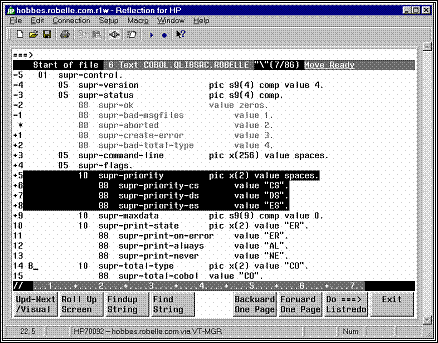
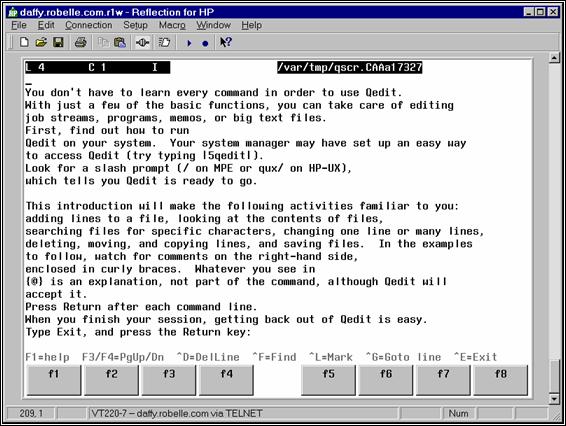
Qedit operates in Line mode or Visual mode,
depending upon the type of terminal. The same commands are used in both modes.
In Line mode, you do everything with commands. In Visual mode, you do most
editing with built-in functions of your terminal, but use commands for some
things. Line mode commands work in Visual mode, and Visual mode function keys
work in Line mode.
Here we describe
the Qedit commands in alphabetic order. For each command, we show both the
longest and the shortest name that Qedit can recognize, as in Add [A].
Highlighted terms (e.g., linenum) and
jargon words (e.g., "workfile") are defined in the "Glossary".
The Visual
command
is described only briefly in this section: see the chapter "Getting A
Quick Start with Full-Screen Editing" for full details.
Here are general
guidelines that apply to using the Qedit commands.
Each Qedit command has a name such as List
that you can abbreviate to any leading subset. Thus, L means List. Some
commands require more than one letter: GARbage, DEStroy, RENumber, SHut,
VIsual. You may append option letters to the command: Q, T, or J. Q means
"quiet", T means "template", and J means various things,
depending on the command.
list
all {fully spelled out}
l
@ {maximal abbreviation}
lq {list quietly}
listqt {list quietly, with template}
lqjt {list quiet, jumping, with template}
list
$ {most recent external file name}
s
dec on {Set Decimal command}
sh {Shut command}
You can enter the commands in uppercase or
lowercase. Shell commands such as ls and cd can only be in lowercase. These
commands are identical:
LIST
ALL {uppercase}
list
all {lowercase}
You can enter several commands on a single
line, if you separate them with semicolons. The maximum command line is 256
characters, and \ is not supported for continuation. If you want to have an
HP-UX command or a calculator command in the stack, you should enclose it in
parentheses. This prevents Qedit from passing the rest of the line as
parameters. For example,
List
5;!find . -name testfile -exec cat {} ;
{fails}
List
5;(!find . -name testfile -exec cat {} ;)
{works}
If the syntax
requires semicolons and parentheses, you have to put the problematic command in
a shell script and use it in the command list instead.
Any error causes
Qedit to flush the remaining commands in the line.
list
505;add *-1 {list line 505; add just
before it}
shut;who
When combining
Qedit commands, be certain to use the same quote character in all the commands.
Wrong:
/c7/7"DISPLAY";c\.\\
Right:
/c7/7"DISPLAY";c".""
You may annotate Qedit commands by putting
comment text in curly braces at the end of the line:
keep
sample,yes {update disc file}
Such comments are
recognized at the "/" prompt, in usefiles, as well as Visual's home
line and Next? prompt and List's More? prompt.
You can stop most Line mode functions by
pressing the Control-Y key. For example, to stop an inadvertent List ALL, use
Control-Y. To stop the Add, Modify, or Replace commands, use either Control-Y
or two slashes (//).
Some commands have no alphabetic name. In
Line mode, pressing only Return means display the next line and a backslash (\)
means display the previous line, $ means enable Memory Lock and $- means
disable Memory Lock. In either mode, ? means Help, any line number means go to
that line, a string means display the next line with that string, and
"^" means search backwards for a string:
|
55
|
find and display
line 55 or higher
|
|
FIRST
|
find and display
first line
|
|
;;;;
|
display the next 5
lines
|
|
\
|
display the
previous line
|
|
-5
|
move current line
back 5 lines
|
|
"string"
|
display next line
with string
|
|
^"string"
|
display previous
line with string
|
|
$
|
turn on memory
lock at this line
|
|
$-
|
turn off memory
lock
|
Qedit accepts the eight user function keys of
HP terminals as one-keystroke abbreviations for useful functions:
|
F1
|
Go into Visual;
Update/Getnext if in Visual
|
|
F2
|
Roll the screen up
6 lines; browse
|
|
F3
|
Findup (find
previous line with current string)
|
|
F4
|
Find (find next
line with current string)
|
|
F5
|
Browse Backward
One Page
|
|
F6
|
Browse Forward One
Page
|
|
F7
|
Listredo (line) or
execute ===>
line (Visual)
|
|
F8
|
Exit from Qedit or
Exit from Visual to Line mode
|
^1 through ^8 are
another way of invoking the user function keys in Line mode.
Qedit accepts most HP-UX commands and
scripts. If the shell command matches an existing Qedit command, you must
precede it with a colon (:) or an exclamation (!). See Running Qedit on HP-UX for more details.
Any command that begins with an equal sign
(=) is treated as a calculator expression. This feature can be used to compute
temporary values and do conversions from one number base to another.
Adds lines into the workfile. There are five
varieties of Add that cover all the ways you can add lines into a Qedit
workfile:
|
NEW
|
Add new lines to
your workfile from Stdin.
|
|
STRING
|
Add a new line
from the command prompt.
|
|
COPY
|
Copy lines from
one place to another.
|
|
MOVE
|
Move lines from
one place to another.
|
|
FILE
|
Bring lines in
from an external file.
|
Add some new lines from the terminal
keyboard. Insert them at a given line number or after it.
ADD [ linenum ]
(Q=no linenums, J=justified, T=template)
(Default: linenum
= *)
The linenum parameter specifies where to add
new lines and also determines the increment between new lines. If linenum is 9.1, lines will be
incremented by 0.1; if 9.01, then 0.01. If linenum
already exists, Qedit increments it and begins adding after the existing
line. If linenum is 0, Qedit adds new
lines before the first existing line in the file. If you don't say which linenum, Add inserts the lines after the
current position (*). (See Miscellaneous Points below.)
Examples
/add
5 {add new lines after line
5}
5.1
line a {Qedit prompts with line
number}
5.2
line b {you enter line of text
and Return}
5.3
// {you enter // or
Control-Y to stop}
/aq {add after * line; no prompt}
This
is new text
// {end the Add command}
Temporary Workfile
If you do not have a named workfile Open when you Add, Qedit
automatically builds a temporary workfile for you. This file has a random file
name and is created in /var/tmp
by default. If you want to have temporary files in a different directory, enter
the new path name in the TMPDIR environment variable.
TMPDIR=/home/user1/tmp
export
TMPDIR
Keep in mind that Qedit works with
absolute filenames and these names can not have more than 240 characters.
If you make any changes to the file (e.g., by adding lines),
Qedit will ask if you want to save your changes when you exit.
Using the Tab Key
By default, Qedit defines tabs every 8 columns
across the line (every 10 for Qedit/MPE). You can override these default tab
stops using Set Tabs Stop n (every 2
to 15 characters) or Set Tabs 5 10 22 28 ... for completely custom tab stops.
When you press the tab key as you Add lines, Qedit correctly inserts spaces in
your lines and skip to the correct column on your screen (assuming you are
using an HP terminal).
Overflowing Lines or Line
Numbers
The Add command continues prompting until you
press Control-Y, or you type "//" at the end of a line, or you run
out of line numbers. When you exhaust the line numbers possible between two
lines, Qedit prints "Error: Already". You can continue by doing a
range Renumber on the area where you wish to add more lines. Thus, if your last
line added was 4.999, use Renum 4/5 to spread out the lines between 4 and 5.
You can configure Qedit to automatically
renumber part of the file so that you do not have to renumber it manually. See
the Set Visual Renum option.
Line Wraparound
If you enter a line that is too long, Qedit
divides it into several lines. Set Wraparound ON divides lines on
"word" boundaries only. Any words that will not fit on the current
line are moved to the next line. If only a small number of words are moved to
the next line, Qedit prompts you to complete the line. To end the Add when this
happens, press Return before typing "//". If you are editing FORTRAN
source code, Qedit generates a valid continuation line for you.
Automatically Indenting
Lines
AJ for justified is a special option to
indent new lines. The linenum you
specify must be an existing line. You enter new lines beneath it. Qedit will
then indent the new lines by exactly the same number of spaces as the existing
line. You can shift the indentation left by typing {'s at the start of a line,
or shift it right with }'s. To redefine the { and } characters, use Set Zip.
Modifying a Line During
Add
When you know you made a typo, and prefer to
fix it now instead of going on, the auto-modify character will help you. Enter
the command Set Zip []@{}#, or better yet, put it in your Qeditmgr
configuration file. The # character (or other special character of your choice)
is called the auto-modify character. It allows you to modify the line you are
currently entering. Type "#" at the end of the line, and Qedit
redisplays the line for you to modify. When you are done with the Modify, you
press Return to continue adding new lines.
Miscellaneous Points to
Note
If you have Set Left/Right margins, the new
lines added will have spaces to the left and right of the margins. That is, the
line you enter will be left-justified within the current margins of the
workfile.
The maximum default increment between new
lines is 1.0 (or 0.1 for standard COBOL files). You can change this default
with Set Increment.
You can ask Qedit to remove nonprinting
characters from your input lines using Set Editinput Data ON. If you do not
wish to allow the extended Roman-8 characters, use Set Editinput Data ON Extend
OFF.
Add one new line, with the text coming from a
string in the command itself. This is handy when you need some literal text
within a User Command or Use file, but don't want to create a temporary file to
hold it.
ADD linenum string
(Q=no linenums, J=justified, T=template)
(Default: linenum
= *)
The linenum parameter specifies where to
insert the new line containing the string.
Examples
/add
5 "new line"
5.1
new line
/add
10.01 "change datasetdata setall"
10.01
change datasetdata setall
Add lines by copying duplicates of existing
lines.
ADD linenum = rangelist
(Q=no display)
(Defaults: none)
The linenum parameter tells Qedit where to
insert the copied lines. The number of decimal places in linenum tells Qedit how finely to number the new lines:
/add
50 = 1/9 {new lines will be
50.1, 50.2, 50.3...}
/add
50.10=1/9 {new lines will be
50.10, 50.11, 50.12...}
The rangelist parameter tells Qedit which
lines to copy:
/add
50.1 = 1/9 10/15 {'1/9 10/15' is the rangelist}
Examples
/list
4/8 {how lines look before
the copy command}
4
aaaaaaaa
5
bbbbbbbb
6
cccccccc
7
dddddddd
8
eeeeeeee
/add
5 = 7/8 {copy lines 7 and 8
after line 5}
5.1
dddddddd
5.2
eeeeeeee
2
lines COPIED
/list
4/8 {how lines look after
the copy command}
4
aaaaaaaa
5
bbbbbbbb
5.1
dddddddd
5.2
eeeeeeee
6
cccccccc
7
dddddddd
8
eeeeeeee
/aq
5 = 5 {duplicate line 5
after itself}
Notes
Add prints each
new line, unless you use AQ. When you copy lines, the rangelist must not include the linenum
(e.g., /Add 5 = 4/6 is rejected because it would be an infinite loop).
Qedit prints "Error: Already". The lines copied are not deleted from
the original location. You now have two copies of the lines (and a copy in the
Hold0 file, see Add-Move).
If you have Set Left/Right margins, Qedit
prints only the portion of each line within the margins. However, it will
actually copy the entire line, including the portion outside of the current
margins.
Move some lines from one place in the file to
another, deleting them from the original position.
ADD linenum < rangelist
(Q=no display)
(Defaults: none)
The linenum tells Qedit where to move the
lines. The number of decimal places in linenum
determines the line number increment. For example, "/add
5.10<100/200" creates lines 5.10, 5.11, 5.12, etc.
The rangelist tells Qedit which lines to
move. Add deletes the original lines after moving them. You still only have one
copy of each line.
Examples
/list
4/7 {how lines look before the
move}
4
aaaaaaaa
5
bbbbbbbb
6
dddddddd
7
cccccccc
/add
5 < 7 {move line 7 after line
5}
5.1 cccccccc
1
line MOVED
/list
4/7 {how lines look after the
move}
4
aaaaaaaa
5
bbbbbbbb
5.1
cccccccc
6
dddddddd
Notes
Control-Y during a
move stops the move, but it also changes the move into a copy. The lines being
moved in the current range are not deleted.
Add-Move ignores Set LEFT/RIGHT margins; it
moves entire lines. However, it only prints the portion of the line within the
current margins.
When you copy or move lines using Add= or
Add<, Qedit first puts the lines into a "Hold" file called Hold0.
It then counts the lines. If you do not have sufficient line numbers to insert
the new lines, Qedit stops and prints "Error: Already". Use Renum to
renumber the range of line numbers and then copy the lines from the Hold0 file.
See also the Hold command.
/list
hold0
/add
55=hold0 {add from Hold file}
Add lines to the workfile from an external
file.
ADD linenum = filename [,UNN]
[ rangelist ]
(Q=no display)
(Default: entire file)
The linenum tells Qedit where to begin
adding the lines from the external file.
The filename tells Qedit which file to copy
from. It can be any type of disc file. If any of the lines are too long, they
will be truncated with a warning. Use filename,UNN
when you are adding from a data file with numeric characters in the last eight
columns which are not really sequence numbers.
The rangelist tells Qedit how much of the
file to copy. The default is to copy the entire file. If the external file does
not have sequence numbers, Qedit assumes that the file is numbered from 1 by
the current Set Increment. When you specify a rangelist, Add leaves a copy of
the lines from the external file in the Hold0 file, as well as in your
workfile.
Examples
/add
500.01 = abc {copy in the file ABC
after 500.01}
500.001 abc line-1 {prints each line copied from file}
500.002 abc line-2 {prints new line numbers too}
/aq
5 = xyz 5/10 {copy in lines 5/10 of the file XYZ}
/l
template "$page"(up) {list page breaks in a file}
1
$PAGE "xx" {select
the template you want}
24
$PAGE "yy"
37
$PAGE "zz"
/add
5=template 24/36 {copy the lines
between $pages}
/shut
/dev/src/test.c {establishing
"previous" file}
/new
cust {open another file}
/a
1 = $ 50/60 {$ stands for
/dev/src/test.c}
Notes
Add prints each
line as it copies it, unless you use AQ. If Qedit finds invalid sequence
numbers in a file, it begins assigning "logical" sequence numbers
using the last valid sequence number and the current Set Increment.
If you have Set Left/Right margins, Qedit
inserts blanks before the left margin in each line. That is, the lines from the
external file are left-justified within the current margins of the workfile.
Appends a string to the end of each line in
the rangelist.
APPEND "string" [ rangelist ]
(Q=no display)
(Default: rangelist
= *)
Append allows you
to add a semi-colon (or any other string of characters) to the end of a line
(/AP ";" 5/10). Append prints each line that it changes. If the
resulting line would be too long, Append goes into Modify on that line.
Examples
/list
25
25 to the end of the line
/append
"!"
25
to the end of the line!
/ap ")" 1/4
1
(redo function)
2
(modify function)
3
(append function)
4
(list function)
Starts "browsing" the current file
by displaying one page "backward". You stay in "browse"
mode until you enter any command (see List, jumping option).
BACKWARD
(F5 key does the same)
In Line mode,
Backward and Forward (or F5/F6) throw you into List-Jumping's browse-mode.
Qedit displays a screen of text, where the screen size is either 23 lines or
what you specify with Set List LJ, then waits for you by asking
"More?". Press Return to see the next screen. Typing a line number
moves you to the screen starting at that line, pressing F2-F6 does the
appropriate action, and F8 or "//" or Control-Y or typing any command
gets you out of browse-mode. At the "More" prompt, the *
"current" line is the last line displayed.
Repeat any combination of the previous 1,000
command lines, with or without editing.
BEFORE
[
start [ / stop ] ]
[
string ]
[
ALL | @ ]
(Default: redo previous line)
(BQ=redo without change)
(BJ=listredo)
The Before command
allows you to modify the commands before it executes them. If you don't need to
change them, use BQ or :Do. Commands are numbered sequentially, starting with 1
for the first command entered and, by default, the last 1,000 commands are
accessible. This numbering sequence applies only to the temporary redo stack,
because this stack is discarded when you exit Qedit. The numbering sequence in
a persistent redo stack, which is accessible across Qedit invocations,
continues between invocations. Use the :Listredo or BJ command to display the
previous commands. You can redo a single command, a range of commands, or the
most recent command whose name matches a string.
The Before command
uses Qedit-style Control characters for modifying the commands. The default
mode is to replace characters. To delete use Control-D, and to insert use
Control-B. If you prefer HP-style modify (D, R, I, and U), use the :Redo
command instead of Before, or do Set Modify HP.
Examples
/ls
/users/obb
{"bob" is not spelled right}
/users/obb
not found
/Before {redo most recent
command}
ls
/users/obb {last command
is printed}
bob {you enter changes to it}
ls
/users/bob {the edited
command is shown}
{you press
Return}
/listredo
-10/ {show last 10
commands}
/before
5 {redo 5th command
in stack}
/bef
8/10 {redo 8th
through 10th}
/b
ls {redo last ls
command}
/b
@temp {redo last
containing "temp"}
/before
–2 {redo command
before previous}
/before
-5/-2 {redo by relative
lines}
Notes
HP-UX reacts to certain control characters which might
conflict with the Qzmodify codes. For example, control-D sends an end-of-file
signal to HP-UX but is also the delete character in Qzmodify. You should use
the HP-UX stty program to change the
default end-of-file signal. Please see the section "Control
Characters and stty" on page 48 for
more details.
If you wish to
change any characters within the line, the modify operators are the regular
Control Codes used in Qedit:
Any printing
characters replace the ones above.
Control-D plus
spaces deletes columns above.
Control-B puts you
into "insert before" mode.
Control-A starts
appending characters at the end of line.
Control-A,
Control-D, plus spaces, deletes from the end.
Control-T ends
Insert Mode, allowing movement to a new column.
Control-G recovers
the original line.
Control-O
specifies "overwrite" mode (needed for spaces).
Change current working directory.
CD [directory]
(Default: $home directory)
You can switch
directories using the cd command. The cd command affects your Qedit processes
and any processes that you create. When you exit Qedit, you will be in the same
directory that you were in when you invoked Qedit.
Examples
cd
/usr/local/bin
cd {return to home}
cd
$HOME {return to home}
cd
~ {return to home}
cd
$SAVEDIR {Error!!!}
The last example
shows a limitation of cd inside Qedit. You can't refer to a directory name that
is saved in a variable, because Qedit simulates the cd command, instead of
passing it to your shell program for execution. Qedit does not simulate the
shell command processing such as variable substitution. (The three special
cases for "home" are hardcoded into Qedit's cd.)
In addition, a few things still do not work
well when doing shell commands in Qedit. If you launch a command in the
background using "&", the jobs command will not show the status
of it. If you set an environment variable, it will not be set for Qedit. Both
of these problems are caused by the fact that shell commands are executed by a
child process which is unable to change the status of Qedit.
Changes one string or column range to another
string in some or all of your lines. There are two basic varieties of Change:
|
STRINGS
|
replace one string
with another
|
|
COLUMNS
|
replace a column
range with a string
|
Replaces one string of characters by another
string, the two strings being separated by a single quote character.
CHANGE "string1"string2" [ rangelist ]
(Q=no display, J=verify, T=CobX Tag)
(Default: rangelist
= *)
The string1 tells Change what string of
characters to find. The default for string1
is the last string used, and you specify this default via the null string
(e.g., change
""xxx"). The null string recalls the last string and the
window used with it. If the target string1
occurs more than once in a line, Qedit changes every occurrence.
The string2 tells Change what characters to
substitute. In this format of the Change command, only three quote characters
are used to define the two strings, not four as you would normally expect.
Another oddity is that string2 does
not become the current string. This is so that you can do another Change or
Find command using "" as the target (i.e., the last string), finding
and fixing multiple occurrences of the same string (e.g., find "nad"; CH
""and"; F; CH ""and"; ...). The third
difference of string2 is that a null
string for this parameter actually means "null". change "very"" 100 means
remove "very" from line 100.
The rangelist tells Change what lines to
search for string1. The default rangelist is the current line only.
If string2 is shorter than string1 (e.g., change "Robert"Bob"),
Qedit shortens the line by shifting the rest of the line left. If string2 is longer (e.g., change "Bob"Robert"),
Qedit lengthens the line by shifting characters right. If string2 is so much longer that the line would be too long, Qedit
sends you into the Modify command to fix the line by hand.
Change prints each
line that it updates, unless you use CQ.
Examples
/list
55 {display line with
mistake}
55
select lines contaning both of two
/change
"contan"contain" {change string in current line}
55
select lines containing both of two
/change
"sub"subindex" all
{make a global change}
10
subindex = subindex + 1
11
table(subindex) = 0
213
if subindexway = 0 {oops-bad
change!}
/cj
"cust"Customer" 200/300
{change with user approval}
225
Display Customer {shown for
approval}
Change
okay (Y,N,or Modify) [No]: yes
/list
9 {display line to review}
9
The test results were very exciting.
/c
"very"" {remove
word, change to null string}
9
The test results were exciting.
/find
"wiith" {search forward for
line with error}
99
the string is combined wiith the second string
/c
""with" {change
"wiith" to "with"}
99
the string is combined with the second string
Using Alternates to Quote
You may select your own quote character if
you find " too much work because it is a shifted key. Among the
alternatives are \ : and ' (apostrophe). See the "Glossary"
for more on strings and other alternates to quotes.
/c
:wiith:with:
/c
\wiith\with\
Approving Each Changed
Line
Use CJ to give yourself approval over each
change before it is updated. With CJ, Qedit displays the line as it would be
and asks you for a Yes, No, or Modify answer. Use CJ when you have trouble
working out the precise strings to change.
Searching for Two Strings
at Once
Because the rangelist can contain a search string, you can actually select
lines containing both of two strings:
/c
"xxx"filename" all
{"xxx" becomes "filename" in ALL}
/c
"xxx"filename" "rename" {line must contain "rename" too}
Including a Window
The form of Change command just described
requires only three quotes per command, but does not allow all options. You
cannot specify a special window - you
will always use the default Set Window value. To do a Change with a special
window, you must specify four quote characters, two for each string:
CHANGE "string1" (window)
"string2" [ rangelist ]
Each string is
delimited by two quote characters and the two strings must be separated by a space
or a comma. Between the two strings you may insert a window such as (SMART) or (20/30) or (UPSHIFT).
Changing Within a Column Range
If you insert a column window, Qedit changes
only the columns within the window.
Columns outside the window are
untouched:
/change "CUSTREC" (10/39)
"CUSTOMER-RECORD"
In this example,
"CUSTREC" is expanded to "CUSTOMER-RECORD", but the data at
column 40 and beyond is not moved. In addition, the Change must not cause the
rest of the window to overflow.
Changing Uppercase and
Lowercase
If you specify an upshift window, Qedit
ignores the case of letters when matching the target string. It will match
words that are spelled with caps or without:
/change "JONES" (upshift)
"Fitz-Jones" all
In this example,
Change selects lines containing "JONES", "Jones", or even
"joneS".
Avoiding Changes to
Embedded Words
If you specify a Smart window, Qedit rejects
those matches in which the target string is actually in the middle of another
word:
/change "FRANK" (smart)
"Frank" all
This example
selects "FRANK", but reject "FRANKLYN." You can combine
Smart and Upshift.
Patterns and Windows
In other commands the window can specify a pattern to
match. In the Change command patterns are not allowed, because Change cannot
perform pattern changes. However, a string specified in the rangelist portion
of the Change command may be a pattern. For example:
/change
"CUSTREC" "CUST-REC" "@01@PIC@" (pattern)
{change custrec to cust-rec in
all lines that}
{ also contain "01" and
"PIC" in that order}
CobX Tags
Cobol tags are short strings stored in
columns 73 to 80 of CobX source files. The Cobol tag value is defined using the
Set X command. Once enabled, updated lines and added lines are automatically
updated with the tag. They can also be modified manually with custom tag values.
In its regular
form, the Change command affects only the text area in columns 7 to 72. If you
wish to make changes to Cobol tags, use the T
suffix. You can think of it as the Tag
option. This option operates only on the tag area itself, columns 73 to
80.
/change "CUST" "SUPP" all
{change cust to supp in all
lines. }
{ cust must be between columns
7 and 72. }
/changeT "CUST" "SUPP"
all
{change cust to supp in all
lines. }
{ cust must be between columns
73 and 80. }
To to this, the Tag option temporarily changes
the margins to (73/80).
Qedit displays a warning every time this option is used. Because the margin
values have changed, explicit column range in a Window can only be between 73
and 80.
/changeT "CUST" (50/60)
"SUPP" all
Warning: ChangeT: editing the Cobol tag area only
(73-80).
Error: Window
/changeT
"CUST" (73/80) "SUPP" all
Warning: ChangeT: editing the Cobol tag area only
(73-80).
10
SUPP0102
1 line
changed
Because the
margins have been changed, Qedit displays text in the tag area only except when
the Justify option is used. In this case, Qedit prompts for confirmation before
making the change. It would be hard to determine if a line needs to be changed
based only on the tag value. So, when the Justify option is used, Qedit
displays the complete line. The user has the option to accept the changes,
reject the changes or manually modify the line. If the user chooses to modify
the line, only the tag is displayed.
Replace some columns in some lines with a new
string of characters. Use Change to insert columns, shift text left, or shift
text right.
CHANGE column [/column] [(window)] "string" [rangelist]
(Q=no display, J=verify)
(Default: rangelist
= *)
Change replaces
the target column range with the string in the lines of the rangelist. You can use this to insert a
string at a specified column. You can also use it to replace, expand, or
contract specified columns.
If you specify a
single column instead of a range,
Qedit inserts the string before that
column and shifts the rest of the line to the right. You can create new columns
by inserting blanks in front of a position (e.g., change 5 " ").
If you specify a range of columns, Qedit
replaces that column range with the string.
The string may be the same length as
the column range, longer, or shorter. If the string is shorter than the column
range deleted, the rest of the line shifts left. If longer, the rest of the
line shifts right. You can remove columns entirely by changing them to a null
string (e.g., change
5/7 "").
Examples
/change
5"|"all {draw vertical
line of "|"s in file}
/cq
1/2 "" 10/15 {shift lines
10/15 left 2 spaces}
/cq
1 " " 10/15 {shift lines 10/15 right 3 spaces}
/cq
1(1/8)" " all {shift columns
1/8 right 1 space}
{don't change text beyond
column 8}
/change
12/12 :: {delete column 12 in the
current line}
Notes
See the discussion
of windows under "Changing
Strings". Those notes also apply to column changes.
The first column
number is usually 1, except for standard COBOL source files, where it is 7 (seven).
The last column number depends on the current values for Set Language, Set
Length, and Set Right.
Change prints each
line modified, unless you use CQ. CJ asks you to verify each change.
Shut the current work file and remove it from
the recently accessed file list.
CLose
(Default: none)
The Shut command
is the normal way to close a workfile. When you Shut a file (or Open another
one), Qedit remembers the name of the current workfile in a list of recently
accessed files. This allows you to reopen the file using open ?. However, the list is of
limited size. If you are not coming back to edit the current file again, use
the Close command instead of Shut. This keeps other file names from falling off
the bottom of the list.
Examples
/open
abc
/open
def
/close {close "def" and forget it}
/open
* {current file is now
"abc"}
Copies one or more columns to a
different location on the same line.
COLCOPY source [ /source2 ] destination1 [ /destination2 ]
[ rangelist ]
(Q=no display,
J=verify, T=CobX Tag)
(Default: rangelist
= *)
Colcopy copies text in columns specified by source1 and source2 to the destination columns specified by destination1 and destination2 in the lines of rangelist.
Even though Colcopy can modify multiple lines using a rangelist, it really operates on one line at a time. You can not
copy columns from one line to another.
Source and destination columns always represent the
original location. All changes are based on that assumption.
If source1 only
is specified, Qedit copies just that column (length of 1). If destination1 only is specified, the
source columns are inserted at that location. If you wish to replace a single
column, enter a destination range where destination1
and Destination2 are the same e.g. Colcopy 1 10/10.
/list
1
1
abcdefghijklmnopqrstuvwxyz
/colcopy
1 10 { insert column 1 at column
10 }
1
abcdefghiajklmnopqrstuvwxyz
1
line changed
/colcopy
1/5 10 { insert columns 1/5 at
column 10 }
1
abcdefghiabcdejklmnopqrstuvwxyz
1
line changed
If destination1
and destination2 are specified, text
in these columns is replaced by the source text. If the source text is narrower
or wider, the line is shortened or expanded as needed.
/colcopy
1 10/15 { copy column 1 to columns
10/15 }
1
abcdefghiapqrstuvwxyz
1
line changed
/colcopy
1/5 10/11 { copy columns 1/5 to 10/11.
Line expands. }
1
abcdefghiabcdelmnopqrstuvwxyz
1
line changed
/colcopy
1/5 10/20 { copy columns 1/5 to 10/20.
Line shortens. }
1
abcdefghiabcdeuvwxyz
1
line changed
Trailing Spaces
Trailing spaces on the line are not
significant. This means that a line can expand until a non-space character
reaches the current right margin (Set Right).
However, trailing spaces from the source text are significant and are copied in the operation. If the line can not be expanded further,
Qedit displays a warning message and allows the user to modify it.
/list
2
2
abcd efghiabcdeuvwxyz
/colcopy
1/8 20 { insert columns 1/8 at 20
}
1
abcd efghiabcdeabcd uvwxyz
1
line changed
/Set
right 30
/colcopy
1/5 30 { insert columns 1/5 at 30 }
Warning:
Source columns could not be inserted. Please modify. (Warning 2)
1
abcd efghiabcdeabcd uvwxyz
1
line modified
Overlapping Columns
When source and destination columns do not
overlap, the results are straightforward. If source and destination columns
overlap partially or completely, the results might not be as expected. Keep in
mind that:
·
source and destination columns are always based
on the original line
·
the destination columns are removed
·
the source columns are put in their place
Approving Each
Changed Line
Use COLJ to give yourself approval over
each change before it is updated. With
COLJ, Qedit displays the line as it would be and asks you for a Yes, No, or
Modify answer.
CobX Tags
Cobol tags are
short strings stored in columns 73 to 80 of CobX source files. The Cobol tag
value is defined using the Set X command. Once enabled, updated lines and added lines are
automatically updated with the tag. They can also be modified manually with
custom tag values.
In its regular form, the Colcopy command affects only the
text area in columns 7 to 72. If you wish to make changes to Cobol tags, use
the T suffix. You can think of it as
the Tag option. This option operates
only on the tag area itself, columns 73 to 80.
/ColT 73/74 79/80 all {
copies content of columns 73 and 74 }
{
into columns 79/80 }
/ColT 73/74 75 all {
inserts content of columns 73 and 74
}
{
in column 75. Columns 76-80 are shifted. }
To to this, the Tag option temporarily changes
the margins to (73/80). Qedit displays a warning
every time this option is used. Because the margin values have changed,
explicit column range in the source and destination columns can only be between
73 and 80.
/ColT 23/24 79/80 all
Warning: ColcopyT:
editing the Cobol tag area only (73-80).
Error: The
Sourcestart column (23) is not between 73 and 80
/ColT 73/74 79/80 10
Warning: ColcopyT:
editing the Cobol tag area only (73-80).
10 ME0307ME
1 line changed
Because the margins have been changed, Qedit displays text
in the tag area only except when the Justify option is used. In this case,
Qedit prompts for confirmation before making the change. It would be hard to
determine if a line needs to be changed based only on the tag value. So, when
the Justify option is used, Qedit displays the complete line. The user has the
option to accept the changes, reject the changes or manually modify the line.
If the user chooses to modify the line, only the tag is displayed.
Moves one or more columns to a
different location on the same line.
COLMOVE source [ /source2 ] destination1 [ /destination2 ]
[ rangelist ]
(Q=no display,
J=verify, T=CobX Tag)
(Default: rangelist
= *)
Colmove moves text in columns specified by source1 and source2 to the destination columns specified by destination1 and destination2 in the lines of rangelist.
The source columns are removed from their original location. Even though Colmove can modify multiple lines
using a rangelist, it really operates
on one line at a time.
You can not move columns from one line to another. Source
and destination columns always represent the original location. All changes are
based on that assumption.
If source1 only
is specified, Qedit moves just that column (length of 1). If destination1 only is specified, the
source columns are inserted at that location.
If you wish to replace a single column, enter a destination range where destination1 and Destination2 are the same e.g. Colcopy 1 10/10. A move means the original columns are removed and the
line is shifted left. Then the source text is inserted at the destination.
/list
1
1
abcdefghijklmnopqrstuvwxyz
/colmove
1 10 { move column 1 to column
10 }
1
bcdefghiajklmnopqrstuvwxyz
1
line changed
/colmove
1/5 10 { move columns 1/5 to
column 10 }
1 fghiabcdejklmnopqrstuvwxyz
1
line changed
If destination1
and destination2 are specified, text
in these columns is replaced by the source text. If the source text is narrower
or wider, the line is shortened or expanded as needed.
/colmove
1 10/15 { move column 1 to columns 10/15 }
1
bcdefghiapqrstuvwxyz
1
line changed
/colmove
1/5 10/11 { move columns 1/5 to 10/11 }
1
fghiabcdelmnopqrstuvwxyz
1
line changed
/colmove
1/5 10/20 { move columns 1/5 to 10/20 }
1
fghiabcdeuvwxyz
1
line changed
Trailing Spaces
Trailing spaces on
the line are not significant. This means that a line can expand until a
non-space character reaches the current
right margin (Set Right). However, trailing spaces from the source text are
significant and are moved in the operation.
/list
2
2
abcd efghiabcdeuvwxyz
/colmove
1/8 20 { move columns 1/8 to 20 }
1
efghiabcdeabcd uvwxyz
1
line changed
Overlapping
Columns
When source and
destination columns do not overlap, the results are straightforward. If source
and destination columns overlap partially or completely, the results might not
be as expected. Keep in mind that:
·
source and destination columns are always based
on the original line
·
the source columns are removed
·
the destination columns are removed
·
the source columns are put in their place
Here is an example:
/list
1
1
abcdefghijklmnopqrstuvwxyz
/colm
6/20 15
1
abcdefghijklmnopqrstuvwxyz
1
line changed
Apparently, nothing has changed but, in fact, something did
happen to the line. Qedit removed the source columns
"fghijklmnopqrst" and tried to insert the original text where column
15 used to be. Column 15 was part of the area that has been removed so Qedit
inserts the text where it should have been i.e. between "e" and
"u". So, it's putting the original text back where it was.
Moving Passed the
Right Margin
Destination columns
can exceed the current right margin. In this case, Qedit assumes the columns
should be moved to the end of the line. Effectively, the source columns are
inserted in the rightmost columns of the line. The destination columns do not
have to be a precise value. They just need to be larger than the current right
margin. If the right margin is currently set at 80, the following commands
yield the same results.
/v
right
Set
Right 50
/lt2
....+....10...+....20...+....30...+....40...+....5
2 abcdefghijklmnopqrstuvwxyz
/colm
1/5 51
2
fghijklmnopqrstuvwxyz abcde
1
line changed
/colm
1/5 88/90
2
fghijklmnopqrstuvwxyz abcde
1
line changed
Approving Each
Changed Line
Use COLMJ to give yourself approval
over each change before it is updated.
With COLMJ, Qedit displays the line as it would be and asks you for a
Yes, No, or Modify answer.
CobX Tags
Cobol tags are
short strings stored in columns 73 to 80 of CobX source files. The Cobol tag
value is defined using the Set X command. Once enabled, updated lines and added lines are
automatically updated with the tag. They can also be modified manually with
custom tag values.
In its regular form, the Colmove command affects only the
text area in columns 7 to 72.If you wish to make changes to Cobol tags, use the
T suffix. You can think of it as the Tag option. This option operates only on the tag area itself,
columns 73 to 80.
/ColmT 73/74 79/80 all {
copies content of columns 73 and 74 }
{
into columns 79/80 }
/ColmT 73/74 75 all {
inserts content of columns 73 and 74
}
{
in column 75. Columns 76-80 are shifted. }
To to this, the Tag option temporarily changes
the margins to (73/80). Qedit displays a warning
every time this option is used. Because the margin values have changed,
explicit column range in the source and destination columns can only be between
73 and 80.
/ColmoveT 23/24 79/80 all
Warning: ColcopyT:
editing the Cobol tag area only (73-80).
Error: The
Sourcestart column (23) is not between 73 and 80
/ColmoveT 73/74 79/80 10
Warning: ColcopyT:
editing the Cobol tag area only (73-80).
10 ME0307ME
1 line changed
Because the margins have been changed, Qedit displays text
in the tag area only except when the Justify option is used. In this case,
Qedit prompts for confirmation before making the change. It would be hard to
determine if a line needs to be changed based only on the tag value. So, when
the Justify option is used, Qedit displays the complete line. The user has the
option to accept the changes, reject the changes or manually modify the line.
If the user chooses to modify the line, only the tag is displayed.
Deletes lines from the workfile.
DELETE [ rangelist ]
(Q=no display, J=verify)
(Default: rangelist
= *)
Delete prints each
line in rangelist, with an underline
character after the line number, as it deletes them, unless you use DQ.
Notes
If you do Delete All, you must answer
"Y" to a verifying question before the lines will be deleted. This
also applies if you Set Check Delete is ON and you delete more than 5 lines.
If you delete the wrong lines, you can cancel
the Delete by striking Control-Y. However, you must use Control-Y before you
press Return on the next command line. Qedit responds by printing
"Undeleted" or "Canceled". Once you have typed in the next
command line and press Return, your chance to recover using Control-Y is gone
and the previous Delete command is final. You can still undo the deletion using
Undo.
Delete All resets
the Set Keep Name (default for Keep command) so that a later Keep command will not wipe out the wrong file
by mistake.
Confirm Each Deletion
Use DJ to give yourself approval over each
delete before it is carried out. With
DJ, Qedit displays the line (even if the Quiet option is used) and asks you for
a Yes, No, or Stop answer.
Answer No or Return to keep the line.
Answer Yes to delete the current line.
Unlike the basic Delete operation where lines are removed with the next
command, lines confirmed in DJ are deleted immediately. They can be recovered
with an Undo
command.
Answer Stop if you wish to stop the
delete process. When you use Stop, lines that have been deleted are not
recovered automatically. Use Undo to recover them.
Examples
/delete
5/6 {remove lines 5 and 6 from
file}
5
_this is line 5
6
_and this is line 6!
/dq
2 10/49 {delete lines 2 and
10/49}
/delete
"."(1/1) {delete lines
with "." in column 1}
{Implied rangelist is
ALL}
/del "."(1/1 nomatch) {delete lines
without "."}
/d
"~"(pattern) {delete all
blank lines}
/dj
3/66
3
this is line 3
Delete it (Y,N or Stop) [No]:
4
this is line 4
Delete it (Y,N or Stop) [No]:Y
5
this is line 5
Delete it (Y,N or Stop) [No]:n
6
this is line 6
Delete it
(Y,N or Stop) [No]:S
1
line Deleted!
Purges the current workfile, or a named HP-UX
file, after first verifying with the user.
DESTROY [ filename ]
(Default: current workfile)
The filename parameter can be the name of
any file that you have write access to, "$" to refer to the
"last" file name mentioned in another command, or "*" to
refer to either the current workfile or, if none is currently open, the one just
Shut.
Examples
/destroy
/dev/src/test.c
/dev/src/test.c
# of lines=162
Purge
file [no]? Oui {that's French for
"yes"}
/open
ctemp
/des
*
ctemp
Qedit file, # of lines=15
Purge
file [no]? {Return key means
"no"}
File
NOT purged
/list
datapg2 {check contents of
file}
/destroy
$ {...then purge it}
Divides a line into two or more lines at
specified columns. Divide can turn a field-oriented record into a series of
lines with one field per line. It can also append a blank line after every line
in a file. See also VV in Visual. For the opposite of Divide, see the Glue
command.
DIVIDE [ ( columnlist ) ] [ rangelist ]
(Default: columnlist
= ], rangelist = *)
The columnlist parameter is one or more
valid column numbers in ascending order such as (10 20 30), or it may be a (])
for "after end-of-line" (i.e., append a blank line). All characters
from the specified column to end-of-line are moved to a new line after the
original line.
The rangelist parameter specifies one or
more lines in the file. Each line is split into two or more lines according to
the column parameter. The default rangelist
is the current line.
The default columnlist is "]", except when
the Divide command has no parameters or only a "string" rangelist. Then the current line is
split at the "current column". When Divide has no parameters, the
current column is "]". Following a successful string match, the
current column is the first column of the string position in the line(s).
Examples
/find
"abc";divide {move
"abc..." to a new line}
/list
*+2;divide {move ahead 2 lines, add
a blank line}
/divide
(20) all {split every line at
column 20}
/divide
(20 40) @ {split every line at
columns 20 and 40}
/divide
(10 20 30) {split current line at 3
places}
/divide
(]) */*+10 {add blank line after
lines */*+10}
/divide
(20)"Qedit" {split all
"Qedit" lines at column 20}
/divide
"Qedit" {split all
"Qedit" lines at "Qedit"}
/divide
(])"Qedit" {add blank line
to all "Qedit" lines}
Notes
After a Divide
command, the current line is the last line divided. To not print the lines, use
DivideQ.
Divide works
within the current Left and Right margins. That is, characters to the right or
left of the current margins are not moved.
When working with
COBOLX files, the Divide command does not consider the tag (columns 73 to 80)
as part of the data. This means that the current tag data is not moved to the
new split line. It also means that you cannot divide a line past column 73.
The :Do command repeats (without changes) any
of the previous 1,000 commands.
DO [ start [ / stop ] ]
[
string ]
[
ALL | @ ]
(Default: repeat the previous command)
Commands are
numbered sequentially from 1 as entered and the last 1,000 of them are
retained. Use the :Listredo command to display the previous commands. You can
repeat a single command (do 5),
a range of commands (do
5/10) or the most recent command whose name matches a string (do list). If you want to modify
the commands before executing them, use :Redo or Before.
Examples
/listredo {or /bj or ,, }
/do {do previous command again}
/do
39 {do command line 39 again}
/do
5/8 {do command lines 5 to 8
again}
/do
list {do most recent List
command}
/do
ls {do last starting with
"ls"}
/do
ls job {do last "ls job"
command}
/do
@job {do last containing
"job"}
/do
-2 {do command before
previous}
/do
-7/-5 {do by relative line
number}
/do
5/ {do command lines 5 to
"last"}
Notes
To stop a :Do All,
use Control-Y.
Exit from Qedit and return to the operating
system.
EXIT [string]
The current
workfile is closed and Qedit terminates. The F8 user key is the same as Exit.
To close the
current workfile without exiting, use Shut.
When you Exit,
Qedit checks whether you have any unsaved edits in any of your scratch files.
If so, you are prompted to Discard? them,
or stay in Qedit to save them.
Examples
/opt/robelle/bin/qedit
/open
qedit.doc {open file to work
on}
/modify
2482.5/ {do some editing...}
.
.
.
/exit {ready to quit for the
day!}
Notes
To avoid
accidental Exit as a result of pressing F8 one time too many, you can run Qedit
with the –v option. This forces user approval of Exit.
The string parameter is only allowed when
Qedit is running as a server.
The string is a message sent to the Qedit for Windows
client. The client receives the exit notification, displays the message and
disconnects immediately. If no string is specified, a default message is
displayed.
Finds the next line in the workfile that
contains a string. Use Findup if you want to search for the previous line. Find
always finds a single line that matches a string. Use the List command if you
want to find many lines that match a string.
FIND [string] [linenum]
FIND [string range] [linenum]
(Q=no display)
(Default: string
= recent; linenum = *+1)
Find defaults string to be "same as last
string" and linenum to be
"starting from the next line". This saves having to repeatedly type
the string and linenum. Once you have defined your string and starting position, just enter "F" to find the
next line.
Find does not
start searching at the beginning of your file. Find will start searching for
the string at the line after the current
line, unless you specify a linenum to
start the search. If you want to search from the beginning of your file, use
Find string FIRST.
The F4 user key
does the same function as Find with no parameters.
Examples
/find
"exit" first {find first
line with "exit"}
45
this command will cause an exit from the
(28)^
/f {find next line with
"exit"}
90
after you exit from a module, the program
(11)^
/f {continue finding
lines...}
...
/f {...until you reach end of
file}
Warning:
No Line {prints error and
rewinds}
Error:
End of File
/f {next Find wraps around!}
Warning:
Rewind to FIRST
45 this command will cause an
exit from the
(28)^
/fq"$page"(1/5);m {find next $page and modify it}
/fq;c""exit" {find next string and change it}
/fq;c""" {find next string and remove it}
/f
"start"/"end" [
{find string range and set ZZ}
Lines
5/11 saved in ZZ
Notes
The Q option lets
you find the line without printing it. Use FQ if you intend to Modify the line
after you find it.
Find prints an
error when the search reaches the LAST line without locating the string. Then,
if you enter another Find without a line number, the search starts from the
FIRST line in the file, after printing a warning.
To find/see all
occurrences of a string in a file, use the List command.
When a string
range is used and a corresponding block is found, the start and end line
numbers are stored in the ZZ marker.
Finds the previous line in the workfile that
contains a string. Findup can be shortened to ^. Use Find if you want to search
for the next line.
FINDUP
[string] [linenum]
(Q=no display)
(Default: string
= recent; linenum = *-1)
Findup defaults string to be "same as last
string" and linenum to be
"starting from the previous line". This saves having to repeatedly
type the string and linenum. Once you have defined your string and starting position, all you
need to enter is "^" or "FINDU" to find the next string.
The F3 user key
does the same function as Findup without parameters.
Examples
/findup
"exit" last {find last line
with "exit"}
90
after you exit from a module, the program
(11)^
/findup find previous line with
"exit"
45
this command will cause an exit from the
(28)^
/^ {continue finding lines...}
...
/^ {...until you reach start
of file}
Warning:
No Line {prints error and rewinds}
Error:
Beginning of File
/findup {next Findup wraps around!}
Warning:
Rewind to LAST
90
after you exit from a module, the program
(11)^
/findupq;mod {find string and modify it}
/findupq;c""exit" {find string and change it}
/findupq;c""" {find string and remove it}
Notes
Refer to the notes
under the Find command.
Displays
information about a self-describing file created by programs such as Suprtool.
These programs store information about the record layout such as field names,
data types, length.
FORM [ $LP | $LPA | $LPB ] [ filename ]
(Default: filename
= current Text file)
If filename is
omitted and a workfile is currently active, Qedit uses the name of the Text
file (see Verify Keep). An external
filename can be specified. In this case, the name must be the name of the data
file.
If the file is not self-describing, Qedit displays the
following message:
Error: File is not
self-describing.
Self-describing files on Hp-UX have 2 components: the data
file and the data description file. The name of the data description file is
the name of the data file followed by the .sd extension. For example,
/home/user1/mydata.dat { data }
/home/user1/mydata.dat.sd { data description }
The Form output looks like this:
Self-describing information for /home/user1/mydata.dat
File: /home/user1/mydata.dat (SD Version B.00.00) Has linefeeds
Entry: Offset
CHAR-FIELD X5 1
<<Sort# 1 >>
INT-FIELD I1 6
DBL-FIELD I2 8
PACKED-FIELD P12
12
PACKED*-FIELD P12 18
QUAD-FIELD I4 24
ID-FIELD I1 32
LOGICAL-FIELD K1 34
DBLLOG-FIELD K2 36
ZONED-FIELD Z5
40
Entry Length:
80 Blocking: 1
LP Listing
$lp, $lpa and $lpb
send output to a device associated with an environment variable of the same
name. For example, to print to the device called Laser with the $lpa option,
you must set the |4LPA| environment variable to Laser, as in |2export
lpa=laser|. If the LP environment variable is not set, Qedit will attempt to
send the output to the default system printer.
But if the LPA or LPB environment variables are not set with a valid
device name, an error will occur.
Starts "browsing" the current file
by displaying the next page "forward". You stay in "browse"
mode until you enter any command (see List, jumping option).
FORWARD
(F6 key does the same)
In Line mode,
Backward and Forward (or F5/F6) throw you into List-Jumping's Browse mode.
Qedit displays a screen of text, where the screen size is either 23 lines or
what you specify with Set List LJ, then waits for you by asking
"More?". Press Return to see the next screen, typing a line number
moves you to the screen starting at that line, pressing F2-F6 does the
appropriate action, and F8 or "//" or Control-Y or typing any command
gets you out of browse mode. At the "More" prompt, the *
"current" line is the last line displayed.
Finds and recovers wasted space in the current
workfile.
GARBAGE
(Q = no summary)
If you keep adding lines to a workfile and
editing them, eventually you will get an "Error: Full" message in
Line mode or "File nearly full!" in Visual mode, and be unable to add
more lines. One method of continuing at this point is to use the Garbage
command.
/garbage
/gar {minimal command name}
Garbage combines
partially full blocks to squeeze out free blocks, but it also searches the
workfile for any blocks that have been "lost" (i.e., are no longer on
the "free list" or the "text list"). It does not make your
file any smaller, it just allows you to continue editing by finding usable
space within the file.
Garbage prints a
summary of how much space it recovered and how much is available in the file.
The summary report can be suppressed using GarbageQ.
5 blocks squeezed out, 2 found, 55 used,
10 on free list, 9 for expansion.
In this example,
Garbage reports that 5 blocks were retrieved via squeezing, 2 lost blocks were
found, 55 blocks are currently used to hold text, 10 empty blocks are held on a
"deleted-block" list (the free list), and 9 blocks are available if
the EOF is expanded toward the LIMIT.
Joins a line with one or more following
lines, either concatenated or at specified tab positions. Use Glue to turn a
list of fields into a single record-oriented line. See also GG in Visual mode.
For the opposite of Glue, see the Divide command.
GLUE [ ( columnlist ) ] [ rangelist ]
(Defaults: columnlist = ], rangelist =
*/*+n)
The columnlist is a list of ascending column
numbers in parentheses such as (10 20 30), or ( ] ) for "after the
end-of-line", which is the default.
The rangelist specifies which lines to
combine. The default rangelist is the
current line plus n. When you specify
a range of lines, Glue joins the lines in "pairs".
Examples
/glue {joins *+1 to *}
/gluej {joins *+1 to * with space
between}
/glue;glue {join *+1 and *+2 to *}
/glue
(10) all {joins lines in
"pairs" at column 10}
/glue
(10 20 30) {joins 4 lines into 1
record}
/glue
"string" {glue
"string" lines to lines that follow}
Notes
If there are not
enough lines at the end of a rangelist to
fill in each column of the list, Glue does
not go beyond the rangelist. If
there is not enough room to move all of the characters into the line, as many
characters as will fit are moved, the following line is not deleted, and Qedit
prints an "overflow" warning.
After a Glue
command, the current line is the line last spliced together. To suppress
printing of the spliced lines, use GlueQ.
If you don't
specify a list of column fields, Glue removes leading spaces from the following
lines before moving them. To insert a single space between them, use GlueJ
instead. If you do specify columnar fields, Glue treats spaces as valid data
and moves them intact. If you specify more than one field, some nonblank data
may be overwritten if the columns are too close together or the lines to be
glued are too long. You can always use Undo to cancel a Glue command.
If Left or Right
margins have been Set, only the text within the margins is copied and the
following lines are not deleted.
When editing
COBOLX files, the tag area (columns 73 to 80) is not considered part of the
data. This means that the tag string on the next line is not moved to the new
line. It also means you cannot glue to columns past 73.
Gives instructions on the use of Qedit.
Everything in the Qedit User Manual is
also in the Help command. "?" means the same as Help.
HELP [ command [ ,keyword ] ]
[
TERMS [ ,word] ]
[
INTRO ]
[
NEWS ]
(Default: browse through the entire help
file)
(Q = Quick Reference Guide "Quick
Help")
The parameters
have the following meaning:
command explains
command; lists subsidiary keywords to
select.
command,keyword finds keyword under command.
command,@
prints everything about the command.
TERMS [,word]
explains word (see "Glossary").
INTRO explains how to apply Qedit to typical
problems.
NEWS shows any new features in Qedit.
Examples
/h
text {explain the Text command and show
sub-keywords}
/h text,@ {tell all about Text. Comma is required}
Quick Help - HQ
HQ looks for entries under the keyword Quick
in the helpfile. Quick contains the text from the Qedit Quick Reference Guide, offering the experienced user a review of
command syntax.
/hq
visual {full-screen options}
/hq
shortcuts {quick list of
shortcuts}
Notes
The help file must
be on the system for the Help command to work. If the file is missing, Qedit
still works fine, but you cannot get any on-line help. The default file name is
/opt/robelle/help/qedit. Within the Help command, use "+" to see what
levels exist "beneath" you and "?" for "help on
Help". The help file is organized into levels: to go back to the previous
level, press Return instead of entering a keyword. Press F8 to exit the QHELP
subsystem completely and return to Qedit. Use the Prev Page (or Page Up) key on
your terminal to review help already printed.
Lets you explicitly write lines to the Hold
file.
HOLD [ filename ] [ rangelist ]
(Default: hold current line)
(Q=hold without display)
(J=append, without erasing)
You can refer to the current contents of the
Hold file by the actual file name, "hold", in any of the commands
that access external files (Add-File, List, Use).
Examples
/hold 50/60
{erase Hold, hold lines}
/holdj
100/198 {append more lines to Hold}
/ho
"direct" {hold lines with
string}
/open
abc.src
/add 33=hold {adds held lines to abc.src}
/holdq
/etc/profile
/list
hold
Implicit
Hold
When using the Add
command to move or copy lines within a file, Qedit overwrites a file named
Hold0 with a copy of the lines. It counts the lines and tries to select a line
number increment that will accommodate the number of lines being added to your
workfile. So, if the command fails or if you wish to copy the same lines again,
you can refer to the Hold0 file. Adding from an external file also holds the
lines if you specify a rangelist for the file, and if the file is not the Hold
file itself.
/add 55=hold0
/list
hold0 {the Hold file is
temporary}
Notes
By default, the Hold files are created in /var/tmp (/usr/tmp is the default on older versions of HP-UX). If
you want to keep your Hold files in a different location, you can enter the new
path name in the TMPDIR environment variable.
TMPDIR=/home/user1/tmp
export
TMPDIR
The file name
starts with "qhold" and ends with a random string of characters. The
Hold0 file ends with ".0". Keep in mind that Qedit works with
absolute filenames and these names can not have more than 240 characters.
Every time you use "hold" or
"hold0" by themselves as a file name in any command, Qedit replaces
the word with the fully-qualified file name of the appropriate Hold file.
translates to
/Add 1=/var/tmp/qholdDAAa05429.0
With Justify, you can do text formatting:
center lines, right-justify lines, left-justify lines, and fill text into
margins.
JUSTIFY [option] [keyword ...] [rangelist]
(Q=no display)
(Default option:
Null or Set Justify)
When the Justify
command is processing the range of lines you specified, if you decide not to
continue, press Control-Y to stop the formatting.
Options Specify Which
Function
|
Justify Right
|
right-justify each
line
|
|
Justify Center
|
center each line
|
|
Justify Centre
|
Canadian spelling!
|
|
Justify Left
|
remove leading
spaces
|
|
Justify Format
|
fill lines, ragged
right margin
|
|
Justify Both
|
fill lines,
straight right margin
|
|
Justify Null
|
default - no
changes - safety
|
Keyword Parameters of
Justify
|
MARGIN column
|
right edge,
relative to left
|
|
TWO [ ON|OFF ]
|
maintain 2 spaces
after . ? and !
|
|
INDENT spaces
|
indentation for
list of points
|
|
WITHINDENT
|
activate
configured indentation
|
|
STOP "chars"
|
break
justification when found
|
|
START "chars"
|
start new
paragraph
|
You may shorten
options and keywords to the leading letters.
Rangelist Specifies Which
Lines
For the Format and Both options, the rangelist specifies some lines to
format. Warning: if you type a single line number (e.g., just both 5),
Qedit begins formatting lines from that line number to the end of the
paragraph. Qedit sees blank lines as end-of-paragraph markers, so if you justify format all you end up
with smooth and even chunks of text, set off by blank lines. This is one of the
few places in Qedit where a single line number implies a range of lines.
For the Left,
Right and Center options, a single line rangelist
means a single line. But, you can specify a "string" rangelist to center or justify only
lines containing a string. Specifying a "string" rangelist with the
Format or Both options is equivalent to specifying a single line number i.e.
formatting starts with the line which has the string and continues to the end
of the paragraph.
Verification Before
Formatting
If Set Check Justify is ON, Justify Format
and Both require user verification before formatting more than 5 lines. This
should eliminate inadvertent formatting of entire source programs!
You can also use
the Undo command to undo the effects of the Justify command.
Left and Right Edges for
Justify
Justify works within borders called the left
and right edge. The left edge is usually column 1, or column seven 7 in
standard COBOL. The right edge is usually the highest column number allowed in
the file (e.g., 80 for JOB files). However, if you use Set Left and Set Right
to create margins for your file, Justify operates within those limits. Set Left
will be the left edge and Set Right will be the right edge. You can also use
the Margin keyword to establish the right edge for Justify, but remember that
this edge is relative to any Set Left value.
Examples
/justify
center 5/6 {center lines 5 through 6}
/j
right 5/6 {right-justify lines
5 through 6}
/j
left 5/6 {left-justify lines 5
through 6}
/j
format 5/50 {format lines 5/50
into margins}
/j
f 5/6 {splice lines 5 and 6
into one line}
/j
both 5 {format a paragraph,
even right edge,}
{ from line 5 to the next blank line}
Right Justifying Lines
Justify Right shifts each line of rangelist to the right until the last
nonblank character is at the right edge. For example:
/justify right margin 50 rangelist
Input lines:
Robelle
Solutions Technology Inc.
Tools for HP3000
Output lines:
Robelle Solutions Technology
Inc.
Tools for
HP3000
Centering Lines
Justify Center adjusts each rangelist line so that it is centered between the left edge and the
right edge. For example:
/justify center margin 50 rangelist
Input lines:
Robelle
Solutions Technology Inc.
Tools for HP3000
Output lines:
Robelle Solutions Technology Inc.
Tools for HP3000
Left Justifying Lines
Justify Left removes leading spaces from each
rangelist line, until the left-most
nonblank character is at the left edge. This will left-justify the lines. Use
for this option to recover from an inadvertent Center or Right option. For
example:
Input lines:
Robelle Solutions Technology
Inc.
Tools for HP3000
Output lines:
Robelle
Solutions Technology Inc.
Tools
for HP3000
Filling Words into Tidy
Paragraphs
Justify Format adjusts the processed lines so
that the words fill the space between the left edge and the right edge, but
allows the right edge to be ragged:
/justify format margin 50 rangelist
Input lines:
The
Format keyword performs a
function
which is equivalent to .ad l
(left-justify)
in nroff and troff.
Uneven
lines are converted into lines
of
about the same length.
Output lines:
The
Format keyword performs a function which
is
equivalent to .ad l (left-justify) in
nroff
and troff. Uneven lines are converted
into
lines of about the same length.
Making Both Edges Even
Justify Both is similar to Justify Format,
except that both the left and right edges of the text are even. This is
accomplished by inserting blanks between words. For example:
/justify both margin 50 rangelist
Input lines:
The
Both keyword performs a
function
which is equivalent to .ad b
(adjust
both) in nroff and troff. Uneven
lines
are converted into lines
of
exactly the same length.
Output lines:
The
Both keyword performs a
function which is
equivalent to
.ad b (adjust both) in nroff and
troff. Uneven lines are converted into lines
of
exactly
the same length.
Null Option
Justify Null is
included as an option to serve as a default. If Both were the default option,
most of your file would be quickly formatted if you accidentally typed "J
5" instead of "LJ 5".
Configuring the Justify
Command
The five options (Right, Center, Left, Format,
and Both) and the four keywords (Margin, Two, Indent, and Withindent),
configure the Justify command. The hierarchy of configuration values is as
follows:
Startup default (the "default
default")
overridden by
SET Justify (the configured default)
overridden by
Keywords in Justify command
You set your own defaults for the Justify option and keyword values using Set Justify. Once you find the setting you
like, you may want to put them in your Qeditmgr configuration file so you won't
have to do the Set Justify command every time you run Qedit. For example:
/set justify
null margin 50 two on
causes
/justify both 5
to be interpreted
as
/justify both
margin 50 two on 5
but you can
override your own defaults, as in
/justify both
margin 60 10/20
which merges with
your Set Justify values to produce
/justify both
margin 60 two on 10/20
Configuring the Right Edge
The Margin keyword specifies the right-most
column for processed lines. This column is needed for the Right, Center, Format
and Both options. The value you specify is relative to any Set Left margin that
is effective at the time of the Justify command.
Determining the Left Edge
For the Both and Format options, the left
margin is determined by looking at the first and second lines of each
"paragraph". If the first and second line are indented, the entire
paragraph will be indented. Of course, this indentation is relative to any Set
Left.
/justify
both margin 50 linenum
Input lines:
The Both keyword performs a
function which is equivalent to
.ad
b (adjust both) in nroff and troff.
Uneven
lines are converted into lines
of
exactly the same length.
Output lines:
The Both keyword performs a function which
is
equivalent to .ad b (adjust both)
in nroff
and
troff. Uneven lines are converted into
lines of exactly the same length.
Two Spaces at End of
Sentence
Normally, when Qedit adjusts text with Format
and Both, it inserts one space between each symbol, regardless of the number of
spaces between symbols in the input text. If the Two keyword is ON, Justify
maintains two blanks after the end of a sentence (i.e., after a . ? or !, or
one of those three followed by a quote mark or a right parenthesis and a
space). The default for this keyword is OFF.
Justify does not
insert two spaces if the input only contains one; it merely maintains two
spaces if they are there already (this means you don't have to worry about
getting two spaces in a name like Calvin C. Cook).
/justify
format two on margin 70 99.5/
Formatting a List of
Points
The Indent keyword is a special capability
for handling lists of numbered points (1., 2., 3., ...). It assumes that your
text is indented and that the numbers for each point appear to the left of that
indentation. The Indent parameter specifies the number of spaces at the start
of each line that will not contain text to format. Justify leaves anything to
the left of this border "as is". In fact, the existence of text to
the left of the border acts as an "end-of-point" indicator,
eliminating the need for a blank line between points to stop the justification.
Indent is relative to any Set Left.
The end of each
point in a list is effectively an end of paragraph. Here is a sample of what
happens when you attempt to format a list of points without the Indent keyword:
/justify both margin 50 rangelist
Input lines:
1. Text which occurs in
a list of points should also
be formatted into even lines.
2. Any
text to the left of column 5
causes a
"justification break".
Output lines:
1. Text which occurs in a list of points
should
also
be formatted into even lines. 2. Any
text
to the left
of column 5
causes a
"justification break".
All of the points
have been run together into a single point. You can avoid this result by
inserting a blank line at each point, or by doing Justify on each point
individually, or by using the Indent keyword:
/justify both margin 50 indent 4 rangelist
Input lines:
1. Text which occurs in
a list of points should also
be formatted into even lines.
2. Any
text to the left of column 5
causes a
"justification break".
Output lines:
1. Text which occurs in a list of points
should
also be formatted into even lines.
2.
Any text to
the left of column 5 causes a
"justification break".
Activating Indentation
Withindent activates an Indent value that you
have previously configured with Set Justify Indent. Withindent allows you to
settle on a single indentation for all "lists of points" without
having to respecify that value on every Justify command. You merely specify
Withindent when you format a list of points:
/set
justify indent 4 {configure potential
indentation}
/justify
format 5 {this is not a list of
points}
/just
f with 9 {this is a list of points}
Justification Breaks and Formatting
Commands
Justify has options to define characters that
start and/or stop justification when found in column one. These options make it
much easier to justify text in files which contain embedded commands and
special characters for a format program (e.g., Prose, TDP, etc.). The specific
characters are defined using the Start and Stop options:
/set
justify stop ".+" start "` "
This command says
that any line with "." or "+" in column one stops text
justification and that line is not changed. Any line with "`" or
" " (space) in column one ends justification of the previous
paragraph and signals a new paragraph (i.e., that line is formatted as part of
the next paragraph).
It's important to
note that a "string" rangelist has precedence over Start and Stop
characters. In other words, the latter options are ignored.
Here is an example
which justifies some text from a Robelle document that consists of both text
and embedded Prose formatting directives. Note that lines beginning with
"." and "+" are not altered, and the line beginning with
"`" properly appears as a new paragraph.
/justify
start "` " stop ".+" margin 50 format all
Input lines:
.for([
T S:40 // l55 / "-" pn:1 "-" /]
+ [ S
T:40 // l55 / "-" pn:1
"-" /])
.par(f` p5 s1 u3).com Define ` as Start of Paragraph
.ent
`|1Welcome to Compare|
.beginkey
compare
Welcome to version 2.2 of Compare -- a
file
comparison program for text files.
`Compare answers the question,
"How
different are these two text files?"
Compare will tell you whether lines
have
been added, or whether a block of
lines
is now different.
Output lines:
.for([
T S:40 // l55 / "-" pn:1 "-" /]
+ [ S
T:40 // l55 / "-" pn:1
"-" /])
.par(f` p5 s1 u3).com Define ` as Start of Paragraph
.ent
`|1Welcome to Compare|
.beginkey
compare
Welcome to version 2.2 of Compare -- a
file
comparison
program for text files.
`Compare answers the question, "How
different are
these
two text files?" Compare will tell you
whether
lines have been added, or whether a block
of
lines is now different.
Creates a standard disc file and writes the
workfile into it. Keep is the reverse of Text, which copies a standard disc
file into a workfile that you can edit. Use Text when you need to duplicate a
file.
KEEP [filename][,options] [ rangelist
]
(Q=no linenums)
(Defaults: rangelist=ALL, filename=last)
Keep Options
Qedit allows
several options on the Keep command. Note that the comma preceding the option
name is mandatory, and that spaces are not allowed before the comma or the
option name.
|
Keep filename,UNN
|
unnumbered (same
as KQ)
|
|
Keep filename,YES
|
go ahead and purge
old file
|
|
Keep filename,NO
|
never purge an old
file
|
|
Keep filename,XEQ
|
assign xeq access
|
|
Keep filename,IFDIRTY
|
only if changes
made
|
|
Keep filename,LF
|
insert Newline
delimiters
|
|
Keep filename,NOLF
|
Do not insert Newline
delimiters
|
Keep creates a new
disc file named filename. You can
combine several options on the same Keep command. The default filename is the name of the last Text or
full Keep (i.e., it does not count if you use a rangelist or have reduced the margins with Set Left or Set Right).
If filename already exists, Qedit
will ask you to verify that it is okay to purge it unless you specify the ,YES
or ,NO option.
Sometimes the file
will have sequence numbers in each line (this is called numbered), but you can
omit the sequence numbers with KQ, or by specifying the ,UNN option.
Keep transfers rangelist lines from the workfile to filename. The default rangelist is ALL. Warning: Qedit writes
only the data within the current left and right margins, so reset the margins
first if you want the entire line (e.g., Set Left; Set Right).
Examples
/text
/src/report.cob {make a copy}
Scratch
file
/find
"FUNCTION-CODE"
14
05 FUNCTION-CODE PIC X8.
/change
"X8"X10"
14
05 FUNCTION-CODE PIC X10.
/keep
/src/new.cob {create a new
file}
... {do some more changes}
/keep {save again with same
name...}
/src/new.cob
# of records = 127
Purge
existing file [No]? yes {you must
authorize purge!}
/s
left 1;s right 50 {define margins
as first 50 columns}
/kq
/data/nov99 {unnumbered with
50-byte records}
/k
notes,UNN,YES {unnumbered,
purge old file}
/keep
,yes {keep to last
text, purging old}
Absolute File Name
When you are using CD, you may find yourself
doing the following: Text file xxx, change to another directory to add from
some other files, then Keep to update your original file. Keep defaults to the
"absolute" name (e.g., /user/dev/lib/src/xxx). This means you can
change to other directories after a Text, but still easily Keep the file back
under its original name. In the past, Keep would default to the
"relative" name of the Text file (e.g., xxx), saving the file in your
current working directory.
Keep Only When Changes
Were Made
Keep,Ifdirty only does the Keep operation if
the workfile has been modified since the last Text or Keep. This can be useful
in scripts that do Changes: by not Keeping files where no string changes
occurred, you reduce the number of files that appear on the partial backup. To
see whether your workfile is clean or dirty, do Verify Open.
File Modification
Timestamp
When you use the Text command on a file,
Qedit stores the file's modification timestamp in the workfile. If you try to
Keep the file, Qedit compares the stored timestamp with the file's current
timestamp. If they are different, it means the original file has changed since
you first opened it. Qedit will alert you to the difference by displaying a
message similar to the following:
Warning:
Original file has been modified since the initial
Text or last Keep
The file timestamp
can change for a number of reasons. Here are few examples:
·
Someone else might have been working on that
same file with Qedit and saved their changes before you did.
·
The file could have been restored.
·
Maybe you used the file to test a program which
modified the file in some way.
Because the
timestamp message is just a warning, Qedit continues its processing. It then
asks for Keep confirmation. If you answer "Yes", the file will be
purged and you might lose someone else's changes. Qedit will also store the new
modification timestamp.
If you answer
"No", you should compare the contents of the file with your workfile
and decide if it is safe to Keep your changes. This is one way to compare the
files:
·
Keep the workfile under a different name
·
Use our Compare bonus program to display the
differences between the original file and the new version you just created
·
Look at the report and separate the lines that
you changed from the ones you did not touch
·
If needed, apply changes to your copy so you are
not missing anything important
By default,
timestamp checking on Keep is enabled. If you want to change this setting, use
the Set Keep Checktimestamp command.
If you want to
erase the saved timestamp, you can use the Set Keep Name command.
Newline Delimiters
Normally, lines in
a UNIX file are terminated by a NewLine character. Even the last line of the
file has to be terminated. For cases in which the last NewLine character is
missing, Qedit is still able to read all the lines. However, if the file is
saved back, Qedit adds a NewLine terminator. This makes the new file a little
different than the original, even if you have not made any changes to it.
By default, Qedit
inserts a Newline delimiter after each line. If you do not want Newline terminators, use the NOLF
option. The only Newline characters written to the file are the ones included
in the data. Using the Length option on the Text
command disables the
LF
Keep feature (Set
Keep LF Off).
If you wish to override this, you can use the LF option.
Notes
When you Text a
file and Keep it again, Qedit attempts to duplicate the original file. The form
of the Keep file depends upon the current language and Set options, especially
Set Keep. To see what the Keep file will look like, use Verify Keep.
Keep will retain the security of your
existing file (i.e., the file's ACL) if you answer Yes to the "Purge
old?" question.
Prints lines of
the current workfile or an external file either on your screen or to a printer
device.
LIST [$option...] [ rangelist ]
(Default: rangelist
= *)
LIST [$option...] filename[,UNN]
[ rangelist ]
(Default: rangelist
= ALL)
(Q=no linenums, T=template, J=jumping)
If you do not specify a filename, List displays lines of the current workfile. If you do
specify a filename, List displays
lines from that file without Shutting your current workfile. You can refer to
the "previous" file by a shorthand method, a "$".
If you specify a single line number as a
rangelist and that line does not exist in the current file, Qedit's action
depends on the Set List Nearest setting. If the option is Off, the default,
Qedit displays a No Line warning. If the option is On, Qedit displays the
nearest line. For example, if lines 100 to 120 are missing from a file, here is
what would happen:
/List
100
Warning:
No Line
/Set
List Nearest On
/List
100
121
This is line #121.
If you are trying
to do something similar on an external file, Qedit does not display anything.
Specify filename,UNN when listing a data file
which has numeric characters in the last 8 column positions and they are not
valid sequence numbers.
When you list
lines of your current workfile, Qedit shows only the columns within the current
left and right margins, and the default rangelist
is the current line (e.g., List = List *). When you List an external filename, margins are ignored and the
default rangelist is ALL.
Examples
/list
5 {display line 5 only}
/listq
5/ {List-Quiet from 5 to Last}
/list
"customer" {all lines
containing "customer"}
/list
-5/+5 {display current vicinity}
/l
report.cob {display entire source
file}
/l
report.cob ]-10/ {print last 11 lines of
file}
/l
$ "$page"(1/5)
{"$page" in column 1 of previous file}
/set
left 55;set right 132 {set margins in
wide file}
/listt
all {show template above
columns}
/list
"bob" (upshift)
{"bob","BOB","Bob",etc.}
/list
"@UPD@MAST@" (pat) {strings
UPD and MAST both in line}
{pattern matching}
$-Options
You can configure permanent options for the List command using Set List; you can also
select temporary options within a
specific List command. The temporary options are preceded by a dollar sign.
LIST [ $option ... ] [ filename[,UNN]
] [ rangelist ]
The temporary
$-options come after the command name and before the external filename and rangelist.
Here are the
$-options accepted in the List command:
|
[$DEVice device ]
|
The $device option
sends output to a specified device. The device must be a valid printer name
or class. The following command sends lines 1 through 30 in the current file
to the device printer:
/list $device printer
1/30
|
|
[$lp | $lpa | $lpb
| $record ]
|
$lp, $lpa and $lpb send output to a device
associated with an environment variable of the same name. For example, to
print to the device called Laser with the $lpa option, you must set the LPA
environment variable to Laser, as in export
lpa=laser. If the LP environment variable is not set, Qedit will
attempt to send the output to the default system printer. But if the LPA or LPB environment variables
are not set with a valid device name, an error will occur. $Record sends
output to LPCRT=stdlist via Record mode.
|
|
[$HEX | $OCTAL |
$DECIMAL]
|
Numeric dump
|
|
$CHAR
|
Remove garbage; combines with Hex/Octal/Dec
|
|
$PCL code
|
LaserJet fonts and
orientation
|
|
$DUPLEX
|
Double-sided printing on certain LaserJets
|
|
$EVEN | $ODD
|
Outputs even or odd number of pages
|
|
[$COLUMNS (range,
...)]
|
Lists only certain columns
The $columns option allows you to list only the contents of certain columns.
You can specify up to four column ranges. The ranges have to be enclosed in
parentheses and can be separated by commas or spaces.
A range must have a start column and, optionally, an end column. If only a
start column is specified, the end column is assumed to be the same. In this
case, Qedit lists only one column. For example
/List $columns (5) {lists only the
contents of column 5}
/List $columns (5/10) {lists the contents of columns 5 to 10}
/List $columns (5 20/30) {lists column 5 and 20 to 30}
Column numbers must be valid for the Language of the file. For most files,
the first column is 1. For COBOL-type files, the first column is 7. Column
numbers must also be within the current left and right margins. The column
numbers do not have to be entered in a particular order. For example, the
column numbers in the first range can be greater than the column numbers in
the second range. The text appears in range order (i.e., range1, range2,
range3 and range4). The same column can be included in multiple column
ranges. The total number of columns listed cannot exceed the absolute line
length maximum (8,172 characters).
Although a template Listing is allowed with $columns, the output might not be
very helpful. For example,
/LT $column (15/20)
+....2
1 O
2 pp
3 QQQ
4 rrrr
List $include is supported with $columns, but included files are treated as
if they are the same type as the main file. For example, if you include a
COBOL file within a Data file, the COBOL file will start at column one.
You can specify a rangelist (e.g., a search string with $columns). Qedit
first searches for the string, which can appear anywhere on the line, then
applies the $columns specification.
|
|
$DOUBLE
|
Double space the
listing (or $DBL)
|
|
$SHIFT
|
Shift the listing
four spaces to the right
|
|
[$RIGHTBY spaces]
|
Shift the listing to the right by the
number of spaces
The $rightby option works like the $shift option. It allows you to shift the
printed output to the right. The $shift option shifts the output by four
spaces. The $rightby option allows you to specify the number of spaces by
which the output is shifted. This number can be between 1 and 30.
/List $shift LP {shifts output by
four spaces}
/List $rightby 4 LP {also shifts output by four spaces}
/List $rightby 20 LP {shifts output by 20 spaces}
|
|
$INCLUDE
|
List/search
$include files as well
|
|
$USE
|
List/search
usefiles as well
|
|
$PAGE [ ON|OFF ]
|
Override Set List
Page option
|
|
$LINES count
|
Override Set List
Lines (per page)
|
|
$LENGTH characters
|
Specify the
maximum line length
|
Here is an example
that uses three of the $-options:
/list $lpa $double $shift all
This command would list all of the current
file to the LPA with double spacing, and the listing would be shifted four
spaces to the right. To send the output of the List command to the device
called Laser, an environment variable must be set to a valid printer name
before running Qedit (export
LPA=laser).
When listing an
external file, the $-options must come before the file name:
/list
$hex $char filename {hex-char dump of
file}
Include Files
Normally, Qedit only searches the current
file for a string. If you specify the $include keyword, however, Qedit will
also search the $include files for the string.
/list
$include "global_variable"
The lines that specify Include files must
begin with either "$", "#", "!", or
".". In SPL programs, an exclamation point indicates that the rest of
the line should be treated as a comment. So, if a line starts with an
exclamation point followed by the word Include, Qedit also assumes this to be a
comment and not an actual Include statement.
The $include
command must be spelled out in full, and it can be indented from the prefix
character ($, #, etc.).
The prefix
character can be in any column as long as it is preceded by spaces only. Even
though Qedit allows prefix indentation, other programs such as compilers might
require prefixes to be in specific columns e.g. column 1.
So, as far as
Qedit is concerned, the following examples are valid Include source lines:
$include
'globals.source'
$include constant.srcinc
$
include headers
#include
<strings.h>
#include
"parser/bnf.c"
! include somefile
.include chapter1.book
You cannot combine
the $use and $include options.
Listing C Include Files
Qedit/UX assumes that any include statement
such as
#include
<stdio.h>
is a C include
file. If the file name starts with a letter, it is qualified with /usr/include/. This is where the
standard C include files are located. C file names that start with
"../h" are ignored because they indicate Include files for rebuilding
the HP-UX kernel.
Usefiles
The $use option is very similar to the
$include option. If you specify the $use keyword, Qedit will also search any
usefiles for a string. Usefiles are commonly used in PowerHouse source code,
Qedit and Suprtool command files, and jobs streams that run Qedit and Suprtool.
The lines that
contain the "use" directive must have the word "use" as the
first word in the line. Leading blanks are allowed. Everything after the word
"use" is assumed to be a file name.
You cannot combine
the $use and $include options.
$Device Option
The List command
now has an option to specify the HP-UX print device. For example:
list
$device printer 1/10
The above command
prints lines 1 through 10 of the current file to the printer name or class
called Printer. The name specified after the $device keyword must be a valid
printer name or class. If both the $device and $lp keywords are used, the
$device takes precedence.
Configuring Printers
By using environment variables before running
Qedit, you can define LP, LPA and LPB in your .profile as three different
printers on your system.
$LP;export
LP
$LPA=serialp;export
LPA
$LPB=shipping;export
LPB
Merging Options
The $-options in
the List command are merged with the Set List options, except that Set List
Record ON applies only to the file LP, not LPA and LPB. The $-options can be
combined wherever they make sense; they can be used with Jumping, Quiet and
Template, and can work on the current workfile or an external file. $-Options
may be shortened (e.g., $h = $hex).
Interrupting a Listing
Press the Control-S key to "pause"
the listing for review. Then, press Control-Q to resume the listing. On newer
HP terminals, the Stop key pauses a listing until you press Stop again. To stop
the List command, press the Control-Y key.
Listing External Files
With the List
command, you can look at any file on a system to which you have read access
security.
Qedit studies the
file and determines whether it has sequence numbers or not. If you ask for a rangelist of lines, Qedit implicitly
numbers a file without numbers. It starts at line 1.0 and adds the current Set
Increment value. If the file has sequence numbers, Qedit uses them, unless it
finds illegal numbers or numbers out of sequence. It
then prints the following message:
Error: line number out of sequence (001200) - renumbering
the rest
The string in parentheses is the incorrect line number. You
should make sure it contains numeric digits only and that it is greater than
the number on the previous line. To check this information, you should text the
file using the Unnumbered option.
After reporting the information, Qedit then assigns
new numbers to the lines, starting with the last valid number and adding the
current increment.
Qedit uses this shorthand character to refer
to the most recent external file name: "$". For example,
/list
report.cob "$page"(1/5)
/list
$ 500/600
Template Listing
The LT command prints a column-number
template before the first line of the listing.
/lqt 5
....+....10...+....20...+....30...+....40...+....50..
training of Qedit users is so easy that you
will
Remember that the
first column number in a standard COBOL source file is column 7, not column 1.
For a COBFREE file, the first column is 1. In addition, if you have done Set
Left and Set Right to define margins for your file, the template starts with
the Left margin column and ends with the Right margin column.
/set
left 20;set right 41
/lqt
5
20...+....30...+....40
it
users is so easy th
Browsing or
"List-Jumping"
When you add "J" to
"List" it means list-jumping. This lists the lines specified, but
stops every 23 lines (this pause is handy at 19.2K baud). Browse quickly
throughout a file, viewing as much or as little of each section as you like.
The default rangelist for ListJ is
*/Last, and ListJ linenum means start
jumping at linenum. You can go into
Browse mode quickly from Line mode by using the function keys. Press F6 to
start browsing at the current line, press F5 to browse starting back a page,
and press F2 to roll the screen forward a few lines before starting to browse.
At the end of each
screen, ListJ prompts you for "what to do next?" and waits for your
reply. If the user presses Return or F6, or types "yes", Qedit
displays the next screen. If the user presses F8 or Control-Y, or types
"no", Qedit stops the listing. If the user types a line number, a
string, or a relative line count (e.g., -50, +5), or presses F2, F3, F4, or F5,
Qedit moves to a new location within the file. When you enter any command,
Qedit stops the listing, returns to Command mode, and executes the command.
When you are on an HP terminal, ListJ enhances and erases the line with the
"what to do next?" prompt.
You can combine
ListJ with the $include option to browse through the specified files as well as
their $include files. You can combine with ListJ with "Q" to display
the lines without sequence numbers. Also, you can combine "ListJ"
with "T" to print a column template at the top of each screen. In
fact, you can combine all three options into "ListJQT" to List-Jump
without line numbers, but with a column template.
The screensize
can be changed from 23 lines to another number with Set List LJ nn (where nn is some number of lines from 5 to 100). If you put the command
Set List QJ On in your Qeditmgr file, you can avoid seeing sequence numbers
when you browse.
When List-Jumping
reaches the last line of your file, it prints "End! Are you DONE?
[yes]" and waits for your answer. "Yes" ends the listing, and
"No" starts listing again from the beginning. Set List Endstop On
disables this question; List-Jumping just prints the last line of the file and
ends the LJ command.
Controlling Printer
Listings
When you specify "$lp" (or
"$lpa" or "$lpb") in a List command, Qedit looks for an LP
environment variable, retrieves the value, and uses this as the device name.
The lines that would have been printed on the terminal are written to the
printer file instead. At the end of the command, Qedit closes the file, which
releases it for printing.
The default Qedit
listing to the printer is a raw dump of your lines, with or without line
numbers. It has no page breaks, no headings, no title, and no page numbers.
However, you can override this default with the Set List command.
Listing to Attached
Printer
To list to a printer that is attached to your
terminal, use List $record. If you want all listings to $lp to go to the
attached printer, do Set List Record On and then List $lp. Qedit will use
Record mode on your terminal or PC to print on the attached printer. This
option opens a file named LPCRT instead of LP. If you are listing to an
attached printer from a terminal, your terminal may remain locked after the
printout is completed. This generally happens when you have handshaking
enabled. (G-H straps set to No). You can do a soft reset to unlock your
terminal.
If handshaking is
disabled (G-H straps set to Yes), the List command works and returns control to
the terminal, but two "S" characters are printed on the terminal.
There is currently no known workaround to these problems.
If you have a LaserJet connected to your PC
and are using Reflection, you will want to Set Printer-Passthru-Conv No in Reflection.
Otherwise you will find that some characters are printing oddly, such as the
square block printing as a plus-minus sign. If you are using Reflection for
Windows, the above option may be called "Disable Printer Translation"
or "Use Host Character Set." As well, you have to select "Bypass
Windows Printing" and disable "Auto Form Feed."
You can combine this option with other
listing options such as $PCL or $duplex. You cannot interrupt Record mode with
Control-Y, but you can do a soft Reset. This unlocks the keyboard and causes
the rest of the output to appear on the screen. You can then stop it with
Control-Y.
LP Listings with Headings
To have Qedit do a page break every 60 lines
and put a heading with a page number on each page, do List $page On $lp (or
$record, $lpa, $lpb). To configure "paging" as the default, do Set
List Page On. Two lines at the top of each page are used as a heading. The
first line contains the page number, the file name (or the last Text file name
in the case of Qeditscr), and the time of the listing, and the second line is
blank.
In this mode, Qedit also looks for $title,
$page, #pragma page, and #pragma title commands in your file and uses them to
create page breaks. The optional string parameter of these commands replaces
the date and time in the page heading (e.g., $page "Monthly Staff
Review"). A $page or $title command without a string clears the title area
of the heading.
To vary the number of lines per page, do List
$lines nn, or use Set List Lines nn for a permanent override, where nn is a value between 1 and 256.
(Assumes Set List Page On.).
/set list page on lines 59
To print the
heading only on the first page, use $lines 0. This
causes continuous printing with no page ejects.
/list
$lp $lines 0 all {ignores $page too}
To perform continuous printing with no automatic page
ejects but skip to a new page on $Page directives, use $lines 999.
/list $lp $lines 999 all
{skips to a new page on $page only}
To drop the file name from the page heading,
do Set List Name Off. (Assumes Set List Page On.)
/set
list page on name off
To drop the page numbers from each page, do
Set List Num Off. (Assumes Set List Page On.)
/set
list page on name off num off
To drop the title from the heading, do Set
List Title Off. (Assumes Set List Page On.)
/set
list page on title off
To drop the
two-line heading from each page while still doing page breaks, use Set List to
disable the three components of the heading:
/set
list page on name off num off title off
Getting an Even or Odd Number of Pages
There are times when the number of printed
pages is important. For example, you could have a printer that is always loaded
with pre-printed forms that come in pairs (e.g., Page 1 of 2 and Page 2 of 2)
or the paper is folded in certain ways so that a report is easier to tear up
and insert into a binder. In both examples, sending a report with an odd number
of pages would cause the next output to be on a wrong page.
To prevent this
from happening, you can now use the $even or $odd options on the List command
and ask Qedit to "round up" the number of pages. The $even option
ensures that the output has an even number of pages. Similarly, the $odd option
ensures there is an odd number of pages by sending an extra page eject sequence
before closing the output file.
These even and odd
options are mutually exclusive (i.e., they cannot be both enabled at the same
time). If you try use them both on the same command, Qedit uses the last one in
the sequence. For example, you can type
/List
$even $odd $lpa myfile
Qedit does not see
this as an error and uses the $odd option, ignoring $even.
These options only
make sense if you are sending the list to a printer, either attached or
spooled. They have no effect when listing the file to the screen. For this
reason, you have to specify a destination printer using $lp, $lpa, $lpb,
$record or $device.
You can also use one
of these options as the default by using the Set List command. Specifying a
$-option on the List command overrides the Set value. There is currently no way
to completely ignore the Set options. If you want both options to be disabled,
you have to issue
/Set
List Even Off Odd Off
prior to the List command.
Double-Spaced Listings
When listing to LP, you can force the result
to be double spaced with List $double. This feature can be combined with most
of the other features of List, including LT, LQ, and Set List Page On. To make
all printer listings double spaced, do Set List Dbl On. LQ on a CCTL file
disables the Double option because the CCTL codes in the file control the
spacing on the listing.
LaserJet Listings
Qedit has two special options for HP
LaserJets: $duplex and $PCL. Duplex means double-sided printing, and PCL means
Printer Command Language, which is used to select fonts, spacing, and
orientation.
$Duplex
for Two-Sided Printing. Some LaserJets can print on both sides of the
paper; use List $duplex to enable this option.
PCL =
Printer Command Language. All LaserJets have several sizes of character
fonts and can print in either landscape or portrait orientation. To help you
take advantage of these features, Qedit has a number of PCL codes that can do
all the work for you. PCL stands for Printer Command Language, which is the HP
standard for printers. To specify a LaserJet option for a single listing, use
List $PCL; to configure all listings, use Set List PCL. To disable the special
PCL option, use PCL 0. Get a quick on-line listing of the PCL options with
Changing Fonts and
Orientation
Landscape-Tiny: PCL 1. To list to the
LaserJet in the tiny font that prints across the paper sideways (i.e., 16.67
pitch, landscape), use PCL 1.
/list
$device printer $pcl 1 all
Landscape-Regular: PCL 2. To list with
the regular Courier font in landscape orientation, use PCL 2.
The Standard: PCL 3. The normal default
for LaserJet output is portrait orientation (across the narrow side) with the
Courier font. However, once you insert a font cartridge into your LaserJet, it
may select one of the cartridge fonts as the default instead of Courier. PCL 3
allows you to select the standard Courier font, even if another font cartridge
is installed.
Portrait-Tiny: PCL 4. Some LaserJets
provide the tiny "Line printer" font in portrait orientation as well
as landscape orientation. PCL 4 selects this option.
A4
Special: PCL 5. To print 80 columns, instead of 77, across A4 paper using
the standard Courier typeface, try PCL 5. This tightens the spacing between
characters.
Legal-Landscape-Tiny: PCL 6. To print
tiny letters in landscape orientation on legal-size paper, use PCL 6.
You can combine
PCL 1, 2, 3, 4, 5, and 6 with Page On and Off, with Lines 0, with LQ, with
$DBL, with $record, and with $duplex.
Two-Column Listings
If your LaserJet supports "Line
printer" font in landscape orientation, you can print listings across the
page with two columns of text side by side.
/list $lp
$pcl 10 all {two-column listing
format}
/lq
$rec $pcl 10 1/200
If you have a
legal-size paper tray, you can use PCL 11 to print two wide columns of 110
characters each on a single piece of paper.
A4-Size Paper
Most of the PCL options, with the exception
of PCL 5, were designed and tested with North American letter-size paper. PCL 5
is especially for A4 paper; it reduces the horizontal spacing between
characters so that 80 columns of Courier output can fit on a single line. In
addition, if you add 2000 to a PCL code, Qedit adjusts the number of rows and
columns for that option to match A4 paper. For example, to print two-up
landscape on A4 paper, use PCL 2010 instead of PCL 10.
In general,
selecting A4 paper gives you more space along the long dimension of the paper
and less space along the short dimension. If you are happy with the way
letter-size rows and columns work on A4 paper, simply do not add 2000 to the
PCL code.
Summary of Qedit PCL Codes
|
PCL
|
L/P
|
Font
|
A4 Rows
|
A4 Columns
|
Letter Rows
|
Letter Columns
|
Notes
|
|
1
|
L
|
lp
|
58
|
188
|
60
|
175
|
|
|
2
|
L
|
courier
|
43
|
110
|
45
|
100
|
|
|
3
|
P
|
courier
|
64
|
77
|
60
|
80
|
"standard"
|
|
4
|
P
|
lp
|
85
|
128
|
80
|
132
|
|
|
5
|
P
|
courier
|
64
|
80
|
60
|
80
|
A4-squeeze
|
|
6
|
L
|
lp
|
60
|
223
|
60
|
223
|
legal-size*
|
|
10
|
L
|
lp
|
58
|
95
|
60
|
87
|
two columns
|
|
11
|
L
|
lp
|
60
|
110
|
60
|
110
|
2-up legal*
|
L/P mean landscape
or portrait orientation.
* Note: PCL 6 and
11 were designed to print on North American legal-size paper and will select
that size. However, you can see what happens with A4 paper by using 2006 and
2011. Some people have found this useful.
Roman-8 vs. ASCII
The PCL option requests a Roman-8 character
set, but some combination font cartridges only supply the ASCII character set
(half as many characters means twice as many fonts in a single cartridge). If
you ask for landscape Line printer and get landscape Courier instead, your Line
printer font probably has the ASCII character set instead of the Roman-8
character set. To request an ASCII font, add 1,000 to the PCL code. For
example, if you have a Super Cartridge (55 fonts in one!), use PCL 1001, 1004,
1006, 1010 and 1011. To select both ASCII and A4 paper, add 3000.
Folding Wide Lines
Qedit/UX might have difficulty handling files
without Newline delimiters at the end of each line or files with lines longer
than 8,172 characters. To be able to access these files, you can use the $length
option to specify the maximum number of
characters you want on each line.
The :Listredo command displays any of the
previous 1,000 commands.
LISTREDO [ start [ / stop ] ] [;ABS]
[;OUT=file]
[
string ] [;REL]
[
ALL | @ ] [;UNN]
(Default: display previous 20 commands)
(BJ, F7 and ,, are short for Listredo)
Commands are
numbered sequentially from 1 as entered and the last 1,000 are retained. You
can display a single command, a range of commands, all 1,000, or all the
commands whose name matches the string. You can print the commands with
ABSolute line numbers (the default), RELative line numbers (-5/-4), or
UNNumbered. The OUT option is not available for Qedit/UX. If you want to redo
any of these commands, see :Do, :Redo, and Before.
Examples
/listredo
5
/listredo
5/10
/listredo
help {print all Help commands}
/bj {historical shorthand!}
/listredo
-10 {print last ten commands}
/listredo
ALL {print entire redo stack}
/listredo
rm {print all rm commands}
/listredo
rm xx {print all "rm
xx" commands}
/listredo
@rm {print all with "rm"
anywhere}
/listredo
@;rel {print all, relative
numbers}
Notes
The :Listredo
command can be abbreviated to ",," or BJ, or can be invoked by the F7
function key. Using F7 to invoke Listredo only works in Line mode, not Visual
mode. You cannot use ";" to combine commands on the same line.
Displays the complete Undo change log of
commands that modified text, starting with the most recent and working
backward.
LISTUNDO
Listundo shows the complete Undo change log,
including each command, the number of lines updated, deleted, added, or
renumbered by that command, and the text lines. Text for deleted lines is
preceded by an underscore ("_") as in the Delete command, and the
"before" value of lines that were updated has a Greater Than
">".
Commands are
printed in reverse order, with the most recent command first. This is the
command that would undone by the next Undo command. To stop the Listundo
report, use Control-Y.
Examples
Display contents of a directory.
LS names
(Default: current
directory)
Qedit has a
command called Lsort. Due to Qedit's shorthand command parsing, ls would be
interpreted as Lsort. The Lsort command is retained for compatibility with the
MPE version of Qedit, but Qedit/UX accepts ls to mean the HP-UX ls command.
Examples
/ls {current directory}
/ls
-a {show hidden files also}
Sorts a range of
lines.
LSORT range [
KEYS keylist ]
LSORT string range [
KEYS keylist ]
(Q=no display)
(Default: by entire
line)
The simplest Lsort command just specifies a range of lines
to be sorted and no other parameters. This means to use the entire line as the
key and sort the lines into ascending order, printing them once sorted.
To stop Lsort from printing the sorted lines, use LsortQ.
The Lsort command can be abbreviated to "lso", "lsq"
(quiet), "lst" (template) and "lsj" (justify).
"ls" followed by a space executes the HP-UX shell command. "ls"
followed by any other character is executed as a possible shell command.
Parameters
To sort by some other key fields in the lines (from one to
four are supported) or to sort the lines in Descending Order, you need to
specify the KEYS keylist parameters.
The keylist consists of one to four
keys separated by spaces or commas, with a key consisting of either a column
range or a starting column and length:
column , length [DESC]
column / column [DESC]
Ascending Order is assumed by default, but you may specify
DESC to sort this key in Descending Order.
Examples
/lsort all
{sort entire file}
/lsortq all
{sort without printing}
/lsort 10/33
{sort some lines only}
/lsort 30/last keys 10,5 {col 10 through 14}
/lsort zz keys 10/20 {col 10 through 20}
/lsort 20/last keys 1,10 20,5,desc {two keys}
Merges an external file into the current
workfile by line number. Use Merge to apply source-code
"changes-files" containing new and revised text, that are distributed
by some application vendors.
MERGE filename [ (rangelist) ]
(Q=no display, J=Justified)
(Default: rangelist:
ALL)
MergeQ suppresses
printing of the merged lines.
The optional rangelist specifies a subset of the
external file to merge into the current file.
Examples
/text
master.src {start with the master file}
/merge
changes {update changed lines, add
new}
Notes
To make your own
"merge file", create a file that contains edits to be applied to your
current workfile. Mark the lines of text that will replace existing lines in
your workfile, with the corresponding line numbers. Give new line numbers to
any completely new lines of text to be added to your workfile. $Edit Void
removes the line number specified in the command and, optionally, lines up to
and including a Void= line number. Warning:
the Void= parameter cannot accept
a decimal point so, for example, you must enter Qedit line 60.1 as 60100. To
delete from line 55 to 60.1, you would use the following:
Justified
The default is to
replace existing lines with the corresponding line from the external file. The
Justified option appends the corresponding line from the external file. Text is
appended immediately after the last non-blank character if Set
Work Trailingspaces is disabled. If Trailingspaces is enabled, text is
appended immediately after the last significant trailing space. If the
resulting merged line is too long for the current length, the merged line is
truncated. Let's say the current workfile contains:
and the external file contains:
A MergeJ would result in:
If the maximum length was 5, the resulting file would be:
/mergej myfile
1 11111
Warning: Result line
will be too long. Truncating merged
text.
2 22222
Warning: Result line
will be too long. Truncating merged
text.
3 33333
Warning: Result line
will be too long. Truncating merged
text.
3 lines merged
/l all
1 abc11
2 def22
3 ghj33
Editing characters within lines using either
Control codes (default Set Mod Robelle), D-I-R-U edits (Set Mod HP), or Control
codes with visible feedback (Set Mod Qzmod).
MODIFY rangelist
(Q=no linenum, T=template)
(Default: rangelist
= *)
By default, Modify
displays the first line and puts the cursor under the first column. You enter
an "edit-line" to specify a changes. You use spaces to move the
cursor under the word you want to change, then type new characters to replace
those in the columns above. For example:
/modify 5
5
Over 2000 computers use Suprtool.
{prints line}
750 {you edit it}
5
Over 2750 computers use Suprtool.
{prints new line}
<Return> {end Modify}
Each time you
press Return, Modify applies your changes to the line and prints the new
result. This cycle continues until you enter only a Return (no more edits).
You use nonprinting
Control codes for editing, such as Control-D to delete. For visual feedback, do
Set Mod Qzmod, which puts your cursor right on top of the line and responds to
each Control code by revising the image on the screen (i.e., Control-D actually
makes the character disappear from the screen). If you would prefer to use
MPE-style edits (D-I-R-U) instead of Control Codes, do Set Mod HP to
reconfigure Modify.
To force the line
number onto a separate line, use Set Mod Prompt OFF.
Examples
/modify
5/ {modify from line 5 until ^Y
or end}
/find
"corelate";m {find spelling error and modify line}
/mod
"q_flag" {modify all lines
with "q_flag"}
Getting into Modify Mode
There are other commands that invoke Modify
mode in Qedit:
·
Change, when a line overflows or you use CJ.
·
Add, when you use the auto modify character from Set Zip.
·
Before, so that you can revise and redo a
previous command.
·
Redo, also enables you to revise and redo a
previous command.
Edit Functions of Modify
Here are the edit
functions of Modify and their Control codes, which may be changed with the Set
Modify command.
|
Function
|
Key
|
Purpose
|
|
Overwrite
|
Control-O
|
Replace characters
(default).
|
|
Delete
|
Control-D
|
Delete characters.
|
|
Before
|
Control-B
|
Insert characters
before a column.
|
|
Append
|
Control-A
|
Add characters to
end of the line.
|
|
Divide
|
Control-V
|
Divide line in two
at this column.
|
|
Goof
|
Control-G
|
Restart Modify
with original line.
|
|
Terminate
|
Control-T
|
End this edit so
you can do another.
|
|
Lengthen
|
Control-L
|
Same as Append (Control-A).
|
|
Insert
|
Control-^
|
Same as Before
(Control-B).
|
HP-UX reacts to certain control characters which might
conflict with the Qzmodify codes. For example, control-D sends an end-of-file
signal to HP-UX but is also the delete character in Qzmodify. You should use
the HP-UX stty program to change the
default end-of-file signal. Please see the section "Control
Characters and stty" on page 48 for
more details.
You create Control codes by holding down the
Control key while pressing the other key. Most Control codes are invisible and
do not move the cursor. In the user manual, the symbol (^) as a prefix stands
for the Control key (^-D for Control-D).
Some functions
combine two of the Control codes: pressing ^-T then ^-V in the first column of
a line splices two lines together
(and deletes the second line if it's emptied). Actions not restricted to column
1 may be performed at any point on the line.
|
Function
|
Key
|
Col.
|
Purpose
|
|
Splice
|
^T ^V
|
1
|
Fills current line
from next line.
|
|
Insert Line
|
^A ^V
|
1
|
Adds a blank line before current one.
|
|
Insert Line
|
^A ^V
|
|
Adds a blank line after current line.
|
|
Delete Last
|
^A ^D
|
|
Spaces remove
characters at end of line.
|
|
Replace End
|
^A ^O
|
|
Replaces from end
of line (overwrites).
|
|
Delete Line
|
^T ^D
|
1
|
Deletes current
line.
|
Overwriting Characters
To overwrite
characters in a line, type the new characters underneath the ones to be
replaced. There is no need to type a control character; "overwrite"
is the default edit function. Once you are in Overwrite mode, you can also use
the Space bar to erase the columns that you move through. If you have not yet
typed any characters, the Space bar just moves your column position to the
right one place. You can get into Overwrite mode at any time while in modify by
pressing Control-O. Terminate overwrite mode and go into space- transparency
mode by typing Control-T.
Start Over Editing a Line
To correct a Modify mistake, enter the Goof
control code (Control-G) and press Return. Qedit restores the line to its
original contents and restarts the Modify cycle. Control-G does not undo Splits
and Splices.
Doing Several Edits in One
Line
You can do more
than one edit operation in one edit-line if each edit is clearly separated from
the preceding and following ones. When the edits are at different ends of the
line, you must Terminate the first function so that you can move the cursor
right to the next column. The Terminate control code (Control-T) provides this
capability.
The following
illustrates where to place your control codes (^ stands for the Control key),
even though they will not appear on your screen. The first example capitalizes
the "r" in "return", then replaces "in error"
with "by mistake", which requires inserting the letters
"ke." The second example inserts the word "Goof" and a
space at the start of the line, and deletes the last two words at the end of
the sentence, adding a final period.
/m 13
13 a
return. If you do this in error,
{displays line}
R by mistake {^codes are: }
<spaces>
R<^T, spaces> by mista<^B>ke<Return>
13 a
Return. If you do this by mistake,
{redisplays}
/m+1
14
control code restores the line for you. {displays line}
Goof . {^codes are: }
<^B>Goof
<^T, spaces> .<^D, Return>
14
Goof control code restores the line.
{redisplays}
Deleting Characters
To delete characters from the line, starting
with the current column position, enter the Delete control code (Control-D).
Then space to the right the number of columns to be deleted. Any remaining
characters in the line are left-shifted to fill in the deleted columns.
In all cases, the
columns deleted are those immediately above the cursor, regardless of what
other functions have been performed previously on the same line. The Delete
function is stopped by the first nonblank character, either Return, a printing
character to switch back into Overwrite function, or another control code.
HP-UX reacts to certain control characters which might
conflict with the modify codes. For example, control-D sends an end-of-file
signal to HP-UX but is also the delete character in modify. You should use the
HP-UX stty program to change the
default end-of-file signal. Please see the section "Control
Characters and stty" on page 48 for
more details.
Erasing the Line
To erase from the
current column to the end of the line, enter the Delete control code, followed
by a Return. If you do this by mistake, the Goof control code restores the line
for you.
Inserting Characters
To insert characters in the line before the
current column position, enter the Before control code (Control-B). Then type
the characters to be inserted. The existing characters starting in the insert
column are right-shifted to make room for the new characters.
On the operator's
console of Seried 800 compputers, the Control-B character puts the terminal
into "maintenance" mode. In these cases, use Control-^ instead. If
you do press Control-B on the console accidentally, type "CO" on a
Series 800 or 900.
Adding Characters to the
End of a Line
To add characters to the end of the line
after the last nonblank character in the line, enter the Append control code
(Control-A). Then type the characters to be added. This function is independent
of the current column position.
Dividing a Line into Two
Lines
The Divide control code (Control-V) splits
the current line into two lines at the current column position. If a line
number is available, Qedit moves all characters from the current column to the
end of the line to a new line that is added after the current line. The Goof
function recalls the original contents of the line, but does not delete the new
line (neither does Control-Y). See also Divide command.
Splicing Two Lines
Together
To splice two lines together, you must be on
the first column of the first line you wish to splice. Type Control-T, then
Control-V, and quick as a wink, all the characters from the second line are
appended to the end of your current one. Qedit moves only as many characters as
will fit. If all the characters are moved, the second line, now empty, is
deleted. See also the Glue command.
Editing Lines with More
Than 80 Columns
To modify long
lines (i.e., more than 80 columns), use Set Left and Set Right to define a
slice through the lines.
/set left 55
/mqt
* {quiet, with template}
+....60...+....70...+....80...+....90...+....100..+....
ubsequent
Sales Follow-up - Completion Ratio Report
Or use Set Modify
Qzmodify, it handles long lines without the need to set margins.
Qzmodify: WYSIWYG
You may want to try Set Modify Qzmodify to
replace the normal Qedit modify with a "visual" modify (What You See
Is What You Get). Qzmodify uses the same Control codes, plus many extensions,
but Qzmodify does single-character reads. This allows it to respond immediately
and visually to each keystroke, but means that the performance is unacceptable
over NS, packet-switching LANs, and the DTC. Once in Qzmodify, type Control-Q
for a list of commands.
How to Edit in Qzmodify
In Qzmodify,
"what you see is what you get". The cursor rests on the same line as
the text you are editing. If you press any printable key (ASCII code 32 or
greater), that key either replaces the character the cursor was on, or (if
Insert mode is on) inserts the key before that character, moving the rest of
line to the right by one character.
When you initially
enter Qzmodify you are in Transparent mode--here, a blank simply causes the
cursor to move one space to the right. Pressing any other printable character
immediately terminates Transparent mode and puts you in Overwrite mode, so the
character replaces the one the cursor is on. The three basic modes are:
|
Mode
|
To enter
|
To exit
|
|
transparent
|
^T
|
any printable
char, ^B, ^O, or ^X
|
|
overwrite
|
^O
|
^T, ^B, or ^X
|
|
insert
|
^B or ^^
|
^T, ^O, or ^X
|
Qzmodify will not
allow you to create a line longer than a maximum specified by the calling
program, nor can you accidentally "lose" characters off the right
edge when using Insert mode ... Qzmodify beeps when you try to do something
illegal. To edit Roman-8 characters, use Set Editinput Extend ON.
Editing Commands
Qzmodify has an extensive set of commands,
all of which are invoked via control characters. In this documentation, the
symbol ^ means that the following character is a control character (e.g., ^G is
control-G). Control characters may be entered as lowercase or uppercase letters
(i.e: ^g and ^G are identical).
HP-UX reacts to certain control characters which might
conflict with the Qzmodify codes. For example, control-D sends an end-of-file
signal to HP-UX but is also the delete character in Qzmodify. You should use
the HP-UX stty program to change the
default end-of-file signal. Please see the section "Control
Characters and stty" on page 48 for
more details.
|
Char Mnemonic
|
Description
|
|
^A append
|
Go to end-of-line.
Moves the cursor to just after the last character on the line. If the line is
already at the maximum length, the cursor is placed at the last character.
|
|
^B before
|
Turn on Insert
mode. Turns off Overwrite mode. If you enter a character while in Insert
mode, it will be put Before the character the cursor is on, and the rest of
the line will move one to the right.
|
|
^^ before
|
Control up-arrow...synonym
of ^B. Use ^^ instead of ^B if you are on a system console!
|
|
^C case
|
Change case of
current character. If the current character is a lowercase letter, it will be
changed to an uppercase letter and vice versa.
|
|
^D delete
|
Delete character.
Pressing ^D will cause the character under the cursor to be deleted, and the
rest of the line to be moved one space to the left.
|
|
^L^D delete end
|
If the cursor is
just past the last character in the line, (i.e., you just did a ^L or ^A),
then the ^D will delete the last character of the line.
|
|
^E erase
|
Erase to end of
line. This will erase all of the text from the cursor to the end of the line.
|
|
^F<c> find
|
Find next
occurrence of character <c>. The cursor will be moved to the next
occurrence of the character <c> to the right of the cursor. If
<c> is not found, you will hear a beep.
|
|
^F<n><c>
|
Find nth
occurrence of <c> where 1<=n<=8.
|
|
^G goof
|
Undo all current
modifications. Restores the line of text to its original form. Note: ^V, ^K,
^T^D, and ^T^V cannot be undone.
|
|
^H backspace
|
Move back one
character (nondestructive).
|
|
^I tab
|
Skip ahead to the
next tab stop.
|
|
^J justify
|
Deletes blanks
from the cursor to the first nonblank (does not delete that character).
|
|
^K add
|
Requests Qedit to
add a line after the current line. The current line will then be redisplayed
for editing and you will get to edit the new line.
|
|
^L lengthen
|
Go to
end-of-line...synonym of ^A. Use ^L instead of ^A if you are on a Type Ahead
Engine (TAE).
|
|
^M return
|
Marks the end of
editing a line. Returns the modified line to Qedit. Note that ^M is the same
as Return.
|
|
^O overwrite
|
Initiates
Overwrite mode and turns off Insert mode (^B). In Overwrite mode, if you
enter a character, it will replace the one on the screen.
|
|
^P<#><dir>
|
Moves up or down
some number of lines of text. For example, ^P3- moves back three lines.
|
|
^Q query
|
Displays list of
Qzmodify functions.
|
|
^S<c> scan
|
Find previous
occurrence of <c>. The cursor will be moved to the first occurrence of
<c> to the left of the current cursor position. If <c> is not
found, you will hear a beep.
|
|
^S<n><c>
|
Find nth
occurrence of <c> where 1<=n<=8.
|
|
^T Transparent
|
Terminates Insert
mode and Overwrite mode. After ^T, if you type blanks, the cursor simply
moves right one space without affecting the text. Transparent mode is always
turned off automatically whenever a nonblank printable character is entered,
then Overwrite mode is turned on.
|
|
^T^D delete
|
If done at column
one, this deletes the entire line.
|
|
^T^V splice
|
If done at column
one, this will join the next line to the end of the current line and display
the spliced line for editing. If not a column one, then is the same as ^V.
|
|
^U jUmpback
|
Move back to the
previous tab stop. This is the opposite to ^I. As an aid to remembering them,
^I is the same as pressing the tab key, and ^U is just to the left of ^I on
the keyboard.
|
|
^V split
|
Split the current
line (at the cursor) into two lines and modify both of them. Note that ^Y
restores the text if you decide not to make the change, but you have to
manually remove the second split-off line.
|
|
^X eXamine
|
Examine
(redisplay) the current line.
|
|
^Y abort
|
Terminates modify without changing the current line.
|
|
^W Wordproc
|
Shifts into
"word-processor" mode. In word-processor mode, the next control
character is used to select a function. The functions are:
|
|
^W^C
|
Compress multiple
blank spaces to single blank spaces.
|
|
^W^D
|
Delete Word.
Deletes from the cursor to the next blank, and then any following blanks up
to (but not including) the next nonblank.
|
|
^W^H
|
Toggles a flag
that remembers if you have an HP 110 (or an HP 2640). The flag is needed
because the HP 110 knows only a subset of the "standard" HP 26xx
escape sequences, and some of them incorrectly!
|
|
^W^L
|
Draws a ruled
"line"; similar to the ListT command.
|
|
^W^N
|
Toggles Numbered
mode. A line-number prefix will be displayed in front of a line of text only
if both of the following are true:- line numbers have been requested (either
via a Modify command from Qedit or via ^W^N);- the line number was passed to
Qzmodify by Qedit (i.e., you did an Modify command, not an ModifyQ command)
|
|
^W<c>^D
|
Delete all
characters from the cursor up to, but not including, character <c>.
Note: <c> must be a printable ASCII character (character code > 31).
If the cursor is currently on the same <c>, it is deleted immediately
before looking for the first <c>. If <c> is not found, nothing is
deleted.
|
|
^W^P<c>
|
Put the character
into the text. This is useful when you want to put a control character into
the text. All nonprintable characters will be displayed as periods (.), so
they will take up one space on the line.
|
|
^W^S^D
|
Downshift all
letters from the cursor to end-of-line.
|
|
^W^S^U
|
Upshift all
letters from the cursor to end-of-line.
|
|
^W^S^T
|
Reverse the case
(e.g., "a" becomes "A" and "A" becomes
"a") of all letters from the cursor to end-of-line.
|
|
^W^T
|
Toggles the Type
Ahead Engine (if you have one) through three states: disabled, enabled,
ignored.
|
|
^W^V
|
Prints the version
ID of Qzmodify.
|
|
^W?
|
Display the ASCII
character code for the character that the cursor is on.
|
|
^W$<hh>
|
Replace the
character at the current column position with the ASCII character whose
hexadecimal value is <hh>.
|
Symbols Used in Qzmodify
Command List
<c> is any
single character. Qzmodify will search for this character. If <c> is ^W,
the search will be for the next word (words are anything delimited by blanks)
instead of for a single character.
<#> is zero
or more digits. For example, ^P12+ would mean move forward 12 lines. ^P3- would
move back three lines.
<n> is one
of: ^A, ^B, ..., ^H and is interpreted as the number 1, 2, ..., 8 respectively.
<dir> is a
"-" to move "back", or a "+" to move
"forward".
<hh> is any
pair of hexadecimal digits.
Note: When
modifying a line longer than 79 characters, some commands (e.g.: ^D, ^B, ^E)
will not update any line of the screen display other than the one you are on.
Whenever you want to see an accurate display of your text line, press ^X to
refresh the display. This limitation could be fixed, but only at the cost of
slowing down response time while editing these longer lines.
Note: You cannot
use the special keys on an HP terminal (e.g.: cursor keys, insert char, delete
char, clear) because they are designed to either send no characters to the
computer when they are pressed or two characters ... and both of these choices
cause difficult problems unless you are on an HP e3000 with a Type Ahead
Engine. Thus, these keys should not be used. If you use them by accident, a ^X
will refresh the display of the line you are editing.
Qzmodify with a Type Ahead
Engine
The Type Ahead Engine (TAE) from Telamon can
be in one of three states from the Qzmodify viewpoint: disabled, enabled, or
ignored. Each is defined below.
Ignored. Qzmodify will not do anything
to either encourage the use, or discourage the use, of the TAE. This is usually
the initial state (see below).
Enabled. Qzmodify will place the TAE in
single-character mode at entry, and restore it to Line mode at exit. This means
that the HP3000 won't lose typed ahead input anymore, and that the special keys
(e.g., cursor keys) will work nicely.
Disabled. Qzmodify will disable
typeahead (by sending ^A^V to the TAE) at entry, and enable it at exit. In this
mode, the TAE is effectively taken out of the "circuit".
With Qedit, you
configure TAE-treatment as part of the Set Modify Qzmodify command:
Set
Mod Qzmodify {ignore the TAE}
Set
Mod Qzmod TAEOFF {TAE exists, disable it}
Set
Mod Qzmod TAE {TAE exists, enable it}
When the TAE is
present and enabled, you can use these extra commands:
|
^W^T
|
Toggles the Type
Ahead Engine through three states: disabled, enabled, ignored.
|
|
leftarrow
|
The HP26xx
left-arrow key will move the cursor 1 space to the left.
|
|
rightarrow
|
The HP26xx
right-arrow key will move the cursor 1 space to the right.
|
|
up arrow
|
Move up to the
prior line of text, leaving cursor in the same column. The terminal screen is
scrolled DOWN, so the line you were just editing is moved down 1.
|
|
down arrow
|
Move down to the
next line of text, leaving cursor in the same column. The terminal screen is
scrolled UP, so the line you were just editing is moved up 1.
|
|
delete char
|
Deletes the
character under the cursor (like ^D).
|
|
insert char
|
Turns on Insert
mode (like ^B).
|
|
insert line
|
Asks Qedit to add
a new line after the current line.
|
|
delete line
|
Asks Qedit to
delete the current line.
|
|
^leftarrow
|
Moves cursor LEFT
to the blank just after the nearest "word" on the left of the
cursor. Valid only if a Type Ahead Engine is present and enabled. Only
available on HP264x terminals.
|
|
^rightarrow
|
Moves cursor RIGHT
until it reaches the start of the next "word" (will not move past
current end of text.) Valid only if a Type Ahead Engine is present and
enabled. Only available on HP264x terminals.
|
Hpmodify: No Control
Characters
Set Modify Hpmodify replaces Qedit's standard
Modify in all places with MPE-style editing (D for delete, I for insert, R for
replace, U for undo, > for append, >D for delete at end, >R for
replace at end, and D> for clear). We suggest Hpmodify when using Qedit over
finicky datacomm networks, since it does not require any Control codes.
Hpmodify Keys - Reference
|
Directive
|
Effect
|
|
i
|
INSERT. If text
follows the i, this text is inserted in the current line, starting at the
position of the i.
|
|
r
|
REPLACE. If text
follows the r, this text replaces the same number of characters in the
current line, beginning at the position of the r.
|
|
d
|
DELETE. Deletes a
character from the current line for each d specified in the edit line. Note
that "d d" does not specify a range as it does in MPE V but simply
deletes one character above each d. Multiple d's may be followed by an Insert
or Replace operation.
|
|
d>
|
DELETE. Deletes to
the end of the current line from the position specified by d>. May be
followed by an Insert or Replace operation.
|
|
>
|
APPEND. If text follows the >, this text
is appended to the end of the current line. If a > without text is
positioned beyond the end of the current line, then a simple replacement is
performed instead.
|
|
>d
|
DELETE. Deletes
from the end of the current line, right-to-left. Multiple d's and Insert and
Replace strings may be specified after > .
|
|
>r
|
REPLACE. Replaces
characters at the end of the command line. The last (rightmost) character of
the replacement string is at the end of the line.
|
|
c
|
CHANGE. Changes all occurrences of one
string to another in the current line starting at the c. The search string
and replace string must be properly delimited. A proper delimiter is a
nonalphabetic character (such as ' " or /) The substitution is specified
as cdelim search-string delim [replace-string [delim]]. Omitting the replace-string
causes occurrences of search-string
to be deleted, with no substitution.
|
|
u
|
UNDO. A single u in column one cancels the
most recent edit of the current line. Using the Undo command twice in a row
cancels all edits for the current line and re-establishes the original,
unedited line. If u is placed anywhere other than column one of the current
line, then a simple replacement is performed. Undo makes sense only if you
have a line on which you have performed some editing that can be
"undone."
|
|
other
|
Simple replacement.
Any other character (not i, r, d, d>, >, >d, >r, c, or u) will be
put into the current line at the position above where it is placed, replacing
any existing character. Simple replacement also occurs for the editing
characters i, r, c, or > if they are not followed by text; or if >
appears at or beyond the current end of line.
|
Hpmodify Examples
|
Edit
|
Action
|
|
u
|
First occurrence
undoes the previous edits. The u must be in column one.
|
|
u
|
Second occurrence
undoes all edits on the current line. The u must be in column one.
|
|
rxyz
|
Replaces the
current text with xyz starting at the position of r.
|
|
xyz
|
Replaces the
current text with xyz starting at the position of x.
|
|
ixyz
|
Inserts xyz into
the current line, starting at the position of the i.
|
|
ddd
|
Deletes three
characters, one above each d.
|
|
d xyz
|
Deletes a single
character above the d, skips one space, then replaces the current text with
xyz starting at the position of x.
|
|
ddixy
|
Deletes two
characters, then inserts xyz in the current line starting at the position of
the i.
|
|
d d
|
Deletes one
character above the first d, skips two spaces and deletes a second character
above the second d. It does not delete a range of characters, making it
unlike the MPE V version of Redo.
|
|
d d>xyz
|
Deletes a single
character above the first d, skips two spaces and deletes to the end of the
line beginning at the second d, and then places xyz at the end of line.
|
|
>xyz
|
Appends xyz to the
end of the current line.
|
|
>ddxyz
|
Deletes the last
two characters from the end of the current line and then places xyz at the
end of the line.
|
|
>rxyz
|
Replaces the last
three characters in the current line with xyz.
|
|
>ixyz
|
Appends xyz to the
end of the line. In this case, the i command is superfluous, because >
accomplishes the same result. Using >xyz would be sufficient.
|
|
c/ab/def
|
Changes all
occurrences of ab to def, starting at c.
|
|
c"ab"
|
Deletes all
occurrences of "ab" starting at c.
|
|
cxyz
|
Replace the
current text with cxyz, starting at c. Because delimiters have not been
specified (as they were in the previous two examples), this is a simple
replacement with the four characters.
|
Creates a new, empty Qedit workfile and opens
it. This can be either an unnamed extra scratch file or a named workfile. The
advantages of a workfile are that you can instantly Open and Shut it, and that
it compresses your data. You can use Text to make a copy of a Qedit file when
you wish to protect the work you have done.
NEW filename [,language [ (size) ]
NEW
(Default: extra scratch, 3200 lines)
Qedit shuts the
current file and builds filename,
which it then opens for editing. If you leave out filename, Qedit creates a new extra scratch file and assigns it a
number (1,2,3..) so that you can recognize it in Verify Open and Open ?. Up to
eight extra scratch files are allowed (see also the TextJ command). You cannot
Exit without discarding or saving any edits you have done in an extra scratch
file.
The language defaults to the current Set
Lang value, but can be overridden.
If you want to force creating a Wide-Jumbo
format, you should set the Length to a value larger than 1,000 before issuing
the New command.
/Set
Length 2500
/New
newwork
These commands
create a new permanent workfile called Newwork. If you want to create a new
scratch file, enter the New command by itself.
The optional size is ignored by Qedit/UX. The maximum number of lines in a
Qedit/UX workfile is 99,999,999.
Examples
/new {create an extra scratch
file}
/new
memos {create an empty
file named Memos}
/set
lang job {define file as
80-column records}
/add
/new
frankie {build frankie}
/aq
1=johnny {memos was shut automatically}
Building Workfiles with Text
You can also create new workfiles while doing
a Text command.
/t
frankie=johnny {build Frankie
file ...}
{and copy Johnny
into it}
Instantly opens or reopens a Qedit file for
editing or browsing, as opposed to the Text command which creates a copy of a
file for editing.
OPEN filename[,BROWSE|DEFER|NODEFER]
*
*-n
?
(Default: edit
primary scratch file)
Qedit shuts the
current workfile and opens filename.
The filename must exist (see New and
Text) and must be a Qedit workfile or scratch file. You cannot Open a Keep file
- you must first Text it into a scratch file.
Open filename,Browse
opens a workfile for browsing in Qedit. You can use the List command, including
List-Jumping, Hold, Visual mode HH and ZZ, and any other functions of Qedit
which do not modify the file.
Open-Browse protects you from making unplanned changes to a file.
If you try to Keep
the file with its original name i.e. you enter a Keep without a filename, you
will get an error.
/Open
workfile,browse
/Verify
Keep
Set
Keep Name txtfile
/K
File
opened with Browse, please specify a Keep file name
You can still
force a Keep by specifying an explicit filename as in:
/Open
workfile,browse
/Keep
txtfile
TXTFILE.DATA.ACCT,OLD
80B FA # of records=16
Purge existing file [no]? y
Open filename,Defer opens the workfile
without write access, but acquires write access later if you attempt to modify
the file. Set Open Defer On makes Defer the default and Open filename,Nodefer overrides that command.
It is important to
remember that certain workfile attributes and settings are normally saved when
the file is opened with write access. Some of these settings are the ZZ marker,
the current line marker (*), and a new default Keep name modified with Set Keep
Name. If you open a workfile in Browse mode, these settings are not updated
unless the file is re-opened with write access.
To reopen the file
most recently accessed, do open *;
for the file before that do open
*-1, then open
*-2, and so. To select from a list of recently accessed files, do open ?.
Examples
/open
mail {want to edit Mail}
/c "stop"start" @
/open
* {reopen previous file}
/list all
/open
? {select a recent file}
/visual
/open
*-1 {select file before
last}
/list "function"
/open
*-2 {select file before
that}
/hold 400/500
/open {edit scratch file}
Notes
Since you must
Open a file before editing, any command that requires an Open file creates a
scratch file if none is Open.
If you attempt to
Open a file which is not a Qedit workfile, you see a message similar to the
following:
/open qpart2
Error: Cannot open a non-Qedit file. Use Text command.
You need to Text
this file, not Open it.
The Open Stack
Qedit maintains an Open-Stack of the ten most
recently Opened files. One of these is always reserved for the primary scratch
file. You can have up to eight extra scratch files (see TextJ and New), which
take priority over named workfiles in the Open-Stack. To reopen one of these
files, do an open ?
command. Open ? prints the list and prompts for a relative file number,
starting with zero for the most recent (same as Open *).
Open
*-n allows you to open one of
the recently accessed files directly. Open
*-2 opens the third file in the list, since zero is the first.
When you open any
file it moves to the top of the list and the other files are pushed down one
position. The Close command shuts the current workfile and removes it from the
list of recently accessed files. This is useful to stop desired file names from
dropping off the bottom of the list. If the file is a scratch file, you are
prompted to Discard Changes.
Set Open Defer On
If you use Set Open Defer On, the Open
command does not acquire write access to a workfile until you make a change to
it. The workfile is opened with read access by default, unless Qedit knows you
are going to be writing to it (as when Text or Add force an Open). If you only
browse through the file, the Last-Mod date does not change. This includes
full-screen mode viewing. However, if you make any changes to the file or use
Set Left/Right/Length /Lang, Qedit reopens the workfile with write access.
It is important to
remember that certain workfile attributes and settings are normally saved when
the file is opened with write access. Some of these settings are the ZZ marker,
the current line marker (*), and a new default Keep name modified with Set Keep
Name. If you explicitly open a workfile in Browse mode or use Set Open Defer
On, these settings are not updated permanently unless the file is re-opened
with write access.
You can override
the current Set Open Defer value by doing Open filename,Defer or Open filename,Nodefer.
There are a few
error conditions that may occur if you attempt to modify a file because now someone
else can edit the file while you have it open. For example, you cannot obtain
write access if someone else already has write access to the file. In Visual
mode, you may see the error "Unable to reopen file with write access.
Concurrent usage/backup?".
If "Error: File open by another Qedit Process"
appears when you try to open a file, it means that someone else is editing the
file.
If you are working
in Visual mode, someone can delete the lines you want to edit after Qedit has displayed
them on your screen. If this happens, Qedit does not update your screen and
displays this error message: "File has changed since page last displayed.
Another user?"
Crash Recovery
Qedit ensures the validity of workfiles after
a system crash or program termination. It checks to see whether the file was
properly closed the last time. If the file was in the midst of Renumber, Qedit
completes the renumber. If the file was in the middle of a Text, Qedit clears
the file so you can do the Text over again. In all other cases, Qedit prints a
RECOVERY warning and searches through the file to eliminate any duplicate
lines. After a RECOVERY, examine the area of lines that you were last editing.
A few lines may be missing or out-of-date, but that is all.
File Modification
Timestamp
When you use the Text or Keep commands on a
file, Qedit stores the file's modification timestamp in the workfile. If you
Shut the workfile to do something else, the next time you Open it, Qedit will
compare the stored value with the file's current timestamp. If they are
different, it means that the original file has changed either since you last
worked on it or since the last time you saved your changes. Qedit will alert
you to the difference by displaying a message similar to the following:
Warning: Original file has been modified since
the
initial Text or last Keep !
The file timestamp
can change for a number of reasons. Here are few examples:
·
Someone else might have been working on that
same file with Qedit and saved their changes before you did.
·
The file could have been restored.
·
Maybe you used the file to test a program which
modified the file in some way.
Because the
timestamp message is just a warning, Qedit continues its processing. However,
if you want to be sure you are not missing important data, you should compare
the contents of the file with your workfile and decide if it is safe to
continue editing your copy.
This is one way to
compare the files:
·
Use Verify Keep and write down the default Keep
name
·
Keep the workfile under a different name
·
Use our Compare bonus program to display the
differences between the original file and the new version you just created
·
Look at the report and separate the lines that you
changed from the ones you did not touch
·
If needed, apply changes to your copy so that
you do not miss anything important
It is important to
remember that certain Qedit commands will shut and open workfiles on your
behalf. The timestamp warning might appear when you do not expect it.
By default,
timestamp checking on Open is disabled. If you want to change this setting, you
can use the Set Open Checktimestamp command.
Calls internal procedures to downshift and
upshift lines.
PROC [ DOWN | UP ] [ rangelist
]
(Defaults: previous proc)
For DOWN and UP,
the default rangelist is the current
line (*); PQ shifts quietly (i.e., without printing the lines); and PJ shifts
with user verification (i.e., PJ prints each shifted line and asks you to
approve it).
Built-In PROCs to Shift Up
or Down
The Up and Down
Procedures put Roman-8 characters into uppercase or lowercase if Set Editinput
Extend is On. Otherwise, they only operate on A-Z and a-z.
The first time
that you use Down or Up after running Qedit, they ask you to configure them.
There are 4 options: 1 means to shift every alpha character in the lines, 2
means to skip over characters enclosed in double quotes ("), 3 means to
skip over characters enclosed in single quotes ('), and 4 means to skip over
characters enclosed in either double quotes or single quotes. If Down (or Up)
finds a line with unmatched quotes, it prints a warning and stops (unless the lines
are part of a COBOL program, in which case unmatched quotes are okay).
/open
qedit.doc {open document file}
/list
415.1 {display a line}
415.1 You will need to Purge the
old file.
/proc
down 415.1 {try it lowercase}
Set
Shift DOWN? 1(@) 2(") 3(') 4("
or ') [0]:2
415.1 you will need to purge the
old file.
/proc
up 415.1 {try it uppercase}
Set
Shift UP? 1(@) 2(") 3(') 4("
or ') [0]:2
415.1
YOU WILL NEED TO PURGE THE OLD FILE.
/proc
down {lowercase is better}
/proc
410/415 {downshift some more
lines}
/pq
420/1002 {many more! quietly}
/pj
up 1003 {upshift with
approval}
1003
>GET D-LINE (Okay?) yes
If you always
configure the shifting routines to the same option (e.g., skip strings with
double quotes), you can use Set Shift to define the configuration:
Prints a message on $stdlist.
Q [ "string"
]
(Default: print a blank line)
The string of up to 80 characters is printed
on $stdlist.
Use the Q command
to print prompts from usefiles. This works especially well when you use a file
quietly.
Enables you to modify and repeat any of the
previous 1,000 command lines.
REDO [ start [ / stop ] ]
[
string ]
[
ALL | @ ]
(Default: redo the previous command)
The :Redo command
allows you to modify the commands before it executes them. If you don't need to
change them, use the :Do command. Commands are numbered sequentially from 1 as
entered and the last 1,000 are retained. Use the :Listredo command to display
the previous commands. You can redo a single command, a range of commands, or
the most recent command whose name matches a string.
The :Redo command
uses MPE-style commands (D, I, R, U and >) to modify a line. The following
are some common commands. A complete list of commands appears at the end of
this section. The default mode is to replace characters. To delete, type DDDD
under the characters to be removed. To insert, type I under the insertion spot,
then the new characters. To undo your changes, type U. To append to the end of
the line, use >xxx. To delete from the end of the line, use >DD. To
replace at the end of the line, use >Rxxx. And to erase the rest of the line,
use D>. See below for a complete list of edits.
Examples
/ls
/users/obb {"bob" is not
spelled right}
/users/obb
not found
/Redo {redo most recent command}
ls
/users/obb {last command is
printed}
bob {you enter changes to it}
ls
/users/bob {the edited command is
shown}
{you press Return}
/listredo
all
/redo
5 {redo 5th command in stack}
/redo {redo previous command}
/redo
-2 {redo command before
previous}
/redo
8/10 {redo 8th through 10th}
/redo
-10/ {redo -10 through last}
/redo
rm {redo last rm command}
/redo
rm test.c {redo last "rm
test.c"}
/redo
@test {redo last containing
"test"}
Editing in :Redo
:Redo uses the
same edits as the MPE/iX :Redo command, except that control characters in lines
are printed as dots "." so that you can see them. Use Set Modify
Hpmodify to select these MPE-style edits for all commands. If you prefer the
Qedit-style edits, use Set Modify Robelle to select Qedit editing for all
commands, including :Redo. If you prefer Qzmodify, use Set Modify Qzmodify to
select Qzmodify editing for all commands.
Persistent Redo
Redo commands can
be saved in a permanent file and can therefore be used from another session.
You can use the Set Redo command to specify a file name to save your redo
commands. Please see the Set Redo command for details.
Executes a Reflection command on your PC.
Qedit checks whether the command succeeds or fails. :Reflect allows you to
control a PC from within your Qedit Usefiles and shell scripts (send and
receive files, backup your PC, execute PC programs, etc.).
:REFLECT reflection command
(Defaults: none)
Examples
/reflect
type mreport.crt
/reflect
shell lotus
Version of Reflection
The :Reflect
command depends on Reflection's ability to accept commands using an escape
sequence, and to be able to pass back a status code indicating whether the
command succeeded. These features are implemented in the following versions of
Reflection:
·
Reflection 1 for DOS version 1.40 or later
·
Reflection 3/7 for DOS version 1.55 or later
·
All versions of Reflection for Windows
·
All versions of Reflection for Macintosh
Debugging PC Errors
If the :Reflect command fails, Qedit will display the Reflection
error-\code. For an explanation of Reflection error-\codes, refer to the
Reflection Command Language reference manual.
Using Line Mode
Some Reflection command files work fine when
executed from the Alt-Y command line, but fail (possibly leaving your terminal
in a locked state) when invoked with Qedit's :Reflect command.
The reason is that
Qedit's :Reflect command sends an escape code to Reflection to invoke the
command. Then Qedit waits for Reflection to send back a status code to indicate
when the command is finished. While Qedit is waiting for the result code from
Reflection, it isn't capable of executing other Qedit commands -- it's already
executing a Qedit command! The only thing that Qedit is capable of doing while
it's waiting is to execute any shell commands that Reflection might send to the
HP 9000. The reason shell commands must be accepted is that Reflection sends a
command to run unxlink2 whenever a file transfer is requested.
As long as the
command or command file doesn't attempt to transmit
any data to the HP 9000, :Reflect will probably work the same way as Alt-Y.
For example, here
is a Reflection command file that works from Alt-Y, but not from :Reflect.
;
EXIT.RCL
;
This command file gets me out of Qedit, logs me off
;
the HP 9000 and exits from Reflection.
;
transmit
"exit^M"
wait
0:01:00 for "[no]:"
transmit
"yes^M"
wait
0:01:00 for "$"
transmit
"exit^M"
wait
0:01:00 for "terminated>"
wait
0:00:05
hardexit
Also see the
chapter "Qedit Issues and Solutions" for more information.
Renumbers a range of lines or the entire
workfile.
RENUM [ firstline ] [ maxincr]
[
startline / stopline ] [ maxincr ]
(Default: entire file from 1.0 by current
increment)
If you specify a
range of lines (e.g., 101/102), Qedit spreads out the line numbers in that
range to allow as much space as possible between each line. The numbers of the startline and stopline are not changed.
If you do not
specify a range, Qedit renumbers the entire file, starting at 1.0 or from the
optional startline value.
If you specify a maxincr value, Renum will attempt to
renumber with that increment. If it must use a smaller value, it will print a
warning. If you do not specify a maxincr value,
Renum attempts to use the current Set Increment value which defaults to 1.0
(except for standard COBOL which is 0.1).
Examples
/ren {assign new numbers to all lines}
/list
10/11 {show current line numbers}
10 The Renumber command
10.2 has two basic modes:
10.21
1. renumber an entire file
10.211
2. spread out a range of lines
11 to make room for new lines.
/add
10.21 {attempt to add a line}
Out of line numbers. Suggest Renumber.
/ren
10/11 {spread out line range
evenly}
/list
10/11 {check new lines numbers}
10
The Renumber command
10.2 has two basic modes:
10.4
1. renumber an entire file
10.6
2. spread out a range of lines
11
to make room for new lines.
/add
10.4 {now you can add some lines}
10.5
(usually from 1.0 by 1.0).
10.51
//
Notes
If you keep adding new lines at the same spot
in a file, Qedit will assign incremental line numbers such as 3.01, 3.011, but
it cannot add a line between 3.011 and 3.012. The smallest increment between
lines is 0.001. When you run out of line numbers, Qedit warns you. You can
Renumber a range of lines or the entire file to get around this problem.
Replaces lines with new text, either from
Stdinx or from the Hold file.
REPLACE [
$HOLD ] rangelist
(Q=no printing, T=template, J=justified)
(Default: rangelist
= *)
Replace $hold looks for new lines of text in
the Hold file (see the Hold command) and uses each to replace one of the lines
of the rangelist. Replace without
$hold prints each line of rangelist,
then waits for you to type a new line at the keyboard. Pressing Return only erases the line! Replacej indents the new line
the same number of columns as the original line. $Hold can be abbreviated to
$h.
Examples
/rq
$hold 50/70 {replace from the Hold
file}
/rq
$h 50/70 {replace from the Hold
file}
/rep
5 {replace line 5 only}
5
LINE 5 {prints existing
contents}
5
NEW LINE 5 {prompts you with
linenum}
Column Editing with $Hold
You can use the $hold option of the Replace
command to do extensive column editing:
/lt @
....+....10...+....20...+....30...+....40...
1
*****************
2
* Page One *
3
*****************
4
*****************
5
* Page Two *
6
*****************
/holdq
4/6 {hold the second page of text}
/deleteq
4/6 {now delete those lines}
/set
left 20 {set your left margin to
starting column}
/repq
$hold 1/3 {overlay from the Hold file}
/set
left 1 {don't forget to reset left
margin}
/lt
@
....+....10...+....20...+....30...+....40...
1 ***************** *****************
2
* Page One *
* Page Two *
3 ***************** *****************
You can copy
columns of text from one position in a line to another by setting margins with
the Set Left and Set Right commands, holding the columns of text that you want
to copy, setting new margins, and replacing the new column range with the text
in the Hold file.
Changes configuration options of Qedit.
SET keyword [ value ... ]
You can use Qedit
in its default mode, as it comes out of the box. To get the most out of Qedit,
you will eventually want to try some of the optional features. To see all of
the Set options available and their minimal abbreviations, type Verify All at
the prompt.
/set
modify hp {select
MPE-style modify}
/set
visual save on update on {full-screen options}
Each Set command
may specify one keyword from among
those listed below.
Here is a list of
the Set keywords:
|
Account
|
Where to find
Qedified compilers and help files.
|
|
Alias
|
Redefine Qedit
commands or create new commands.
|
|
Autocont
|
Do not abort in
batch on errors.
|
|
Check
|
Verify Delete or
Justify > 5 lines, hold programs.
|
|
Decimal
|
Apostrophe means
Control Character ('7 = Bell).
|
|
DL
|
Reserve memory in
DL area for user Procs.
|
|
Editinput
|
Remove line noise;
allow Roman-8.
|
|
Expandtabs
|
Expand tab
characters into spaces when Texting.
|
|
Extentsize
|
Minimum
sectors/extent for Keep and New.
|
|
Extprog
|
Attach an external
program such as MPEX to Qedit.
|
|
Filename
|
Override file
names on Help, Hint, Qzmodhlp files.
|
|
FORTRAN
|
External files
default to FORTRAN, not SPL.
|
|
Hints
|
Disable the
"hint of the day".
|
|
Hppath
|
Override default
path for cmd/prog files (MPE V).
|
|
Increment
|
Default increment
between added lines.
|
|
Interactive
|
Override
batch/session mode.
|
|
Justify
|
Margins and
options for justifying and centering.
|
|
Keep
|
Format of the next
Keep file.
|
|
Language
|
Type of program or
text to be kept in this file.
|
|
Left
|
Left margin for
edit, list, keep (default=1).
|
|
Length
|
Maximum characters
per line for a Lang=Text file.
|
|
Lib
|
Default Lib= for the
:Run command.
|
|
Limits
|
Restricting
features of Qedit available to user.
|
|
List
|
Format of LP
listings; also LJ options.
|
|
Modify
|
Type of modify
(Robelle, HP or Qzmodify).
|
|
Open
|
Default modes for
Open Command (Defer, etc.)
|
|
Pattern
|
Switch back to old
pattern-matching.
|
|
Priority
|
Switch Qedit
execution to a new MPE subqueue.
|
|
Prompt
|
Replace
"/" with new prompt string.
|
|
Right
|
Right margin for
edit, list, keep, etc.
|
|
RL
|
Default RL= value
for the :Prep command.
|
|
Shift
|
Configure how to
up- and down-shift.
|
|
Spell
|
Configure how
spell checks lines and words.
|
|
Statistics
|
Print CPU and wall
time of each command.
|
|
Suspend
|
Whether to suspend
on Exit or not.
|
|
Tabs
|
Set
"tab" key and columns; set on terminal.
|
|
Term
|
Adjust number of
terminal display columns.
|
|
Totals
|
Print number of
lines processed by a command.
|
|
UDC
|
Recognize User
Defined Commands in Qedit.
|
|
Undo
|
Disable/enable
ability to "undo" changes.
|
|
Visual
|
Full-screen
options (save fkeys, update, etc.).
|
|
Warnings
|
Print warning
messages (or not!).
|
|
Whichcomp
|
Which COBOL compiler,
etc.
|
|
Window
|
Rules for string
search (columns, upshift, etc.).
|
|
Work
|
Default
size/function of workfiles.
|
|
Wraparound
|
Move words to next
line when long line Added.
|
|
X
|
Tag changed lines
in COBOL file with string.
|
|
Zip
|
Configure
auto-modify, first, last, all, etc.
|
To configure Qedit
to operate as you like best, put your favorite Set commands in a file named
/opt/robelle/qeditmgr. These commands will apply to every user that invokes
Qedit. If you can't build /opt/robelle/qeditmgr or you don't think your Set
options will appeal to everyone, create the file $HOME/.qeditmgr with your
personal Set commands.
A typical configuration file for a COBOL shop
might look like this:
{These are default Qedit values for all
users:}
set
lang cobolx all on {always use 80 columns}
set
x date list off {mark changed lines
with date}
set
check on {verify delete/format
of >5 lines}
set
vis save 1 {Visual saves function
keys}
z=listj
*/last {define Z command}
set
shift down 3 up 3 {shift everything but
strings}
Syntax of Set Commands
The syntax
descriptions that follow list the initial values. These are also the defaults
that are used if you omit values in Set commands. For example:
Set Foo [ ON|OFF ]
(Default: ON)
(Initially: OFF)
The (imaginary)
Foo keyword may be set ON or OFF. Initially when Qedit starts up it is OFF.
Thereafter, if you type Set
Foo without specifying ON or OFF, the default will be as though you had
specified ON.
Error Messages
If you type a Set
command that Qedit does not understand, you usually get an error message
telling you specifically what is wrong, sometimes suggesting valid values.
Occasionally you will see the error message
Error: Param.
This is Qedit's
catch-all message for when you have typed something that it doesn't like, and
cannot guess what you meant.
Set Account accountname
(Initially: same as the Qedit program)
This option does not apply to Qedit/UX. It is
still accepted for compatibility with the MPE version of Qedit.
Set Alias aliasname
To aliasdefinition
Qedit commands have priority over any
external commands, such as shell commands and scripts. The fact that Qedit
commands can be abbreviated to a few characters (e.g., C for Change) and combined
with various suffixes (e.g., CQ for Change Quiet) has caused some problems with
seemingly different external commands.
The new Set Alias
command now allows you to override Qedit's command priority. Aliases are always
executed first. For example, "at" is the abbreviation for Qedit's
AddTemplate command (i.e., add new lines with a column template). If you want
to use the UNIX "at" command, you can get at it only by explicitly
using the exclamation mark prefix (!at).
Using the Alias feature, you can now use
From that point
on, entering "at" would always call the shell command.
The alias name and
definition must be enclosed in a string delimiter such as quotes. You must use
the same delimiter for both items.
/Set
Alias "SPJ" to "!ls /home/joe/spj*" {valid}
/Set
Alias \SPJ\ to \!ls /home/joe/spj*\
{valid}
/Set
Alias "SPJ" to \!ls /home/joe/spj*\ {invalid}
/Set
Alias \SPJ\ to "!ls /home/joe/spj*" {invalid}
The alias name can
have up to 50 characters. It can contain only alphabetic characters. Although
the alias should not contain numeric digits, special characters or spaces, the
Set command does not currently prevent you from using these characters. If you
do use them, the alias feature will not work properly. If you use an alias name
that has already been defined, the new definition replaces the old one.
The alias
definition can contain up to 77 characters and can include one or more
commands. The definition can contain any command that can normally be entered
at the Qedit prompt, including other aliases.
You can use
Qedit's command stacking feature to enter a series of commands and create
something that resembles a macro command.
Set Alias "Five" to "First;F
'string';List */*+5"
The length of all
alias names and definitions cannot exceed 2,500 characters.
Stacked commands
are separated by a semicolon (;). If you use UNIX commands or shell scripts,
you might have to use semicolons to separate parameters. This will confuse
Qedit. There are different ways to work around this problem.
You can put the
command in another shell script that does not require parameters.
/echo find . -name core -exec rm {} \\\; >
myscript
/chmod
+x myscript
/Set
Alias "SPJ" To "myscript"
The last option is
to enclose the command and its parameters in parentheses.
/Set
Alias "SPJ" To "L 1;(!find . -name core -exec rm {} \;);V"
If the command
itself contains parentheses, you will have to use the shell script approach.
Function Key
Set Alias Fkey keynumber To aliasdefinition
You can also assign an alias definition to a
function key. Let's say you want the F1 key to perform a series of commands,
simply enter
/Set Alias Fkey 1 to "ls /home/joe"
The function key
number can only have a value of 1 through 8. The function key aliases only work
in Line mode. In full-screen mode, they are redefined to the standard Visual
meanings.
You can define
function keys by specifying the escape sequence they transmit. For example, the
F1 key sends ESC+P. Thus you could use
/Set Decimal On
/Set
Alias '27"p" To "ls /home/joe" {'27 is the ASCII code}
Ignorecase
Set Alias Ignorecase [ ON | OFF ]
(Default: On)
(Initially: Off)
On HP-UX, alias names are case-sensitive by
default (i.e., spj and SPJ are not the same). You can disable sensitivity with
Set Alias Ignorecase On, in which case spj is considered the same as SPJ.
Trace
Set Alias Trace [ ON | OFF ]
(Default: On)
(Initially: Off)
If you are nesting aliases and are experiencing
problems, you can enable the alias trace with Set Alias Trace On. Qedit then
displays aliases as it executes them.
Remove
Set Alias aliasname
OFF
If you want to remove a single alias, you can
use Set Alias "SPJ" Off.
Reset
Set Alias Reset
If you want to remove all your current
aliases, enter Set Alias Reset.
Set Autocont [ ON|OFF ]
(Default: ON)
(Initially: OFF)
Normally, Qedit aborts in batch mode if
errors occur. Set Autocont ON disables this abort. If the ON|OFF parameter is
omitted, ON is assumed.
Set Check [ [ Delete | Justify ] ON|OFF ]
(Initially: both OFF, Hold Ask)
Causes Qedit to ask for approval before
performing certain tasks.
Set Check Delete
On asks approval before deleting more than 5 lines. Set Check Justify On asks
approval before formatting (i.e., Justify Format or Both) more than 5 lines.
Both options are OFF by default. Set Check ON turns them both on and Set Check
OFF turns them both off. Or you can adjust them individually.
When Check Delete
is ON, you are asked before deleting more than five lines.
/dq
1/10
Delete
10 lines [no]? yes
Regardless of
whether Check is ON or OFF, you can always undo the effects of a Delete or
Justify, using the Undo command.
Set Decimal [ ON|OFF ]
(Default: ON)
(Initially: OFF)
If you need to find nonprinting characters,
you can enable the Decimal option. When this option is active, character
strings in Qedit can refer to characters by giving the ASCII character code in
decimal, preceded by an apostrophe:
/set
decimal on {enable entry of control
codes}
/list
'7 {list all lines with Bell}
/c
"~" '27 all {change
"~" to Escape}
Set Decimal ON
disables use of the apostrophe (') as a string delimiter, and the use of ' as
part of a string in the Change command.
Whenever you use
the apostrophe with Set Decimal On, you have to use a space as a delimiter
between the search string and the replacement string. This means that you
cannot use the abbreviated syntax, as in
Qedit is able to
determine that "abc" is the target string and "def" is the
replacement string. With Set Decimal On, the space between the target string and the
replacement string is mandatory. Also, it is possible to mix ASCII code values
and regular characters. Regular characters must be enclosed in another set of
string delimiters. For example,
/c '27"&d@" '27"&dJ" all { target=<ESC>&d@,
replacement=<ESC>&dJ }
/l "abc"'13 {
target is abc<CR> }
/l '9"ColumnData"'9 { target is <tab>ColumnData<tab> }
Set
DL [ size ]
(Default: 132)
(Initially: 132)
This option does not apply to Qedit/UX. It is
still accepted for compatibility with the MPE version of Qedit.
Set
Editinput option value ...
Data ON|OFF
Command ON|OFF
Extend ON|OFF
Asian ON|OFF
(Initially: Data=OFF, Command=OFF, Extend=ON,
Asian ON)
Normally Qedit
accepts whatever you type as being valid. However, if you are connected to the
computer via a phone line you will probably find that strange, nonprinting
characters are getting into your files. These are generated by line noise. You
can use Set Editinput Data or Set Editinput Command to tell Qedit to remove
nonprinting characters from your input. However, nonprinting characters include
useful characters such as BELL and ESC. You can explicitly insert nonprinting characters into
your text using Set Decimal and Change, or using the WP or W$ function of Set
Mod Qzmod.
Set Editinput Data
ON removes "noise" from text added to your file in Line mode (it has
no effect on Visual mode).
Set Editinput
Command ON removes "noise" from commands.
If you don't want to edit Roman-8 characters
in either Line or Visual mode, use Set Editinput Extend OFF. This tells Qedit
to discard the Roman-8 characters as noise, rather than allow them through as
valid characters. The default setting is ON for the benefit of European users.
When Extend is ON, UPSHIFT string windows will work on Roman-8 characters
(e.g., List "ü" (up)).
Asian terminals use a two-character code for
each symbol in the language. When you set Extend ON, you also set Asian ON by default. This validates all possible
character codes from 128 to 255, not just 161 to 254 as used by the Roman-8
character set.
If you want
Roman-8 characters, but don't want Qedit Visual mode to display undefined
control codes (such as decimal 130, which might be included in a file as a
printer control), use Set Editinput Asian OFF. Otherwise, some terminals change
the value of the codes, and other terminals just drop the codes from the file.
When you turn Asian OFF, Roman-8 characters may still be displayed and edited,
but control codes from 128 to 160 are displayed as dots (".") with a
question mark to the left of the line, indicating that they can only be edited
in Line mode, not Visual mode.
Set Expandtabs ON | OFF
(Initially: Off)
When Qedit encounters tab characters in an
external file, it can either copy them as is or it can expand them into the
appropriate number of space characters (using the Set Tab Stops value). The
default is to leave them as is, in the file. You can enable the removal of tab
characters by expansion into spaces through use of Set Expandtabs On. However,
there are some applications that use tab characters as field separators in
their data files.
Set Extentsize keepfile [ workfile ]
(Initially: 100, 30 sectors)
This option does not apply to Qedit/UX. It is
still accepted for compatibility with the MPE version of Qedit.
Set Extprog [ program
[ parm ] [ Com [ ON|OFF ] ] ]
(Default: none)
(Initially: none)
This option does not apply to Qedit/UX. It is
still accepted for compatibility with the MPE version of Qedit.
Set Filename Help | Hint | Qzmod filename
(Initially: /opt/robelle/help/qedit)
By default, Qedit looks for the help file as
/opt/robelle/help/qedit. You may force Qedit to open specific file names with
the Set Filename command. The Hint and Qzmod options do not apply to Qedit/UX.
They are still accepted for compatibility with the MPE version of Qedit.
/set
filename /usr/local/help/qedit
Set FORTRAN [ ON|OFF ]
(Default: ON)
(Initially: OFF)
When Qedit is TEXTing in a file, it must
decide what language type that file has. If the file is a Qedit file, there is
no problem, because the language type is stored as a field within the file.
If the file is a
Keep file, Qedit examines the record length, and position of the sequence
number field. Unfortunately, there is no foolproof way to distinguish between
SPL, PASCAL and FORTRAN source files, since all have sequence numbers in
columns 73-80. If the current language is set to FORTRAN, Qedit treats the
external file as FORTRAN. If the current language is not set to FORTRAN (i.e.,
to JOB, COBOL, SPL, etc.), Qedit treats the file as an SPL (or Pascal) file. If
a file is mistakenly created as SPL or Pascal, you can change it to FORTRAN
with Set Lang FORTRAN. You can also resolve the ambiguity by specifying the
language after the file name when you Text it (e.g., /text abc,fortran).
If you primarily
edit FORTRAN source files, you can avoid this problem with Set FORTRAN. When
this option is set, Qedit will always resolve decisions on external files in
favor of FORTRAN, regardless of the current language setting. You may then have
to convert the occasional file from FORTRAN to SPL or Pascal.
Set Halfbright ON|OFF
(Initially: ON)
Certain monitors do not support
halfbright display enhancements very well. Some messages and prompts are hardly
visible. To prevent Qedit from using halfbright, enter Set
Halfbright Off.
Set Hints ON|OFF
(Initially: ON)
This option does not apply to Qedit/UX. It is
still accepted for compatibility with the MPE version of Qedit.
Set Hppath "path list"
(Initially: "!hpgroup,pub,pub.sys")
This option does not apply to Qedit/UX. It is
still accepted for compatibility with the MPE version of Qedit.
Set Increment linenum
(Initially: depends)
The default increment between new lines is
1.000 in SPL, FORTRAN, Pascal, TEXT, RPG, JOB and COBFREE, and 0.100 in
standard COBOL. You can override this value with Set Increment. The linenum is
a number between 0.001 and 10,000. This increment is also used as the default
increment in Renumber and in assigning line numbers to external files that lack
them.
Qedit will
sometimes pick an increment smaller than your requested one. For example, if
you Set Inc 0.2 and do Add 55.2, Qedit will increment by 0.1 based on the
number of decimal places in 55.2.
Set Interactive [ ON|OFF ]
(Default: no change)
(Initially: depends)
If you run Qedit from a Session, Set
Interactive is ON. If you run Qedit with Stdin or Stdlist redirected, Set
Interactive is OFF. When it is OFF, Qedit will abort on any error, will assume
the default answer to any question, and will generally act as if there is not
an intelligent being typing the commands. When it is ON, Qedit waits for
answers to questions and does not trim trailing spaces from input lines
(allowing you to enter // plus a space as a data line in the Add command).
Entering Set
Interactive with no ON or OFF parameter does not change the current setting.
Set Justify [ keyword
[value] ... ]
(Initially: NULL function, TWO OFF)
The Set Justify command allows you to
configure Qedit for the type of justify operations that you are going to use
most frequently. These are then the defaults.
For example, the
command
/set
justify margin 70 two on null
causes
/justify
both 5 {J=justify, B=both}
to be interpreted
as
/j
both margin 70 two on 5
See the Justify
command for further details.
Set Keep [ option
value ]...
(Default: same as Text file)
Determines the format of the next Keep file.
Attributes are taken from the previous Text or Keep, or they are based on the
current Set Lang value. Qedit attempts to duplicate the Text file as much as
possible when doing the Keep. Use Verify Keep to display the current Set Keep
values, including the default file name.
The options you can set for the Keep file
are ASCII, CCTL Checktimestamp, Code, Lab, Name, Num, Var, Cobfree and
Bytestream. All options are accepted by Qedit/UX for compatibility with the MPE
version of Qedit. However, you should only use the CHECKTIMESTAMP, NAME, NUM
and VAR options.
Set
Keep ASCII ON|OFF
(Initially: ON)
Files can be either ASCII or Binary. Qedit
takes this value from the file that you Text, but will revert to ASCII ON for
any new workfile. Even though Qedit will create binary files with Keep, it is
not recommended for use in editing binary files. The reason is that Qedit
treats Carriage Return as end-of-line, which may truncate some records. ASCII
files have their records padded with blanks; Binary files are padded with zeros
(nulls).
Set
Keep Bytestream ON|OFF
(Initially: OFF)
POSIX introduces a new type of file called
Bytestream. These files do not necessarily have record structures that are
similar to typical files on MPE. Bytestream files come from the UNIX
environment. To application programs, they simply appear as a stream of bytes
(hence the name). To MPE, these are variable-length files in which each record
contains only one byte.
When a Text
command is used on an existing bytestream file, Qedit is able to recognize the
file and preserve its attributes on a Keep command. To create a new bytestream
file, you have to use Set Keep Bytestream On.
Because bytestream
is sort of an extension to variable-length files, these two options are closely
linked. If you use Set Keep Bytestream On, the Variable option is also enabled.
If you use Set Keep Bytestream Off, the Variable option is also disabled. If
you use Set Keep Variable Off, the Bytestream option is also disabled. You can
still enable Variable by itself, without enabling Bytestream.
Set
Keep CCTL ON|OFF
(Initially: OFF)
Ordinary ASCII files have the CCTL value OFF.
When CCTL is ON, the first column of each record must contain a carriage
control value. Some of the common values are "1" for new page,
"+" for overprint, and " " for normal single-space. When
Qedit prints a file with CCTL in quiet-mode (i.e., no line numbers and no
template), it interprets the carriage control values.
Set
Keep Checktimestamp ON|OFF
(Initially: ON)
Qedit stores the file modification timestamp
in the workfile. It uses the timestamp to determine whether the file has been
modified since either the initial Text command or the last Keep command was
used. By default, timestamp checking on Keep is enabled.
If you want to
disable this feature, type
Set
Keep Checktimestamp Off
If you wish to see the current saved timestamp, you have to
use Verify Info.
Saved modification timestamp 2005/10/14 18:29:02
Trailing spaces in workfile are trimmed
Set Keep Cobfree ON|OFF
(Initially: On)
Qedit uses the file extension (.cbl, .CBL, .cob or .pco) to identify COBOL source files. The .pco extension is typically used
to identify Cobol source files that needs to be processed by the Oracle
pre-compiler.
If Qedit detects
this attribute, it assumes the lines have a specific format. In particular, it
looks for the presence (or absence) of sequence numbers in the first six (6)
columns of each line.
If these columns
do not contain numeric digits or spaces, Qedit assumes the file is a
free-format source file without a sequence number. The file is then assigned
the COBFREE language.
The Set Keep
Cobfree option controls the format of the file when you Keep it back. If this
option is enabled (On), it means you allow Qedit to save files in the COBFREE
format (i.e., without sequence numbers). If this option is disabled (Off), it
means you don't want to create COBFREE files. When this option is disabled,
Qedit converts the file to COBOL, assigns it sequence numbers and writes them
to the saved file. A warning is displayed before this occurs.
/Keep
Warning:
Lines are now numbered.
Language changed from Cobfree to
Cobol.
COBFON.COBSRC.APP,OLD
EDTCT # of records=26
Purge
existing file [no]?
Set Keep Code nnn
(Initially: <null>, 0)
Any file can have a special file code to help
identify what kind of data it contains. Qedit workfiles, for example, always
have a Code of 111, while COBOL source files have a Code of 1052 (EDTCT).
You can create
files with any code you like using Set Keep Code and the Keep command. However,
the file code cannot be changed if the Language is COBOL or COBOLX.
Set Keep Label num
(Initially: 0)
This value is set to the number of user
labels attached to the file, when you Text it. Text filename,Labels will
copy the user labels into the new file. Keep will append those labels to the
file, unless you do Keep filename,Nolabels. If you want to change the
number of user labels to be created on the new Keep file, do Set Keep Label n.
Set Keep LF ON|OFF
(Initially: ON)
To write Newline
delimiters, use Set Keep LF ON. A delimiter is added at the end of each line
whether there was one or not in the original file.
To create a file
without Newline delimiters at the end of each line, use Set Keep LF OFF. The
only Newline characters written to the file are the ones included in the data.
Set Keep Name [ filename ]
(Initially: <null>)
The default name for Keep is the same name as
the last Text or full Keep command, if any. A "full" Keep is one
without a limiting range or margins. The default is invoked when you do a Keep
without any parameters. You can set the default name with this command.
If you do not specify a file name, the
default Keep name is erased as if this was a brand new file. If you erase the
default Keep name or replace it with a new name, the saved modification
timestamp is erased.
Set Keep Num ON|OFF
(Initially: ON)
Keep files may or may not have sequence
numbers. In standard COBOL files, the sequence numbers are in columns 1 through
6. In all other files they are in the last eight columns. When Qedit copies in
an external file it remembers whether that file was numbered or not (if not,
new sequence numbers are assigned to each line in the workfile).
When you set the
language to Job or Text, Qedit turns the Num flag Off. This means that default
Keeps of these files will be without sequence numbers. You can always override
the Qedit default by doing an explicit Set Keep Num prior to the Keep.
Set Keep Var ON|OFF
(Initially: ON)
All HP-UX files are inherently
variable-length. However, if you turn Set Keep Var Off, Qedit/UX will keep your
file with trailing spaces appended to each record to fill them out to the
current Set Length value. There will still be a newline character at the end of
each record. This appears to be what COBOL expects for a data file.
Set Language lang
(Initially: SPL)
The lang codes
accepted by Qedit are:
COBOL, COBOLX
[ALL], SPL, FORTRAN, Pascal, RPG, Job, Text, Data, CC, CPP, PowerHouse (PH), COBFREE,
Html, XML, Java and QSL (Qedit Scripting Language).
Initially when Qedit starts the language is
assumed to be SPL, but this may be changed when you Text a file
("SPL" stands for Systems Programming Language, which is an obscure
software tool on the original HP e3000 system; files have 80-character records
with columns 73-80 containing a sequence number). You can override this default
this with Set Lang. When you Set Lang, you also reset the Window, the Length,
the Left margin, and the Right margin.
The
"language" sets the following file attributes:
1.
Increment between lines
2.
Number of digits in line number
3.
Placement of line number (left or right)
4.
Maximum data line length
5.
Number of first data column
6.
Name of compiler program file
7.
Delimiters for Set Window (SMART)
8.
Numbered or not for Keeps
The following
chart shows the values set for each language:
|
Lang
|
1
|
2
|
3
|
4
|
5
|
6
|
7
|
8
|
|
COBOL
|
0.100
|
6
|
Left
|
66
|
7
|
COBOL
|
Special, not
"-"
|
Yes
|
|
COBOLX
|
0.100
|
6
|
Left
|
74
|
7
|
COBOL
|
Special, not
"-"
|
Yes
|
|
SPL
|
1.000
|
8
|
Right
|
72
|
1
|
SPL
|
Special, not
"'"
|
Yes
|
|
Fortran
|
1.000
|
8
|
Right
|
72
|
1
|
Fortran
|
Any special
|
Yes
|
|
Pascal
|
1.000
|
8
|
Right
|
72
|
1
|
Pascal
|
Special, not
"_"
|
Yes
|
|
RPG
|
1.000
|
8
|
Right
|
80
|
1
|
RPG
|
Ignored
|
No
|
|
Job
|
1.000
|
8
|
Right
|
80
|
1
|
Null
|
Any special
|
No
|
|
Text
|
1.000
|
8
|
Right
|
256
|
1
|
Null
|
Any special
|
No
|
|
Data
|
1.000
|
8
|
Right
|
1,000
|
1
|
Null
|
Any special
|
No
|
|
CC
|
1.000
|
8
|
Right
|
1,000
|
1
|
Null
|
Special, not
"_"
|
No
|
|
CPP
|
1.000
|
8
|
Right
|
1,000
|
1
|
Null
|
Special, not
"_"
|
No
|
|
PH
|
1.000
|
8
|
Right
|
1,000
|
1
|
Null
|
Special, not
"-"
|
No
|
|
COBFREE
|
1.000
|
8
|
Right
|
1,000
|
1
|
Null
|
Special, not
"-"
|
No
|
|
HTML
|
1.000
|
8
|
Right
|
1,000
|
1
|
Null
|
Special
|
No
|
|
XML
|
1.000
|
8
|
Right
|
1,000
|
1
|
Null
|
Special
|
No
|
|
JAVA
|
1.000
|
8
|
Right
|
1,000
|
1
|
Null
|
Special, not
"_"
|
No
|
|
QSL
|
1.000
|
8
|
Right
|
1,000
|
1
|
Null
|
Special, not
"_"
|
No
|
COBOL and COBOLX are identical, except that
COBOLX allows data to extend into columns 73-80, while COBOL does not. This is
a protection against compile errors for those programmers who do not use
columns 73-80 for comments. You can force all COBOL files to be in COBOLX
format by using
This is useful
when you are using Set X to tag program changes with a string or the date. You
can change from a non-COBOL to a COBOL language, if the highest line number in
your file is less than or equal to 999.999.
The COBOL and COBOLX languages follow the
COBOL standards very carefully. These standards describe the format of a
statement. Most, if not all, compilers support the standards. Some compilers,
however, allow a source file to be in a different format. Here is a quick
summary of the differences between COBOL, COBOLX and COBFREE:
|
|
COBOL
|
COBOLX
|
COBFREE
|
|
Line numbers
|
columns 1-6
|
columns 1-6
|
none
|
|
Control column
|
column 7
|
column 7
|
column 1
|
|
Statements
|
columns 8-72
|
columns 8-72
|
columns 1-1,000
|
|
Comments
|
none
|
columns 73-80
|
None
|
|
Starting column
|
7
|
7
|
1
|
|
Variable length
|
no
|
no
|
Yes
|
|
Record length
|
72
|
80
|
1,000
|
The Data Language setting defaults to 256
characters per record, but it can handle up to 8,172 characters in a Wide-Jumbo
workfile. In a workfile of Jumbo format, the limit is actually 1,000. To use
Data, your workfile must be in Jumbo or Wide-Jumbo format, which supports
longer lines and more of them (99,999,999 instead of 65,535). If a non-Jumbo
workfile is open, you will have to shut it before you can use Set Lang Data and
create a new workfile. To check whether your open workfile is Jumbo or not, use
Verify Open. If you see "No Recall" in the display, you are using an
old workfile. If you see "Jumbo" or "W-Jumbo" after the
Language value, you are using a Jumbo file.
Because RPG is a
column-oriented language, SMART searches on RPG source files are performed in
DUMB mode.
In FORTRAN, spaces
in the middle of names have no significance (i.e., CUST BOOK is the same
as CUSTBOOK).
If a workfile is
empty, you can set the Language to anything you like.
When you change
Language, you change the maximum line Length. If Length is reduced, as in going
from Job to SPL, the lines are not actually truncated to the shorter Length.
They are only permanently truncated if you modify the lines. Therefore, you can
switch back to the previous Language at once and still recover the full lines.
(Note: when you switch from COBOLX to COBOL, lines with comments are actually
stripped of their comments.) Of course, when you Keep your file, only the data
within the new margins are kept.
Set Left [n]
(Default: first column)
Set Left specifies a temporary left margin
for your file. Existing data to the left of the margin is not changed (unless
you delete a line). When you copy or move a line with Add, the entire line is
moved. If you add new lines, they will contain spaces to the left of the
margin.
Set Left applies
to all Qedit commands, including Visual, Modify, List, and Keep. Don't forget
to reset Set Left when you want to Keep a file.
Set Left resets
the Set Window columns for string searches. See also Set Right.
Set Length nn
(Initially: from file TEXTed)
Most files have a fixed record length
determined by the Language setting (e.g., SPL, COBOL, etc.). Workfiles with
Language Text or Data can have their maximum line length set to a custom value.
"Text" defaults to 256, but can be set to any value between 1 and 256
columns. "Data" defaults to 256 as well, but can be set to lengths of
up to 8,172.
Set Length will
reset the Set Left/Right margins and the Set Window columns for string
searches.
When you reduce
the Length, you should treat data beyond the new Length as gone, unless you
immediately reset the Length. As soon as you begin modifying lines, Qedit
begins reducing lines to their new maximum length. If you wish to reduce the
line length temporarily, use Set Right.
Set Lib G|P|S
(Initially: S)
This option does not apply to Qedit/UX. It is
still accepted for compatibility with the MPE version of Qedit.
Set Limits [ option
value ] ...
Sys
OFF
Run
OFF
Colonreq
OFF
Hold
n
Proc
x
(Initially: Sys ON, Run ON, Colon OFF, Hold
10, Proc 4)
Set Limits Sys Off disables the execution of
shell commands from within Qedit. It also prevents Qedit for Windows users from
accessing host commands.
Qedit normally
accepts shell commands with or without a prefix (colon or exclamation mark). To
enforce the use of a prefix for shell commands, use Set Limits Colonreq ON.
These are one-way
options -- once disabled, they cannot be enabled again by the user.
The rest of the
options do not apply to Qedit/UX. They are still accepted for compatibility
with the MPE version of Qedit.
Set List [ option
value ] ...
The Set List command controls the format and
functions of the List command. The valid options are:
|
Page ON|OFF
|
page breaks on
List LP
|
|
Lines nn
|
lines per page
with PAGE ON
|
|
Name ON|OFF
|
file name on each
PAGE
|
|
Num ON|OFF
|
number on each
PAGE
|
|
Title ON|OFF
|
title on each PAGE
|
|
Dbl ON|OFF
|
double-spacing of
List LP
|
|
PCL nn
|
LaserJet fonts and
orientation
|
|
Record ON|OFF
|
use attached
printer via Record Mode
|
|
LJ nn
|
lines per screen
for List-Jump
|
|
QJ ON|OFF
|
"quiet"
for List-Jumping (no seq#)
|
|
Endstop ON|OFF
|
no
"End?" question in List-Jumping.
|
|
Even ON|OFF
|
outputs even
number of pages
|
|
Odd ON|OFF
|
outputs odd number
of pages
|
|
Nearest ON|OFF
|
displays warning
or nearest line
|
For more
information on Set List options, including examples, see the List command. For
a quick list of the PCL values and their meanings, see also the Quick-Help: /hq
set,list
Set Maxdata nnnn
(Initially: no stack expansion)
This option does not apply to Qedit/UX. It is
still accepted for compatibility with the MPE version of Qedit.
Set Modify [ option
[ value ] ... ]
Qzmodify
| HP | Robelle
Prompt
ON|OFF
codes
Set Modify controls what style of line modify
is used throughout Qedit. The defaults are Qedit-style (^D for delete) in
Modify and Before, with MPE-style (D for delete) in Redo only. Set Mod HP
forces MPE-style in all places, while Set Mod Robelle selects Qedit-style and
Set Mod Qzmod selects Qzmodify (a "what you see is what you get"
version of the Qedit-style). If you type Set Modify with no parameters you go
back to the defaults.
You also use Set
Modify to control placement of the Modify line number and redefine the
Qedit-style control codes.
Prompt Option: Where to Print Line Number.
Robelle Modify normally prints the line number on the same line as the data.
This makes lines look alike in List, Delete, Add, and Modify, and also makes
maintaining your tab stops simpler. On the other hand, placing the line number
on a separate line makes it easier to press Control-Y and re-enter edits. Set
Mod Prompt OFF separates line and number ("_" represents the cursor):
/set
modify prompt off
/modify
10.2
10.2
Now
is the time for all good people
_
/set
modify prompt on
/modify
10.2
10.2
Now is the time for all good people
_
You can also use
the Quiet option not to see line numbers at all.
Replacing
Modify with Hpmodify. If you prefer the MPE-style edits provided in the :Redo
command, do Set Modify Hpmodify.
Qedit will accept
DDD to delete characters, Ixxx to insert xxx, Rxxx to replace with xxx, and U
to undo. Other edits include > to append, >D to delete from the end,
>Rxxx to replace from the end, and D> to clear the line. HP-style modify
does not support tab stops and always prints the line number on a separate line
from the data. See :Redo command for a complete list of edits. Hpmodify applies
in Modify, Redo, Before and modify in Change and Add.
Forcing
Redo to Use Qedit-Style. If you like the Qedit-style modify better than HP
style and want to use it even in Redo, do Set Modify Robelle.
Replacing Modify with Qzmodify. To make
Qzmodify the style throughout Qedit, use this command:
SET MODIFY
QZMODIFY [TAE|TAEOFF]
(Default: disable Qzmodify)
The TAE options apply only if you have a
Telamon Type Ahead Engine:
·
TAEOFF means to disable your Type Ahead Engine.
·
TAE means to enable your Type Ahead Engine.
·
The default is to ignore the Type Ahead Engine.
Qzmodify replaces
the regular Qedit modify with a routine that allows "visual" editing
on HP terminals. Once you do Set Mod Qzmod, all modify operations within Qedit
will use Qzmodify, including Before, Redo, modify from within Change, and the
Modify command. To disable use of Qzmodify, enter Set Modify with no
parameters.
Qzmodify uses
single-character reads, which you may find are a significant drain on the
resources of your HP e3000. Qzmodify will work over DS lines, but will be very
slow. However, avoid Control-Y and Break, because there are bugs in DS that
confuse the state of the terminal. Qzmodify does Setmsg OFF on your session and
Setmsg ON when it is exits; use Set Vis Msg OFF to leave Setmsg OFF all the
time.
For details on the
Qzmodify edit codes, either enter Qzmodify and type Control-Q or see the Modify
command.
Changing
the Control Characters. You can change the default code assigned to any
function in the Qedit Modify command by using Set Modify:
^Set Modify (B ^x D ^x T ^x G ^x
L ^x O ^x V ^x A ^x)
The Modify command
uses nonprinting control characters for function codes. These characters have
ASCII values between 1 and 31 which are generated by holding down the CONTROL
shift key while striking another key. For example, the code for Before is
Control-B (^B, decimal 2). Because many terminals use specific control codes
for local functions (i.e., Control-B may clear the screen), Qedit allows you to
change the control codes assigned to Modify functions. However, the control
codes for Qzmodify cannot be redefined.
Using Set Modify,
any or all of the control function codes can be changed. The current codes are
displayed in the Verify command. Each control-function change consists of the
first letter of the function name, followed by a space, then the circumflex
character and the desired control letter. For example:
This specifies
that Control-Z (equal to decimal 26) is the control key for the TERMINATE
function. Certain control codes are not allowed and will be rejected. Each
function must be assigned a unique control character from among these:
A
B C D
G K L
N O P
R T U
V W Z \ ]
^ _
You can control
the behavior of Qedit when opening workfiles. With the first option, you can
get Qedit to warn you if the workfile you are working on is not synchronized
with the file it is based on. The second option helps you preserve timestamps
on workfiles so that you have a better idea when the workfile has actually been
accessed and modified.
Set Open Checktimestamp ON|OFF
(Initially: OFF)
Qedit stores the file modification timestamp
in the workfile. It uses the timestamp to determine whether the file has been
modified since the initial Text command or since the last time the Keep command
was used.
By default,
timestamp checking on the Open command is disabled. If you want to enable it,
type
Set
Open Checktimestamp On
Set Open Defer ON|OFF
(Initially: Off)
The Open command is used to access a Qedit
workfile for editing. Normally, the workfile is opened with write access, which
updates the "Last Modified Date" of the file, even if you don't
actually make any changes to it. However, by doing Set Open Defer On you can
instruct Qedit to "defer" the write access until a modification is
attempted. Qedit opens the workfile with Read Access initially, then reopens it
with Write Access later if it is necessary to post a modification to the file.
See the Open command for more details.
It is important to
remember that certain workfile attributes and settings are normally saved when
the file is opened with write access. Some of these settings are the ZZ marker,
the current line marker (*), and the new default Keep name modified with Set
Keep Name. If you explicitly open a workfile in Browse mode or use Set Open
Defer On, these settings are not updated permanently, unless the file is
re-opened with write access.
Set Pattern Old|New
(Initially: New)
Qedit uses "@", "#",
"?", and "~" to define a pattern to be matched. The
original pattern-match logic in Qedit did not allow you to look for a pattern
that contained a literal "@". The current pattern-match logic allows
"&" as an "escape" character. This means that you can
look for any reserved pattern-match character by putting & in front of it.
For example,
/list
"@first&@second@" (pat)
Note that the
"escape" character does not match the ASCII escape character, whose
value is decimal 27 or octal 33. In this case "escape" means the same
as the "transparency" character in VPLUS/3000 pattern-matching: the
next character following the escape is to be treated as a literal instead of a
pattern-match metacharacter.
Two other
characters have been reserved for future use: ^ and !.
To reset Qedit to
the old pattern-match logic, use Set Pattern Old (the default is Set Pattern
New).
Set Priority CS | DS | ES
(Initially: logon priority)
This option does not apply to Qedit/UX. It is
still accepted for compatibility with the MPE version of Qedit.
Set Prompt "string"
(Initially: "qux/")
The default prompt string is
"qux/", but you can change that with Set Prompt.
set
prompt "Qedit /"
set
prompt "Sys2 /"
Set Redo [ filename
]
(Default: none)
(Initially: temporary file)
Commands entered at the Qedit prompt are
saved in something called the redo stack. You can recall commands from this
stack by using other commands such as Before, Do and Redo. By default, the redo
stack is stored in a temporary file and discarded as soon as you exit Qedit.
This does no allow the stack to be preserved across Qedit invocations.
Set Redo allows
you to assign a permanent file as the redo stack, allowing the stack to be
available for future Qedit invocations. To assign the Myredo file as a
persistent redo stack, enter
If the file does
not exist, Qedit creates it. Otherwise, Qedit uses the existing file. All your
subsequent commands are written to the persistent redo stack. The setting is
valid for the duration of the Qedit session. As soon as you exit Qedit, the
setting is discarded. Next time you run Qedit, you will get the temporary
stack. If you want to use a persistent stack every time you run Qedit, you have
to insert the Set Redo command in one of the Qeditmgr files.
If the file name
is not qualified, the redo stack is created in the current working directory.
This may be desirable if you want to have separate stacks. If you prefer to
always use the same persistent stacks, you should qualify the name.
The Verify command
shows which stack is currently in use. If it shows <temporary>, then
Qedit is using the default stack. Anything else is the name of the file used on
the Set Redo command.
Concurrency
When Qedit uses
the default, the temporary stack is only accessible to that particular instance
of Qedit. You can run as many Qedit instances as you need, and each one gets
its own redo stack. You will never have concurrency problems.
If you start using
a persistent redo stack, however, you might start running into concurrency
problems. A persistent redo stack can be used only by one Qedit instance at a
time. If you try to use a persistent redo stack that is already in use, you
will get the following message:
/Set Redo Myredo
The
redo file is already in use.
Unable to open file for REDO stack
In this situation,
Qedit continues to use the redo stack active at the time and lets you continue
working as normal.
Suprtool, STExport
and Suprlink also have the ability to have permanent redo stacks. It is
advisable to have separate redo stacks for each product, because they will
write commands to each other's redo stack if you supply the same file name.
For example if you use the command
you will have a
redo stack called Myredo for your Qedit commands. If you exit Qedit and run
Suprtool and supply the same Set Redo command, your Suprtool commands will be
written to the same file that is used for your Qedit commands.
This command is ignored if Qedit is run in server mode.
Set Right [ n
]
(Default: same as Set Length)
(Initially: same as Set Length)
Set Right fixes a right margin for listing
and editing lines in your workfile. Any existing data to the right of the
margin is retained unchanged while you edit to the left of the margin. Set
Right also resets the Set Window columns. See Set Left for setting the other
margin.
Remember, the left
and right margins apply to most commands, including Visual and Keep. To reset
the margin to the far right edge, Set Right with no parameter.
Set RL [ filename
]
(Default: none)
(Initially: none)
This option does not apply to Qedit/UX. It is
still accepted for compatibility with the MPE version of Qedit.
Set Shift [ DOWN n ] [ UP n ]
(Default: none)
(Initially: both 0)
Configures string logic for the built-in
PROCedures, DOWN and UP. Valid values are 0 through 4:
|
0
|
not configured
|
|
1
|
shift every
character in the line
|
|
2
|
ignore characters
within double quotes
|
|
3
|
ignore characters
within single quotes
|
|
4
|
ignore characters
within either single or double quotes
|
Set Spell [ option
value ]...
(Default: <null>)
This option does not apply to Qedit/UX. It is
still accepted for compatibility with the MPE version of Qedit.
Set Statistics [ ON|OFF ]
(Default: OFF)
(Initially: OFF)
If you turn Set
Stat ON, Qedit prints the CPU and wall time after each command.
Set Stringdelimiters POSIX | "DelimiterList"
(Initially:
|\~%:'")
The initial list indicates the characters
that can be used as valid delimiters.
The single quote
(') is removed from the list if Set Decimal is enabled (On). Quote characters
(") are always valid delimiters (i.e., they cannot be removed from the
list).
From full-screen
mode's homeline, a tilde always represents the most recently accessed line
number. If the tilde is removed from the delimiter list, it also becomes a
reference in line-mode to full-screen's mode most recently accessed line.
The delimiter list
itself must be enclosed between a pair of valid delimiters. The new delimiters
must be chosen from the initial list. If you do not remember what the initial
list is, simply enter the Set String command with a letter or a numeric digit
as a list. For example,
/Set String "a"
Error: Not an acceptable quote char: a
select from |\~%:'"
You can reduce the
list to just a few characters. If you want to reduce it to just a colon (:) and
a number sign (#), enter:
From that point
on, only quotes, colons and number signs can surround a string.
/List
"filename"
/Find
#procedure#
/Delete
:badline:
/Change
1/7 \oldtext\ @ {this is invalid
now}
The Posix option
allows you to easily bring the delimiter list down to three characters:
quotation marks ("), a backslash (\) and a colon (:). This option is
useful when working with file names that contain a lot of special characters.
It reduces the number of parsing errors.
There is no easy
way to bring the defaults back. You have to enter the Set String command with
all the characters in the initial list.
Set
Tabs ^char HP [ ON|OFF ]
(Default: Control-I, HP ON)
When you enter lines in Add, Modify, or Replace,
Qedit looks for and interprets "tab" keys. Each time Qedit finds a
"tab", it fills the input line with blanks to the next tab position.
The default positions are every eight columns. If there are no more positions,
Qedit terminates the current line and saves the remaining text for the next
line.
Using Set Tabs,
you can define the logical "tab" key to be any nonprinting control
code such as BELL (^G, decimal 7) or a printing character such as tilde (~).
Control-I is the default because it is the character most commonly used as the
hardware TAB key on terminals. All HP terminals generate a Control-I when TAB
is pressed.
/set
tabs ^i
/set
tabs "~"
Set Tabs Hp Off
tells Qedit not to set physical tab stops on your terminal (for example it does
not work on 2640 or non-HP terminals). With Set Tab Hp On (the default), Qedit
will update your terminal's tab stops at once. With Hp On, each time you switch
from Add to AQ (or any similar change that would shift the tabs left or right
on the screen), Qedit also resets the tab stops.
When using the TAB
Key, remember that you must not backspace past the last tab stop. If you do,
Qedit will never see the TAB key.
Set
Tabs STOP columns | NULL | nn nn nn nn ...
(Default: every 8 columns
NULL means no tabs)
By default, Qedit sets the tab stops every 10
columns (MPE) or 8 columns (HP-UX). You can override this with Set Tabs NULL to
set no tab stops, Set Tabs STOP n (every
2 to 15 columns), or Set Tabs with a custom list of column numbers. The maximum
number of custom tab stops is 32. Remember that the columns of input text are
numbered differently depending on the source language. In SPL, Pascal, FORTRAN,
RPG, Text, Data and Job, the first column is numbered 1; in standard COBOL, it
is 7. You cannot set a tab in the first column.
/set
tabs stop 8 {every 8 columns (9 17 25
33 ...)}
/set
tabs 5 10 15
{SPL,FORTRAN,RPG,Job,Text,Pas}
/set
tabs 12 16 20 {COBOL}
/set
tabs null {cancel all tabs}
Set Term Columns nnn
(Default: 80)
(Initially: 80)
When you run Qedit, it tries to determine the
number of columns in the display width of your terminal. The default is 80. You
can override this value by setting the display width manually and putting the
correct value in the RCRTWIDTH variable.
If the variable is not set, Qedit queries your terminal for the width. If you
change it manually from within Qedit, you can force a re-query by doing Set Visual
Stop.
However, there is an easier way.
On most terminals,
Set Term Columns nnn adjusts the
display width of your terminal. You must be on an HP-type terminal whose width
can be varied, and the column value nnn
can be between 80 and 999. It is better to use this command to change the
number of columns than to do it manually because the command also adjusts your
terminal listing file width, and other parameters within Qedit.
Set Term Columns
is effective only for Line mode. When you enter Visual mode, Qedit may adjust
your display width to suit the file being edited and resets the width when you
exit completely from Visual mode or Qedit.
If you have set RCRTMODEL
to 1234, Qedit assumes the terminal or emulator has limited capabilities. Qedit
assumes the display width can only be changed manually. So, if Set Term Columns
is used, Qedit displays:
Please
change display width and press Enter:
and waits for
confirmation from the user.
When you execute a
command via the Home line and find yourself at the "Next Visual?"
prompt, Qedit may not have reset your display width because you often
immediately press Return to go back into Visual mode. Flipping the width
frequently is slow, erases your display memory, and sometimes causes irritating
screen flicker.
Set
Text Exclusive ON|OFF Cobolfixed ON|OFF
(Initial: Exclusive OFF, Cobolfixed OFF)
Exclusive Access Control
When you text in a file, Qedit creates a
workfile and copies the contents of the original file into it. The original
file is then closed. This means that other users on the system can text in the
file and make changes of their own. This is great for concurrency but not so
great for version control.
A new option, Set
Text Exclusive, provides increased control over files that you are editing. To
enable, simply enter:
When this option
is enabled, files that you text in are kept open for read-only access. This
means the files are still accessible to compilers and other programs with
non-conflicting access including Qedit with Set Text Exclusive disabled. In the
latter case, a user will be able to text the file in but will not be able to
save changes with a Keep command. When Set Text Exclusive is enabled, a user
requires read and write permissions to be able to Text in a file. If he only
has read permission, he has to use the Browse option on the Text
command even
if the file is not currently accessed.
Once Set Text
Exclusive is enabled for all users and a particular file is being worked on, subsequent
Text commands immediately fail with:
Error:
File open by another Qedit process
On a system where
Qedit is the editor of choice, we recommend that Set Text Exclusive be inserted
in the /opt/robelle/qeditmgr file.
Once a file has
been texted in, the user retains control over it. The file is released when:
·
another file is texted in
·
the workfile is closed explicitly by a Shut
command or implicitly by a New or Open command
·
the workfile is purged e.g. purge *
·
Qedit is terminated
All these
operations signal Qedit that the work is done on this file. When the workfile
is shut (explicitly or implicitly), Qedit tries to clear its contents. If the
file is clean (i.e., has not been modified), the file is erased. If the file
has been modified, Qedit prompts for a confirmation:
/shut
Reminder:
you have not saved the changes to /home/bob/testisql.c
/var/tmp/qscr.CAAa09829
Clear
file [no]?
If you answer No,
nothing happens. The workfile remains open, the original file is still in use
and a warning is displayed.
File
NOT cleared
Files
still open. When Text Exclusive is On, workfile must be cleared to Shut.
If you answer Yes,
the workfile is cleared and the original file is released. This accomplishes
two things:
·
releases the file so it can be used by someone
else and does not remain blocked
·
forces the user to stop and decide what should
be done with the changes
·
forces the user to text the file in again to
make sure he has the latest version
Fixed-length Cobol Source Files
By default, all UNIX files are processed as
variable-length files. If needed, you can override this option using Set Keep Var
OFF.
Some Cobol compilers prefer to have
fixed-length records. It can quickly become tedious to enter the Set Keep
command after every Text command, not to mention the likelihood of forgetting to do it.
If you wish to
force all Cobol source files to be processed as fixed-length files, use Set Text
Cobolfixed ON. Every Cobol source texted in from that point will be
fixed-length. If a file has already been texted in, the Keep
command will
switch to fixed-length records automatically. Qedit displays a warning in this
case.
qux/v
text
Set
Text Exclusive OFF Cobolfixed OFF
qux/t
mysource.cob
26
lines in file
qux/v
k
Set
Keep Ascii OFF Cctl OFF COde 0 Lab 0 Num ON Var ON Checktimestamp ON
Set
Keep COBfree ON NAme /users/robdev/qedit/test/file1CobFixed
Set
Keep LF ON
qux/s
text cobolfixed on
qux/k
testcob.txt
Warning: Set Text Cobolfixed is On. File will have
fixed-length records.
/users/robdev/qedit/testcob.txt
#Records = 26
Purge
existing file [no]? Y
qux/set
keep var on
qux/t
mysource.cob
26
lines in file
qux/v
k
Set
Keep Ascii OFF Cctl OFF COde 0 Lab 0 Num ON Var OFF Checktimestamp ON
Set
Keep COBfree ON NAme /users/robdev/qedit/test/file1CobFixed
Set
Keep LF ON
Set Totals [ ON|OFF ]
(Default: ON)
(Initially: ON)
Shows the number of lines changed, deleted,
added, texted and moved by each command.
The total line is
considered a "warning" or status-type message. Therefore, Set
Warnings Off will disable Set Totals, as will Option Nowarn in a User Command.
Set UDC [ON|OFF|filename] [ LOCK ]
(Default: ON)
(Initially: OFF)
This option does not apply to Qedit/UX. It is
still accepted for compatibility with the MPE version of Qedit.
Set Undo ON|OFF
(Initially: ON in session, OFF in batch)
"Undo" is the ability to cancel the
effect of previous commands that modified your file. By default, Undo is
enabled for interactive use and disabled in batch use of Qedit.
Set Undo allows
you to override that default, or even disable Undo around some very large
editing tasks, to speed it up.
Set Varsub ON | OFF
(Default: Off)
When this option is
enabled, Qedit parses entered commands looking for variable names. If a
variable name is found and currently exists, its value is substituted before
the command is executed. If the variable does not exist, the variable name is
left unchanged.
|
Warning: The
trailing comments limitation is an incompatibility with older versions.
|
Qedit
commands are added to the Redo stack before the substitution occurs i.e. with
the variable name. So, if the variable value changes between the time the
command is entered and the time it is retrieved from the stack, the results
may be different. It's also important to note that commands related to Redo
stack operations such as Listredo, Do,
Before
can not have trailing
comments
enclosed in curly braces anymore. The comments are not removed and likely
cause a syntax error.
|
/listredo
{ see which commands I have entered so far }
Bad option, expecting ;UNN ;ABS ;REL or ;OUT
/listredo
1) t
testisql
2) l
"$myvar"
3) s
varsub on
4) l "$myvar"
5)
setvar myvar "qed"
6) l
"$myvar"
7)
LISTREDO { SEE WHICH COMMANDS I HAVE
ENTERED SO FAR }
Variable names are identified by a leading dollar sign
"$". For example, $HOME is replaced with the
current value of the HOME environment variable. Some Qedit commands such as
List have an extensive series of $-options which, as their name implies, also
start with a dollar sign. These options have precedence over environment
variables. In other words, if a variable has the same name as a $-option, the
substitution does not occur. The only workaround is to change the name of the
variable to something that does not conflict.
If you wish to prevent variable substitution and have Qedit
interpret the dollar sign at face value, insert a backslash immediately in
front of it as in \$HOME.
The tilde is a special character with different meanings in
Qedit. Among other things, it can be a string delimiter or a shortcut pointing
to the most recent current line in full-screen mode. In HP-UX shells, it's also
commonly used to designate the user's home directory.
Here's how Qedit handles the tilde character. If it's still
part of the string delimiter list (Verify Stringdelimiter), it is used as such.
If it's not part of the list and is entered by itself on a line, it's
interpreted as the most recent current line of full-screen mode. If it's not
part of the list, Set Varsub is enabled and is used anywhere else in a command,
it's replaced with $HOME. The Varsub feature would then substitute the
appropriate value.
Set Varsub On automatically removes the tilde from the
string delimiter list.
Set Visual keyword
[ value ] ...
(Default: see Visual)
The Set Visual command controls how Visual
mode operates. The following section shows how to change the number of lines
per screen, how to set where the current line will appear, and other options.
New users should use Set Visual Update On. This option does an automatic screen
update whenever you press any function key. This saves your changes even if you
forget to press Enter when changing screens.
Here are the Set
Visual options, with the minimal abbreviations shown in capitals:
|
Above
|
show 0 to 9 lines
above * line?
|
|
ATtachmate
|
allow for KEA! emulator to widen to 500 columns
|
|
BELL
|
define printable
substitute for "Bell"
|
|
Below
|
show 0 to 99 lines
below * line?
|
|
Blockemulation
|
use block-mode
emulation in Visual
|
|
BUF
|
change size of
screen buffer
|
|
Carry
|
carry 0 to 9 lines
to next page?
|
|
CLEardisplay
|
clear all of
display memory or not?
|
|
Cutcurrent
|
keep cursor near
original current line after cut-and-paste
|
|
Editonopen
|
return to
full-screen after Open at Next Command prompt
|
|
Esc
|
define printable
substitute for "Esc"
|
|
Field
|
redefine the GG/VV
field separator (~)
|
|
HALfbright
|
use fewer
enhancements in the status line
|
|
Hidetags
|
hide +1,+2 line
tags with display enhancement
|
|
Home
|
put cursor on home
line or * line?
|
|
Ignorelf
|
accept screens
without line feeds
|
|
Inschar
|
enable Insert
Character on your terminal
|
|
Label
|
load function key
labels?
|
|
Marginfixed
|
do not change
terminal right margin
|
|
MSG
|
leave Setmsg OFF
or mesg n on exit from Visual
|
|
Renum
|
renumber screen if
out of line numbers?
|
|
Roll
|
adjust number of
lines on UP (F2)
|
|
Save
|
save and restore
existing function keys?
|
|
SI
|
define printable
substitute for "ShiftIn"
|
|
SO
|
define printable
substitute for "ShiftOut"
|
|
Stop
|
reset Visual mode,
forces restart.
|
|
TAB
|
define printable
substitute for tab characters
|
|
TAE
|
make Qedit work
with Telamon Type Ahead Engine
|
|
Update
|
automatically
update screen every time?
|
|
Widen
|
whether to go
beyond 80-columns of display?
|
|
Wordwrap
|
enable wordwrap in
Reflection?
|
Above
Set
Visual Above n
(Default=0)
By default, the * line is the first text line
on the page. Set Vis Above specifies that from 0 to 9 lines are to be shown
above the * line.
ATtachmate
Set Visual Attachmate OFF | ON
(Default=Off)
When enabled and
used in conjunction with the Attachmate's KEA! Terminal emulator, Qedit is able
to work with up to 512 colums.
Bell
Set Visual Bell 'nnn | "char"
(Default=None)
If you edit text containing Bell characters,
they will appear as dots with a "?" at the left of the line.
Otherwise, they would disappear from your file when you press Enter because
Bells are not saved in display memory. To get around this problem, you can
define another character as a translation for the Bell character. For example,
Set Vis Bell "|" defines "|" to represent Bell.
When Visual needs
to print a Bell on the screen, it prints a "|" instead. When Visual
sees any "|" on the screen, it converts it into a Bell internally. To
avoid turning every occurrence of the "alias" character in your file
into a Bell, Visual prints a "?" for any line with a valid alias
already in it and will not let you update that line in Visual mode (use Modify
instead).
Below
Set
Visual Below nn
(Default=19)
By default, Visual shows 19 lines below the *
line. Set Vis Below can change this to 0 through 99 lines. Qedit reads and
writes a fixed number of characters per screen (see Set Visual Buf). If you Set
Vis Below to a large number of lines such as 99, Qedit may not have room in the
screen write buffer for all of the lines requested. Qedit prints an error
message, attempts to reduce Set Vis Below to a value that will work, and returns
you to Line mode. You type "vis" to restart Visual mode.
Blockemulation
Set Visual BLockemulation ON | OFF
(Default=Off)
|
This feature does
not work on the hpterm terminal emulator at the moment.
|
Full-screen
editing as implemented on HP3000 computers only works on HP-UX versions
earlier than 11.0. On HP-UX 11.0 or later, full-screen editing is
available in Screen mode (Set
Visual Screen On) on VT-type terminals or in Visual Blockemulation emulation (Set
Visual Blockemulation On) on HP-type terminals.
|
As its name
implies, Blockemulation emulates block-mode operations by reading each line one
by one instead of reading the whole screen in a single operation. Depending on
the type of connection, this process might take a few seconds as the cursor
moves down the screen. Otherwise, it works the same as ordinary block-mode.
Buf
Set Visual Buf nnnn
By default, Qedit
reads and writes a maximum of 10,000 characters per screen. Set Vis Buf will
increase or decrease the size of the screen buffer. The minimum size is 2,000
characters and the maximum is 30,000. Increasing the buffer size may increase
the load on your network -- watch for hangs, delays, and write errors.
Carry
Set
Visual Carry n
(Default=1)
The F5 and F6 keys
move the screen display Backward and Forward one page. In doing this, they carry
over one line from the previous display for context. You can vary the number of
lines carried over from 0 to 9 with Set Vis Carry.
Cleardisplay
Set
Visual Cleardisplay OFF
(Default=On)
This option tells Visual mode not to clear
all of display memory before writing the next page of text. Instead, Visual
erases enough lines at the start of display memory to make room for the Visual
screen. This means that a Home Down will still show you what was last done in
Line mode and a Home Up will redisplay the Visual screen. When you press Enter,
only the Visual screen is transferred, up to the // template line.
Do not use this option if you only have a
couple of pages of display memory, or with hpterm on HP-UX workstations
(although it works fine with PC terminal emulators and Qedit/UX).
In Reflection for
Windows (versions earlier than 3.70), changing the display width also clears
display memory, beyond the control of Set Vis Cleardisplay. If you want to
retain your display memory, you also need to use Set Vis Widen Off.
Cutcurrent
Set Visual Cutcurrent ON | OFF
(Default=On)
This option tells Qedit where to put the
current line marker after a cut-and-paste operation. By default, Qedit sets the
current line at (or near) the first pasted line. If you turn the option Off
with Set Visual Cutcurrent Off, Qedit tries to keep the current line as close
as possible to the current line position before the paste operation.
This option only
affects full-screen mode editing.
Editonopen
Set Visual Editonopen ON | OFF
(Default=On)
While in full-screen mode, you can enter
shell commands at the home line. Doing so causes Qedit to temporarily switch to
line mode and prompt you for more commands with next command [visual]. You have to hit return or enter visual to return to full-screen mode.
There is one
exception to this. If you enter an Open command at the prompt, Qedit
automatically switches back to full-screen mode after opening the file. This is
the default behavior.
If you wish to
disable this option, use Set Visual Editonopen Off. When disabled, an Open
command is treated as any other command. In other words, Qedit continues to
prompting for more commands until you explicitly tell it to go into full-screen
mode.
Esc
Set Visual Esc 'nnn | "char"
(Default=None)
If you edit text containing Esc characters,
most will appear as dots with a "?" at the left of the line.
Otherwise the escape sequence would be executed by your terminal and be lost.
To get around this problem, you can define another character as a translation
for the Esc character. For example, Set Vis Esc "\" defines
"\" as meaning Esc.
When Visual needs
to print an Esc on the screen, it prints a "\" instead. When Visual
sees any "\" on the screen, it converts it into an Esc internally. To
avoid every valid occurrence of an alias character turning into an Esc, Visual
mode looks for alias characters that already occur. Any line with a valid alias
in it is printed with a "?" and Visual will not let you update it
(use Modify instead).
Field
Set Visual Field 'nnn | "char"
(Default=~)
When you divide a line with VV or glue lines
with GG, Qedit looks for a special character in the first line as the field
separator. The field separator is the ~ (tilde) by default, but you can
redefine it to another character with Set Vis Field if you have many natural
occurrences of the tilde in your text. For example, Set Vis Field "|"
redefines the field separator as |.
Halfbright
Set
Visual Halfbright ON
(Default=Off)
The standard status line uses display
enhancements all across the screen to highlight the status fields. For a status
line with fewer display enhancements, use Set Vis Halfbright On.
Hidetags
Set
Visual Hidetags ON
(Default=Off)
The Hidetags option replaces the +1,+2,+3
line tags on your screen with a Security Video enhancement and some line
drawing characters. This makes the Visual screen cleaner and less confusing.
However, the option only works if your terminal supports both Security Video
and line drawing. It works on the 700/92, the 2392, the Cumulus terminal, and
with Reflection 1 for DOS. It fails with hpterm (HP-UX), on some versions of
Reflection for Windows and Macintosh, and all versions of Session.
Home
Set
Visual Home ON | OFF
(Default=On)
After processing
the Enter key or a function key, Visual places the cursor on the ===> line. This makes it
convenient to enter a command. You must then press Return a few times to move
the cursor down into the text. Set Vis Home Off puts the cursor at the first
column of the * line instead. After a Find or Findup, this means the cursor
will appear on the first character of the found string.
Ignorelf
Set
Visual Ignorelf ON
(Default=Off)
Normally, when Qedit reads the screen it
finds a Return and line feed at the end of each line. Qedit uses this
information to divide the characters of the screen read into lines and then
match them up with the lines in your file. However, some networks strip the
line feed from the lines, sending only the Return. In this case, Qedit will
print an error such as "Missing status line" and the qscreen dump
will indicate that Returns were found without line feeds. It may be easier to
reconfigure Qedit than your network: the Set Vis Ignorelf On option directs
Qedit to accept screens with only a Return at the end of each line and without
the line feed.
Qedit enables the
Ignorelf option whenever it is being run on the Qcterm terminal emulator.
If you are using
the Minisoft 92 terminal emulator from Minisoft Inc., you should always enable
the Ignorelf option.
Inschar
Set
Visual Inschar ON
(Default=Off)
By default, Visual mode disables Insert Char
and you must enable it after each time you press Enter or a function key. Set
Vis Inschar On tells Visual to enable Insert Char each time it displays the
screen.
Label
Set Visual Label ON | OFF
(Default=On)
When you memorize the eight function keys,
you can speed entry into Visual by disabling the "labels" on the
screen. Use Set Vis Label OFF. This only works with a 2645
terminal, where the labels must actually be painted into the display memory
every time a new page is written.
Marginfixed
Set
Visual Marginfixed ON | OFF
(Default=none)
Qedit normally adjusts the terminal right
margin and display width based on the file's record length. This caused some
terminal emulators like hpterm to behave erratically.
When Marginfixed
is enabled, Qedit does not change the terminal settings. It assumes the right
margin is the physical display width. This should work properly as long as the
user let's Qedit poll the terminal for the information. If the user decides to
override this function by setting the RCRTWIDTH variable
or change the width with Set Term Columns,
Qedit trusts that the user has set the terminal properly.
Users should be
aware of two things when Set Marginfixed is ON. If a file is narrower than the
configured width, nothing prevents the user from entering text beyond the
file's right edge. This extra text will simply be ignored.
If the file is
wider than the configured width, Qedit tries to display as much text as it
thinks it can. This causes the text to overflow. However, instead of truncating
the extra characters, the emulator writes them out on the last displayable
column. For example, if a file has 100 characters but the configured width is
80, the first 79 characters are
displayed correctly. Characters 80 through 100 are written to column 80.
The net result is characters 80 to 99 are lost and character 100 ends up in
column 80 on the screen.
Msg
Set
Visual Msg ON | OFF
(Default=On)
Visual always disables messages from other
users (using Setmsg OFF on MPE and mesg n on HP-UX). On MPE, this is why a
Showjob will show QUIET. Normally, Visual re-enables messages upon Exit (using Setmsg ON on MPE and mesg y on HP-UX). If you want messages to be left
disabled at all times, use Set Vis Msg OFF. These same rules apply to Qzmodify.
Renum
Set Visual Renum ON | OFF
(Default=On)
When you insert lines, Qedit attempts to
assign them new line numbers between the existing lines. Sometimes this is
impossible, as between 500.01 and 500.011. In this case, Qedit will renumber
the lines on your screen to make room for the new lines. Qedit uses the
appropriate Increment value that ensures proper renumbering. The value it
chooses might be different from the current Increment value.
Although this
value also affects operation of the Add command in Line mode, it does not
affect the Divide command.
You can disable
this option with Set Vis Renum Off.
Roll
Set
Visual Roll nn
(Default=6)
The F2 key means
"roll the current screen up" by 6 lines. You can vary the number of
"roll" lines from 1 to 20 by doing Set Vis Roll nn. You can also do an individual "roll" of any size by
pressing Home Up, typing +n or -n and F7.
Save
Set Visual Save Fast | ON | OFF | 1
(Default=Off)
Set Vis Save ON causes Qedit to save your
function keys upon entry into Visual and reset them again on exit. If you only
want to save the keys on the first entry into Visual (and reset them to the
same values on every Exit), use Set Vis Save 1.
The 700/92
terminal and Reflection have the ability to save and restore the current user
function keys within the terminal memory. If you do Set Vis Save Fast, Visual
will take advantage of this feature, which is much faster and invisible to the
user. This feature only works on Reflection if the Terminal ID is configured to
700/92 and on versions greater than 3.3 (DOS), 3.6 (Macintosh), or 3.7
(Windows). If Qedit decides that you do not have this feature, it will revert
to a regular Set Vis Save On.
Screen
Set Visual Screen ON | OFF
This option, only available on HP-UX,
controls which full-screen editing interface Qedit will use. When it is set to
Off, Qedit uses Visual mode. When it is set to On, Qedit uses Screen mode. On
HP terminals, Off is the default; on VT terminals, On is the default.
SI
Set Visual SI 'nnn | "char"
(Default=None)
If you edit text containing ShiftIn
characters, they will not appear on the screen. Even worse, if there is ShiftIn
character but no ShiftOut character preceding it on a line, the ShiftIn
character disappears from your file when you press Enter. This is done "on
your behalf" by the terminal or terminal emulator. To get around these
problems, you can define another character as a translation for the ShiftIn
character. For example, Set Vis SI "|" defines "|" to represent
ShiftIn.
When Visual needs
to print a ShiftIn on the screen, it prints a "|" instead. When
Visual sees any "|" on the screen, it converts it into a ShiftIn
internally. To avoid turning every occurrence of the "alias"
character in your file into a Shiftin, Visual prints a "?" for any
line with a valid alias already in it and will not let you update that line in
Visual mode (use Modify instead).
SO
Set Visual SO 'nnn | "char"
(Default=None)
If you edit text containing ShiftOut
characters, they will not appear on the screen. From the location of ShiftOut,
the display switches to the alternate character set which typically is the Line
Drawing set. When you press Enter, the terminal or terminal emulator
automatically inserts an escape sequence in front of the ShiftOut. The escape
sequence is <esc>)B. To get around this problem, you can define another
character as a translation for the ShiftOut character. For example, Set Vis SO
"|" defines "|" to represent ShiftOut.
When Visual needs
to print a ShiftOut on the screen, it prints a "|" instead. When
Visual sees any "|" on the screen, it converts it into a ShiftOut
internally. To avoid turning every occurrence of the "alias"
character in your file into a ShiftOut, Visual prints a "?" for any
line with a valid alias already in it and will not let you update that line in
Visual mode (use Modify instead).
Scrollup
Set Visual Scrollup 'nnn |
"char"
(Default="-")
You can enter a
minus sign in one (or both) copy/paste columns in full-screen mode. A single
character scrolls up the number of lines defined in the |5Set Visual Roll
option. Enter 2 minus signs to scroll up twice the number of lines and so on.
The minus sign is the default scrollup character. You can
change it to another character that you may find easier to type. It must be a
printable character and must not be a valid copy/paste code. Valid codes are: A B C D F G H J M P R V Z ? !.
Use Set Visual Scrollup "c"
to change the character.
You can enter Set Visual Scrollup "" to reset it
back to the default character.
Stop
Set Visual Stop
The Set Visual Stop command resets Qedit to
an uninitialized state. On your next function, Qedit will re-identify your
terminal and re-check the entire context. Use this when changing your terminal
configuration while inside Qedit.
Tab
Set Visual Tab 'nnn | "char"
(Default=None)
If you edit text containing tab characters,
most will appear as dots with a "?" at the left of the line.
Otherwise the tab characters would be executed by your terminal and be lost. To
get around this problem, you can define another character as a translation for the
tab character. For example, Set Vis Tab "\" defines "\" as
meaning tab.
When Visual needs
to print a tab on the screen, it prints a "\" instead. When Visual
sees any "\" on the screen, it converts it into a tab internally. To
avoid every valid occurrence of an alias character turning into a tab, Visual
mode looks for alias characters that already occur in the text. Any line with a
valid alias in it is printed with a "?" and Visual will not let you
update it (use Modify instead).
TAE
Set Visual TAE ON | OFF
(Default=OFF)
To make Visual mode work with Telamon's Type
Ahead Engine, use Set Vis Tae On. Qedit sends out a Control-A "A"
upon entry to Visual mode and a Control-A "V" on exit. These special
codes disable and re-enable the TAE. However, Control-A may be a code for your
modem or network and could cause a problem. If you do not have a TAE, the
"V" may appear on your screen upon exit from Visual mode.
Update
Set Visual Update ON | OFF
[ Except 7 ]
(Default=Off)
If you find that you are losing work by
pressing F5 or another function key before you have saved your screen work with
the Enter key, this option is for you. When Set Vis Update is ON, Qedit does an
automatic screen update with every function key. This makes it almost
impossible to lose your changes, but it does slow down Visual mode. However,
you may do *> F7 or *< F7 to move ahead or back one page, without
updating the current page. Note: to refresh the screen, type * in the home line
before pressing any function key or Enter.
If you want to be
able to execute a command via F7 without updating the screen, use Set Vis
Update On Except 7.
Widen
Set Visual Widen 76 | 80 | OFF
(Default=80)
The Widen option controls whether and when
Visual will request and use more than 80 display columns on your terminal. For
example, you can control whether to switch the 700-series terminal into 132-column
mode and widen Reflection's Display Memory. The default value is Set Vis Widen
80, which causes Visual to go into wider-mode whenever Length is greater than
80 columns. Therefore, with this value Visual will switch your 700 series
terminal into 132-column mode and expand the width of Reflection's Display
Memory. Set Vis Widen Off restricts Visual mode to at most 80 columns.
Reflection version
5.x and later allows you to set the
display width to a value between 80 and 512. Qedit can detect this feature and
use it whenever possible. Qcterm emulates a 700/92 terminal but supports up to
200 columns. Full-screen mode takes advantage of the extended width when
appropriate.
If Visual switches
into 132-column mode when the Length value for your file is higher than 80
columns, this means that a Job file with exactly 80 columns will not go into
132-column mode and you won't be able to see columns 77 through 80. However,
you can reconfigure Visual to switch into 132-column mode when Length is
greater than 76 by doing Set Vis Widen 76.
Some new versions of Reflection will
automatically switch into 132-column display when Qedit asks to widen display
memory. To have Qedit follow the Set Vis Widen rules, you must have Reflection
4.2 for DOS, Reflection 3.6 for the Macintosh, Reflection 4.0 for Windows; add
20,000 to the value in your RPCVERSION variable. In some versions of terminal
emulators, you have to explicitly tell the software which type of graphics
adaptor you have. You need to refer to your computer manual, or use the MSD
utility program included with newer versions of DOS and Windows. The RCRTMODEL
variable is also useful for controlling 132-column mode.
Qcterm emulates a 700/92 terminal and can have a display
width of 80, 132 or 200 columns. Qedit takes advantage of these widths when
necessary.
Wordwrap
Set Visual Wordwrap ON | OFF
(Default=Off)
The Set Vis Wordwrap option enables wordwrap
for new lines. This makes Visual mode much better for entering memos and
documentation. If you have Reflection 4.00 for DOS or Reflection 5.0 for
Windows, Set Vis Wordwrap allows you to keep typing at the end of your line.
There is no need to press Return. The overflow words will automatically be
moved to the following line. Words will not be split arbitrarily.
The Reflection Wordwrap feature only works
when entering new lines. It does not work with INS CHAR. Because it does not
work in Line mode, Qedit enables and disables it as you enter and exit Visual.
The Reflection configuration setting called Force-80-Columns must be set to No
for Wordwrap to work properly. If you cannot turn off this setting for
compatibility with other software, then try Set Visual Widen Off in Qedit.
XX
Set Visual XX [ startline [ / endline ] ]
(Default=reset)
Set Visual XX defines the lines that
should be excluded from the full-screen mode display. Excluded lines are
replaced by a single line.
--- Excluded Area --- 10/34.5
This line shows the line numbers which are currently
excluded. If no parameters are specified, the current excluded area is reset.
An excluded area must have a start and an end line. If only startline is specified, the excluded
area is incomplete. An appropriate message is going to be displayed on the
status line next time the user goes into full-screen mode.
To complete the excluded area, enter another Set Visual XX
command with another line number. This number is going to be used as the endline. Of course, you can specify both
startline and endline on a single command.
/Set Visual XX 5
{ Sets the start line. XX incomplete. }
/Set Visual XX 10
{ Sets the end line. XX=5/10
}
/Set Visual XX 5/10
{ Sets XX to 5/10 }
Labels in Line Mode
This is not a Set command, but an environment variable value.
Normally, Qedit always displays the modes
keys except within Visual mode. You have the option of displaying the User Keys
instead, or removing the labels from the screen. This is done by setting a
shell variable before running Qedit:
$RLABELDEFAULT=2;
export RLABELDEFAULT
%setenv
RLABELDEFAULT 2 {C shell}
Valid values for
this variable are as follows:
0 don't care, Qedit displays modes
1 terminal has NO labels (2645)
2 display user keys
3 display modes keys
4 remove labels from screen
5 display default F1-F8 key labels
6 display the Qedit labels
These values
define which key labels will be displayed when you are in Line mode rather than
Screen mode.
Technical Notes
Qedit turns echo off (echo is reset to its
previous state on exit), disables the Break key, and disables messages from
other users (:Setmsg OFF on MPE and mesg n on HP-UX). Visual disables your Type
Ahead Engine (if you have one and have not done Set Vis TAE Off), and puts your
HP terminal into block-mode, page-mode, but with Format off. Qedit loads the
function keys with their default values, and writes descriptive labels for
them.
Set Warnings [ ON|OFF ]
(Default: OFF)
(Initially: ON)
When you put commands in a usefile for an
end-user, it is often irritating to have Qedit print numerous warnings and
status messages (i.e., Shut Qeditscr, * = 55, Warning: Noline, etc.). Set
Warnings OFF will suppress all of those warnings. It also suppresses printing
the line when you enter a line number to move the current position (i.e., /55
sets * to 55, but does not print line 55).
Set Whichcomp keyword
value ...
(Initially: COBOL, FORTRAN 66, Pascal V, IN
Robelle)
This option does not apply to Qedit/UX. It is
still accepted for compatibility with the MPE version of Qedit.
Set Window ( [ window ] )
(Default: all columns, exact match)
Set Window establishes the default window, or
conditions, for string searches in all Qedit commands. You can override the
default by specifying an explicit window in any command (e.g., list ".BEGINKEY" (1/10 UPS) ).
Once a window is set, it remains in effect until the next Set Window command.
See the Change command and the "Glossary"
for further details on window.
The window itself
consists of two parts: a range of column numbers
to search, and four independently enabled options that determine how to select
a line.
( [ column
/ column ] [option ...] )
A column is a number between the Left and
Right margins of the file. Qedit searches only the specified range. An option is one or more of these:
|
[NO]Match
|
select lines
with[out] string
|
|
[NO]Upshift
|
upshift before
searching [or not]
|
|
[NO]Smart
|
ensure match is a
"symbol" [or not]
|
|
[NO]Pattern
|
string is a
pattern to find [or not]
|
|
[NO]Regexp
|
string is a
regular expression to find [or not]
|
The default window
is all columns, Nosmart, Noupshift, Match, Nopattern and Noregexp.
A pattern may include at-signs (@) to match
anything, # to match a single numeric character, ? to match a single
alpha-numeric, and tilde (~, wavy line) to match zero or more blanks. Any other
character must be matched exactly. (To match a pattern character itself,
precede it with an ampersand: "&
".) For example, to look for "QEDIT" followed by
"TOOL" in the same line, use:
/set
window (pattern upshift)
/list
"@Qedit@Tool@"
Either or both
parts of the window can be Set in one
command:
/set
window (1/10)
/set
window (smart upshift)
/set
window (1/20 upshift)
/set
window (pattern)
To reset the window to the defaults, enter:
Set Work keyword
value ...
(Initially: Block 8, Temp ON, Labels OFF,
Jumbo ON, Random ON, Trailingspaces ON, Size
3200)
Set Work specifies the default size,
attributes and functions of Qedit workfiles. Most of Set Work does not apply to
Qedit/UX. However, Set Work Jumbo, Set Work Random and Set
Work Trailingspaces do apply. The syntax of Set Work is as follows:
Set WORK [ options ]
|
Jumbo
|
ON | OFF
|
Control use of
Jumbo workfiles
|
default ON
|
|
Random
|
ON | OFF
|
Control use of
random scratch file name
|
default ON
|
|
Trailingspaces
|
ON | OFF
|
Preserve or remove trailing spaces
|
default ON
|
Jumbo. Jumbo Off disables use of Jumbo
workfiles. It can also be used if you want to build an original format
workfile. For example,
/set
work jumbo off
/new
oldfmt
/set
work jumbo on
Workfile. By default, Qedit creates a workfile named /var/tmp/qscr.xxxxx whenever it needs it. /var/tmp is
used by default. If you want to specify a different location, enter the new
path name in the TMPDIR environment variable. Keep in mind that Qedit works
with absolute filenames and these names can not have more than 240 characters.
TMPDIR=/home/user1/tmp
export
TMPDIR
You can force
Qedit to use only the file named QEDITSCR by using Set Work Random Off.
Trailing Spaces. By default, Qedit
preserves trailing spaces on all lines in a variable-length file. Set Work
Trailingspaces ON requests that Qedit preserves trailing spaces and make them
significant characters. The option also allows creation of odd-length lines.
Once enabled, all workfiles created or opened from that
point will have trailing spaces preserved. To check the current status, do:
/Verify Work {
Checks global setting }
Set WOrk Jumbo ON Block 8 Labels OFF Temp ON Size 3200 Random
ON
Set WOrk TRailingspaces ON
/Verify Keep {
Checks current workfile }
Set Keep Ascii OFF Cctl OFF COde 0 Lab 0 Num OFF Var ON Checktimestamp ON
Set Keep COBfree ON NAme /home/user1/afile.txt
Set Keep LF ON
/Verify Info
Saved modification timestamp 2003/04/30 13:23:17
Trailing spaces preserved
The last line shows that trailing spaces are preserved in
this workfile. If the option is disabled, that line reads Trailing spaces trimmed. Disabling the global setting with Set Work Trailing Off
does not disable the option in the workfile. You have to clear the workfile
after disabling it.
The Trailingspaces setting is stored in the workfile so
it's recognized when the file is opened in the future. These workfiles may
contain data specific to Trailingspaces. This may cause unexpected behavior if
opened with versions prior to 5.4.11. Because trailing spaces are now treated
as significant characters, Keep files created from these workfiles may be
different from Keep files created with an older version.
Set Wraparound [ chars | ON|OFF ]
(Default: ON)
(Initially: OFF)
The Wraparound option is intended to make
line-overflow in the Add command more friendly. When it is enabled and a
line-overflow occurs during entry of new lines, Qedit splits the long line
between two "words" and prompts you with the overflow words on the
next line. An appropriate continuation line is generated for FORTRAN and COBOL
source files. There is no wraparound capability in Visual mode, due to
limitations of the HP terminals. The Reflection for DOS terminal emulator,
however, can do wraparound in Visual mode. See Set Visual Wrap for details.
The chars option allows you to specify the
maximum number of characters you will be able to type before pressing the
Return key. You can specify any number of chars
between 150 and 5000. When Wraparound is ON, and no chars parameter is specified, the default maximum number of
characters that you can type before pressing Return is 256.
When you do an Add
command, you can "burst" enter an entire page without looking at the
screen. Do not press Return at the end of each line -- just keep typing. Qedit
will put the words into lines for you. Press Return once only at the end of
each page of text.
At the end of a
paragraph (or any other time that you need to do an "end of line"),
type Control-C and start typing the next line. Do not put a space after the
Control-C unless you want the next line indented. For a blank line, press
Control-C twice in succession.
You end the Add
command as always by entering "//". Then you may use Visual or Modify
to correct any typing mistakes you may have made. Qedit will fill the words
into lines that are less than or equal to the current Set Length value. To
create lines of a specific length, use Set Lang Data and Set Length.
Set X keyword
value ...
(J=justified)
(Initially: <null> List ON Tab OFF
Local OFF Global OFF)
Set X configures automatic tagging of source
changes in COBOL programs. The syntax of Set X is as follows:
Set X [ options ]
|
["xx"][dateform]["xx"]
|
define the tag
content
|
default is a null
string
|
|
List ON | OFF
|
control the
display of tag columns
|
default ON
|
|
Tab ON | OFF
|
allow manual
editing of tag columns
|
default OFF
|
|
Local ON | OFF
|
tag value saved in
workfile
|
default OFF
|
|
Global ON | OFF
|
allow use of local
tags
|
default OFF
|
|
Null
|
reset global and
local tags
|
|
To check on the
current tag value and options, use Verify X.
If you want all
COBOL changes to be tagged, all files must be have Set Lang Cobolx, not Set
Lang Cobol. You can enforce this for all users by putting Set Lang Cobolx All
On into your Qeditmgr file.
Tag format. The Set X command allows
several formats for the date tag, plus the ability to replace, precede or
follow the date with a short string. Once you have configured your
"X" tag, Qedit will automatically mark all changed lines in COBOLX
files with that tag in columns 73 to 80.
The dateform parameter can be any of these
options:
|
Keyword
|
Sample
|
|
DATE
|
22 NOV99
|
|
DDMMMYY
|
22 Nov99
|
|
CCYYMMDD
|
19991122
|
|
YYMMDD
|
991122
|
|
MMDDYY
|
112299
|
|
DDMMYY
|
221199
|
DDMMMYY and
CCYYMMDD occupy 8 characters, but YYMMDD, MMDDYY and DDMMYY occupy only 6.
Therefore, the last three can be combined with a string giving your initials,
before or after today's date.
/set
x "rg" yymmdd {tag is
"rg991122" }
Null vs Blanks
Entering Set X
without parameters, Set X Null, or Set X "" effectively turns off the
tagging feature. Tags on modified lines are not changed. Lines without tags do
not get one. Lines that already have tags retain their current values.
This is different
from setting the value to blanks, as in Set X " ". With this setting,
tags on modified lines are actually cleared.
List. The List option tells whether the
comment tag should be shown during normal editing and listing of lines. The
default value is ON, but you can disable listing with S X List OFF. Even though
the comment tag is not listed, it is still part of the line and is retained
when you Text or Keep the file.
When you edit a COBOLX file in Visual, Qedit
sets the right margin in column 72 (instead of column 80). In this way, you can
see the comment field (columns 73 through 80) but it won't shift left when you
delete characters.
Line Overflow
Tagging can be
disabled by specifying an empty string.
While disabled,
the text and tag areas are treated as one. As such, edit commands, such as
Change, are applied to the complete line.
Also, if a tag is
specified and the List option is On, tag values are treated as part of the
text.
If a line has a
tag value and an edit operation, such as Change or Modify, causes the line to
expand, Qedit reports an overflow error. To avoid this, you can Set X to Null,
but you would have to remember the previous setting. A better solution is to
turn the List option Off temporarily. The X value is preserved, but the tag
area cannot be edited.
Margins. For those users who still must
enter and edit the tag field manually, Set X Tab On puts Qedit's Visual right
margin at column 80 instead of column 72. This makes it much easier to edit
those columns because you can tab to them.
Local Tag. Users can define a tag that is specific to
the workfile currently opened. The local tag value is stored in the Qedit
control blocks. Thus, the local tag is preserved when you Shut the workfile.
You can also control the tag display for a specific workfile with the List
option.
To enable the local tag option, simply enter
From that point,
any changes to the tag are recorded in the workfile. The statement above sets
the local tag to a null value. You can specify the new value on a similar
statement so that it can be used immediately. Because a local tag is
workfile-specific, if you switch to a different workfile, the local tag option
is automatically disabled and Qedit starts to use the default tag again.
If you want to
stop using the local tag, enter Set X Local Off. This clears the local tag
value and Qedit starts using the default default tag. Enabling the local option
again does not return the tag to its previous value.
If you are
strictly using the Text and Keep commands to edit your source files, the
information is lost as soon as the workfile is purged or cleared.
Global.
By default, users can define their own local COBOL tag. If this is
undesirable, system managers can enforce the use of a single tag for all COBOL
files by using
Once enabled,
users are not allowed to use the Local option of the Set X command. They can
still use the Set X command, but only the global tag value can be changed.
To allow the use of local COBOL tags again, simply enter
The global tag has
priority over any local tag. If you are accessing a workfile with a local tag
and you disable the Global option, Qedit resumes using the saved local tag.
/Set
X "localtag" Local On
/Verify
X
Set
X "localtag" Local On Default "ME990204" List ON Tab OFF
/Set
X Global On
/Verify
X
Set
X "ME990204" Global On List ON Tab OFF
/Set
X Global Off
/Verify
X
Set
X "localtag" Local On Default "ME990204" List ON Tab OFF
When the local
option is enabled, the first tag shown on the Verify output is the local value.
It is followed by the words Local On. The global tag is displayed after the
keyword Default.
Null. If you want to reset all COBOL
tags currently in use (global and local), use the Set X Null command.
Change Confirmation. The justified
option, "SetJ", displays the current X values including the active
tag, the default tag and the local tag settings. It applies the changed
settings entered on the command and, lastly, it displays the revised settings.
When none of the Cobx tags are set, the output is:
Set
X values before this command:
Active
tag value=, List ON
Default
tag value=, List ON
Local
tag value. NONE List NOT SAVED
Set
X values AFTER the command:
Active
tag value=, List ON
Default
tag value=, List ON
Local
tag value. NONE List NOT SAVED
The first 4 lines
show the current settings. The last 4 show the settings after the requested
change has been applied. When there is no tag value, Qedit displays an empty
string or the word "NONE". When the List option displays as "NOT
SAVED", it means the Local feature is enabled but the List setting has not
been explicitly set yet.
If the tag values
are set, the result strings are displayed as in:
/set
x local off
/set
x "GB" yymmdd
/set
x local on
/setj
x "LC" yymmdd
Set
X values before this command:
Active
tag value=, List ON
Default
tag value=GB011213, List ON
Local
tag value. prefix= suffix= dateform=0 List NOT SAVED
Warning: Local ON: only updates tag for this workfile,
not defaults.
Set
X values AFTER the command:
Active
tag value=LC011213, List ON
Default
tag value=GB011213, List ON
Local
tag value. prefix=LC suffix= dateform=2 List NOT SAVED
In this example,
the first Set command turns Local X off. The second Set command changes the
default tag to the prefix "GB" followed by the current date in
year-month-day format. The third Set command turns Local X back on and,
finally, the SetJ command sets the local tag to the prefix "LC"
followed by the date in the same format. Looking at the SetJ output, there is
the then-current default tag, "GB011213", with List enabled. There
was no local tag and List was not set at that point.
The new local tag
is applied and produces a warning. After the change, the active tag is the
local one and List is enabled (default value). The default tag is unchanged.
The last line provides details on how the local tag was constructed. The List
option still shows as NOT SAVED because it has not been changed explicitly
after Local X was turned on.
Verify. The Verify command displays
detailed information about the local and default settings.
/verify
x
Set
X Tab OFF "ME011214" List ON
/set
x local on
/verify
x
Set
X Tab OFF Local On "LC011214" List ON Default: "ME011214" List ON
Set Zip characters
(Initially: []@{} )
The Set Zip command changes the special
abbreviation keys provided in Qedit. The Zip list of characters is positional
and without quotes:
|
1st character
|
FIRST
|
[ is the default
|
|
2nd character
|
LAST
|
] is the default
|
|
3rd character
|
ALL
|
@ is the default
|
|
4th character
|
Left
|
{ is the default
(see Add)
|
|
5th character
|
Right
|
} is the default
(see Add)
|
|
6th character
|
auto-mod
|
OFF by default
(inactive)
|
Therefore, the
default Zip list is: []@{}. The only way to reset ZIP to its default value is
to re-enter these codes in a Set Zip command.
Auto-Modify
in Add. The "auto-modify" character (the 6th one) is disabled by
default. If you do Set Zip []@{}_ to specify "_" as the
"auto-mod" character, whenever you end a command line, or a new text
line in Add, with an underline, Qedit puts you into Modify on that line.
For example, Set
Zip [%:~+? specifies [ for FIRST, % for LAST, : for ALL, ~ for shift-left, +
for shift-right, and ? for auto-modify. You may specify any special characters
you like for these functions, but each must be unique and must not conflict
with the other characters configured in Qedit (e.g., TAB, $).
Closes the current workfile. May also rename
it.
SHUT [ filename ]
(Default: close with same name)
With no filename
parameter, Qedit merely stops editing the current file. Although Qedit will
close the current workfile for you when you Open another one, you may sometimes
want to Shut explicitly. One thing that Shut does is guarantee that all of your
changes are actually posted to the disc and will not be lost if the system
fails or you disconnect yourself by attempting to make a phone call on your
modem phone. To post your changes to the disc without closing the workfile,
specify any shell-command (e.g., ls).
You may want to
leave your terminal for lunch, in which case it is a good idea to Shut your
current file. You can always use Open * to reopen it when you return.
/shut {you may shorten Shut to SH}
/open
* {reopen same file later}
If you are using a scratchfile and specify a filename parameter, Qedit saves the
scratchfile as a permanent Qedit workfile. In this case, the filename must not
exist. If you are using a Qedit file, Qedit renames it before closing.
qux/t
myfile1
'Language'
is now DATA {copy of myfile1 in scratchfile}
20
lines in file
qux/sh
myfile1
Retained
existing file for you. {myfile1
already exists. No change.}
qux/sh
myfile1.work {renamed to
myfile1.work}
qux/open
*
Open
/home/user1/myfile1.work Current = 1 Margins = 1/80
qux/sh
myfile1.newwork
File
renamed.
Examples
/open
crept45.dev {open source file to edit}
/modify
5/ ... {make some changes...}
/shut {close workfile}
The Spell command
is not available in Qedit/UX.
Copies a file into Qedit. Use Text to convert
a file into Qedit format or to make a copy of an existing file. After a Text,
the new copy is "open" and ready to edit or browse.
TEXT filename [,type]
filename [,SAVETABS]
filename [,BROWSE]
filename [,NEW]
filename [,SETINCR]
filename [,LABELS]
filename [,LENGTH size]
workfile [,workformat] [ (size) ] = filename [,type]
(Q=unnumbered)
(J=extra scr file, same as ,NEW)
(Defaults: size = 50% bigger)
If you do not
specify a workfile, Qedit checks to
see if you have a workfile Open and it is empty. If it is, Qedit will Text filename into it. If not, Text uses the
primary scratch file. If you do Text xx,New or TextJ, Qedit creates an extra
scratch file to receive the copied file. You can have up to eight extra scratch
files (as well as the primary scratch file) and switch among them with Open ?.
Use filename,type to override the attributes
that Qedit assigns to your file. Use workfile,workformat
to override the attributes assigned to the workfile. See below for details.
The Text command
works on any file that you can read, but it truncates records longer than 8,172
columns and prints a warning. You can use Qedit to edit binary files.
The Text filename,Browse
command copies a file into Qedit, but it won't let you modify the file. You can
use the List command, including List-Jumping, Hold, Visual mode HH and ZZ, and
any other Qedit functions that do not
modify the file. There are two advantages to Browse mode: it protects you
from making unplanned changes to a file, and it does not update the Mod-Date of
the file.
An asterisk (*) as
filename means the workfile most
recently shut.
If you do specify
a workfile name, Qedit shuts your
current workfile and creates a new workfile
to hold a copy of filename.
If you try to Keep
the file with its original name i.e. you enter a Keep without a filename, you
will get an error.
/Text
txtfile,browse
/K
File
opened with Browse, please specify a Keep file name
You can still
force a Keep by specifying an explicit filename as in:
/Text
txtfile,browse
/Keep
txtfile
TXTFILE.DATA.ACCT,OLD
80B FA # of records=16
Purge existing file [no]? y
Examples
Make copy of
source file, change and save it:
/text
hwsy.src {copy Hwsy.Src into
scratch file}
/modify
10 {make changes}
/keep {save changes}
Absolute File Name
When you Text a file, Qedit remembers the absolute path name of the file, not the
relative name. This becomes the default for the Keep command. If you Keep with
an explicit name, Qedit remembers the absolute path of that name. If you do Set
Keep Name xxx to override the default Keep name, Qedit remembers xxx as a relative name, not as an absolute name.
This gives you all the options you need to take advantage of the cd command
within Qedit.
How to Text Several Files?
Qedit has a primary scratch file that is
referred to as "Qeditscr". Any time you take the default options for
Opening or Texting a file, your work will be in the Qeditscr primary scratch
file.
What if you want
to edit two or more files and copy lines between them? You could Text the first
file, Hold the desired lines, Keep your changes, then Text the second file and
insert the lines. However, if you are doing a large number of edits, the
constant Text and Keep operations are inconvenient.
A faster method is
to Text each file into an extra scratch
file of its own. Then use the Open ? or Open *-n command to switch quickly among them. By default Text always
copies the file into the primary Qeditscr scratch file. However, Qedit can
supply up to eight extra scratch files. Use the New option (text abcdef,new) or
do Text-J (textj abcdef).
The New command
can also create extra scratch files. Warning:
If you do New;Text file,New you will create two Extra Scratch Files, not
one.
Saving Your Work
When you Exit,
Qedit checks whether you have any unsaved edits in any of your scratch files.
If so, you are prompted to Discard? them, or stay in Qedit to save them. Qedit
also asks you to Discard your changes if you Close a scratch file, which
removes it from the Open-Stack and purges the file.
Clearing the Workfile
Sometimes Qedit will ask you if it is okay to
clear the existing contents of the scratch file and sometimes it won't. If you
have not made any changes to the scratch file since you last did a Text or
Keep, Qedit assumes that you have another copy of the lines and it is okay to
delete the copy in the scratch file.
In batch, the
answer to the "Clear?" question will always be "yes". If
you know the answer you want, you can append it to the file name parameter just
as you do in the Keep command:
/text
abc,yes
/text
def,no
Using Set Keep for File
Attributes
When you Text a
file, Qedit remembers as many attributes of the file as possible. When you
later Keep the file, Qedit attempts to reproduce the original file. The Text
command does an implicit Set Keep command to record what it has discovered
about the Text file.
Using TextQ for Numeric
Data Files
TextQ means "text quiet" or
"text unnumbered" and is the same as using ,UNN after the filename. Use TextQ to edit any data
file that may contain numeric digits in the last eight columns. Otherwise,
Qedit may interpret those digits as sequence numbers, if the first five records
of the file contain data that looks like ascending sequence numbers.
Treatment of Sequence
Numbers
Qedit retains
whatever sequence numbers it finds in the external file. If Qedit finds an
invalid number, it begins assigning new numbers starting from the last valid
number and adding Increment.
If the file does
not have sequence numbers, Qedit assigns new ones, starting at 1.0 and going up
by a calculated increment. The calculated increment is based on the file's
current characteristics such as the number of records.
This works well in the majority of cases.
However, there are cases where the calculated increment is not accurate enough
or the user wishes to have a specific increment. This can be done by setting
the increment with the Set Increment command. Then, use the Setincr option on
the Text command.
/Text
bigfile {Use calculated
increment}
/Set
Increment .02 {Set the
increment value}
/Text
bigfile,Setincr {Override the
calculated increment}
Files with Header Records
Text has an option
to skip 1 to 9 records before deciding the "language" of the external
file. The format is as follows:
TEXT lines/filename
where lines
is the number of lines to skip over.
This is useful with source files from
external sources, such as IBM machines, that may have control cards without
sequence numbers, followed by a numbered COBOL source program. By skipping the
control cards, Qedit may recognize the file as a COBOL program, instead of a
Job file.
Tab Character
By default, Qedit retains tab characters in a
file when it Texts the file. However, another option is to expand the tab
characters into spaces (to the next tab as established by Set Tabs Stop). You
can expand tabs on a specific file by using the Expandtabs option on the Text
(or List or Add-File) command. To force all file accesses to expand tabs, do
Set Expandtabs On (the default is Off). With Set Expandtabs On, use the Savetabs
option to access a file without expanding tabs into spaces:
/text
srcfile,expandtabs
/set
expandtabs on
/text
dbfile,savetabs {override Set Expandtabs
On}
If you are editing
files with tab characters, see Set Vis Tab.
Overriding Qedit's File
Type
Sometimes Qedit will interpret the format of
the external file incorrectly. You can override the file type that Qedit would
assign by appending a file type keyword to
the file name:
|
filename,COBOL
|
|
|
filename,FTN
|
or FORTRAN
|
|
filename,SPL
|
|
|
filename,PASCAL
|
|
|
filename,JOB
|
|
|
filename,RPG
|
|
|
filename,TEXT
|
|
|
filename,COBFREE
|
|
|
filename,DATA
|
forces Jumbo
workfile
|
|
filename,UNNUMBERED
|
|
|
filename,HTML
|
|
|
filename,XML
|
|
|
filename,QSL
|
|
|
filename,JAVA
|
|
The keyword may be shortened to any leading
substring, but the comma is required.
You cannot use this option to force Qedit to warp a file into something that it
is not. You can only use it to resolve ambiguities (i.e., between FORTRAN,
Pascal, and SPL, which look the same).
/text
funny {this should be a COBOL file}
Language
is now JOB {but it has a file code
of 0}
678
lines in file
/text
funny,cobol
Language
is now COBX
678
lines in file
File Modification
Timestamp
When you use the Text command on a file, Qedit
stores the file's modification timestamp in the workfile. You can display the
timestamp by using the Verify command. Qedit uses the stored timestamp to
perform some verification if you try to either Keep the file or Shut and
re-open the workfile.
$File Keyword
File names containing special characters
might cause problems to Qedit. For example,
/Text
file:name
Error:
Extra or invalid character in Text command
If you run into
this problem, you can use the $file keyword instead. The $file keyword can be
used wherever a file name is expected, such as in Text, Add, List. The syntax
is:
$File is a
reserved keyword, which is followed by an optional equal sign and the actual
file name enclosed in string delimiters. Without doing anything to the string,
Qedit tries to open the specified file. The previous example now becomes:
/Text
$file="file:name"
10
lines in file
Implicitly Folding Wide Lines
When texting
files, Qedit assigns a language to the file. This is done by looking at file
characteristics such as the file extension. Each language has a set of
predefined attributes. One of these attributes is the maximum line length. As
it reads the file in, Qedit is able to detect lines exceeding the maximum
length. When that occurs, Qedit folds the line. Characters exceeding the
maximum are moved to separate lines.
Since folding
lines is equivalent to inserting new lines, Qedit has to renumber the file from
that point. When all this occurs, Qedit displays a warning message. For
example, if Qedit is texting in a Cobol line which maximum length is 80, a line
with 200 characters is going to turn into 3 lines.
qux/t /home/demo/longline.cbl
'Language' is now COBX
Warning:
Found line(s) over 80 characters. Lines folded and renumbered.
Error: line number out of sequence (001200) -
renumbering the rest
See line 1.2
16 lines in file
Line 1.2 is the
beginning of the long line. The file now looks like this.
1 This
is really the first line.
1.1 This
is the second line.
1.2 This
line is too long. Qedit will split it into multiple lines of roughly
1.3 the
same length. Line folding is not smart. In other words, words can be s
1.4 plit
in the middle.
1.5
"commit work" cw
Originally, lines
1.2, 1.3 and 1.4 were together forming one very long line.
Explicitly Folding Wide Lines
There are
2 file types on UNIX: files with Newline delimiters at the end of each line and
files without Newline delimiters. By default, Qedit/UX can not handle files
without Newlines or files with lines longer than 8,172 characters. It is
possible to edit these files by folding the content into manageable pieces.
This is done using the Length option. Use this option to specify the size of
each line. The maximum value is 8,172.
When reading the file in, each Qedit/UX read
retrieves the specified number of characters until it reaches the end of the
file. Lines will all have the same size except the very last line, if the total
size of the file is not evenly divisable by the specified size. For example, if
the file contains 8,000 characters and the specified Length is 80, Qedit/UX
creates 100 lines. If the file contains 8,020 characters, there will be 100
lines of 80 characters and the last line will only have 20 characters.
If the Length option is used, Qedit/UX assumes
the file does not have any Newline delimiters even if it actually had
some. These characters are processed as
if they were part of the data. In this case, Qedit/UX automatically disables Set Keep LF. To insert Newline delimiters at the end of each
line, you can enable the option with
or use the LF option on the Keep command as in
Reverses the effect of the previous command
that modified text, after showing you the command and asking your permission.
UNDO [ ALL |
REDO ]
(Default: the last editing task)
Undo prints the
command to be undone and how many lines it actually updated, added, deleted,
and/or renumbered. The commands can only be undone in reverse order, one at a
time, and no commands can be skipped. Therefore, you don't have to specify
which command to Undo; you are always presented with the next one, then asked
if you want to actually undo it.
If you want to see
the commands in the Undo Stack, use the Listundo command.
After an Undo,
another Undo will cancel the command that was one further back. In this way,
you can Undo back to the time the file was first Texted or Opened. If you Undo
one step too far, you can cancel your preceding Undo task using the Undo Redo
command. This option is accepted until there are no more Undo tasks to be
cancelled. Once you enter a non-Undo edit command, you have approved your Undo
tasks and they can no longer be cancelled.
Or, you can use
Undo All to undo all the updates since the last Text or Open. If you don't like
the results after an Undo All, you can put the file back in the edited state by
doing another Undo (i.e., you can Undo the Undo All).
Examples
/cq
"Bob"Robret" all {mistake
in Change}
23 lines changed
/undo {reverse Change command}
Command to Undo: CQ "Bob"Robret" all
( Update:8 )
{shows actual update counts}
Undoing Changes in Visual
Mode
You can use the Undo command to cancel
changes in Visual mode as well as in Line mode. All of the changes you make on
the screen before pressing Enter are treated by Qedit as one
"undo-able" command, except for cut-and-paste operations. Qedit
always executes your cut-and-paste operation last after updating the file with
any other changes, no matter what order the changes were made in. This means
that you can choose to undo just the cut-and-paste operation, or undo it and
all of the other changes. You can continue undoing your previous changes from
each Enter, one at a time, until your file is back to its original state.
Notes
An Undo cannot be
undone, except by Undo All.
The Undo change
log is reset by a Text command (but not a Keep), by a Delete All, or by
shutting the file. The Undo log is temporary and is not retained if you exit
Qedit or log off the system. You cannot go back and undo changes that you made
to a file after you leave Qedit.
You can Undo any
text-altering commands since the last Text or Open command, except for Delete
All. Delete All can be canceled before the next command line is executed using
Control-Y.
In the unlikely
event that the undo log file (i.e., "undolog") overflows, Qedit will
print a warning message and disable the Undo feature. Undo is disabled in batch
by default, and active in session usage. Using the Set Undo command you may
override this default or disable Undo for a particularly large edit, to save
overhead.
/set
undo on
/set
undo off
Starts "browsing" the current file
by displaying one page, starting about six lines forward. You stay in
"browse" mode until you enter any command (see List, jumping option).
UP
(F2 key does the same)
In Line mode, Up (or F2) puts you into
List-Jumping's browse-mode. The starting location is a few lines ahead of the
current position, where the actual number of lines is determined by the Set
Visual Roll amount. Qedit displays a screen of text, where the screen size is
either 23 lines or what you specify with Set List LJ, then waits for you by
asking "More?". Press Return to see the next screen, typing a line
number moves you to the screen starting at that line, pressing F2-F6 does the
appropriate action, and F8 or "//" or Control-Y or typing any command
gets you out of browse-mode. At the "More" prompt, the *
"current" line is the last line displayed.
Executes part or all of the commands in a
file.
USE filename [ rangelist ]
(Q=no display, J=no open error)
(Default: * means current or last workfile,
range=all)
Qedit opens filename and reads command lines from
it, instead of from Stdin. "*" as the filename either closes the current workfile and Uses it, or Uses
the workfile most recently closed, including a scratch file. Execution
continues until the last line of the usefile or until you strike Control-Y.
Qedit prints the
commands on Stdlist, unless you do UQ. To print instructions to the user even
when UQ is in effect, put Q commands in your usefile.
Examples
/use
fixspell {execute a list of
Changes}
ch
"reveiw"review" @
{commands are printed}
ch
"corelate"correlate" @
/use
$ 30/ {rangelist, last
file}
/use
* {* = last Open
workfile}
/use
fixit 2/5 {do lines 2/5 only}
/use
compile "extfile" {do lines
with string}
{See the Q command for a sample usefile that
compiles}
Notes
The Use command
temporarily redirects Qedit's command input device, reading commands from a
file. The same features and restrictions apply to the commands in a usefile as
would apply to commands typed on the terminal. For example, a command cannot be
continued from one line to the next, usefiles do not accept parameters, etc.
The usefile can be
of any file type allowed in Text or Add. Although Qedit allows nested usefiles,
you cannot have nested loops.
If the usefile
does not exist, UJ suppresses the error message that would be printed, allowing
optional Use commands in Qeditmgr files.
Prints the status of Qedit, the current
workfile, and Set options.
VERIFY [ @ |
ALL ]
[ keyword
...]
(Default: show nonstandard options)
The default is to
show the options which are not in their default state. Verify All shows every
Set option in the exact form that Qedit accepts (the shortest form is shown in
uppercase).
The keywords may be any Set option, or
Alias, Exit, Proc, Prog, Run, String, Lastfile, Visual, Version, Z for Zave, or
ZZ for the marked range.
Examples
/verify {show nondefault values}
/ver
open {describe the Open
workfile}
/ver
visual {Visual mode status and
options}
/v
@ {print full status on
Stdlist}
/verify
version {Qedit version number}
/verify
string {current "string"
for F3/F4}
/verify
lastfile {previous file for List $}
/v
$ {abbreviation for previous file}
/verify
exit {does Qedit suspend on Exit?}
/verify
zz {currently marked range}
Switches to full-screen editing at the
current line, at a specified line, or at the next occurrence of a specified
string.
VISUAL [ linenum | "string"
]
(Default: linenum
= *)
Qedit allows you
to edit text in "full-screen" mode on most HP terminals that have
block-mode, and on PCs equipped with terminal emulators such as Reflection and
AdvanceLink. You use the terminal's special keys to edit the screen, instead of
using Qedit commands. When the image on the screen suits you, press Enter and
Qedit reads the screen and records the changes in your file. For full details,
see the "Getting a Quick Start with Full-Screen Editing" chapter.
Examples
/visual {start full-screen editing now}
/vis
45 {start full-screen editing at line
45}
/vi
"go" {find "go"
then change to full-screen}
Notes
For a help screen
that summarizes most of Visual mode, type a "?" in the top screen
line (at the ===>)
and press the F7 key.
If you are a
novice, use Set Vis Update ON. Qedit now automatically reads your updated
screen when you browse or use a function key.
Other tips: Do not
add more than 60 lines before pressing Enter. If you have trouble at 9600 baud
try turning your terminal down to 2400 baud. Avoid the Clear Display key; if
you press it by mistake, type "*" in the top screen line and press F7
(this will refresh the screen). To save and restore your function keys, use Set
Vis Save ON. To get out of Visual, use the F8 function key.
Visual Blockemulation on HP-UX
|
This feature does
not work on the hpterm terminal emulator at the moment.
|
As
of HP-UX 11.0, HP has dropped support for block-mode terminals. For this
reason, full-screen editing as implemented on HP3000 computers only works on
HP-UX versions earlier than 11.0. On HP-UX 11.0 or later, full-screen editing
is available in Screen mode (Set Visual Screen On)
on VT-type terminals or in Visual mode emulation (Set Visual Blockemulation
On) on HP-type terminals.
|
Blockemulation
emulates block-mode operations by reading each line one by one instead of
reading the whole screen in a single operation. Depending on the type of
connection, this process might take a few seconds as the cursor moves down the
screen.
In most cases,
Qedit is able to detect that block-mode is not available and activates Visual
Blockemulation automatically. If it does not, use the Set Visual Blockemulation
command.
Visual
Blockemulation also has the following limitations:
·
Does not allow more than 20 contiguous blank
lines
·
Can not add more than 30 new lines at a time
·
Can not display more than 260 characters on a
line
Visual
Blockemulation sometimes can not detect it has read all the lines. To
workaround this, Qedit assumes that 20 contiguous blank lines indicates a
potential transmission problem and stops reading the screen. If you have to
insert more than 20 empty lines, make sure you insert less than 20 and hit
Enter. Repeat until you have all the lines you need. Of course, you can use the
Add command outside of Visual mode.
Similarly, you can
not add more than 30 new lines to the current screen before transmitting your
changes. Make sure you insert lines in smaller numbers then hit Enter or use
the Add command.
Visual
Blockemulation can not display more than 260 characters on each line. To edit
wider lines, change the Set Left
and/or Set
Right
values.
Right Margin and Display Width
Full-screen mode can take advantage of most
features available on the terminal or emulator it's running on. A couple of
these features are the ability to adjust the display width and the right margin
based on the file's record length. Unfortunately, these features are not
implemented equally well on all devices and may cause undesirable behavior.
For example, the
hpterm emulator supports display width larger than the standard 80 columns.
However, Qedit can not change the display width using the usual escape
sequences. Setting the right margin also caused problems for some users. That's
why we introduced the RCRTMODEL 1234.
This tells Qedit that the terminal can be polled to determine the current
display width and has basic block-mode capabilities.
At the same time,
we introduced Set
Visual Marginfixed.
When RCRTMODEL is set to 1234, Marginfixed is automatically enabled. In this
case, Qedit does not try to change the display width nor does it change the
right margin. It assumes both are set by the user and have the same value. If
needed, a user can manually enable Marginfixed on a terminal or emulator other
than hpterm.
The Words command is not available for
Qedit/UX.
Saves or recalls a string of Qedit commands.
Z [ = [commands] ]
(Default: if no commands, Z= prompts)
Use Z= to save
some Qedit commands for later use.
Use ";" to combine multiple Qedit commands. If Qedit does not find
anything after the "=", it reads the commands from the terminal. Qedit saves the commands and you can execute them again at any time by typing Z.
There is only one "Z" in Qedit. When you enter a new Z string, you
lose the existing one.
When you type Z
with no = sign, Qedit inserts the saved commands
in place of Z. The total length of the Z string plus the remainder of the
original line must be 80 characters or less.
Examples
/z= {redefine value of Z string}
list
*/last {you enter new line of commands}
/z {use Z to mean "list
*/last"}
/z=l*-5/*+5 {define z as "list vicinity"}
/fq
"trish";z {find string and display around it}
/z=f"`|1@"(p); a*=*;
c"`".ent "
{find string that matches
pattern; copy line}
{change a string in the new line}
Notes
You can display
and edit the current Z string only if you entered the Z string at the same time
as the Z= command.
/z=q
"hi"
/z
hi
/redo
z=
/Z=q
"hi"
hello"
/z
Hello
Although the line
saved in Z need not be a complete command, it is recommended that incomplete
strings not be put in Z, as they may be upshifted.
"ListJ
*" is a useful command string to save. Just type Z, and Qedit will start
listing from your current position. When you find what you want, press
Control-Y to stop the listing.
Marks a block of lines so you can refer to
them in any command.
ZZ [ line [ / line ] | OFF ]
ZZ [ [ string range ] | OFF ]
(Q=no display)
(Default: * becomes start or end of block)
ZZ line/line marks a range of lines,
while ZZ line marks the start or end
of a range. ZZ marks one range only, not a rangelist. To mark a single line,
say 5, use zz 5/5.
ZZ OFF cancels the currently marked range,
eliminating the half-bright display enhancement in Visual.
Examples
/zz 5/10
/change
"prog"program" zz
/find
"procedure open" (up)
/zz {mark start of block}
/find
"@end;~{open}@" (pattern up)
/zz {mark end of block}
/keep
savefile zz {save block in a file}
/verify
zz {check current range}
/zz
off {cancel current
range}
Notes
The marked range
is adjusted for Renum operations. Use Verify ZZ or List ZZ to check the
currently marked range. ZZ is also valid as a cut-and-paste operator in Visual
mode.
Using a string
range on a Find
command automatically updates the ZZ marker. For
example:
/v
zz
ZZ
OFF
/find
"start"/"end" [
Lines
5/11 saved in ZZ
/v
zz
ZZ
5/11
The calculator evaluates an expression and
prints the result.
=expression [,O | D | B | H | A | # % $]
Any command that
begins with an equal sign (=) is treated as an expression to be evaluated. An expression consists of numbers and
operators, followed by an optional display format. The operators can be
addition (+), subtraction (-), multiplication (*), division (/), or
exponentiation (**). The value of the expression is printed immediately on
Stdlist.
=20+15 {add two numbers together}
Result=35.0
=20*15 {multiply the same numbers}
Result=300.0
=20-15 {subtraction}
Result=5.0
=20/15 {divide, print precise result}
Result=1.33333333333
=20**15 {20 raised to the 15th power}
Result=.327680000000E+20
Order of Evaluation
Unlike most
programming languages, the calculator always evaluates the calculation from
left to right. This is similar to an electronic calculator, where each
keystroke is operated on immediately. You can use parentheses to force the
calculator to evaluate the expression in a different order.
=14+16+15/3 {compute an average}
Result=15.0
=14+16+(15/3) {add 14, 16, and the result of 15/3}
Result=35.0
=14+((16+15)/3) {divide 16+15 by 3, then add to 14}
Result=24.3333333333
Percentages
A number in the
calculator expression may be followed
by a percent sign (%). The calculator assumes that you want to qualify the
number as a percentage.
=125*5% {what is 5% of 125}
Result=6.25
=125+125*5% {add 5% of 125 to 125}
Result=12.5
=125+(125*5%) {oops, we needed to change the order}
Result=131.25 {this looks like the answer we wanted}
The last two
examples show the importance of the order in which calculator evaluates the
expression. We needed to use parentheses to force calculator to evaluate our expression in the correct order.
Display Formats
A calculator expression may be followed by a comma
and a display letter. The default is decimal (#) and the options are Hex ($ or
H), Octal (% or O), Double (D), ASCII (A) and Binary (B). With these options,
the result is treated as a 32-bit integer.
=10,% {standard octal format}
Result=%000012
=-10,% {negative number in octal}
Result=%37777777766
=100,$ {hexadecimal}
Result=$0064
In Double format,
calculator prints the double result as two octal numbers. The first number
represents the high-order 16-bits and the second number represents the
low-order 16-bits.
=10,d {treat result as two 16-bit octal
words}
Result=%000000 %000012
=1000000000,d {high-order 16-bits are nonzero}
Result=%035632 %145000
=-10,d {note negative value, 2's
complement}
Result= %177777 %177766
In ASCII format,
up to four characters are printed in hexadecimal, decimal, and ASCII display
format.
=$2020,a
Result=$2020:
32,32 :" "
=%20161
%72145,a
Result=$2071:
32,113:" q"
$7465:116,101:"te"
In Binary format,
the high-order 16-bits are examined. If these bits are not zero, they are
printed as two groups of eight bits. A one (1) means that the bit is on and a
zero (0) means that the bit is off. The low-order 16-bits are always printed as
two groups of eight bits.
=10,b {high-order 16-bits suppressed}
Result=%(2)00000000
00001010
=-10,b {note negative value, 2's
complement}
Result=%(2)11111111 11111111 %(2)11111111
11110110
=1000000000,b {high-order 16-bits are nonzero}
Result=%(2)00111011
10011010 %(2)11001010 00000000
Input Format
The calculator
supports different input formats for numbers. Octal values are prefixed with a
percent sign (%) and hexadecimal values with a dollar sign ($). Decimal is
assumed by default, but decimal values may be prefixed with # if desired. An
ASCII string of up to 4 characters is entered in quotes. The result of the last
calculation is referred to using #.
=%12 {octal 12 or decimal 10}
Result=10.0
=%12,o {octal input and octal display
format}
Result=%000012
=$10
Result=16.0
=%177766 {octal number that is really
negative}
Result=-10.0
="abcd",h
Result=$61626364
=#,a
Result=$6162:
97,98 :"ab" $6364:
99,100:"cd"
Calculator Help
The calculator
offers a number of options. You can refresh your memory on the calculator's
abilities by entering
=? {? gives help}
{prints a summary of =
functions}